> ## Documentation Index
> Fetch the complete documentation index at: https://docs.cloudify.biz/llms.txt
> Use this file to discover all available pages before exploring further.
# Billing
> Complete your billing setup — add billing info, select a plan, invite team members, and update your company profile.
***
## 01 — Billing Information
Billing → Show/Edit billing information
Enter your payment and company details so every invoice is correctly addressed and tax-compliant.
| Field | Required | Description |
| ------------------- | :------: | --------------------------------------------------------------------- |
| **Name** | ✅ | Billing or company name as it should appear on invoices |
| **Email Address** | ✅ | Invoices and billing notices are sent here — keep current |
| **Street Address** | ✅ | Your registered billing street address |
| **City** | ✅ | City of your billing address |
| **Country** | ✅ | Select from dropdown — determines tax treatment |
| **Zip / Post Code** | ✅ | Postal or ZIP code |
| **Phone Number** | Optional | Billing contact number |
| **State / Region** | Optional | Required for certain countries |
| **VAT / GST No.** | Optional | Ensures correct tax treatment on invoices. Click **Change** to update |
### Updating Your VAT/GST Number
Click **Change** next to the VAT/GST info field to open the update popup.
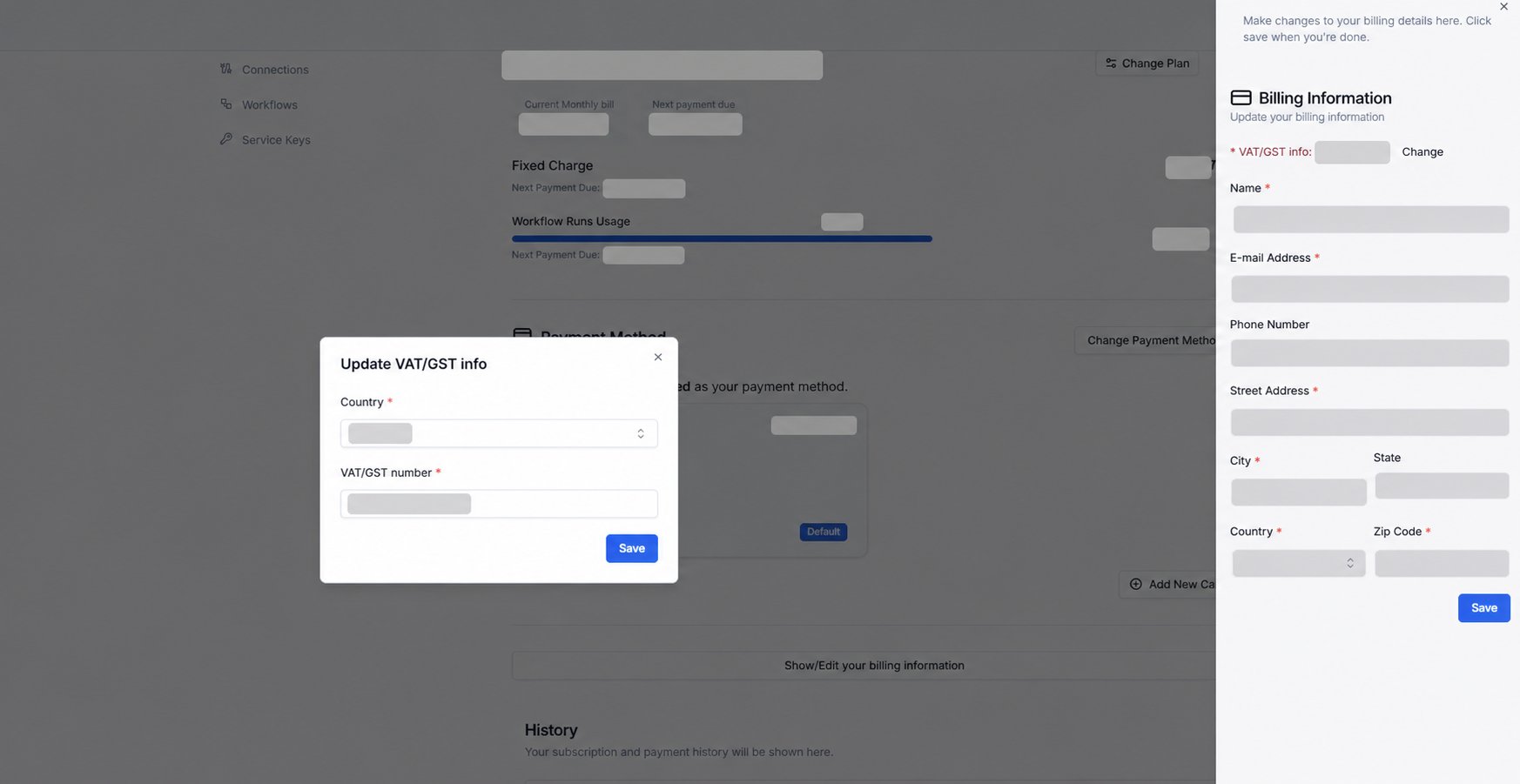 | Field | Notes |
| ------------------ | -------------------------------------------- |
| **Country** | Select the country your VAT is registered in |
| **VAT/GST Number** | Enter your registration number |
Click **Save** to update.
Billing updates apply on your next invoice cycle. Contact Cloudify directly if you need a change before an upcoming charge.
***
## 02 — Select a Plan
Billing → Current Subscriptions
Choose the subscription tier that matches your expected monthly workflow run volume.
| Field | Notes |
| ------------------ | -------------------------------------------- |
| **Country** | Select the country your VAT is registered in |
| **VAT/GST Number** | Enter your registration number |
Click **Save** to update.
Billing updates apply on your next invoice cycle. Contact Cloudify directly if you need a change before an upcoming charge.
***
## 02 — Select a Plan
Billing → Current Subscriptions
Choose the subscription tier that matches your expected monthly workflow run volume.
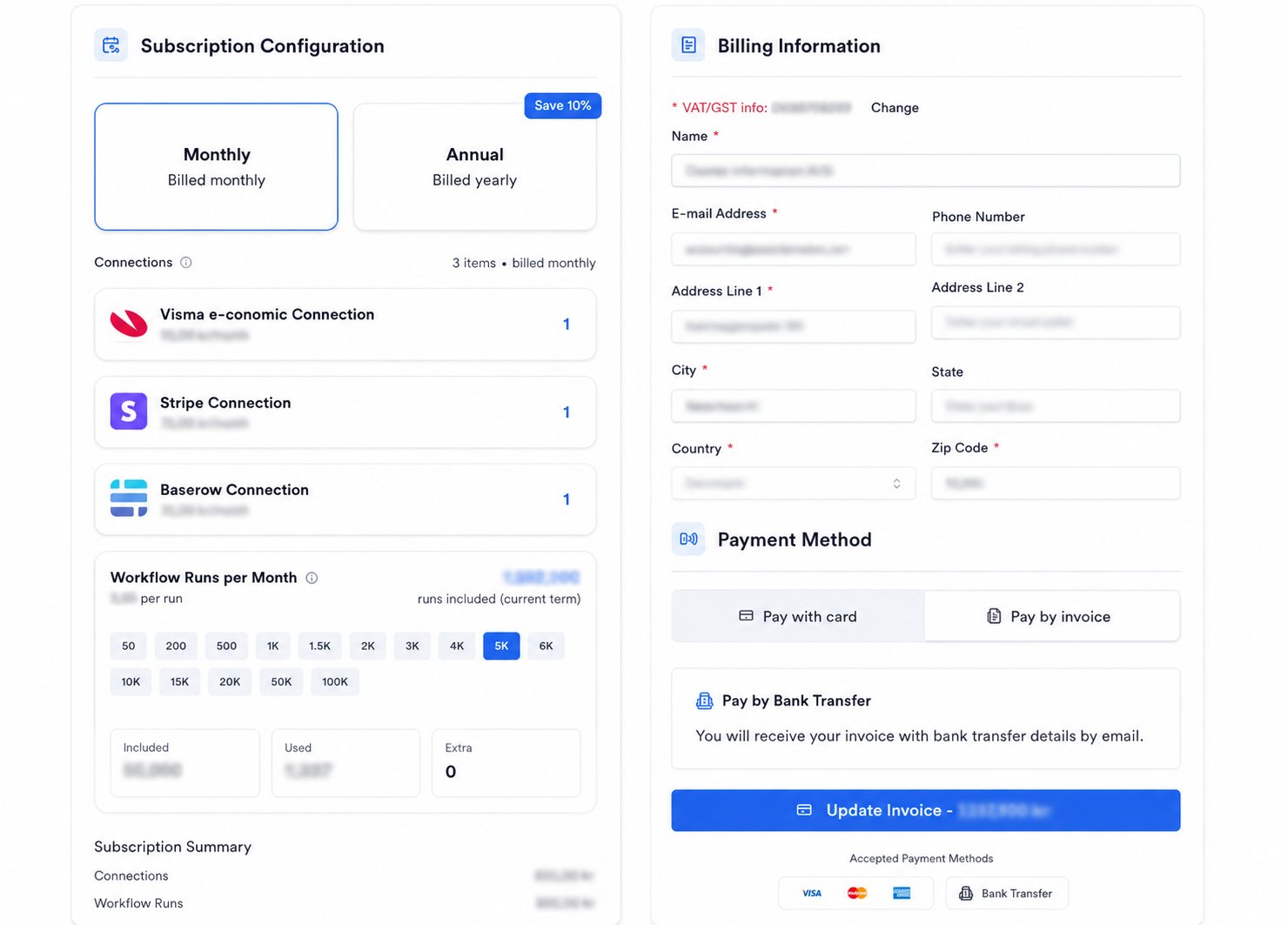 Payments are processed automatically each cycle. No manual action needed.
Receive an invoice and pay manually. An **administrative fee applies** — review Terms & Conditions for details.
### Billing Frequency
| | Monthly | Annual |
| --------------- | ------------------------ | -------------------------- |
| **Rate** | Standard per-month rate | Discounted rate vs monthly |
| **Flexibility** | Cancel or change anytime | Best value for ongoing use |
Annual billing offers a lower per-month rate. Ask your Cloudify account manager about annual plan options before selecting.
Keep your payment method up to date. If a payment fails, Cloudify will contact you — an outdated card may cause service interruption.
***
## Invoice History
The **Invoice History** table lists all invoices generated for your Lighthouse subscription.
Payments are processed automatically each cycle. No manual action needed.
Receive an invoice and pay manually. An **administrative fee applies** — review Terms & Conditions for details.
### Billing Frequency
| | Monthly | Annual |
| --------------- | ------------------------ | -------------------------- |
| **Rate** | Standard per-month rate | Discounted rate vs monthly |
| **Flexibility** | Cancel or change anytime | Best value for ongoing use |
Annual billing offers a lower per-month rate. Ask your Cloudify account manager about annual plan options before selecting.
Keep your payment method up to date. If a payment fails, Cloudify will contact you — an outdated card may cause service interruption.
***
## Invoice History
The **Invoice History** table lists all invoices generated for your Lighthouse subscription.
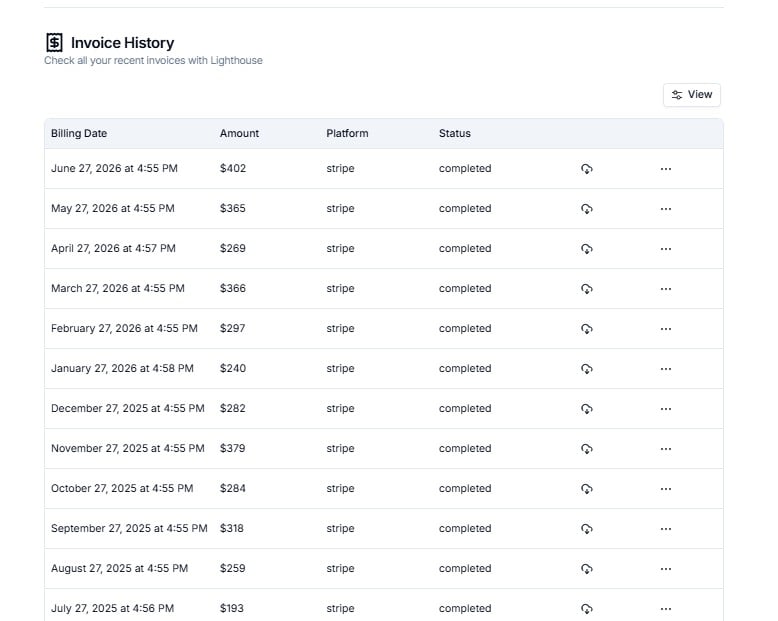 | Column | Description |
| ---------------- | --------------------------------------------------- |
| **Billing Date** | The date the invoice was generated |
| **Amount** | The amount charged for that billing period |
| **Platform** | The Lighthouse plan the invoice relates to |
| **Status** | Whether the invoice has been paid or is outstanding |
Click **View** in the top-right to show or hide columns: `CreatedAt`, `Amount`, `Platform`, `Status`.
***
## Frequently Asked Questions
This can happen if your subscription is managed at the organisation level or is being provisioned by Cloudify. Contact your account manager to confirm your billing status.
Yes. Contact Cloudify to change your payment method. Note that switching to Invoice billing carries an administrative fee.
Yes. Contact Cloudify to switch your billing cycle. Annual billing typically offers a discounted rate.
Yes. Contact Cloudify to update the billing currency on your account.
Find the invoice in the Invoice History table and click the row to view or download it. Contact Cloudify support if you need invoices in bulk or a specific format.
Cloudify will contact you if a payment fails. Keep your billing information and payment method up to date to avoid service interruption.
***
| Column | Description |
| ---------------- | --------------------------------------------------- |
| **Billing Date** | The date the invoice was generated |
| **Amount** | The amount charged for that billing period |
| **Platform** | The Lighthouse plan the invoice relates to |
| **Status** | Whether the invoice has been paid or is outstanding |
Click **View** in the top-right to show or hide columns: `CreatedAt`, `Amount`, `Platform`, `Status`.
***
## Frequently Asked Questions
This can happen if your subscription is managed at the organisation level or is being provisioned by Cloudify. Contact your account manager to confirm your billing status.
Yes. Contact Cloudify to change your payment method. Note that switching to Invoice billing carries an administrative fee.
Yes. Contact Cloudify to switch your billing cycle. Annual billing typically offers a discounted rate.
Yes. Contact Cloudify to update the billing currency on your account.
Find the invoice in the Invoice History table and click the row to view or download it. Contact Cloudify support if you need invoices in bulk or a specific format.
Cloudify will contact you if a payment fails. Keep your billing information and payment method up to date to avoid service interruption.
***