> ## Documentation Index
> Fetch the complete documentation index at: https://docs.cloudify.biz/llms.txt
> Use this file to discover all available pages before exploring further.
# Connections
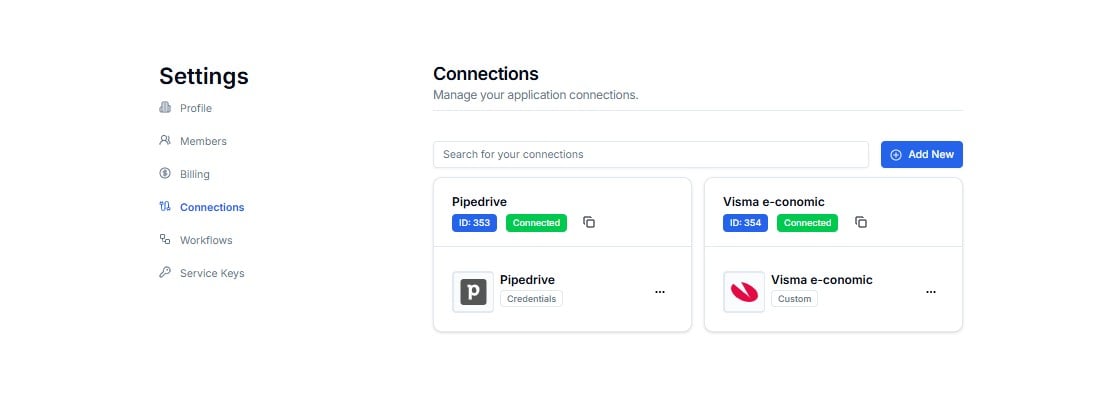
> View and manage all applications connected to Lighthouse — your CRM, accounting software, e-commerce platform, and more.
The **Connections** page shows every application linked to Lighthouse as part of your integration setup. Each connection is the authenticated bridge that allows Lighthouse to send and receive data between your systems.
 Connections are set up by the Cloudify team during onboarding. You do not need to configure them manually — this page is for viewing status and managing existing connections.
***
## Reading a Connection Card
Each card on the Connections page shows one linked application.
Connections are set up by the Cloudify team during onboarding. You do not need to configure them manually — this page is for viewing status and managing existing connections.
***
## Reading a Connection Card
Each card on the Connections page shows one linked application.
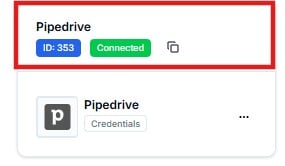 | Element | What It Shows |
| ------------------- | ------------------------------------------------------------------------------------- |
| **Name** | The label for this connection — e.g. `HubSpot - cloudify`, `Visma e-conomic cloudify` |
| **ID** | The unique internal ID — e.g. `ID: 538`. Reference this in support requests |
| **Status badge** | **Connected** (green) = active and authenticated. Ready to process runs |
| **App logo & name** | The external application this connection links to |
| **Auth method** | How Lighthouse authenticates — `OAuth2`, `Custom`, or `Credentials` |
***
## Auth Methods Explained
| Method | What It Means |
| --------------- | ------------------------------------------------------------------------- |
| **OAuth2** | Standard secure login flow — used by HubSpot, Xero, QuickBooks, Pipedrive |
| **Custom** | A proprietary method for apps like Visma e-conomic — managed by Cloudify |
| **Credentials** | API key or username/password — used by apps like Stripe and Pipedrive |
***
## Your Connections
Every app connected to your Lighthouse account appears here as a card. The exact connections you see will depend on your integration setup — each client account is different.
Connections are configured by Cloudify during your onboarding. You will only see the apps that are part of your specific integration. Contact Cloudify if you expect to see a connection that isn't listed here.
***
## The Three-Dot Menu
Every connection card has a **⋯** menu in the bottom-right corner with two actions.
| Element | What It Shows |
| ------------------- | ------------------------------------------------------------------------------------- |
| **Name** | The label for this connection — e.g. `HubSpot - cloudify`, `Visma e-conomic cloudify` |
| **ID** | The unique internal ID — e.g. `ID: 538`. Reference this in support requests |
| **Status badge** | **Connected** (green) = active and authenticated. Ready to process runs |
| **App logo & name** | The external application this connection links to |
| **Auth method** | How Lighthouse authenticates — `OAuth2`, `Custom`, or `Credentials` |
***
## Auth Methods Explained
| Method | What It Means |
| --------------- | ------------------------------------------------------------------------- |
| **OAuth2** | Standard secure login flow — used by HubSpot, Xero, QuickBooks, Pipedrive |
| **Custom** | A proprietary method for apps like Visma e-conomic — managed by Cloudify |
| **Credentials** | API key or username/password — used by apps like Stripe and Pipedrive |
***
## Your Connections
Every app connected to your Lighthouse account appears here as a card. The exact connections you see will depend on your integration setup — each client account is different.
Connections are configured by Cloudify during your onboarding. You will only see the apps that are part of your specific integration. Contact Cloudify if you expect to see a connection that isn't listed here.
***
## The Three-Dot Menu
Every connection card has a **⋯** menu in the bottom-right corner with two actions.
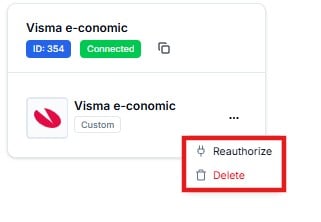 **Use this when a connection has lost its authentication** — for example, after a password change or an expired OAuth token.
Reauthorizing restores the connection without deleting it or affecting your workflows.
**Permanently removes the connection from Lighthouse.**
Only delete a connection if you are certain it is no longer needed. Any workflow using a deleted connection will immediately stop working.
**Before deleting a connection, contact Cloudify.** If an active workflow depends on it, deleting the connection will cause those runs to fail immediately. Cloudify will deactivate the affected workflows first.
If your workflows are failing with authentication errors, try **Reauthorize** first — this resolves most connection issues without needing a support ticket.
***
## Adding a New Connection
Click **+ Add New** in the top-right corner to request a new app connection.
Adding a connection does not automatically create a workflow. Contact Cloudify after adding a new connection so they can build and deploy the workflow that uses it.
***
## Searching & Pagination
* Use the **Search for your connections** field to find a connection by name.
* If you have more than one page of connections, use the **pagination bar** at the bottom to navigate.
**Use this when a connection has lost its authentication** — for example, after a password change or an expired OAuth token.
Reauthorizing restores the connection without deleting it or affecting your workflows.
**Permanently removes the connection from Lighthouse.**
Only delete a connection if you are certain it is no longer needed. Any workflow using a deleted connection will immediately stop working.
**Before deleting a connection, contact Cloudify.** If an active workflow depends on it, deleting the connection will cause those runs to fail immediately. Cloudify will deactivate the affected workflows first.
If your workflows are failing with authentication errors, try **Reauthorize** first — this resolves most connection issues without needing a support ticket.
***
## Adding a New Connection
Click **+ Add New** in the top-right corner to request a new app connection.
Adding a connection does not automatically create a workflow. Contact Cloudify after adding a new connection so they can build and deploy the workflow that uses it.
***
## Searching & Pagination
* Use the **Search for your connections** field to find a connection by name.
* If you have more than one page of connections, use the **pagination bar** at the bottom to navigate.
 ***
## Frequently Asked Questions
Check the Connections page and confirm all connections show a **Connected** badge. If any are missing or show a different status, use the **⋯ → Reauthorize** option or contact Cloudify with the connection ID and the affected workflow name.
Try **Reauthorize** first — it resolves most authentication failures instantly. If the connection still shows as broken after reauthorizing, then raise a support ticket with Cloudify including the connection ID.
Some apps like Visma e-conomic use a proprietary method instead of standard OAuth2. Cloudify sets up and maintains these connections on your behalf — you do not need to manage them manually.
Multiple connections for the same app (e.g. two Xero connections) are normal when you have separate credentials for different accounts or environments. Each has its own ID and status.
Contact Cloudify before deleting any connection. They will confirm whether any active workflows depend on it and deactivate them first to prevent failures.
***
## Next Steps
See which workflows use your connected apps and their current deployment status.
Contact Cloudify if a connection is broken or you need a new app connected.
***
## Frequently Asked Questions
Check the Connections page and confirm all connections show a **Connected** badge. If any are missing or show a different status, use the **⋯ → Reauthorize** option or contact Cloudify with the connection ID and the affected workflow name.
Try **Reauthorize** first — it resolves most authentication failures instantly. If the connection still shows as broken after reauthorizing, then raise a support ticket with Cloudify including the connection ID.
Some apps like Visma e-conomic use a proprietary method instead of standard OAuth2. Cloudify sets up and maintains these connections on your behalf — you do not need to manage them manually.
Multiple connections for the same app (e.g. two Xero connections) are normal when you have separate credentials for different accounts or environments. Each has its own ID and status.
Contact Cloudify before deleting any connection. They will confirm whether any active workflows depend on it and deactivate them first to prevent failures.
***
## Next Steps
See which workflows use your connected apps and their current deployment status.
Contact Cloudify if a connection is broken or you need a new app connected.