> ## Documentation Index
> Fetch the complete documentation index at: https://docs.cloudify.biz/llms.txt
> Use this file to discover all available pages before exploring further.
# Invoice/Order Settings
> Configure how invoices and orders are automatically created in e-conomic based on your HubSpot pipeline stages, and map the right fields for accurate invoicing.
## Why Invoice/Order Sync Rules Matter
Trigger invoice or order creation in e-conomic at exactly the right moment in your sales process.
Automatically create or update customer information in e-conomic based on your HubSpot deals.
Eliminate manual data entry and reduce the risk of errors across both platforms.
***
## Setting Up Invoice/Order Sync Rules
Go to the **Invoice/Order sync rules** tab in your integration settings
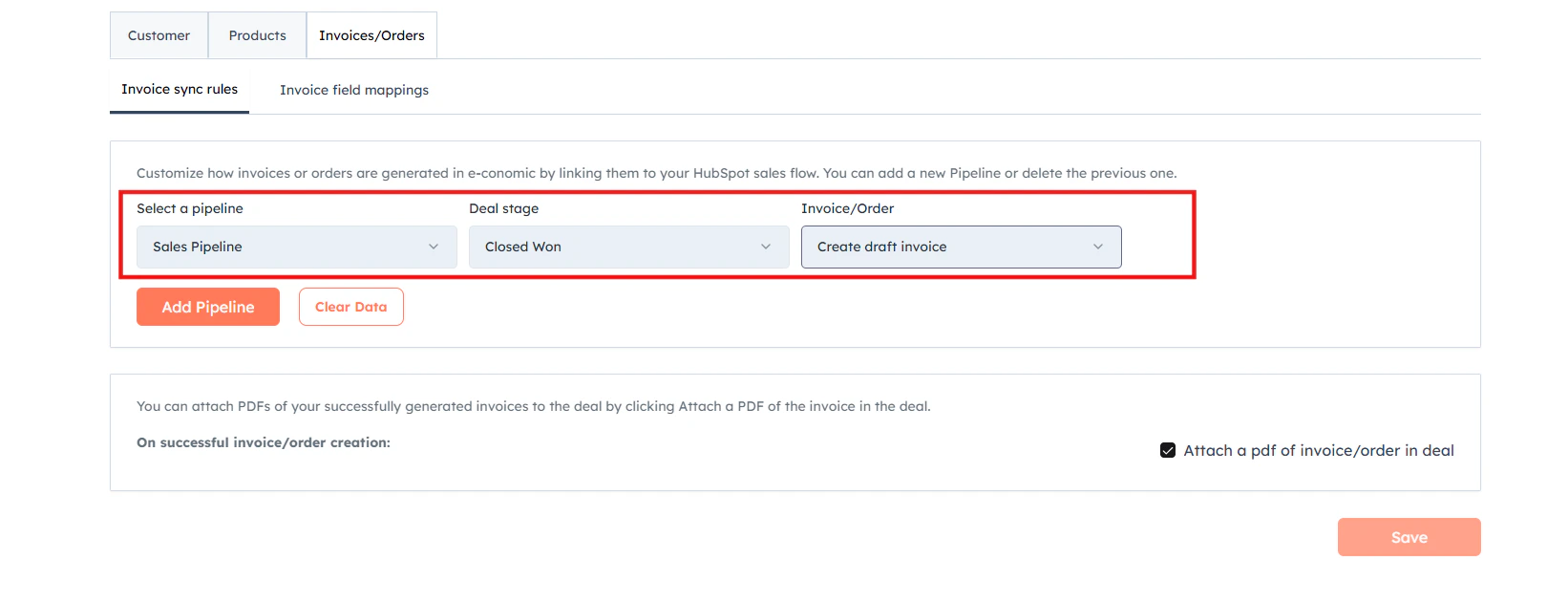
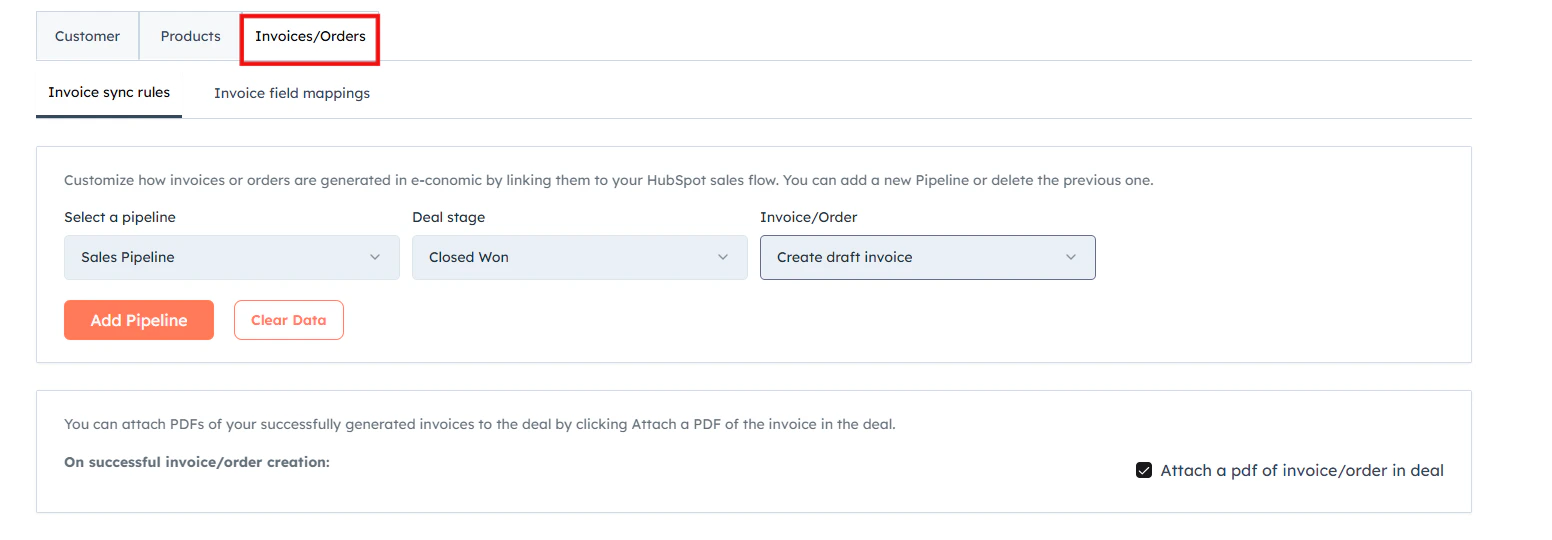 For each rule, configure the following:
* **Pipeline** — select the HubSpot pipeline you want to trigger from.
* **Deal Stage** — choose the specific stage in the pipeline that will trigger the integration.
* **Generate** — decide whether to create a draft invoice, quote or a order in e-conomic.
Once selected your preferred settings Click **"Add Pipeline**".
For each rule, configure the following:
* **Pipeline** — select the HubSpot pipeline you want to trigger from.
* **Deal Stage** — choose the specific stage in the pipeline that will trigger the integration.
* **Generate** — decide whether to create a draft invoice, quote or a order in e-conomic.
Once selected your preferred settings Click **"Add Pipeline**".
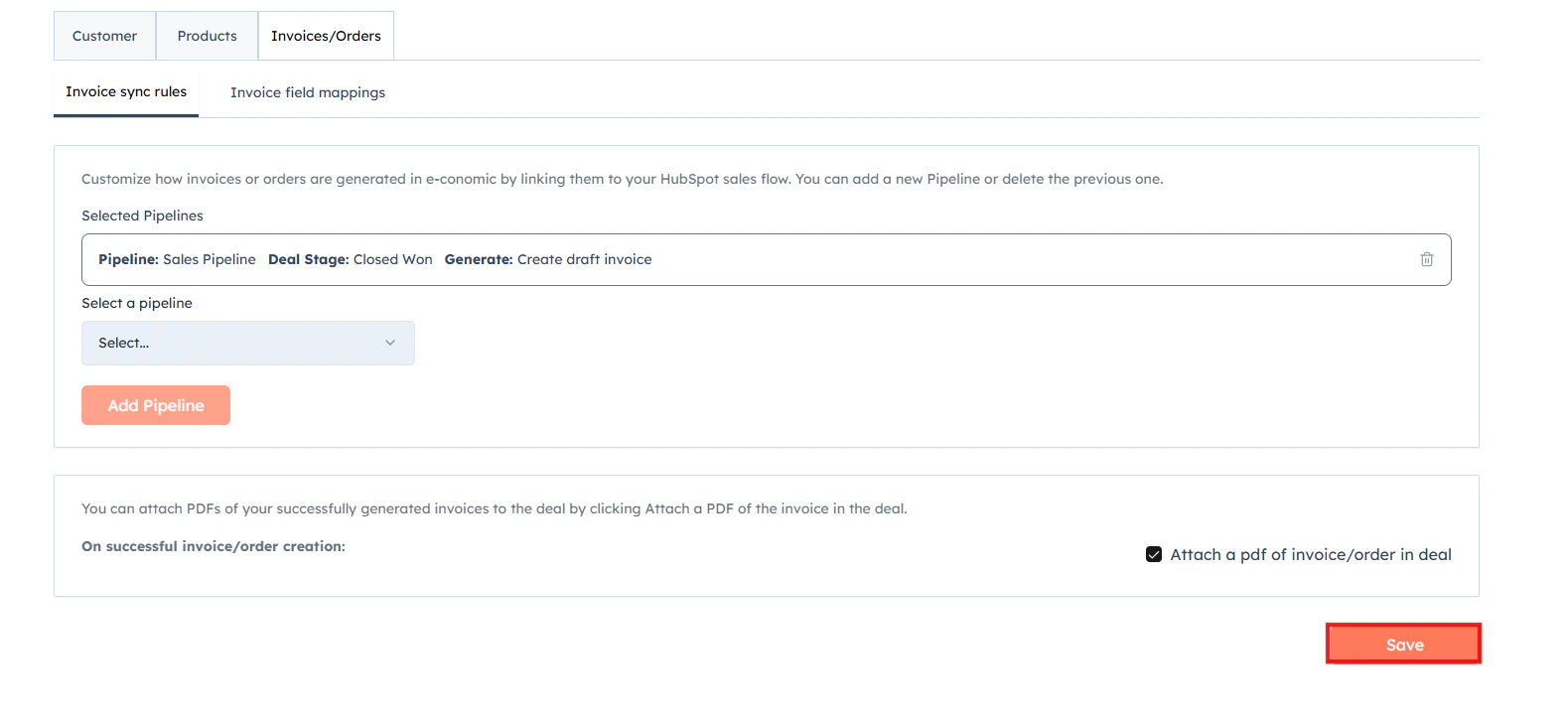
 You can add multiple rules for different pipelines or stages as needed.
You can attach PDFs of your successfully generated invoices to the deal by clicking "**Attach a PDF of the invoice in deal"**.
After setting up your rules, **save** your changes to apply them.
You can add multiple rules for different pipelines or stages as needed.
You can attach PDFs of your successfully generated invoices to the deal by clicking "**Attach a PDF of the invoice in deal"**.
After setting up your rules, **save** your changes to apply them.
 ***
## Invoice/Order/Quote Field Mappings
#### Why Invoice/Order/Quote Field Mappings Matter
* **Ensure data consistency** — match the right information between HubSpot and e-conomic.
* **Customize for your needs** — adapt the integration to fit your unique invoicing process.
* **Save time** — automate the transfer of invoice data, reducing manual entry and potential errors.
* **Guarantee accuracy** — correct field mapping is crucial for ensuring accurate invoices in e-conomic.
### Setting Up Invoice/Order Field Mappings
Click "**Edit**"
***
## Invoice/Order/Quote Field Mappings
#### Why Invoice/Order/Quote Field Mappings Matter
* **Ensure data consistency** — match the right information between HubSpot and e-conomic.
* **Customize for your needs** — adapt the integration to fit your unique invoicing process.
* **Save time** — automate the transfer of invoice data, reducing manual entry and potential errors.
* **Guarantee accuracy** — correct field mapping is crucial for ensuring accurate invoices in e-conomic.
### Setting Up Invoice/Order Field Mappings
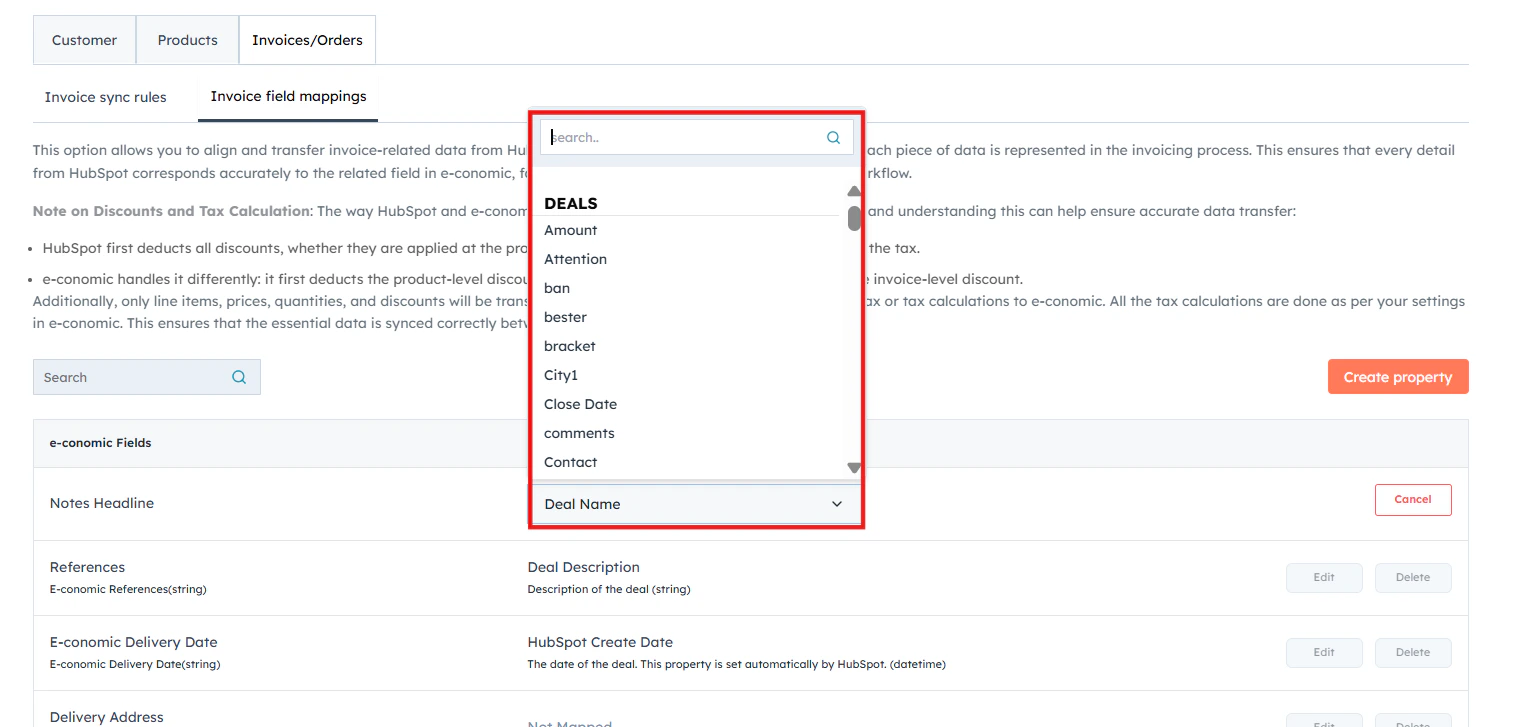
Click "**Edit**"
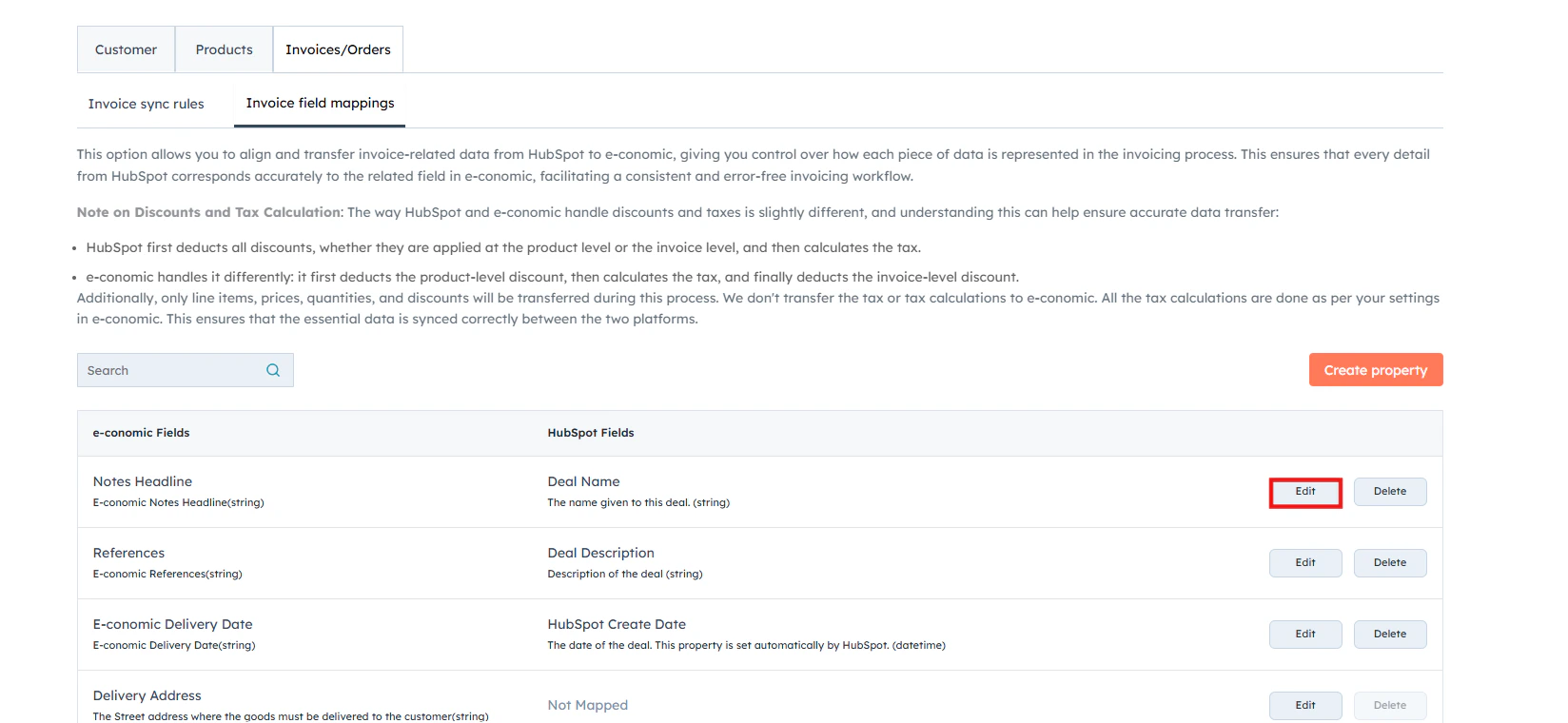 Select the option from the drop-down box.
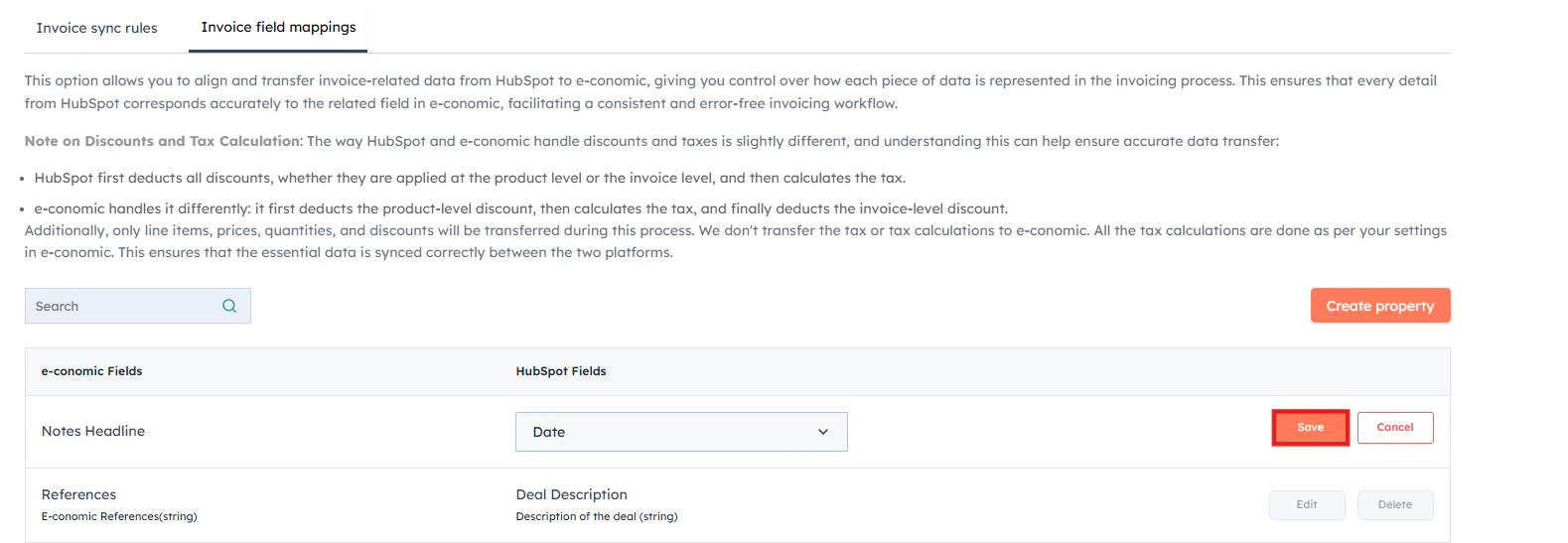
 Click "**Save**" once you have edited your preferred options.
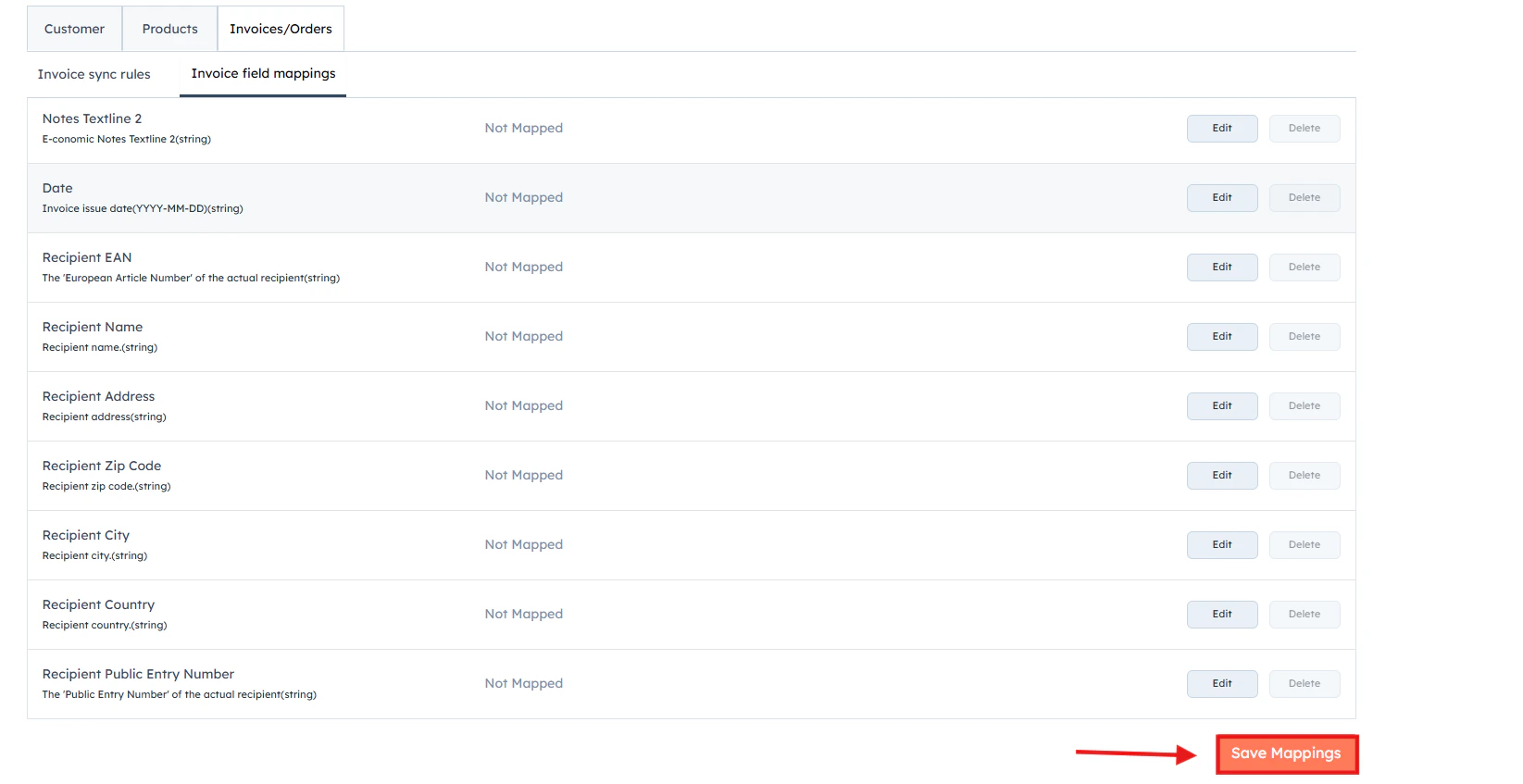
 Click **“Save Mappings”** to confirm your settings and apply the configured field mappings.
 Correct field mapping is essential for ensuring accurate invoices in e-conomic. Review and optimise these mappings regularly. If you're unsure about which fields to map or how to handle specific scenarios, [contact our support team](https://meetings.hubspot.com/cloudify/app-assistance) — we're here to help you get the most out of your integration.