> ## Documentation Index
> Fetch the complete documentation index at: https://docs.cloudify.biz/llms.txt
> Use this file to discover all available pages before exploring further.
# Product Settings
## Why Product Sync Settings Matter
Define how products from HubSpot are matched with those in e-conomic, enabling field-based matching or direct connection for accurate product syncing and invoicing.
Ensure products are correctly matched between HubSpot and e-conomic every time.
Automatically create invoices and orders without manual product lookups.
Maintain uniform product information across both platforms at all times.
Define fallback behavior for scenarios where products don't match exactly.
***
## Setting Up Product Sync Settings
Go to the **Product sync rules** tab in your integration settings.
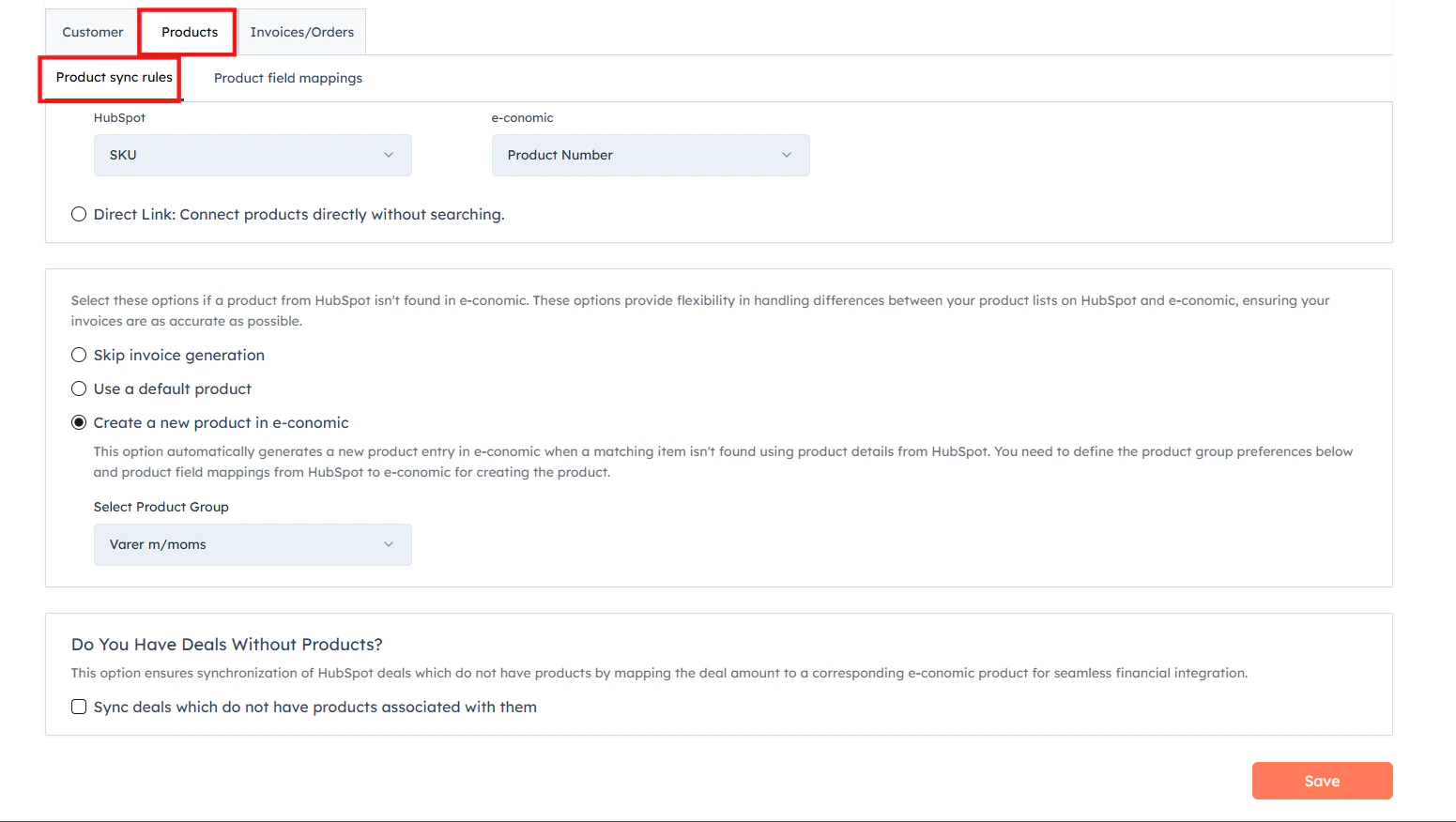 This method is best when you have a large number of products and want to automatically match them based on a unique identifier.
1. Go to the **Product sync rules** tab.
2. Select **Select search parameters**.
3. Choose a HubSpot field (e.g., SKU) and match it with an e-conomic field (e.g., Product Number).
4. When creating an invoice or order, the integration will use this identifier to find the correct product in e-conomic.
This method is best when you have a large number of products and want to automatically match them based on a unique identifier.
1. Go to the **Product sync rules** tab.
2. Select **Select search parameters**.
3. Choose a HubSpot field (e.g., SKU) and match it with an e-conomic field (e.g., Product Number).
4. When creating an invoice or order, the integration will use this identifier to find the correct product in e-conomic.
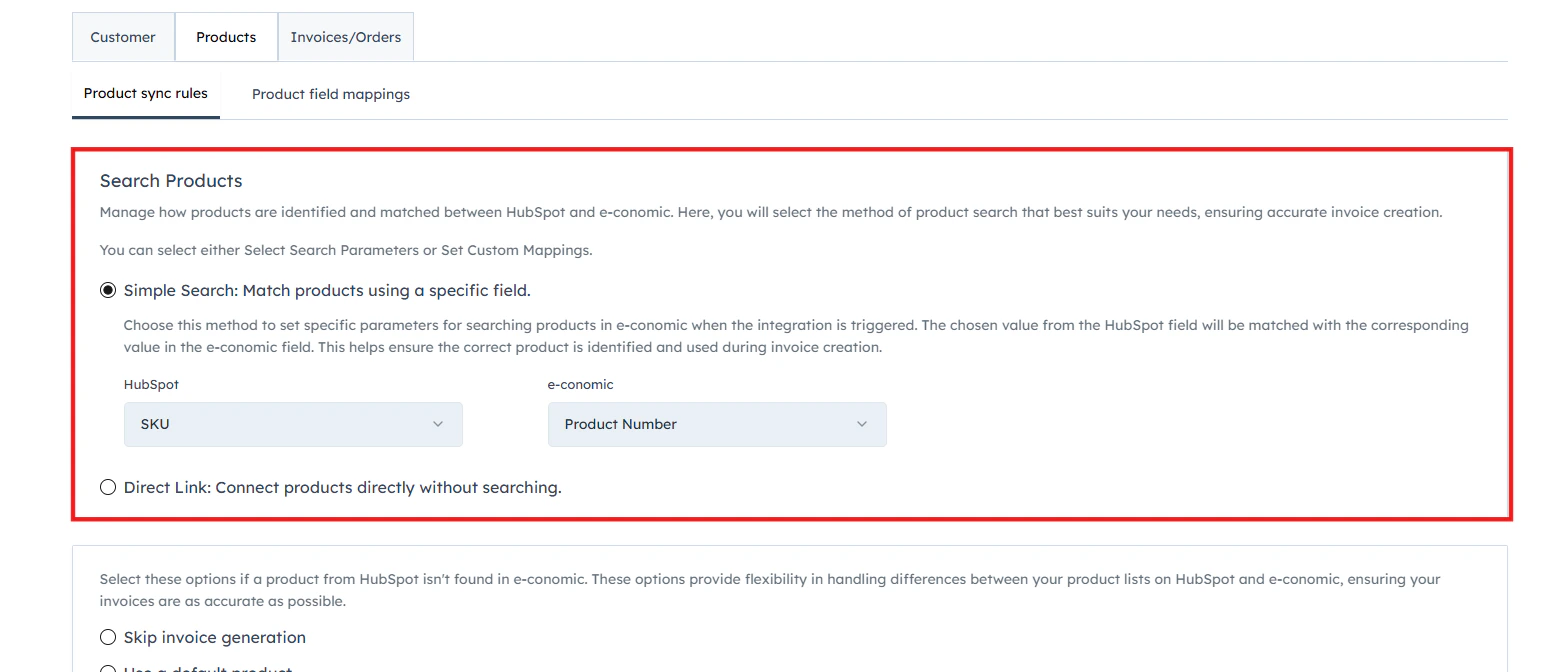 **Example:** If you set SKU (HubSpot) to match with Product Number (e-conomic), a product with SKU `ABC123` in HubSpot will be matched with a product that has Product Number `ABC123` in e-conomic.
Scroll down in the **Product sync rules** tab and choose one of the three fallback options:
If no matching product is found in e-conomic, the invoice will not be generated.
When a product is not found, the integration will fall back to a default product from e-conomic to generate the invoice.
The integration will automatically create a new product entry in e-conomic using product details from HubSpot.
**Example:** If you set SKU (HubSpot) to match with Product Number (e-conomic), a product with SKU `ABC123` in HubSpot will be matched with a product that has Product Number `ABC123` in e-conomic.
Scroll down in the **Product sync rules** tab and choose one of the three fallback options:
If no matching product is found in e-conomic, the invoice will not be generated.
When a product is not found, the integration will fall back to a default product from e-conomic to generate the invoice.
The integration will automatically create a new product entry in e-conomic using product details from HubSpot.
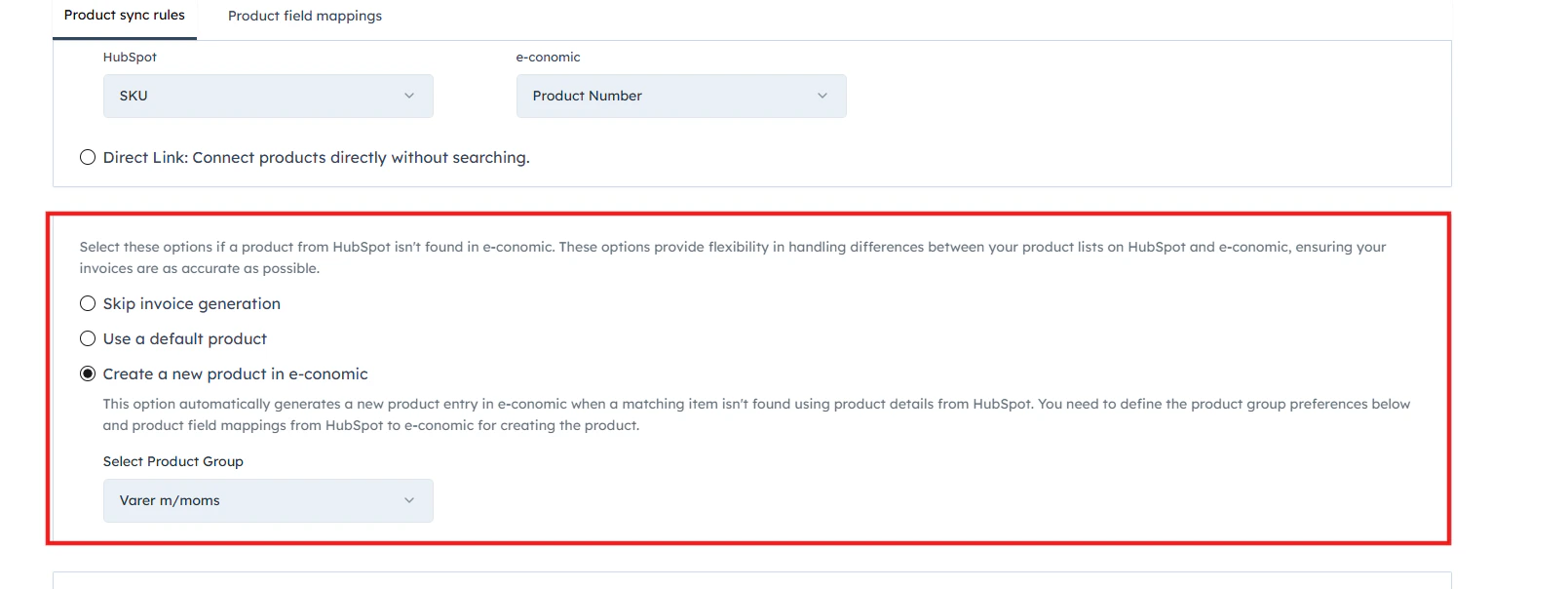 Follow the on-screen prompts to set up the necessary details for your chosen option.
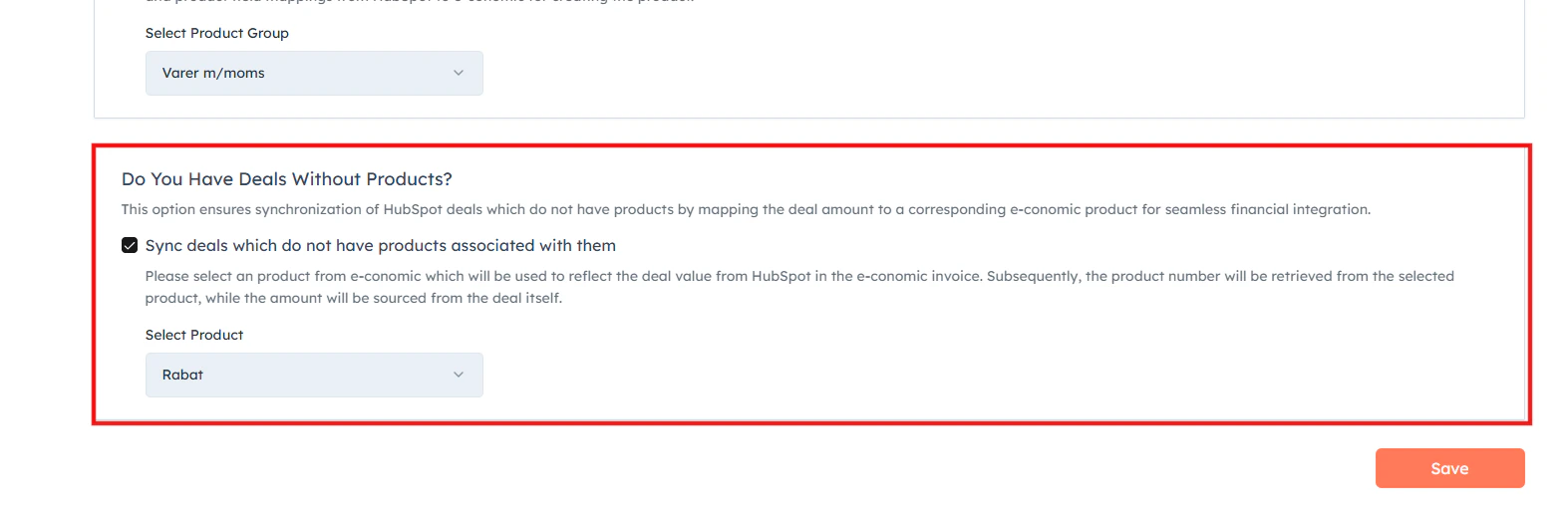
At the bottom of the **Product sync rules** tab, find the **Deal Syncing When Products Are Unavailable** section.
1. Check the box to **Sync the deals which do not have products associated with them**.
2. Select a default product from e-conomic to use in these cases.
Follow the on-screen prompts to set up the necessary details for your chosen option.
At the bottom of the **Product sync rules** tab, find the **Deal Syncing When Products Are Unavailable** section.
1. Check the box to **Sync the deals which do not have products associated with them**.
2. Select a default product from e-conomic to use in these cases.
 ***
## Product Field Mappings
### Why Product Field Mappings Matter
* **Ensure data consistency** — align product information between HubSpot and e-conomic.
* **Customize for your needs** — tailor the product data transfer to fit your specific requirements.
* **Maintain data accuracy** — ensure essential product information is correctly represented in e-conomic for proper accounting.
### Setting Up Product Field Mappings
Go to the **Product field mappings** tab in your integration settings.
***
## Product Field Mappings
### Why Product Field Mappings Matter
* **Ensure data consistency** — align product information between HubSpot and e-conomic.
* **Customize for your needs** — tailor the product data transfer to fit your specific requirements.
* **Maintain data accuracy** — ensure essential product information is correctly represented in e-conomic for proper accounting.
### Setting Up Product Field Mappings
Go to the **Product field mappings** tab in your integration settings.
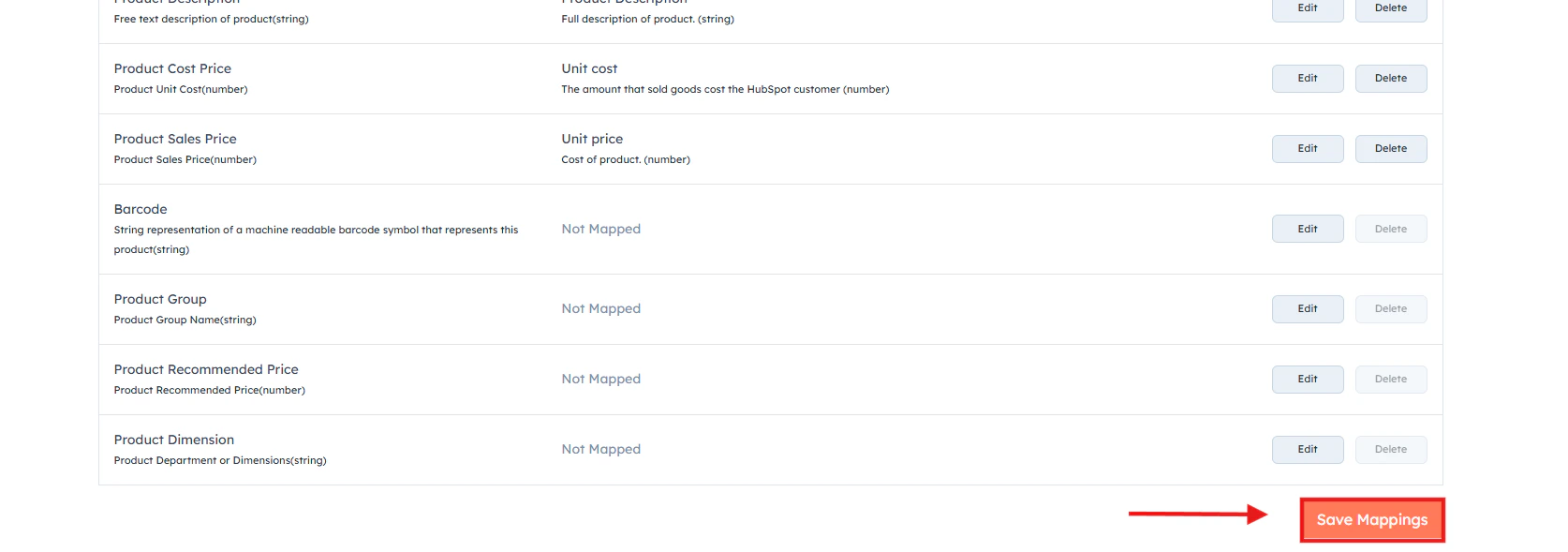
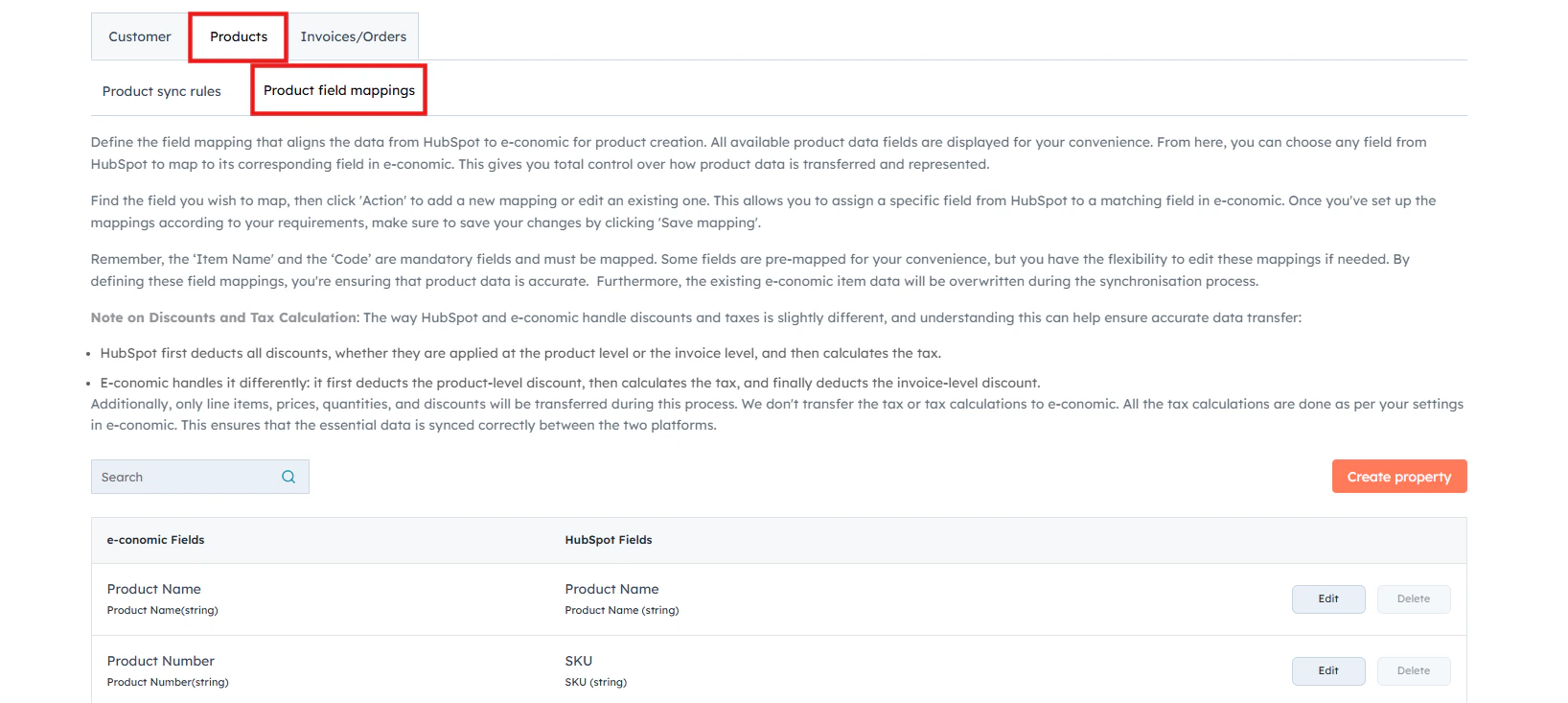 For each e-conomic field, the default HubSpot field will be shown (if applicable). Click **Edit** to change the mapping or **Delete** to remove it.
Pay special attention to these required fields:
* **Name** *(default mapped to Name in HubSpot)*
* **Product Number** *(typically mapped to SKU in HubSpot)*
* **Product Group**
After setting your preferred mappings, click **Save Mappings** to apply your changes.
For each e-conomic field, the default HubSpot field will be shown (if applicable). Click **Edit** to change the mapping or **Delete** to remove it.
Pay special attention to these required fields:
* **Name** *(default mapped to Name in HubSpot)*
* **Product Number** *(typically mapped to SKU in HubSpot)*
* **Product Group**
After setting your preferred mappings, click **Save Mappings** to apply your changes.