> ## Documentation Index
> Fetch the complete documentation index at: https://docs.cloudify.biz/llms.txt
> Use this file to discover all available pages before exploring further.

# Connect Visma E Conomic

### Installation process

<Steps>
  <Step>
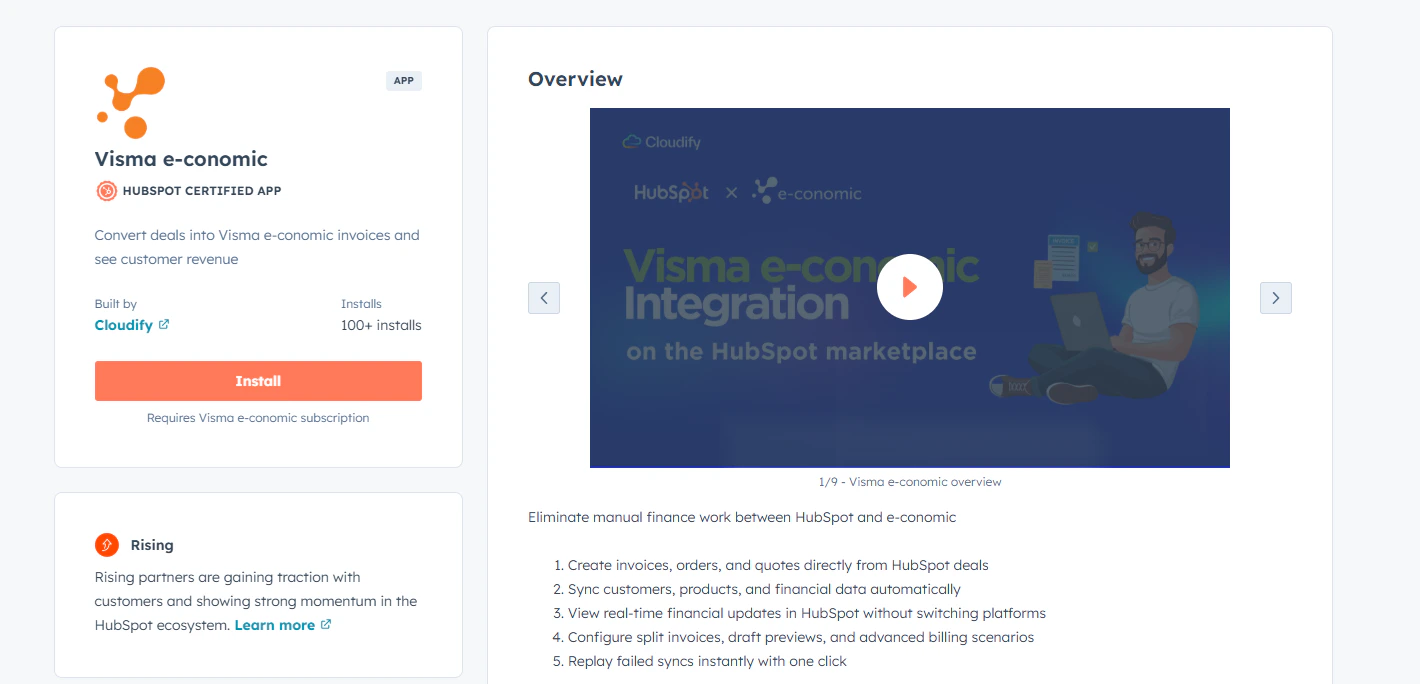
    Log in to your HubSpot account and search for the **‘Visma e-conomic**’ app in HubSpot Marketplace. If you have already logged in to your Hubspot account, visit the application link directly.
  </Step>

  <Step>
    Click **Install app.**

    <Frame>
      <img src="https://mintcdn.com/cloudify-c7720744/ExXRtekWGFYIGcBx/images/Screenshot2026-03-04155028.png?fit=max&auto=format&n=ExXRtekWGFYIGcBx&q=85&s=251fc168c8b30787e72a7cc91a46d80b" alt="Screenshot2026 03 04155028" width="1420" height="684" data-path="images/Screenshot2026-03-04155028.png" />
    </Frame>
  </Step>

  <Step>
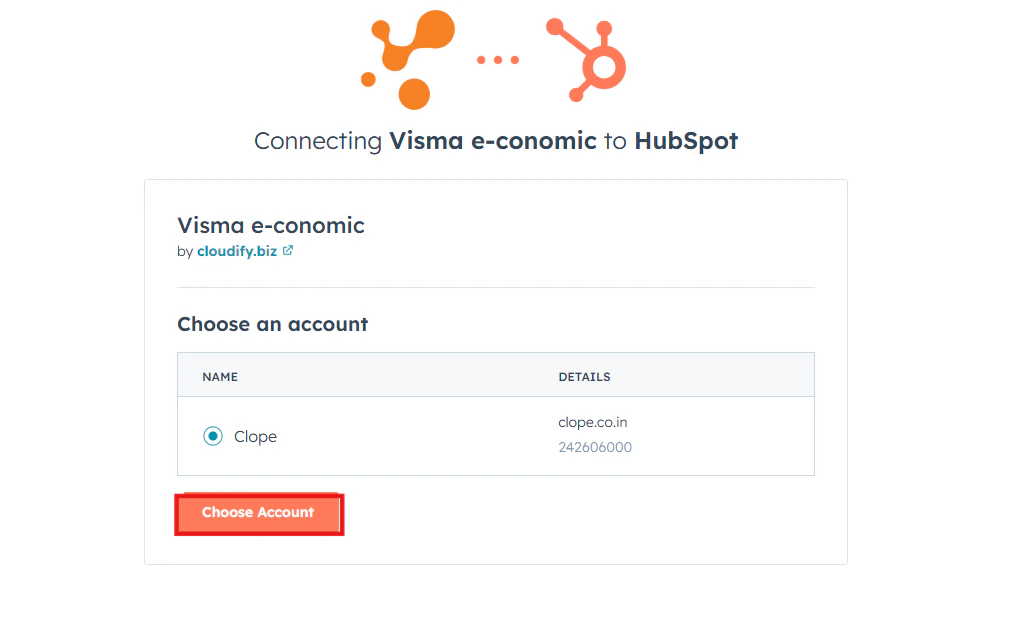
    Select the account you want to use to install the e-conomic app and click **‘Choose account’.**
    <Frame>
      <img src="https://mintcdn.com/cloudify-c7720744/vks3jfLasIs4E_8_/images/image-201.png?fit=max&auto=format&n=vks3jfLasIs4E_8_&q=85&s=d4b72cf7528682a3772ffbd300a08168" alt="Image" width="1036" height="640" data-path="images/image-201.png" />
    </Frame>
  </Step>

  <Step>
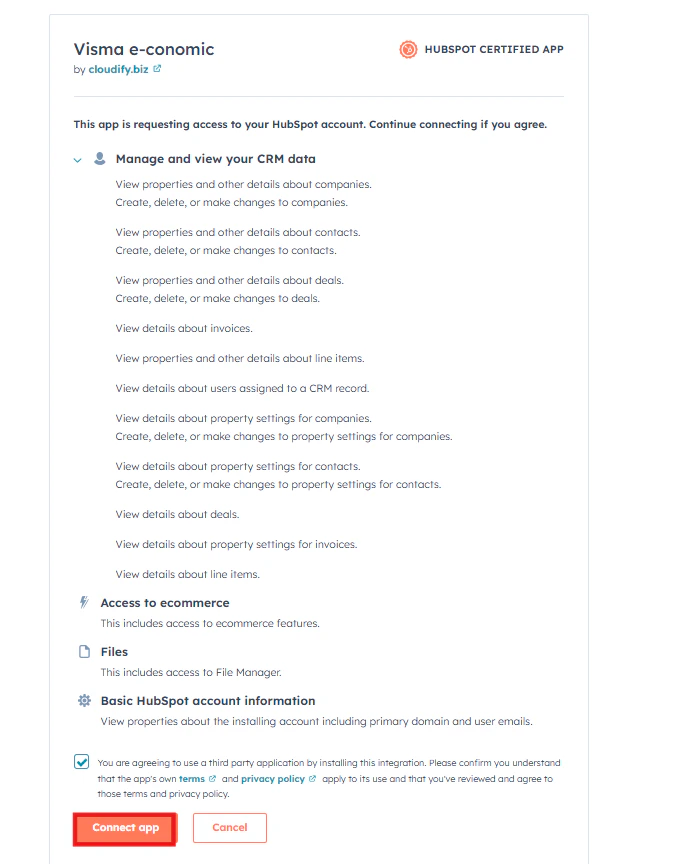
    Mark the tick option and click **"Connect App".**
    <Frame>
      <img src="https://mintcdn.com/cloudify-c7720744/vks3jfLasIs4E_8_/images/image-202.png?fit=max&auto=format&n=vks3jfLasIs4E_8_&q=85&s=f59005011430fe61b3b3a1573aa49da5" alt="Image" width="678" height="864" data-path="images/image-202.png" />
    </Frame>
  </Step>

  <Step>
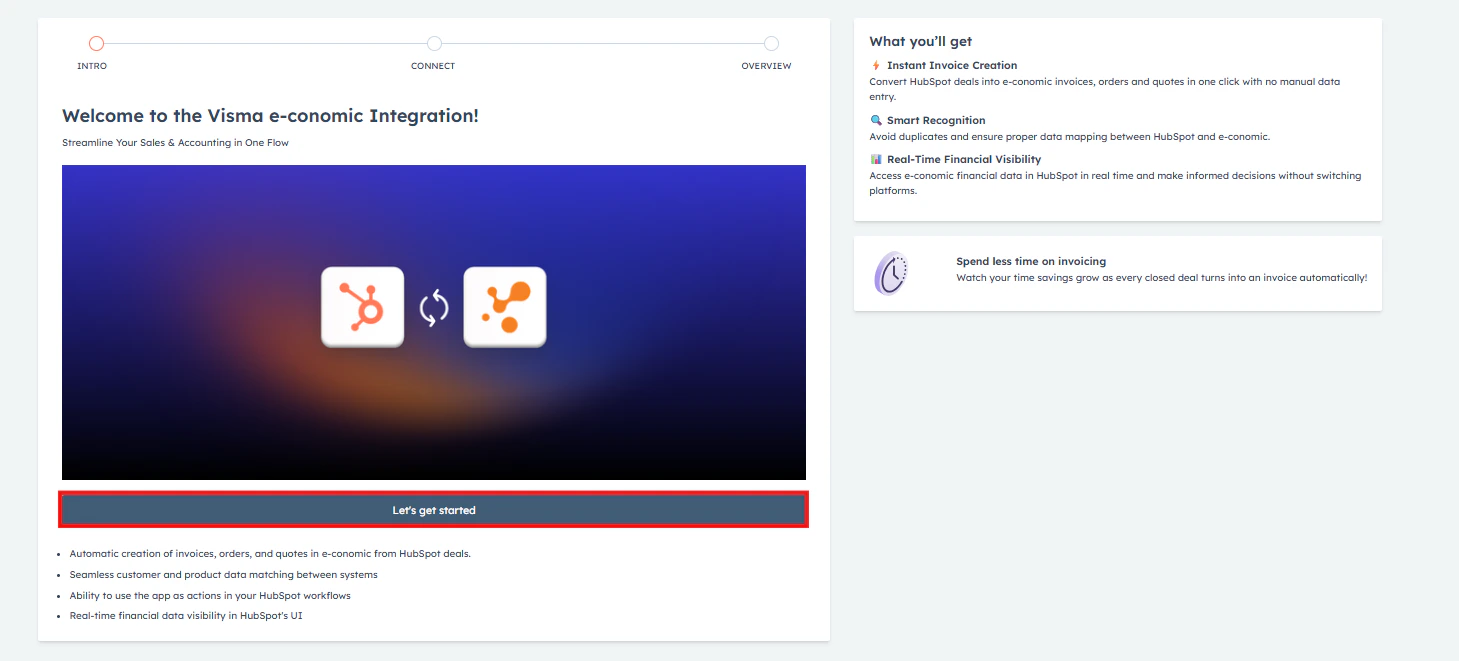
    Click on "**Let's get started"**.

    <Frame>
      <img src="https://mintcdn.com/cloudify-c7720744/vks3jfLasIs4E_8_/images/image-203.png?fit=max&auto=format&n=vks3jfLasIs4E_8_&q=85&s=257211f1aa945caa161ef4ed1b4c17fb" alt="Image" width="1459" height="661" data-path="images/image-203.png" />
    </Frame>
  </Step>
</Steps>

### Connecting Visma e-conomic account

<Steps>
  <Step>
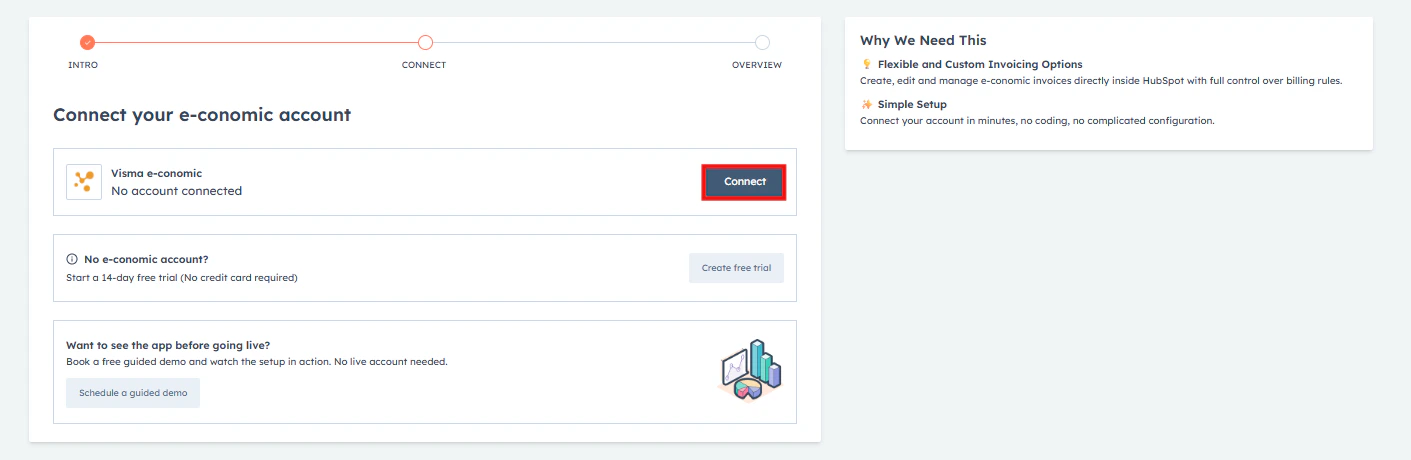
    Click on “**Connect**” to connect your e-conomic account.
    <Frame>
      <img src="https://mintcdn.com/cloudify-c7720744/vks3jfLasIs4E_8_/images/image-204.png?fit=max&auto=format&n=vks3jfLasIs4E_8_&q=85&s=ee0007040d70d884395872d6da470600" alt="Image" width="1411" height="460" data-path="images/image-204.png" />
    </Frame>
  </Step>

  <Step>
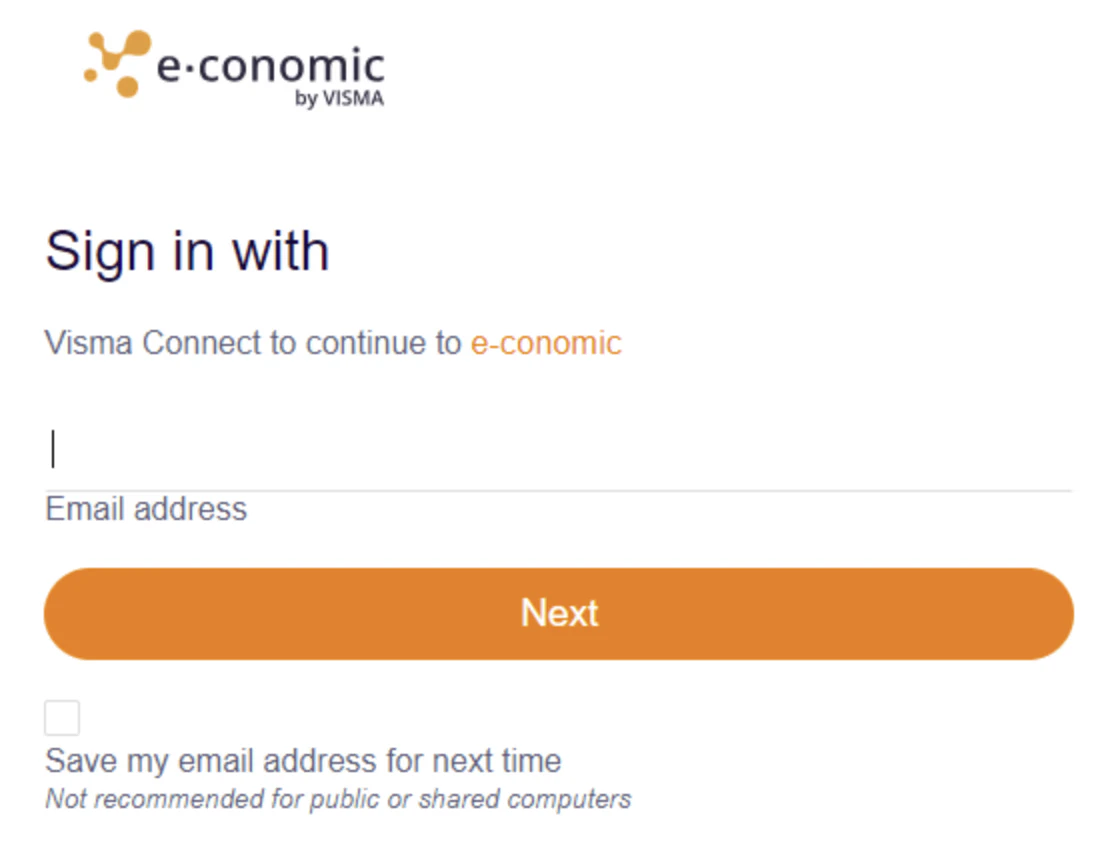
    You will be asked to input your e-conomic credentials. First, fill in the email ID connected to your e-conomic account. Click "**Next**".
    <Frame>
      <img src="https://mintcdn.com/cloudify-c7720744/vks3jfLasIs4E_8_/images/image-205.png?fit=max&auto=format&n=vks3jfLasIs4E_8_&q=85&s=d734faab82f2bc63e79ae7d00e84931d" alt="Image" width="1118" height="844" data-path="images/image-205.png" />
    </Frame>
  </Step>

  <Step>
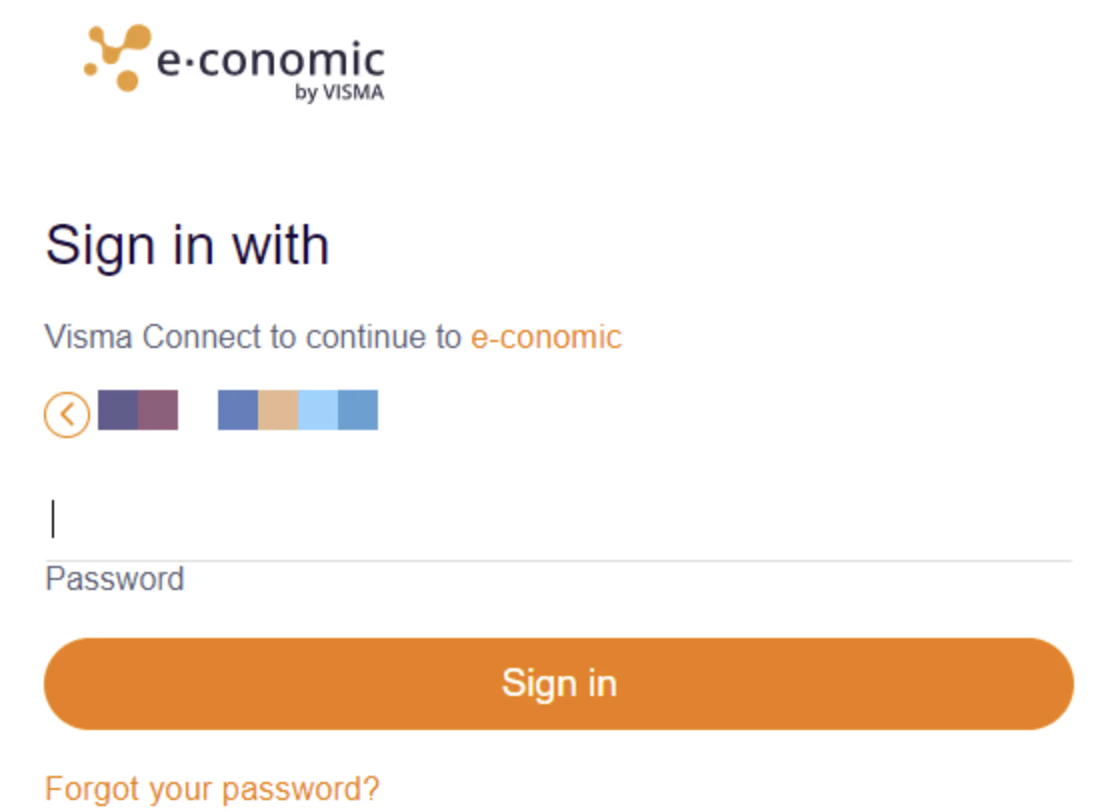
    Input the password and click **"Sign In"**
    <Frame>
      <img src="https://mintcdn.com/cloudify-c7720744/BIml29dpehfl6ukC/images/image-298.png?fit=max&auto=format&n=BIml29dpehfl6ukC&q=85&s=7cd731e9284d9ef141ce75b721182e4e" alt="Image" width="1120" height="812" data-path="images/image-298.png" />
    </Frame>
  </Step>

  <Step>
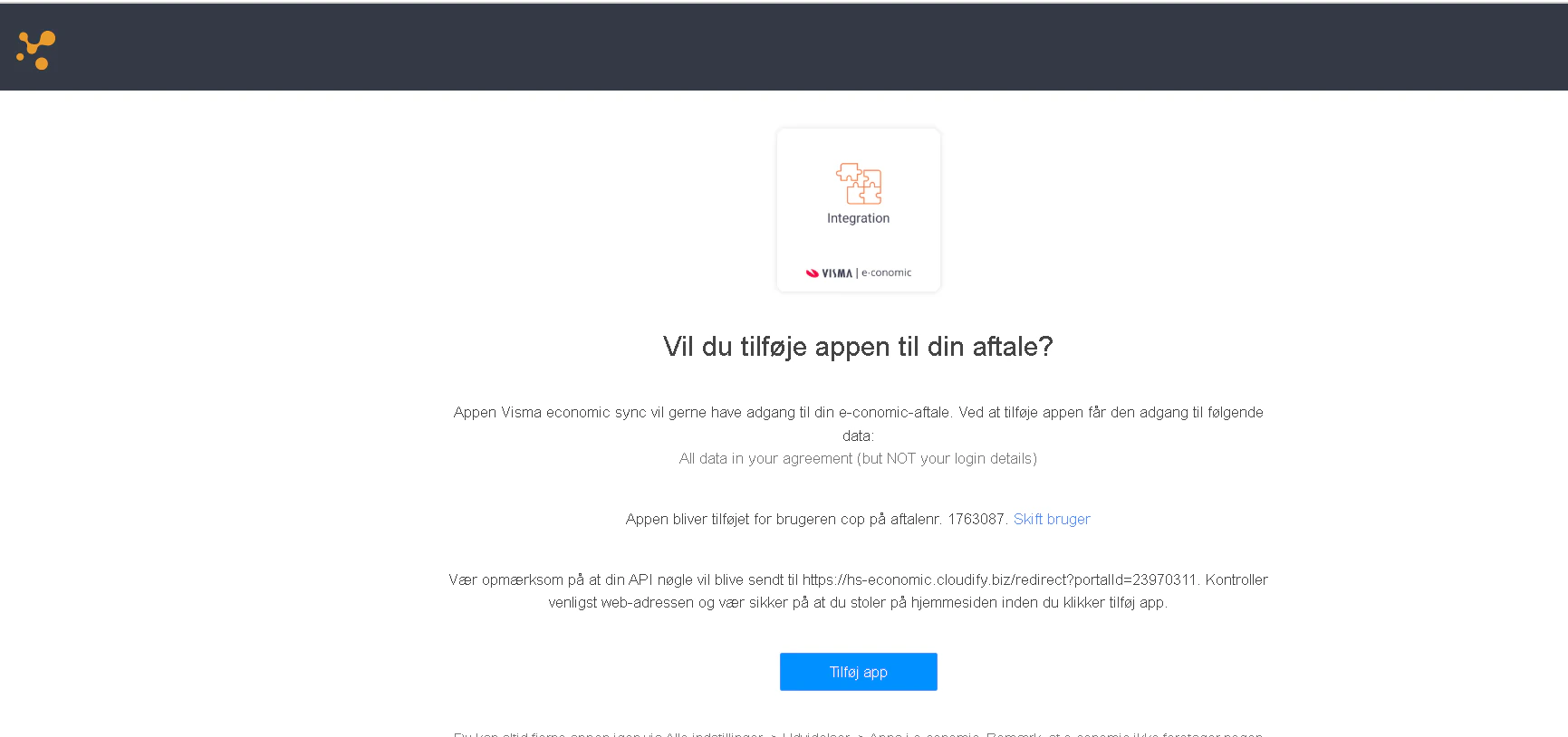
    Permission will be asked from you to add the app to your agreement. Click **"Add App".**
    <Frame>
      <img src="https://mintcdn.com/cloudify-c7720744/BIml29dpehfl6ukC/images/image-299.png?fit=max&auto=format&n=BIml29dpehfl6ukC&q=85&s=e0520ea218e593e2bd13f93c45d5897c" alt="Image" width="1731" height="814" data-path="images/image-299.png" />
    </Frame>
  </Step>

  <Step>
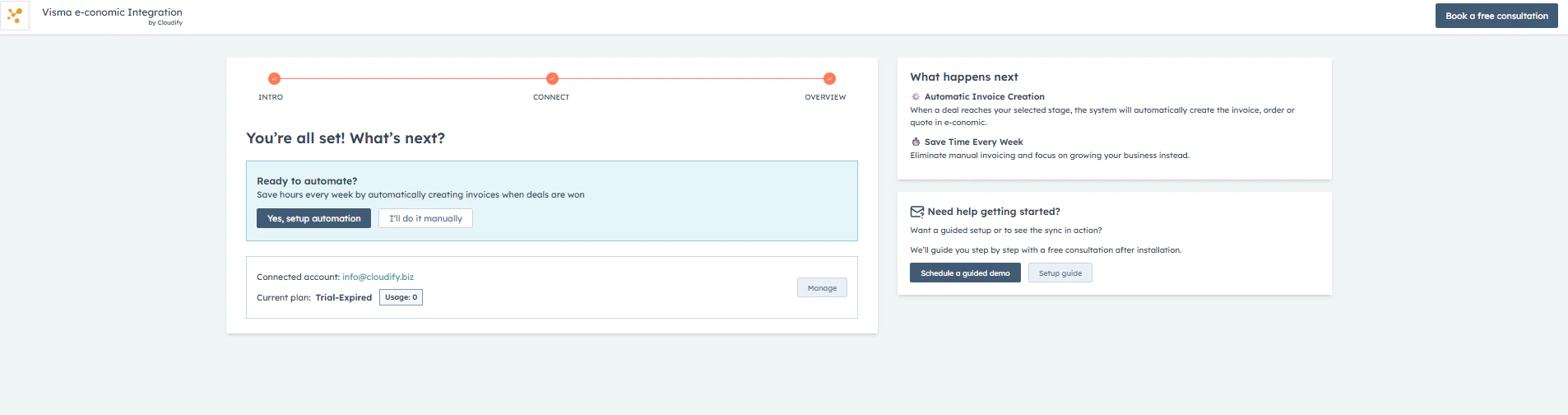
    Once you have connected your e-conomic account, you will be automatically redirected to the final step.
  </Step>

  <Step stepNumber={6}>
    Click on “**Yes, setup automation**” or **“I’ll do it manually**” to proceed. Choose the option that best fits your workflow.
    <Frame>
      <img src="https://mintcdn.com/cloudify-c7720744/ExXRtekWGFYIGcBx/images/Screenshot2026-03-04160207.png?fit=max&auto=format&n=ExXRtekWGFYIGcBx&q=85&s=354e68f48e7d1d0cc00a3588a4fdd6b9" alt="Screenshot2026 03 04160207" width="1906" height="504" data-path="images/Screenshot2026-03-04160207.png" />
    </Frame>
  </Step>
</Steps>