> ## Documentation Index
> Fetch the complete documentation index at: https://docs.cloudify.biz/llms.txt
> Use this file to discover all available pages before exploring further.
# Product Settings
**Product sync settings are important because they:**
1. Ensure accurate product matching between HubSpot and Fortnox
2. Streamline invoice and order creation
3. Maintain consistent product data across platforms
4. Handle scenarios where products may not match exactly
***
## Setting Up Product Sync Settings
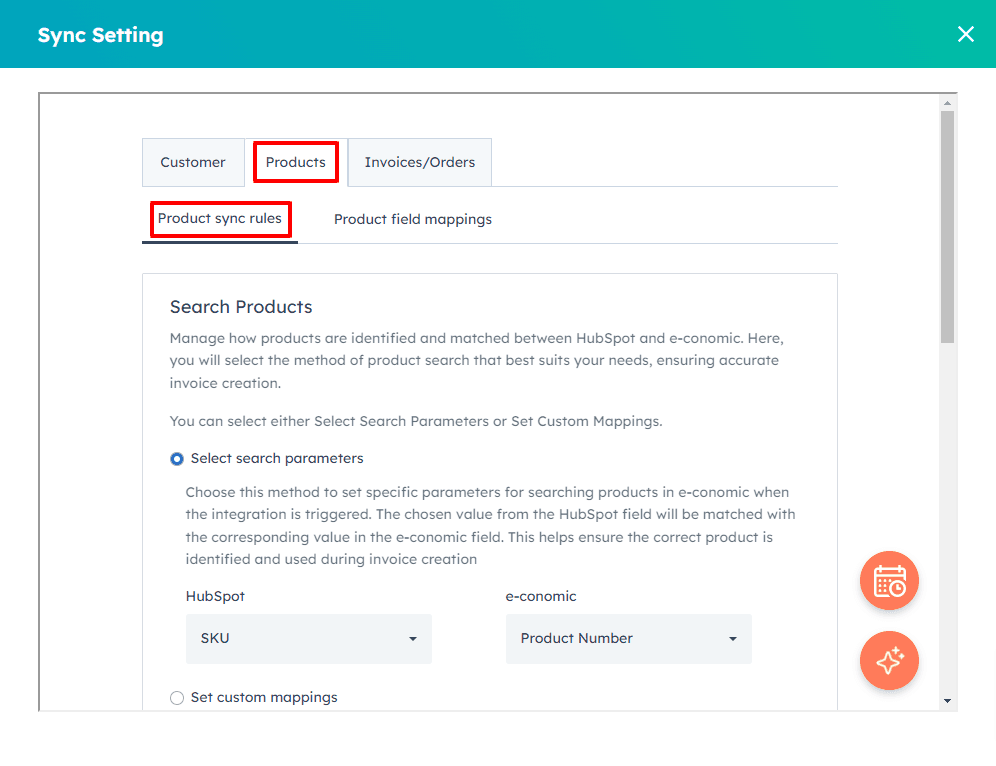
### Option 1: Searching for Products
This method is best when you have a large number of products and want to match them automatically based on a unique identifier.
Go to the **"Product Sync Rules"** tab.
Select **"Select Search Parameters"**.
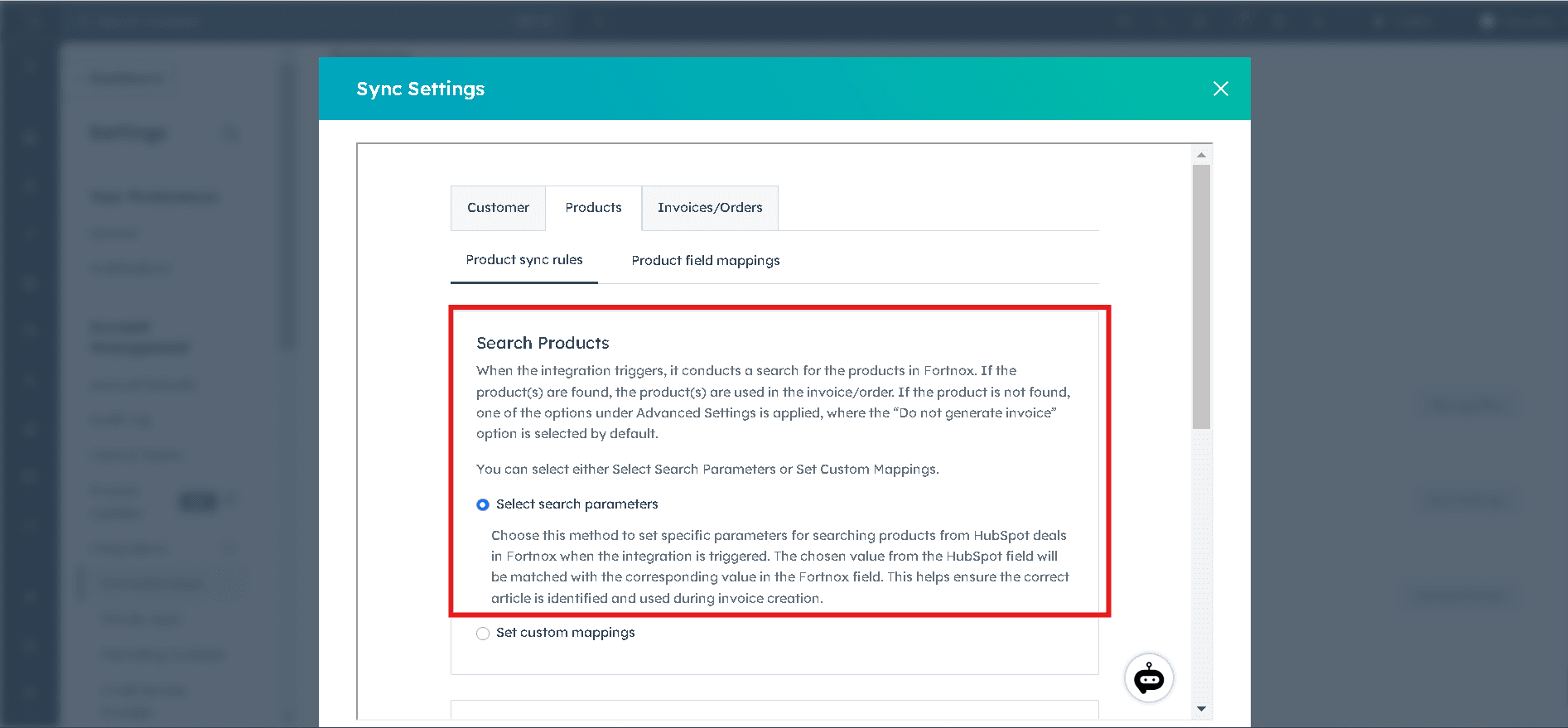
Choose a HubSpot field (e.g., SKU) and match it with a Fortnox field (e.g., Product Number). When creating an invoice or order, the integration will use this identifier to find the correct product in Fortnox.
**Example:** If you set SKU (HubSpot) to match with Product Number (Fortnox), a product with SKU **"ABC123"** in HubSpot will be matched with a product that has Product Number **"ABC123"** in Fortnox.
### Option 2: Custom Mappings
This method is ideal when you have a small number of products or when product identifiers don't match exactly between HubSpot and Fortnox.
Go to the **"Product Sync Rules"** tab.
Select **"Set Custom Mappings"**.
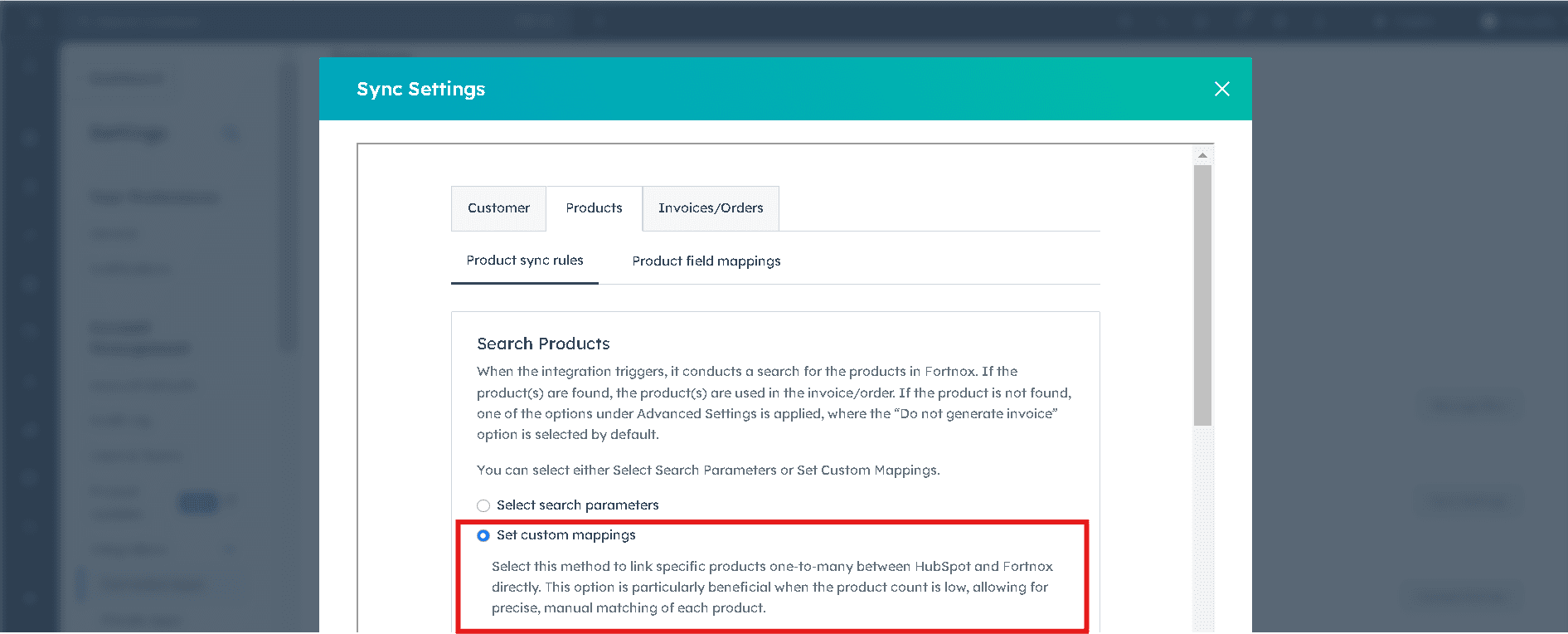
For each Fortnox product, manually select which HubSpot product(s) it corresponds to.
**Example:** You might map the HubSpot product "Premium Package" to the Fortnox product "Premium Service Bundle", even though their names or identifiers don't match exactly.
### Option 3: Handling Products Not Found in Fortnox
Scroll down in the **"Product Sync Rules"** tab.
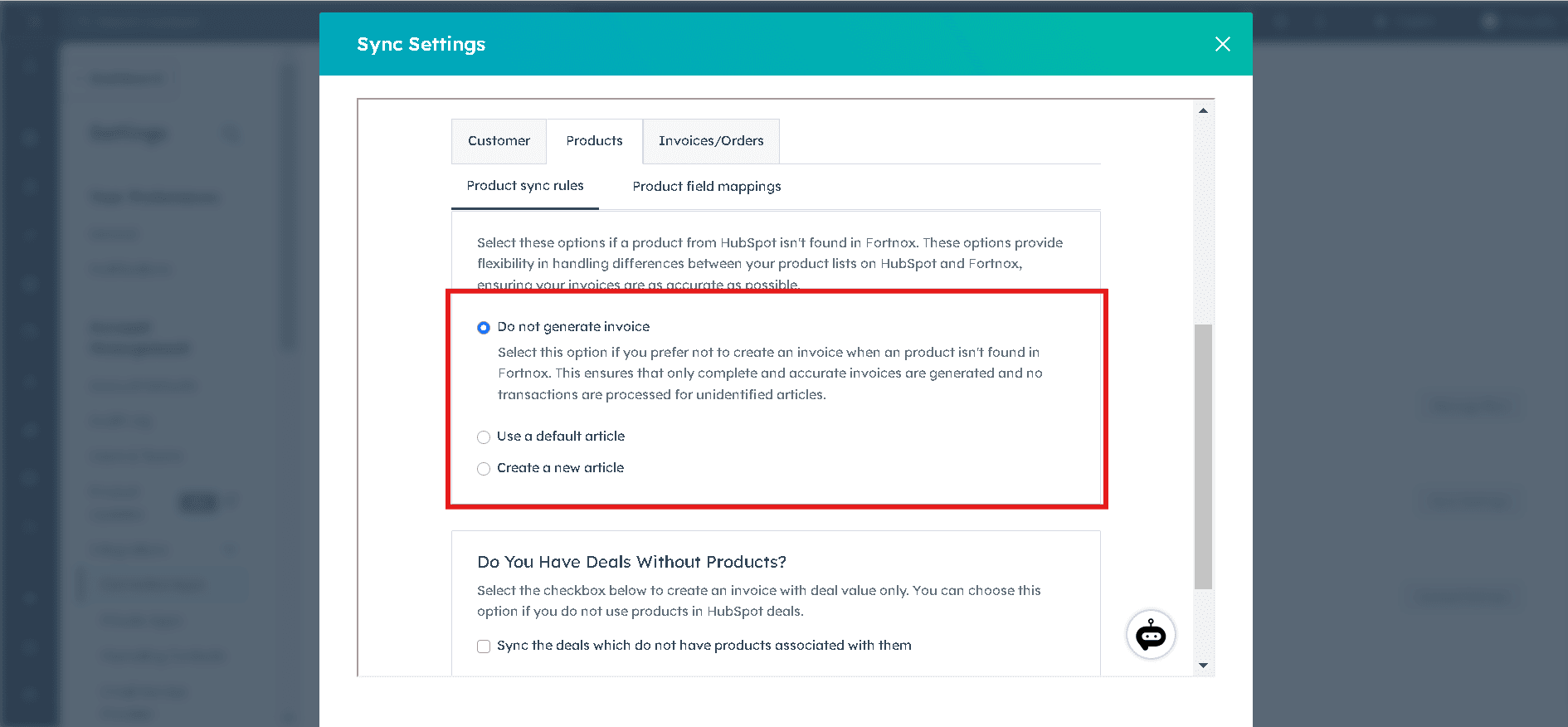
Choose one of three options:
* **Do not generate invoice**
* **Use a default product**
* **Create a new product**
Follow the prompts to set up the necessary details for your chosen option.
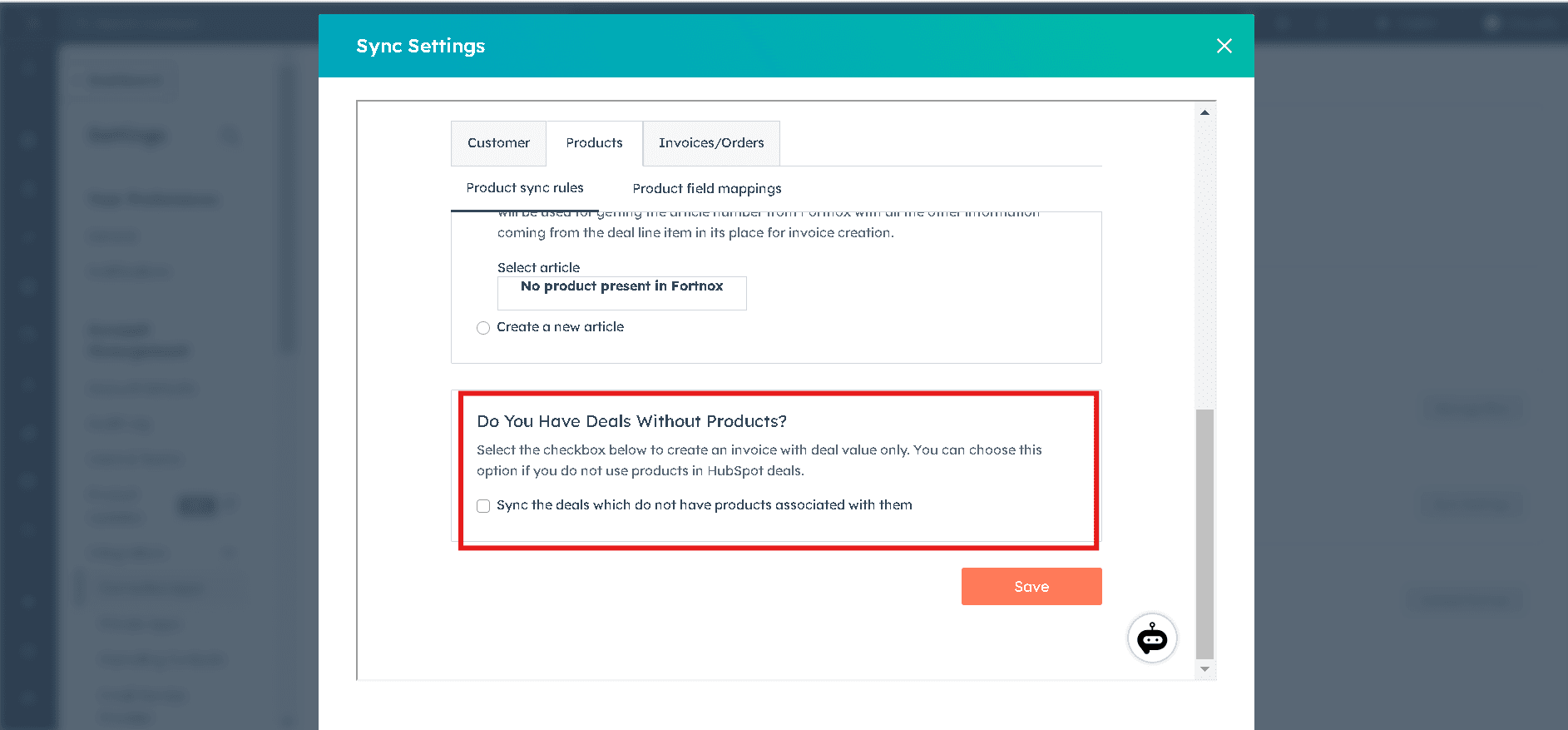
### Option 4: Deals Without Line Items
At the bottom of the **"Product Sync Rules"** tab, find the **"Deal Syncing When Products Are Unavailable"** section.
Check the box to **"Sync the deals which do not have products associated with them"**.
Select a default product from Fortnox to use in these cases.
***
## Product Field Mappings
### Why Product Field Mappings Matter
* **Ensure data consistency:** Align product information between HubSpot and Fortnox.
* **Customize for your needs:** Tailor the product data transfer to fit your specific requirements.
* **Maintain data accuracy:** Ensure that essential product information is correctly represented in Fortnox for proper accounting.
### Setting Up Product Field Mappings
Navigate to the **"Product Field Mappings"** tab in your integration settings.
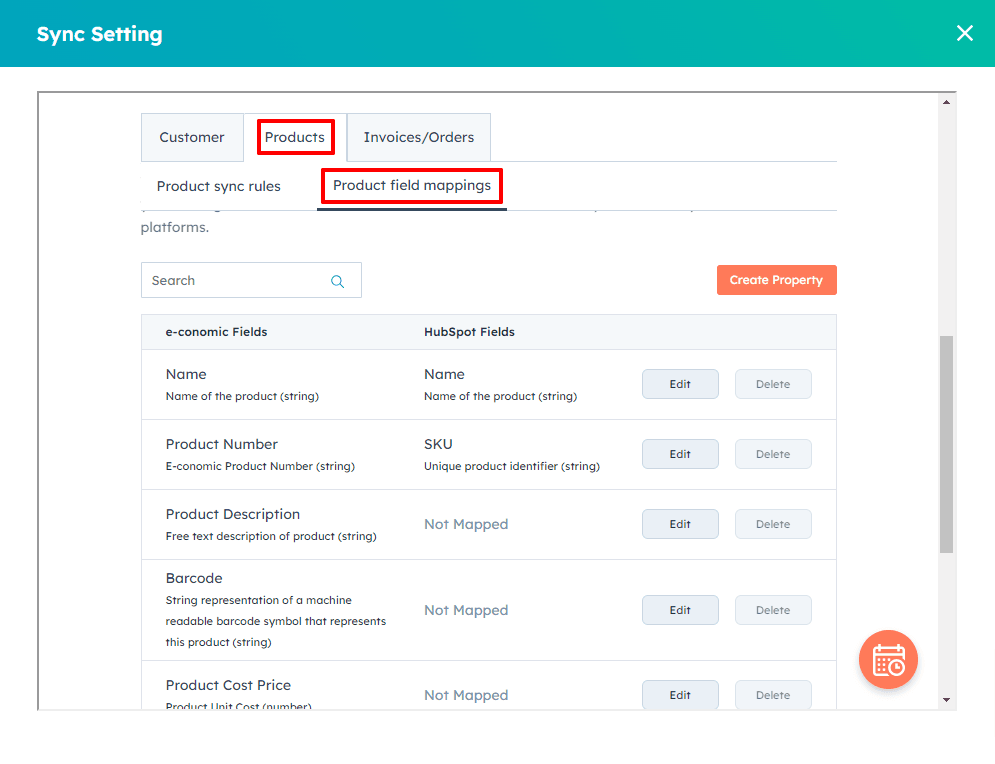
For each Fortnox field, the default HubSpot field will be shown (if applicable). Click **"Edit"** to change the mapping or **"Delete"** to remove it.
Pay special attention to these required fields:
* **Name** — default mapped to Name in HubSpot
* **Product Number** — typically mapped to SKU in HubSpot
* **Product Group**
After setting your preferred mappings, click **"Save Mappings"** to apply your changes.
**Got unique integration needs?**\
Our custom team can build tailored integrations, specialized data mappings, and workflow automations to perfectly match your specific business processes.
[Advanced integration settings](https://custom.cloudify.biz/)