> ## Documentation Index
> Fetch the complete documentation index at: https://docs.cloudify.biz/llms.txt
> Use this file to discover all available pages before exploring further.
# Cloudify Dashboard
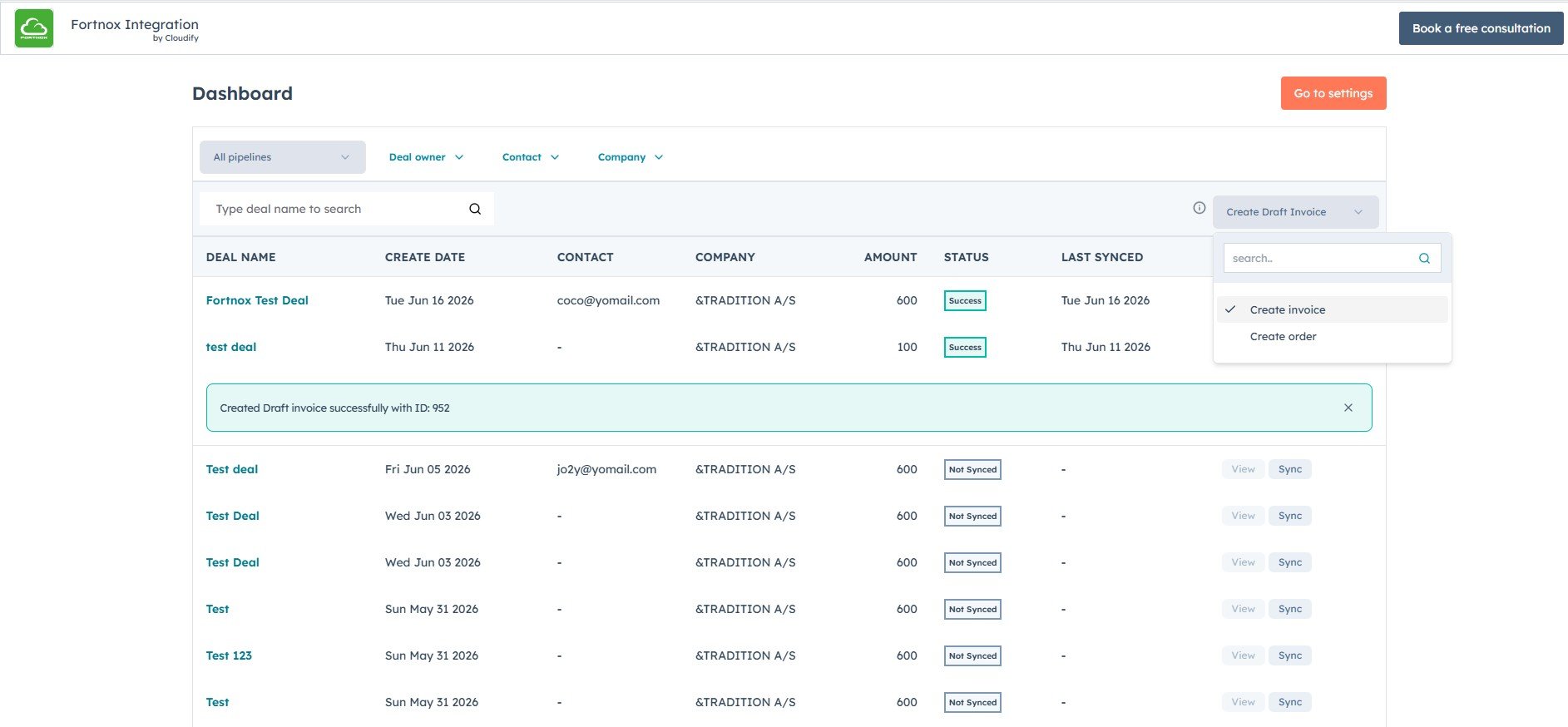
> The Cloudify Dashboard gives you complete visibility and control over your HubSpot–Fortnox integration — all in one place.
## How to Access the Integration Dashboard
 In HubSpot, click **Connected Apps** → **Fortnox** → **Settings**.
Under the **Settings** tab, go to **Cloudify Dashboard** and click the **View Dashboard** button on the right side.
This opens the full Cloudify HubSpot–Fortnox dashboard where you can monitor sync statuses, manage invoices and orders, and take action on your deals in real time.
***
## Benefits
Refine your deal view by filtering on Pipeline, Deal Owner, Contact, or Company — so you find exactly what you need in seconds.
Select whether to create an **Invoice** or **Order** in Fortnox directly from the dashboard — no screen-switching required.
See all your HubSpot deals alongside their create date, contact, company, amount, and live sync status — instantly know what's synced, pending, or needs attention.
Click the **View** button on any deal to open its full sync log — review the history of sync attempts and any errors for that deal.
***
## Dashboard Features
### Filtering Deals
Use the filter bar at the top of the dashboard to narrow results by:
* **All Pipelines** — scope to a specific HubSpot pipeline
* **Deal Owner** — filter by the responsible sales rep
* **Contact** — find deals linked to a specific contact
* **Company** — filter by associated company
You can also type a deal name directly into the **search bar** to locate it instantly.
***
### Selecting Invoice or Order Type
Use the document-type dropdown (top right of the deal list) to choose what to create in Fortnox before syncing:
| Option | Description |
| ------------------ | ------------------------------------------------- |
| **Create Invoice** | Creates and books a final invoice in Fortnox |
| **Create Order** | Creates an order in Fortnox instead of an invoice |
The selected type applies when you trigger a sync from the dashboard.
***
### Deal List with Sync Status
The deal table displays the following columns:
| Column | Description |
| --------------- | ----------------------------------------------- |
| **Deal Name** | Clickable link to the HubSpot deal |
| **Create Date** | Date the deal was created in HubSpot |
| **Contact** | Associated contact email |
| **Company** | Associated company name |
| **Amount** | Deal value |
| **Status** | Current sync status (`Success` or `Not Synced`) |
| **Last Synced** | Timestamp of the most recent successful sync |
***
### Syncing Deals
Each unsynced deal has a **Sync** button. Click it to immediately trigger creation of the selected document type in Fortnox.
On success, a confirmation banner appears at the top of the list:
> *Created invoice successfully with ID: 952*
Previously synced deals show a **Re Run** button to retry or force a fresh sync.
***
### Viewing Sync Logs
Click the **View** button on any deal row to open the deal's sync detail panel. This shows:
* The full log of all sync attempts for that deal
* Any errors or warnings returned during sync
* Invoice or order details associated with the deal
Use this view to diagnose failures, confirm what was sent to Fortnox, and verify the document ID.
***
### Updating Settings
Click **Go to Settings** (top right of the dashboard) at any time to update your integration preferences or field mappings.
In HubSpot, click **Connected Apps** → **Fortnox** → **Settings**.
Under the **Settings** tab, go to **Cloudify Dashboard** and click the **View Dashboard** button on the right side.
This opens the full Cloudify HubSpot–Fortnox dashboard where you can monitor sync statuses, manage invoices and orders, and take action on your deals in real time.
***
## Benefits
Refine your deal view by filtering on Pipeline, Deal Owner, Contact, or Company — so you find exactly what you need in seconds.
Select whether to create an **Invoice** or **Order** in Fortnox directly from the dashboard — no screen-switching required.
See all your HubSpot deals alongside their create date, contact, company, amount, and live sync status — instantly know what's synced, pending, or needs attention.
Click the **View** button on any deal to open its full sync log — review the history of sync attempts and any errors for that deal.
***
## Dashboard Features
### Filtering Deals
Use the filter bar at the top of the dashboard to narrow results by:
* **All Pipelines** — scope to a specific HubSpot pipeline
* **Deal Owner** — filter by the responsible sales rep
* **Contact** — find deals linked to a specific contact
* **Company** — filter by associated company
You can also type a deal name directly into the **search bar** to locate it instantly.
***
### Selecting Invoice or Order Type
Use the document-type dropdown (top right of the deal list) to choose what to create in Fortnox before syncing:
| Option | Description |
| ------------------ | ------------------------------------------------- |
| **Create Invoice** | Creates and books a final invoice in Fortnox |
| **Create Order** | Creates an order in Fortnox instead of an invoice |
The selected type applies when you trigger a sync from the dashboard.
***
### Deal List with Sync Status
The deal table displays the following columns:
| Column | Description |
| --------------- | ----------------------------------------------- |
| **Deal Name** | Clickable link to the HubSpot deal |
| **Create Date** | Date the deal was created in HubSpot |
| **Contact** | Associated contact email |
| **Company** | Associated company name |
| **Amount** | Deal value |
| **Status** | Current sync status (`Success` or `Not Synced`) |
| **Last Synced** | Timestamp of the most recent successful sync |
***
### Syncing Deals
Each unsynced deal has a **Sync** button. Click it to immediately trigger creation of the selected document type in Fortnox.
On success, a confirmation banner appears at the top of the list:
> *Created invoice successfully with ID: 952*
Previously synced deals show a **Re Run** button to retry or force a fresh sync.
***
### Viewing Sync Logs
Click the **View** button on any deal row to open the deal's sync detail panel. This shows:
* The full log of all sync attempts for that deal
* Any errors or warnings returned during sync
* Invoice or order details associated with the deal
Use this view to diagnose failures, confirm what was sent to Fortnox, and verify the document ID.
***
### Updating Settings
Click **Go to Settings** (top right of the dashboard) at any time to update your integration preferences or field mappings.