> ## Documentation Index
> Fetch the complete documentation index at: https://docs.cloudify.biz/llms.txt
> Use this file to discover all available pages before exploring further.
# FAQs - Frequently Asked Questions
**IMPORTANT**: Always check the **Notes** section in your HubSpot deal to view the status of your integration run.
This integration helps you:
Turn your HubSpot deals into Fortnox invoices or orders
Keep your HubSpot and Fortnox product and customer data in sync
View financial information within HubSpot contact and companies
Use the app as a workflow action in HubSpot Workflows
Track sync status in your deal notes
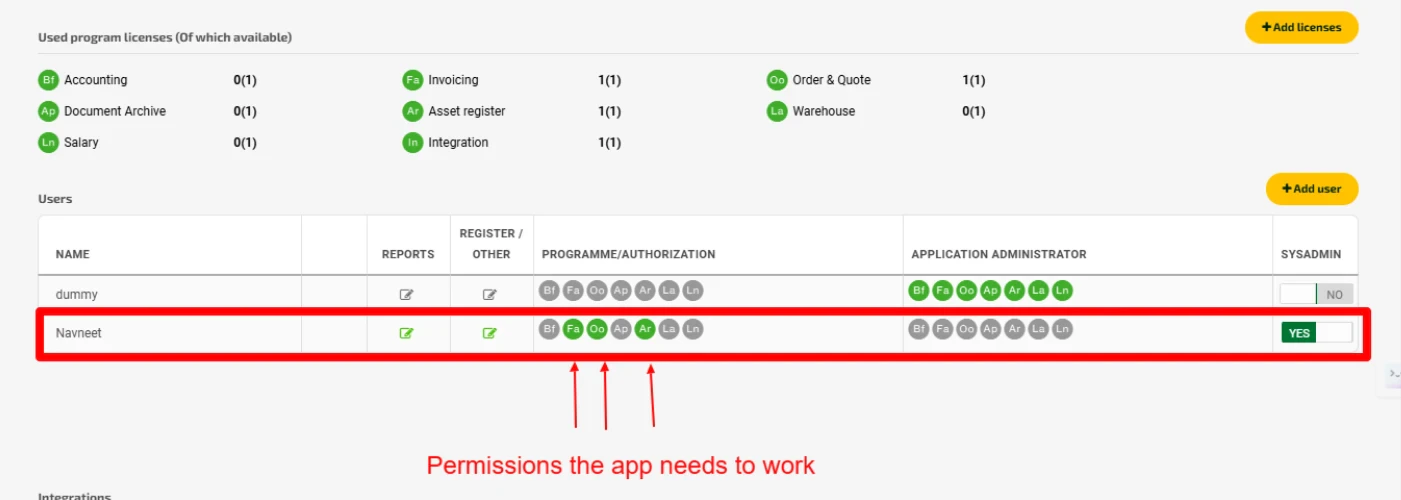
Fortnox requires a few scopes enabled before you can create an invoice or order:
**Fa: Invoice**
**Oo: Order & Quote**
**Ar: Asset register**
If you are looking to create an invoice, then please ensure that Fa and Ar are enabled. If you are creating an order, then you would need Oo and Ar scopes. Required scopes are shown in the image below:
Watch the video below for detailed instructions:
Open the '**Notes**' section in your HubSpot deal to view the integration updates. You will find the PDF copy of the successful invoice/order. If the integration ran into any errors, complete error details will be shown as well. You can make necessary changes and then click on the 'Replay' button in the note to re-run the integration.
HubSpot Workflows feature is included in Sales Hub, Service Hub, Marketing Hub and Operations Hub Professional plans. Please check and upgrade your existing plan to get access.
You have two options:
* Use automatic creation: Set up triggers for specific deal stages in Sync Settings > Customer Sync Settings
* Use the app as a workflow-action in HubSpot Workflows Don't forget to check the deal notes after the integration runs
No. The integration only creates a draft invoice/order in Fortnox. It won't be automatically sent to your customers. You'll need to send it to your customer manually for now.
Yes, you can set up HubSpot Workflows and add the Cloudify app as a workflow-action to achieve invoice/order creation.
No. You can only connect one Fortnox account to one HubSpot account at a time. However, you can connect a new Fortnox account if needed, by disconnecting the existing Fortnox connection.
The integration syncs customer and product data from HubSpot to Fortnox only, not the other way around.
Yes. The integration will create a new customer record in Fortnox using the information from your HubSpot contact/company added in the deal.
There are multiple ways to do so: Manually open each company or contact in Hubspot respectively and click on "Update" in the CRM card.
Using contact/company based workflows in Hubspot apps
In that case, user will have to go with automatic deal to invoice flow where they can select draft document creation (will have to delete it later from their accounting system if they don't want it). This will ensure that customers and products gets updated in accounting system.
The app provides you three options to choose from if a product is not found in Fortnox:
* Take no action by skipping invoice/order generation
* Choose from a default product that serves as a placeholder
* Create a new product in Fortnox
Check:
Your deal notes for any sync errors
Your Fortnox connection status
If needed, try the "Replay" option in deal notes
Contact [support@cloudify.biz](mailto:support@cloudify.biz) if issues persist
**Got unique integration needs?**\
Our custom team can build tailored integrations, specialized data mappings, and workflow automations to perfectly match your specific business processes.
[Advanced integration settings](https://custom.cloudify.biz/)
 Watch the video below for detailed instructions: