> ## Documentation Index
> Fetch the complete documentation index at: https://docs.cloudify.biz/llms.txt
> Use this file to discover all available pages before exploring further.
# Customer Settings
Customer Settings are the foundation of your integration, defining how customer information is matched, created, and updated between HubSpot and Microsoft Business Central. Proper configuration ensures data consistency and prevents duplicates across both platforms.
In this section, you configure:
* Customer matching rules
* Default customer mappings
* Field mappings
***
## Customer Matching Rules
Customer matching rules determine how existing customers are identified before creating new ones.
### Why Customer Matching Rules Matter
* Prevent duplicate customers
* Ensure consistent data across systems
* Automatically create customers when no match is found
* Simplify customer management
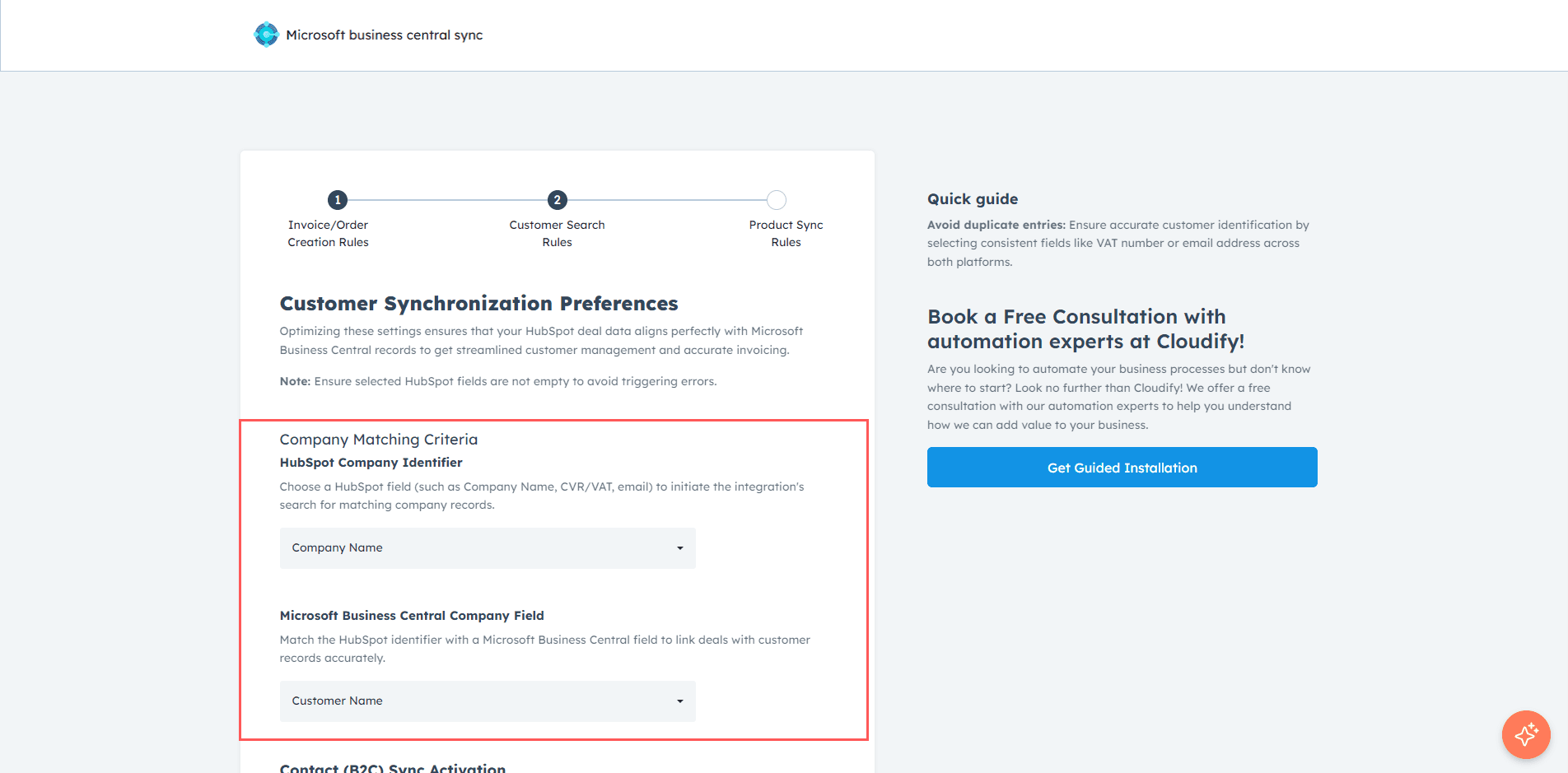
Select the **Company Matching Criteria**.
Choose a HubSpot field (e.g. Company Name or CVR) and map it to the corresponding Business Central field.
(Optional) Enable **Primary Contact Sync**.
This allows contacts to be created as customers when no company exists.
Choose how to handle the **Customer Number**:
* Let Business Central generate it
* Use a number from HubSpot
***
## Customer Default Mappings
Default mappings define required values when creating customers in Business Central.
Navigate to the **Customer Default Mappings** section.
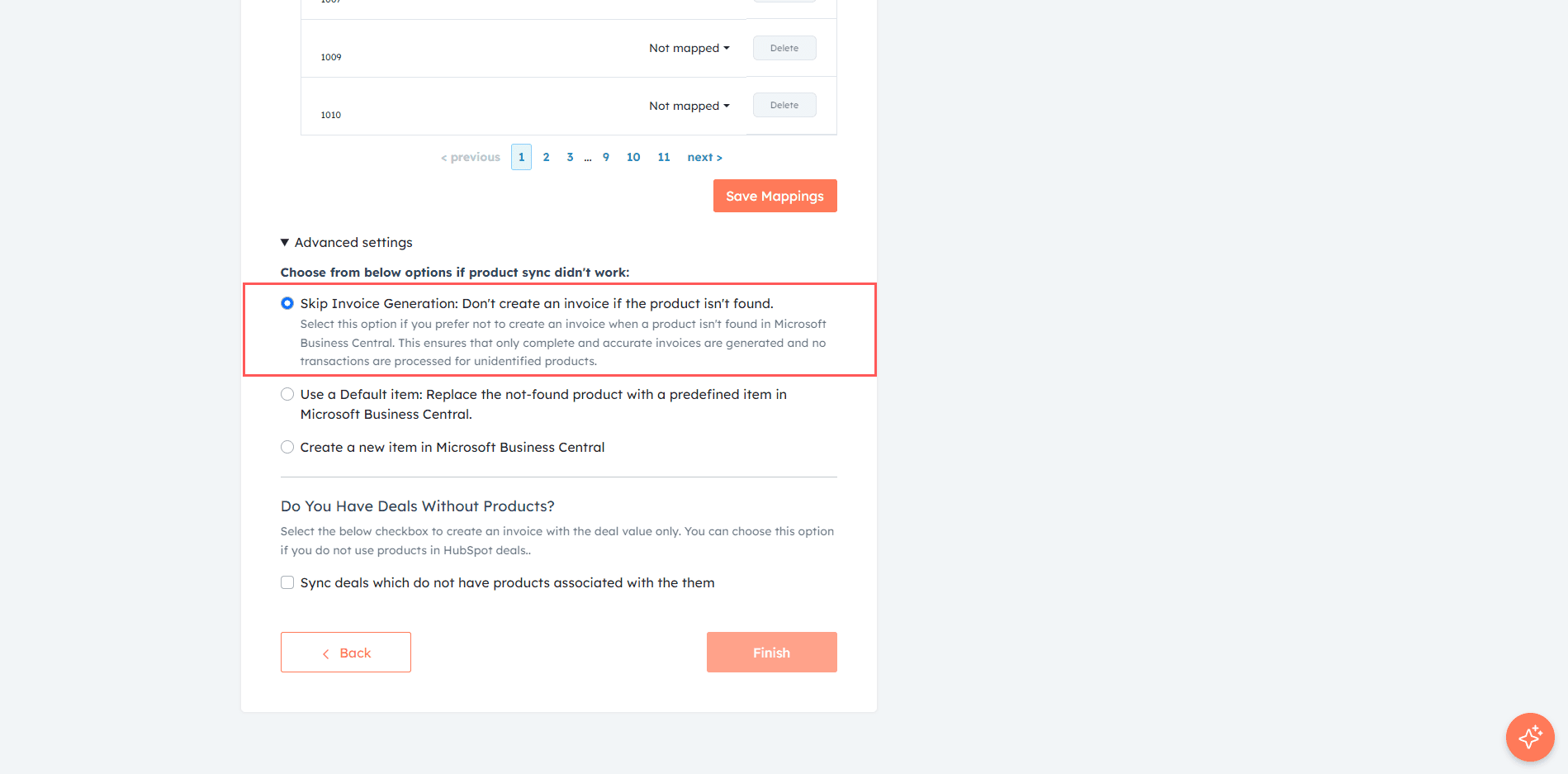
Configure required fields such as:
* Payment Terms
* Customer Group
* VAT Zone
* Currency
* Invoice Layout
***
## Field Mappings (Company & Contact)
Field mappings control how data is transferred between HubSpot and Business Central.
### Why Field Mappings Matter
* Ensure correct data syncing
* Reduce manual work
* Improve data quality
Navigate to the **Company/Contact Field Mappings** section.
Review existing mappings or click **Edit** to modify them.
Add new mappings using the search field.
You can also create new HubSpot properties if needed.
***
**Got unique integration needs?**\
Our custom team can build tailored integrations, specialized data mappings, and workflow automations to perfectly match your specific business processes.
[Advanced Integration Setting](https://custom.cloudify.biz/)