> ## Documentation Index
> Fetch the complete documentation index at: https://docs.cloudify.biz/llms.txt
> Use this file to discover all available pages before exploring further.
# Invoice/Order Settings
Invoice/Order Settings allow you to define how invoices and orders are created and mapped between HubSpot and Microsoft Business Central.
***
## Invoice/Order Sync Rules
These rules determine when invoices or orders are generated based on your HubSpot deal pipeline.
### Why Invoice/Order Sync Rules Matter
* Automate invoice/order creation at the right stage in your sales process
* Ensure data consistency between HubSpot and Business Central
* Reduce manual work and errors
Navigate to the **Invoice/Order Sync Rules** tab in your integration settings.
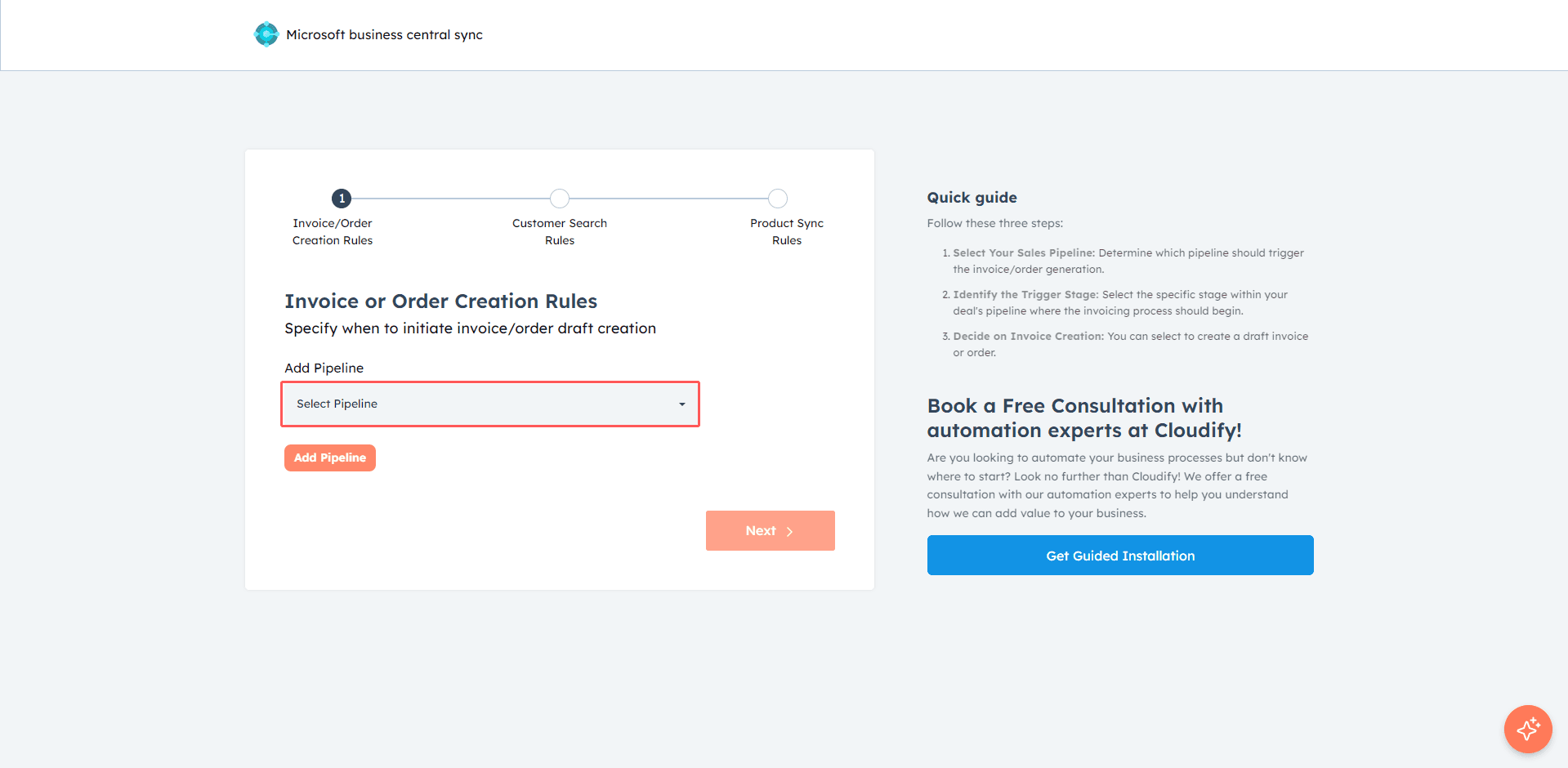
Click **Add Pipeline** to create a new rule.
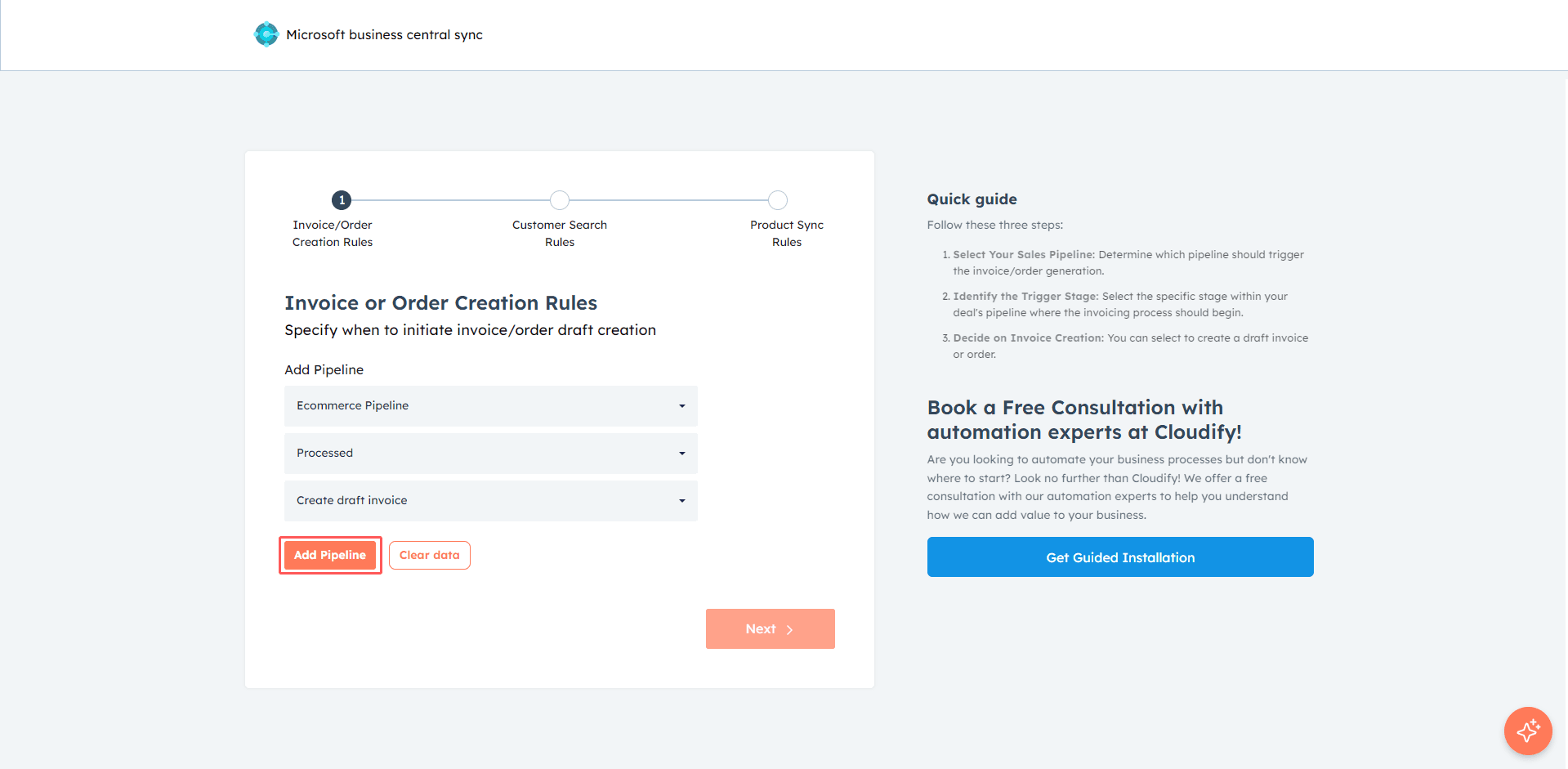
Select a **Pipeline** from HubSpot.

Choose the **Deal Stage** that will trigger invoice or order creation.
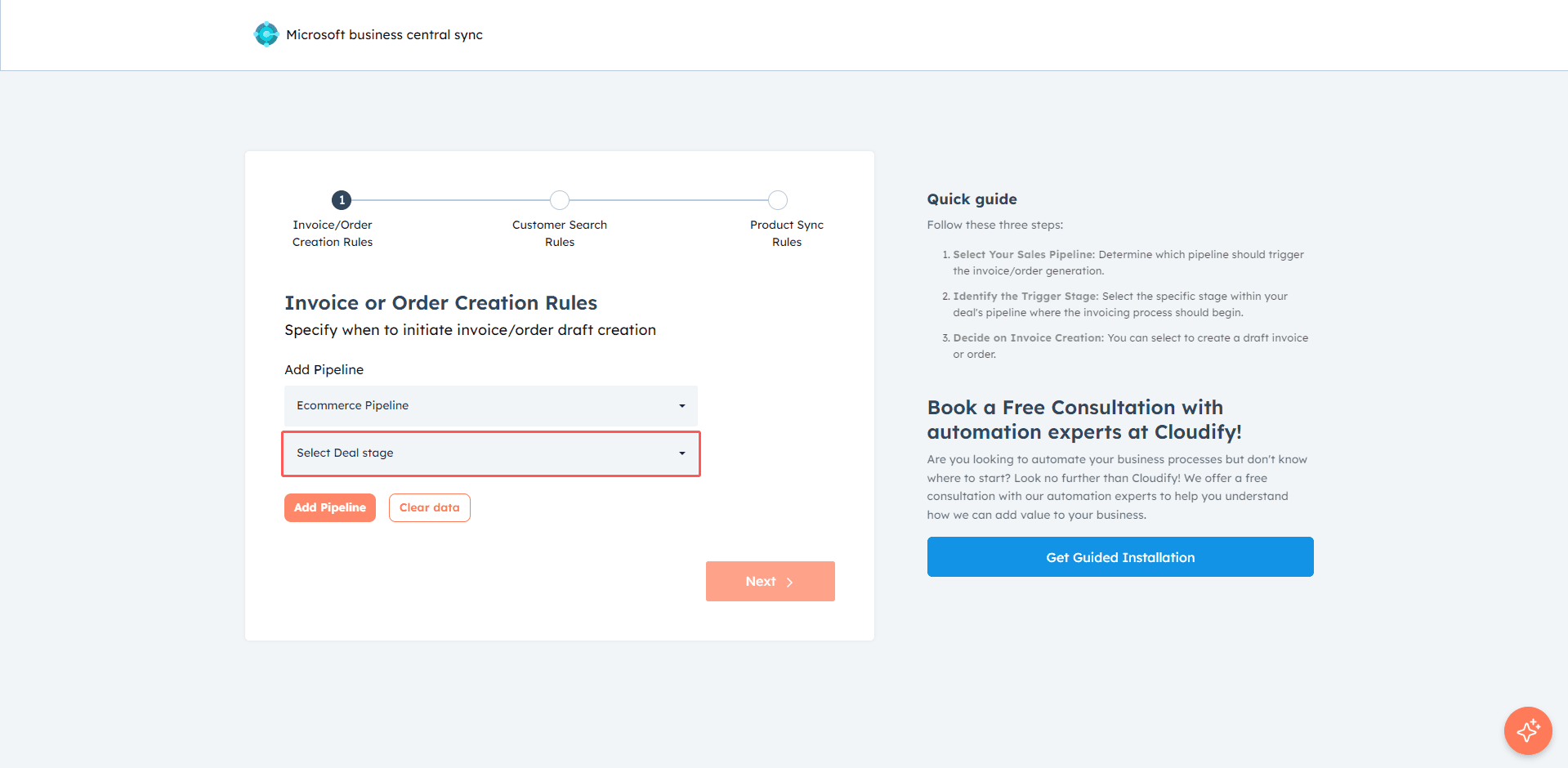
Select whether to generate a **Draft Invoice** or **Draft Order** in Business Central.
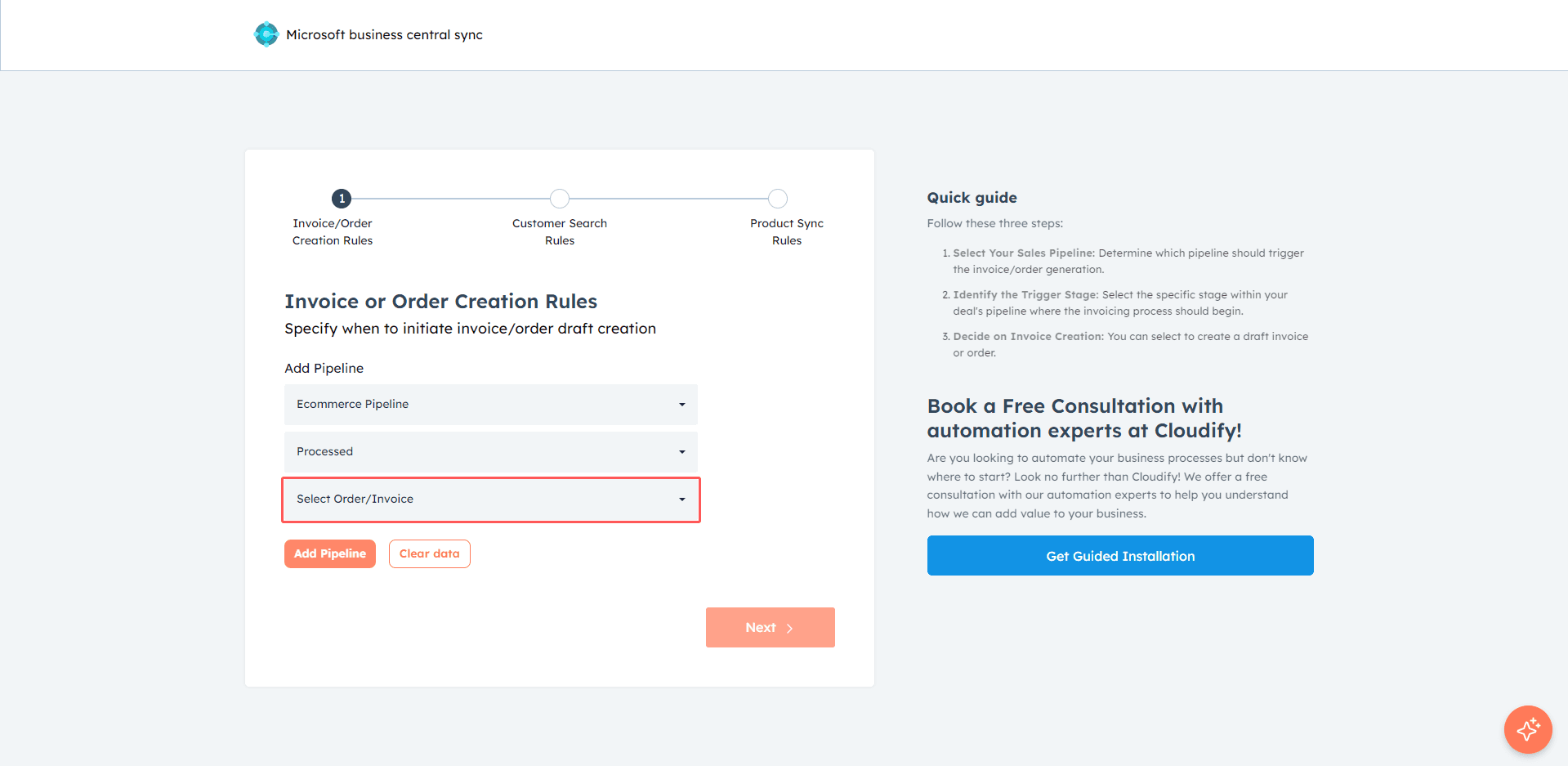
Click **Save** after configuring your rules.
***
## Invoice/Order Field Mappings
Field mapping ensures that the correct data is transferred from HubSpot to Business Central.
### Why Field Mapping Matters
* Ensures accurate invoice creation
* Matches correct fields between systems
* Reduces manual corrections
Navigate to the **Invoice/Order Field Mappings** tab.
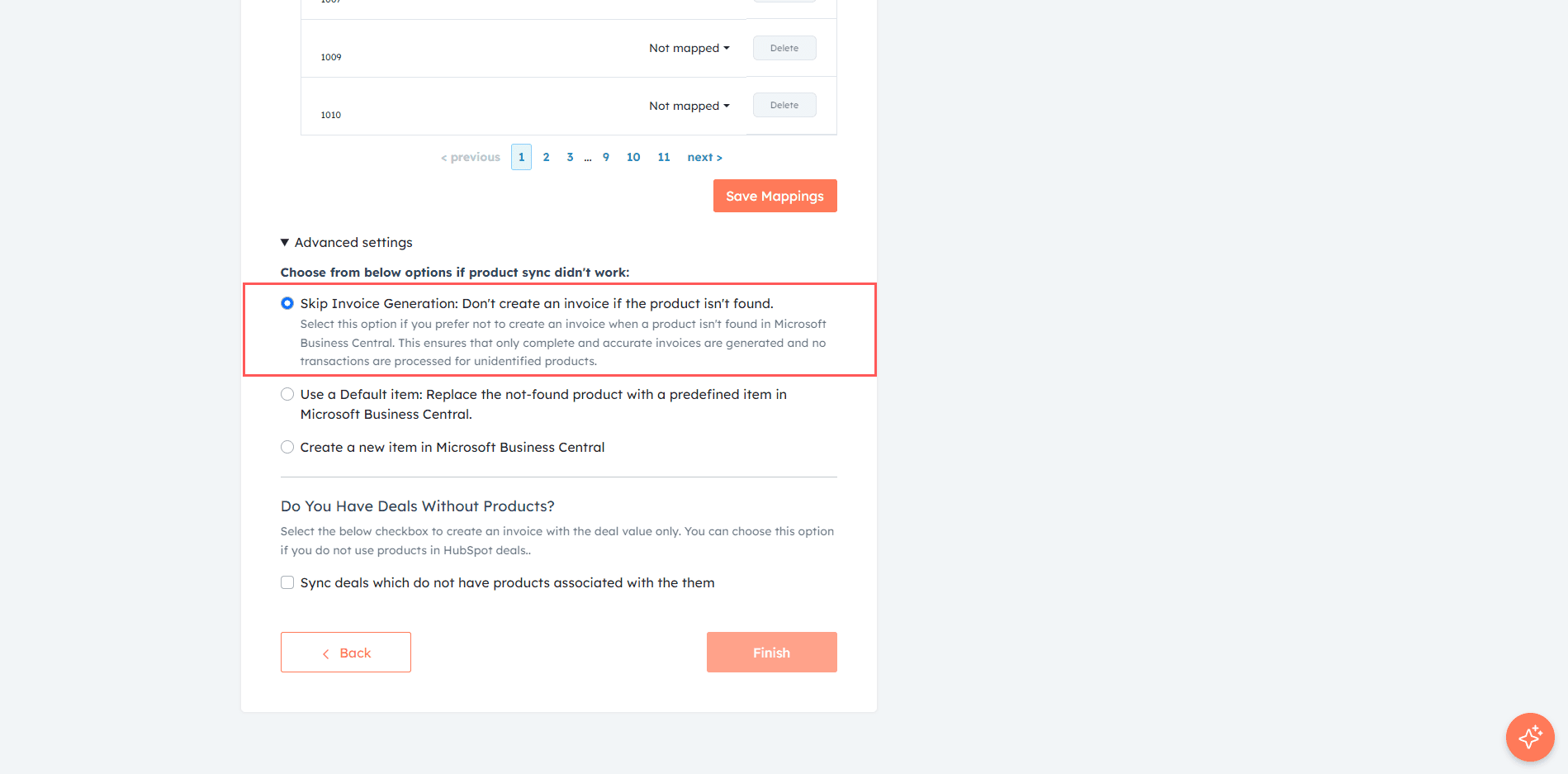
Review the available mapping sections:
* Notes and References
* Delivery Address
* Billing Address
Click **Edit** to modify a field mapping or **Delete** to remove it.

Ensure key fields are mapped correctly:
* Notes Headline
* References (Purchase Order Number)
* Invoice Date
* Delivery & Billing Addresses
Click **Save Mappings** to apply your changes.

***
Correct field mapping is essential to ensure accurate invoice creation in Microsoft Business Central. Always test your configuration before going live.
**Got unique integration needs?**\
Our custom team can build tailored integrations, specialized data mappings, and workflow automations to perfectly match your specific business processes.
[Advanced Integration Setting](https://custom.cloudify.biz/)