> ## Documentation Index
> Fetch the complete documentation index at: https://docs.cloudify.biz/llms.txt
> Use this file to discover all available pages before exploring further.
# Product Sync Rules
Product Sync Rules define how products from HubSpot are matched with those in Microsoft Business Central. This ensures accurate product syncing and correct invoice creation.
***
## Simple Search
This feature matches products between HubSpot and Microsoft Business Central using a selected field such as SKU or product number. It is recommended for users with large product catalogs.
Select **Simple Search**.
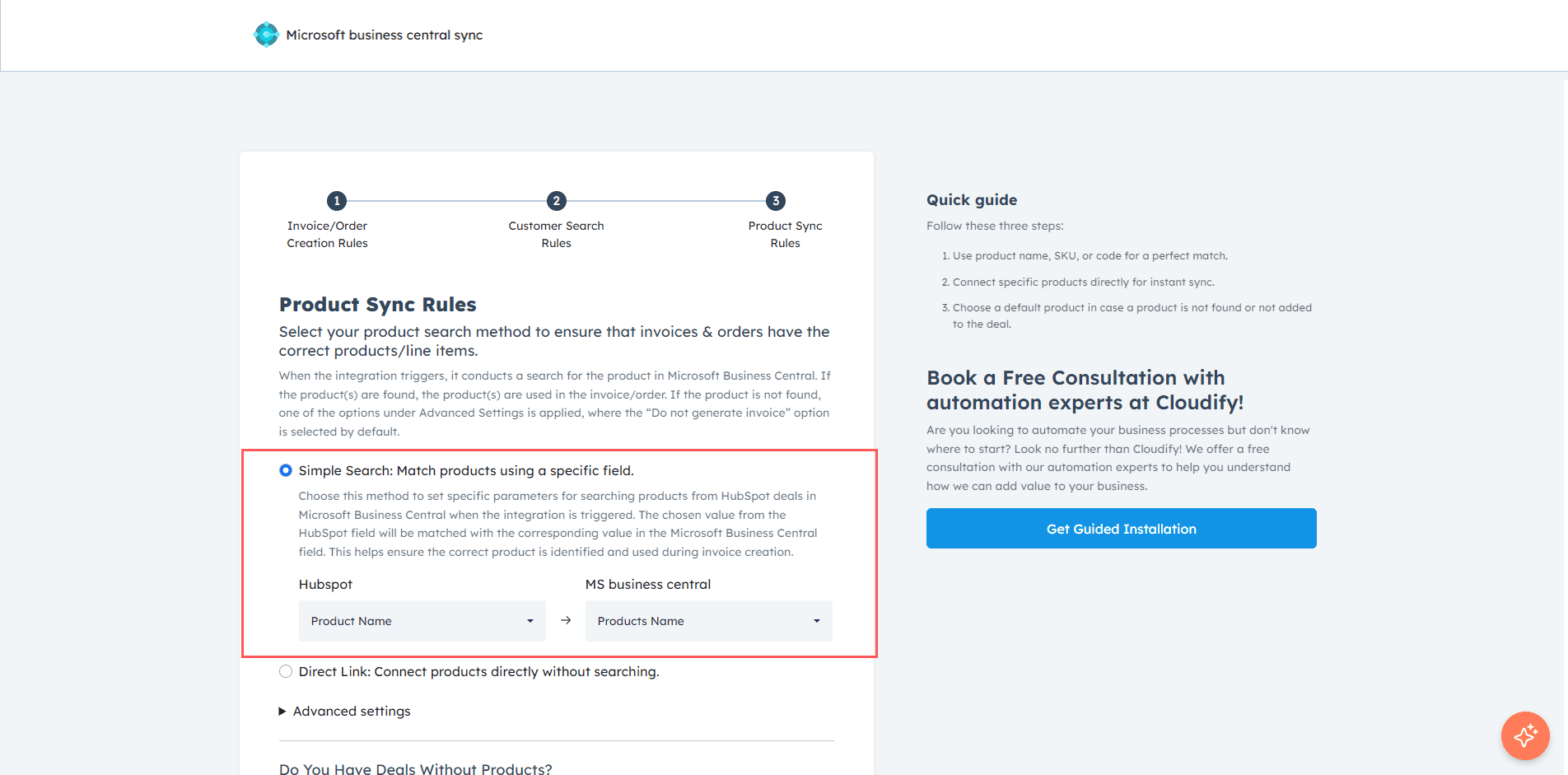
Choose the corresponding fields in **HubSpot** and **Microsoft Business Central** for matching.
This ensures products are identified correctly across both platforms.
***
## Direct Link
This option allows you to directly map products without performing a search. It is best suited for users with a smaller product catalog.
Select **Direct Link**.
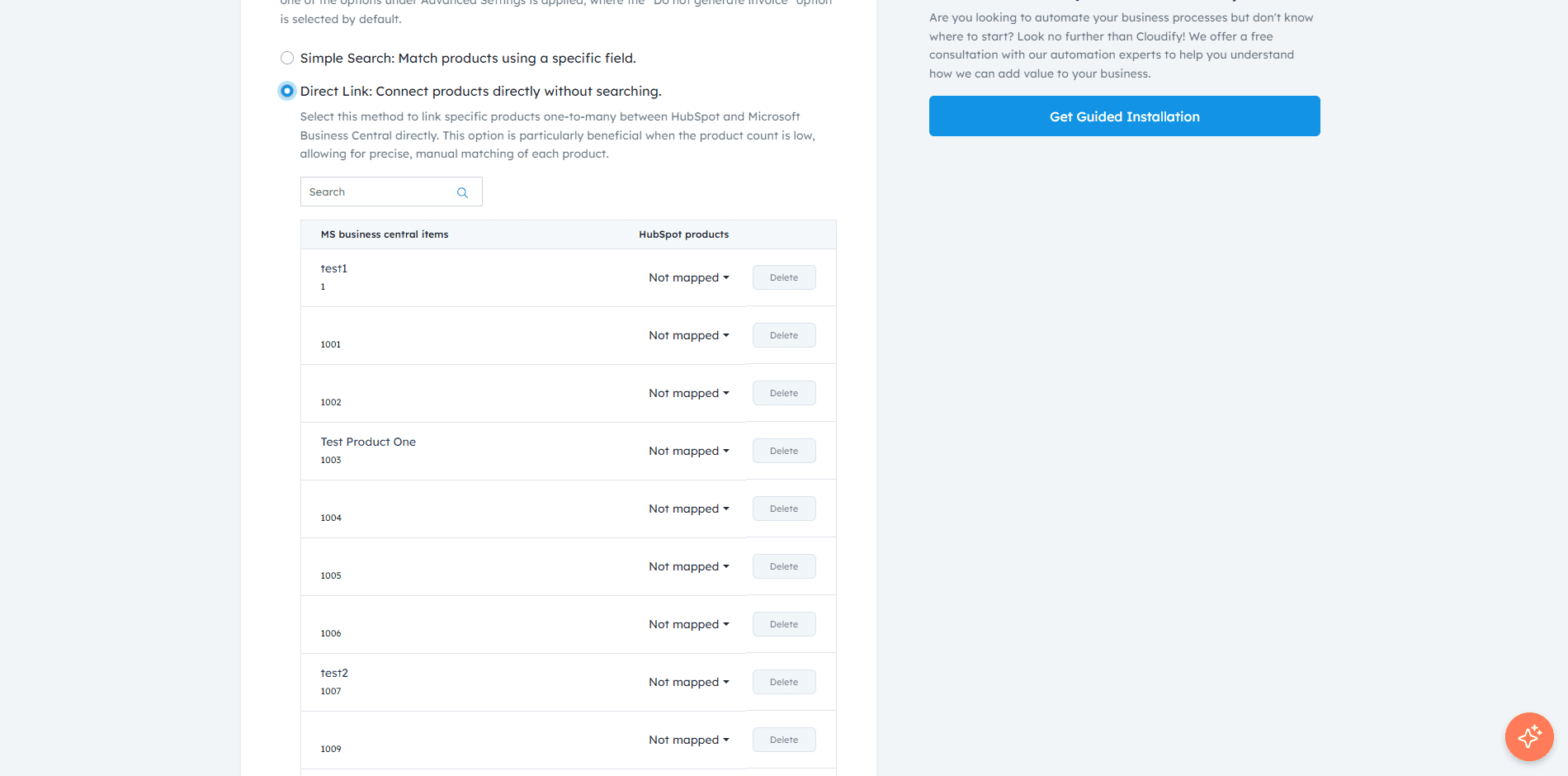
Map the HubSpot product fields to the corresponding Microsoft Business Central fields.
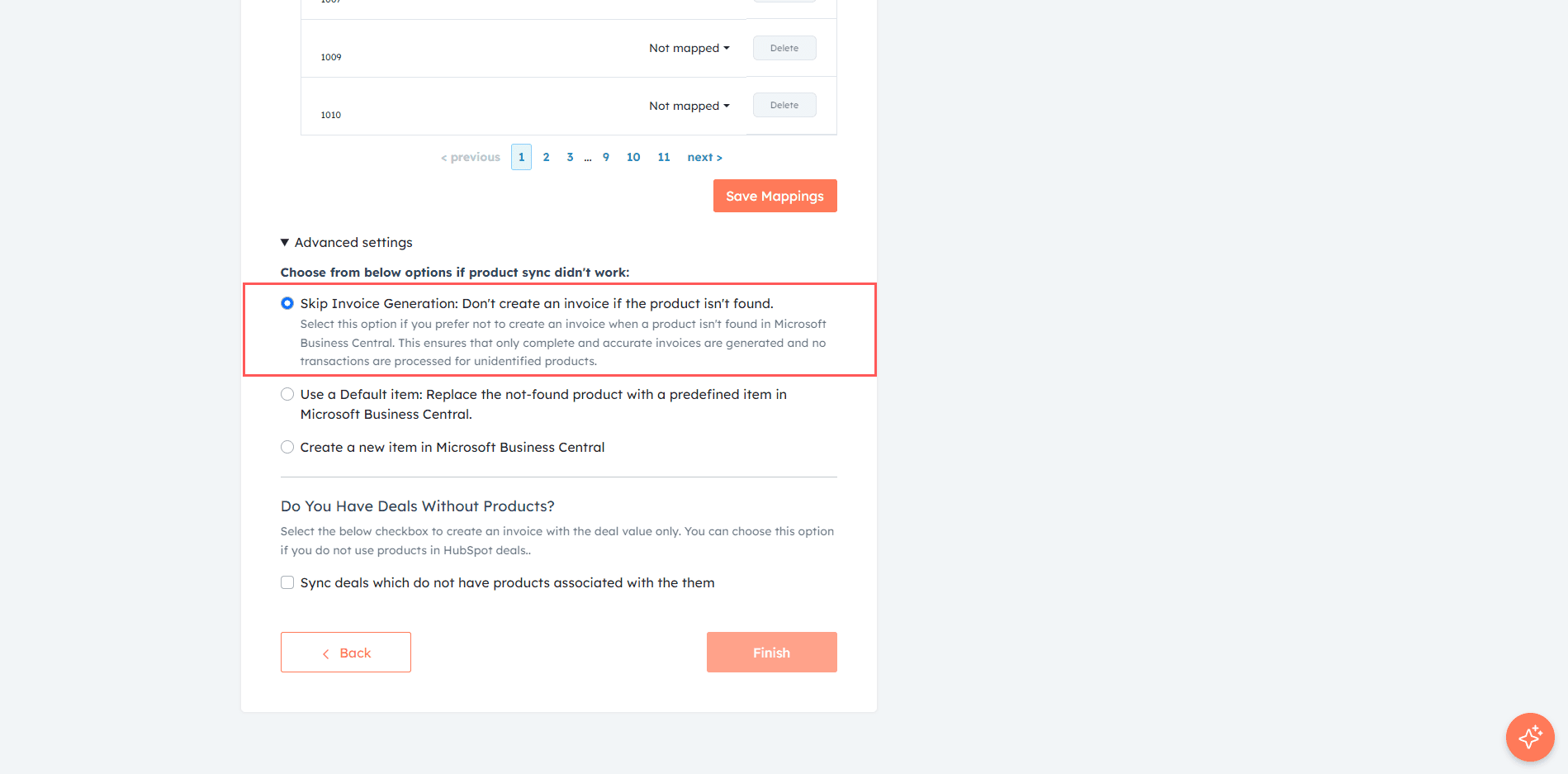
Click **Save Mappings**.
***
## Advanced Settings
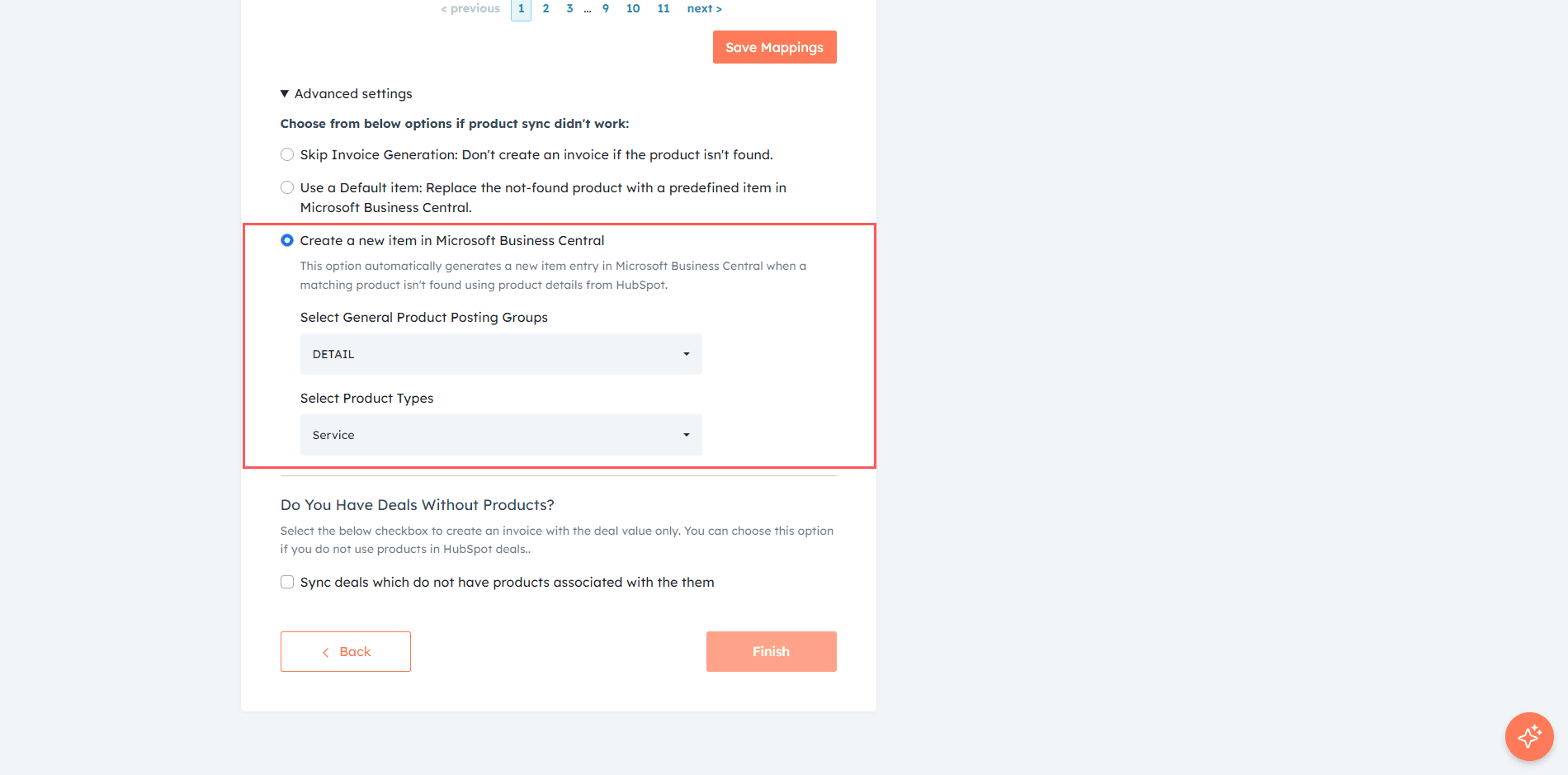
This section defines what happens when a product is not found in Microsoft Business Central.
Select **Skip Invoice Generation** if you do not want to create an invoice when a product is missing.

Select **Use a Default Item** to replace missing products with a predefined item.
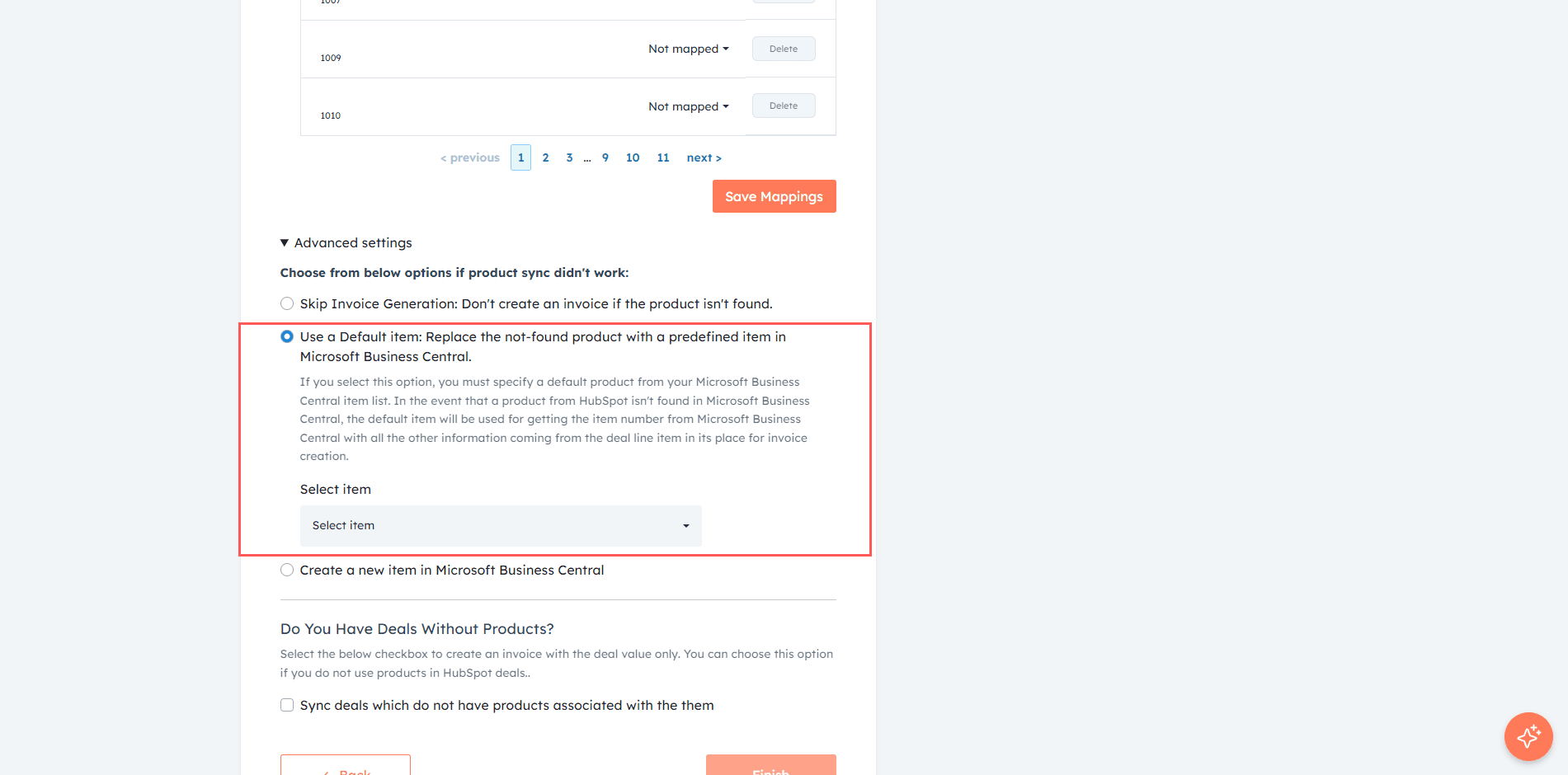
Select **Create New Item** to automatically create a product in Microsoft Business Central using HubSpot product data.
***
## Sync Deals Without Products
This option allows syncing deals even when no products are associated.
Enable **Sync deals which do not have products associated with them**.
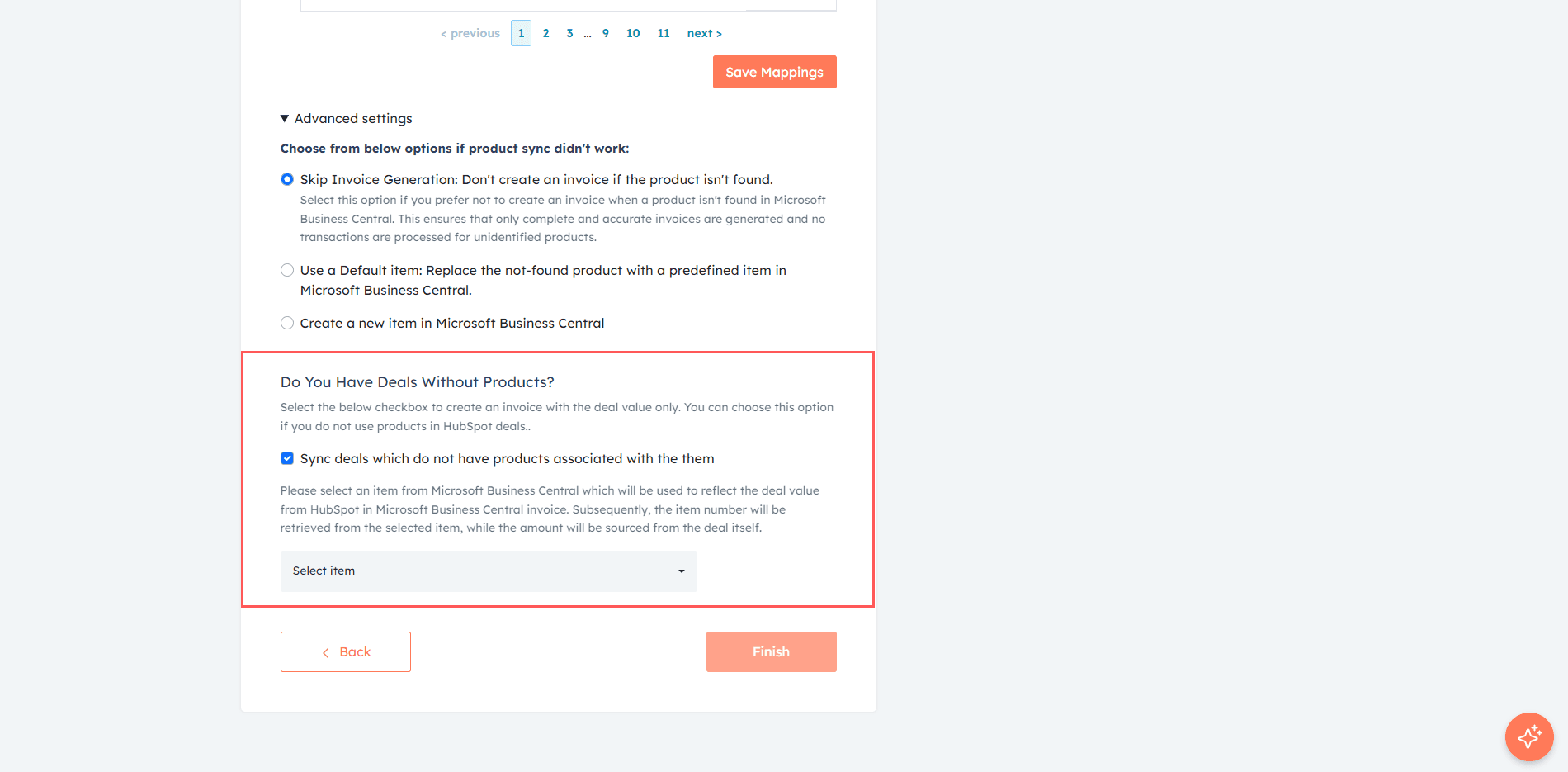
Select a default item to be used for such deals.
Click **Finish** to complete the setup.
***
**Got unique integration needs?**\
Our custom team can build tailored integrations, specialized data mappings, and workflow automations to perfectly match your specific business processes.
[Advanced Integration Setting](https://custom.cloudify.biz/)