> ## Documentation Index
> Fetch the complete documentation index at: https://docs.cloudify.biz/llms.txt
> Use this file to discover all available pages before exploring further.
# Connect Tripletex Account
> Install the HubSpot Tripletex app and connect your Tripletex account using an API token.
You will first install the app in HubSpot, then generate an API token in Tripletex, and finally paste that token into the app setup screen.
## Install the app in HubSpot
Search for the **Tripletex** sync app in the HubSpot Marketplace.
Then click **Install app**.
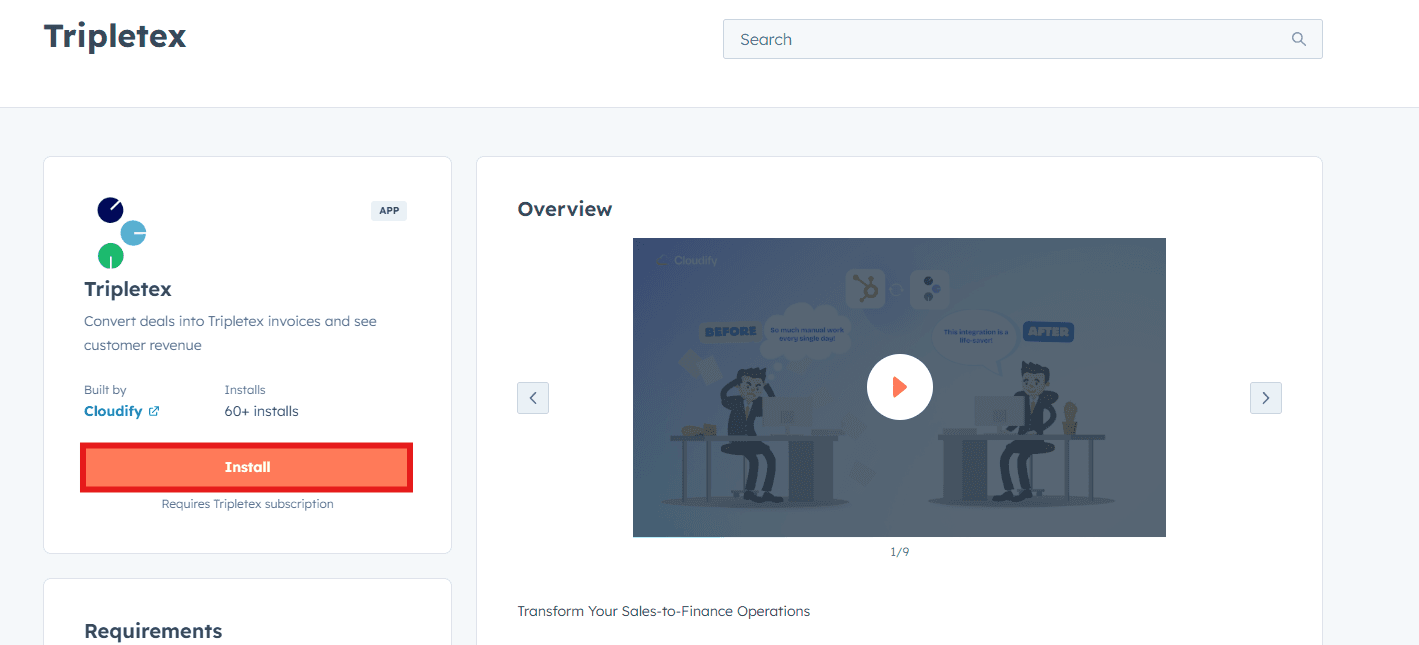
Select the HubSpot account where you want to install the app.
Then grant the requested permissions and click **Allow and Install**.
After permissions are granted, the app is installed automatically and you are redirected to the setup screen.
## Before you generate the token
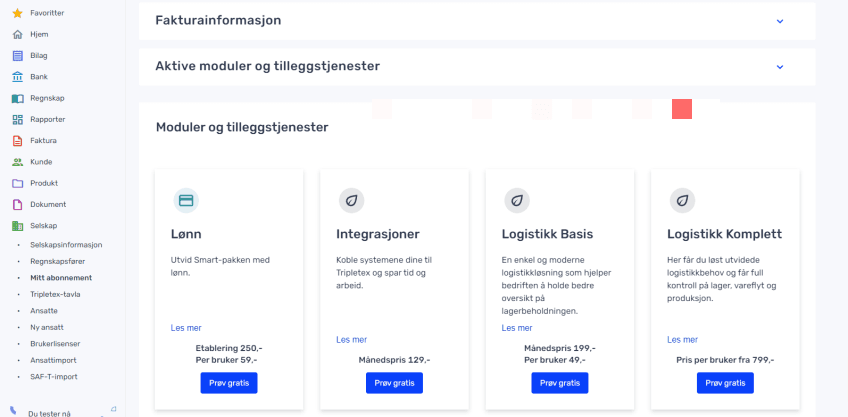
You need a Tripletex API token to connect the app.
The **integration module must be activated in Tripletex** before you can generate a token. Without that module, the connection process cannot continue.
## Generate the Tripletex token
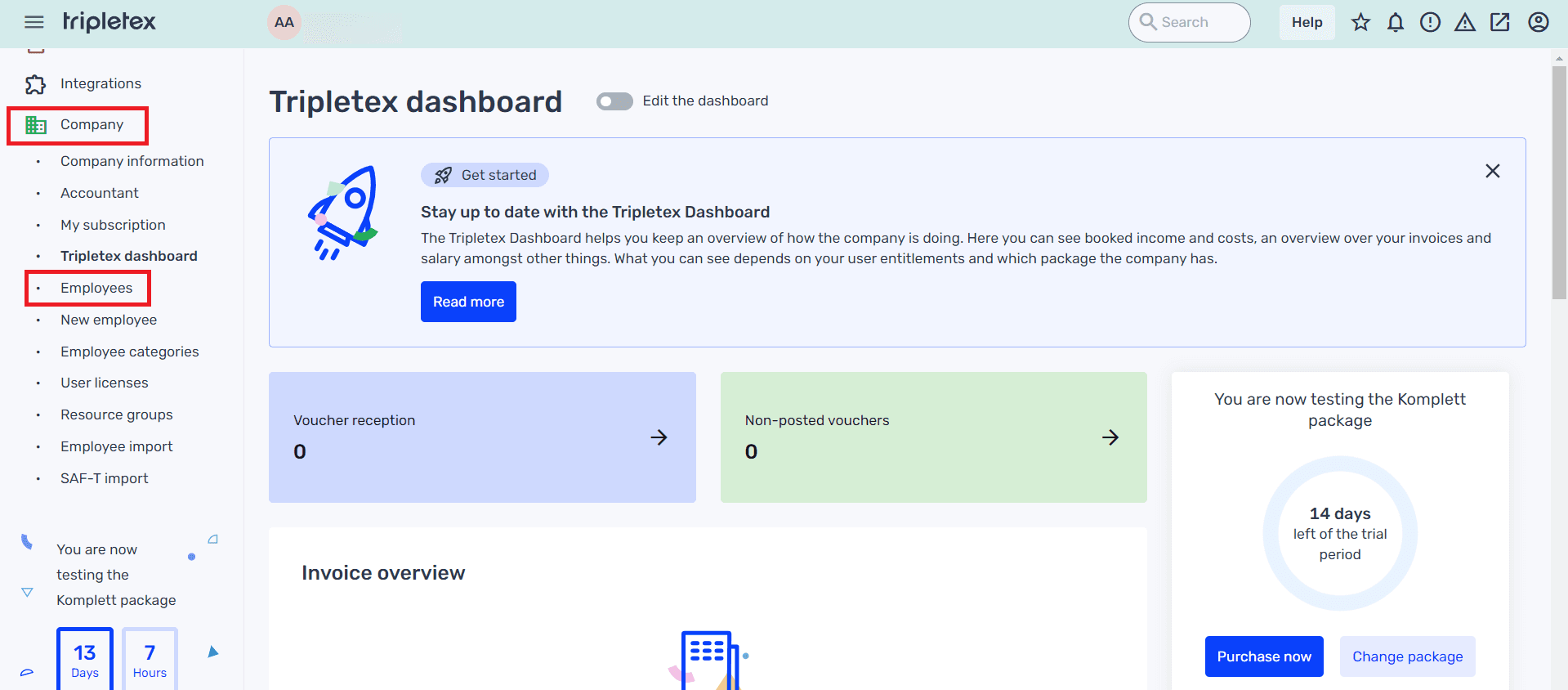
Log in to your Tripletex account.
If needed, switch to the correct company by clicking the company name in the header.
In the left menu, go to **Company** → **Employees**.
Open the employee who has the access rights that should be used for this integration.
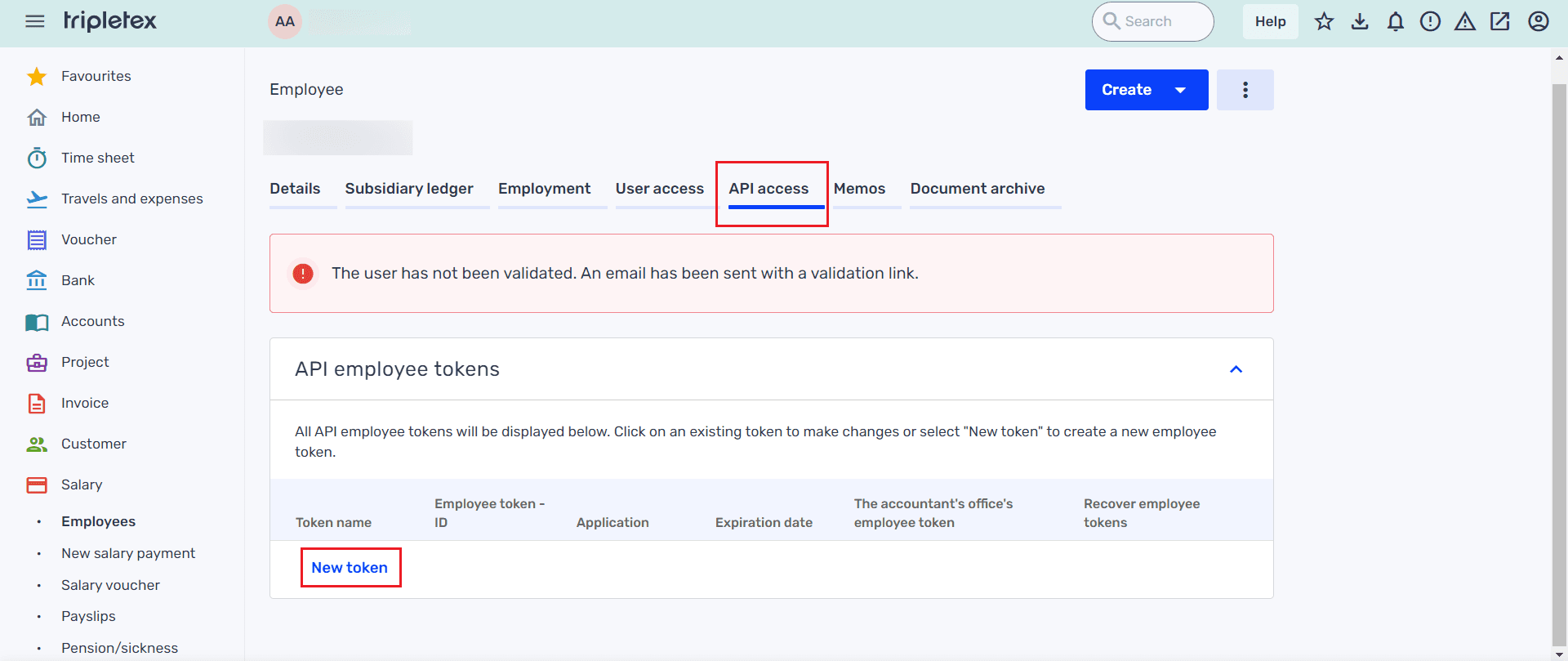
Inside the employee record, go to **API access**.
Then click **New token**.
Select:
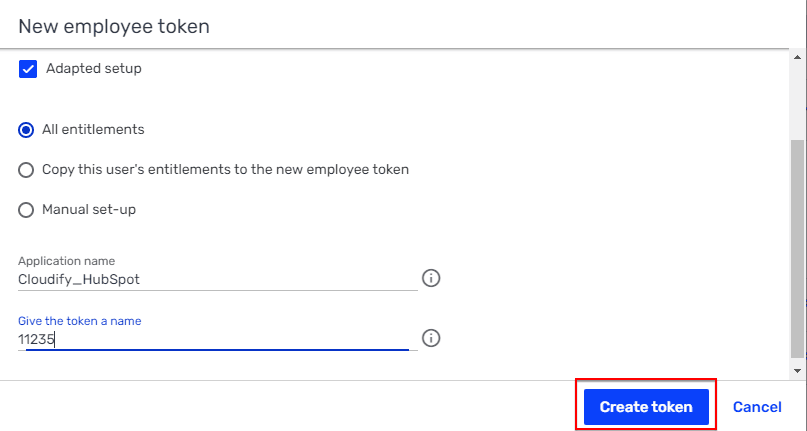
* **Adapted setup**
* **All entitlements**
Enter the application name as **Cloudify\_HubSpot**.
Then enter a token name and click **Create token**.
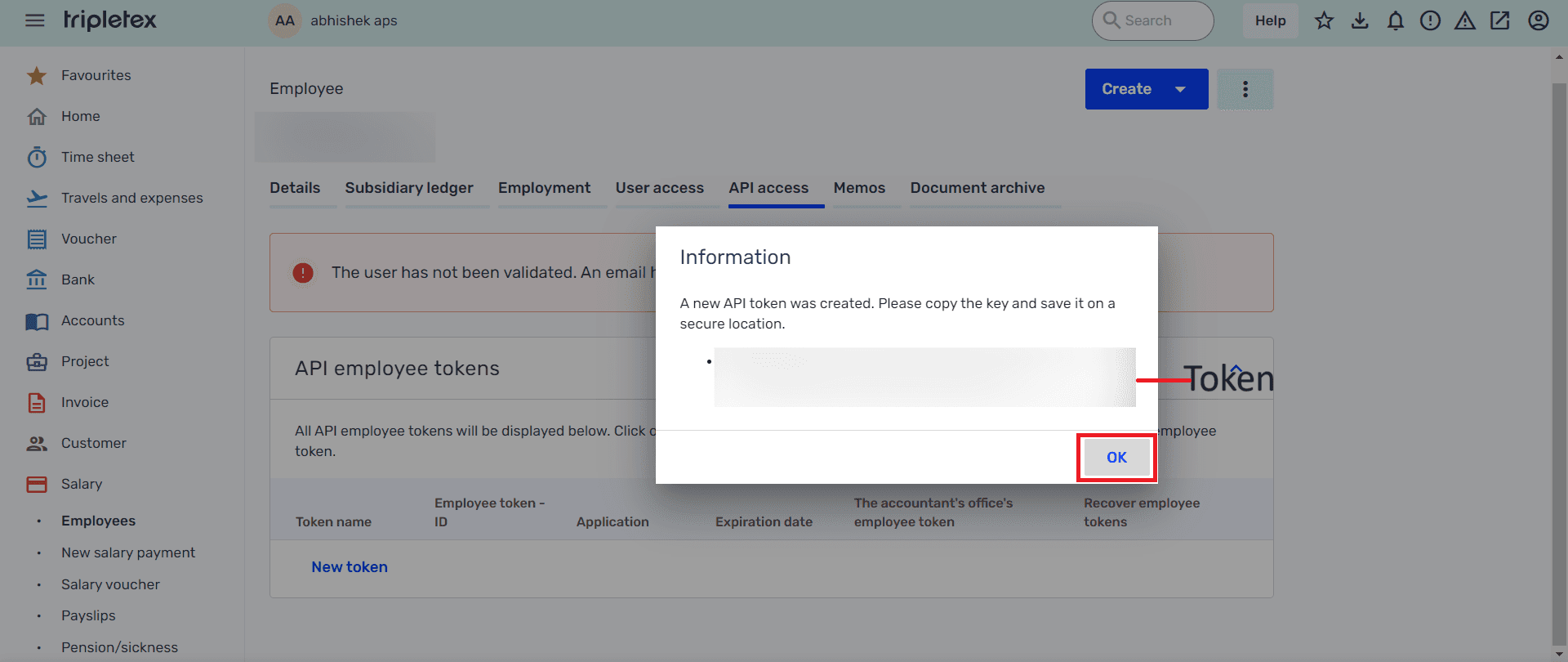
Copy the generated token and click **OK**.
## Connect Tripletex in the app
Go back to the setup screen in the HubSpot Tripletex app.
Paste the generated token into the token field, then click **Connect Tripletex**.
Make sure you store the token securely when it is created, as this token is required for the integration to authenticate with Tripletex.
## Next step
Once the account is connected, continue to the subscription-plan step.