> ## Documentation Index
> Fetch the complete documentation index at: https://docs.cloudify.biz/llms.txt
> Use this file to discover all available pages before exploring further.

# Invoice/Quote Settings

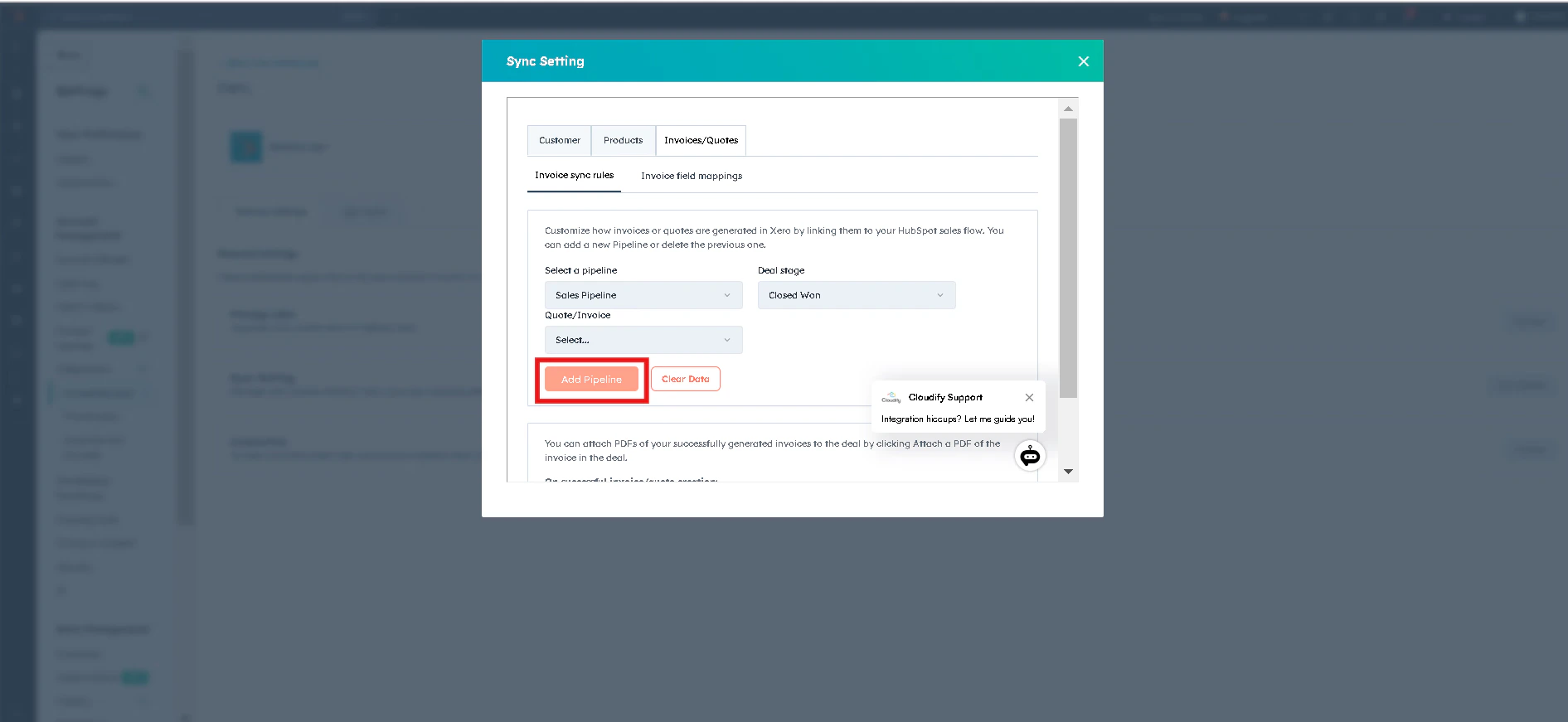
> Customize how invoices or quotes are generated in Xero by linking them to your HubSpot sales flow. You can add a new Pipeline or delete the previous one.

<Steps>
  <Step title="" stepNumber={1}>
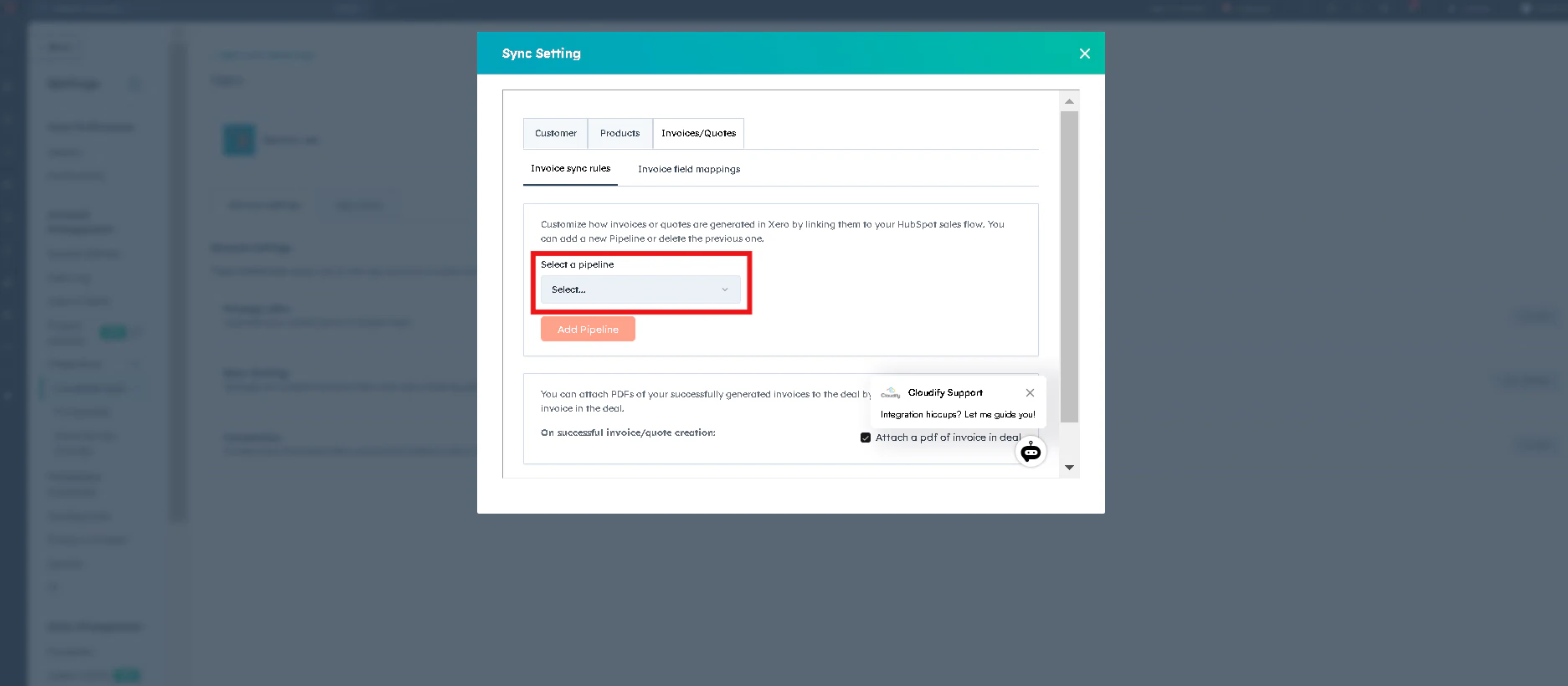
    Click **"Select a Pipeline"**. Choose the relevant pipeline.
    <img src="https://mintcdn.com/cloudify-c7720744/mtxbn9X54oYbauYc/images/image-104.png?fit=max&auto=format&n=mtxbn9X54oYbauYc&q=85&s=acb371bacf1e0bb96ba18c28c54a9643" alt="Main dashboard interface" style={{ height:"100%",width:"100%",borderRadius:"15px",border:"1px solid #e2e8f0",padding:"4px" }} width="1873" height="820" data-path="images/image-104.png" />
  </Step>

  <Step title="" stepNumber={2}>
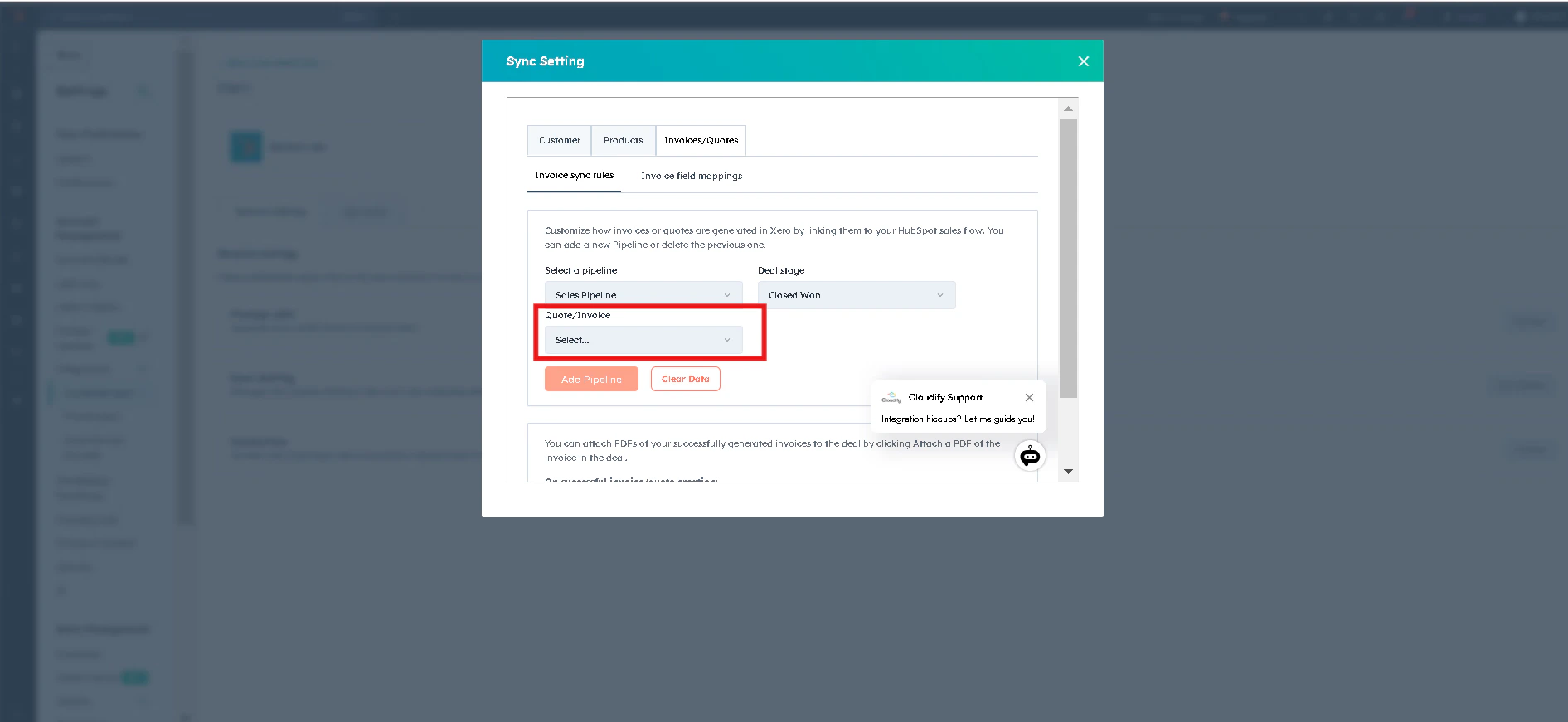
    Select "**Deal Stage**". Choose the relevant Deal stage.
    <img src="https://mintcdn.com/cloudify-c7720744/mtxbn9X54oYbauYc/images/image-105.png?fit=max&auto=format&n=mtxbn9X54oYbauYc&q=85&s=725ac5c68d577fbeb180e829d34bd6c2" alt="Main dashboard interface" style={{ height:"100%",width:"100%",borderRadius:"15px",border:"1px solid #e2e8f0",padding:"4px" }} width="1891" height="871" data-path="images/image-105.png" />
  </Step>

  <Step title="" stepNumber={3}>
    Select Order/Invoice Creation

    <img src="https://mintcdn.com/cloudify-c7720744/mtxbn9X54oYbauYc/images/image-105.png?fit=max&auto=format&n=mtxbn9X54oYbauYc&q=85&s=725ac5c68d577fbeb180e829d34bd6c2" alt="Main dashboard interface" style={{ height:"100%",width:"100%",borderRadius:"15px",border:"1px solid #e2e8f0",padding:"4px" }} width="1891" height="871" data-path="images/image-105.png" />
  </Step>

  <Step title="" stepNumber={4}>
    Click **"Add Pipeline**".

    <img src="https://mintcdn.com/cloudify-c7720744/mtxbn9X54oYbauYc/images/image-106.png?fit=max&auto=format&n=mtxbn9X54oYbauYc&q=85&s=152fab302312ad6961f74b3f9c8b75f5" alt="Main dashboard interface" style={{ height:"100%",width:"100%",borderRadius:"15px",border:"1px solid #e2e8f0",padding:"4px" }} width="1891" height="871" data-path="images/image-106.png" />
  </Step>

  <Step title="">
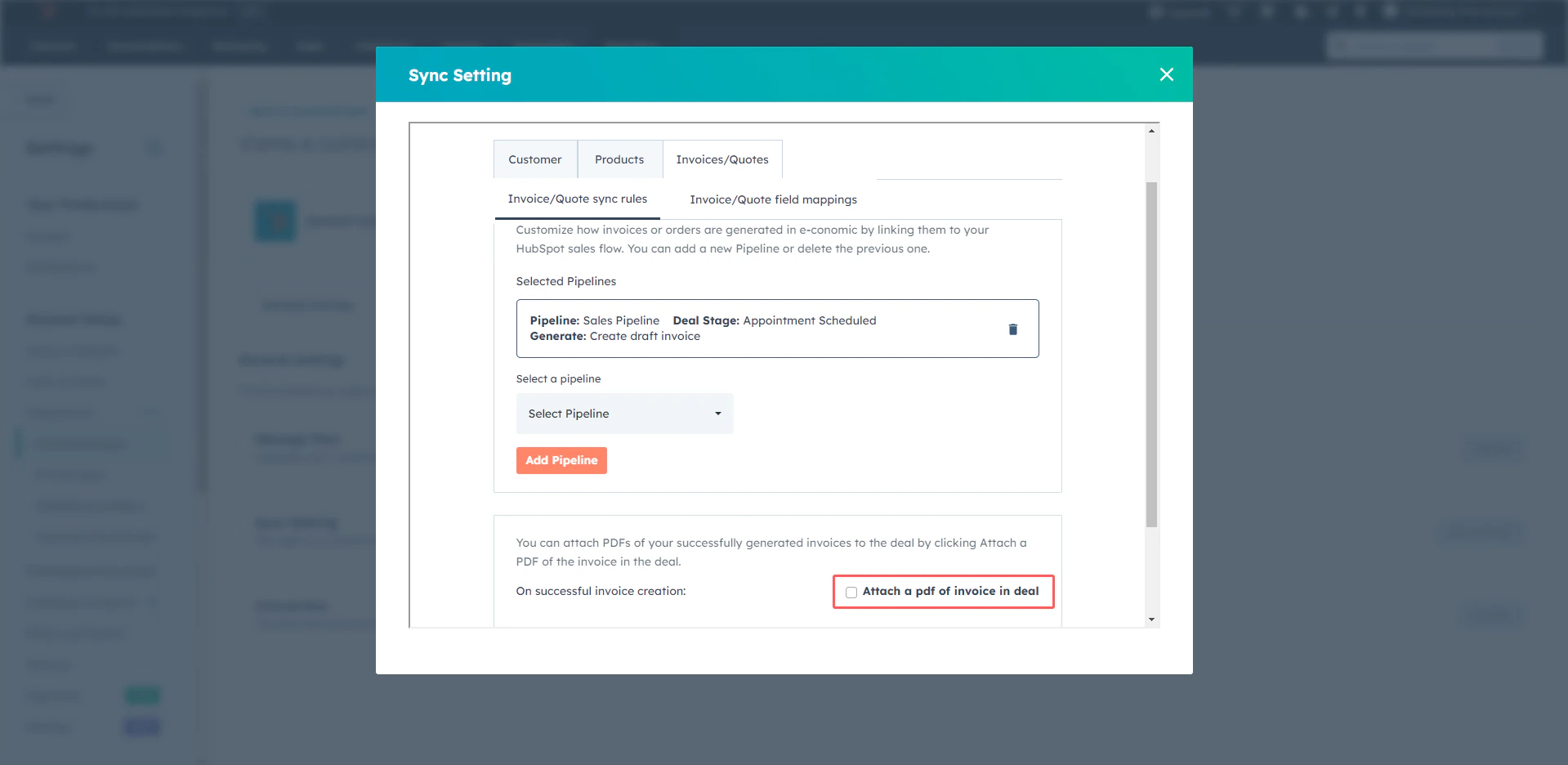
    You can attach PDFs of your successfully generated invoices to the deal by clicking "**Attach a PDF of the invoice in deal"**. Click "**Save**".
    <img src="https://mintcdn.com/cloudify-c7720744/mtxbn9X54oYbauYc/images/image-108.png?fit=max&auto=format&n=mtxbn9X54oYbauYc&q=85&s=9c70d3f6922ce767a02e648e4c88b377" alt="Main dashboard interface" style={{ height:"100%",width:"100%",borderRadius:"15px",border:"1px solid #e2e8f0",padding:"4px" }} width="1919" height="936" data-path="images/image-108.png" />
  </Step>
</Steps>

## Invoice/Quotes Field Mappings

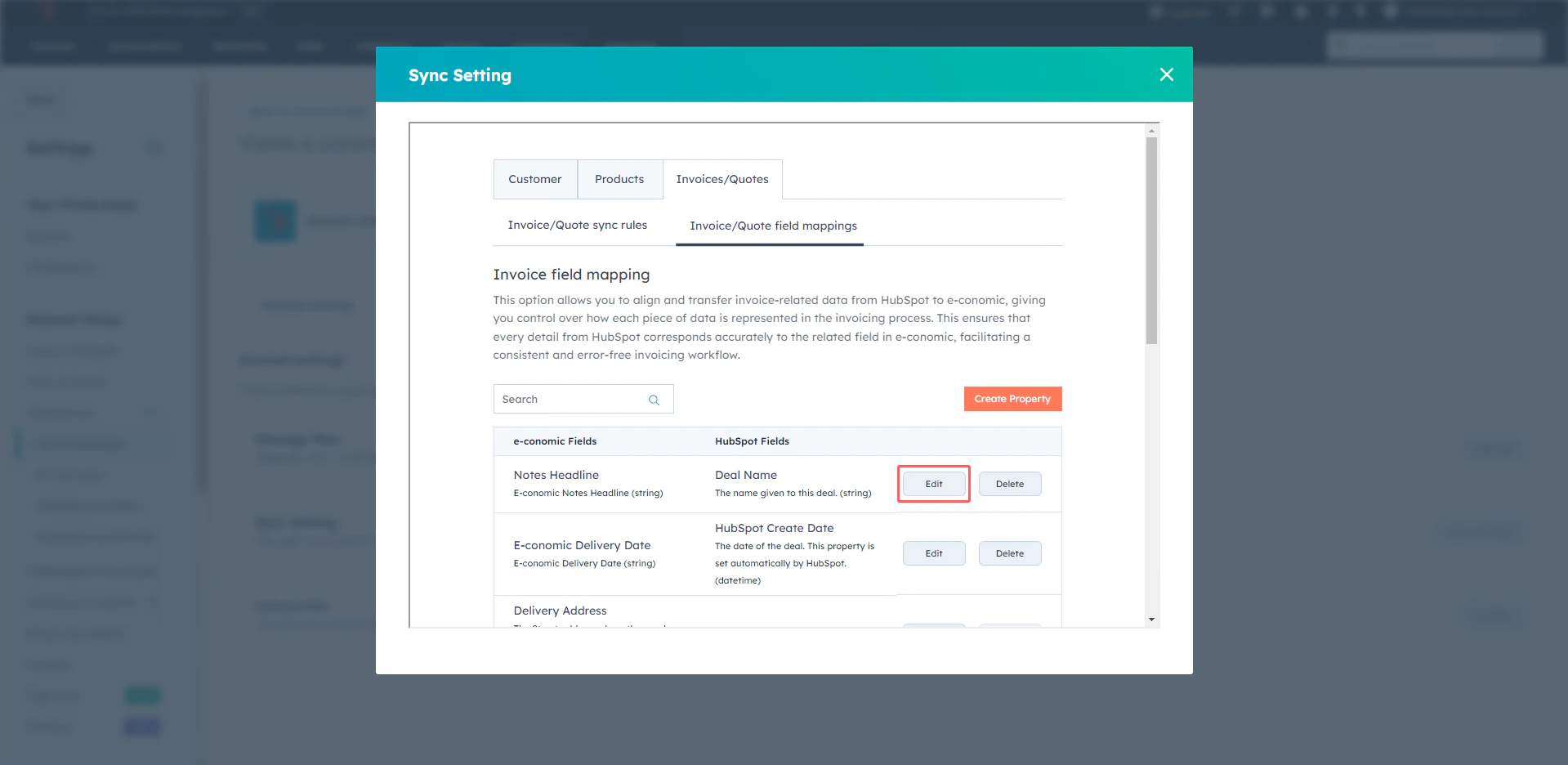
This option allows you to align and transfer invoice-related data from HubSpot to Xero, giving you control over how each piece of data is represented in the invoicing process. This ensures that every detail from HubSpot corresponds accurately to the related field in Xero, facilitating a consistent and error-free invoicing workflow.

<Steps>
  <Step title="" stepNumber={1}>
    Click "**Edit**"

    <img src="https://mintcdn.com/cloudify-c7720744/mtxbn9X54oYbauYc/images/image-109.png?fit=max&auto=format&n=mtxbn9X54oYbauYc&q=85&s=74f3fc65a55beccc48cffedf8cbd8aa7" alt="Main dashboard interface" style={{ height:"100%",width:"100%",borderRadius:"15px",border:"1px solid #e2e8f0",padding:"4px" }} width="1919" height="936" data-path="images/image-109.png" />
  </Step>

  <Step title="" stepNumber={2}>
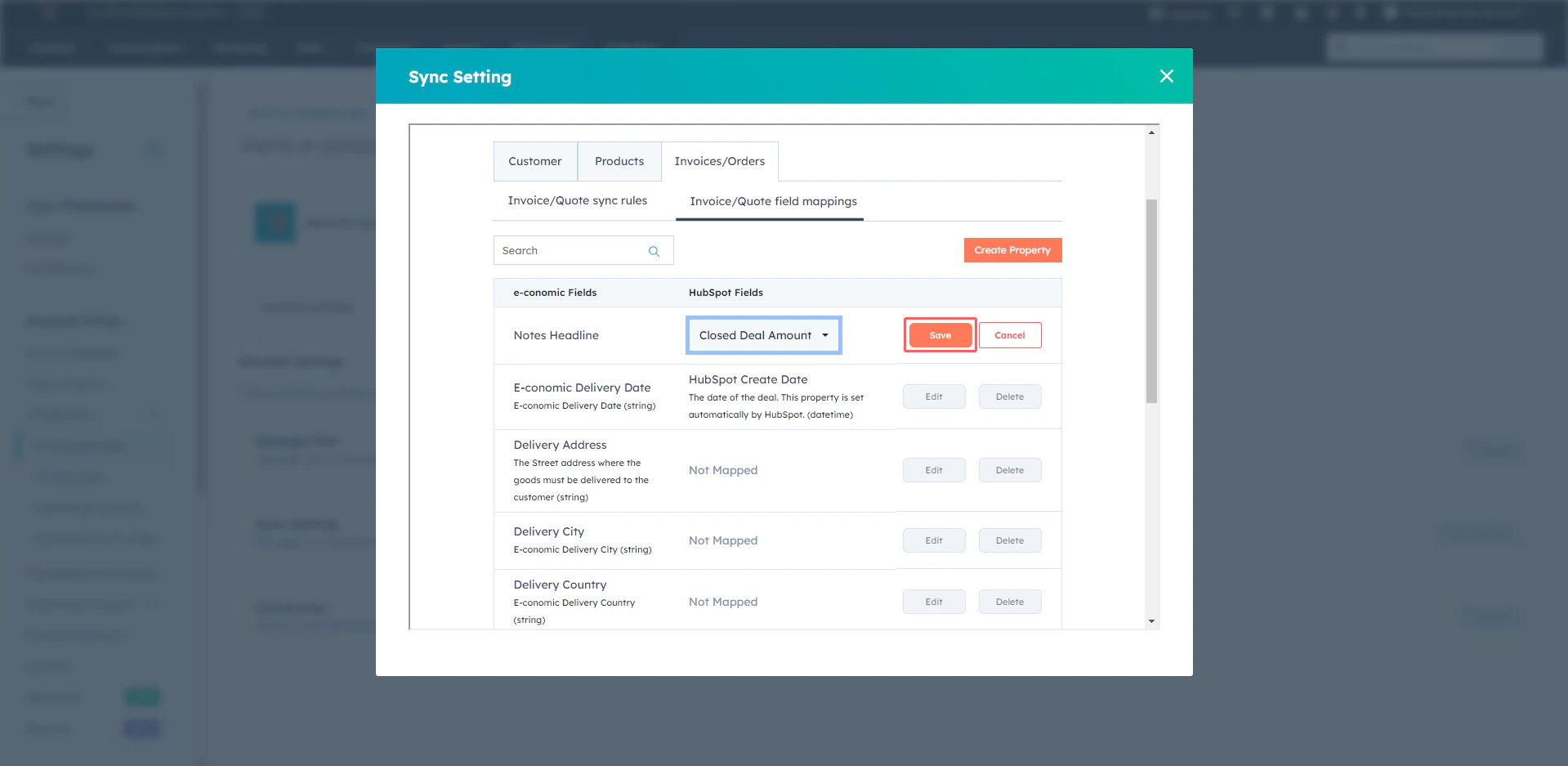
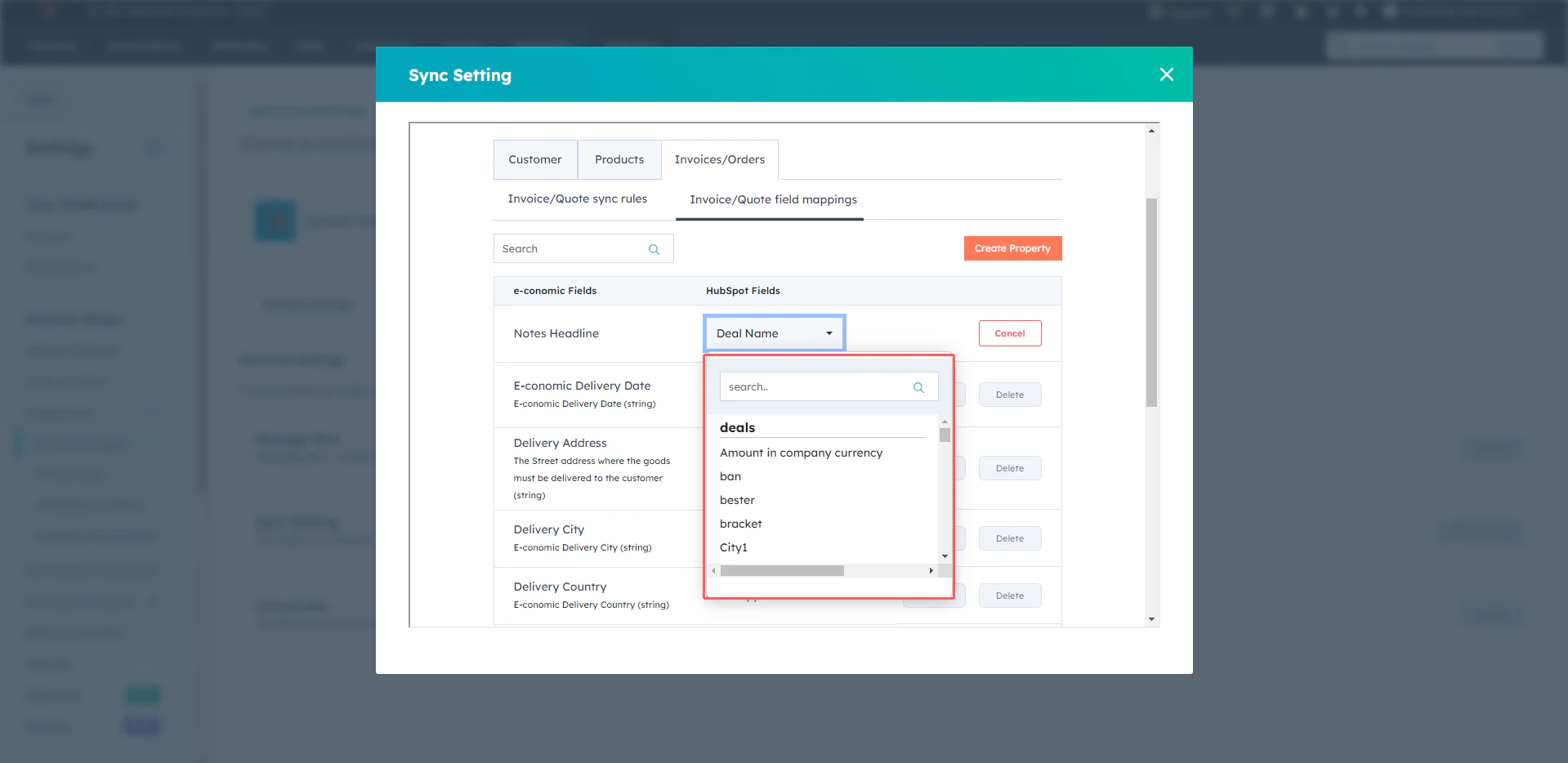
    Select the option from the drop-down box.
    <img src="https://mintcdn.com/cloudify-c7720744/mtxbn9X54oYbauYc/images/image-110.png?fit=max&auto=format&n=mtxbn9X54oYbauYc&q=85&s=34a515e574ea5a55a652639ab18a9e8f" alt="Main dashboard interface" style={{ height:"100%",width:"100%",borderRadius:"15px",border:"1px solid #e2e8f0",padding:"4px" }} width="1919" height="934" data-path="images/image-110.png" />
  </Step>

  <Step title="" stepNumber={3}>
    Click "**Save**".

    <img src="https://mintcdn.com/cloudify-c7720744/mtxbn9X54oYbauYc/images/image-112.png?fit=max&auto=format&n=mtxbn9X54oYbauYc&q=85&s=75ceecf11bd3919f8f00999b0027cdab" alt="Main dashboard interface" style={{ height:"100%",width:"100%",borderRadius:"15px",border:"1px solid #e2e8f0",padding:"4px" }} width="1919" height="937" data-path="images/image-112.png" />
  </Step>

  <Step title="">
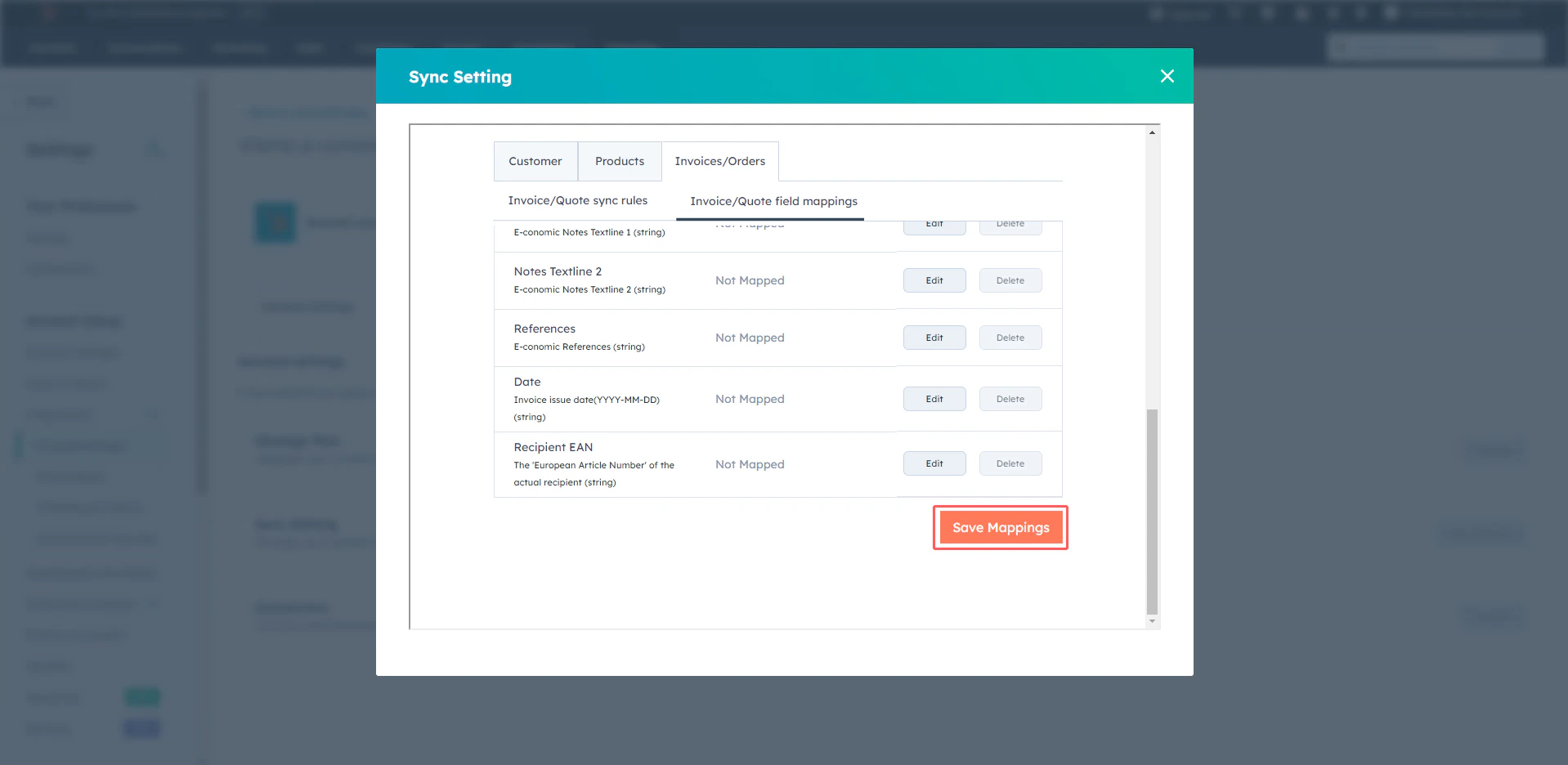
    Click "**Save Mappings**".

    <img src="https://mintcdn.com/cloudify-c7720744/mtxbn9X54oYbauYc/images/image-113.png?fit=max&auto=format&n=mtxbn9X54oYbauYc&q=85&s=fa47b52319b90d804339f8ac0a02ff6f" alt="Main dashboard interface" style={{ height:"100%",width:"100%",borderRadius:"15px",border:"1px solid #e2e8f0",padding:"4px" }} width="1918" height="936" data-path="images/image-113.png" />
  </Step>
</Steps>

<Tip>
  **Got unique integration needs?**\
  Our custom team can build tailored integrations, specialized data mappings, and workflow automations to perfectly match your specific business processes.

  [Advanced integration settings](https://custom.cloudify.biz/)
</Tip>