> ## Documentation Index
> Fetch the complete documentation index at: https://docs.cloudify.biz/llms.txt
> Use this file to discover all available pages before exploring further.
# Product Settings
> Manage how products are identified and matched between HubSpot and Xero. Here, you will select the method of item search that best suits your needs, ensuring accurate invoice creation.
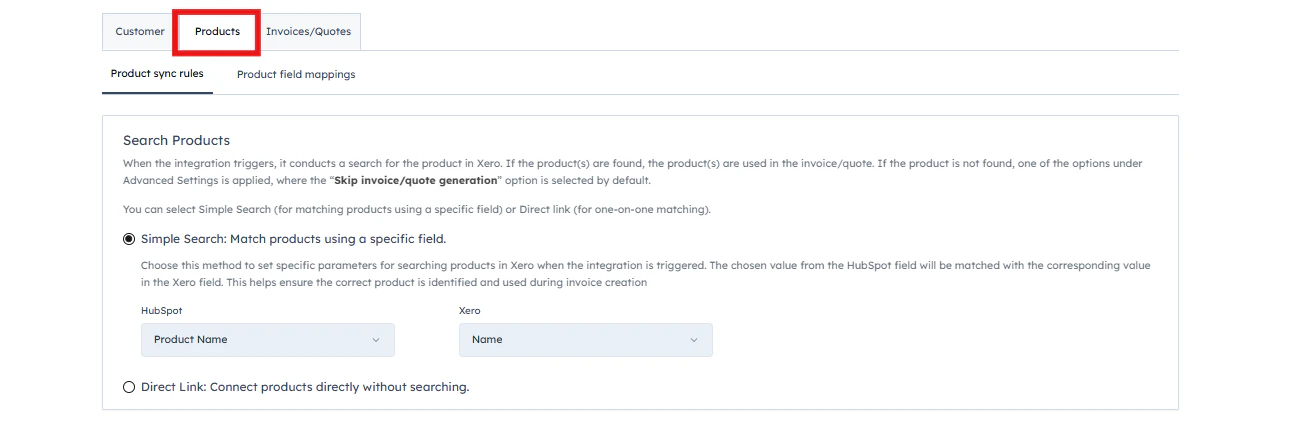
## Option 1: Simple Search (Recommended for most users)
Use this when you want the system to automatically find matching products in Xero.
Use this method to define specific criteria for searching products in Xero when the integration runs. The selected value from the HubSpot field is matched against the corresponding field in Xero, ensuring the correct product is accurately identified and applied during invoice creation.
 ## Option 2: Direct Link
Choose this option to directly link specific products between HubSpot and Xero in a one-to-many relationship. It’s ideal when you have a smaller product catalog, as it enables precise, manual mapping and greater control over how each product is matched.
## Option 2: Direct Link
Choose this option to directly link specific products between HubSpot and Xero in a one-to-many relationship. It’s ideal when you have a smaller product catalog, as it enables precise, manual mapping and greater control over how each product is matched.
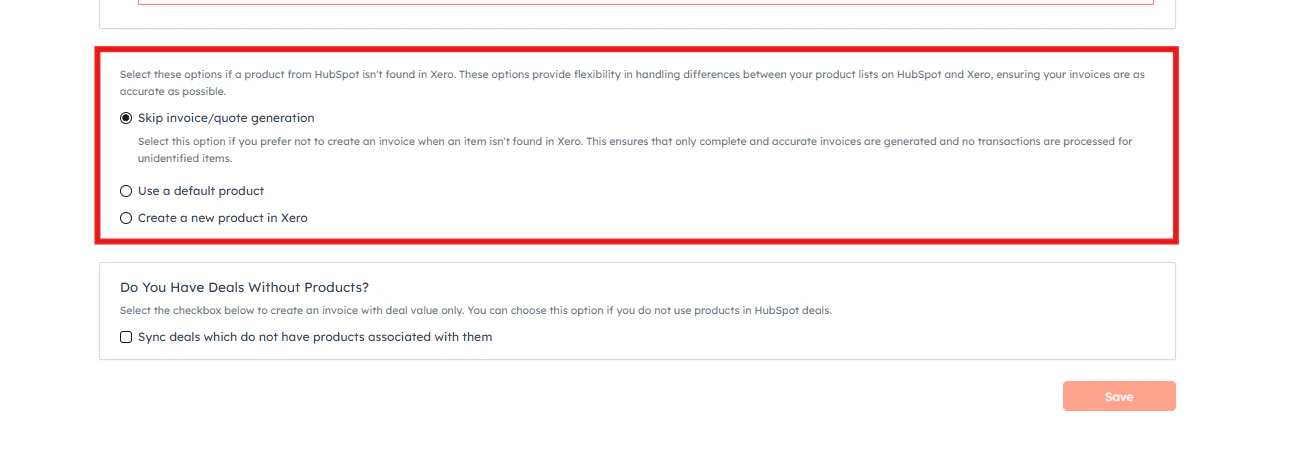
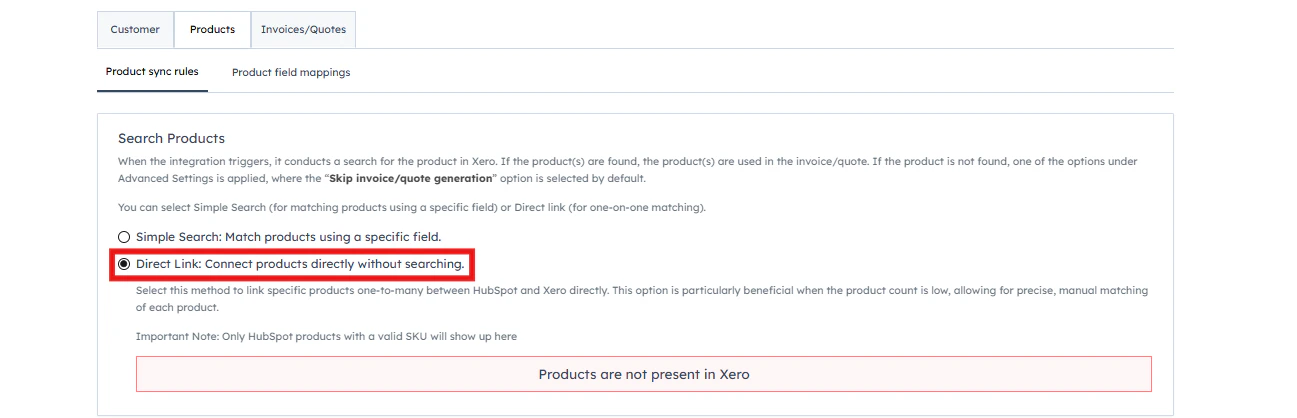 Furthermore, you can choose the action to be taken if a product from HubSpot isn't found in Xero. They give you flexibility in managing product mismatches while ensuring your invoices remain accurate and reliable.
### **Skip invoice/quote generation**
Prevents invoice or quote creation if a matching product is not found in Xero. This helps avoid incomplete or incorrect invoices and ensures no transactions are processed for unidentified items.
### **Use a default product**
Applies a predefined fallback product from Xero when an exact match isn’t found. This allows invoice generation to continue without interruption while maintaining consistency.
### **Create a new product in Xero**
Automatically creates a new product in Xero using the details from HubSpot when no match exists. This keeps both systems in sync and reduces manual product management.
Furthermore, you can choose the action to be taken if a product from HubSpot isn't found in Xero. They give you flexibility in managing product mismatches while ensuring your invoices remain accurate and reliable.
### **Skip invoice/quote generation**
Prevents invoice or quote creation if a matching product is not found in Xero. This helps avoid incomplete or incorrect invoices and ensures no transactions are processed for unidentified items.
### **Use a default product**
Applies a predefined fallback product from Xero when an exact match isn’t found. This allows invoice generation to continue without interruption while maintaining consistency.
### **Create a new product in Xero**
Automatically creates a new product in Xero using the details from HubSpot when no match exists. This keeps both systems in sync and reduces manual product management.
 ## Do You Have Deals Without Products?
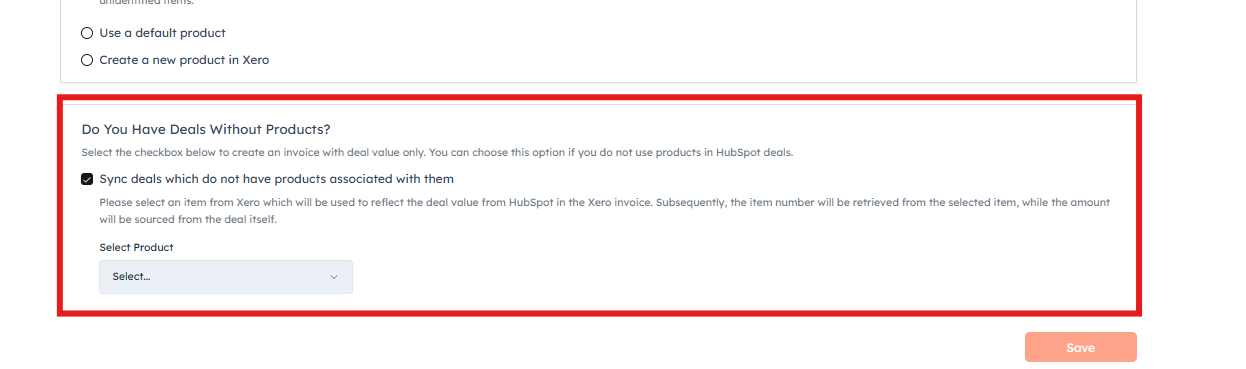
Enable this option to create invoices using the deal value alone. This is useful if you don’t associate products with your HubSpot deals but still want invoices to be generated.
## Do You Have Deals Without Products?
Enable this option to create invoices using the deal value alone. This is useful if you don’t associate products with your HubSpot deals but still want invoices to be generated.
 Once you’ve completed the configuration, click "**Save"** to apply the changes.
## Product Field Mappings
Product field mapping involves customizing how product data aligns between HubSpot and Xero by setting equivalent fields. This ensures that product information like names and numbers is consistently and accurately transferred between the two systems. This mapping is essential for coherent product data management and streamlined invoicing processes.
Once you’ve completed the configuration, click "**Save"** to apply the changes.
## Product Field Mappings
Product field mapping involves customizing how product data aligns between HubSpot and Xero by setting equivalent fields. This ensures that product information like names and numbers is consistently and accurately transferred between the two systems. This mapping is essential for coherent product data management and streamlined invoicing processes.
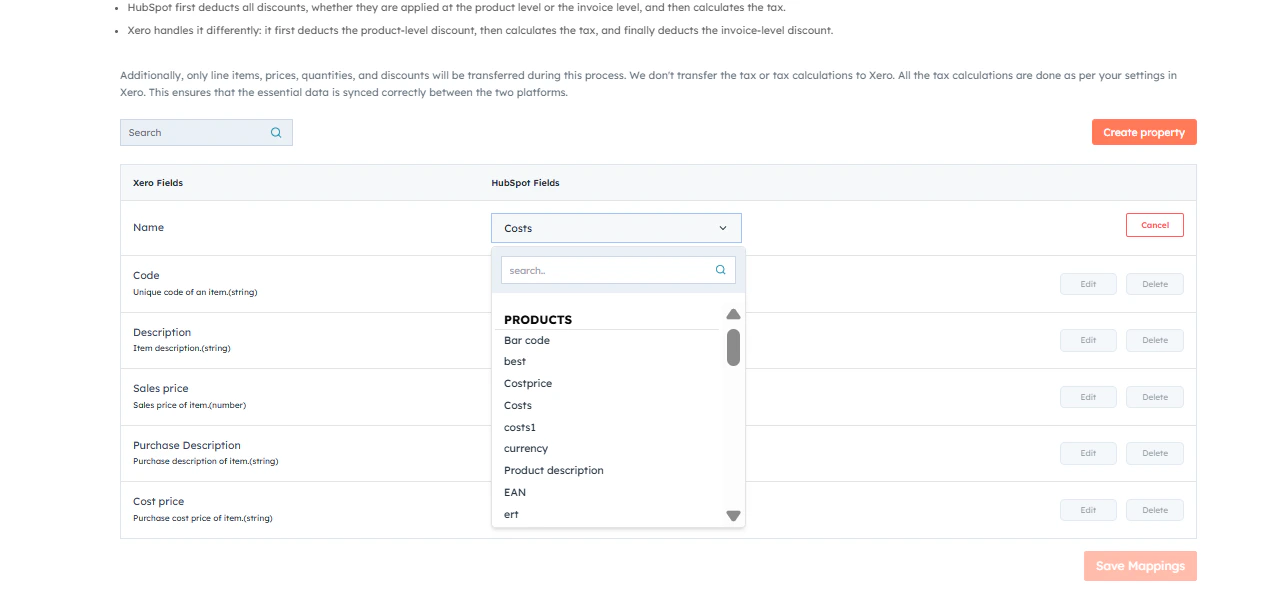
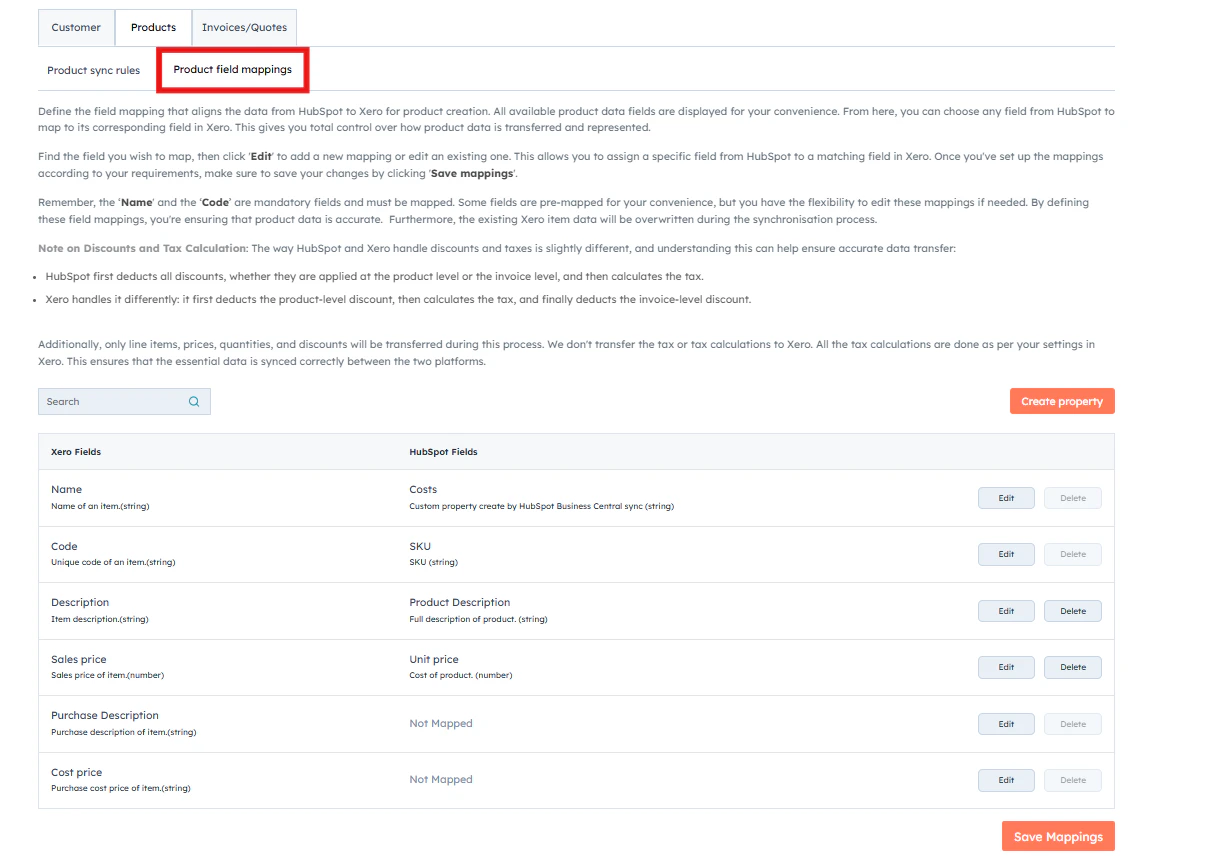 Click "**Edit**"and select the HubSpot field you want to map from the drop-down menu.
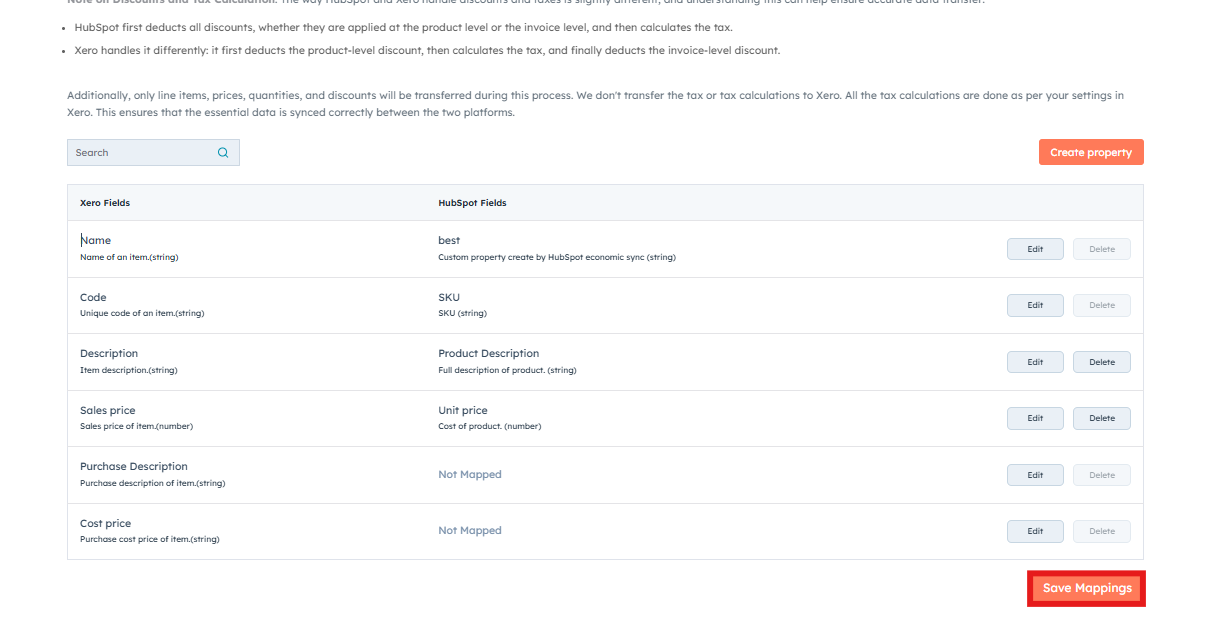
 Click "**Save**"and finally once done click "**Save Mappings**".
 **Got unique integration needs?**\
Our custom team can build tailored integrations, specialized data mappings, and workflow automations to perfectly match your specific business processes.
[Advanced integration settings](https://custom.cloudify.biz/)
**Got unique integration needs?**\
Our custom team can build tailored integrations, specialized data mappings, and workflow automations to perfectly match your specific business processes.
[Advanced integration settings](https://custom.cloudify.biz/)