> ## Documentation Index
> Fetch the complete documentation index at: https://docs.cloudify.biz/llms.txt
> Use this file to discover all available pages before exploring further.
# Cloudify Dashboard
> Cloudify dashboard brings you complete visibility and control over your integration all in one place.
## How to access the Integration Dashboard
To view and manage your HubSpot–Xero integration dashboard:
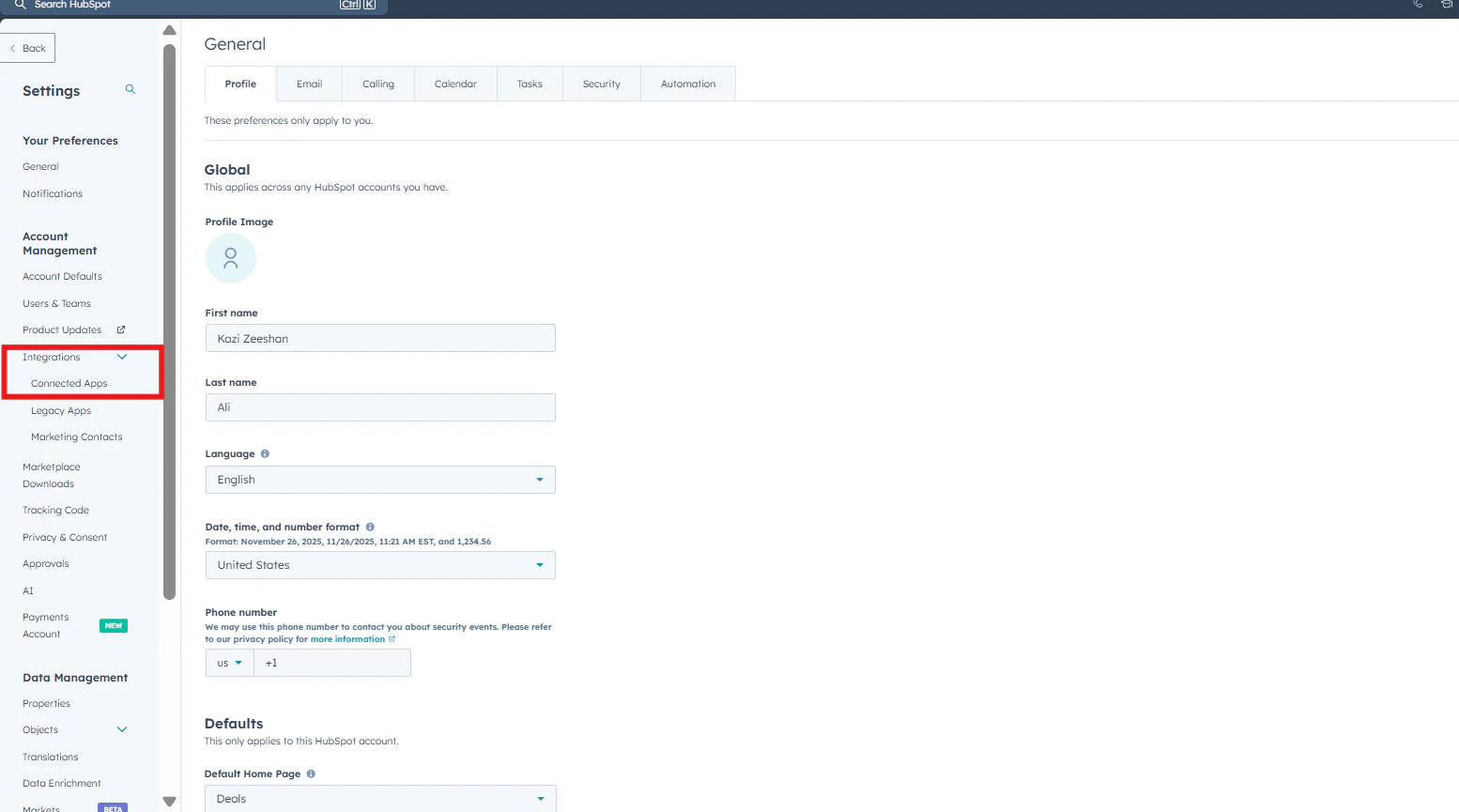
Click on "**Connected Apps**" → "**Xero"** → "**Settings"**
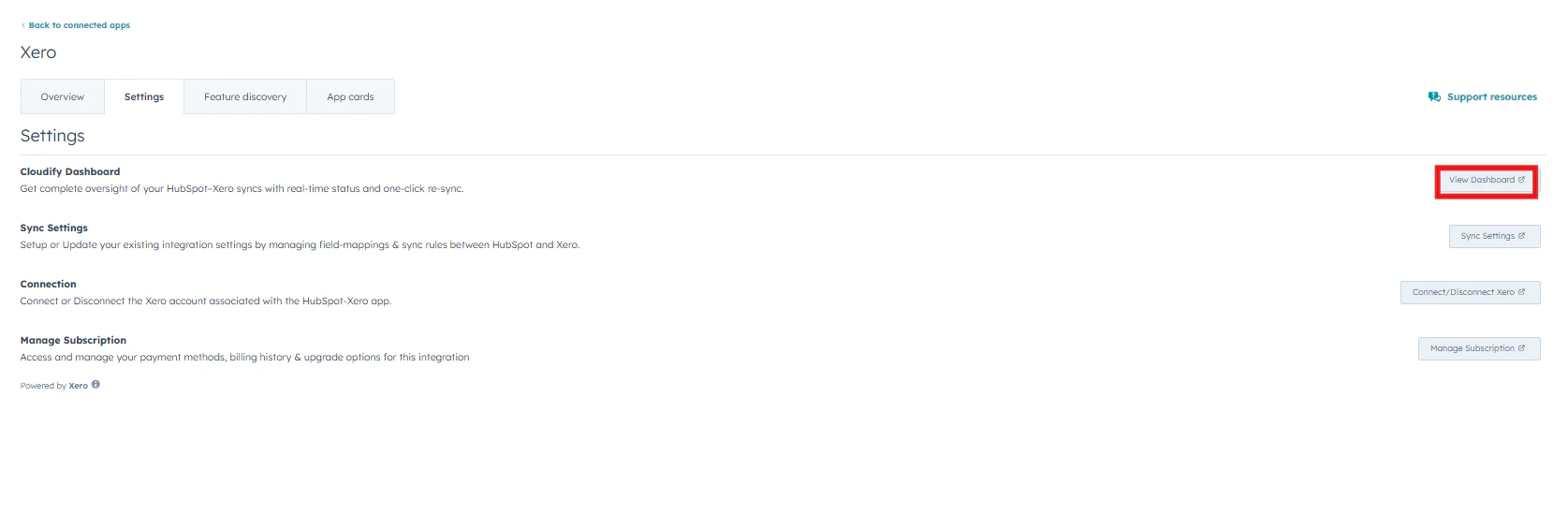
 Under the “**Settings**” tab, go to “**Cloudify Dashboard**” and click the “**View Dashboard**” button on the right side.
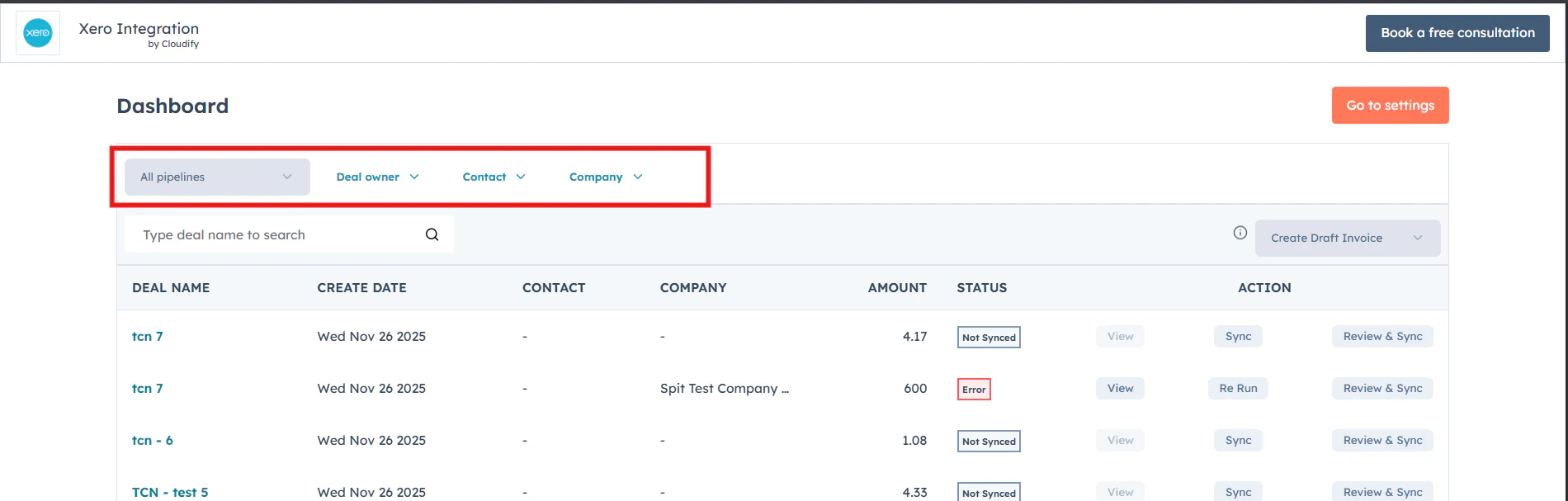
 This will open the full Cloudify HubSpot–Xero dashboard, where you can monitor sync statuses, manage invoices, and take action on your deals in real time.
## Benefits
* Effortlessly refine your view by filtering deals based on Pipeline, Deal Owner, Contact, or Company, helping you find exactly what you’re looking for in seconds.
This will open the full Cloudify HubSpot–Xero dashboard, where you can monitor sync statuses, manage invoices, and take action on your deals in real time.
## Benefits
* Effortlessly refine your view by filtering deals based on Pipeline, Deal Owner, Contact, or Company, helping you find exactly what you’re looking for in seconds.
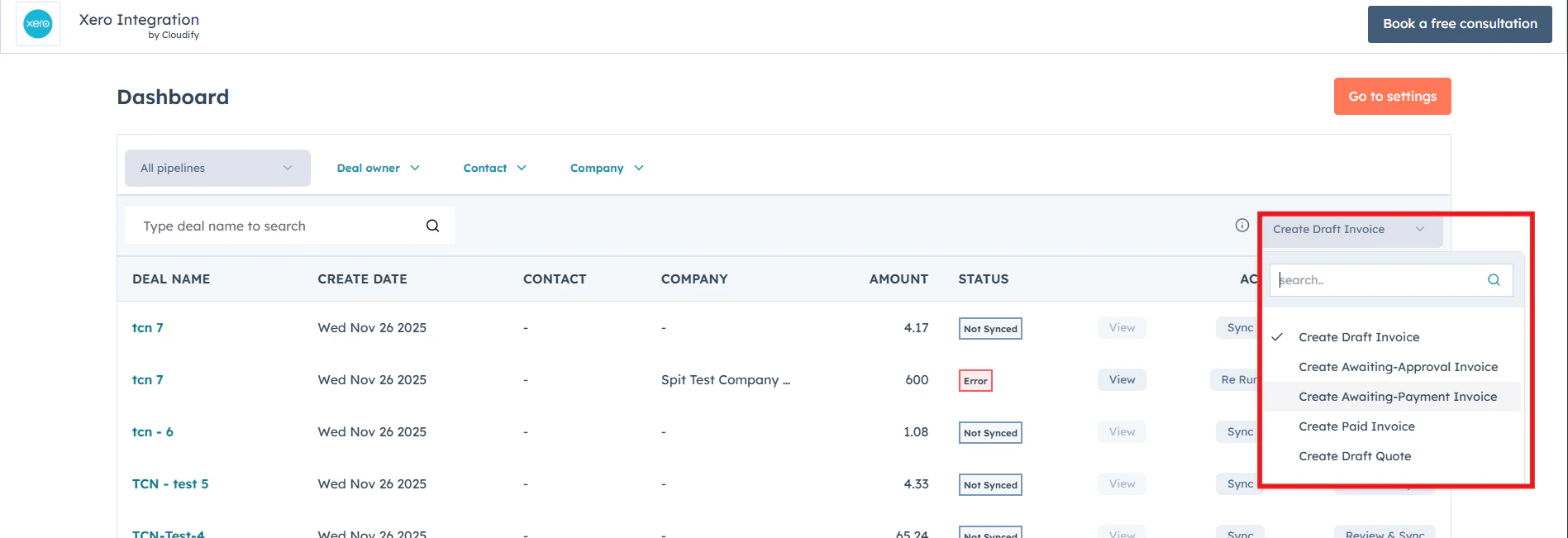
 * Choose the invoice or quote type you’d like to create in Xero, making it easy and saving time without switching screens
 * View all your HubSpot deals along with their create date, contact, company, amount, and real-time sync status so you can instantly see what’s synced, pending, or needs attention.
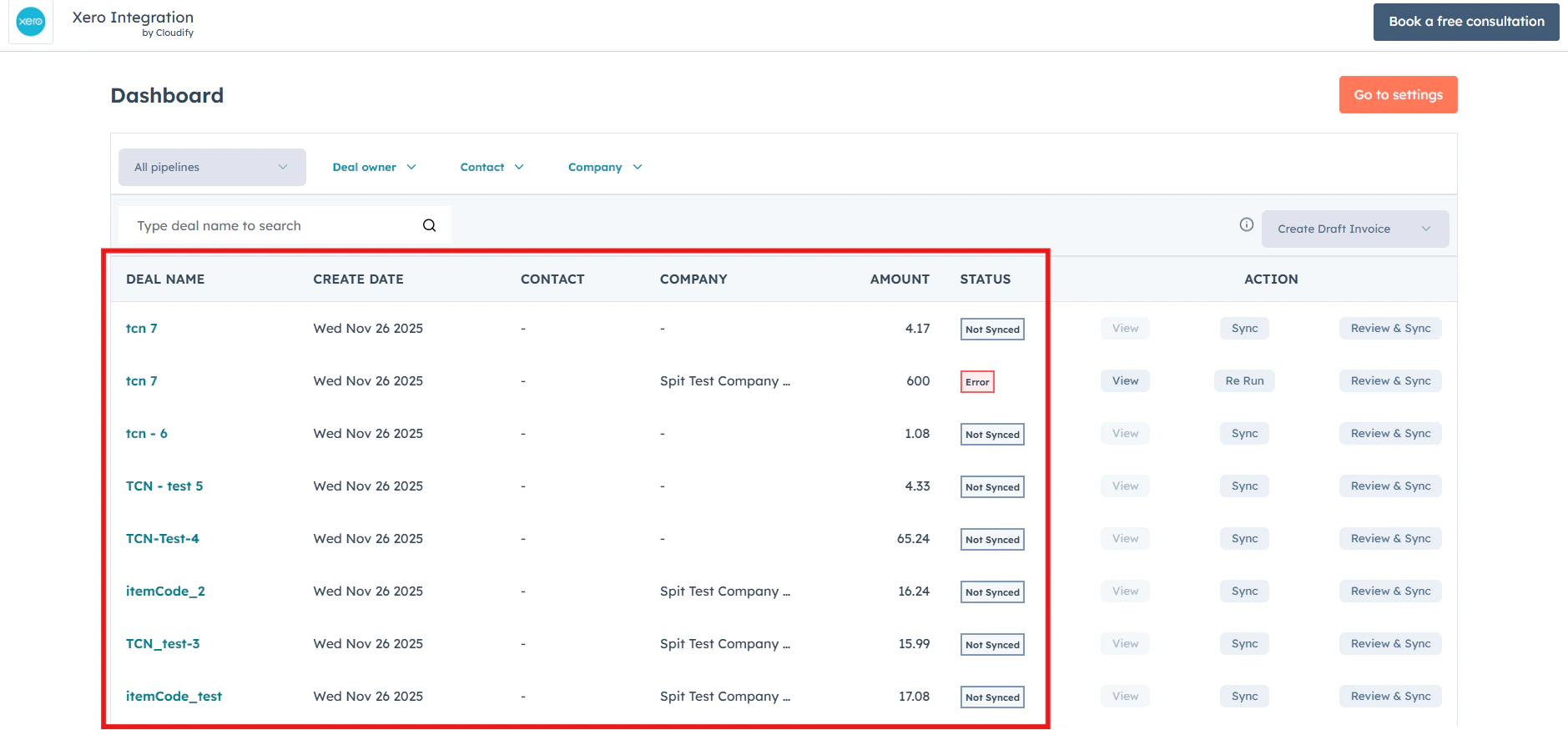 * Use the “**View**” button to quickly open and review the associated HubSpot deal, along with its sync details and invoice information.
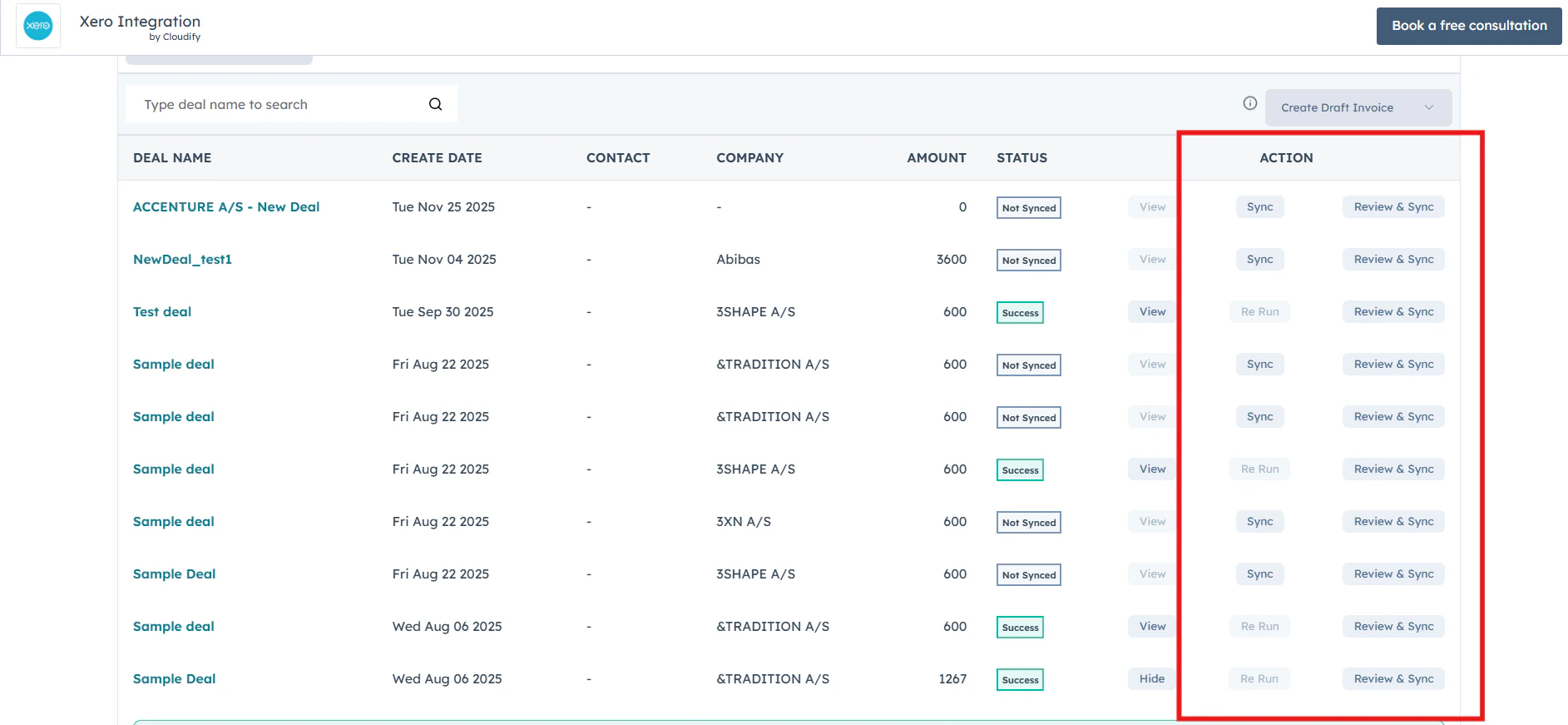
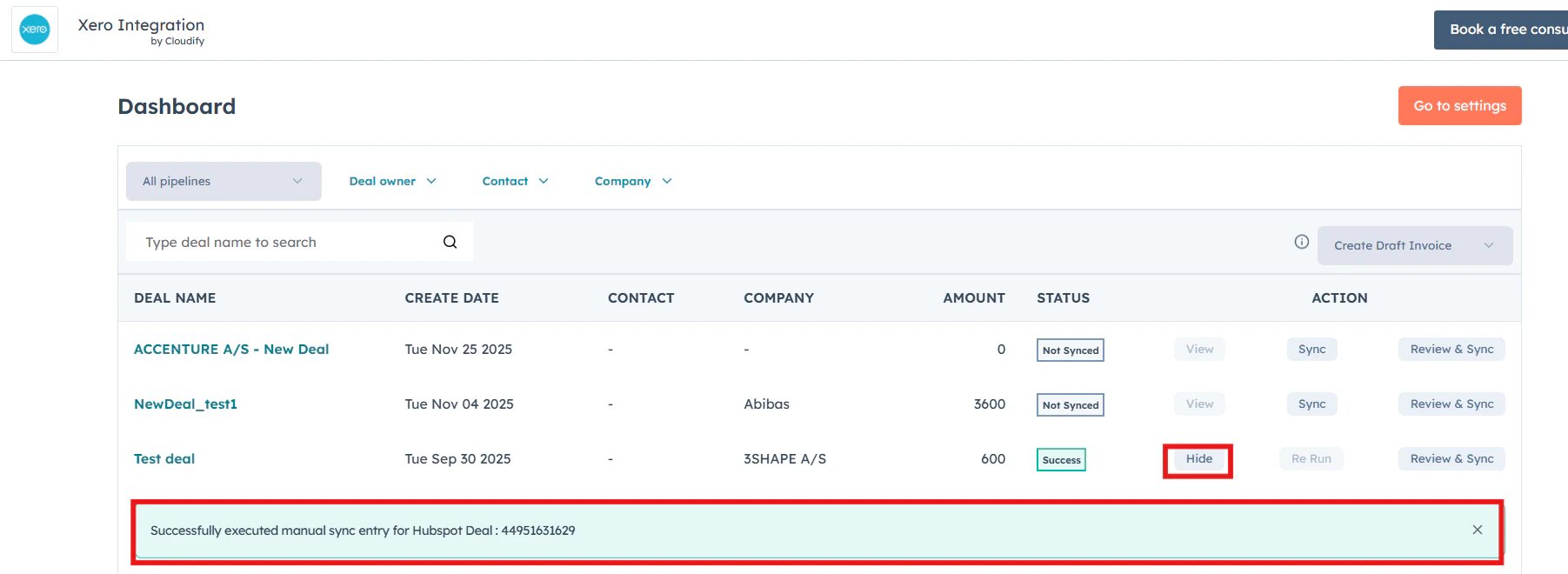 * Use the “**Sync**” and “**Re Run**” buttons to instantly trigger or retry invoice syncing, while “**Review & Sync**” allows you to inspect and edit invoice or quote details before sending them to Xero.
 * If you wish, click **"Settings"** to update your preferences or adjust integration options; the Cloudify Dashboard is your unified place to manage everything.
**Got unique integration needs?**\
Our custom team can build tailored integrations, specialized data mappings, and workflow automations to perfectly match your specific business processes.
[Advanced integration settings](https://custom.cloudify.biz/)
* If you wish, click **"Settings"** to update your preferences or adjust integration options; the Cloudify Dashboard is your unified place to manage everything.
**Got unique integration needs?**\
Our custom team can build tailored integrations, specialized data mappings, and workflow automations to perfectly match your specific business processes.
[Advanced integration settings](https://custom.cloudify.biz/)