> ## Documentation Index
> Fetch the complete documentation index at: https://docs.cloudify.biz/llms.txt
> Use this file to discover all available pages before exploring further.

# One-click Invoice/Quote

> Create invoices or quotes directly from any HubSpot deal stage using the Cloudify one-click feature or the manual sync dashboard.

The HubSpot Xero integration by Cloudify facilitates one-click creation of invoices or quotes directly from HubSpot deals, irrespective of the deal stage.

<Info>
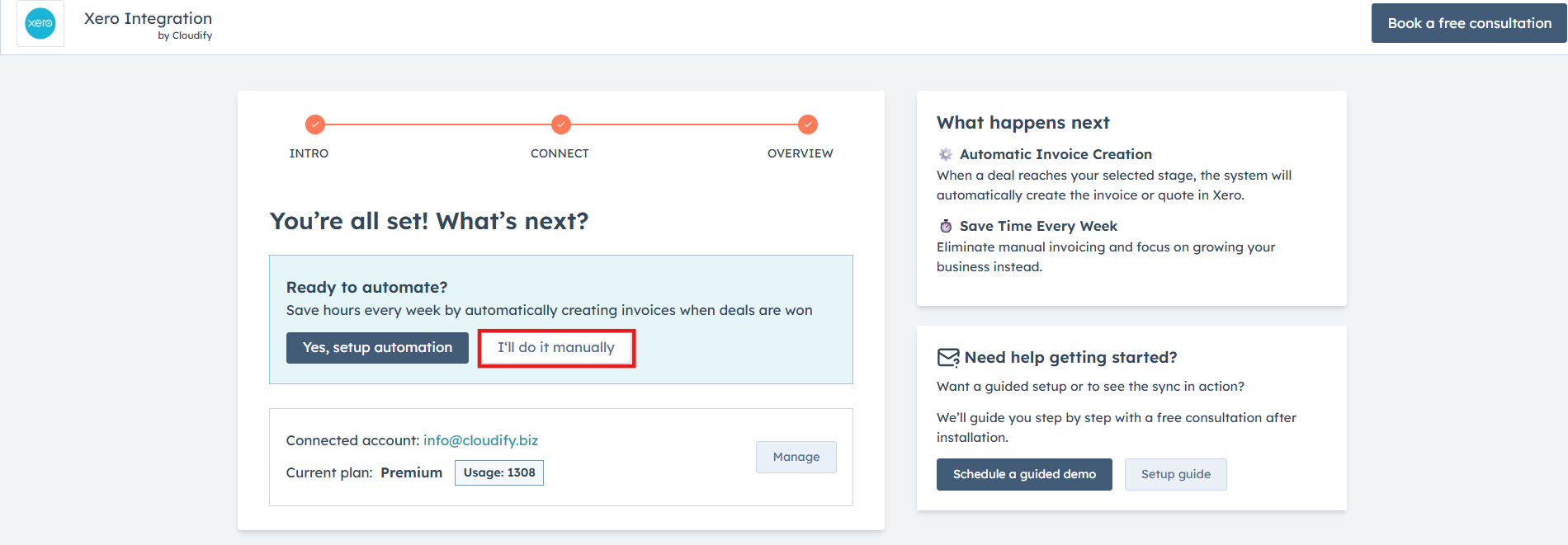
  Selecting **I'll do it manually** skips automation and takes you to the **Cloudify Dashboard**, allowing you to update invoices from any HubSpot deal stage.
</Info>

<Frame>
  <img alt="Select I'll do it manually to skip automation and go to the Cloudify Dashboard" lightAlt="Select I'll do it manually to skip automation and go to the Cloudify Dashboard" darkAlt="Select I'll do it manually to skip automation and go to the Cloudify Dashboard" src="https://mintcdn.com/cloudify-c7720744/vbRT_M1td7Th601K/images/Screenshot-2026-04-12-005907.png?fit=max&auto=format&n=vbRT_M1td7Th601K&q=85&s=b462877aef0c8c18ccf1e6dc2fd3128d" className="dark:hidden" width="1900" height="661" data-path="images/Screenshot-2026-04-12-005907.png" />

  <img alt="Select I'll do it manually to skip automation and go to the Cloudify Dashboard" lightAlt="Select I'll do it manually to skip automation and go to the Cloudify Dashboard" darkAlt="Select I'll do it manually to skip automation and go to the Cloudify Dashboard" src="https://mintcdn.com/cloudify-c7720744/A6A_8yNHChdsPV-l/images/Screenshot2026-03-18022421.png" className="hidden dark:block" />
</Frame>

***

## Manual Sync via the Dashboard

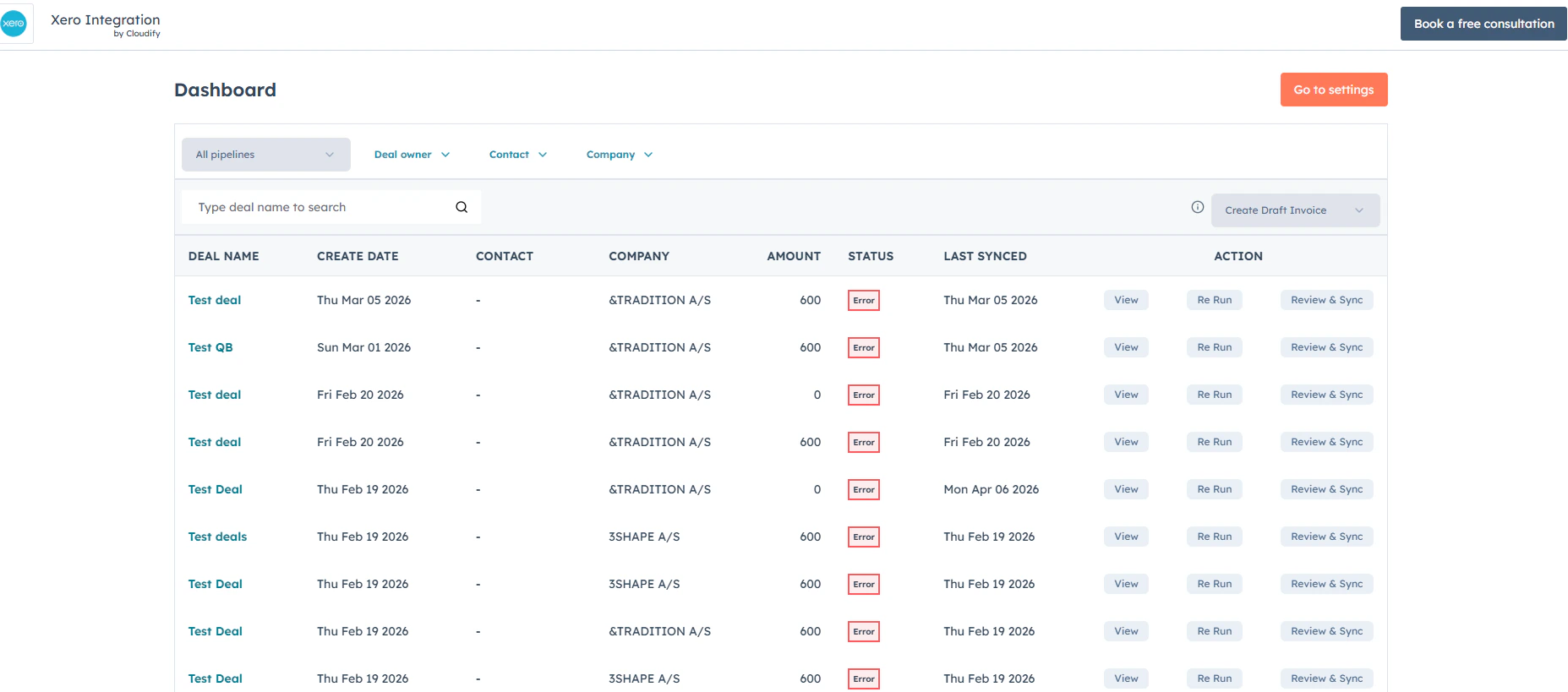
Once you click **Dashboard**, follow these steps to complete a manual sync:
<Frame>
  <img alt="Cloudify Dashboard showing deals available for manual sync" lightAlt="Cloudify Dashboard showing deals available for manual sync" darkAlt="Cloudify Dashboard showing deals available for manual sync" src="https://mintcdn.com/cloudify-c7720744/vbRT_M1td7Th601K/images/Screenshot-2026-04-12-003337.png?fit=max&auto=format&n=vbRT_M1td7Th601K&q=85&s=ccbaaf917c58f6e53e32b2690f7d8c27" className="dark:hidden" width="1855" height="819" data-path="images/Screenshot-2026-04-12-003337.png" />

  <img alt="Cloudify Dashboard showing deals available for manual sync" lightAlt="Cloudify Dashboard showing deals available for manual sync" darkAlt="Cloudify Dashboard showing deals available for manual sync" src="https://mintcdn.com/cloudify-c7720744/EIGlfGBzTycal6nZ/images/Screenshot2026-03-18023554.png" className="hidden dark:block" />
</Frame>

<Steps>
  <Step title="Access the invoice">
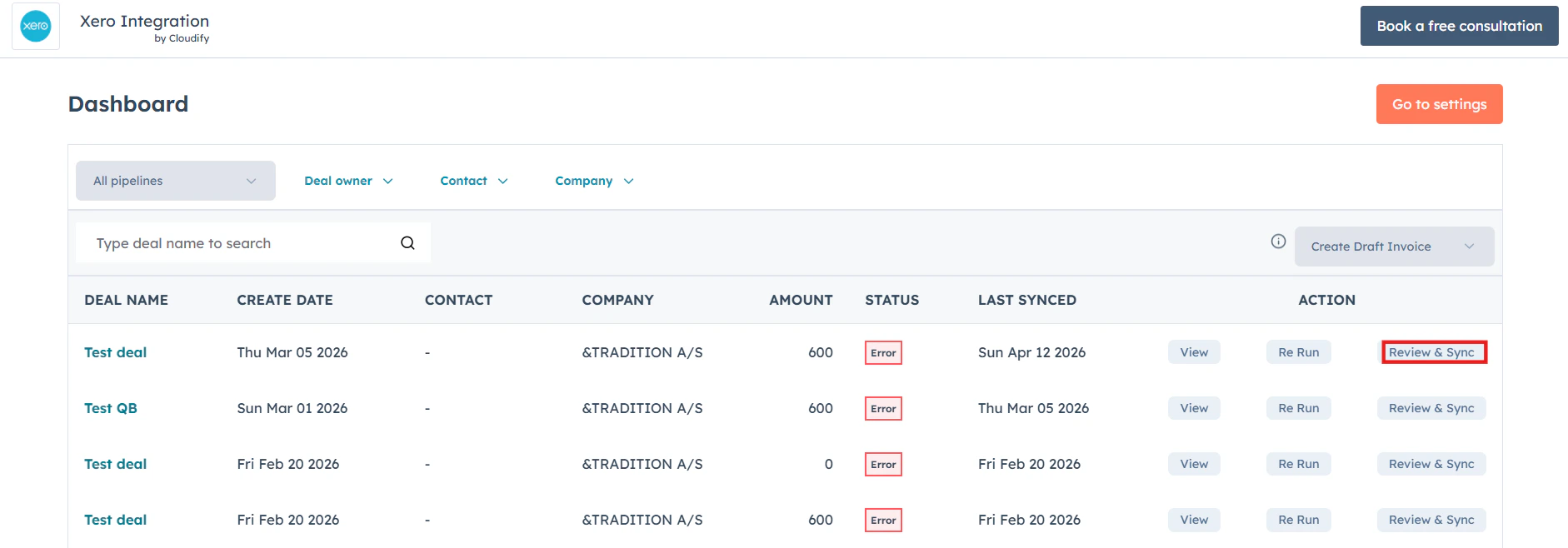
    Go to any invoice on the dashboard you wish to update and click **Review and Sync**. The manual sync window will immediately appear on your screen.
    <Frame>
      <img alt="Click Review and Sync on any invoice to open the manual sync window" lightAlt="Click Review and Sync on any invoice to open the manual sync window" darkAlt="Click Review and Sync on any invoice to open the manual sync window" src="https://mintcdn.com/cloudify-c7720744/vbRT_M1td7Th601K/images/Screenshot-2026-04-12-005325.png?fit=max&auto=format&n=vbRT_M1td7Th601K&q=85&s=f354630ef7c7b9961e54a724a0f77940" className="dark:hidden" width="1882" height="658" data-path="images/Screenshot-2026-04-12-005325.png" />

      <img alt="Click Review and Sync on any invoice to open the manual sync window" lightAlt="Click Review and Sync on any invoice to open the manual sync window" darkAlt="Click Review and Sync on any invoice to open the manual sync window" src="https://mintcdn.com/cloudify-c7720744/EIGlfGBzTycal6nZ/images/Screenshot2026-03-18022757.png" className="hidden dark:block" />
    </Frame>
  </Step>

  <Step title="Enter basic details">
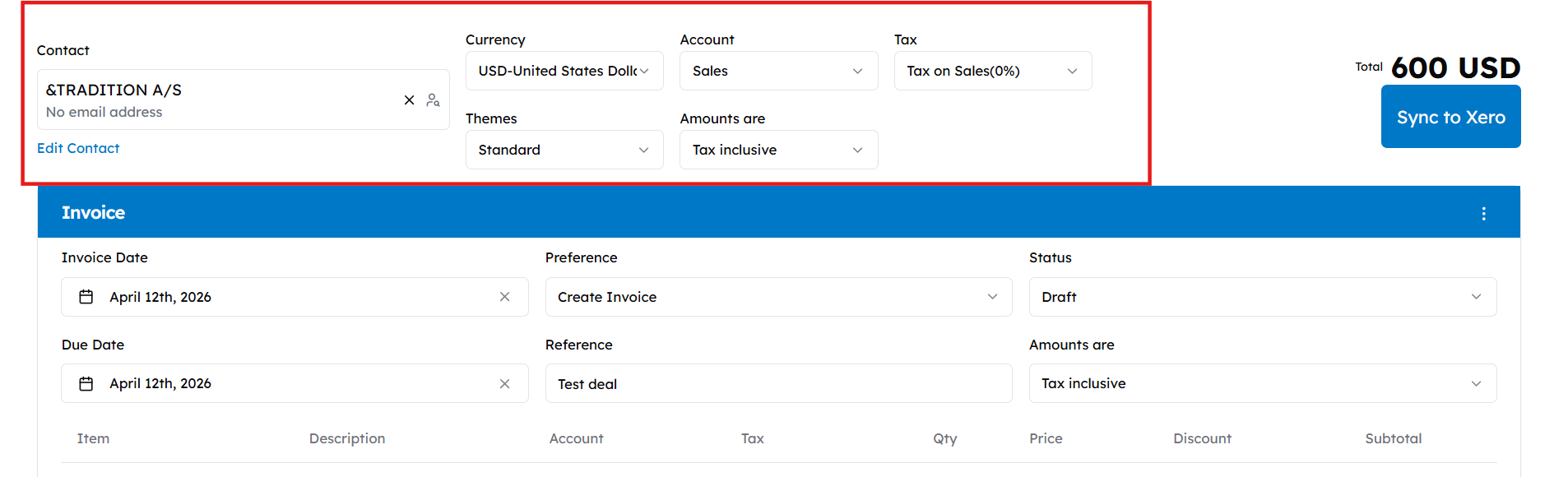
    Select your contact, currency, tax, and account details to get started.
    <Frame>
      <img alt="Select contact, currency, tax, and account details" lightAlt="Select contact, currency, tax, and account details" darkAlt="Select contact, currency, tax, and account details" src="https://mintcdn.com/cloudify-c7720744/vbRT_M1td7Th601K/images/Screenshot-2026-04-12-005405.png?fit=max&auto=format&n=vbRT_M1td7Th601K&q=85&s=ee963f0d168a898eb54301dfd624eb5a" className="dark:hidden" width="1906" height="580" data-path="images/Screenshot-2026-04-12-005405.png" />

      <img alt="Select contact, currency, tax, and account details" lightAlt="Select contact, currency, tax, and account details" darkAlt="Select contact, currency, tax, and account details" src="https://mintcdn.com/cloudify-c7720744/EIGlfGBzTycal6nZ/images/Screenshot2026-03-18022929.png" className="hidden dark:block" />
    </Frame>
  </Step>

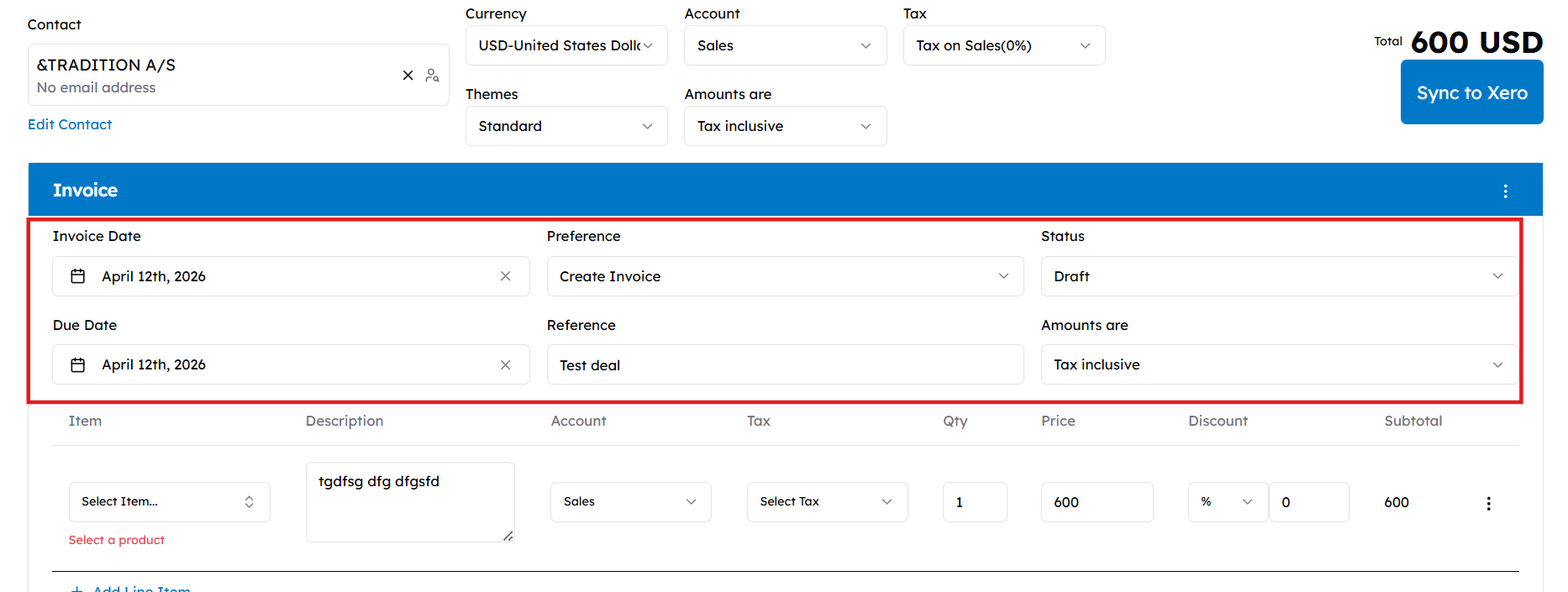
  <Step title="Set invoice terms">
    Choose specific details such as the **Invoice date**, **Due date**, **Status**, and **Tax preferences**.
    <Frame>
      <img src="https://mintcdn.com/cloudify-c7720744/vbRT_M1td7Th601K/images/Screenshot-2026-04-12-005510.png?fit=max&auto=format&n=vbRT_M1td7Th601K&q=85&s=b24fda429255ba15e843ccae3cebae56" alt="Screenshot 2026 04 12 005510" width="1866" height="705" data-path="images/Screenshot-2026-04-12-005510.png" />
    </Frame>
  </Step>

  <Step title="Add products">
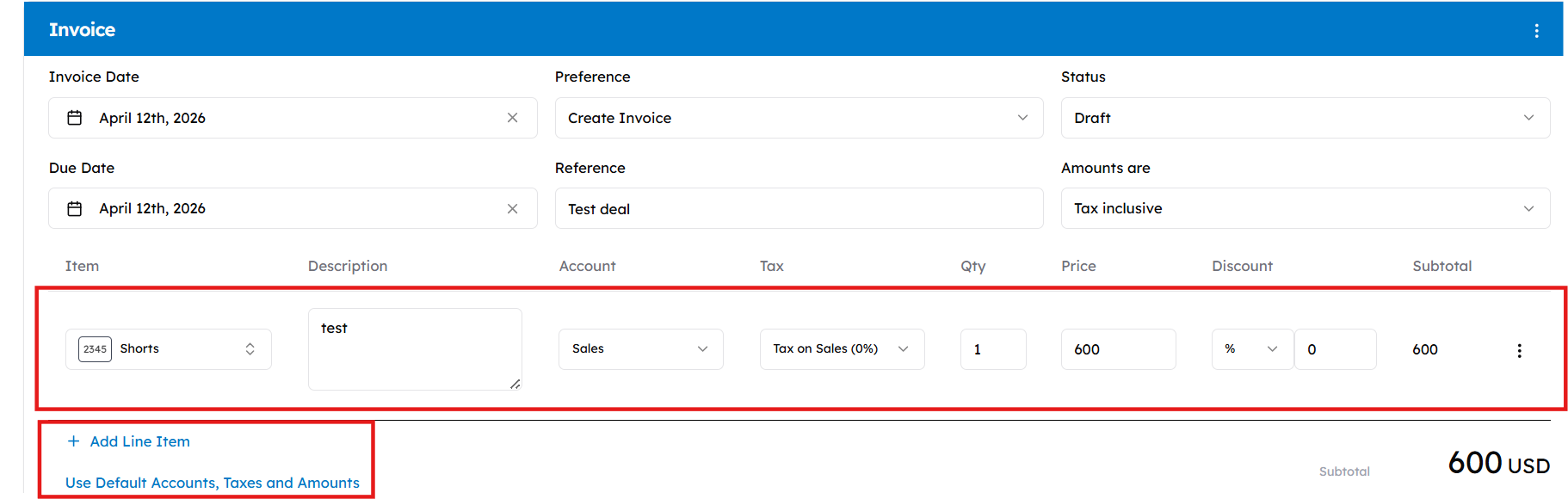
    Click **+ Add Line Item** to include products in your draft. To adjust specific item settings, click **Customize Accounts, Taxes and Amounts**.

    <Note>
      You can only use the **+ Add Line Item** button for products that are already present in Xero.
    </Note>

    <Frame>
      <img alt="Click + Add Line Item to add products, or Customize Accounts, Taxes and Amounts for item-level adjustments" lightAlt="Click + Add Line Item to add products, or Customize Accounts, Taxes and Amounts for item-level adjustments" darkAlt="Click + Add Line Item to add products, or Customize Accounts, Taxes and Amounts for item-level adjustments" src="https://mintcdn.com/cloudify-c7720744/vbRT_M1td7Th601K/images/Screenshot-2026-04-12-005600-1.png?fit=max&auto=format&n=vbRT_M1td7Th601K&q=85&s=c00cb2f39e3c49197fad4de5dc8412e8" className="dark:hidden" width="1822" height="580" data-path="images/Screenshot-2026-04-12-005600-1.png" />

      <img alt="Click + Add Line Item to add products, or Customize Accounts, Taxes and Amounts for item-level adjustments" lightAlt="Click + Add Line Item to add products, or Customize Accounts, Taxes and Amounts for item-level adjustments" darkAlt="Click + Add Line Item to add products, or Customize Accounts, Taxes and Amounts for item-level adjustments" src="https://mintcdn.com/cloudify-c7720744/EIGlfGBzTycal6nZ/images/Screenshot2026-03-18023145.png" className="hidden dark:block" />
    </Frame>
  </Step>

  <Step title="Adjust the invoice (Optional)">
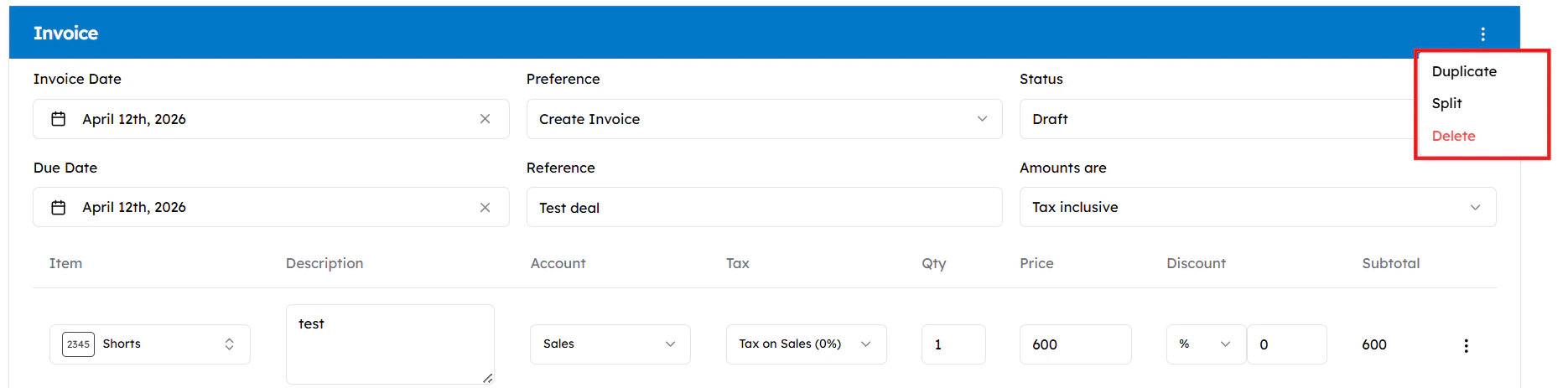
    Click the **three-dots menu** to **Split** your invoice by percentage or **Duplicate** it.

    <Warning>
      The option to split an invoice is only available while it remains in **DRAFT** status.
    </Warning>

    <Frame>
      <img alt="Use the three-dots menu to Split or Duplicate the invoice" lightAlt="Use the three-dots menu to Split or Duplicate the invoice" darkAlt="Use the three-dots menu to Split or Duplicate the invoice" src="https://mintcdn.com/cloudify-c7720744/vbRT_M1td7Th601K/images/Screenshot-2026-04-12-005703.png?fit=max&auto=format&n=vbRT_M1td7Th601K&q=85&s=96636a47418b803fc639527949bd17a7" className="dark:hidden" width="1870" height="463" data-path="images/Screenshot-2026-04-12-005703.png" />

      <img alt="Use the three-dots menu to Split or Duplicate the invoice" lightAlt="Use the three-dots menu to Split or Duplicate the invoice" darkAlt="Use the three-dots menu to Split or Duplicate the invoice" src="https://mintcdn.com/cloudify-c7720744/EIGlfGBzTycal6nZ/images/Screenshot2026-03-18023403.png" className="hidden dark:block" />
    </Frame>
  </Step>

  <Step title="Finish and sync">
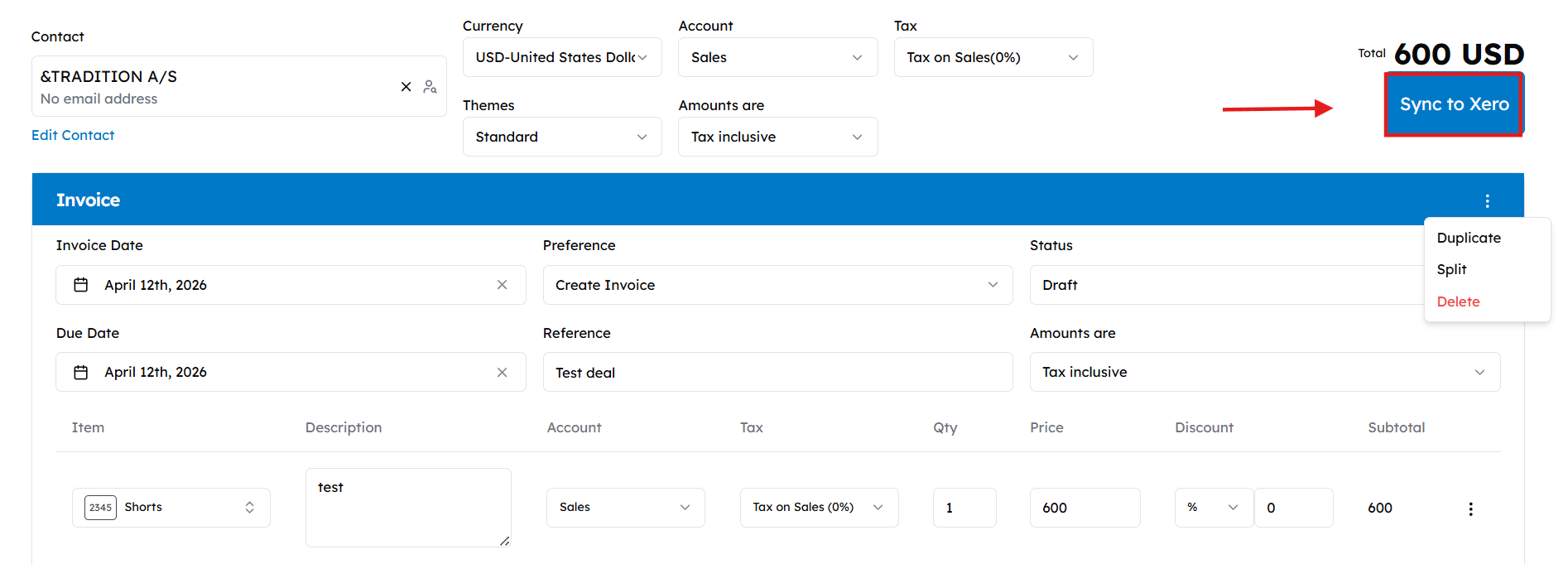
    Click  **Sync** to push the draft to Xero. You can view the final invoice in the deal's attachments or notes.
    <Frame>
      <img alt="Click Save Progress to save for later, or Sync to Xero to push the invoice" lightAlt="Click Save Progress to save for later, or Sync to Xero to push the invoice" darkAlt="Click Save Progress to save for later, or Sync to Xero to push the invoice" src="https://mintcdn.com/cloudify-c7720744/vbRT_M1td7Th601K/images/Screenshot-2026-04-12-005749.png?fit=max&auto=format&n=vbRT_M1td7Th601K&q=85&s=b008c5b334510159735d853cf2d47044" className="dark:hidden" width="1894" height="681" data-path="images/Screenshot-2026-04-12-005749.png" />

      <img alt="Click Save Progress to save for later, or Sync to Xero to push the invoice" lightAlt="Click Save Progress to save for later, or Sync to Xero to push the invoice" darkAlt="Click Save Progress to save for later, or Sync to Xero to push the invoice" src="https://mintcdn.com/cloudify-c7720744/EIGlfGBzTycal6nZ/images/Screenshot2026-03-18023506.png" className="hidden dark:block" />
    </Frame>
  </Step>
</Steps>

***
