> ## Documentation Index
> Fetch the complete documentation index at: https://docs.cloudify.biz/llms.txt
> Use this file to discover all available pages before exploring further.
# Overview
> Your integration health at a glance — run counts, success rates, and usage against your current plan.
The **Overview** page is your Lighthouse home base. Every time you log in, this is where you check the pulse of your integration — how many runs have processed, whether anything has failed, and how your usage compares to your plan.
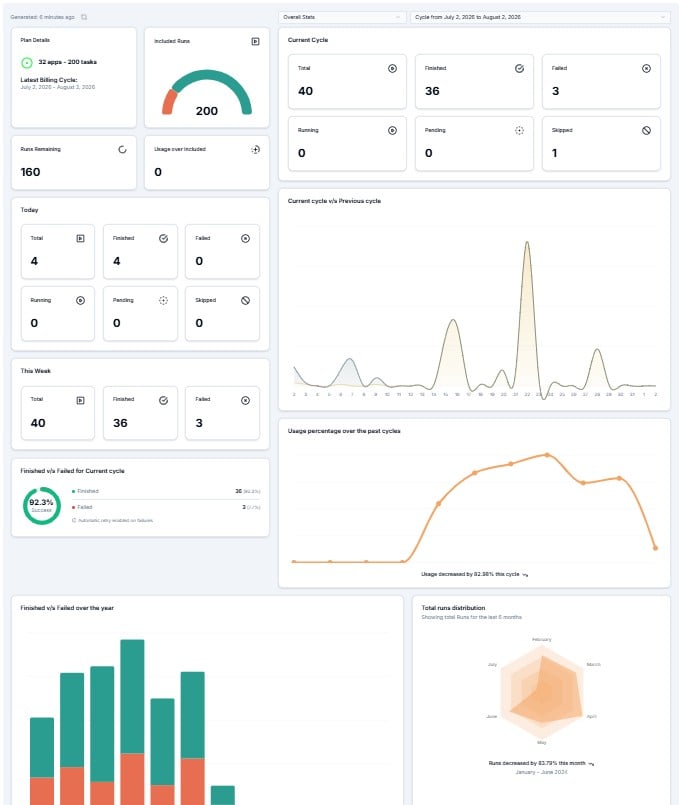 If your account is new and your integration hasn't processed any runs yet, all counters will show **0** and charts will display "Not enough data to show this graph." This is expected — the dashboard fills in as your workflows begin running.
***
## Plan Details
The top-left panel shows your active subscription.
If your account is new and your integration hasn't processed any runs yet, all counters will show **0** and charts will display "Not enough data to show this graph." This is expected — the dashboard fills in as your workflows begin running.
***
## Plan Details
The top-left panel shows your active subscription.
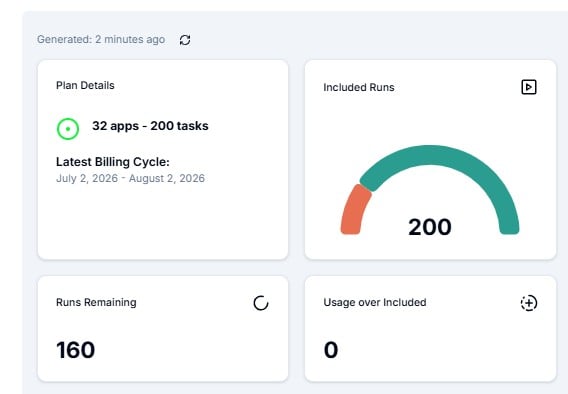 When a plan is active, you'll see your plan name, the number of included runs, and your current billing cycle here.
If this shows **No Plan**, your subscription hasn't been activated yet. Contact your Cloudify account manager to confirm your billing status before runs begin processing.
Your plan directly controls how many workflow runs Lighthouse will process each billing cycle. Always confirm your plan is active before going live.
***
## Usage Counters
Two counters sit below the plan details and update in real time throughout your billing cycle.
| Counter | What It Shows |
| ----------------------- | ------------------------------------------------------------------------------- |
| **Runs Remaining** | How many runs are left in your current plan allowance for this cycle |
| **Usage over Included** | Runs that have exceeded your plan limit — if this is non-zero, review your plan |
If **Usage over Included** shows a number greater than zero, you are processing more runs than your plan covers. Contact Cloudify to discuss upgrading your plan volume before your next billing cycle.
***
## Current Cycle
The **Current Cycle** panel on the right shows a live breakdown of every run processed since your billing period started.
All runs processed in this billing cycle — regardless of outcome.
Runs that completed successfully. This is your healthy baseline.
Runs that encountered an error. Go to **Workflow Runs** to investigate.
Runs currently in progress. Refresh the page to see them resolve.
Runs queued and waiting to start. These will process automatically.
Runs that were intentionally skipped based on your workflow logic.
***
## Today & This Week
The same six counters — Total, Finished, Failed, Running, Pending, Skipped — are repeated for two shorter windows:
* **Today** — runs from the current calendar day
* **This Week** — runs from the current calendar week
Use **Today** and **This Week** for your daily check-in. Use **Current Cycle** to review overall health against your plan allowance.
***
## Performance Charts
The lower half of the Overview page contains four charts that build up over time as your integration processes runs.
When a plan is active, you'll see your plan name, the number of included runs, and your current billing cycle here.
If this shows **No Plan**, your subscription hasn't been activated yet. Contact your Cloudify account manager to confirm your billing status before runs begin processing.
Your plan directly controls how many workflow runs Lighthouse will process each billing cycle. Always confirm your plan is active before going live.
***
## Usage Counters
Two counters sit below the plan details and update in real time throughout your billing cycle.
| Counter | What It Shows |
| ----------------------- | ------------------------------------------------------------------------------- |
| **Runs Remaining** | How many runs are left in your current plan allowance for this cycle |
| **Usage over Included** | Runs that have exceeded your plan limit — if this is non-zero, review your plan |
If **Usage over Included** shows a number greater than zero, you are processing more runs than your plan covers. Contact Cloudify to discuss upgrading your plan volume before your next billing cycle.
***
## Current Cycle
The **Current Cycle** panel on the right shows a live breakdown of every run processed since your billing period started.
All runs processed in this billing cycle — regardless of outcome.
Runs that completed successfully. This is your healthy baseline.
Runs that encountered an error. Go to **Workflow Runs** to investigate.
Runs currently in progress. Refresh the page to see them resolve.
Runs queued and waiting to start. These will process automatically.
Runs that were intentionally skipped based on your workflow logic.
***
## Today & This Week
The same six counters — Total, Finished, Failed, Running, Pending, Skipped — are repeated for two shorter windows:
* **Today** — runs from the current calendar day
* **This Week** — runs from the current calendar week
Use **Today** and **This Week** for your daily check-in. Use **Current Cycle** to review overall health against your plan allowance.
***
## Performance Charts
The lower half of the Overview page contains four charts that build up over time as your integration processes runs.
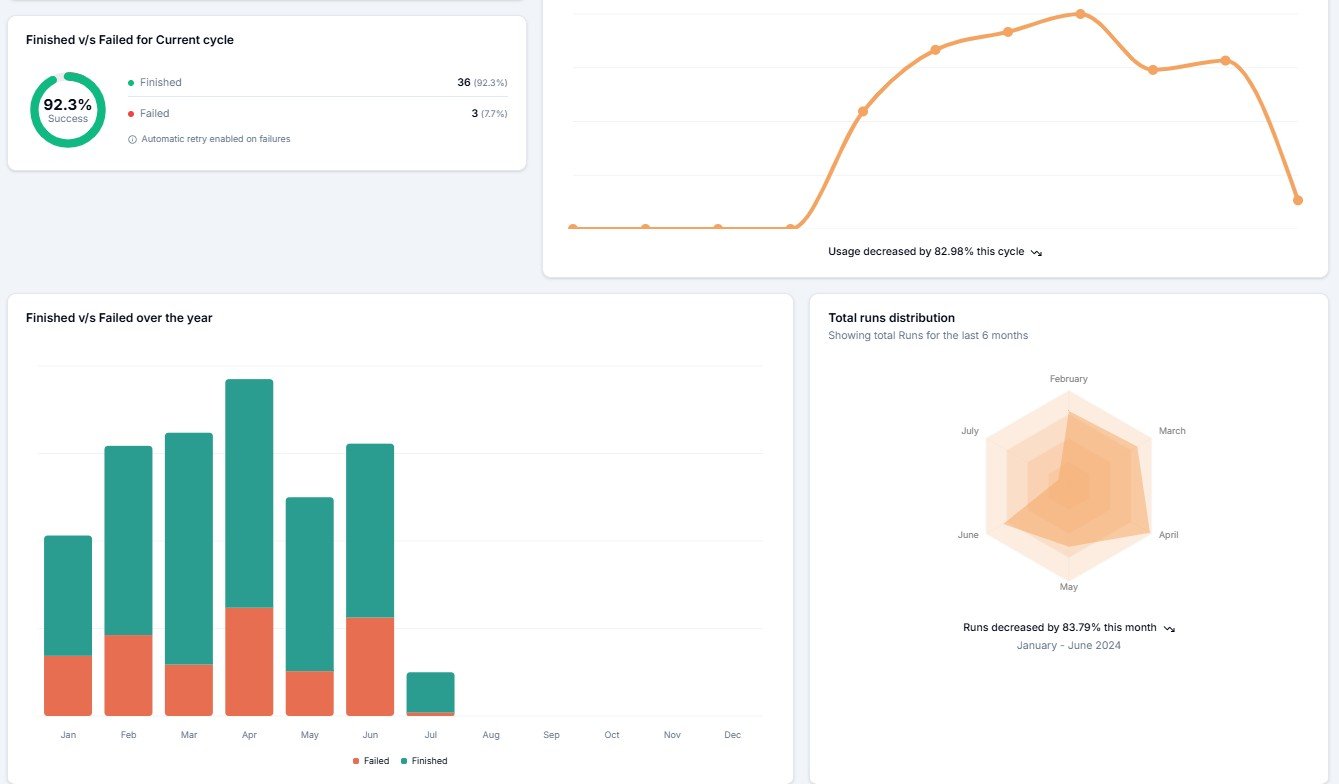 | Chart | What It Shows |
| ----------------------------------------- | ---------------------------------------------------------------------------------- |
| **Current cycle v/s Previous cycle** | Side-by-side comparison of run volume between your current and last billing period |
| **Finished v/s Failed for Current cycle** | The ratio of successful to failed runs in the current billing cycle |
| **Usage percentage over the past cycles** | How much of your plan allowance you've used across recent billing periods |
| **Finished v/s Failed over the year** | Long-term success rate trend across the past 12 months |
| **Total runs distribution** | Run volume breakdown for the last 6 months |
Charts display **"Not enough data to show this graph"** until your integration has processed sufficient run history. They will populate automatically — no action needed on your part.
***
## Quick Health Check
Use this as your daily 30-second routine:
Look at **Today → Failed**. If it's above zero, go to **Workflow Runs**, filter by `Failed`, and investigate.
If **Runs Remaining** is approaching zero, contact Cloudify to increase your plan volume before it runs out.
If this is non-zero, you're over your plan limit. Review with your Cloudify account manager.
| Chart | What It Shows |
| ----------------------------------------- | ---------------------------------------------------------------------------------- |
| **Current cycle v/s Previous cycle** | Side-by-side comparison of run volume between your current and last billing period |
| **Finished v/s Failed for Current cycle** | The ratio of successful to failed runs in the current billing cycle |
| **Usage percentage over the past cycles** | How much of your plan allowance you've used across recent billing periods |
| **Finished v/s Failed over the year** | Long-term success rate trend across the past 12 months |
| **Total runs distribution** | Run volume breakdown for the last 6 months |
Charts display **"Not enough data to show this graph"** until your integration has processed sufficient run history. They will populate automatically — no action needed on your part.
***
## Quick Health Check
Use this as your daily 30-second routine:
Look at **Today → Failed**. If it's above zero, go to **Workflow Runs**, filter by `Failed`, and investigate.
If **Runs Remaining** is approaching zero, contact Cloudify to increase your plan volume before it runs out.
If this is non-zero, you're over your plan limit. Review with your Cloudify account manager.