> ## Documentation Index
> Fetch the complete documentation index at: https://docs.cloudify.biz/llms.txt
> Use this file to discover all available pages before exploring further.
# Confirmation Page
## Adding an Organization
Open an organization inside your Pipedrive CRM.
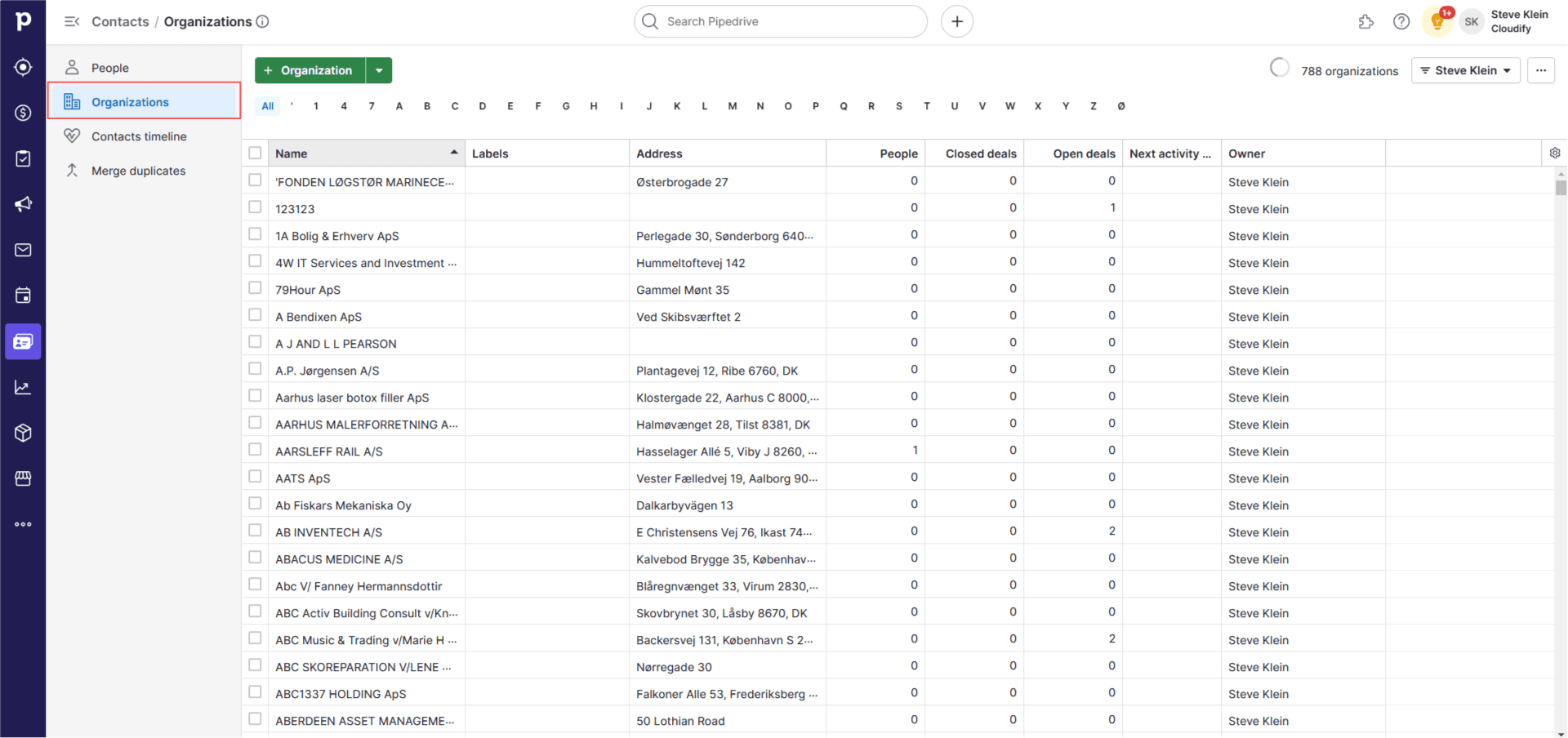
Click on the **Organization** tab and enter the Name and CVR number. You can add one or multiple organisations.
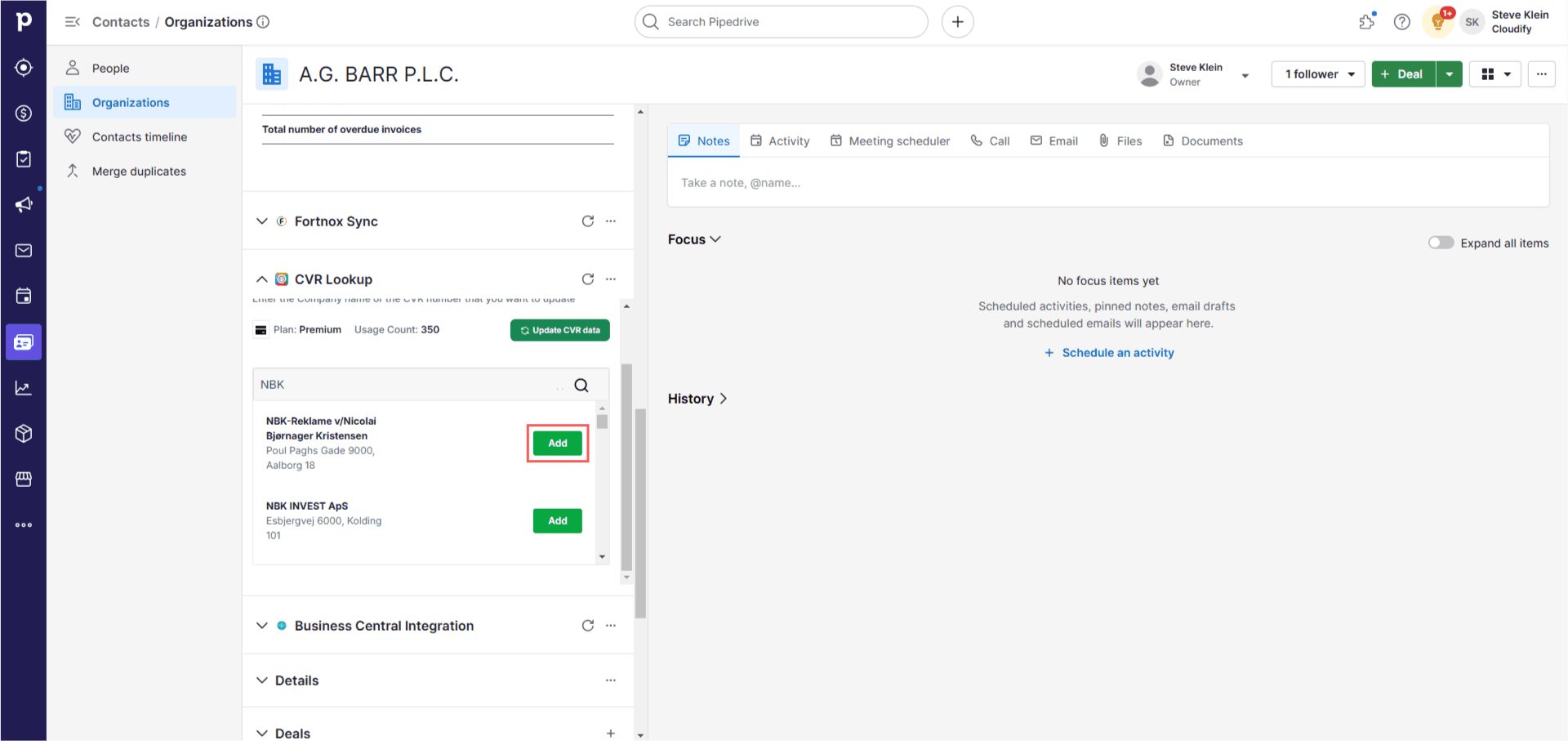
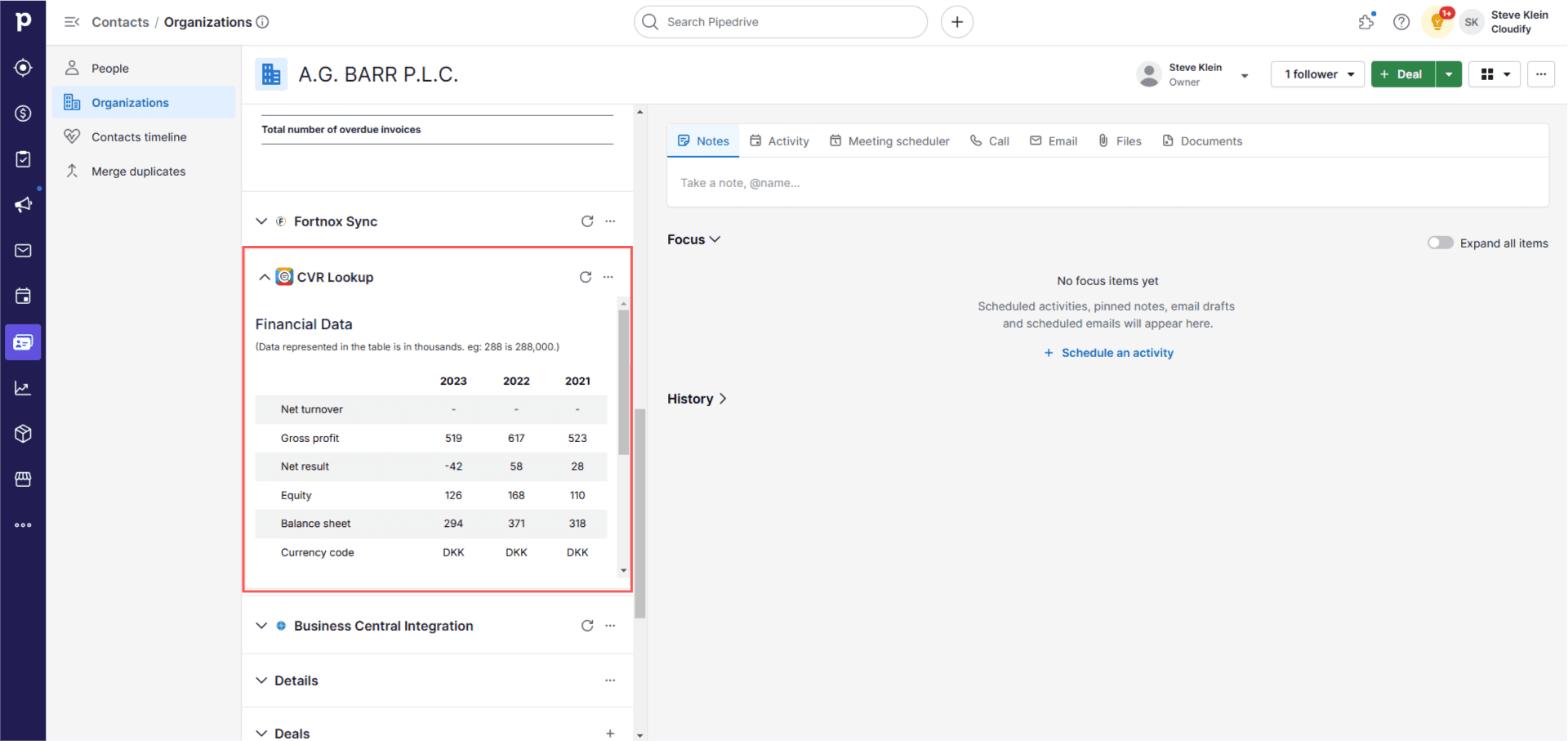
This will add all that organisation's data — including financial data — to the organisation you have opened in Pipedrive.
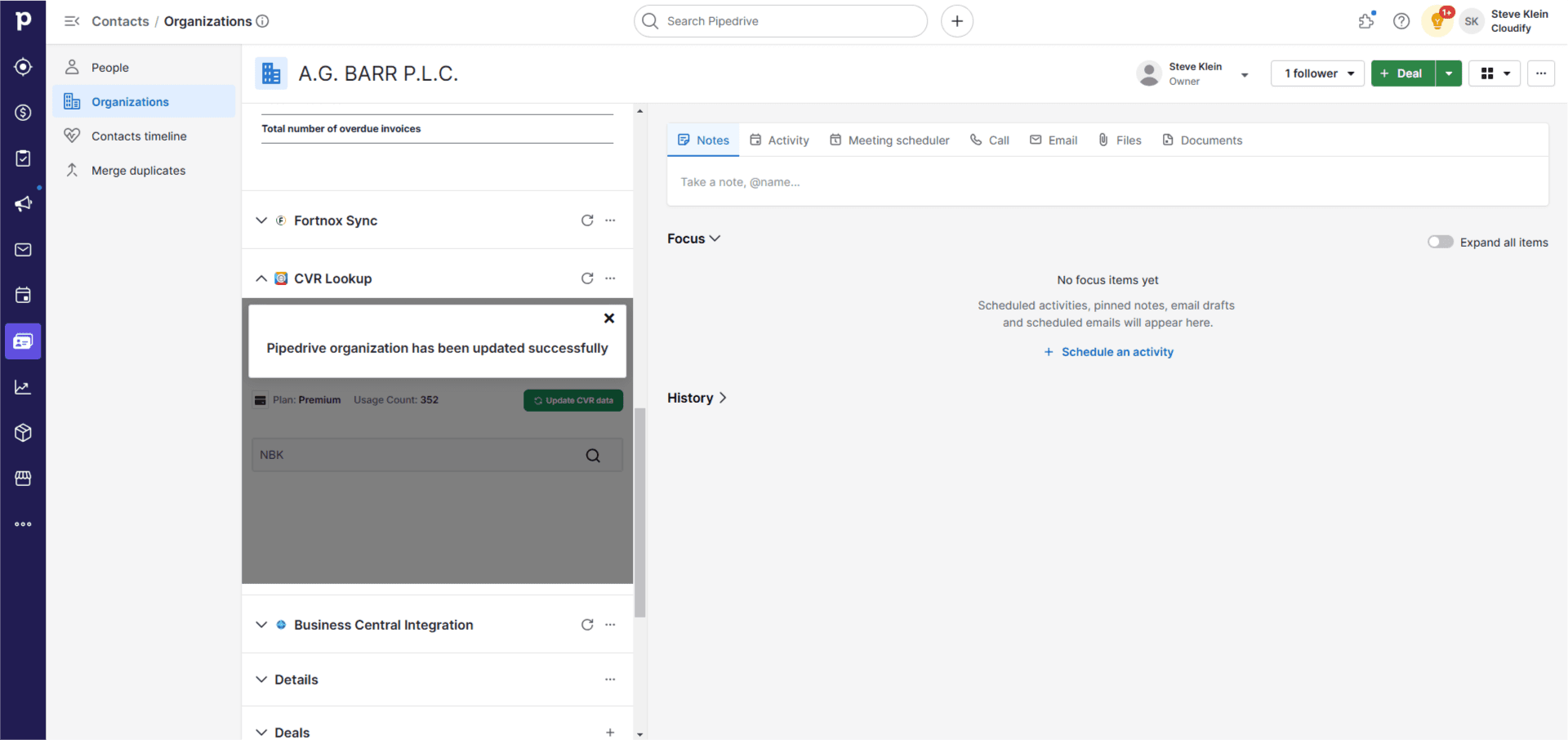
Your Pipedrive organisation will be updated with the newly inserted data.
***
## Find Leads
Use this feature to customise your search by location, number of employees, industry type, and organisation status to find Danish companies and add them to your Pipedrive.
**Select Location** — Choose the desired location from the dropdown based on:
* **Postal Code** — Enter the specific postal code
* **Municipality** — Enter the name of the municipality
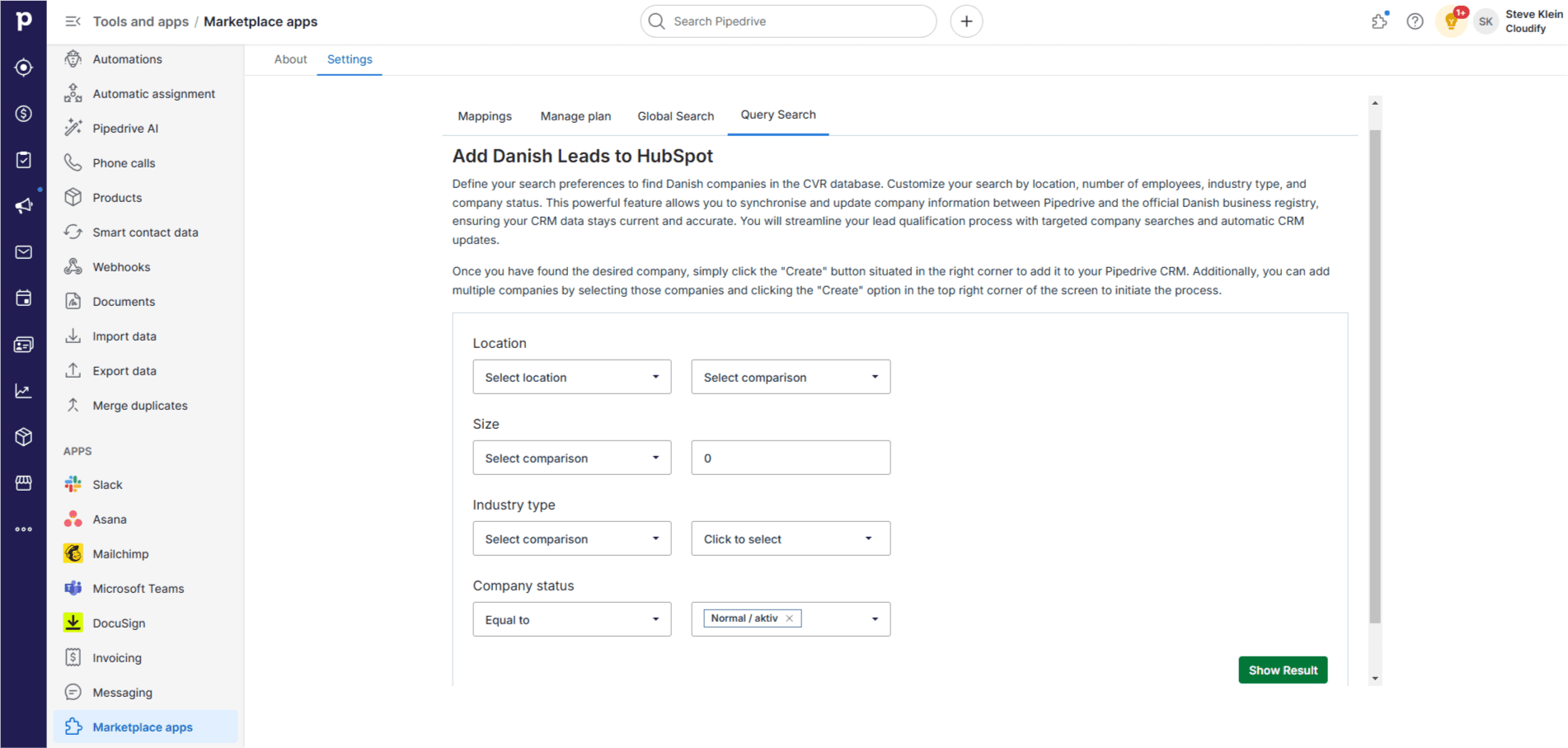
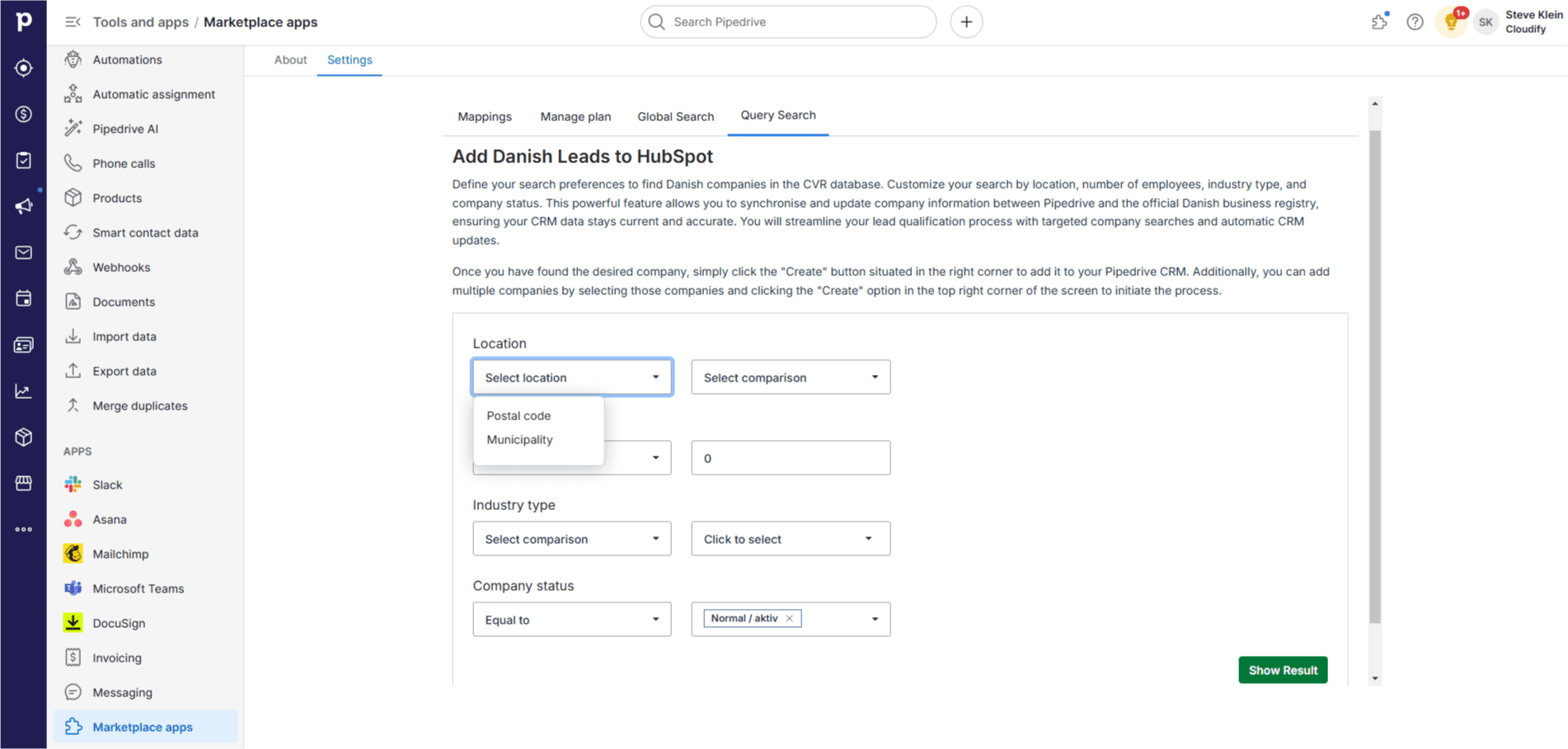
**Select Comparison** — Choose how you want to compare the location (e.g., equal to, not equal to).
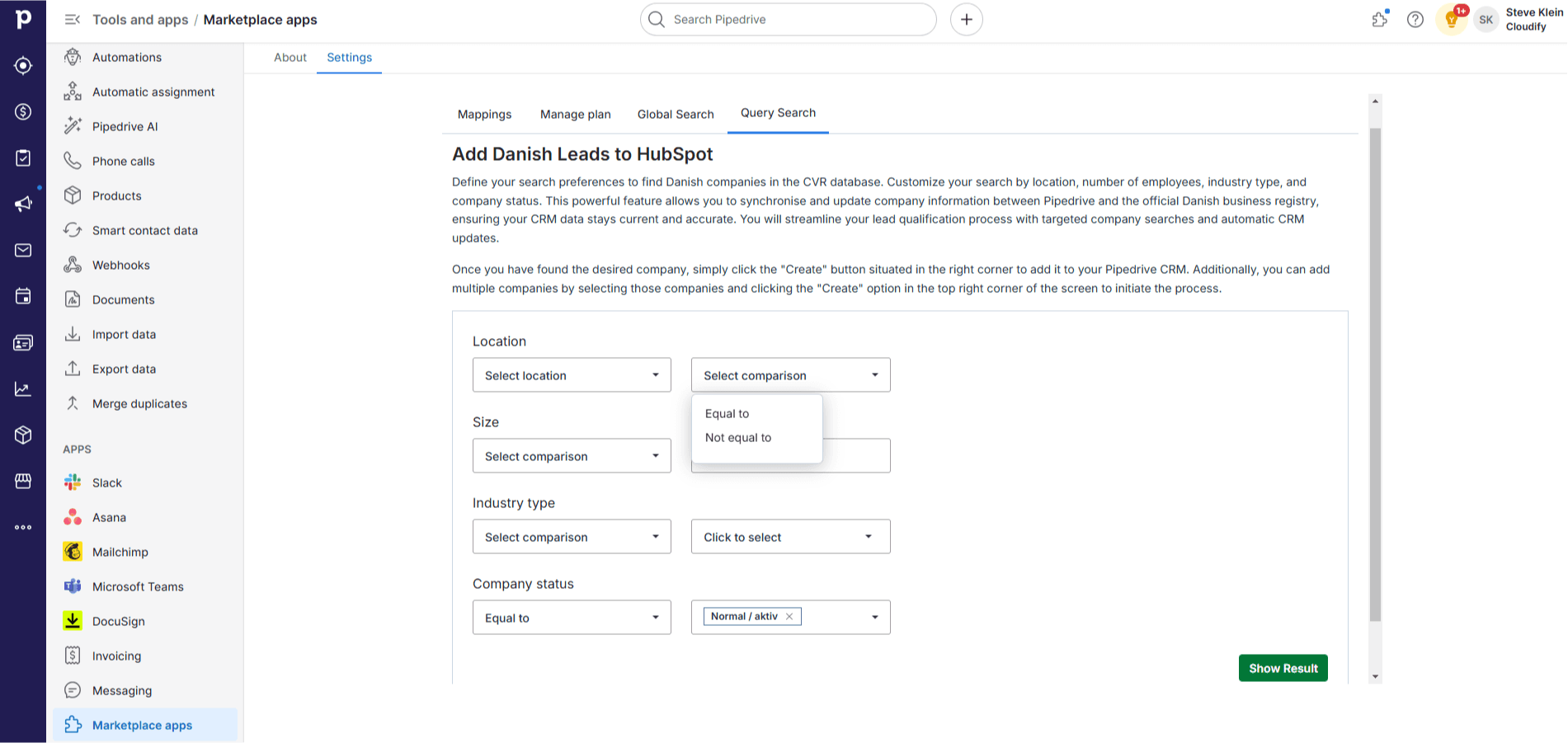
**Number of Employees** — Select a comparison operator (e.g., equal to, greater than, less than) and enter a number.
**Industry Type** — Select a comparison operator and choose the industry type from the list.
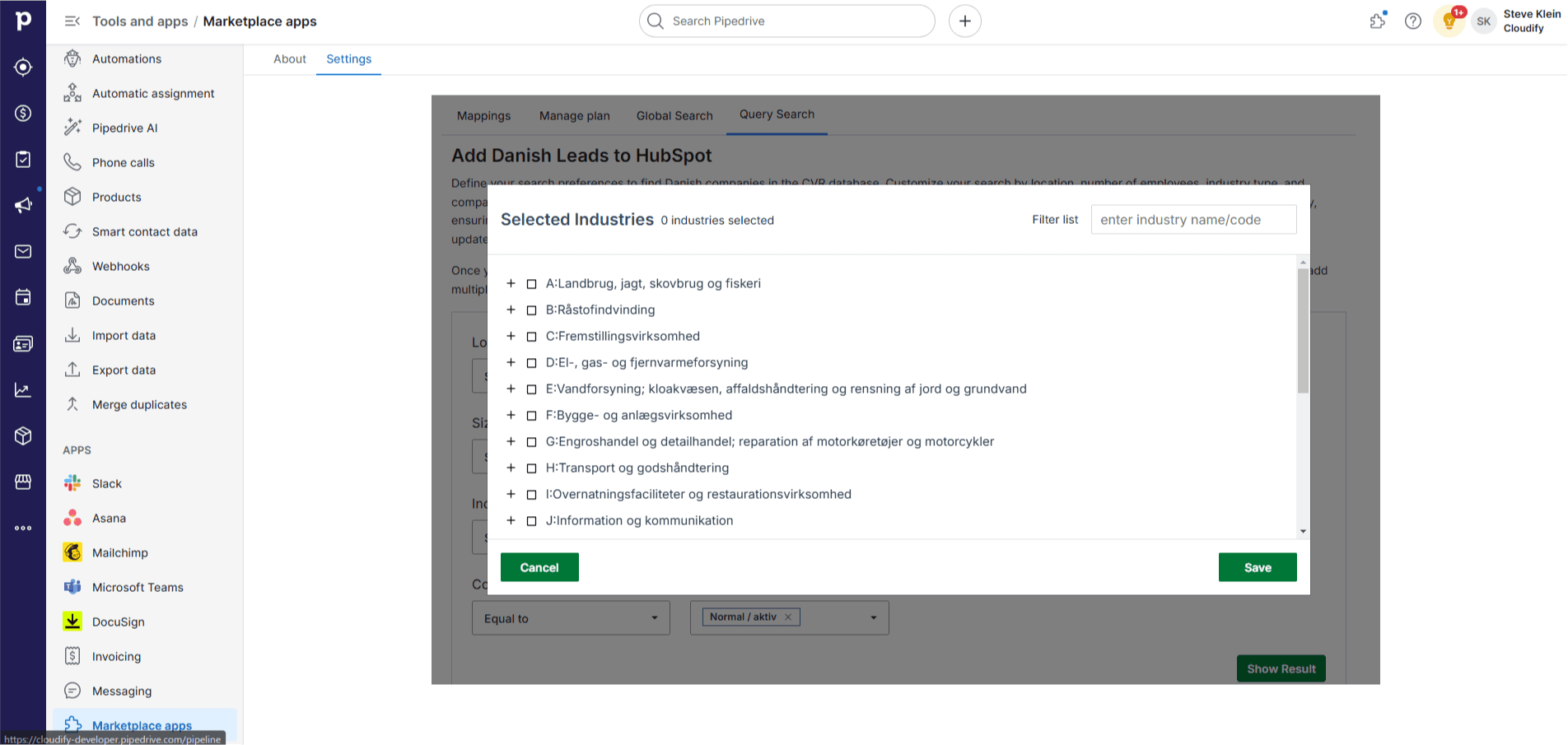
**Company Status** — Choose the status of the company. The default is **"Normal / aktiv"**.
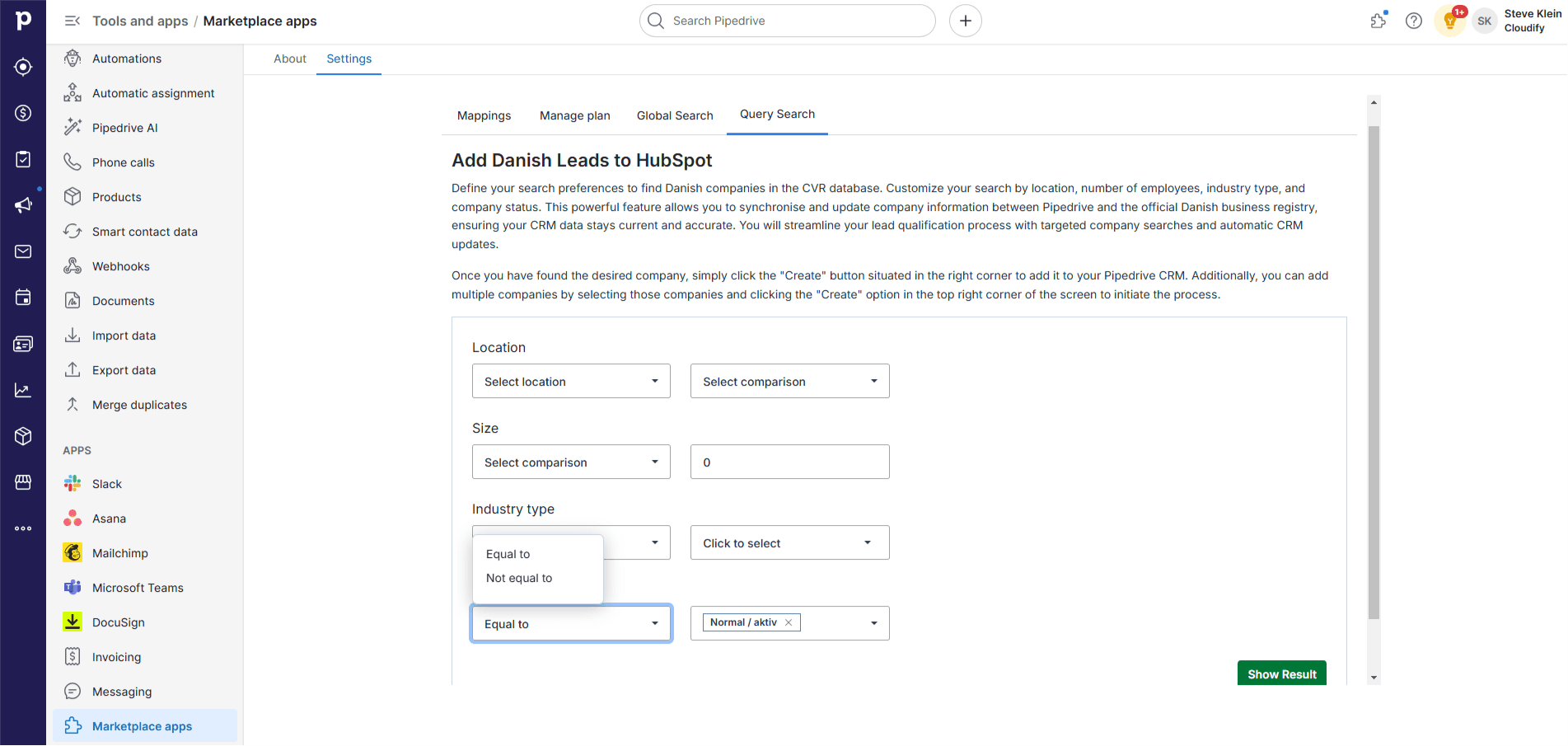
Click **"Show Results"**. The application will extract companies matching your criteria.
Select a company and click **"Create"** to add it to Pipedrive. For multiple companies, click the **"Create"** button at the top. A new screen will appear — click **"Create"** again.
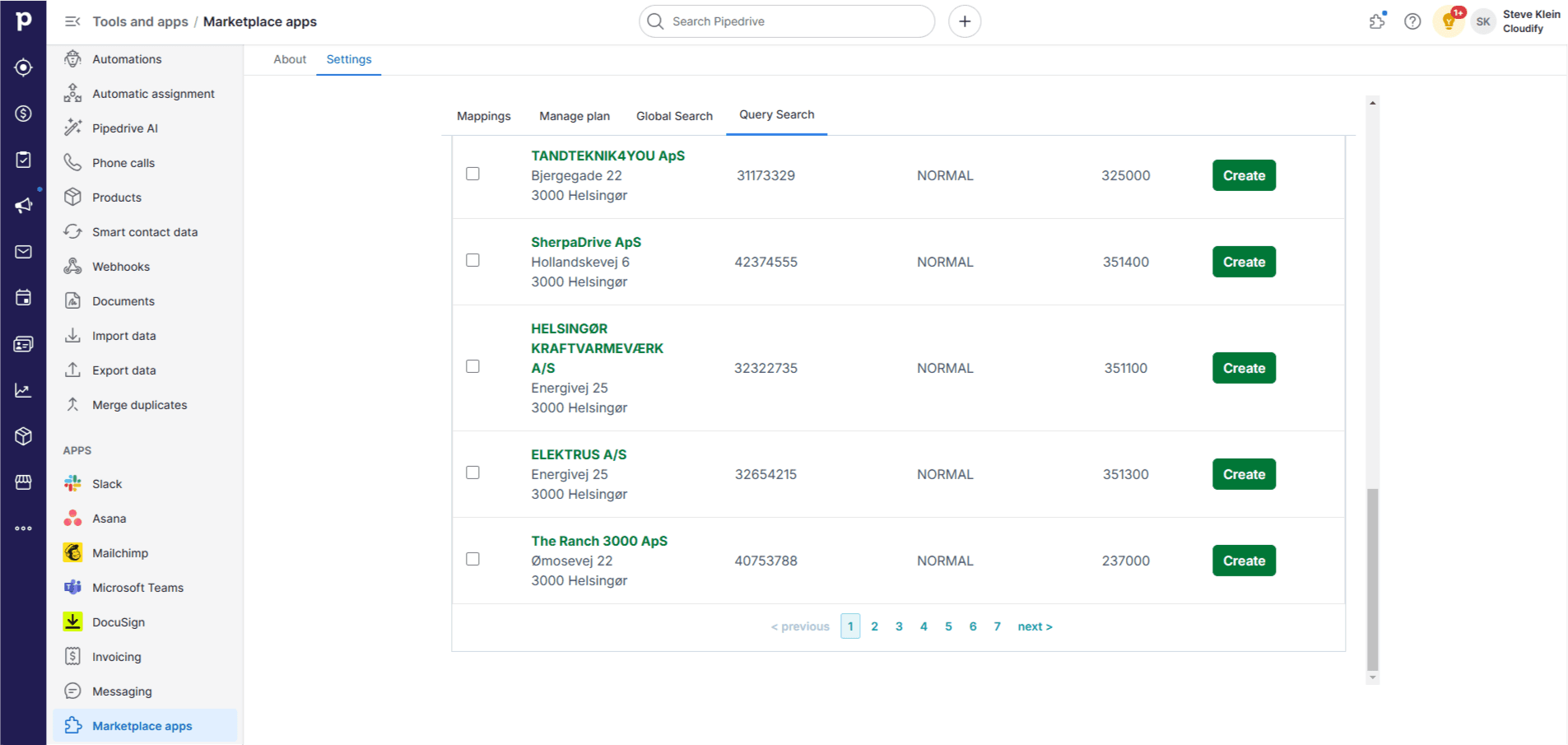
Once the companies are added, you will receive a success message. Close the window.
***
## Search Company
Use this feature to quickly find Danish companies by CVR number or company name.
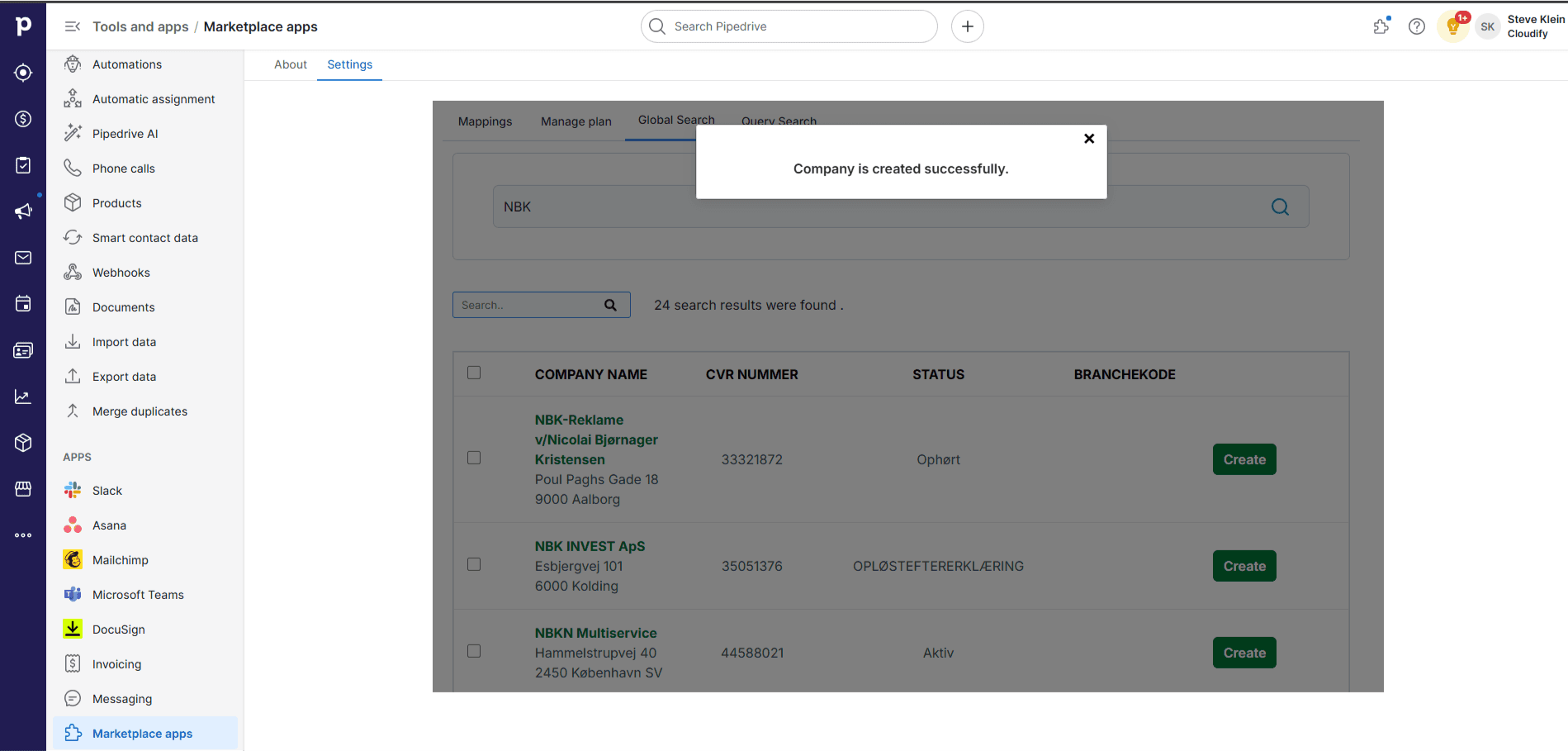
In the Global Search bar, enter the name or CVR number of the company you are looking for.
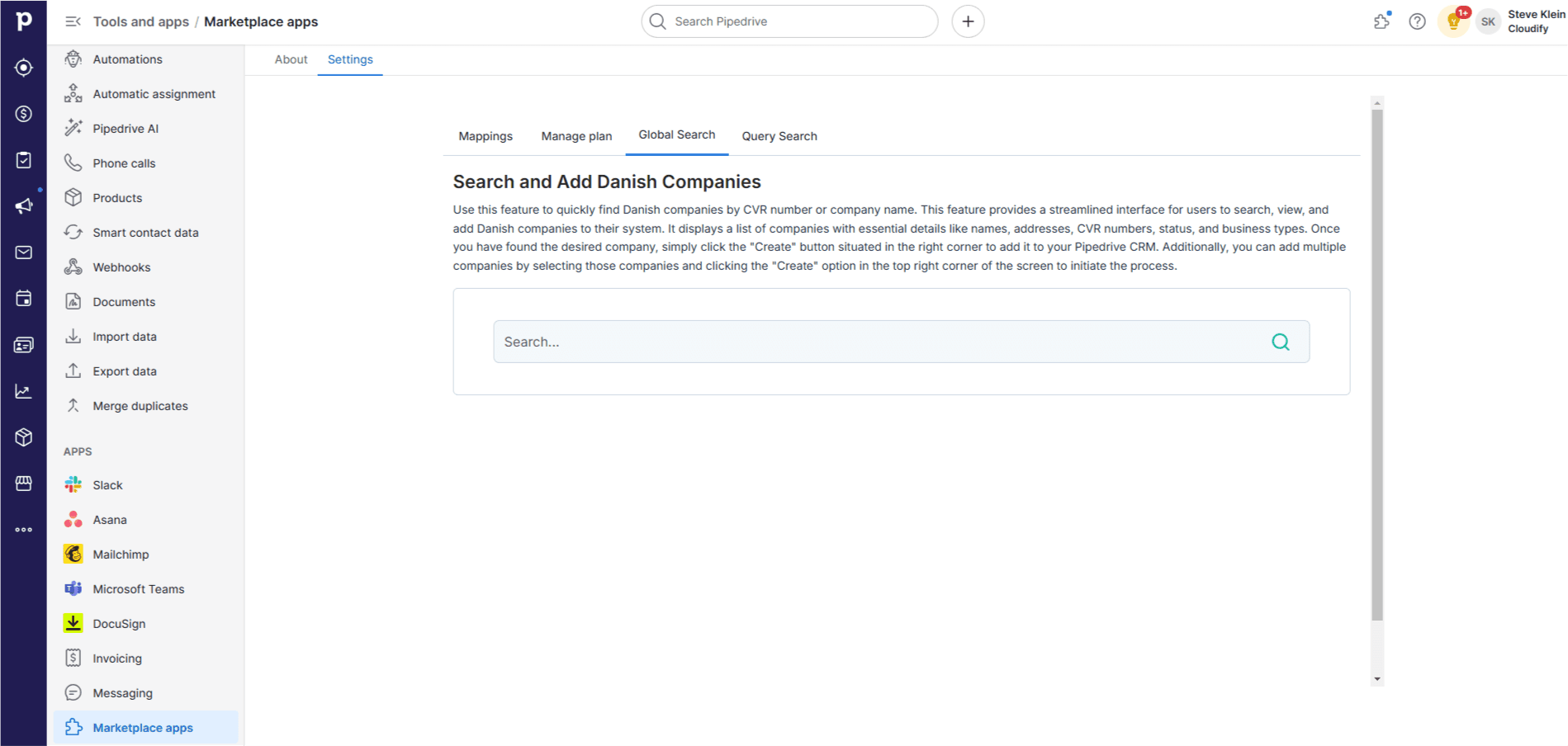
Click the search icon or press **"Enter"** to find the company.
Once you find the desired company, click **"Create"** on the right to add it to your Pipedrive CRM. You will receive a success message once added.
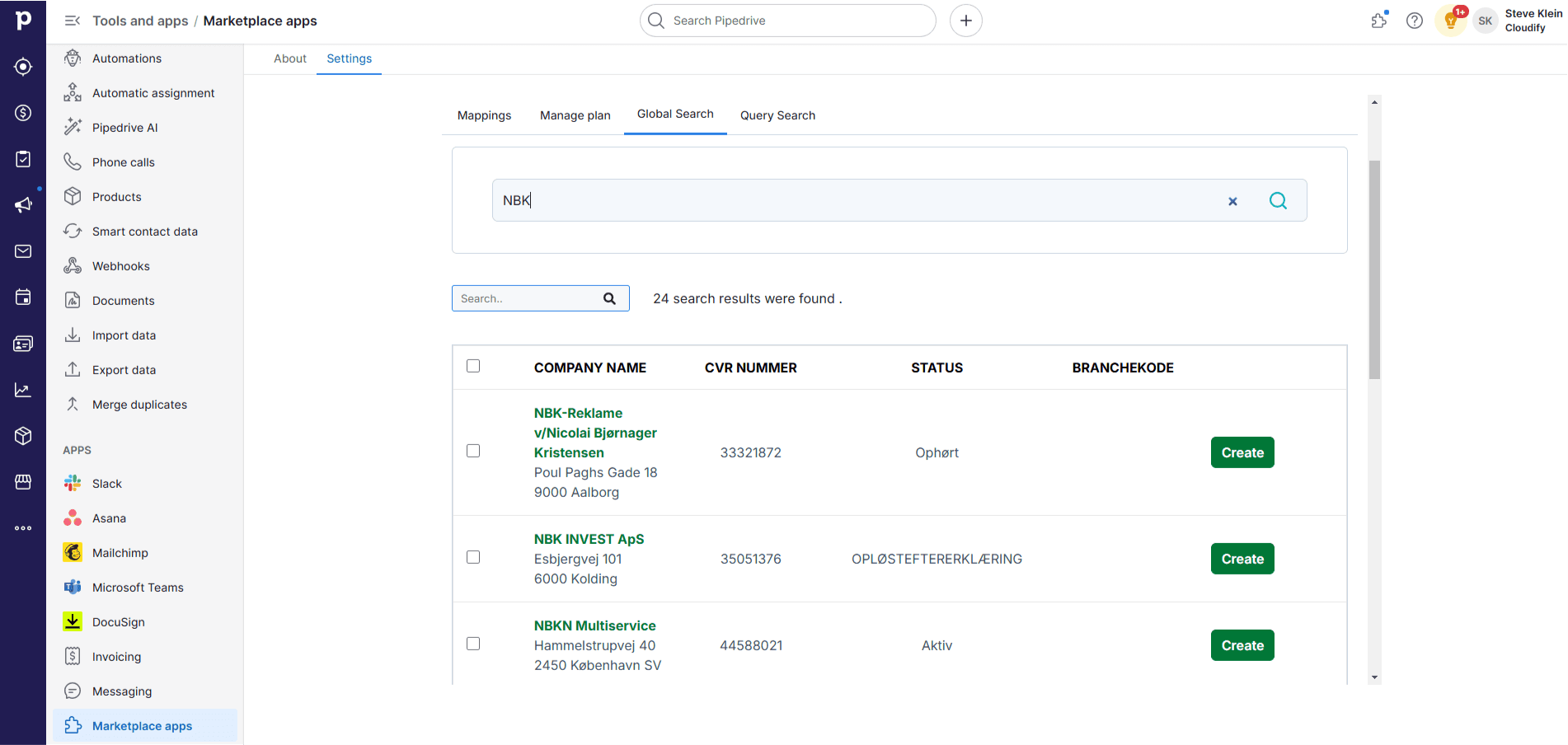
For multiple companies, tick the checkbox and click **"Create"** at the top. A new screen will appear — click **"Create"** again. You will receive a success message. Close the window.
***
## Bulk Update
Update the information (financial data, company details, and associated contacts) of multiple companies at once.
Select all the organisations and click the **three-dot icon** at the top right corner of the page.
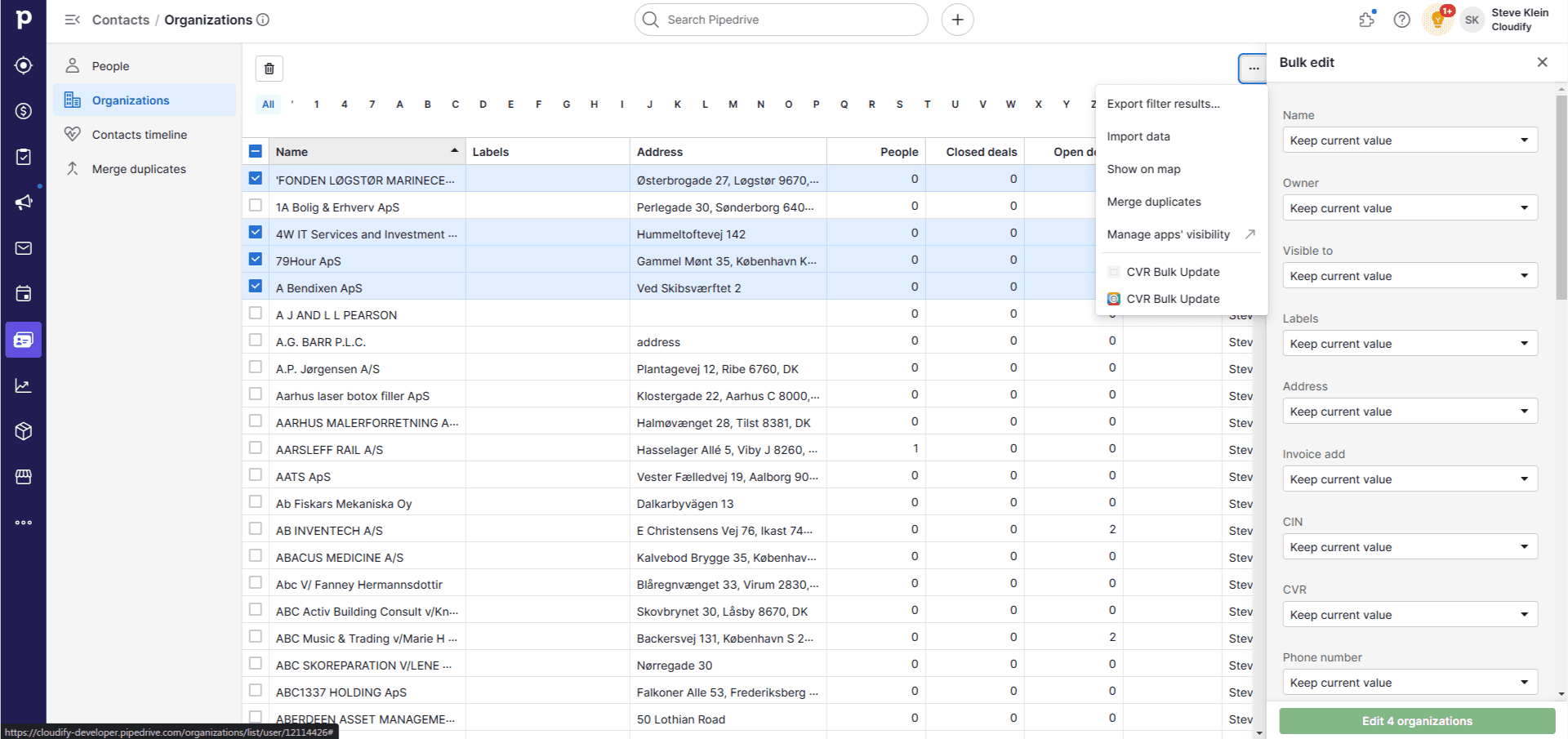
Click **"CVR Bulk Update"**. A pop-up will appear.
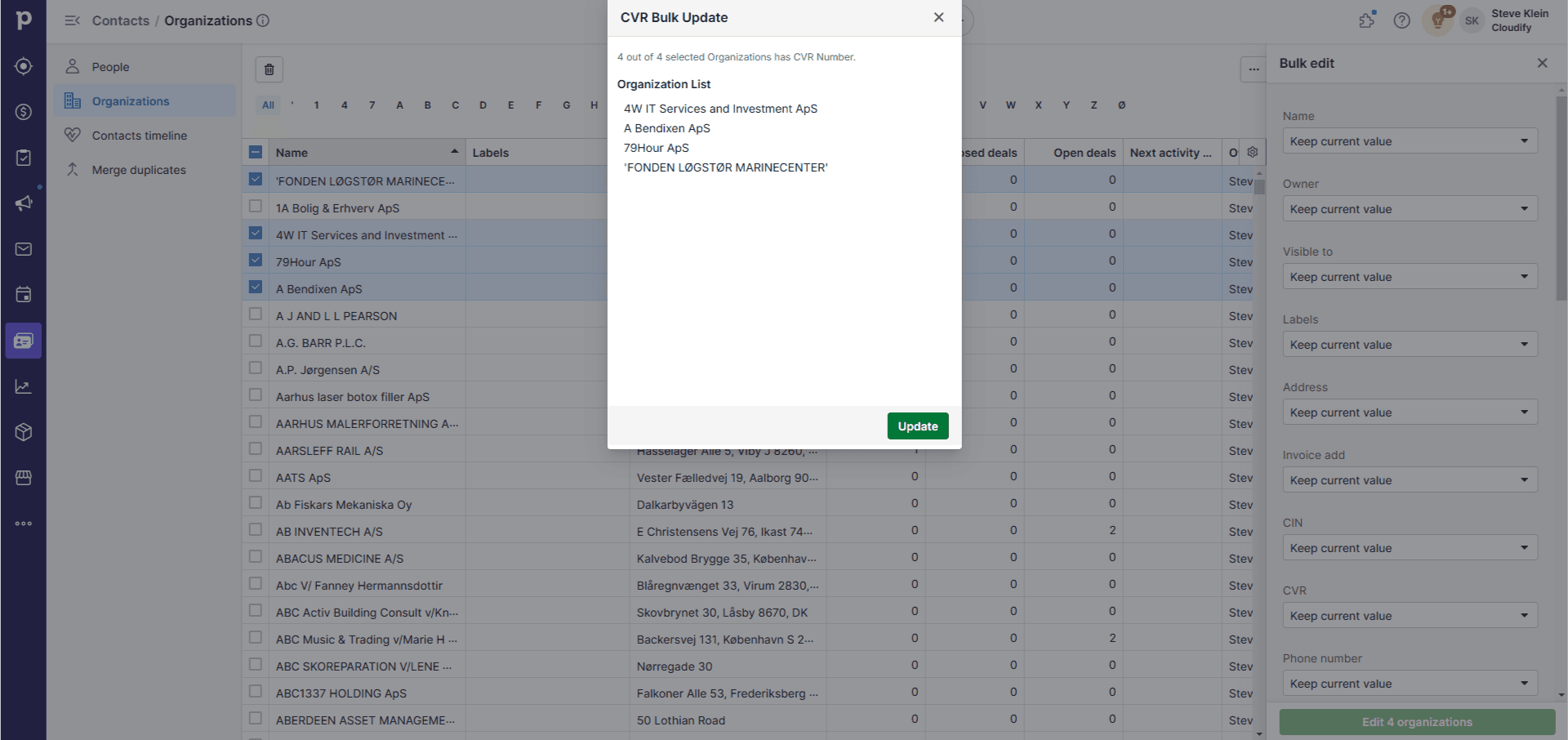
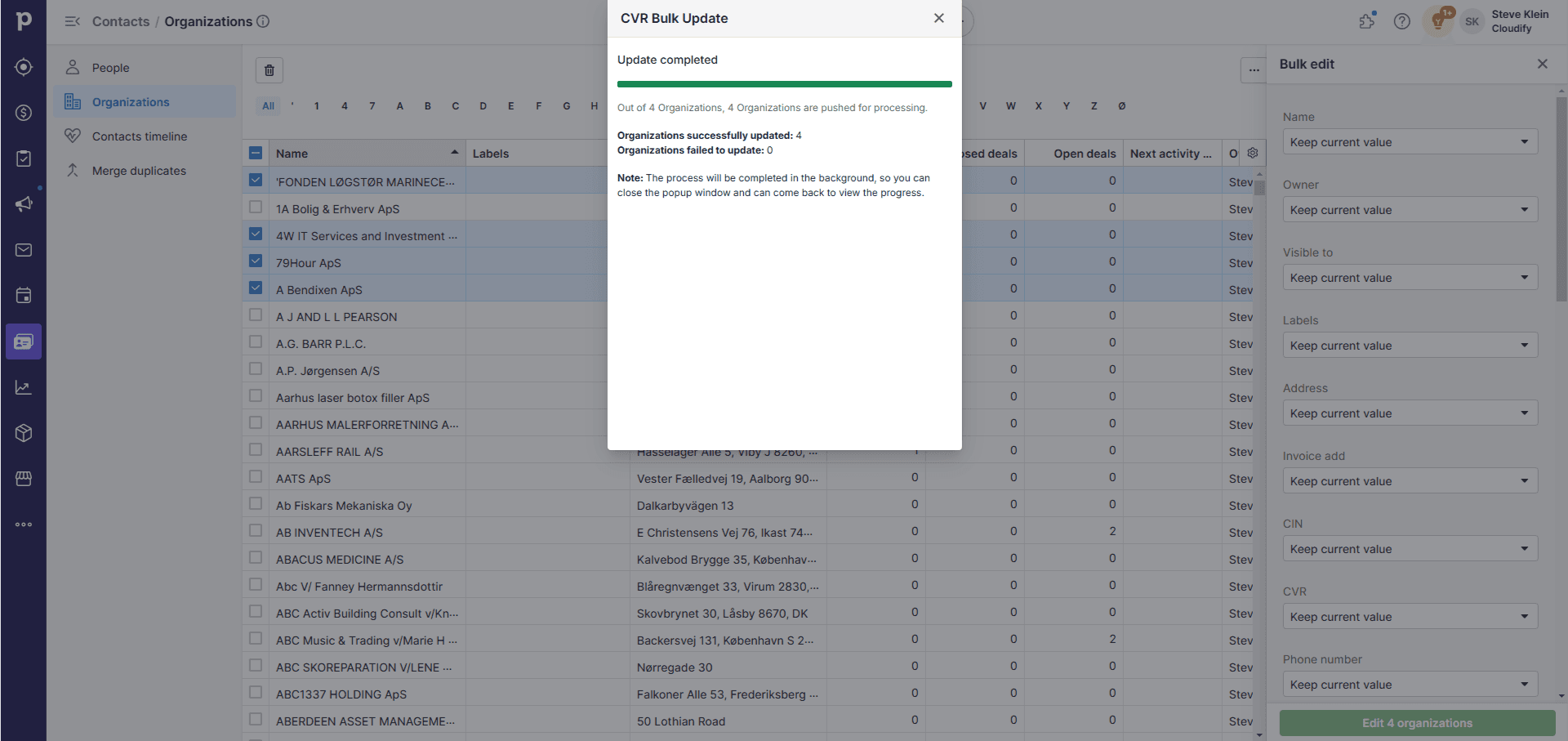
Click **"Update"**. All organisations with a valid CVR number will be updated.
***
## Panel
A seamless way to update and enrich company information directly within Pipedrive.
Click on **"Contacts"** and select the **"Organisation"** option.
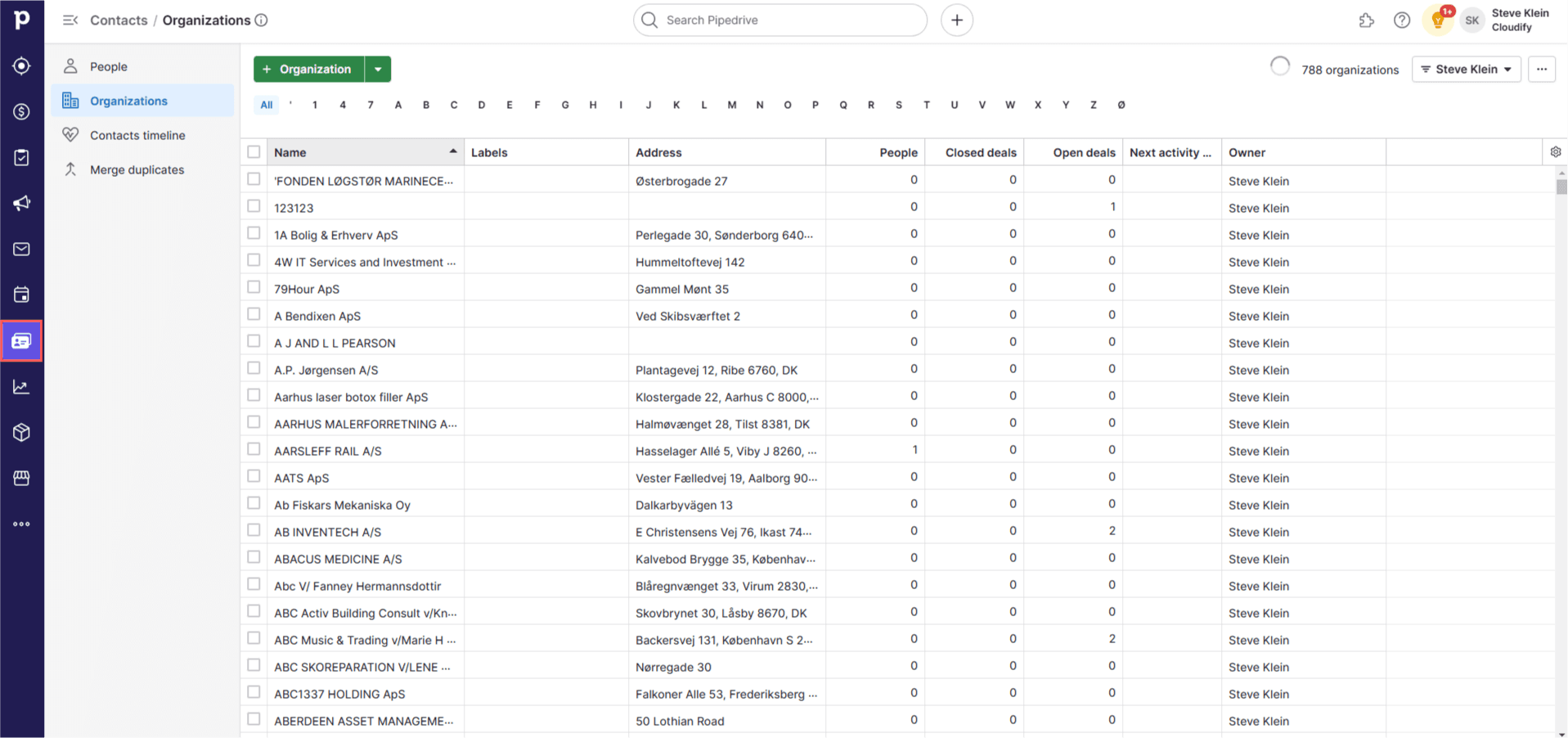
Click on an organisation. On the left side of the window, you will see a panel named **"Danish CVR Lookup"**.
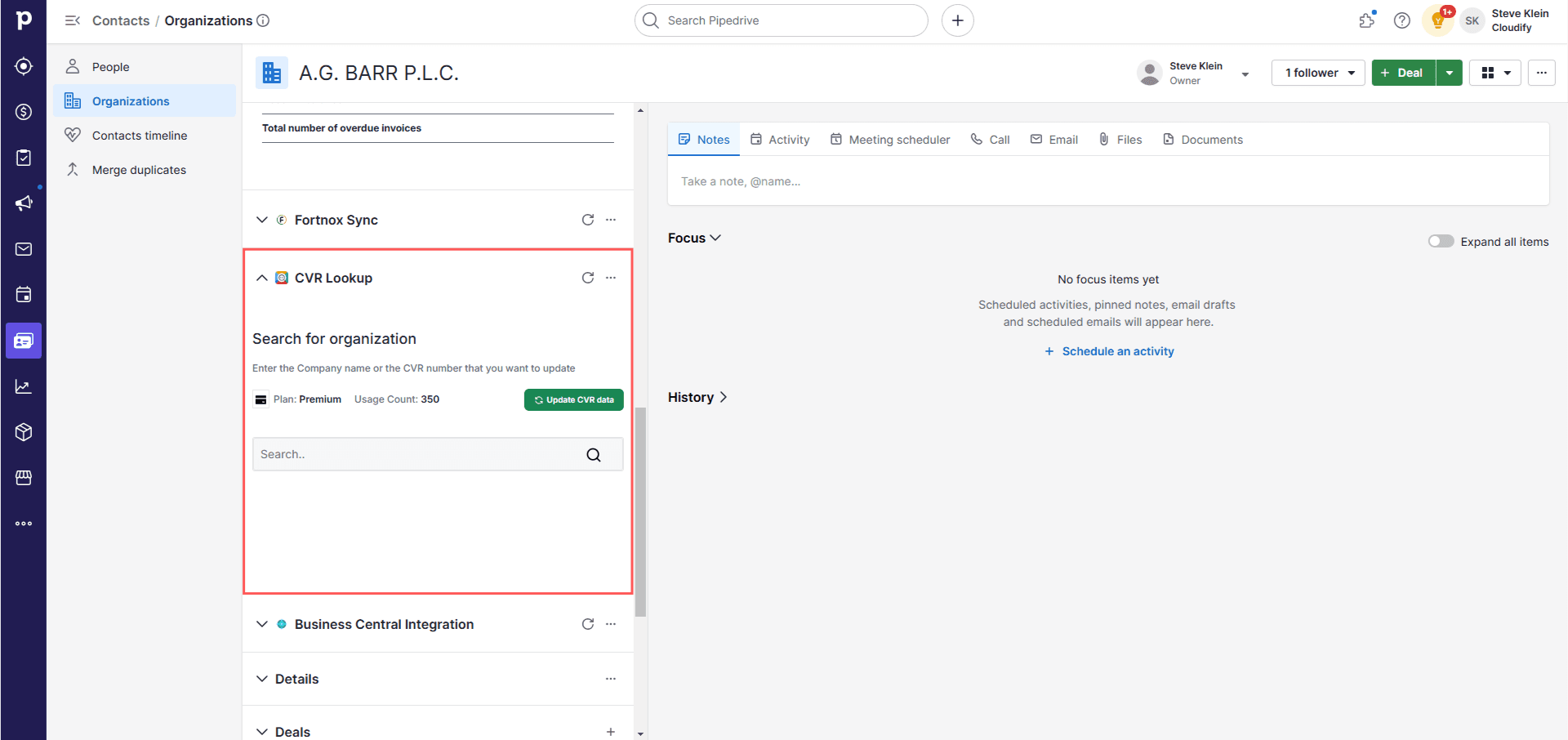
You will find two options under **"Search Organisation"**:
* **Update CVR Data** — updates only the CVR data
* **Search Organisation** — view the financials or add a new organisation
Once the data is updated, you will be able to see the financial data table in the dashboard.

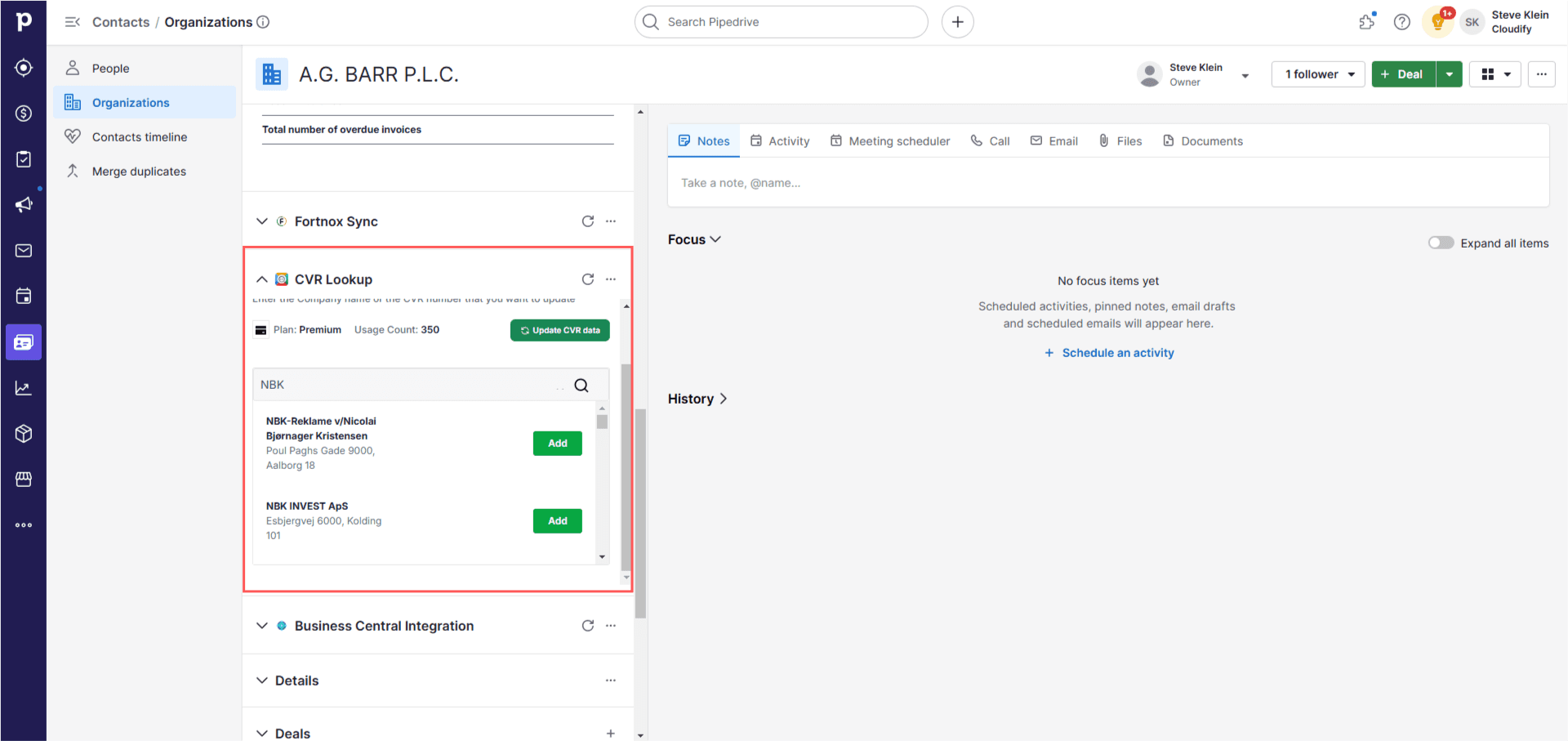
Clicking **"Search Organisation"** opens a search window. Enter any Danish organisation name or a valid CVR number to search.
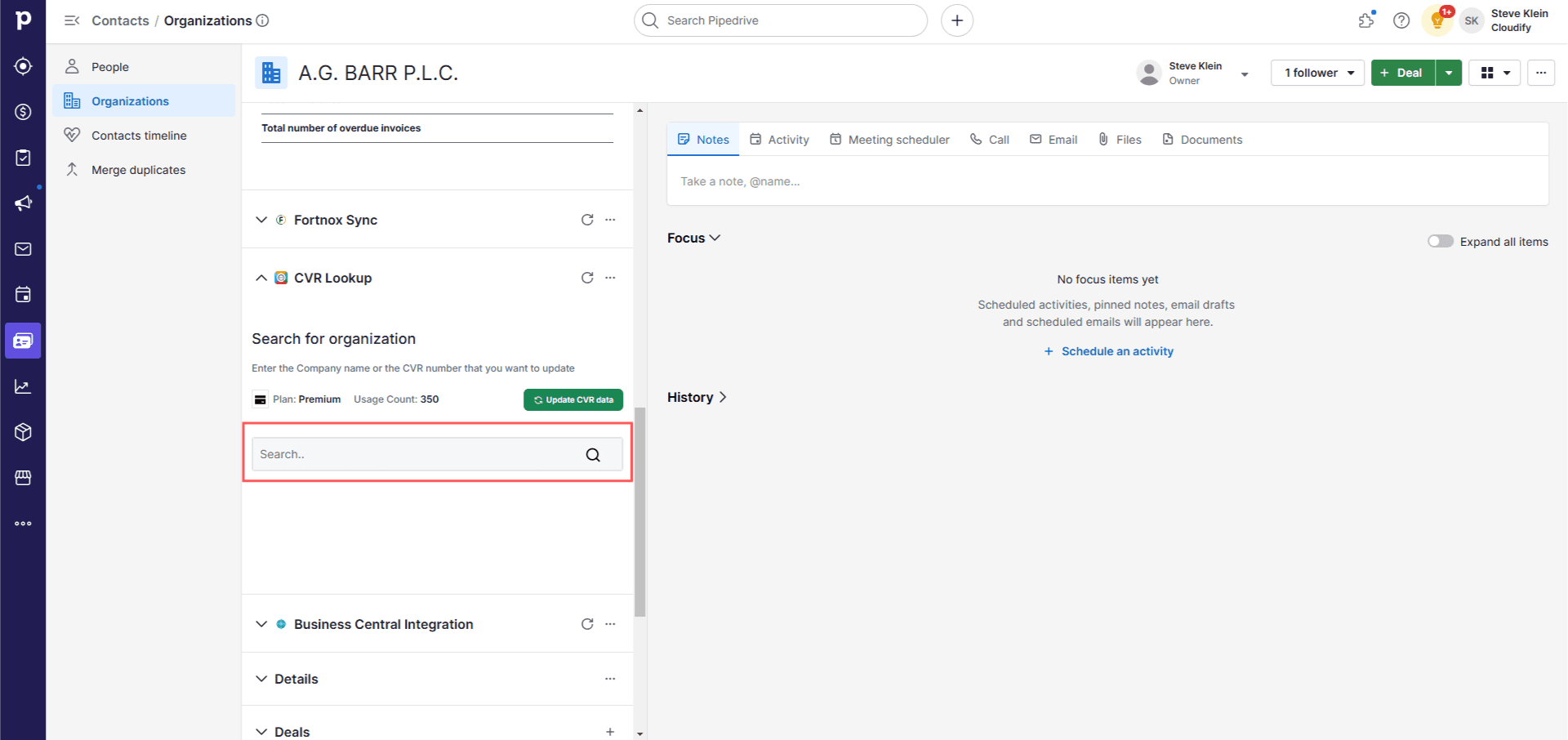
Click **"Add"** for the company you want to add. This will add all that organisation's data and financial data to the company currently open in Pipedrive.

After successful addition, a success window will pop up. Refresh the page to see the newly inserted data.
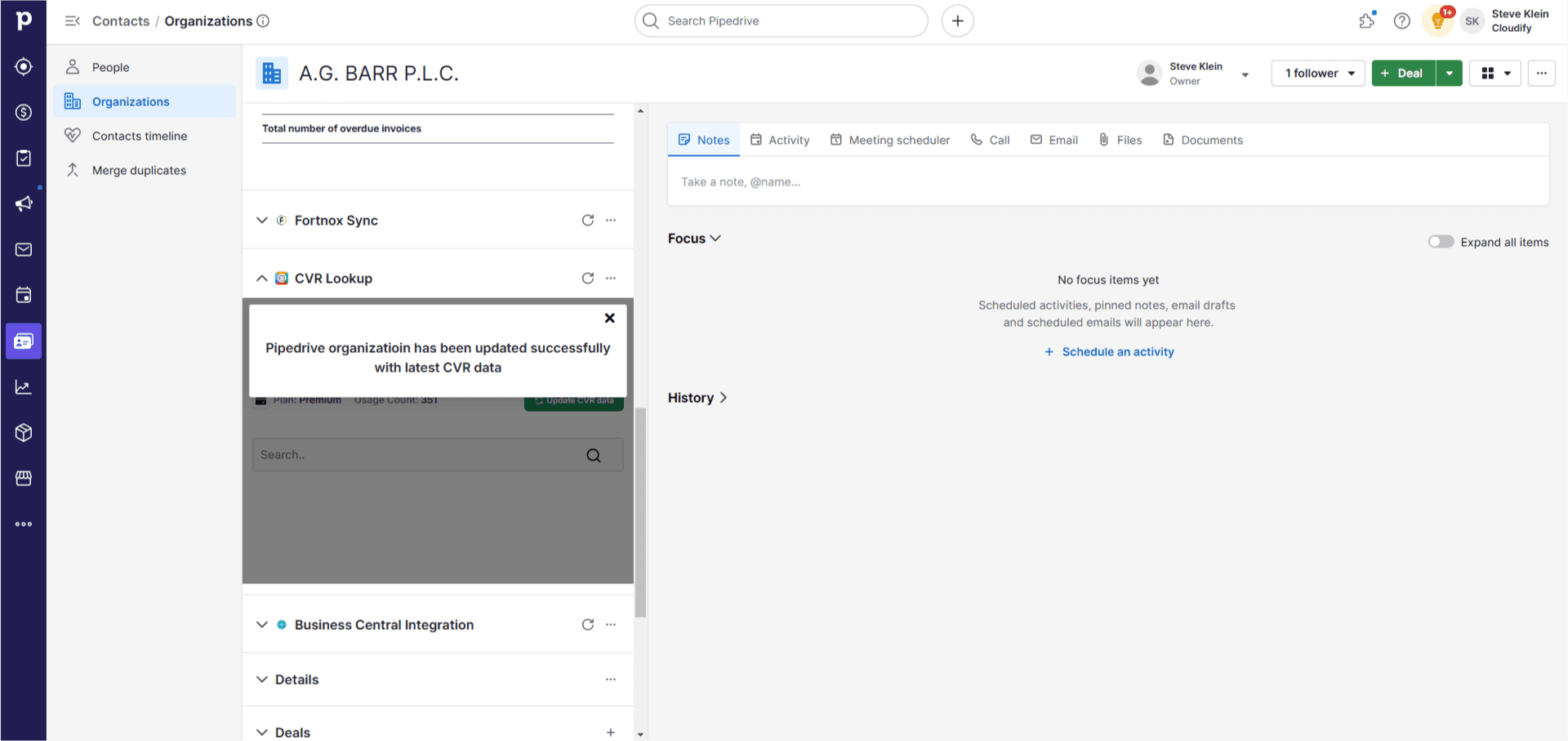
Click **"Finish"** when done. Your application is now ready to use.
**Got unique integration needs?**\
Our custom team can build tailored integrations, specialized data mappings, and workflow automations to perfectly match your specific business processes.
[Advanced integration settings](https://custom.cloudify.biz/)