> ## Documentation Index
> Fetch the complete documentation index at: https://docs.cloudify.biz/llms.txt
> Use this file to discover all available pages before exploring further.

# Connect Visma e-conomic Account

> Step-by-step guide to installing the Visma e-conomic sync app in Pipedrive and connecting your e-conomic account.

## How to Install the App

<Steps>
  <Step title="Find the app in the Pipedrive Marketplace">
    Log in to your Pipedrive account and search for the **Visma e-conomic sync** app in the marketplace. If you have already logged into your Pipedrive account, click the application link directly.

    Then click **Install now**.

    <Frame>
      ![Search for Visma e-conomic sync in the Pipedrive marketplace and click Install now](https://framerusercontent.com/images/za094jZU9BcAxa3qrqcrxh9Wj78.png)
    </Frame>
  </Step>

  <Step title="Allow and Install">
    Click **Allow and Install** to grant the necessary permissions.

    <Frame>
      ![Click Allow and Install to grant permissions](https://framerusercontent.com/images/YhqfcnCBfDedE4zOIRIpQQbl0o.png)
    </Frame>
  </Step>

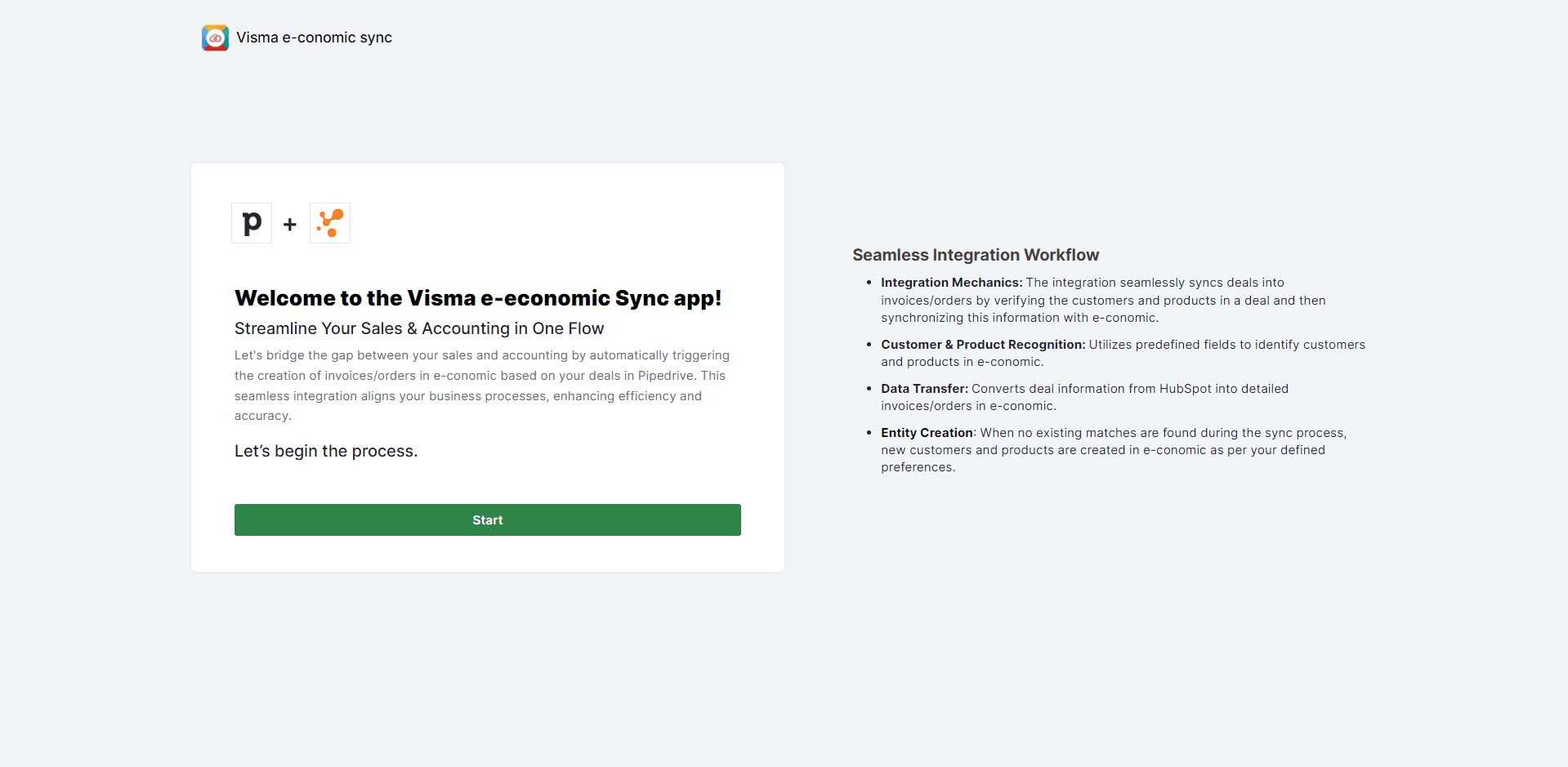
  <Step title="Start the setup">
    Click **Start** to begin the setup process.
    <Frame>
      ![Click Start to begin setup](https://framerusercontent.com/images/U9k8t8nWdtoWnmA0Gf8U7FNgtM0.png)
    </Frame>
  </Step>
</Steps>

***

## Connecting Your e-conomic Account

<Steps>
  <Step title="Connect e-conomic">
    Click **Connect e-conomic** to begin linking your e-conomic account.

    <Frame>
      ![Click Connect e-conomic](https://framerusercontent.com/images/flKpIsPYl2bSS0f5l11kz1eVM.png)
    </Frame>
  </Step>

  <Step title="Proceed through the authentication window">
    You will be redirected to the e-conomic authentication window. Click **OK** to proceed to the next step.

    <Frame>
      ![Click OK in the e-conomic authentication window](https://framerusercontent.com/images/AX2v6X8mdyPa8vy1O6s4HPbwg.png)
    </Frame>
  </Step>

  <Step title="Enter your email">
    Fill in the email address connected to your e-conomic account, then click **Next**.

    <Frame>
      ![Enter your e-conomic email and click Next](https://framerusercontent.com/images/GkNnt7xc4FgUtyxN6OFesu7zULM.png)
    </Frame>
  </Step>

  <Step title="Enter your password">
    Input your password and click **Sign In**.

    <Frame>
      ![Enter your password and click Sign In](https://framerusercontent.com/images/RHFk6QaBgvtH56cdDNcJQwcMpE.png)
    </Frame>
  </Step>

  <Step title="Add the app to your agreement">
    You will be asked for permission to add the app to your agreement. Click **Add App**.

    <Frame>
      ![Click Add App to grant permission](https://framerusercontent.com/images/pch1PiwjtQ1rN5KFtR6S7dhs6T0.png)
    </Frame>
  </Step>

  <Step title="Confirmation">
    You will receive a success message confirming that your e-conomic account is now connected to Pipedrive. Click anywhere on the screen to close the popup.

    <Frame>
      ![Success message confirming e-conomic is connected](https://framerusercontent.com/images/IsZU1Yjqa1wwyeWvkrFIpv5Eot8.png)
    </Frame>
  </Step>

  <Step title="Continue to next steps">
    Click **Continue** to move on to the next steps in the setup.

    <Frame>
      ![Click Continue to proceed](https://framerusercontent.com/images/kJG5fh0pfPNDovEqnGzzINUlM.png)
    </Frame>
  </Step>
</Steps>

***

<Tip>
  **Got unique integration needs?** Our custom team can build tailored integrations, specialized data mappings, and workflow automations to perfectly match your specific business processes. [Learn more about Advanced Integration Settings](https://custom.cloudify.biz/)
</Tip>

<CardGroup cols={2} />
