> ## Documentation Index
> Fetch the complete documentation index at: https://docs.cloudify.biz/llms.txt
> Use this file to discover all available pages before exploring further.
# Customer Search Rules
> Set up Customer Search Rules to seamlessly synchronize customer information between Pipedrive and e-conomic, ensuring data consistency and avoiding duplicate entries.
Set up Customer Search Rules to seamlessly synchronize customer information between Pipedrive and e-conomic, ensuring data consistency and avoiding duplicate entries. The integration actively searches for customers based on your defined parameters — if a match is found, that record is used; otherwise, a new customer profile is created to maintain a comprehensive database.
***
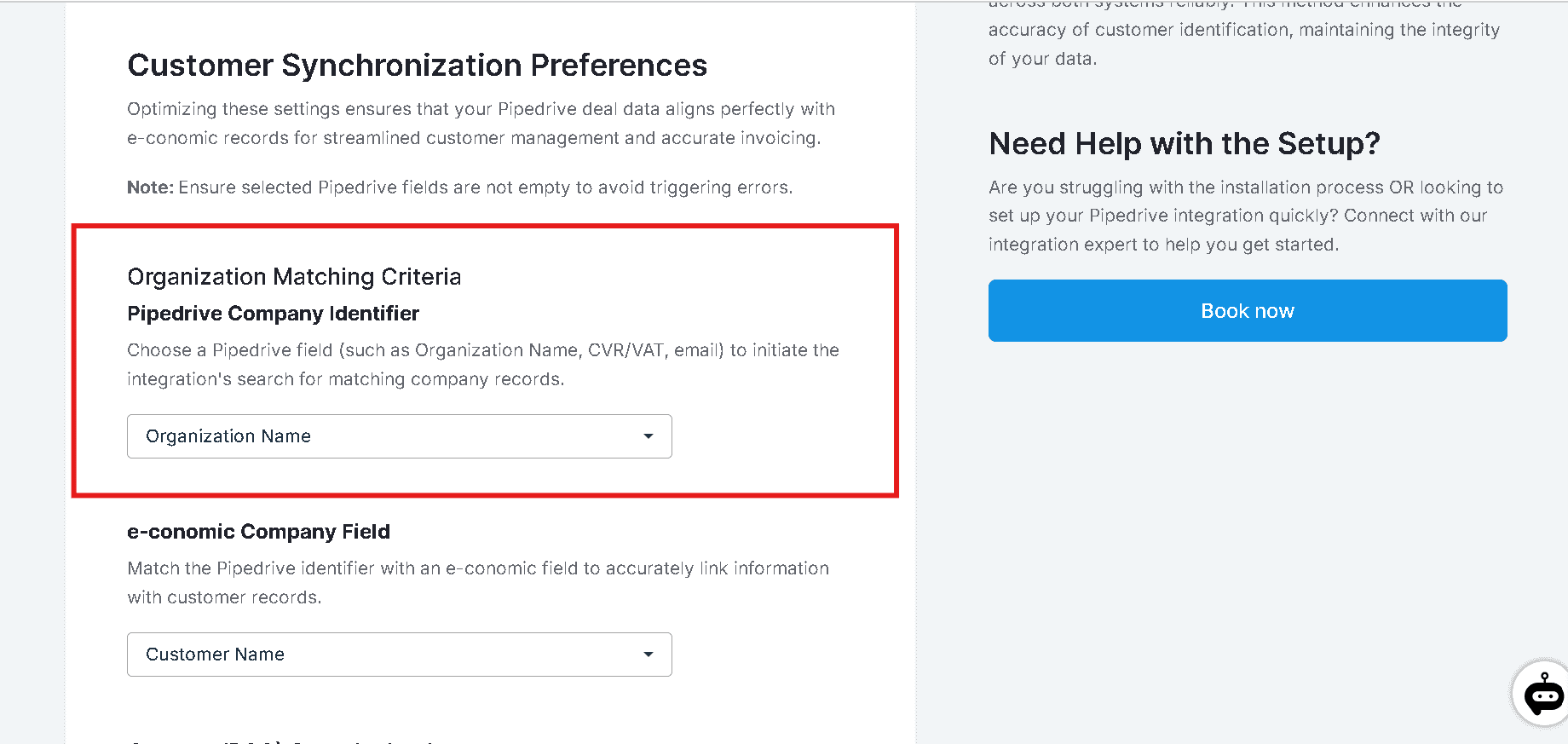
## Organization Matching Criteria
Configure Organization matching criteria by selecting a field in Pipedrive (e.g., Organization Name, Email) that corresponds to the chosen e-conomic field. This ensures both platforms refer to the same company data when syncing information, maintaining consistency across systems.
***
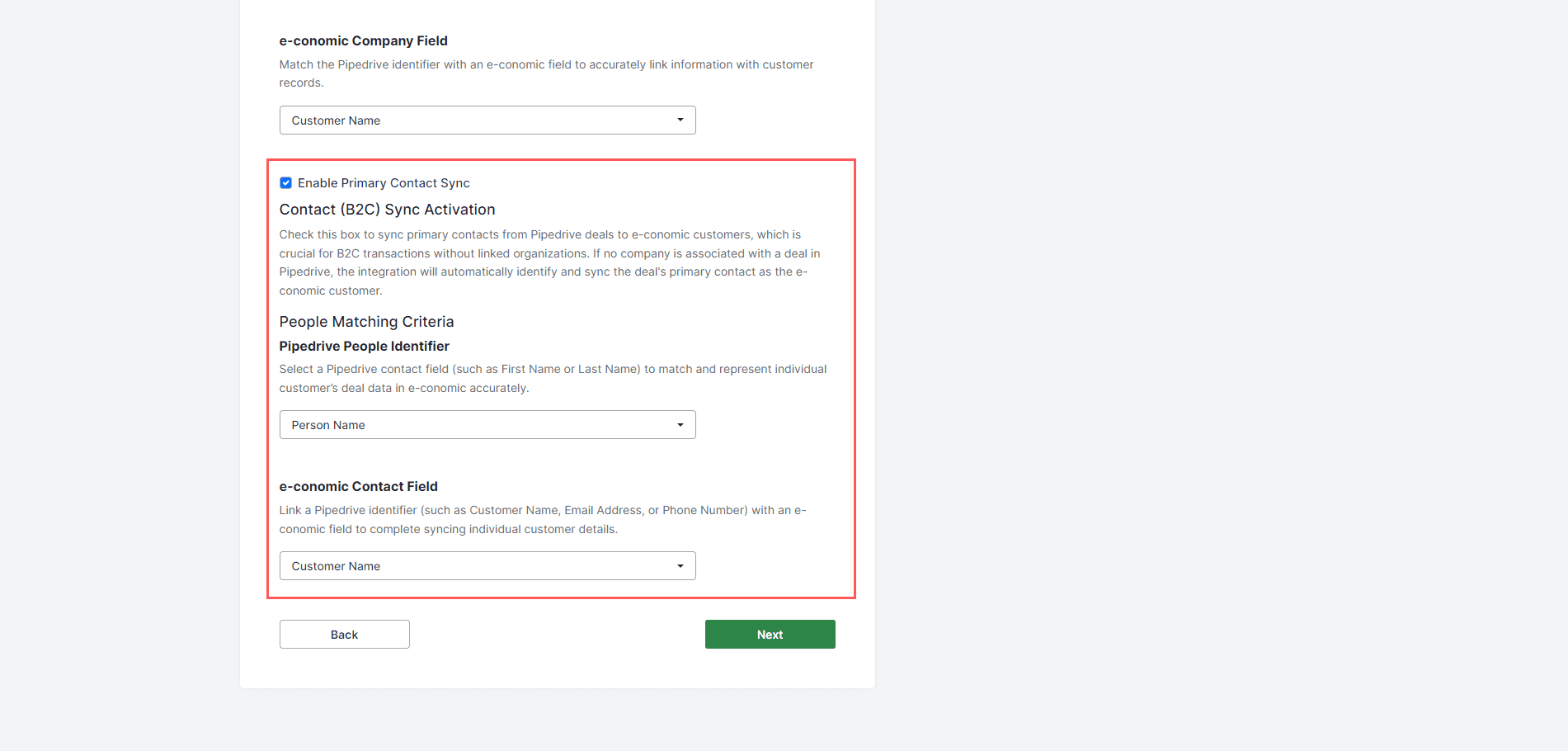
## Enable Primary Contact Sync
This feature is essential for businesses dealing directly with consumers. It allows individual contacts from Pipedrive to be seamlessly added to e-conomic as customers when there is no associated company.
If your contacts are not linked to an organization, check **Enable Primary Contact Sync** to allow the integration to handle them as customers in e-conomic.
From the **Pipedrive Contact Identifier** dropdown menu, select the Pipedrive field that uniquely identifies your contacts — such as person name or email.
From the **e-conomic Contact Field** dropdown menu, select the corresponding field in e-conomic used to match and identify the same contact. This should also be a unique identifier, such as an email address or customer number in e-conomic.
Click **Next** to continue to the next setup step.
***
**Got unique integration needs?** Our custom team can build tailored integrations, specialized data mappings, and workflow automations to perfectly match your specific business processes. [Learn more about Advanced Integration Settings](https://custom.cloudify.biz/)