> ## Documentation Index
> Fetch the complete documentation index at: https://docs.cloudify.biz/llms.txt
> Use this file to discover all available pages before exploring further.
# Invoice Order
Customize how invoices or orders are generated in Microsoft Business Central by linking them to your Pipedrive sales flow.
**Select a Pipeline from the drop-down menu:**
This step allows you to link the creation of invoices or orders to a specific sales pipeline in Pipedrive. It ensures that the invoices or orders are generated at the right time in the sales process, improving efficiency and reducing the risk of errors associated with manual entry.
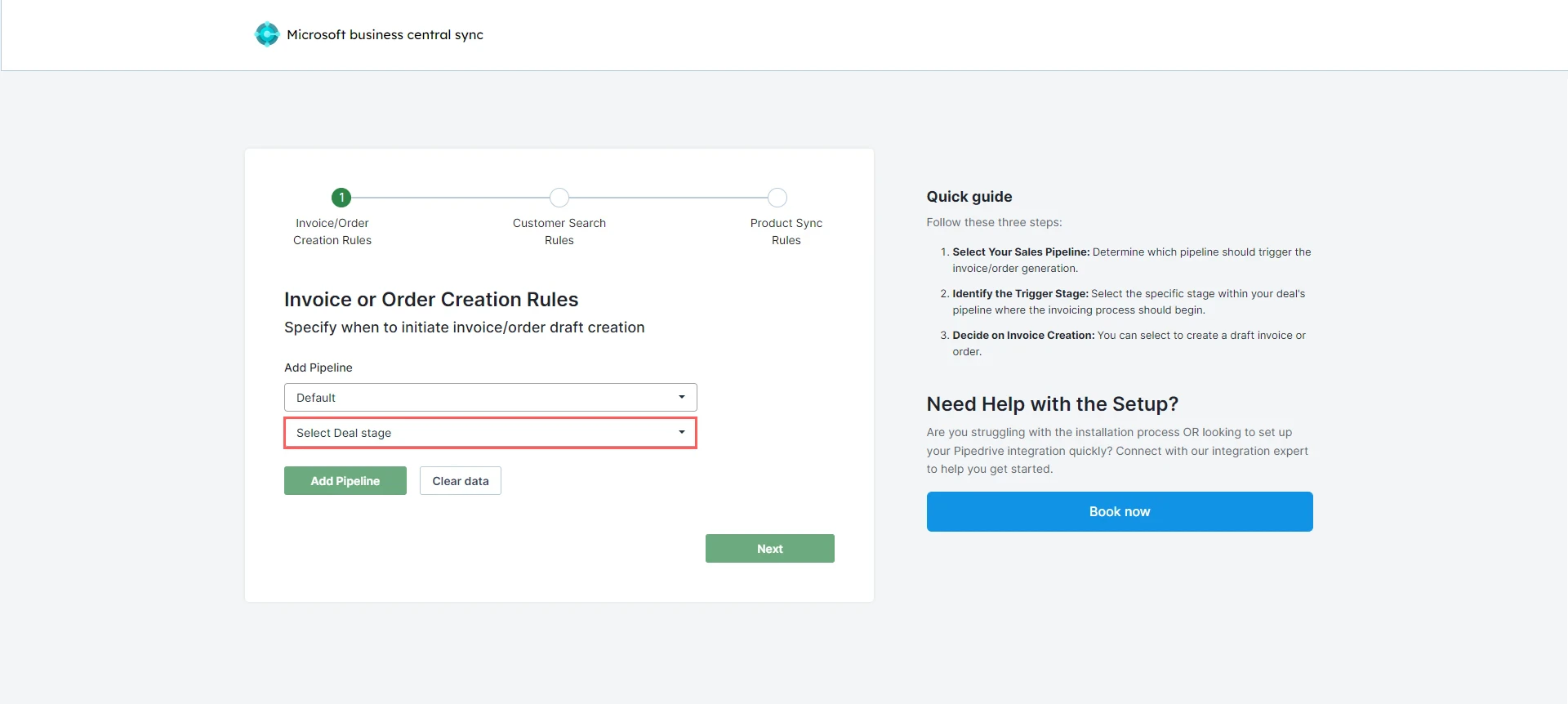
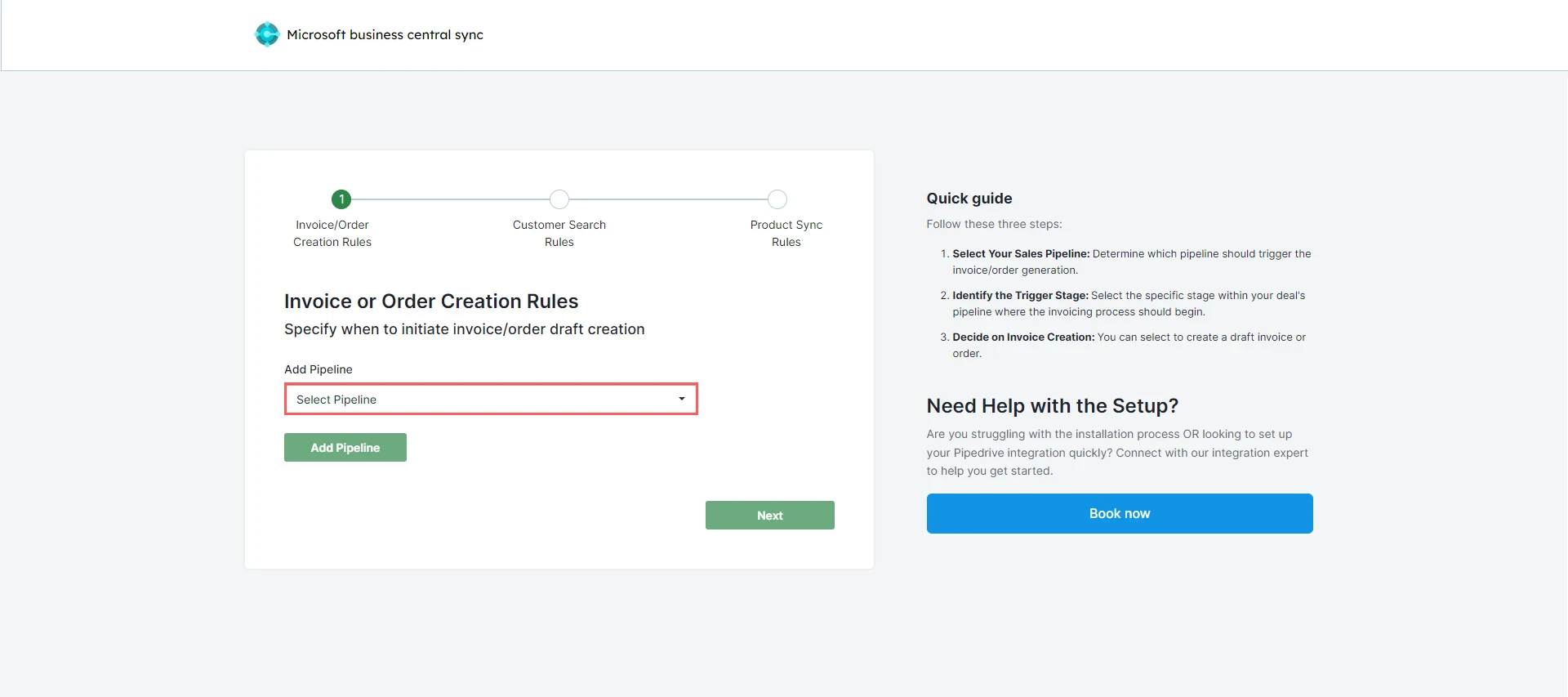 **Select the Deal Stage from the drop-down menu**:
Here, you select the particular stage within the sales pipeline that will trigger the creation of an invoice or order in Microsoft Business Central. This ensures the invoicing process aligns perfectly with your established sales flow.
**Select the Deal Stage from the drop-down menu**:
Here, you select the particular stage within the sales pipeline that will trigger the creation of an invoice or order in Microsoft Business Central. This ensures the invoicing process aligns perfectly with your established sales flow.
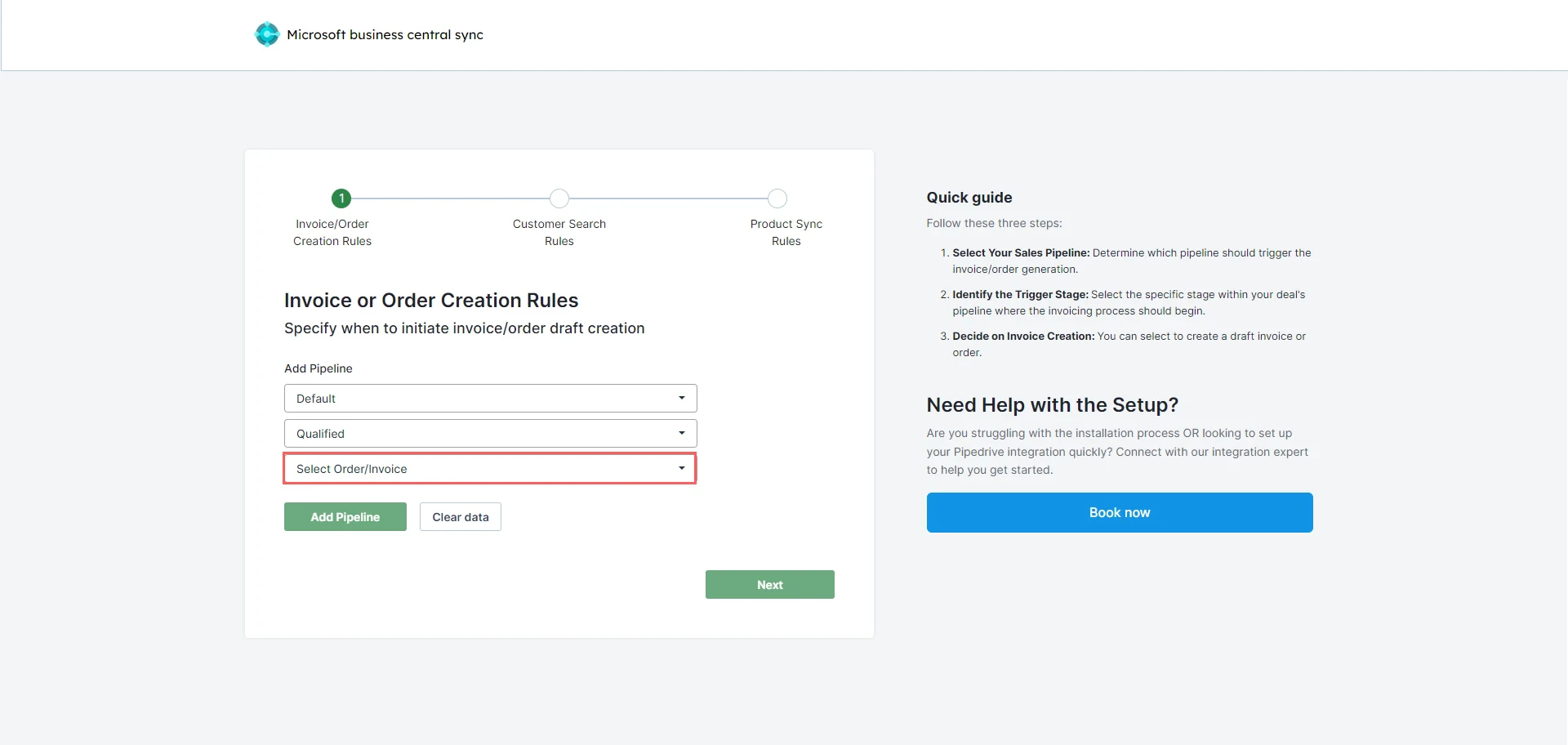
 **Choose the Order/Invoice from the drop-down menu:**
This action involves creating a draft invoice/order as per the requirement.
**Choose the Order/Invoice from the drop-down menu:**
This action involves creating a draft invoice/order as per the requirement.
 After selecting the required options, click **"Add Pipeline".**
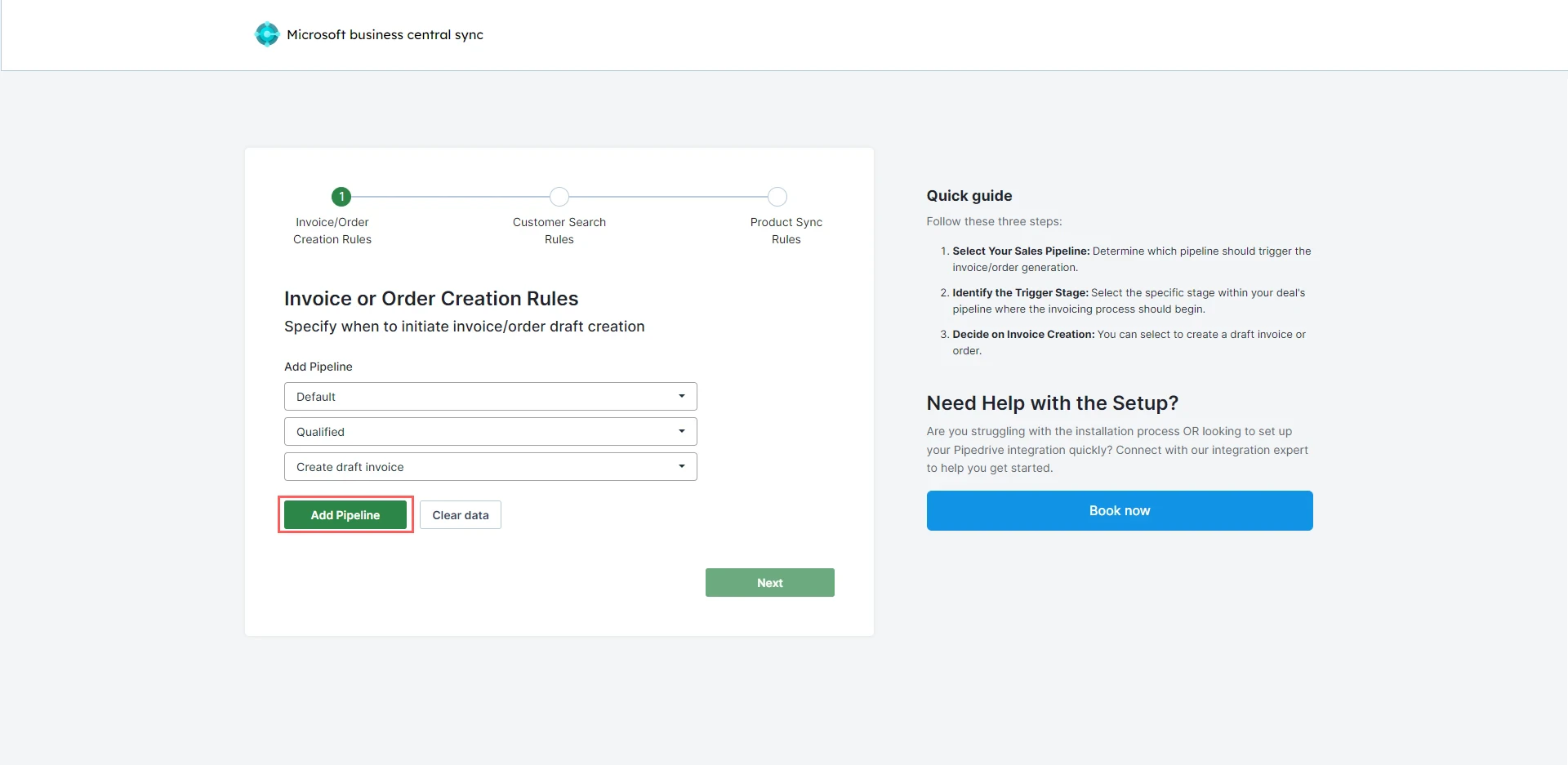 The pipeline will be added. Click "**Next**".
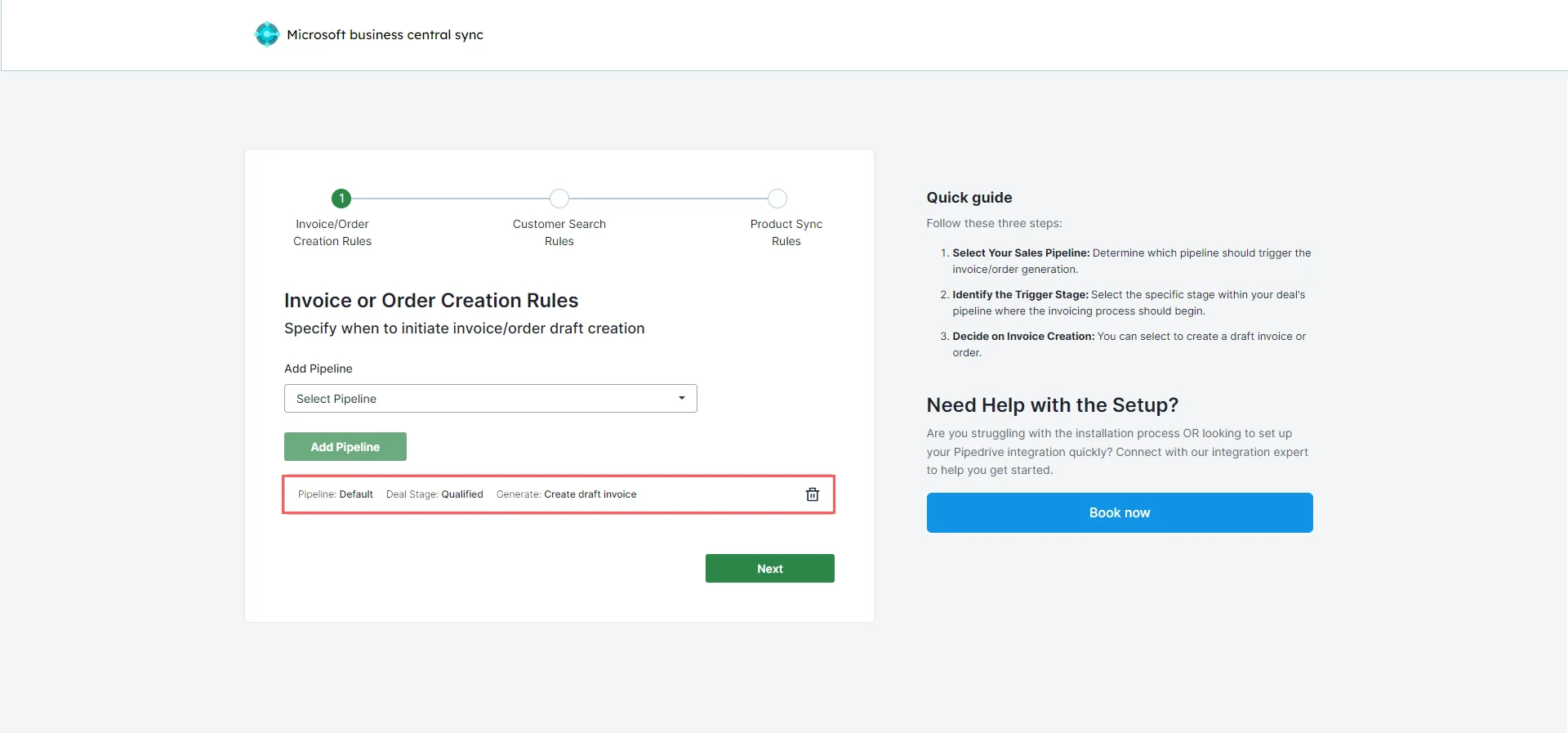 **Note**: You can add more pipelines as per your requirements by clicking on Add Pipeline. Feel free to click [Get Guided Installation](https://meetings.hubspot.com/cloudify/app-assistance?uuid=cd58e7cf-3178-4c1d-a9c3-7fdc434d7193) if you require assistance from Cloudify experts regarding the installation steps.