> ## Documentation Index
> Fetch the complete documentation index at: https://docs.cloudify.biz/llms.txt
> Use this file to discover all available pages before exploring further.

# One-click Invoices/Quotes

> Learn how to manually create, manage, split, duplicate, and sync invoices or quotes directly from a Pipedrive deal using the Xero Integration panel.

## Creating an Invoice or Quote from a Deal

<Steps>
  <Step title="Open the Xero Integration panel">
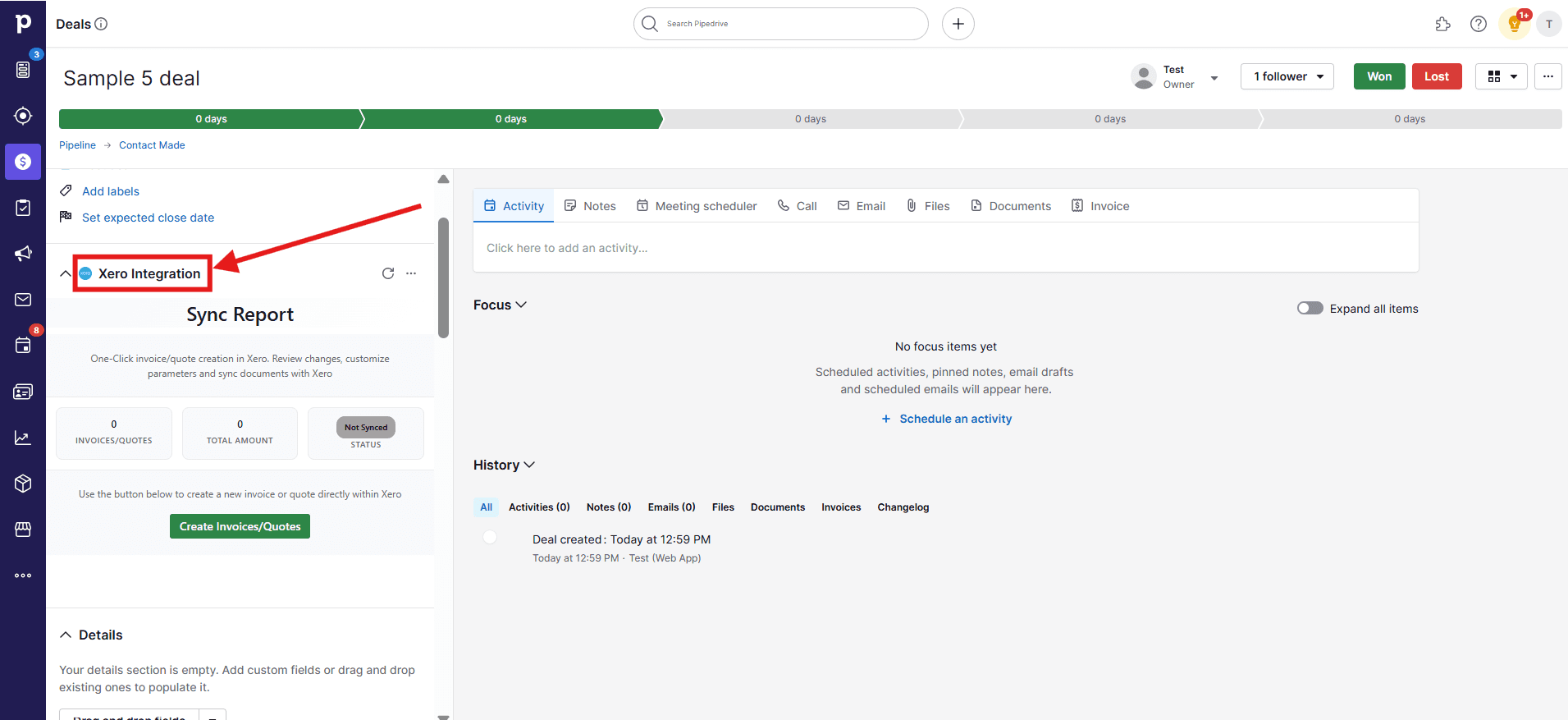
    Go to a Deal in Pipedrive and navigate to the **Xero Integration** section in the left panel.
    <Frame>
      ![Navigate to the Xero Integration section within a Pipedrive deal](https://framerusercontent.com/images/SaFtvixJclxQRsbnuPqTokvC0.png)
    </Frame>
  </Step>

  <Step title="Create an invoice or quote">
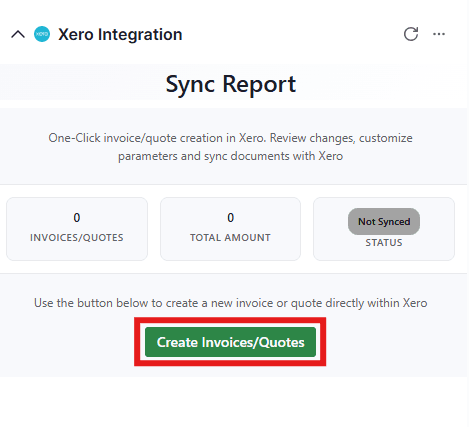
    Click **Create invoice/quotes**.

    <Frame>
      ![Click Create invoice/quotes in the Xero Integration panel](https://framerusercontent.com/images/LP1rGqajPWcUt5Pxoy79JiQ9fpE.png)
    </Frame>
  </Step>

  <Step title="Add invoice details or start a new one">
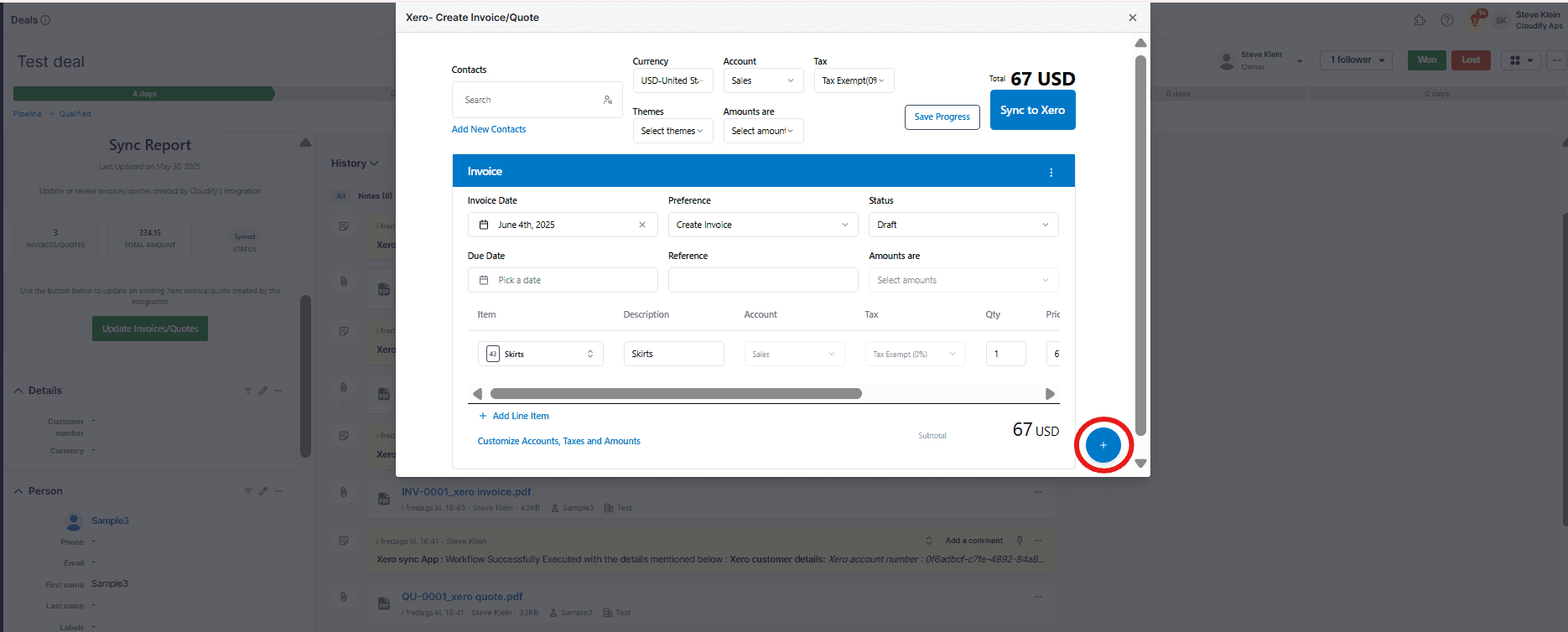
    Once the window opens, you will get multiple options to manage your invoice or quote manually. Add relevant invoice details in this window, or click the blue **+** icon to create a new invoice or quote.
    <Frame>
      ![Add invoice details or click the + icon to create a new invoice or quote](https://framerusercontent.com/images/YacK3GzZga5SGv50GAm0aE2oDgM.png)
    </Frame>
  </Step>

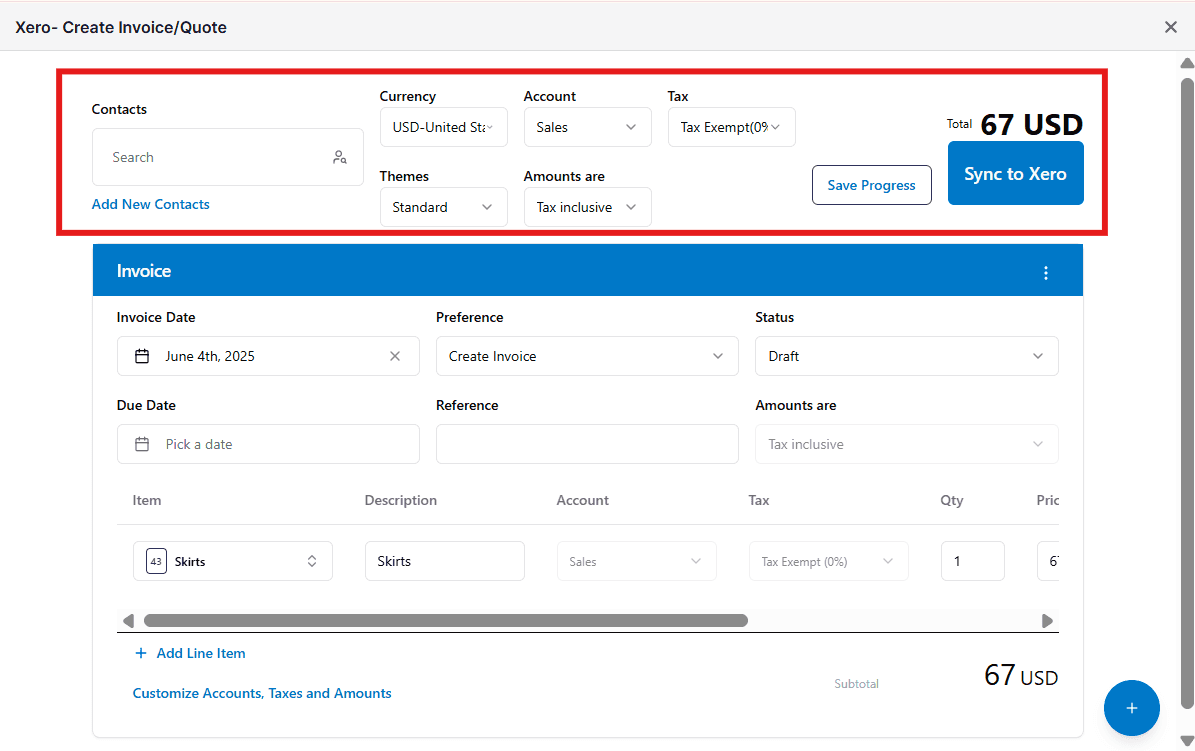
  <Step title="Select contact, currency, tax, and account details">
    Select the contact, currency, tax, and account details to get started.
    <Frame>
      ![Select contact, currency, tax, and account details](https://framerusercontent.com/images/qgOZ8z131MJkCu2lJ5fQta5A.png)
    </Frame>
  </Step>

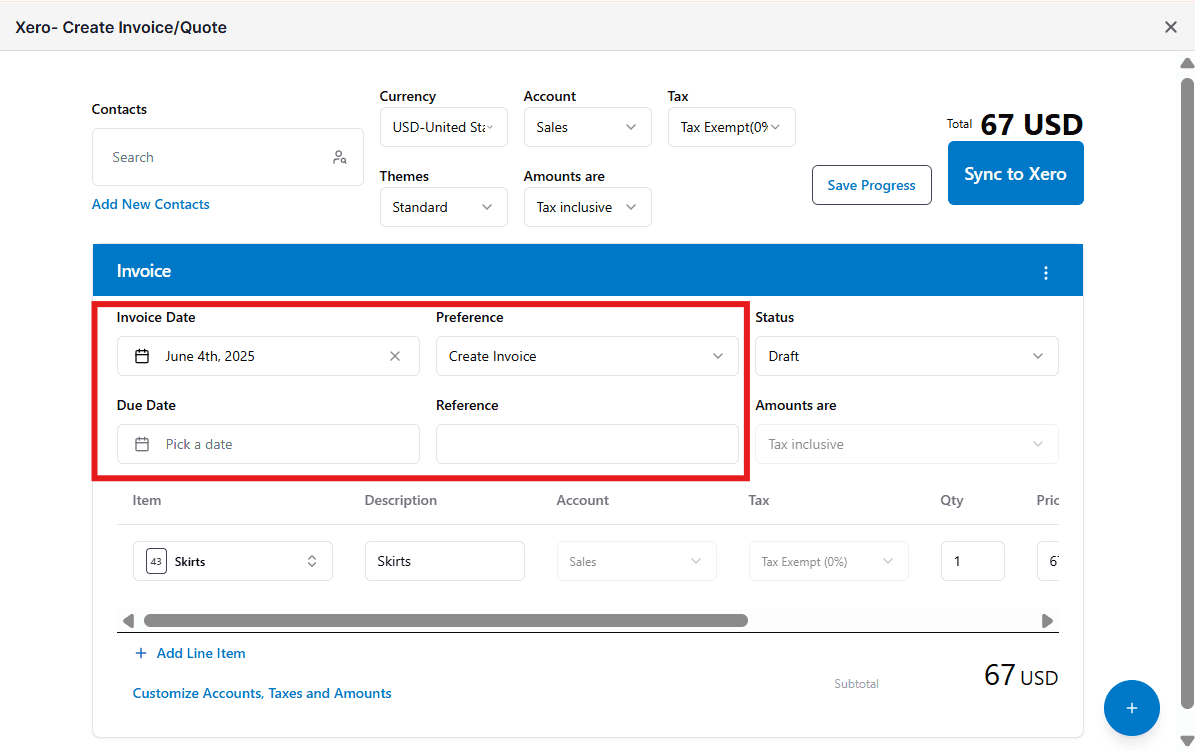
  <Step title="Set invoice-specific details">
    Select invoice-specific details such as **Invoice date**, **Due date**, **Status**, and **Tax preferences**.
    <Frame>
      ![Set Invoice date, Due date, Status, and Tax preferences](https://framerusercontent.com/images/46i8Lb69F57yXGVissoRp3C4bGo.png)
    </Frame>
  </Step>

  <Step title="Add line items">
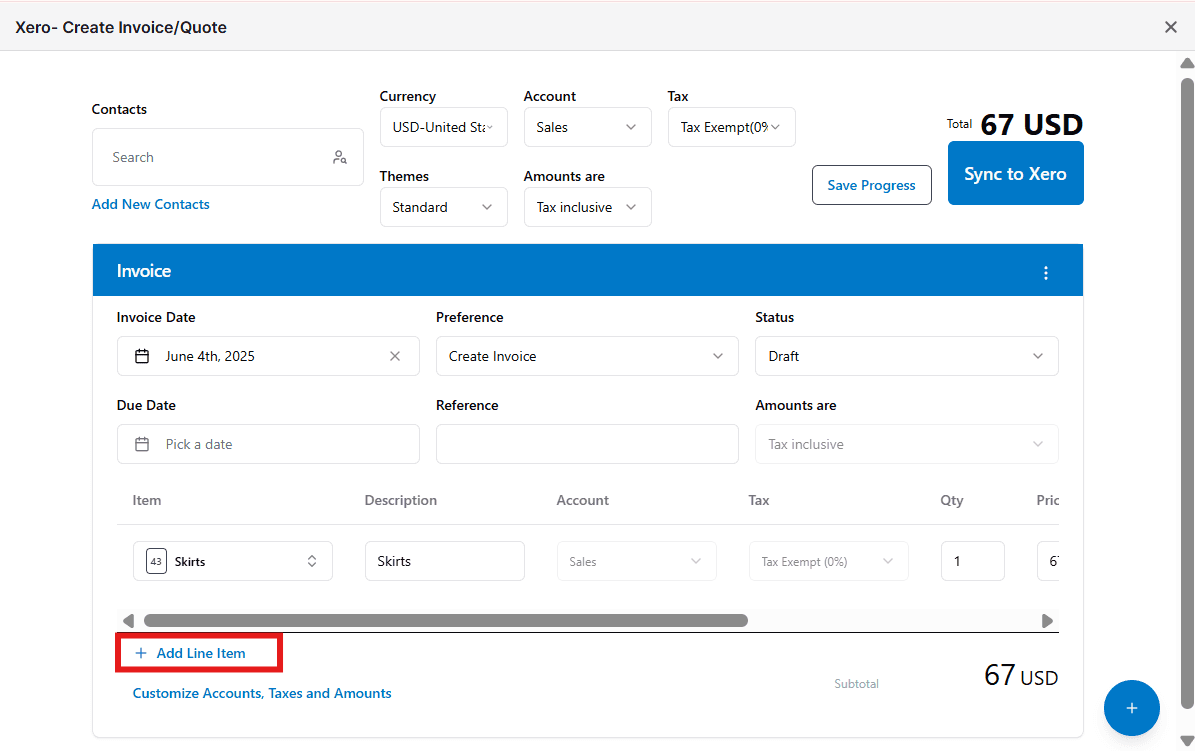
    Add new products to your draft invoice by clicking **+ Add Line Item**.

    <Note>
      You can only select products using this option if they are already present in Xero.
    </Note>

    <Frame>
      ![Click + Add Line Item to add products to the draft invoice](https://framerusercontent.com/images/YH5CFbw6peogI7H7zc4Djp3AOJQ.png)
    </Frame>
  </Step>

  <Step title="Customize accounts, taxes, and amounts (optional)">
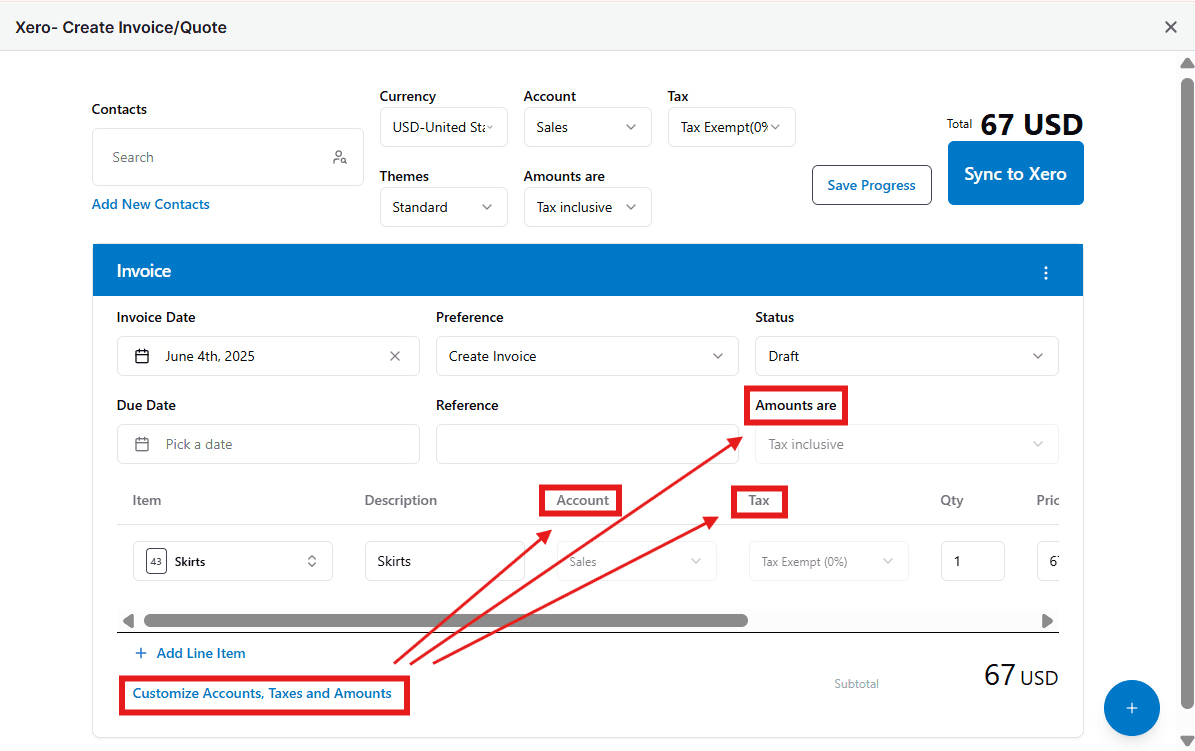
    Add custom preferences to individual products by clicking **Customize Accounts, Taxes and Amounts**.
    <Frame>
      ![Click Customize Accounts, Taxes and Amounts for product-level customization](https://framerusercontent.com/images/LCcJEQftobmK0deOgJQBrsHNfw.png)
    </Frame>
  </Step>

  <Step title="Split the invoice (optional)">
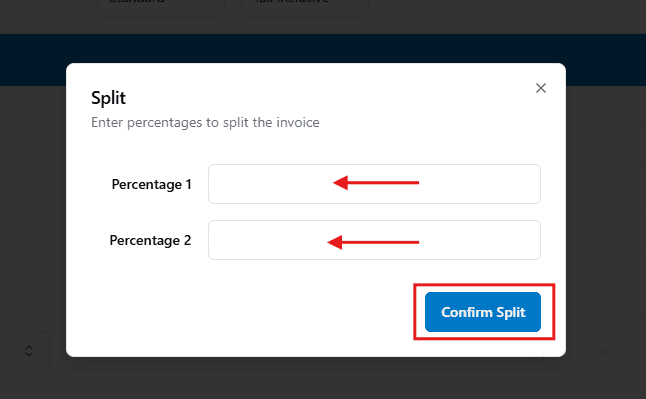
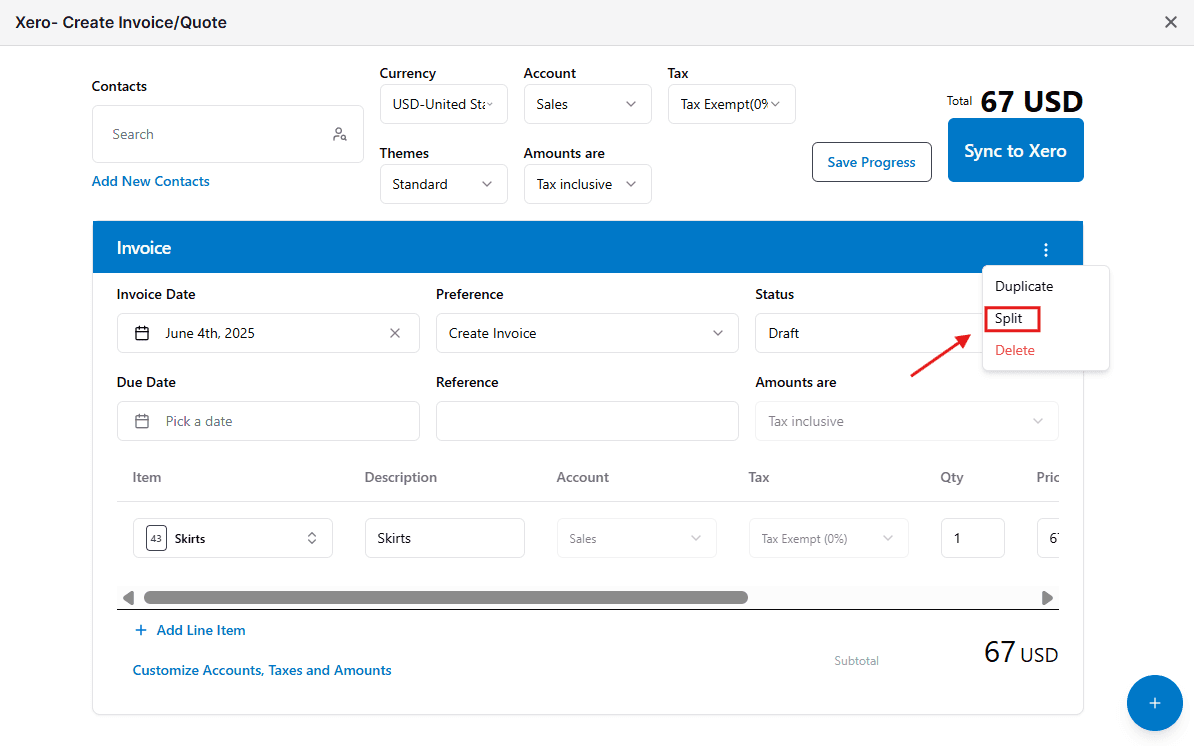
    Split your invoice into two by specifying a percentage ratio. Click the **three dots** and select **Split**.

    <Warning>
      You can only split an invoice while it is in **DRAFT** status. Once an invoice has moved out of the DRAFT stage, the Split option is disabled.
    </Warning>

    <Frame>
      ![Click the three dots and select Split to divide the invoice by percentage](https://framerusercontent.com/images/4qKMu78WSxR0utvviHfip9bQu9g.png)
    </Frame>

    <Frame>
      ![Specify the percentage ratio to split the invoice](https://framerusercontent.com/images/JTWeYrnAoWUL2of6qxYyFhC6oGw.png)
    </Frame>
  </Step>

  <Step title="Duplicate the invoice or quote (optional)">
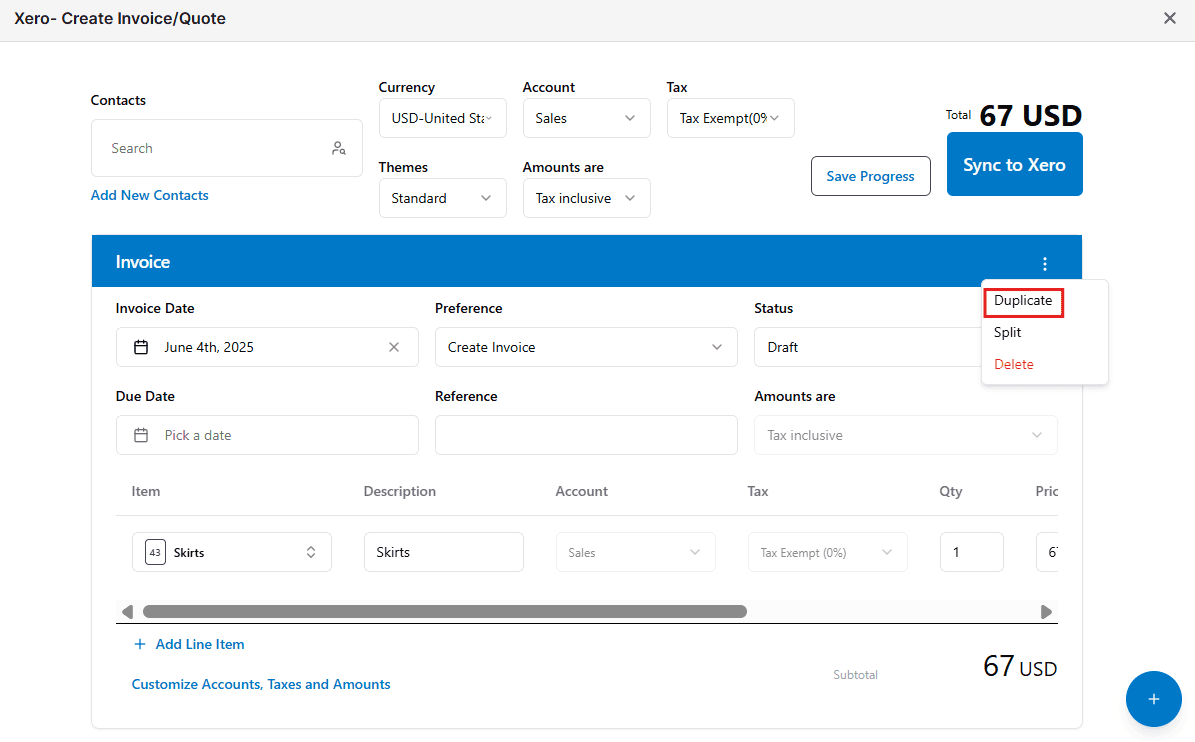
    To duplicate an invoice or quote, click the **three dots** and select **Duplicate**.
    <Frame>
      ![Click the three dots and select Duplicate to copy the invoice or quote](https://framerusercontent.com/images/8gOsJtr5DYkGDoaiU9IOD2HpxU.png)
    </Frame>
  </Step>

  <Step title="Save progress for later (optional)">
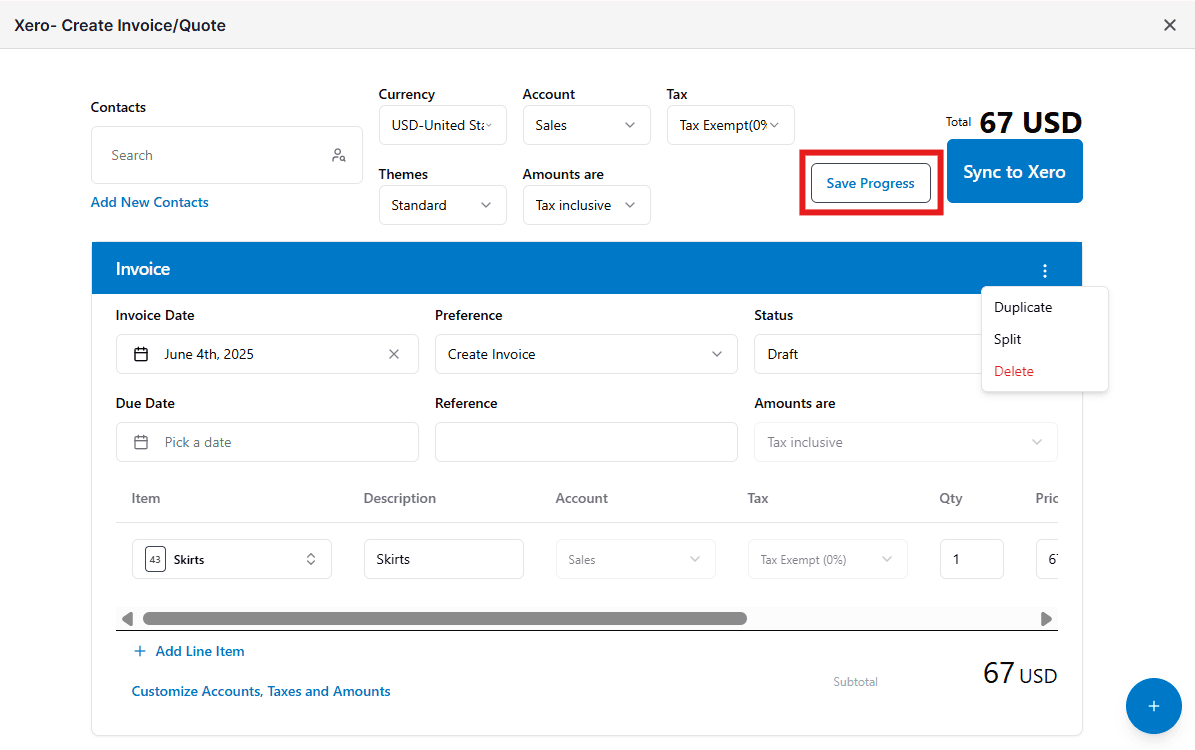
    If you need to come back and update the details later, click **Save Progress**.
    <Frame>
      ![Click Save Progress to save your draft and return to it later](https://framerusercontent.com/images/lJnnO6kY78Hkpb0NlCsObLMebI.png)
    </Frame>
  </Step>

  <Step title="Sync to Xero">
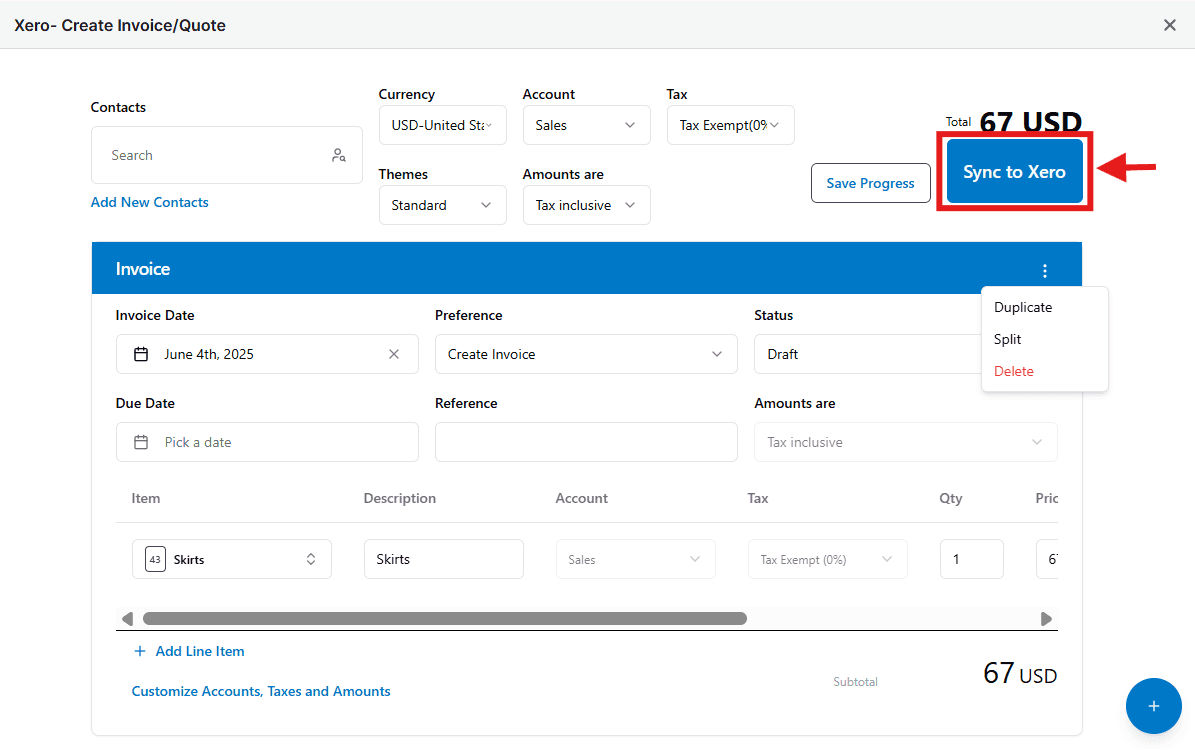
    Once you are ready to send the draft invoice to Xero, click **Sync to Xero**.
    <Frame>
      ![Click Sync to Xero to push the invoice from Pipedrive to Xero](https://framerusercontent.com/images/awUKOaPvZXQI5XhPzwWFh6Hcqo.png)
    </Frame>
  </Step>

  <Step title="View the invoice in Pipedrive">
    Close the window and view your synced invoice in the **Notes** section within the Pipedrive deal.
  </Step>
</Steps>

***

<Tip>
  **Got unique integration needs?** Our custom team can build tailored integrations, specialized data mappings, and workflow automations to perfectly match your specific business processes. [Learn more about Advanced Integration Settings](https://custom.cloudify.biz/)
</Tip>

<CardGroup cols={2} />