> ## Documentation Index
> Fetch the complete documentation index at: https://docs.cloudify.biz/llms.txt
> Use this file to discover all available pages before exploring further.
# Connect Xero Account
> Step-by-step guide to installing the Cloudify Xero Integration from either the Xero App Store or the Pipedrive Marketplace, and connecting your Xero account.
## How to Install the App
You can install the Cloudify Xero Integration from two places — the Xero App Store or the Pipedrive Marketplace. Follow the path that suits you.
Log in to your Xero account and search for **Cloudify Xero Integration**. Select the application and click **Get this app**.

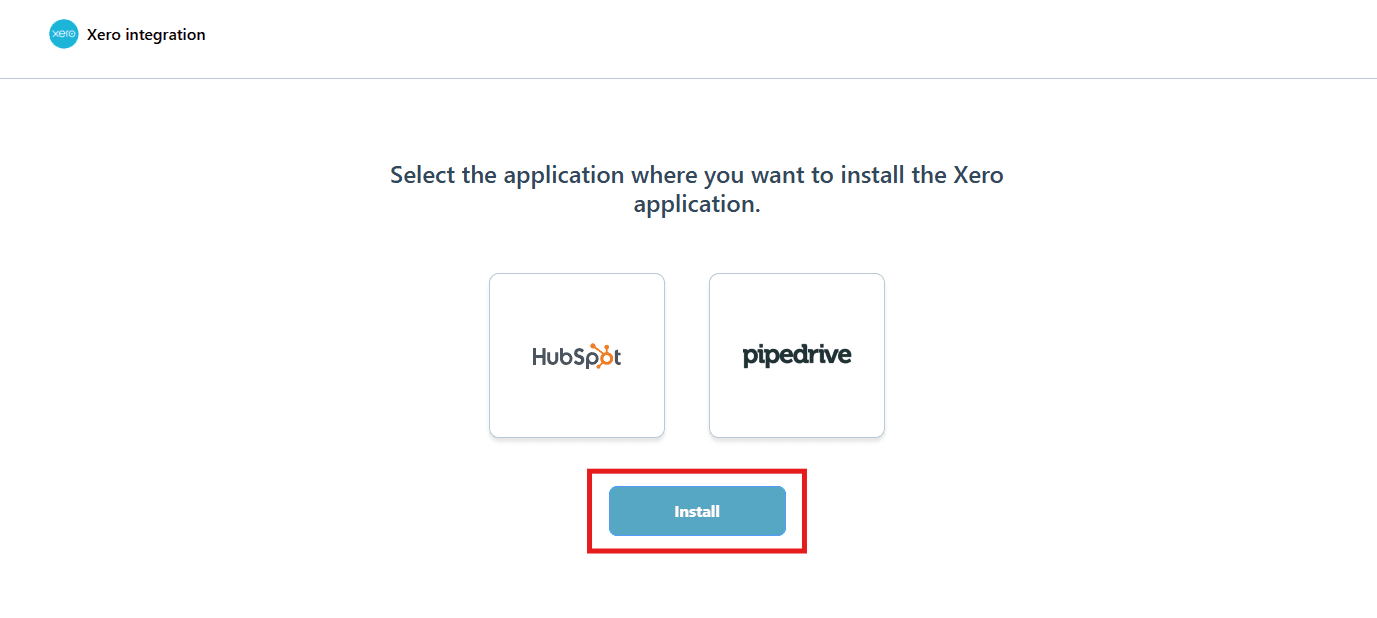
On the next screen, select **Pipedrive** and click **Install**.
Skip to the **Connecting Xero Account** section below to complete the setup.
Log in to your Pipedrive account and search for **Cloudify** or **Xero Integration app** in the Pipedrive Marketplace. This will display the Xero integration developed by Cloudify. Click **Install now**.

Select the Pipedrive company in which you wish to install the Xero app and click **Allow and Install**.

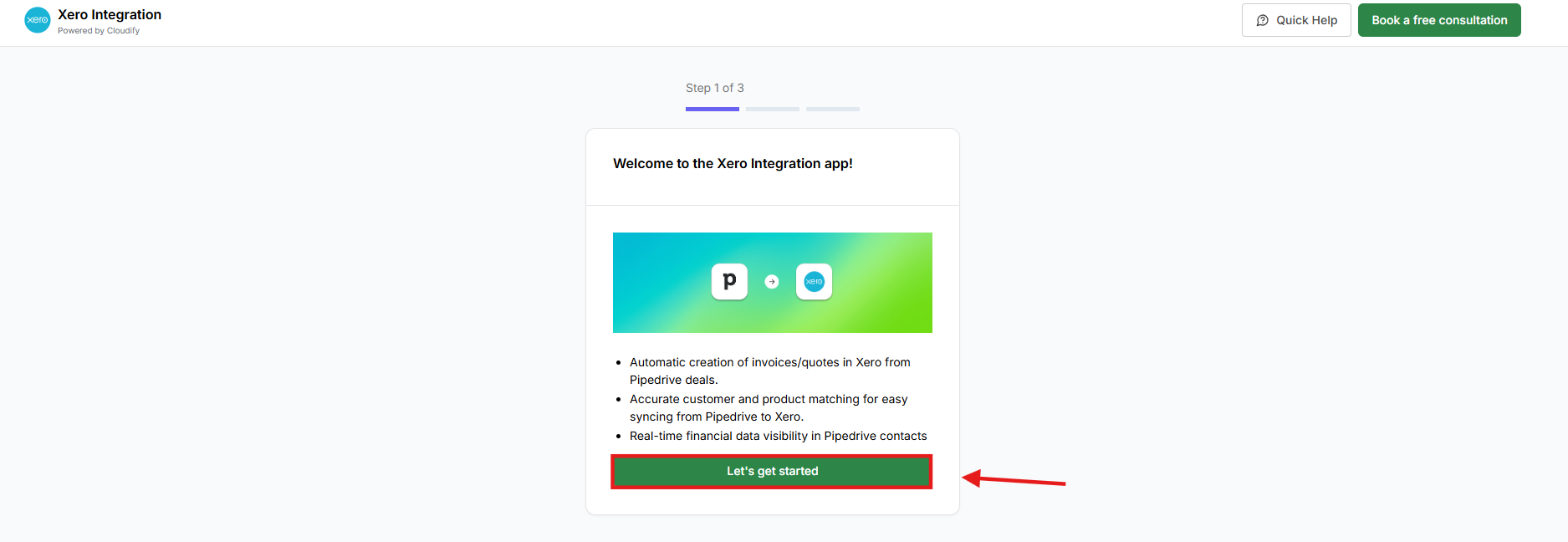
Click **Let's get started** to begin the installation.

 ***
## Connecting Your Xero Account
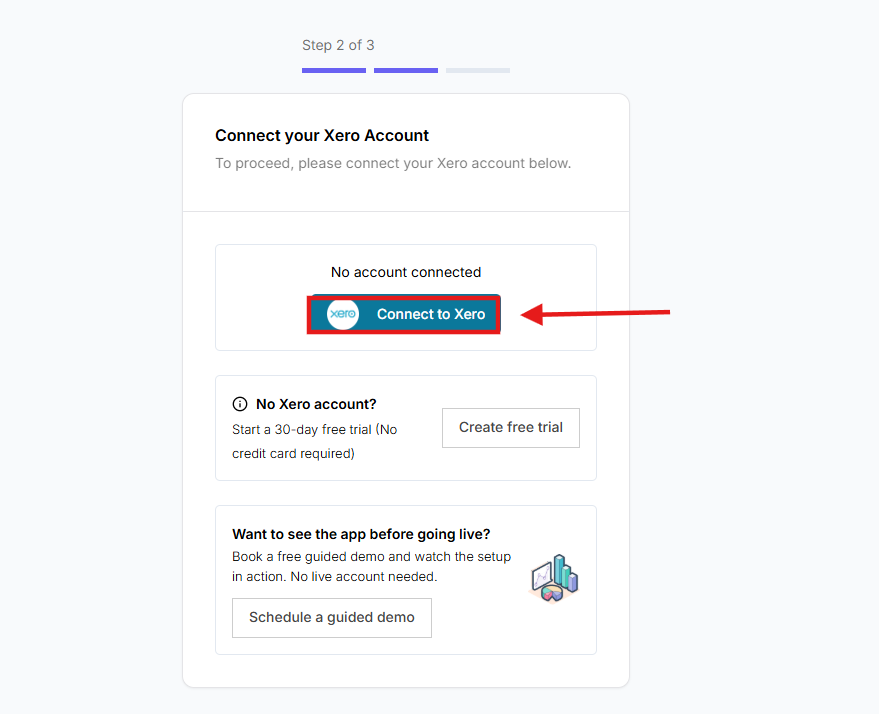
Click **Connect to Xero** to begin connecting your Xero account.
**No Xero Account:**\
If you don’t have a Xero account, you can start a free trial and come back to connect it once your account is set up.
**Want to See the App Before Going Live:**\
If you’d like to explore the app first, you can schedule a guided demo to see how it works before connecting your account.
***
## Connecting Your Xero Account
Click **Connect to Xero** to begin connecting your Xero account.
**No Xero Account:**\
If you don’t have a Xero account, you can start a free trial and come back to connect it once your account is set up.
**Want to See the App Before Going Live:**\
If you’d like to explore the app first, you can schedule a guided demo to see how it works before connecting your account.

 Input your Xero registered email address and password, then click **Log In**.

If prompted, select your Organisation and click **Allow access**.

You will receive a success message once the Xero account is connected.
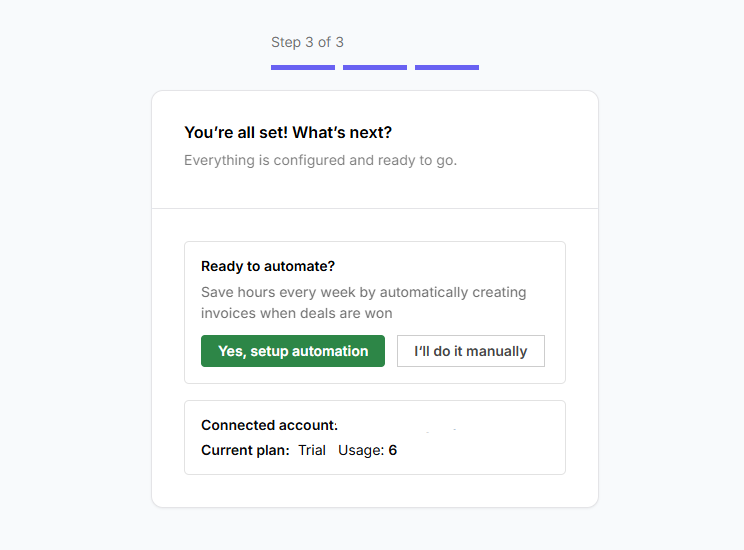
Click on “**Yes, setup automation**” or “**I’ll do it manually**” to proceed. Choose the option that best fits your workflow.
Input your Xero registered email address and password, then click **Log In**.

If prompted, select your Organisation and click **Allow access**.

You will receive a success message once the Xero account is connected.
Click on “**Yes, setup automation**” or “**I’ll do it manually**” to proceed. Choose the option that best fits your workflow.
 ***
**Got unique integration needs?** Our custom team can build tailored integrations, specialized data mappings, and workflow automations to perfectly match your specific business processes. [Learn more about Advanced Integration Settings](https://custom.cloudify.biz/)
***
**Got unique integration needs?** Our custom team can build tailored integrations, specialized data mappings, and workflow automations to perfectly match your specific business processes. [Learn more about Advanced Integration Settings](https://custom.cloudify.biz/)