> ## Documentation Index
> Fetch the complete documentation index at: https://docs.cloudify.biz/llms.txt
> Use this file to discover all available pages before exploring further.
# Invoice/Quote Rules
> Specify how invoices or quotes will be generated in Xero by linking them to your Pipedrive sales pipeline.
## Create Invoice/Quote Rules
If you proceed with **“Yes, setup automation”**, you’ll be guided to set up invoice and quote creation rules to automate your workflow.
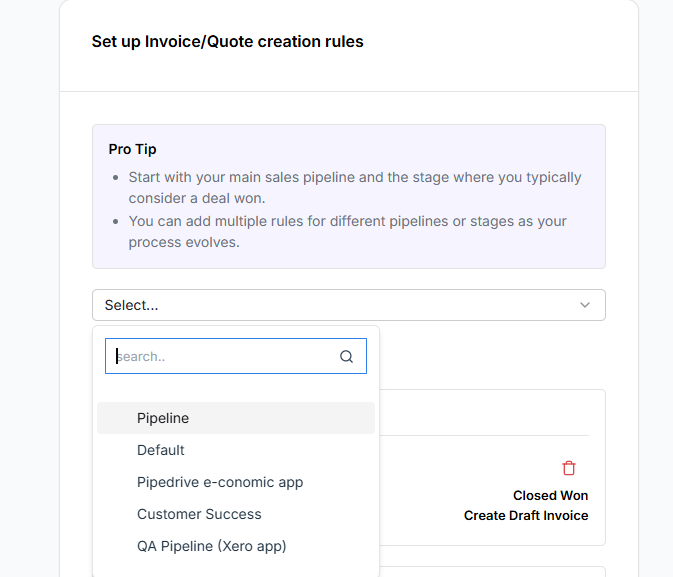
Select a **Pipeline** from the drop-down menu. This links the creation of invoices or quotes to a specific sales pipeline in Pipedrive, ensuring they are generated at the right stage in your sales process — improving efficiency and reducing the risk of manual entry errors.
Need help? Click [**Get Guided Installation**](https://meetings.hubspot.com/cloudify/app-assistance) if you require assistance from Cloudify experts regarding the installation steps.

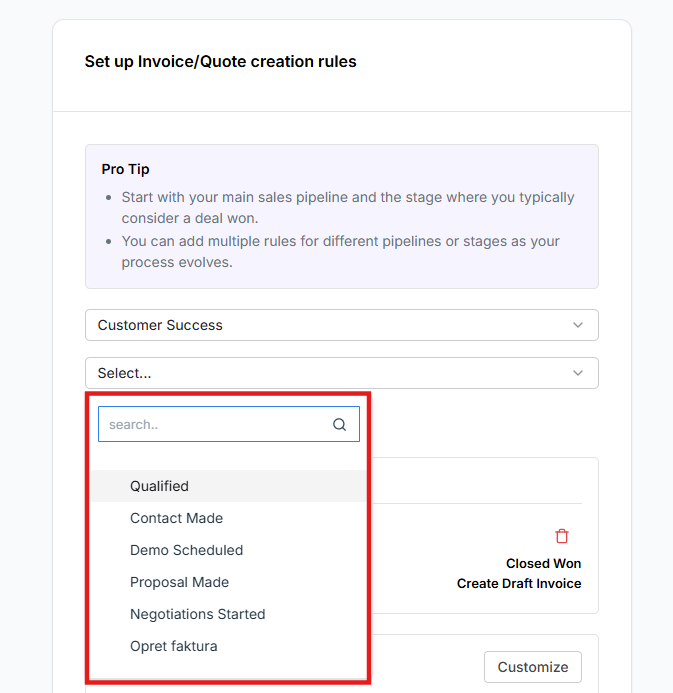
 Select the **Deal Stage** from the drop-down menu. This is the specific stage within the sales pipeline that will trigger the creation of an invoice or quote in Xero, ensuring the invoicing process aligns perfectly with your established sales flow.

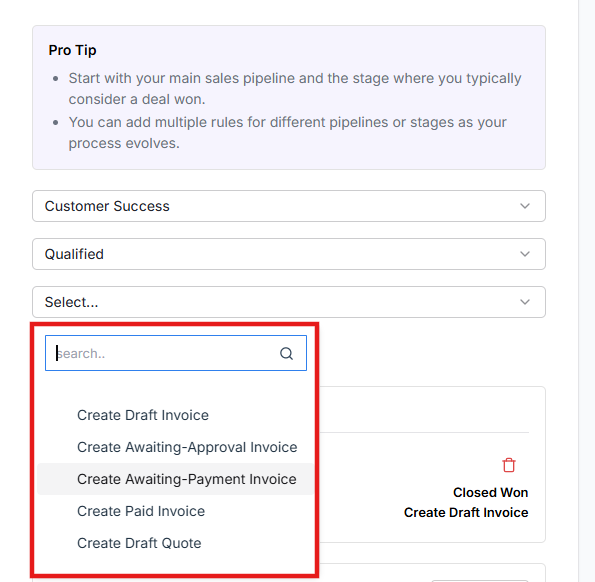
 Choose the **Invoice/Quote** from the drop-down menu. This determines whether a invoice or a quote is created in Xero when the deal reaches the selected stage.

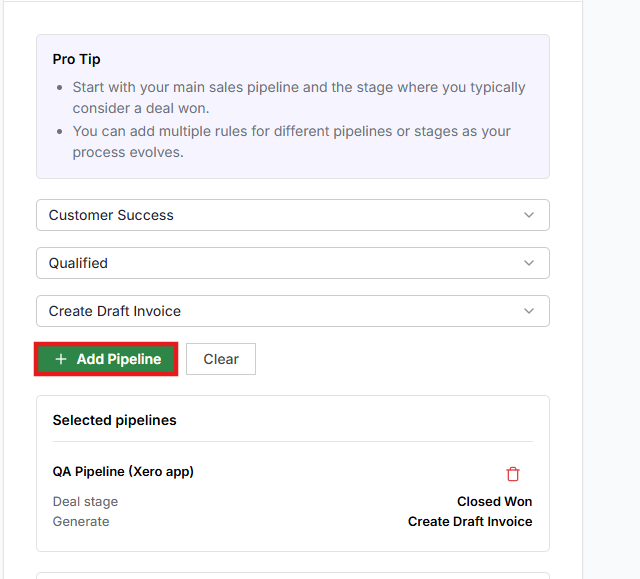
 After selecting all the required options, click **Add Pipeline**. Use **Clear** to reset your selections if needed.

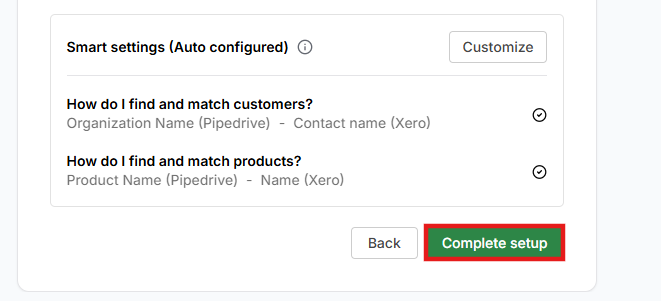
 Customer and product settings are auto-configured by default. Click **“Customize”** to make changes based on your needs, or **“Complete setup”** to finish the installation.
Need help? Click [**Get Guided Installation**](https://meetings.hubspot.com/cloudify/app-assistance) to reach Cloudify experts for assistance with installation steps.
Customer and product settings are auto-configured by default. Click **“Customize”** to make changes based on your needs, or **“Complete setup”** to finish the installation.
Need help? Click [**Get Guided Installation**](https://meetings.hubspot.com/cloudify/app-assistance) to reach Cloudify experts for assistance with installation steps.

 ***
**Got unique integration needs?** Our custom team can build tailored integrations, specialized data mappings, and workflow automations to perfectly match your specific business processes. [Learn more about Advanced Integration Settings](https://custom.cloudify.biz/)
***
**Got unique integration needs?** Our custom team can build tailored integrations, specialized data mappings, and workflow automations to perfectly match your specific business processes. [Learn more about Advanced Integration Settings](https://custom.cloudify.biz/)