> ## Documentation Index
> Fetch the complete documentation index at: https://docs.cloudify.biz/llms.txt
> Use this file to discover all available pages before exploring further.
# One Click Invoice Quote
-Pipedrive Xero integration by Cloudify facilitates one-click creation of invoices/quotes directly from Pipedrive deals irrespective of the deal stage.
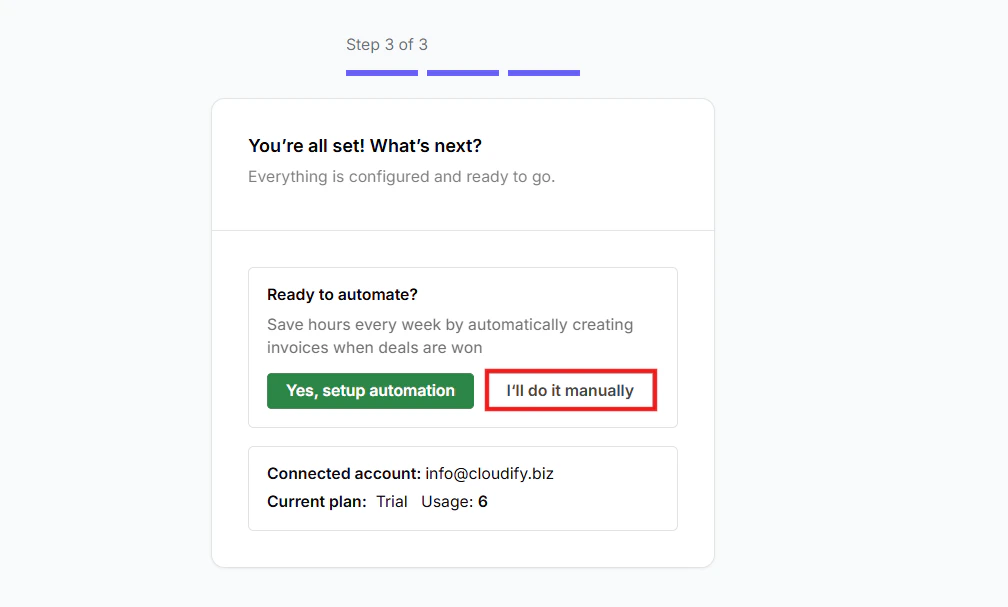
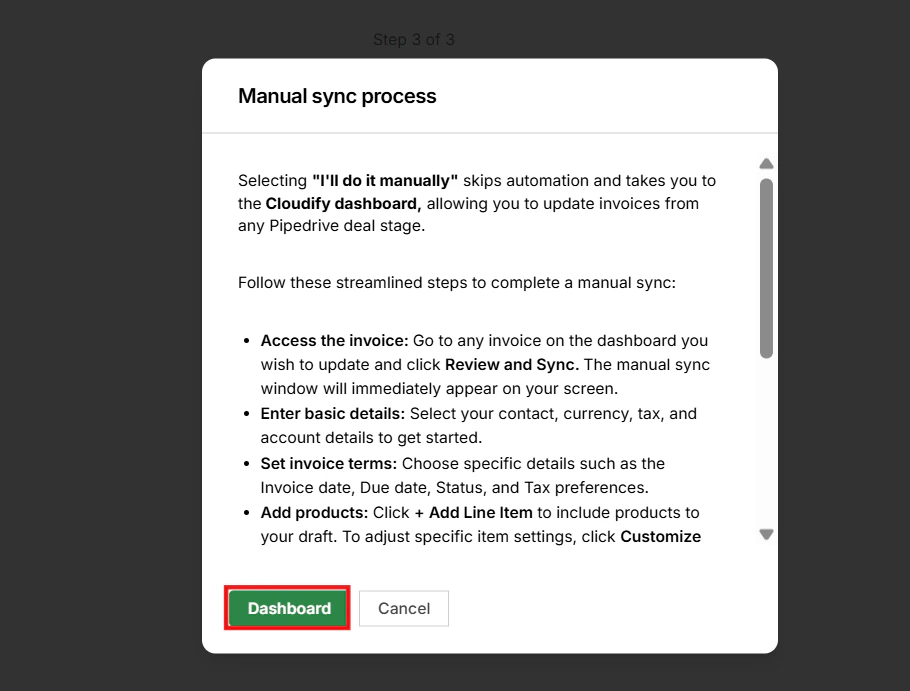
Selecting **"I'll do it manually"** skips automation and takes you to the **Cloudify dashboard,** allowing you to update invoices from any Pipedrive deal stage.
 Once you click on the **Dashboard**, follow these streamlined steps to complete a manual sync:
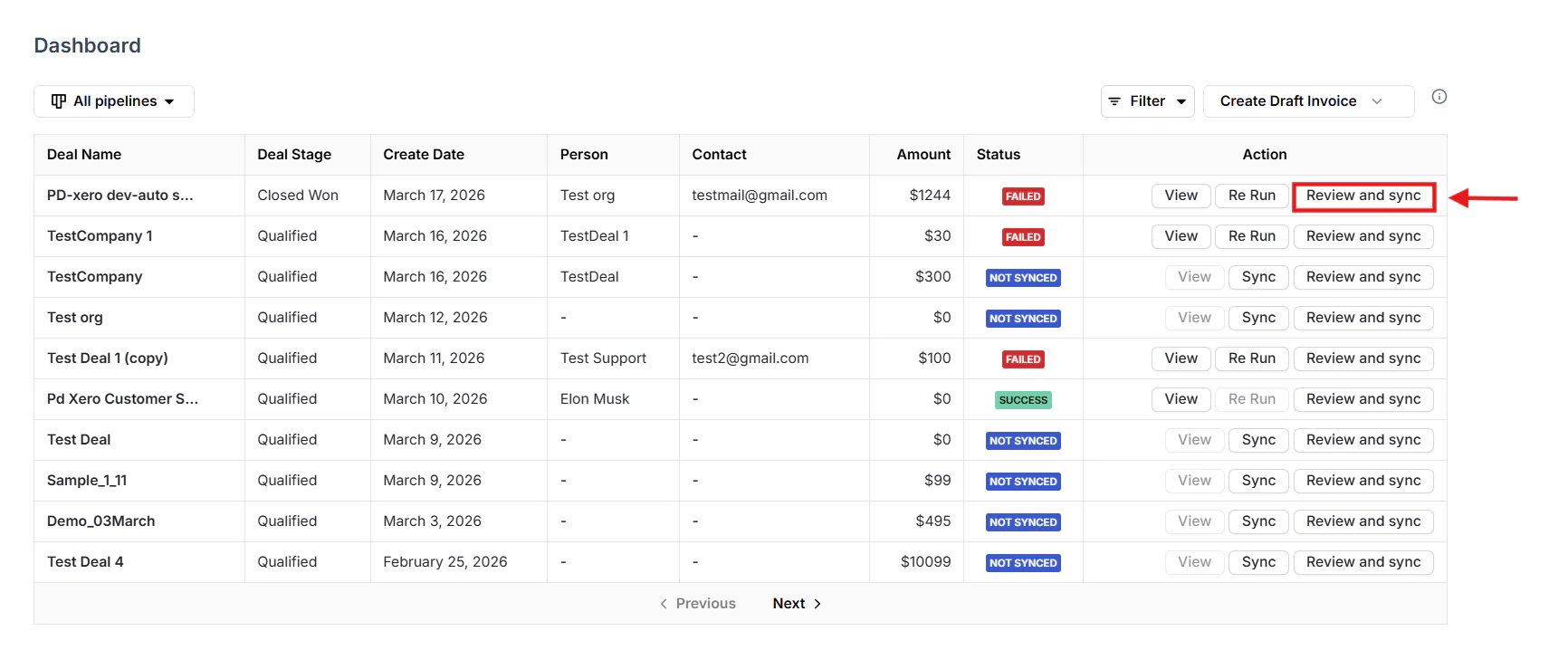
 **Access the invoice:** Go to any invoice on the dashboard you wish to update and click **Review and Sync.** The manual sync window will immediately appear on your screen.
 **Enter basic details:** Select your contact, currency, tax, and account details to get started.
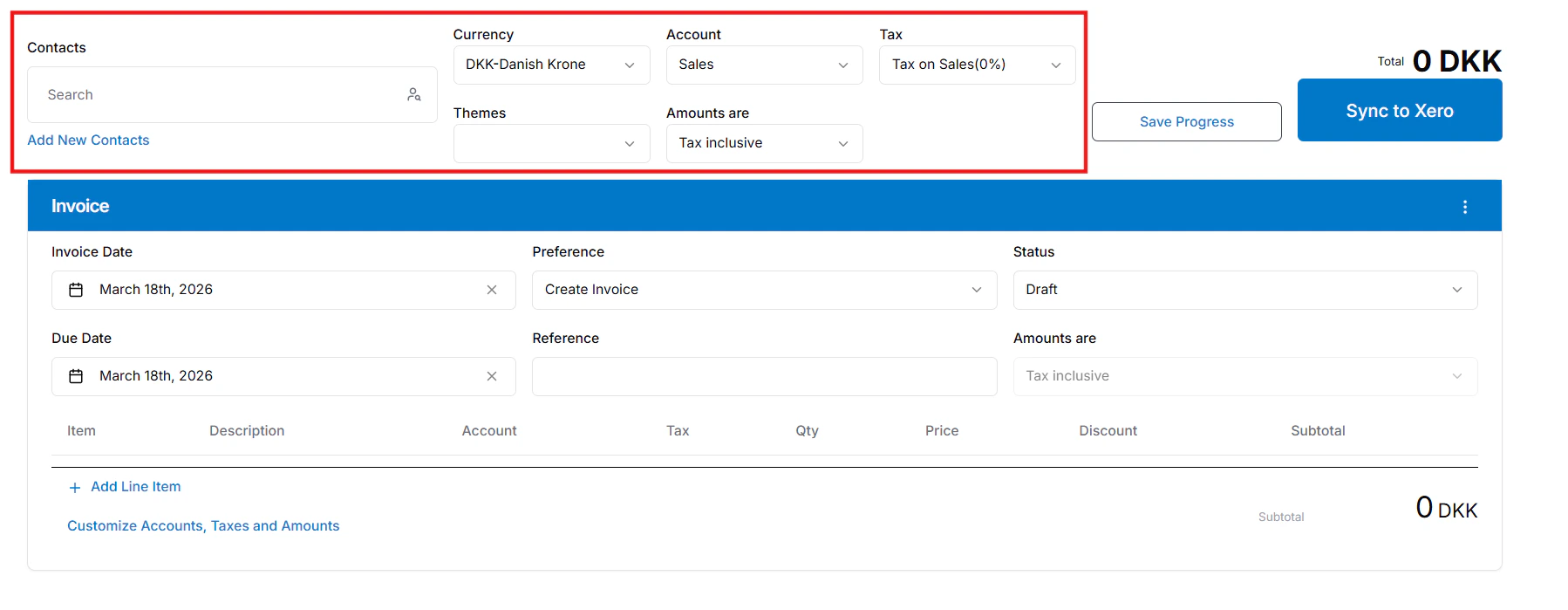 **Set invoice terms:** Choose specific details such as the Invoice date, Due date, Status, and Tax preferences.
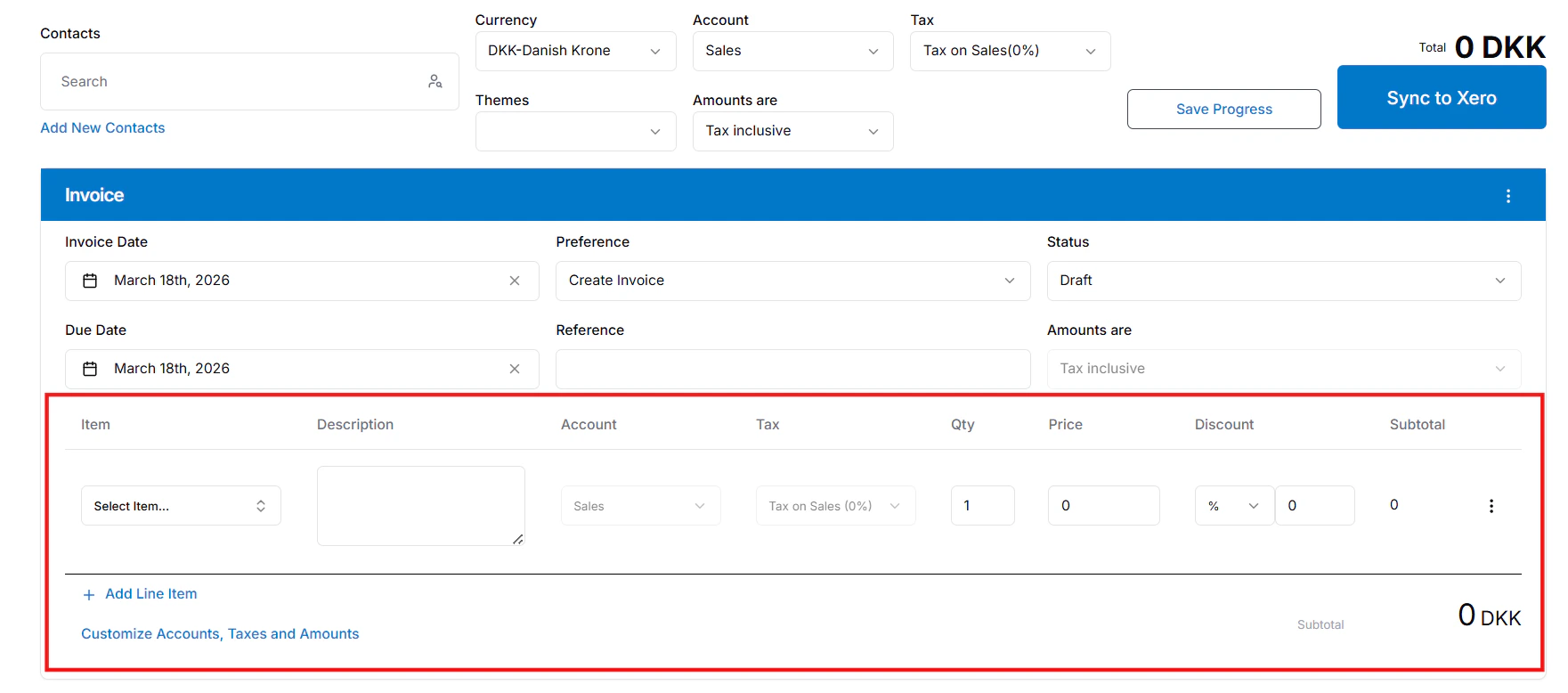
**Add products:** Click **+ Add Line Item** to include products to your draft. To adjust specific item settings, click **Customize Accounts, Taxes and Amounts**.
**Product Availability:** You can only use the "**+ Add Line Item**" button for products that are already present in Xero.
**Set invoice terms:** Choose specific details such as the Invoice date, Due date, Status, and Tax preferences.
**Add products:** Click **+ Add Line Item** to include products to your draft. To adjust specific item settings, click **Customize Accounts, Taxes and Amounts**.
**Product Availability:** You can only use the "**+ Add Line Item**" button for products that are already present in Xero.
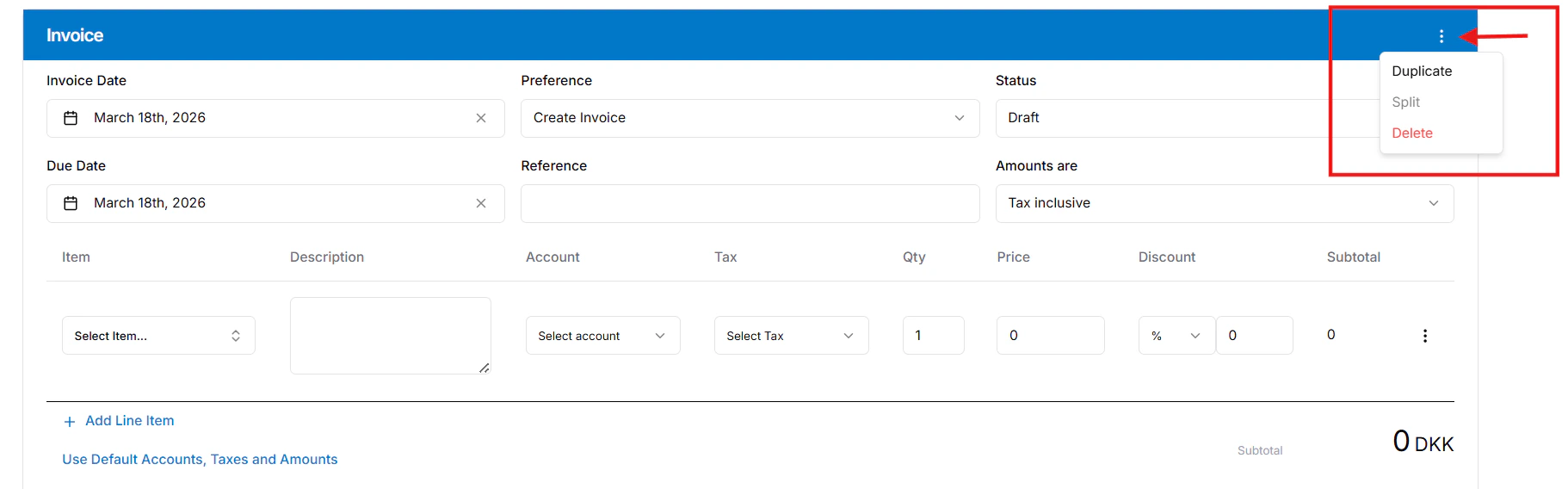
 **Adjust the invoice (Optional):** Click the three-dots menu to **Split** your invoice by percentage or **Duplicate** it.
The option to split an invoice is only available while it remains in the '**DRAFT**' stage.
**Adjust the invoice (Optional):** Click the three-dots menu to **Split** your invoice by percentage or **Duplicate** it.
The option to split an invoice is only available while it remains in the '**DRAFT**' stage.
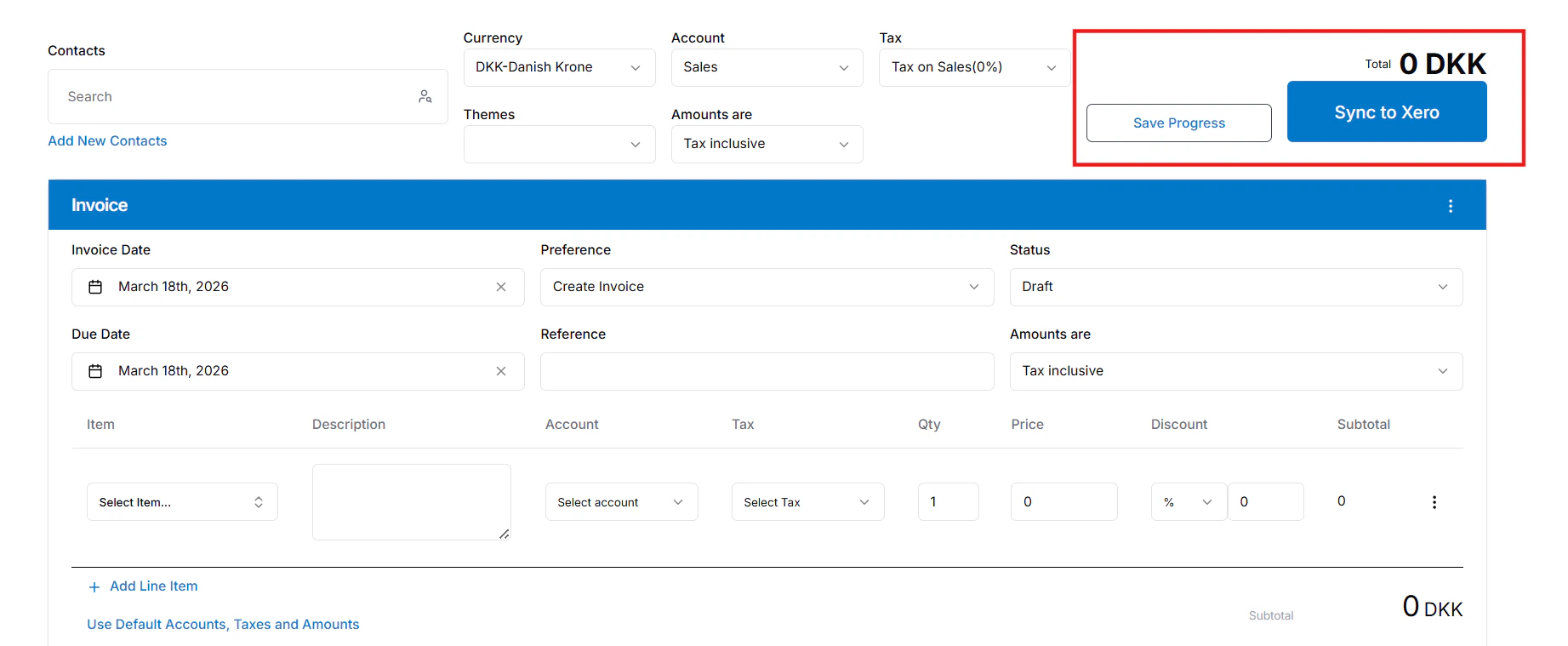
 **Finish and sync:** Click **Save Progress** if you need to finish later, or **Sync to Xero** to push the draft Xero. You can view the final invoice in the deal's attachments or notes.