> ## Documentation Index
> Fetch the complete documentation index at: https://docs.cloudify.biz/llms.txt
> Use this file to discover all available pages before exploring further.
# Polling
> Configure automated API polling — pull data from external systems on a schedule without waiting for a webhook push.
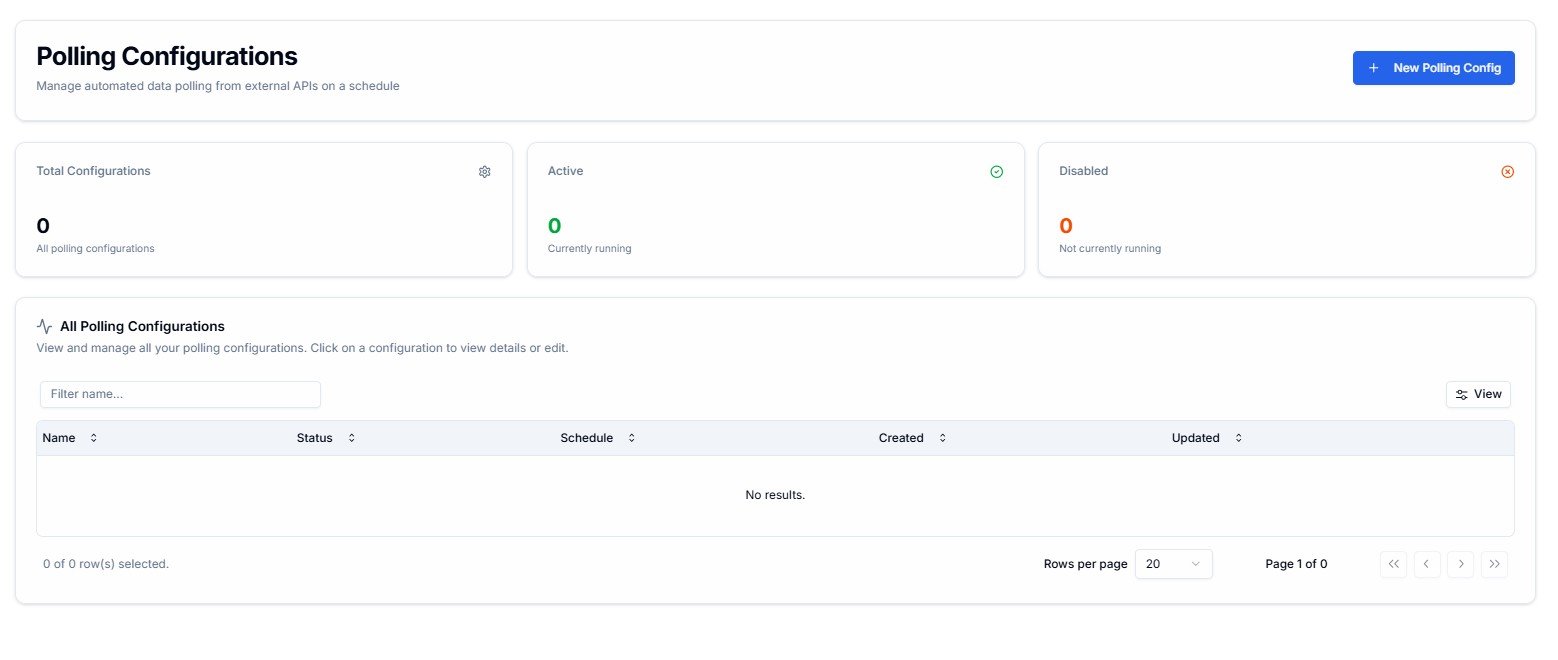
The **Polling** page lets you set up scheduled API polling inside Lighthouse Flows. Instead of waiting for an external system to push data, a polling configuration calls an external API at regular intervals and pulls data automatically.
 Use polling when your source system does not support outbound webhooks. If it can push data to Lighthouse in real time, use a webhook trigger instead — it's more efficient.
***
## Summary Counters
Three counters at the top show the current state of your polling configurations at a glance.
All polling configurations on your account — active and disabled combined.
Configurations currently running on their schedule. Shown in **green**.
Configurations that exist but are not currently running. Shown in **orange**. These will not poll until re-enabled.
***
## All Polling Configurations
The table lists every configuration on your account. Click any row to view or edit it.
| Column | What It Shows |
| ------------ | ---------------------------------------- |
| **Name** | The label for this polling configuration |
| **Status** | Active (running) or Disabled (paused) |
| **Schedule** | How often the API is polled |
| **Created** | When the configuration was first created |
| **Updated** | When it was last modified |
Use the **Filter name...** field to search by name. Click **View** to toggle visible columns.
***
## Creating a New Polling Configuration
Click **+ New Polling Config** in the top-right corner. The creation form has four sections — work through them top to bottom.
***
### 1. Polling Details
Use polling when your source system does not support outbound webhooks. If it can push data to Lighthouse in real time, use a webhook trigger instead — it's more efficient.
***
## Summary Counters
Three counters at the top show the current state of your polling configurations at a glance.
All polling configurations on your account — active and disabled combined.
Configurations currently running on their schedule. Shown in **green**.
Configurations that exist but are not currently running. Shown in **orange**. These will not poll until re-enabled.
***
## All Polling Configurations
The table lists every configuration on your account. Click any row to view or edit it.
| Column | What It Shows |
| ------------ | ---------------------------------------- |
| **Name** | The label for this polling configuration |
| **Status** | Active (running) or Disabled (paused) |
| **Schedule** | How often the API is polled |
| **Created** | When the configuration was first created |
| **Updated** | When it was last modified |
Use the **Filter name...** field to search by name. Click **View** to toggle visible columns.
***
## Creating a New Polling Configuration
Click **+ New Polling Config** in the top-right corner. The creation form has four sections — work through them top to bottom.
***
### 1. Polling Details
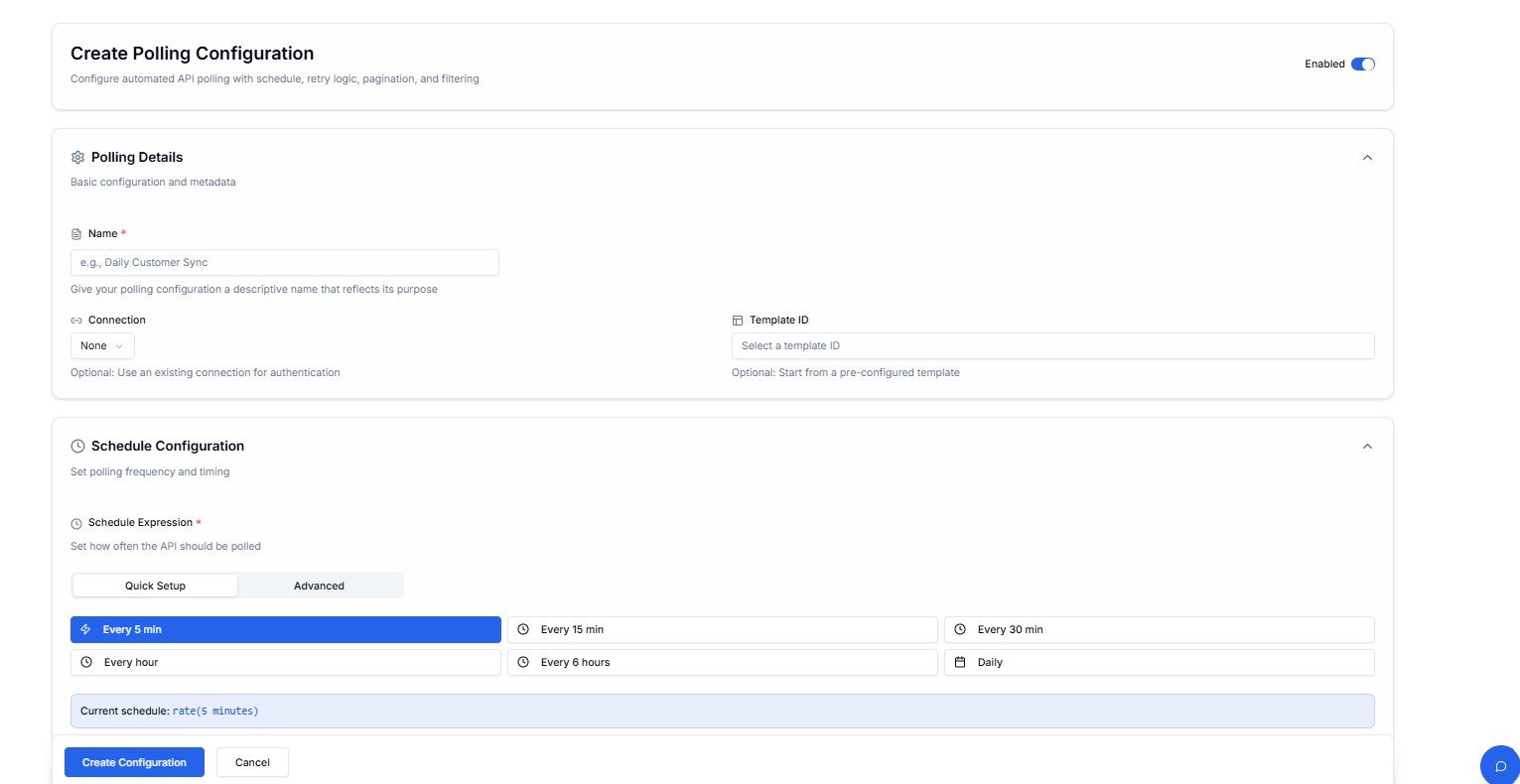 | Field | Required | Description |
| --------------- | :------: | -------------------------------------------------------------------- |
| **Name** | ✅ | A descriptive label — e.g. `Daily Customer Sync` |
| **Connection** | Optional | Select an existing connection to use for authentication |
| **Template ID** | Optional | Start from a pre-configured template if one exists for your use case |
The **Enabled** toggle in the top-right activates the configuration immediately after creation.
***
### 2. Schedule Configuration
Set how often Lighthouse should call the external API.
| Field | Required | Description |
| --------------- | :------: | -------------------------------------------------------------------- |
| **Name** | ✅ | A descriptive label — e.g. `Daily Customer Sync` |
| **Connection** | Optional | Select an existing connection to use for authentication |
| **Template ID** | Optional | Start from a pre-configured template if one exists for your use case |
The **Enabled** toggle in the top-right activates the configuration immediately after creation.
***
### 2. Schedule Configuration
Set how often Lighthouse should call the external API.
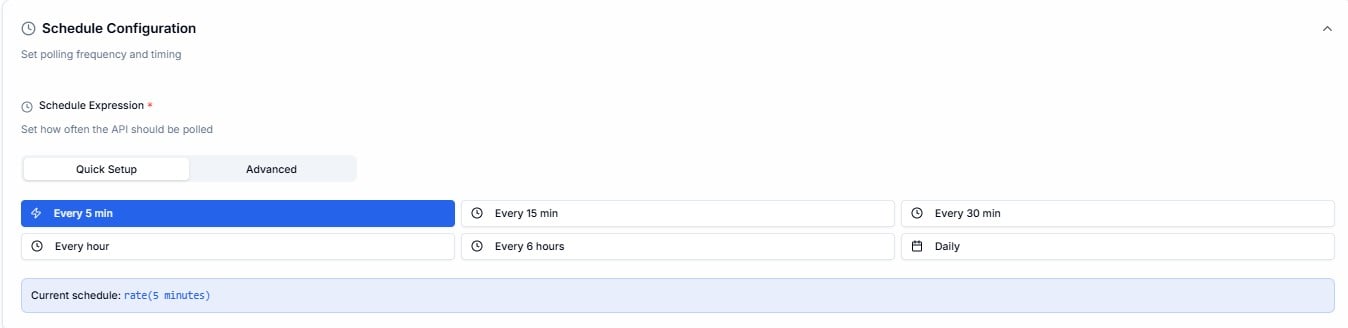 Two modes are available:
Choose from preset intervals — **Every 5 min**, **Every 15 min**, **Every 30 min**, **Every hour**, **Every 6 hours**, or **Daily**. The current schedule expression is shown at the bottom of the panel.
Enter a custom expression directly — supports `rate()` and `cron()` syntax for precise scheduling.
Two modes are available:
Choose from preset intervals — **Every 5 min**, **Every 15 min**, **Every 30 min**, **Every hour**, **Every 6 hours**, or **Daily**. The current schedule expression is shown at the bottom of the panel.
Enter a custom expression directly — supports `rate()` and `cron()` syntax for precise scheduling.
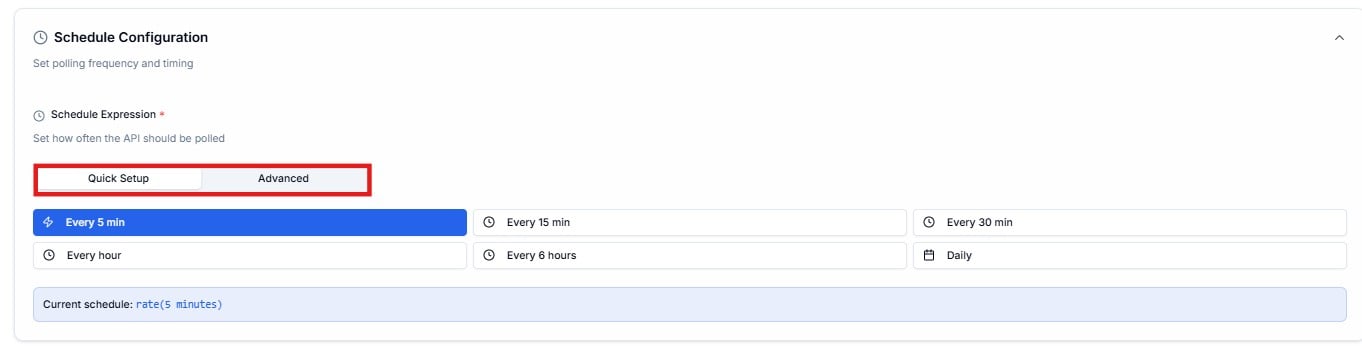 **Advanced expression examples:**
| Expression | What It Does |
| -------------------- | ------------------------- |
| `rate(5 minutes)` | Run every 5 minutes |
| `cron(0 12 * * ? *)` | Run daily at 12:00 PM UTC |
| `0 */6 * * *` | Run every 6 hours |
***
### 3. HTTP Request Configuration
Define the API endpoint Lighthouse should call on each poll.
**Advanced expression examples:**
| Expression | What It Does |
| -------------------- | ------------------------- |
| `rate(5 minutes)` | Run every 5 minutes |
| `cron(0 12 * * ? *)` | Run daily at 12:00 PM UTC |
| `0 */6 * * *` | Run every 6 hours |
***
### 3. HTTP Request Configuration
Define the API endpoint Lighthouse should call on each poll.
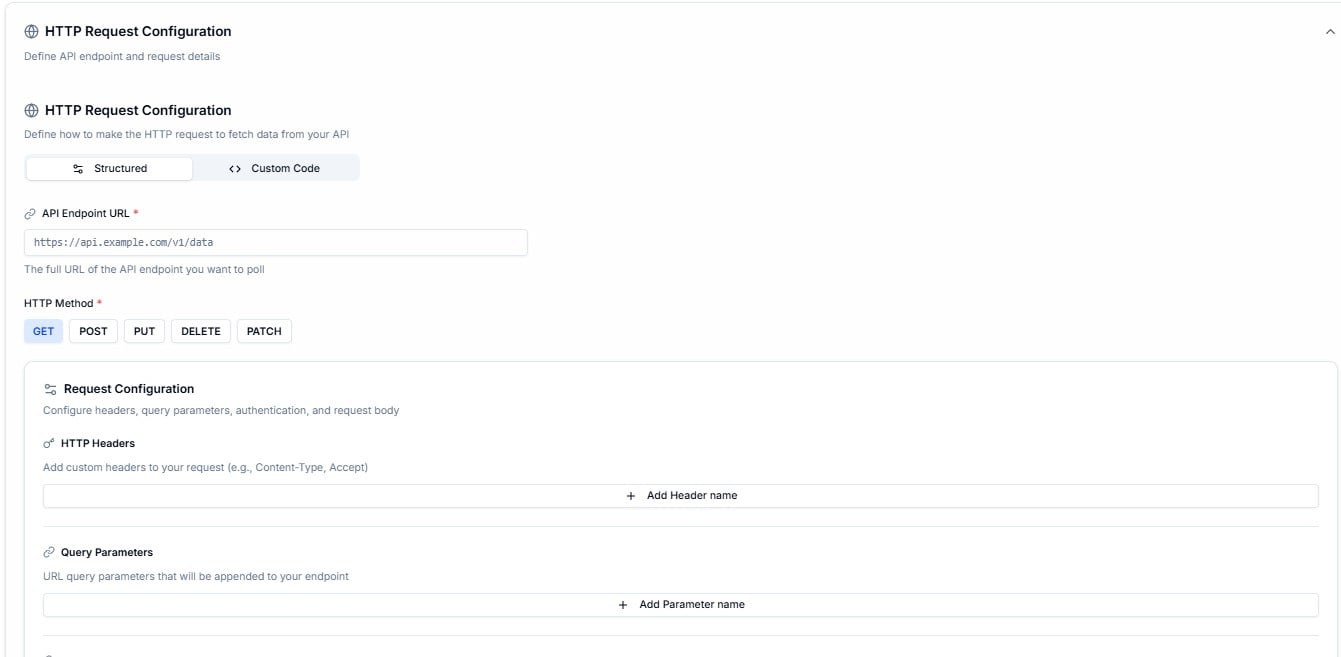 Two modes are available:
Fill in the endpoint URL, HTTP method, headers, query parameters, authentication, and request body using form fields.
Write a JavaScript handler function directly — full control over how the request is made and how the response is processed.
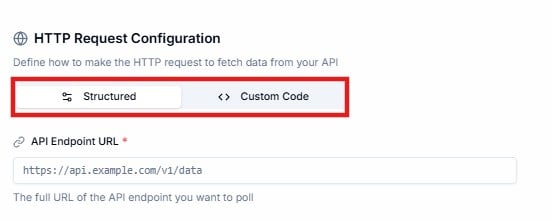
Two modes are available:
Fill in the endpoint URL, HTTP method, headers, query parameters, authentication, and request body using form fields.
Write a JavaScript handler function directly — full control over how the request is made and how the response is processed.
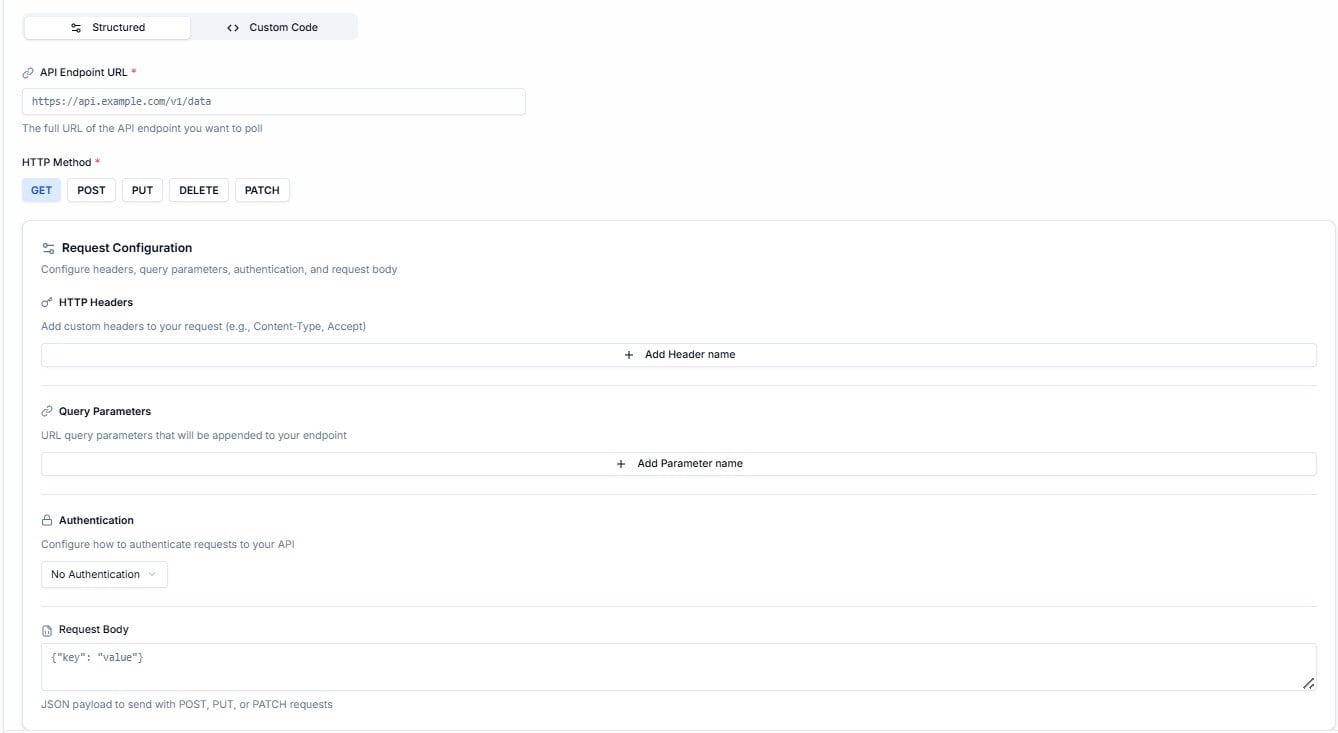
 **Structured mode fields:**
| Field | Required | Description |
| -------------------- | :------: | --------------------------------------------------------------------------------- |
| **API Endpoint URL** | ✅ | The full URL of the API endpoint to poll — e.g. `https://api.example.com/v1/data` |
| **HTTP Method** | ✅ | `GET`, `POST`, `PUT`, `DELETE`, or `PATCH` |
| **HTTP Headers** | Optional | Custom headers — e.g. `Content-Type`, `Accept` |
| **Query Parameters** | Optional | URL query parameters appended to the endpoint |
| **Authentication** | Optional | Configure how to authenticate — defaults to No Authentication |
| **Request Body** | Optional | JSON payload for `POST`, `PUT`, or `PATCH` requests |
**Structured mode fields:**
| Field | Required | Description |
| -------------------- | :------: | --------------------------------------------------------------------------------- |
| **API Endpoint URL** | ✅ | The full URL of the API endpoint to poll — e.g. `https://api.example.com/v1/data` |
| **HTTP Method** | ✅ | `GET`, `POST`, `PUT`, `DELETE`, or `PATCH` |
| **HTTP Headers** | Optional | Custom headers — e.g. `Content-Type`, `Accept` |
| **Query Parameters** | Optional | URL query parameters appended to the endpoint |
| **Authentication** | Optional | Configure how to authenticate — defaults to No Authentication |
| **Request Body** | Optional | JSON payload for `POST`, `PUT`, or `PATCH` requests |
 ***
### 4. Response Parser, Retry Logic, Pagination & Filter
***
### 4. Response Parser, Retry Logic, Pagination & Filter
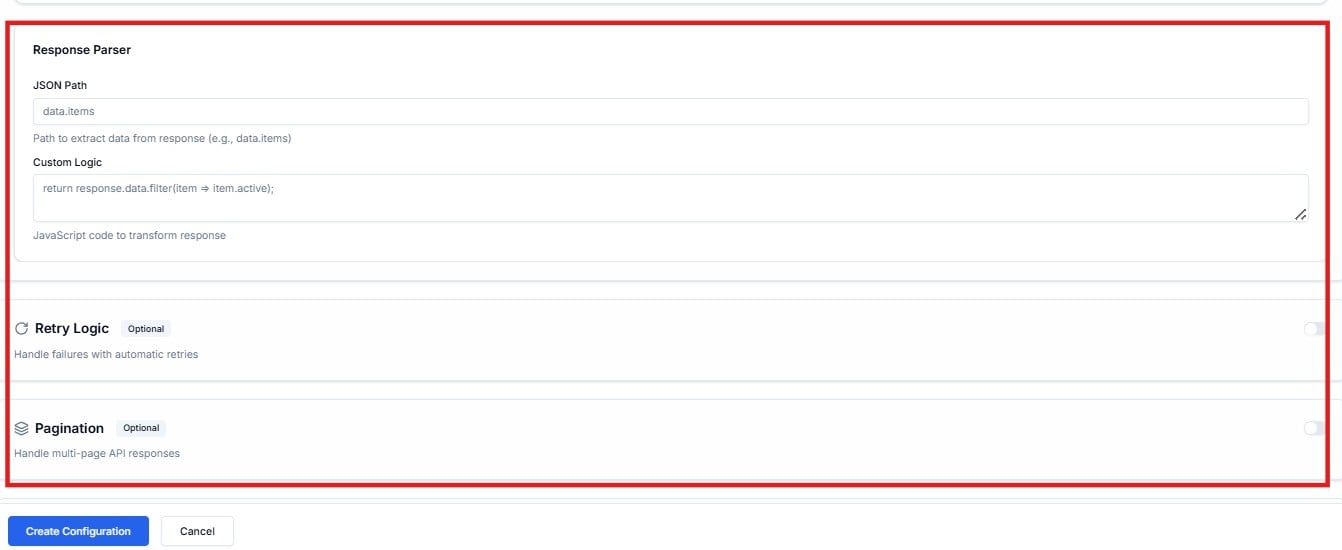 | Section | Type | What It Does |
| ------------------------------ | -------- | ------------------------------------------------------------------------------------------------------------------------------------------------------------------------ |
| **Response Parser** | Always | Extract specific data from the API response using a JSON Path — e.g. `data.items`. Add Custom Logic (JavaScript) to transform the response before it's passed downstream |
| **Retry Logic** | Optional | Automatically retry failed poll attempts. Toggle on to configure retry behaviour |
| **Pagination** | Optional | Handle multi-page API responses — toggle on when the API returns paginated results |
| **Incremental Polling Filter** | Optional | Only process records that are new or updated since the last poll — prevents reprocessing the same data |
Click **Create Configuration** to save, or **Cancel** to discard.
Contact Cloudify before creating a polling configuration. Getting the endpoint URL, authentication, schedule, and response parser correct requires knowledge of your source API. Cloudify will typically configure these as part of your integration delivery.
***
## Frequently Asked Questions
Use polling when your source system cannot push data to Lighthouse when something changes. If it supports webhooks, use a webhook trigger instead — it's real-time and more efficient.
No. A disabled configuration will not execute until it is re-enabled. Contact Cloudify if a configuration is unexpectedly disabled.
Quick Setup gives you six preset intervals in one click. Advanced lets you write a custom `rate()` or `cron()` expression for precise timing — for example, running only on weekdays at a specific time.
It ensures only new or updated records are processed on each poll — so if your API returns 1,000 records but only 5 are new, only those 5 are passed downstream. This prevents duplicate processing.
Go to **Flows Events** and filter by **Type → polling**. This shows all events generated by polling triggers with their delivery status and attempt history.
***
| Section | Type | What It Does |
| ------------------------------ | -------- | ------------------------------------------------------------------------------------------------------------------------------------------------------------------------ |
| **Response Parser** | Always | Extract specific data from the API response using a JSON Path — e.g. `data.items`. Add Custom Logic (JavaScript) to transform the response before it's passed downstream |
| **Retry Logic** | Optional | Automatically retry failed poll attempts. Toggle on to configure retry behaviour |
| **Pagination** | Optional | Handle multi-page API responses — toggle on when the API returns paginated results |
| **Incremental Polling Filter** | Optional | Only process records that are new or updated since the last poll — prevents reprocessing the same data |
Click **Create Configuration** to save, or **Cancel** to discard.
Contact Cloudify before creating a polling configuration. Getting the endpoint URL, authentication, schedule, and response parser correct requires knowledge of your source API. Cloudify will typically configure these as part of your integration delivery.
***
## Frequently Asked Questions
Use polling when your source system cannot push data to Lighthouse when something changes. If it supports webhooks, use a webhook trigger instead — it's real-time and more efficient.
No. A disabled configuration will not execute until it is re-enabled. Contact Cloudify if a configuration is unexpectedly disabled.
Quick Setup gives you six preset intervals in one click. Advanced lets you write a custom `rate()` or `cron()` expression for precise timing — for example, running only on weekdays at a specific time.
It ensures only new or updated records are processed on each poll — so if your API returns 1,000 records but only 5 are new, only those 5 are passed downstream. This prevents duplicate processing.
Go to **Flows Events** and filter by **Type → polling**. This shows all events generated by polling triggers with their delivery status and attempt history.
***