> ## Documentation Index
> Fetch the complete documentation index at: https://docs.cloudify.biz/llms.txt
> Use this file to discover all available pages before exploring further.
# Customer Sync Rules
## Customer Sync Rules
* Click the "Customer Sync Rules" tab.
* Define the preferences for finding customers in Visma e-conomic. The application will synchronize companies between Salesforce and e-conomic based on your chosen preferences. In order to prevent duplicate customer entries in e-conomic, our application checks if a Salesforce Customer already exists in e-conomic before creating a new one.
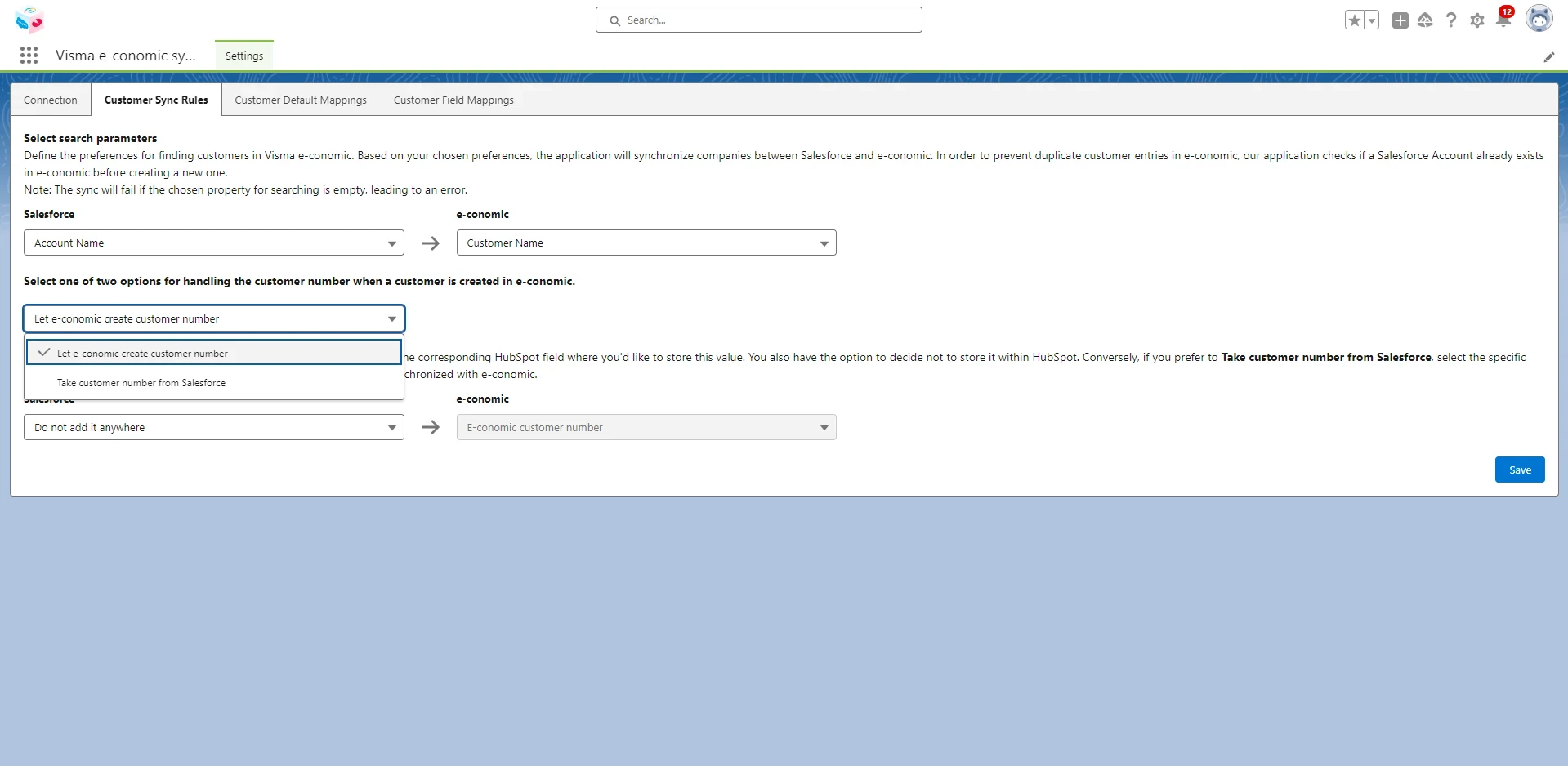
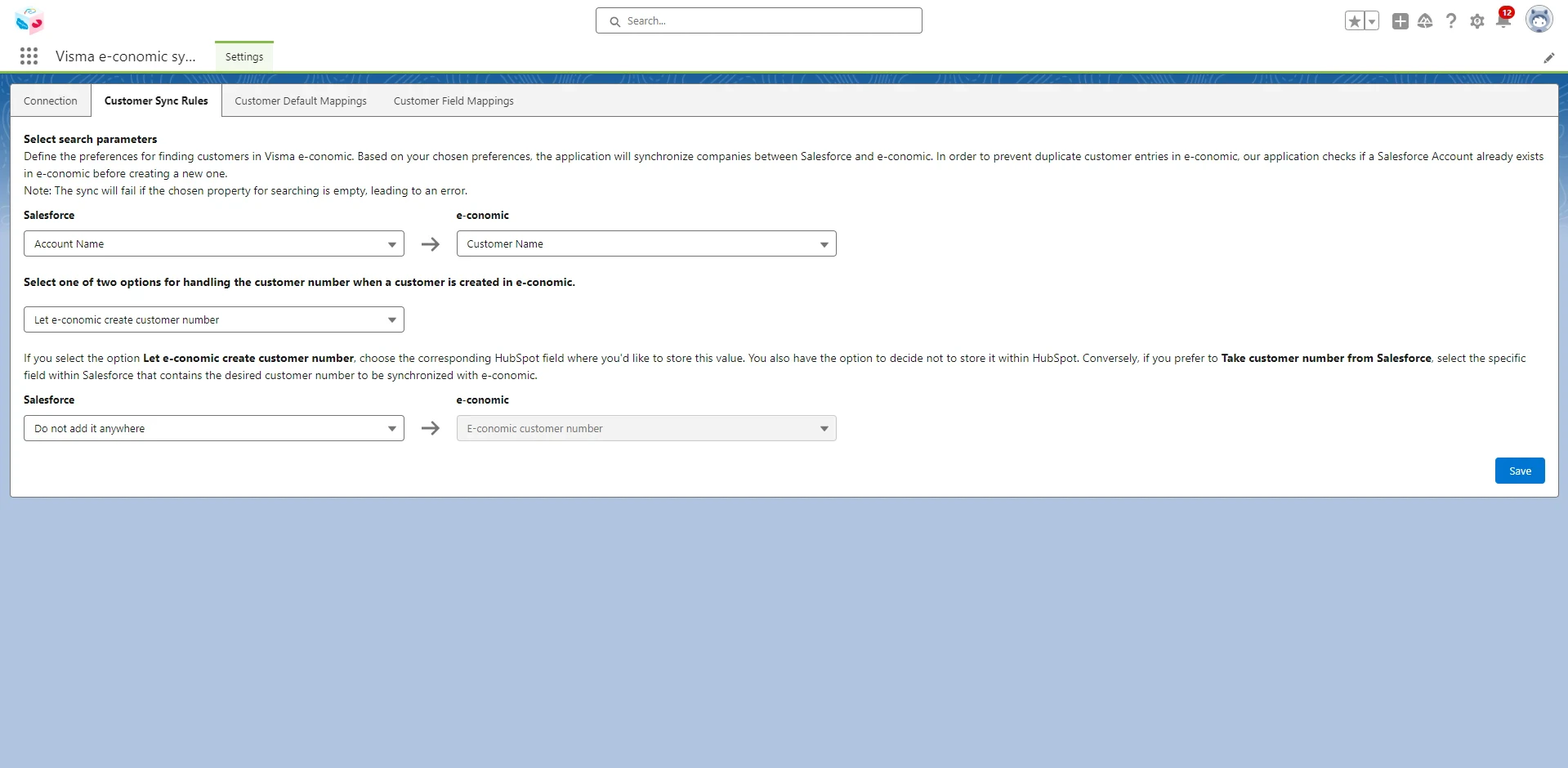 * Select one of two options for handling the customer number when a customer is created in e-conomic: There are two options available, which are:
* **Let e-conomic create a customer number**: If you select this option, select the corresponding Salesforce field where you'd like to store this value. You also have the option to decide not to store it within Salesforce.
* **Take customer number from Salesforce:** If you select this option, choose the specific field within Salesforce that contains the desired customer number to be synchronized with e-conomic.
* Select one of two options for handling the customer number when a customer is created in e-conomic: There are two options available, which are:
* **Let e-conomic create a customer number**: If you select this option, select the corresponding Salesforce field where you'd like to store this value. You also have the option to decide not to store it within Salesforce.
* **Take customer number from Salesforce:** If you select this option, choose the specific field within Salesforce that contains the desired customer number to be synchronized with e-conomic.