> ## Documentation Index
> Fetch the complete documentation index at: https://docs.cloudify.biz/llms.txt
> Use this file to discover all available pages before exploring further.
# Schedule
> Manage cron and rate schedules that trigger your Flows automatically — no webhook or external push required.
The **Schedule** page lets you define time-based triggers for Lighthouse Flows. A schedule fires a Flow automatically at a set interval or specific time — using AWS EventBridge `rate()` or `cron()` expressions.
 **Schedule vs Polling**
* **Schedule** — fires a Flow trigger at a set time. No external data is fetched.
* **Polling** — calls an external API at a set interval to pull data.
Use Schedule when you want a Flow to run at a specific time. Use Polling when you need Lighthouse to retrieve data from an external API on a cadence.
***
## Summary Counters
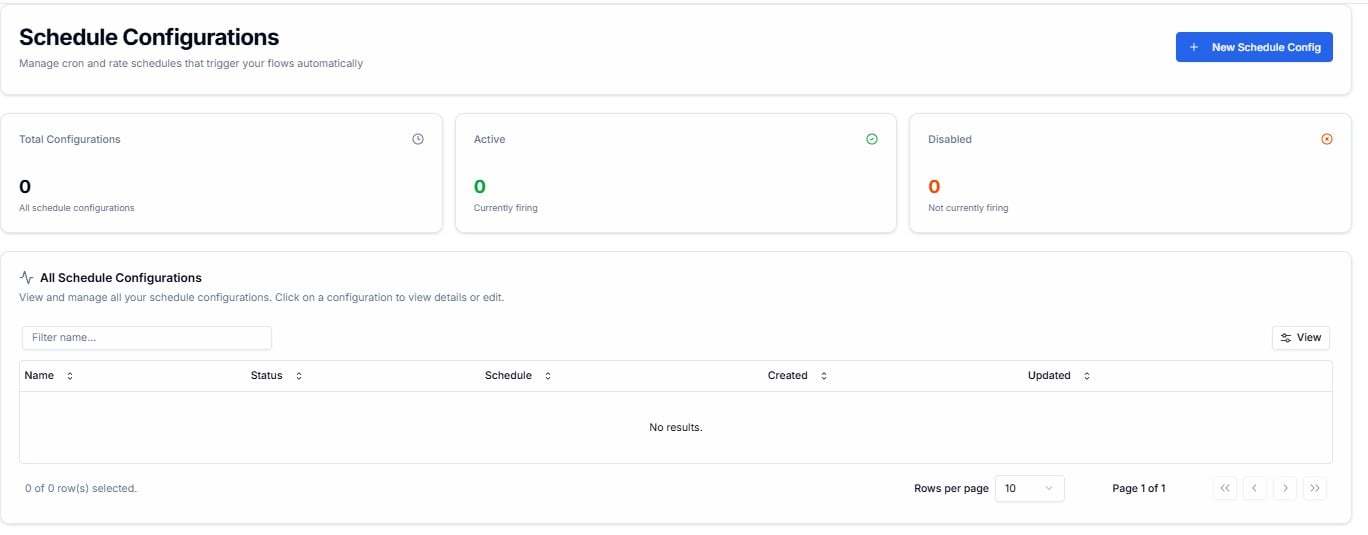
All schedule configurations on your account — active and disabled combined.
Configurations currently firing on their schedule. Shown in **green**.
Configurations that exist but are not currently firing. Shown in **orange**.
***
## All Schedule Configurations
The table lists every configuration on your account. Click any row to view or edit it.
| Column | What It Shows |
| ------------ | ---------------------------------------------- |
| **Name** | The label for this schedule configuration |
| **Status** | Active (firing) or Disabled (not firing) |
| **Schedule** | The expression defining when the trigger fires |
| **Created** | When the configuration was first created |
| **Updated** | When it was last modified |
Use the **Filter name...** field to search by name. Click **View** to toggle visible columns. Rows per page defaults to **10**.
***
## Creating a New Schedule Configuration
Click **+ New Schedule Config** in the top-right corner.
**Schedule vs Polling**
* **Schedule** — fires a Flow trigger at a set time. No external data is fetched.
* **Polling** — calls an external API at a set interval to pull data.
Use Schedule when you want a Flow to run at a specific time. Use Polling when you need Lighthouse to retrieve data from an external API on a cadence.
***
## Summary Counters
All schedule configurations on your account — active and disabled combined.
Configurations currently firing on their schedule. Shown in **green**.
Configurations that exist but are not currently firing. Shown in **orange**.
***
## All Schedule Configurations
The table lists every configuration on your account. Click any row to view or edit it.
| Column | What It Shows |
| ------------ | ---------------------------------------------- |
| **Name** | The label for this schedule configuration |
| **Status** | Active (firing) or Disabled (not firing) |
| **Schedule** | The expression defining when the trigger fires |
| **Created** | When the configuration was first created |
| **Updated** | When it was last modified |
Use the **Filter name...** field to search by name. Click **View** to toggle visible columns. Rows per page defaults to **10**.
***
## Creating a New Schedule Configuration
Click **+ New Schedule Config** in the top-right corner.
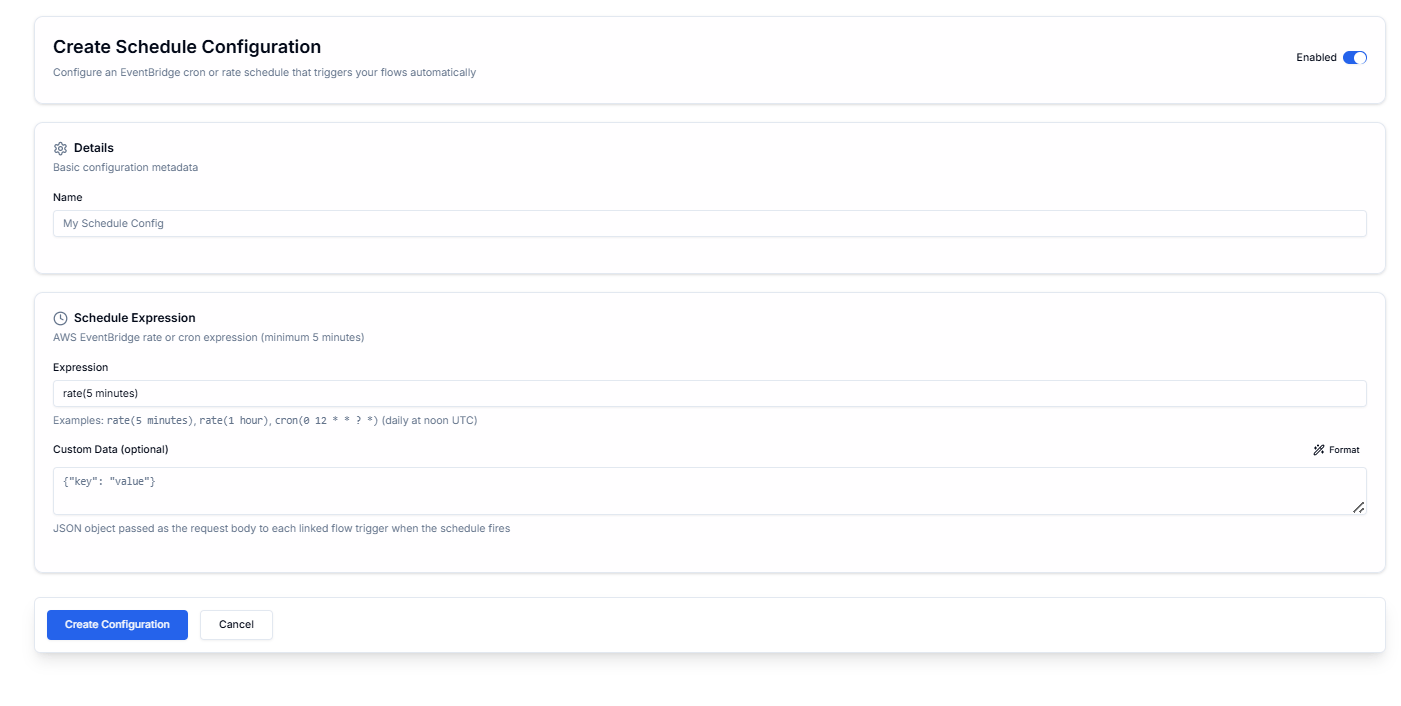 The form has two sections:
***
### 1. Details
| Field | Required | Description |
| -------- | :------: | ----------------------------------------------- |
| **Name** | ✅ | A descriptive label — e.g. `My Schedule Config` |
The **Enabled** toggle in the top-right activates the configuration immediately on creation.
***
### 2. Schedule Expression
Uses **AWS EventBridge** `rate()` or `cron()` syntax. The minimum interval is **5 minutes**.
| Field | Required | Description |
| --------------- | :------: | -------------------------------------------------------------------------------------------- |
| **Expression** | ✅ | The schedule expression — see examples below |
| **Custom Data** | Optional | A JSON object passed as the request body to each linked Flow trigger when the schedule fires |
**Expression examples:**
| Expression | What It Does |
| -------------------- | -------------------------- |
| `rate(5 minutes)` | Fire every 5 minutes |
| `rate(1 hour)` | Fire every hour |
| `cron(0 12 * * ? *)` | Fire daily at 12:00 PM UTC |
Use **Custom Data** to pass additional context to your Flow on each scheduled trigger — for example, a date range or a specific filter value that the Flow should use when it runs.
Contact Cloudify before creating a schedule configuration. Cloudify will typically configure schedules as part of your integration delivery to ensure the timing aligns with your source system and workflow logic.
Click **Create Configuration** to save, or **Cancel** to discard.
***
## Frequently Asked Questions
No. A disabled configuration will not execute until re-enabled. Contact Cloudify if a configuration is unexpectedly disabled.
The minimum is 5 minutes, as enforced by AWS EventBridge. You cannot schedule a trigger more frequently than every 5 minutes.
Go to **Flows Events** and filter by **Type → schedule**. This shows all events generated by schedule triggers with their delivery status and attempt history.
AWS EventBridge cron expressions run in UTC. Contact Cloudify if you need a schedule aligned to a specific business timezone.
Yes — disable the configuration to pause it. Re-enable it when you are ready to resume. Contact Cloudify if you need help with this.
***
The form has two sections:
***
### 1. Details
| Field | Required | Description |
| -------- | :------: | ----------------------------------------------- |
| **Name** | ✅ | A descriptive label — e.g. `My Schedule Config` |
The **Enabled** toggle in the top-right activates the configuration immediately on creation.
***
### 2. Schedule Expression
Uses **AWS EventBridge** `rate()` or `cron()` syntax. The minimum interval is **5 minutes**.
| Field | Required | Description |
| --------------- | :------: | -------------------------------------------------------------------------------------------- |
| **Expression** | ✅ | The schedule expression — see examples below |
| **Custom Data** | Optional | A JSON object passed as the request body to each linked Flow trigger when the schedule fires |
**Expression examples:**
| Expression | What It Does |
| -------------------- | -------------------------- |
| `rate(5 minutes)` | Fire every 5 minutes |
| `rate(1 hour)` | Fire every hour |
| `cron(0 12 * * ? *)` | Fire daily at 12:00 PM UTC |
Use **Custom Data** to pass additional context to your Flow on each scheduled trigger — for example, a date range or a specific filter value that the Flow should use when it runs.
Contact Cloudify before creating a schedule configuration. Cloudify will typically configure schedules as part of your integration delivery to ensure the timing aligns with your source system and workflow logic.
Click **Create Configuration** to save, or **Cancel** to discard.
***
## Frequently Asked Questions
No. A disabled configuration will not execute until re-enabled. Contact Cloudify if a configuration is unexpectedly disabled.
The minimum is 5 minutes, as enforced by AWS EventBridge. You cannot schedule a trigger more frequently than every 5 minutes.
Go to **Flows Events** and filter by **Type → schedule**. This shows all events generated by schedule triggers with their delivery status and attempt history.
AWS EventBridge cron expressions run in UTC. Contact Cloudify if you need a schedule aligned to a specific business timezone.
Yes — disable the configuration to pause it. Re-enable it when you are ready to resume. Contact Cloudify if you need help with this.
***