> ## Documentation Index
> Fetch the complete documentation index at: https://docs.cloudify.biz/llms.txt
> Use this file to discover all available pages before exploring further.
# Setting up the Lighthouse HubSpot Connection
## Before you start
* A Lighthouse account with access to **Settings**
* A HubSpot account — you need permission to install apps/connect integrations in that HubSpot portal
* About 5 minutes
## Connect HubSpot to Lighthouse
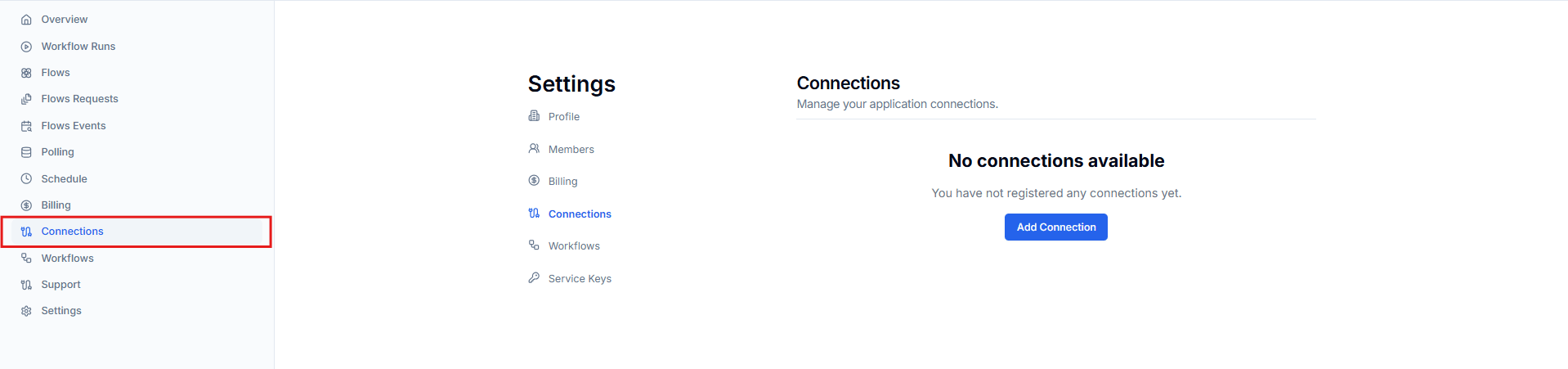
In Lighthouse, go to **Settings → Connections** in the left-hand menu. If you haven't added any connections yet, you'll see "No connections available".
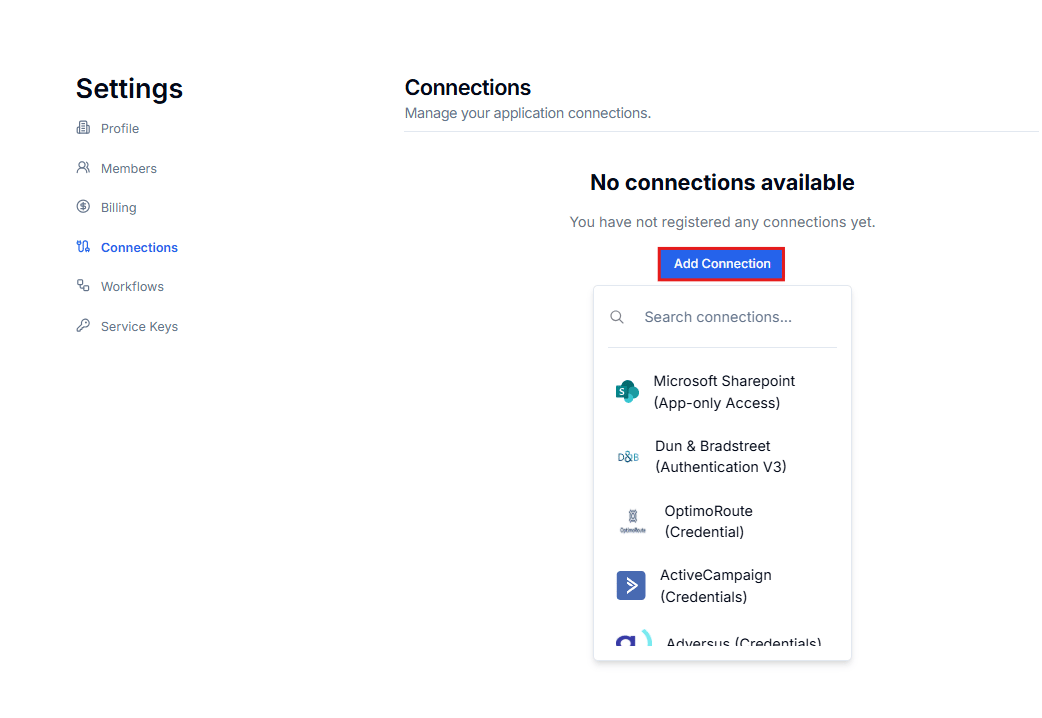
 Click **Add Connection**. A menu of available connections opens — type **HubSpot** in the **Search connections** box to find the HubSpot connection quickly.
 Click **HubSpot (OAuth2)** in the search results.
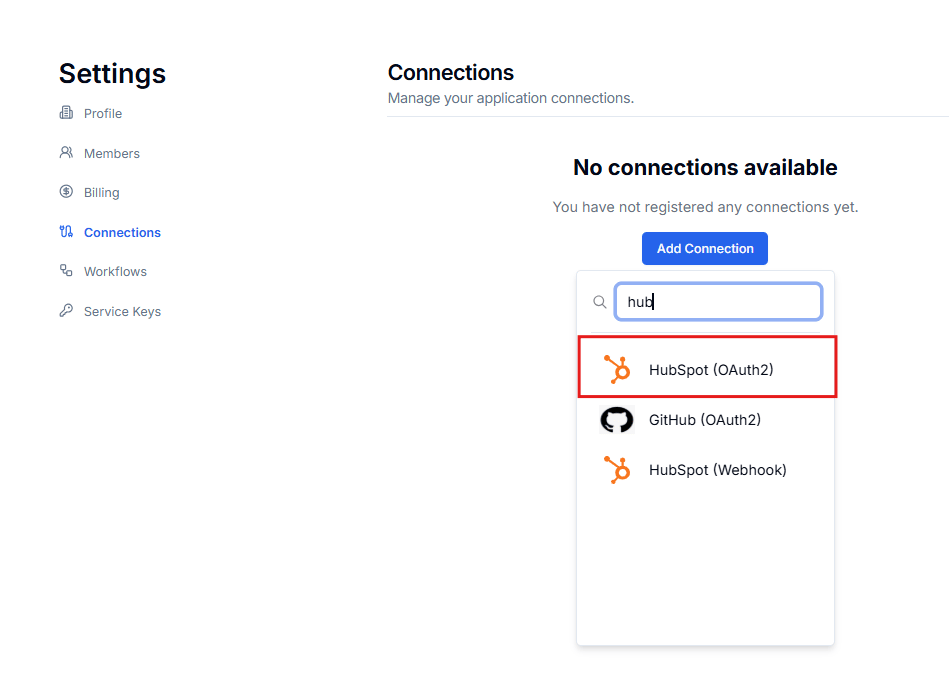 Choose **HubSpot (OAuth2)**, not **HubSpot (Webhook)** — OAuth2 is the standard connection used for CRM monitoring.
Enter a **Name** for the connection (for example, `HubSpot`), then review **Permissions & Scopes**. The connection requests read-only access to your HubSpot data:
* `crm.objects.companies.read` — read company records
* `crm.objects.contacts.read` — read contact records
* `crm.objects.deals.read` — read deal records
* `oauth` — authorize the connection through HubSpot
* `tickets` — read ticket records
Choose **HubSpot (OAuth2)**, not **HubSpot (Webhook)** — OAuth2 is the standard connection used for CRM monitoring.
Enter a **Name** for the connection (for example, `HubSpot`), then review **Permissions & Scopes**. The connection requests read-only access to your HubSpot data:
* `crm.objects.companies.read` — read company records
* `crm.objects.contacts.read` — read contact records
* `crm.objects.deals.read` — read deal records
* `oauth` — authorize the connection through HubSpot
* `tickets` — read ticket records
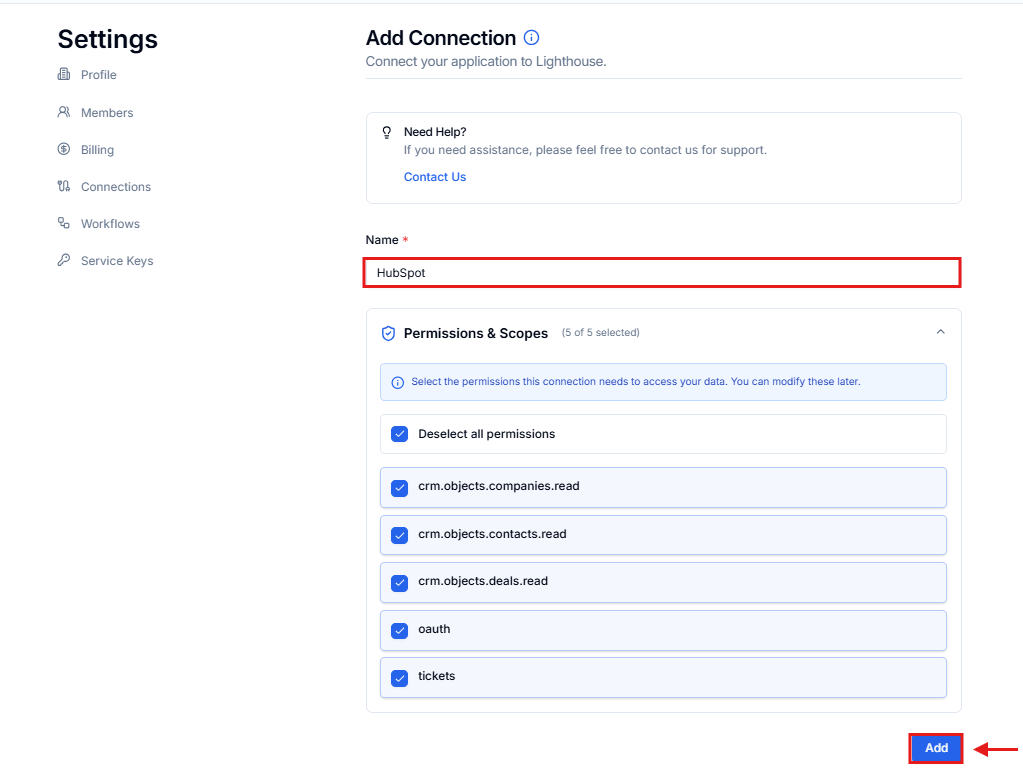 All permissions are selected by default. You can modify them later if needed. Click **Add** to continue.
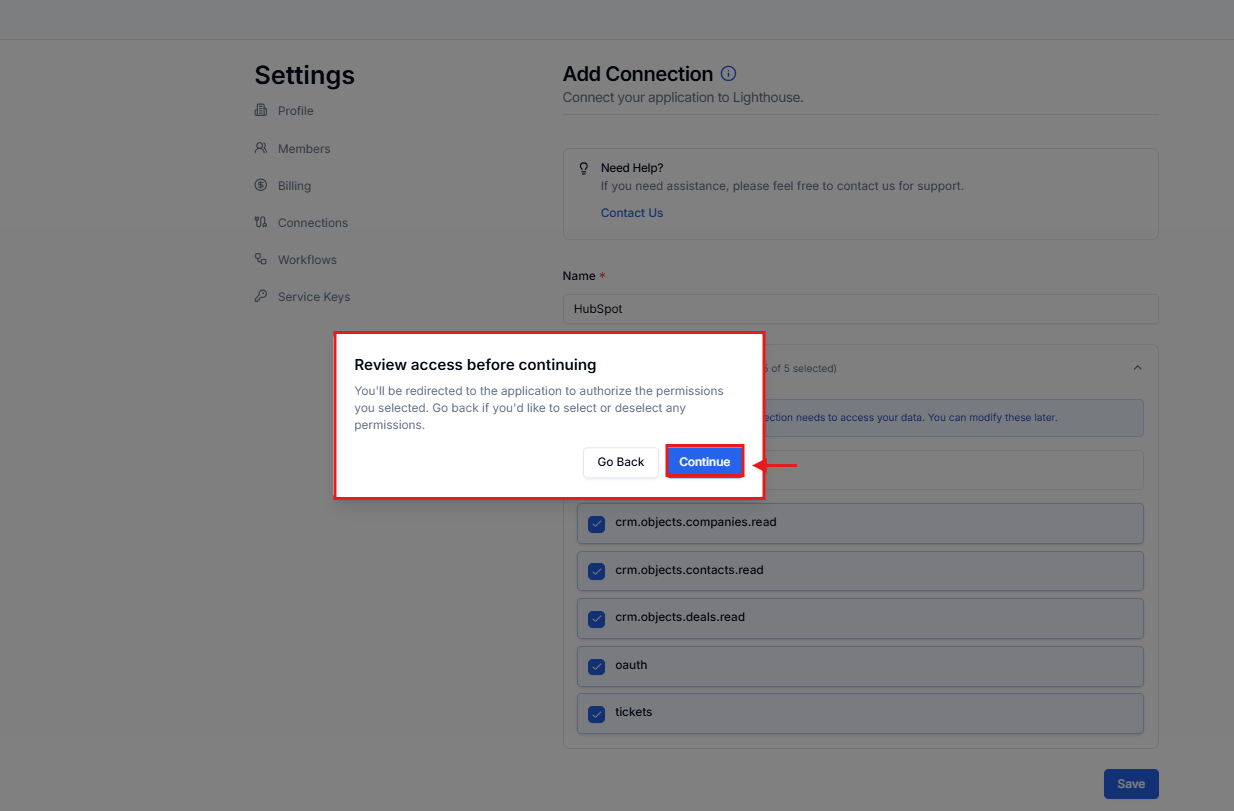
A **Review access before continuing** dialog appears, explaining that you'll be redirected to HubSpot to authorize the permissions you selected. Click **Continue**.
All permissions are selected by default. You can modify them later if needed. Click **Add** to continue.
A **Review access before continuing** dialog appears, explaining that you'll be redirected to HubSpot to authorize the permissions you selected. Click **Continue**.
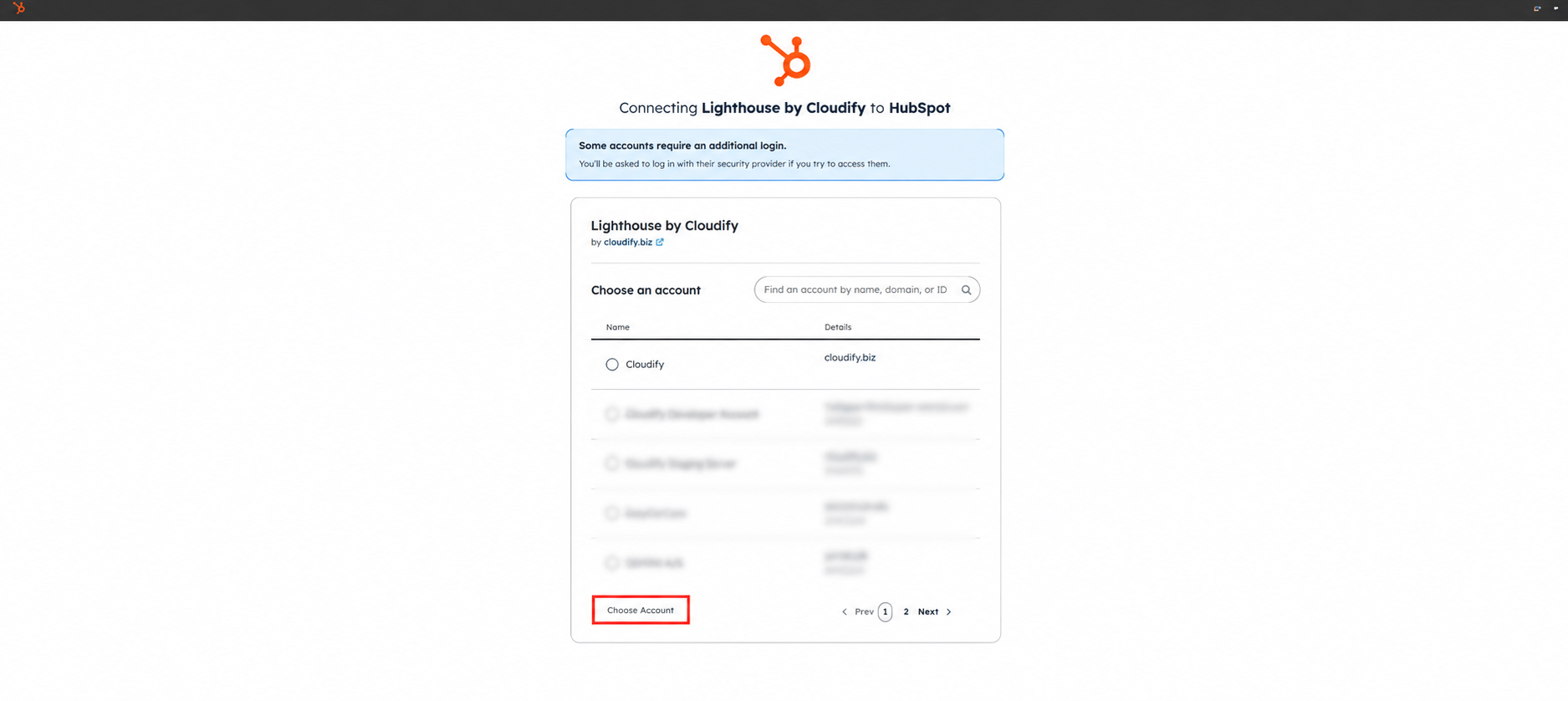
 You're redirected to HubSpot ("Connecting Lighthouse by Cloudify to HubSpot"). Select the HubSpot account you want to connect and click **Choose Account**.
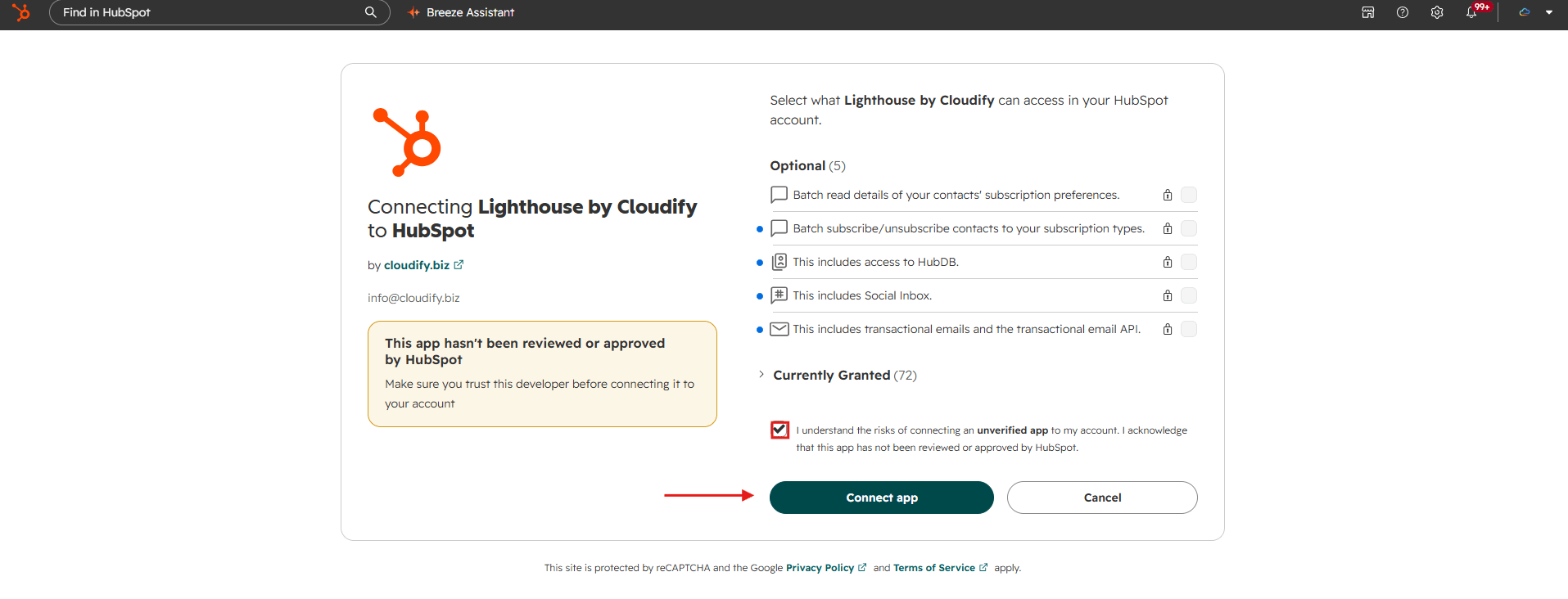
 Review what **Lighthouse by Cloudify** can access in your HubSpot account. Tick the acknowledgement checkbox, then click **Connect app**.
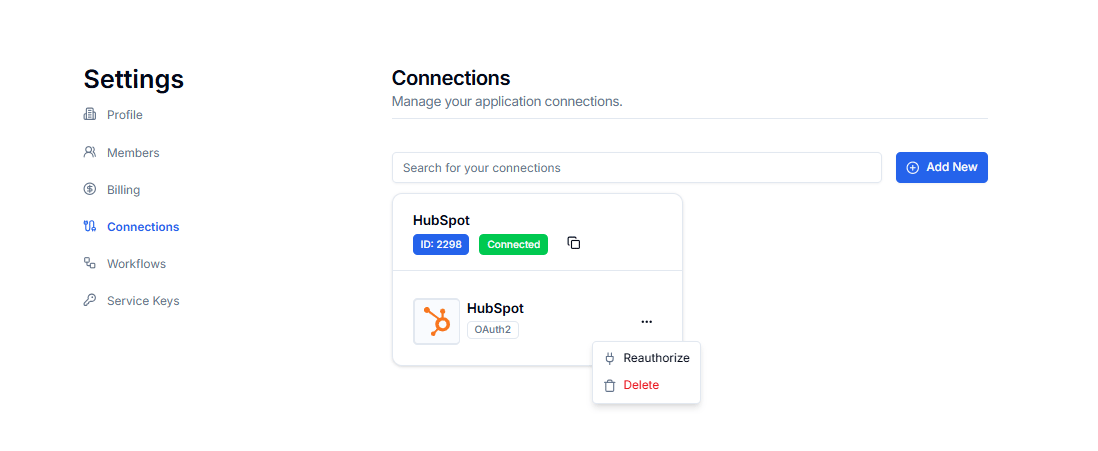
 You're redirected back to Lighthouse. Under **Settings → Connections**, your HubSpot connection now appears with a green **Connected** badge and an **OAuth2** label. The connection is live.
 ## Managing the connection
* **Reconnect:** open the **•••** menu on the HubSpot card in **Settings → Connections** and re-authorize.
* **Disconnect:** open the **•••** menu on the HubSpot card and delete the connection.
## Troubleshooting
Click **Add Connection** and type \*\*HubSpot \*\*in the **Search connections** box at the top of the menu. Select **HubSpot (OAuth2)** from the results.
Make sure you're signed in to the correct HubSpot account, and that your account has permission to install apps. Allow pop-ups/redirects from Lighthouse in your browser, then start the flow again from **Settings → Connections**.
Tokens can expire if permissions change in HubSpot. Reconnect from the **•••** menu on the HubSpot card in **Settings → Connections** and complete the HubSpot authorization again.
## Need help?
If you run into any issues during setup, use the **Contact Us** link on the Add Connection page, or reach out to us at [info@cloudify.biz](mailto:info@cloudify.biz).
## Managing the connection
* **Reconnect:** open the **•••** menu on the HubSpot card in **Settings → Connections** and re-authorize.
* **Disconnect:** open the **•••** menu on the HubSpot card and delete the connection.
## Troubleshooting
Click **Add Connection** and type \*\*HubSpot \*\*in the **Search connections** box at the top of the menu. Select **HubSpot (OAuth2)** from the results.
Make sure you're signed in to the correct HubSpot account, and that your account has permission to install apps. Allow pop-ups/redirects from Lighthouse in your browser, then start the flow again from **Settings → Connections**.
Tokens can expire if permissions change in HubSpot. Reconnect from the **•••** menu on the HubSpot card in **Settings → Connections** and complete the HubSpot authorization again.
## Need help?
If you run into any issues during setup, use the **Contact Us** link on the Add Connection page, or reach out to us at [info@cloudify.biz](mailto:info@cloudify.biz).