> ## Documentation Index
> Fetch the complete documentation index at: https://docs.cloudify.biz/llms.txt
> Use this file to discover all available pages before exploring further.
# Settings
> Manage your company profile, team members, billing, connections, workflows, and service keys.
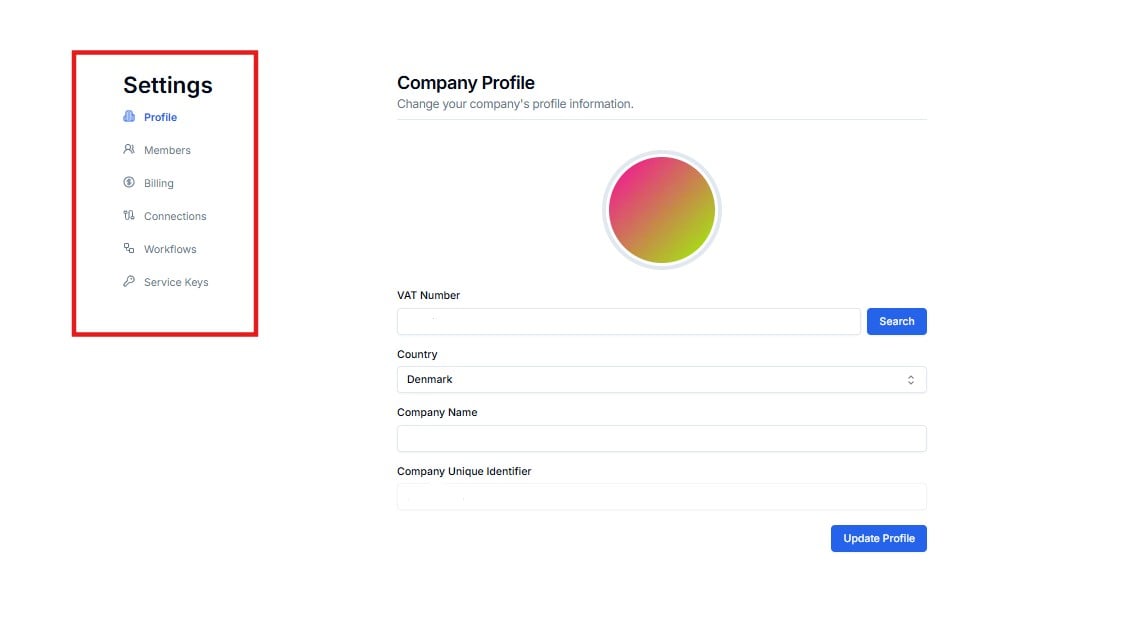 Update your company name, VAT number, country, and company unique identifier. Click **Search** after entering your VAT number to auto-fill company details.
View active members, manage their roles (Owner / Editor / Viewer), invite new team members, and manage pending invitations.
Manage your subscription plan, payment method, billing information, and view invoice history.
View all authenticated app connections linked to your Lighthouse account. Reauthorize or delete connections from here.
View and manage all integration workflows deployed on your account directly from Settings.
API keys that authenticate programmatic access to your Lighthouse endpoints. These are technical credentials managed by Cloudify — most clients will never need to use this page. If you haven't been specifically asked by Cloudify to generate or manage a key, you can safely ignore this section.
Settings is shared across your organisation. Changes made here — such as removing a member or deleting a service key — take effect immediately. Contact Cloudify if you are unsure about any action.
Update your company name, VAT number, country, and company unique identifier. Click **Search** after entering your VAT number to auto-fill company details.
View active members, manage their roles (Owner / Editor / Viewer), invite new team members, and manage pending invitations.
Manage your subscription plan, payment method, billing information, and view invoice history.
View all authenticated app connections linked to your Lighthouse account. Reauthorize or delete connections from here.
View and manage all integration workflows deployed on your account directly from Settings.
API keys that authenticate programmatic access to your Lighthouse endpoints. These are technical credentials managed by Cloudify — most clients will never need to use this page. If you haven't been specifically asked by Cloudify to generate or manage a key, you can safely ignore this section.
Settings is shared across your organisation. Changes made here — such as removing a member or deleting a service key — take effect immediately. Contact Cloudify if you are unsure about any action.