> ## Documentation Index
> Fetch the complete documentation index at: https://docs.cloudify.biz/llms.txt
> Use this file to discover all available pages before exploring further.
# Customer Sync Settings
Control how your Shopify customers are matched and created in Exact Online. This page covers three areas: how customers are matched, what defaults are applied when creating new ones, and how individual fields are mapped.
***
## Sync Rules
### How do you want to match your customers?
When a Shopify order comes in, the integration needs to find the right customer in Exact Online. This setting tells it which field to use for that lookup.
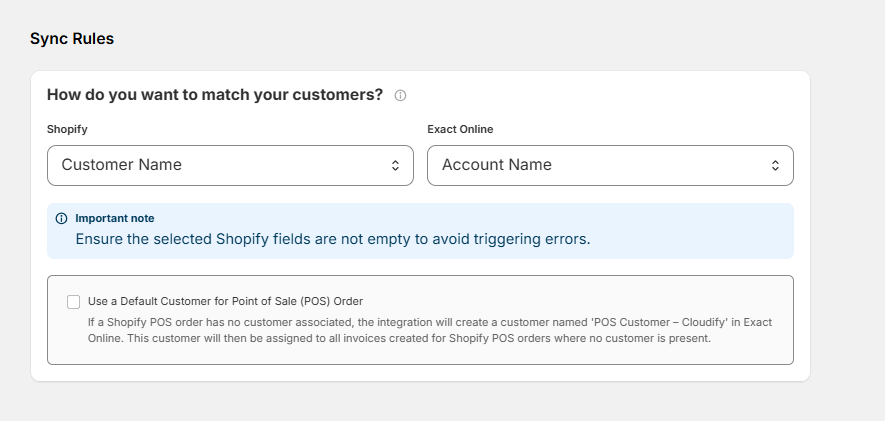 Choose a field that is always filled out and unique to each customer. **Email address works best for most businesses** — it's reliably present and avoids false matches between customers with similar names.
Make sure the selected Shopify field is never empty on your orders. If the field is blank, the integration cannot find or create a customer and will trigger an error.
### Point of Sale (POS) Orders
If you use Shopify POS and some orders have no customer attached, enable **"Use a Default Customer for Point of Sale (POS) Orders"**.
Choose a field that is always filled out and unique to each customer. **Email address works best for most businesses** — it's reliably present and avoids false matches between customers with similar names.
Make sure the selected Shopify field is never empty on your orders. If the field is blank, the integration cannot find or create a customer and will trigger an error.
### Point of Sale (POS) Orders
If you use Shopify POS and some orders have no customer attached, enable **"Use a Default Customer for Point of Sale (POS) Orders"**.
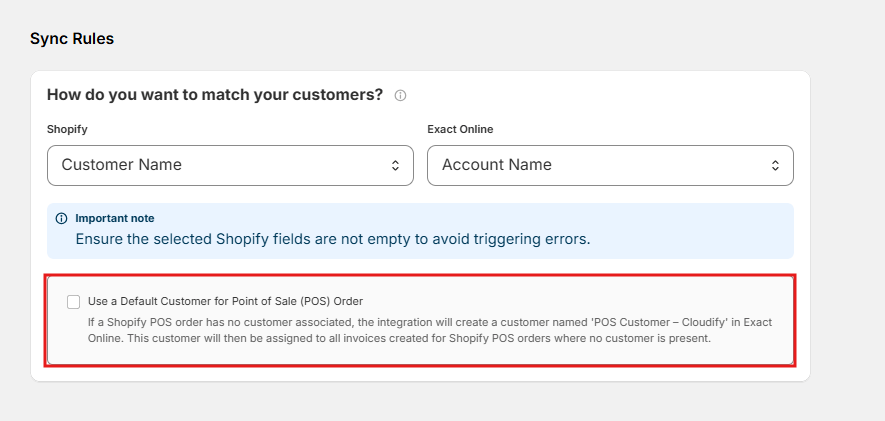 When active, the integration will automatically assign a customer named **POS Customer – Cloudify** in Exact Online to any POS order where no customer is present. This keeps your invoices clean without requiring manual intervention.
***
## Default Mappings
### What are your default settings for new customers?
When a Shopify customer cannot be matched to an existing account in Exact Online, the integration creates a new one. These default settings define the financial values applied to that new account automatically.
When active, the integration will automatically assign a customer named **POS Customer – Cloudify** in Exact Online to any POS order where no customer is present. This keeps your invoices clean without requiring manual intervention.
***
## Default Mappings
### What are your default settings for new customers?
When a Shopify customer cannot be matched to an existing account in Exact Online, the integration creates a new one. These default settings define the financial values applied to that new account automatically.
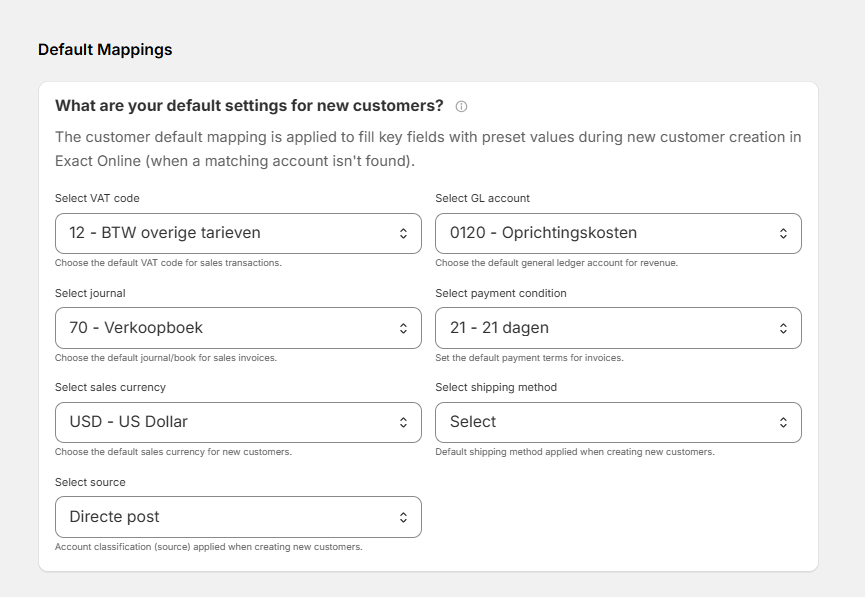 Configure these to match how your business handles sales — so every new customer is created with the right settings from day one, without manual edits in Exact Online.
| Field | Description |
| --------------------- | --------------------------------------------------------------------- |
| **VAT code** | The default VAT code applied to sales transactions for new customers. |
| **GL account** | The default general ledger account used for revenue. |
| **Journal** | The default journal (book) where sales invoices are recorded. |
| **Payment condition** | The default payment terms applied to invoices (e.g. 21 days). |
| **Sales currency** | The default currency for new customer accounts. |
| **Shipping method** | The default shipping method applied when creating new customers. |
| **Source** | The account classification (source) assigned to new customers. |
These defaults only apply when a **new** customer is created in Exact Online. Existing matched accounts are not affected.
***
## Customer Field Mappings
### How should customer data fields be mapped between Shopify and Exact Online?
Field mappings control exactly which Shopify data gets written into which Exact Online account field when a customer is created or updated.
Configure these to match how your business handles sales — so every new customer is created with the right settings from day one, without manual edits in Exact Online.
| Field | Description |
| --------------------- | --------------------------------------------------------------------- |
| **VAT code** | The default VAT code applied to sales transactions for new customers. |
| **GL account** | The default general ledger account used for revenue. |
| **Journal** | The default journal (book) where sales invoices are recorded. |
| **Payment condition** | The default payment terms applied to invoices (e.g. 21 days). |
| **Sales currency** | The default currency for new customer accounts. |
| **Shipping method** | The default shipping method applied when creating new customers. |
| **Source** | The account classification (source) assigned to new customers. |
These defaults only apply when a **new** customer is created in Exact Online. Existing matched accounts are not affected.
***
## Customer Field Mappings
### How should customer data fields be mapped between Shopify and Exact Online?
Field mappings control exactly which Shopify data gets written into which Exact Online account field when a customer is created or updated.
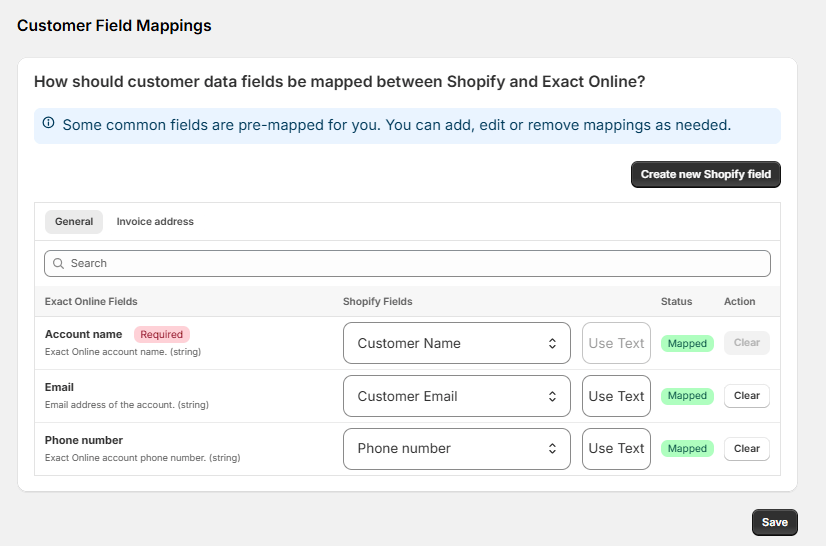 Some common fields are pre-mapped for you out of the box:
| Exact Online Field | Shopify Field | Status |
| ------------------------- | -------------- | ------ |
| Account name *(Required)* | Customer Name | Mapped |
| Email | Customer Email | Mapped |
| Phone number | Phone number | Mapped |
You can add, edit, or remove mappings as needed using the **Create new Shopify field** button. Mappings are split into two tabs:
* **General** — Core account fields such as name, email, and phone.
* **Invoice address** — Billing address fields synced to the Exact Online account.
Click **Save** after making any changes to your field mappings. Unsaved changes will not take effect on your next sync.
Some common fields are pre-mapped for you out of the box:
| Exact Online Field | Shopify Field | Status |
| ------------------------- | -------------- | ------ |
| Account name *(Required)* | Customer Name | Mapped |
| Email | Customer Email | Mapped |
| Phone number | Phone number | Mapped |
You can add, edit, or remove mappings as needed using the **Create new Shopify field** button. Mappings are split into two tabs:
* **General** — Core account fields such as name, email, and phone.
* **Invoice address** — Billing address fields synced to the Exact Online account.
Click **Save** after making any changes to your field mappings. Unsaved changes will not take effect on your next sync.