> ## Documentation Index
> Fetch the complete documentation index at: https://docs.cloudify.biz/llms.txt
> Use this file to discover all available pages before exploring further.
# Product Sync Rules
> Configure how Shopify products are matched, created, and mapped to Xero items.
The Product tab controls how Shopify products are found and synced to Xero items. There are four sections: **Sync Rules**, **If Product Not Found**, **Tax Settings**, and **Field Mappings**.
***
## Sync Rules
### Choose a product search method
When a Shopify order comes in, the integration needs to find the matching product in Xero. You have two options:
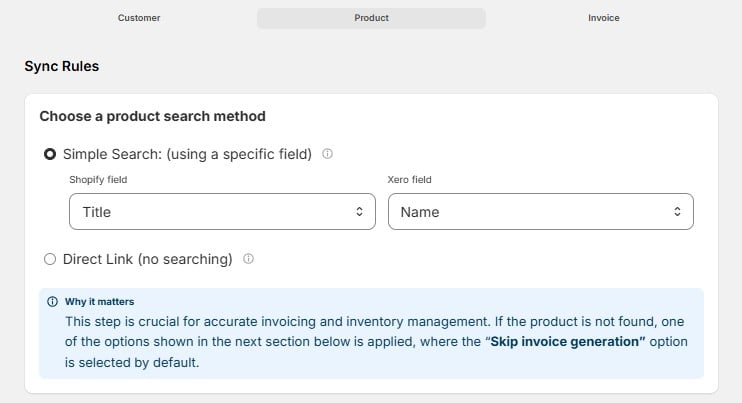 Automatically match products using specific fields. Select a Shopify field and a corresponding Xero field to match against.
Similar fields work best — for example, matching **SKU** to **Product Number**. If you don't use SKUs in Shopify, try matching using **Product Name** fields instead.
Manually link each Shopify product to a specific Xero item. Best for smaller product catalogs where you want precise control over every mapping.
If using Simple Search, configure your matching fields:
| Shopify Field | Xero Field |
| ------------- | ---------- |
| Title | Name |
**Why it matters:** This step is crucial for accurate invoicing and inventory management. If the product is not found, one of the fallback options below is applied — where **"Skip invoice generation"** is selected by default.
***
## If Product Not Found in Xero
When the integration can't find a matching Xero item, choose what should happen:
Automatically match products using specific fields. Select a Shopify field and a corresponding Xero field to match against.
Similar fields work best — for example, matching **SKU** to **Product Number**. If you don't use SKUs in Shopify, try matching using **Product Name** fields instead.
Manually link each Shopify product to a specific Xero item. Best for smaller product catalogs where you want precise control over every mapping.
If using Simple Search, configure your matching fields:
| Shopify Field | Xero Field |
| ------------- | ---------- |
| Title | Name |
**Why it matters:** This step is crucial for accurate invoicing and inventory management. If the product is not found, one of the fallback options below is applied — where **"Skip invoice generation"** is selected by default.
***
## If Product Not Found in Xero
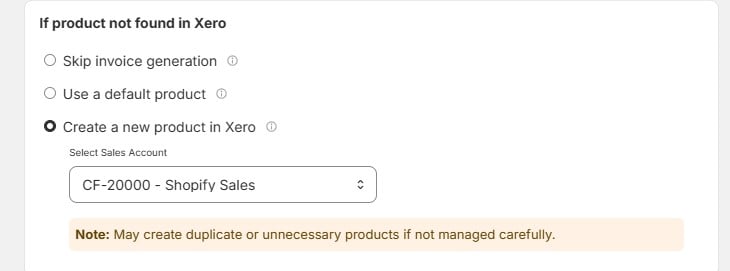
When the integration can't find a matching Xero item, choose what should happen:
 | Option | What It Does |
| -------------------------------- | -------------------------------------------------------------------------------------------------------------------------------------- |
| **Skip invoice generation** | The invoice is not created in Xero. This is the default. |
| **Use a default product** | Falls back to a specific Xero item you designate as the default. |
| **Create a new product in Xero** | Automatically creates the product as a new item in Xero and assigns it to your chosen Sales Account (e.g. `CF-20000 — Shopify Sales`). |
If you choose "Create a new product in Xero", be aware this may create duplicate or unnecessary products if not managed carefully. Review your Xero items periodically.
***
## Tax Settings
**Exclude Shopify Tax from Xero invoices**
Enable this to remove taxes applied on Shopify orders when creating the Xero invoice. Only the relevant Xero tax rates will be applied instead.
| Option | What It Does |
| -------------------------------- | -------------------------------------------------------------------------------------------------------------------------------------- |
| **Skip invoice generation** | The invoice is not created in Xero. This is the default. |
| **Use a default product** | Falls back to a specific Xero item you designate as the default. |
| **Create a new product in Xero** | Automatically creates the product as a new item in Xero and assigns it to your chosen Sales Account (e.g. `CF-20000 — Shopify Sales`). |
If you choose "Create a new product in Xero", be aware this may create duplicate or unnecessary products if not managed carefully. Review your Xero items periodically.
***
## Tax Settings
**Exclude Shopify Tax from Xero invoices**
Enable this to remove taxes applied on Shopify orders when creating the Xero invoice. Only the relevant Xero tax rates will be applied instead.
 Cloudify does **not** perform any tax calculations — it depends on your existing tax settings in Xero. Use this when your Xero tax setup should take precedence over Shopify's tax values.
***
## Field Mappings
### How should product data fields be mapped?
This section defines how product information transfers from Shopify to Xero when creating new items.
Cloudify does **not** perform any tax calculations — it depends on your existing tax settings in Xero. Use this when your Xero tax setup should take precedence over Shopify's tax values.
***
## Field Mappings
### How should product data fields be mapped?
This section defines how product information transfers from Shopify to Xero when creating new items.
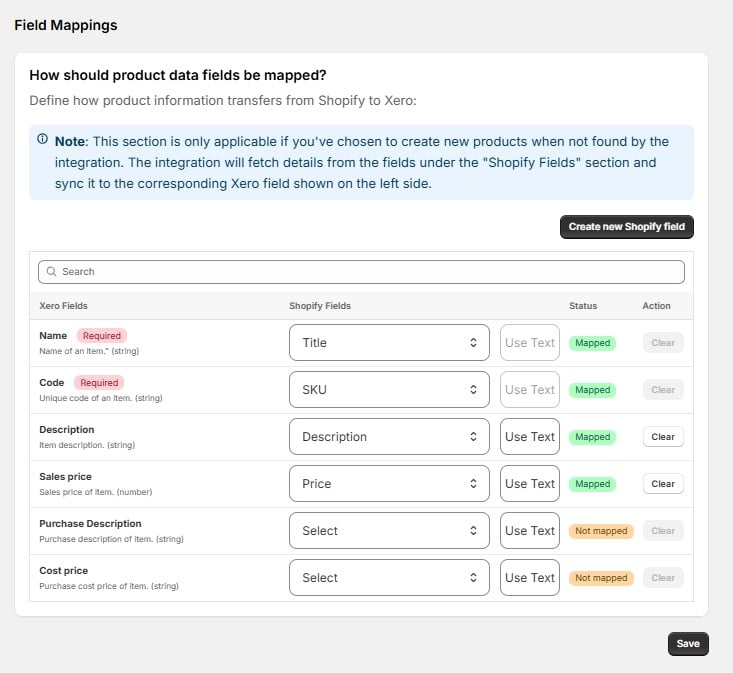 **Note:** This section is only applicable if you've chosen **"Create a new product in Xero"** as your fallback option above. The integration fetches details from the Shopify fields and syncs them to the corresponding Xero field.
Common fields are **pre-mapped** by default:
| Xero Field | Shopify Field | Status |
| ------------------- | ------------- | ------ |
| **Name** (Required) | Title | Mapped |
| **Code** (Required) | SKU | Mapped |
| **Description** | Description | Mapped |
| **Sales price** | Price | Mapped |
To update a mapping, click the field box and select a different Shopify field. Use **"Clear"** to remove a mapping, or **"Create new Shopify field"** if your store uses custom data that doesn't map to a standard field.
Click **Save** when you're done.
**Note:** This section is only applicable if you've chosen **"Create a new product in Xero"** as your fallback option above. The integration fetches details from the Shopify fields and syncs them to the corresponding Xero field.
Common fields are **pre-mapped** by default:
| Xero Field | Shopify Field | Status |
| ------------------- | ------------- | ------ |
| **Name** (Required) | Title | Mapped |
| **Code** (Required) | SKU | Mapped |
| **Description** | Description | Mapped |
| **Sales price** | Price | Mapped |
To update a mapping, click the field box and select a different Shopify field. Use **"Clear"** to remove a mapping, or **"Create new Shopify field"** if your store uses custom data that doesn't map to a standard field.
Click **Save** when you're done.