> ## Documentation Index
> Fetch the complete documentation index at: https://docs.cloudify.biz/llms.txt
> Use this file to discover all available pages before exploring further.
# Sales Summary Mode
> All of yesterday's Shopify sales grouped into one Xero invoice and one credit note — daily.
## How It Works
For transactions that occurred in Shopify the previous day, Cloudify automatically aggregates them into a **single Invoice** (for sales) and a **single Credit Note** (for refunds) inside Xero.
One invoice covering all of yesterday's sales, broken down by:
* Sales with VAT / Tax
* Sales without VAT / Tax
* Shipping with VAT / Tax
* Shipping without VAT / Tax
* Gift card sales (tracked to Liability)
* Discounts (adjusted directly against sales)
One credit note covering all of yesterday's refunds, broken down by:
* Refunds with VAT / Tax
* Refunds with no tax (custom refunds)
* Shipping refunds
* Gift card refunds
***
## Configuration
### Transfer Frequency
Controls **when** the daily summary is generated and pushed to Xero.
The default is **Daily Summary** — covering transactions from 00:00:00 to 23:59:59 each day. A summarized invoice and credit note for your previous day's Shopify transactions will be generated in Xero.
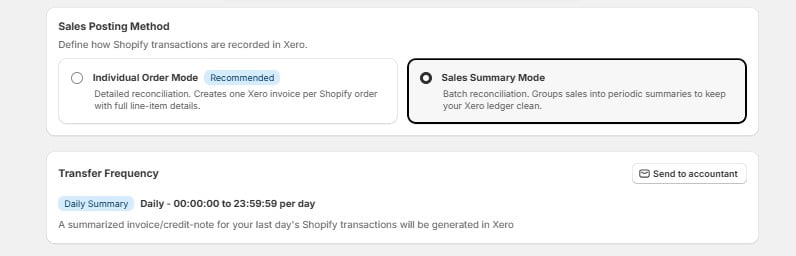 You can also use the **"Send to accountant"** button to manually trigger a summary push at any time.
### Tax Rate Mapping
Configure how Shopify tax data maps to Xero tax rates.
You can also use the **"Send to accountant"** button to manually trigger a summary push at any time.
### Tax Rate Mapping
Configure how Shopify tax data maps to Xero tax rates.
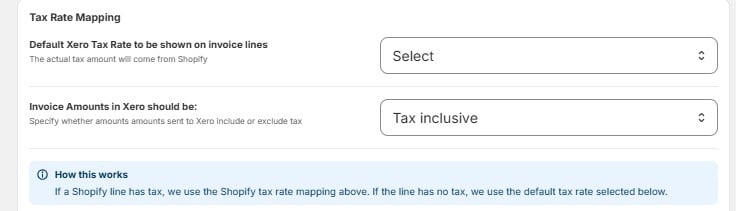 | Setting | What It Does |
| --------------------------- | ------------------------------------------------------------------------------------ |
| **Default Xero Tax Rate** | The tax rate shown on invoice lines. The actual tax amount still comes from Shopify. |
| **Invoice Amounts in Xero** | Choose whether amounts are **Tax inclusive** or **Tax exclusive**. |
For Shopify line items that have **no tax**, you assign a default Xero tax rate for each type:
| Shopify Line Type | Default Xero Tax Rate |
| ------------------------------- | --------------------- |
| Sales (Tax free) | Tax Exempt (0) |
| Shipping Fees (Tax free) | Tax Exempt (0) |
| Pending Transactions (Tax free) | Tax Exempt (0) |
| Gift Card (Tax free) | Tax Exempt (0) |
**How this works:** If a Shopify line has tax, the integration uses the Shopify tax rate mapping above. If the line has no tax, it falls back to the default tax rate you've selected for that line type.
### Xero Account Selection
Choose which Xero accounts your Shopify revenue and transactions are posted to:
| Setting | What It Does |
| --------------------------- | ------------------------------------------------------------------------------------ |
| **Default Xero Tax Rate** | The tax rate shown on invoice lines. The actual tax amount still comes from Shopify. |
| **Invoice Amounts in Xero** | Choose whether amounts are **Tax inclusive** or **Tax exclusive**. |
For Shopify line items that have **no tax**, you assign a default Xero tax rate for each type:
| Shopify Line Type | Default Xero Tax Rate |
| ------------------------------- | --------------------- |
| Sales (Tax free) | Tax Exempt (0) |
| Shipping Fees (Tax free) | Tax Exempt (0) |
| Pending Transactions (Tax free) | Tax Exempt (0) |
| Gift Card (Tax free) | Tax Exempt (0) |
**How this works:** If a Shopify line has tax, the integration uses the Shopify tax rate mapping above. If the line has no tax, it falls back to the default tax rate you've selected for that line type.
### Xero Account Selection
Choose which Xero accounts your Shopify revenue and transactions are posted to:
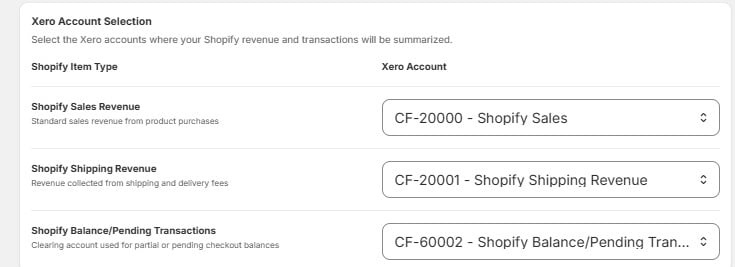 | Shopify Item Type | Xero Account | Purpose |
| ---------------------------------------- | -------------------------------------------- | --------------------------------------------------------- |
| **Shopify Sales Revenue** | `CF-20000` — Shopify Sales | Standard sales revenue from product purchases |
| **Shopify Shipping Revenue** | `CF-20001` — Shopify Shipping Revenue | Revenue from shipping and delivery fees |
| **Shopify Balance/Pending Transactions** | `CF-60002` — Shopify Balance/Pending Tran... | Clearing account for partial or pending checkout balances |
### Payment Methods
Map your Shopify payment methods to the correct Xero clearing accounts so payouts reconcile correctly:
| Shopify Item Type | Xero Account | Purpose |
| ---------------------------------------- | -------------------------------------------- | --------------------------------------------------------- |
| **Shopify Sales Revenue** | `CF-20000` — Shopify Sales | Standard sales revenue from product purchases |
| **Shopify Shipping Revenue** | `CF-20001` — Shopify Shipping Revenue | Revenue from shipping and delivery fees |
| **Shopify Balance/Pending Transactions** | `CF-60002` — Shopify Balance/Pending Tran... | Clearing account for partial or pending checkout balances |
### Payment Methods
Map your Shopify payment methods to the correct Xero clearing accounts so payouts reconcile correctly:
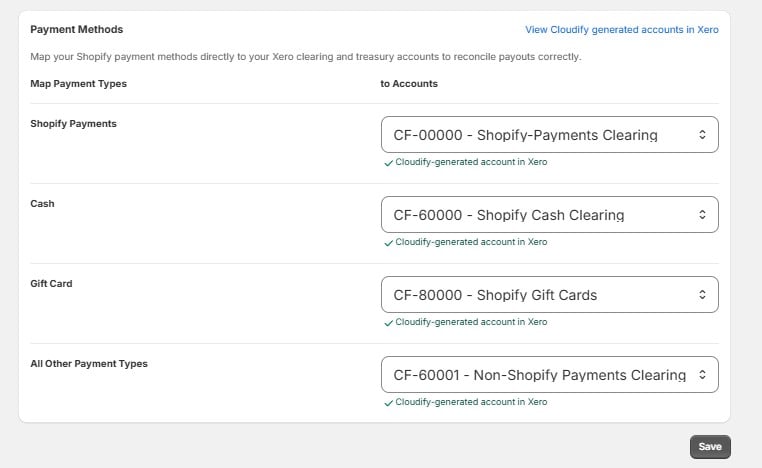 | Shopify Payment Type | Xero Account |
| --------------------------- | ------------------------------------------ |
| **Shopify Payments** | `CF-00000` — Shopify-Payments Clearing |
| **Cash** | `CF-60000` — Shopify Cash Clearing |
| **Gift Card** | `CF-80000` — Shopify Gift Cards |
| **All Other Payment Types** | `CF-60001` — Non-Shopify Payments Clearing |
All `CF-` accounts are **created automatically** by Cloudify in your Xero org. You don't need to set them up manually. Click **"View Cloudify generated accounts in Xero"** to see them.
***
## Channel-Wise Sales & POS Distinction
To prevent mixups, orders are automatically separated based on **where they came from**:
| Channel | What Happens |
| ------------------ | ------------------------------------------------------------------------------------------------ |
| **POS Channel** | Point of Sale orders go to a completely separate Invoice and Credit Note. |
| **Online & Draft** | Online Store, Draft, and Manual orders go to their own invoices based on your customer mappings. |
Cloudify creates **three dedicated customer records** in Xero to keep these channels segregated:
| Channel | Xero Customer Name |
| ------------- | -------------------------------- |
| Online Sales | Shopify Online Store (Cloudify) |
| POS Sales | Shopify POS (Cloudify) |
| Manual Orders | Shopify Manual Orders (Cloudify) |
***
## Xero References & Layout
Every invoice and credit note follows a consistent naming pattern so you can find them easily:
* **Invoice & Credit Note Reference** — `Shopify Orders Paid/Partially paid on {transaction-date}` (e.g. *Shopify Orders Fully/Partially Paid on 16 June 2026*)
* **Payment Reference in Xero** — set to the actual payment method (e.g. *Cash*, *Manual*, or *Credit card*)
* **Partially Paid Orders** — the full sale goes to the Sales Account, while the unpaid balance goes into `CF-60002` (Shopify Balance/Pending Transactions). It clears to zero once the order is fully paid.
| Shopify Payment Type | Xero Account |
| --------------------------- | ------------------------------------------ |
| **Shopify Payments** | `CF-00000` — Shopify-Payments Clearing |
| **Cash** | `CF-60000` — Shopify Cash Clearing |
| **Gift Card** | `CF-80000` — Shopify Gift Cards |
| **All Other Payment Types** | `CF-60001` — Non-Shopify Payments Clearing |
All `CF-` accounts are **created automatically** by Cloudify in your Xero org. You don't need to set them up manually. Click **"View Cloudify generated accounts in Xero"** to see them.
***
## Channel-Wise Sales & POS Distinction
To prevent mixups, orders are automatically separated based on **where they came from**:
| Channel | What Happens |
| ------------------ | ------------------------------------------------------------------------------------------------ |
| **POS Channel** | Point of Sale orders go to a completely separate Invoice and Credit Note. |
| **Online & Draft** | Online Store, Draft, and Manual orders go to their own invoices based on your customer mappings. |
Cloudify creates **three dedicated customer records** in Xero to keep these channels segregated:
| Channel | Xero Customer Name |
| ------------- | -------------------------------- |
| Online Sales | Shopify Online Store (Cloudify) |
| POS Sales | Shopify POS (Cloudify) |
| Manual Orders | Shopify Manual Orders (Cloudify) |
***
## Xero References & Layout
Every invoice and credit note follows a consistent naming pattern so you can find them easily:
* **Invoice & Credit Note Reference** — `Shopify Orders Paid/Partially paid on {transaction-date}` (e.g. *Shopify Orders Fully/Partially Paid on 16 June 2026*)
* **Payment Reference in Xero** — set to the actual payment method (e.g. *Cash*, *Manual*, or *Credit card*)
* **Partially Paid Orders** — the full sale goes to the Sales Account, while the unpaid balance goes into `CF-60002` (Shopify Balance/Pending Transactions). It clears to zero once the order is fully paid.