> ## Documentation Index
> Fetch the complete documentation index at: https://docs.cloudify.biz/llms.txt
> Use this file to discover all available pages before exploring further.
# Getting Started
Now that you've installed the app and connected your accounts, it's time to configure how information flows between Shopify and Fortnox. The quick install already covered the essential settings. With this guide, you will be able to customise your app further if needed.
## To find the settings page
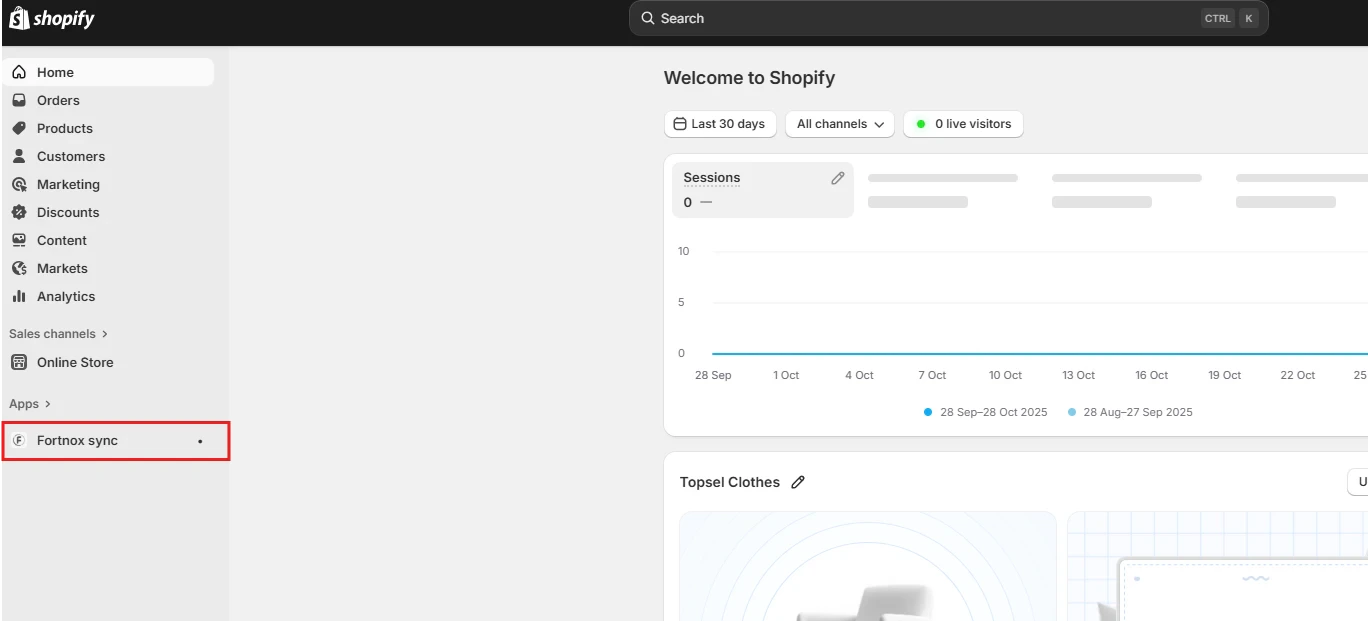
Click on "**Apps**" and then click on "**Fortnox Sync**"
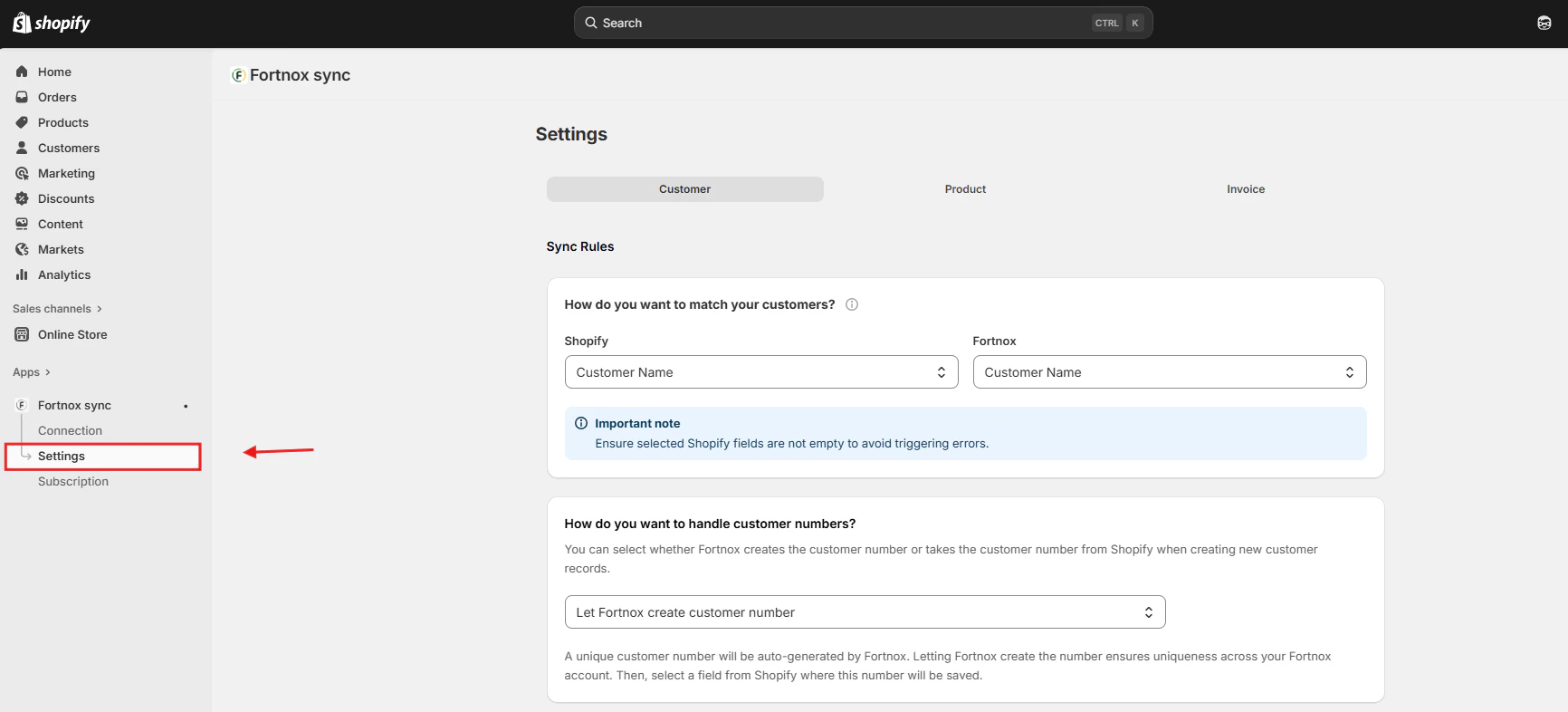
 Click "**Settings**"
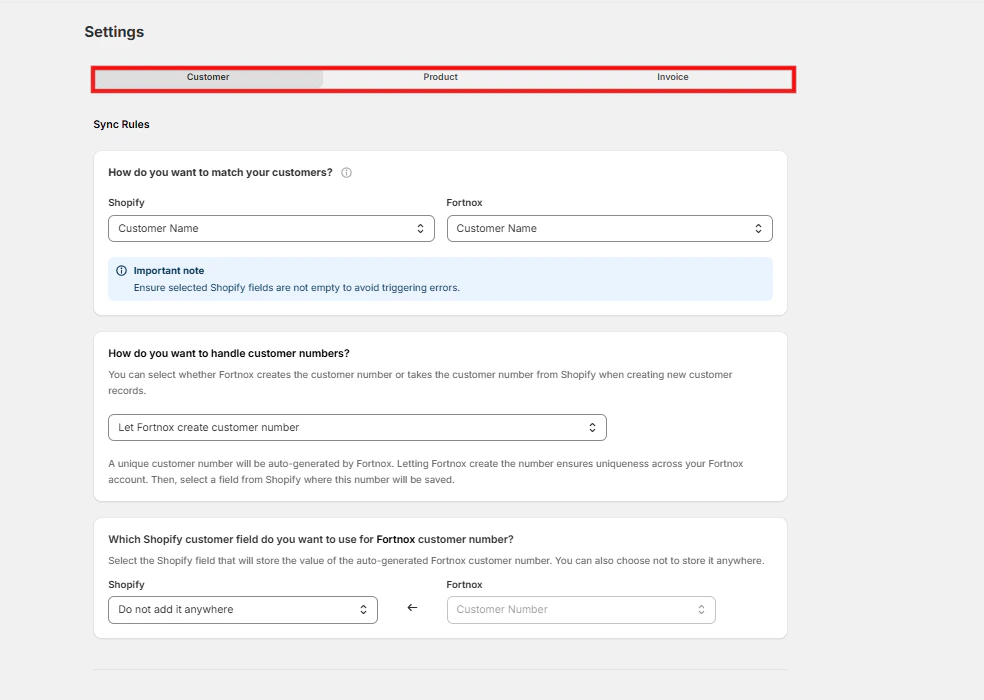 And you have arrived.
## The setup process is divided into three main areas:
1. Customer Settings
2. Product Settings
3. Invoice Settings
Each of these areas plays a crucial role in determining how your data is synchronized and how your business processes are automated.
And you have arrived.
## The setup process is divided into three main areas:
1. Customer Settings
2. Product Settings
3. Invoice Settings
Each of these areas plays a crucial role in determining how your data is synchronized and how your business processes are automated.