> ## Documentation Index
> Fetch the complete documentation index at: https://docs.cloudify.biz/llms.txt
> Use this file to discover all available pages before exploring further.
# Connect Pennylane Account
> Link your Pennylane account to the app so Shopify orders can be sent to Pennylane as invoices.
Before the app can send anything to Pennylane, it needs permission to do so. This first step creates that link.
It takes about two minutes. Nothing is synced to Pennylane yet — you are only granting access.
Connecting does **not** send any orders. Syncing starts only after you finish setup and turn it on.
## Before you start
* A **Pennylane account** you can log in to, with permission to connect third-party apps
* **Admin access** to the Shopify store you want to connect
* The app installed on that store from the Shopify App Store
## Connect your account
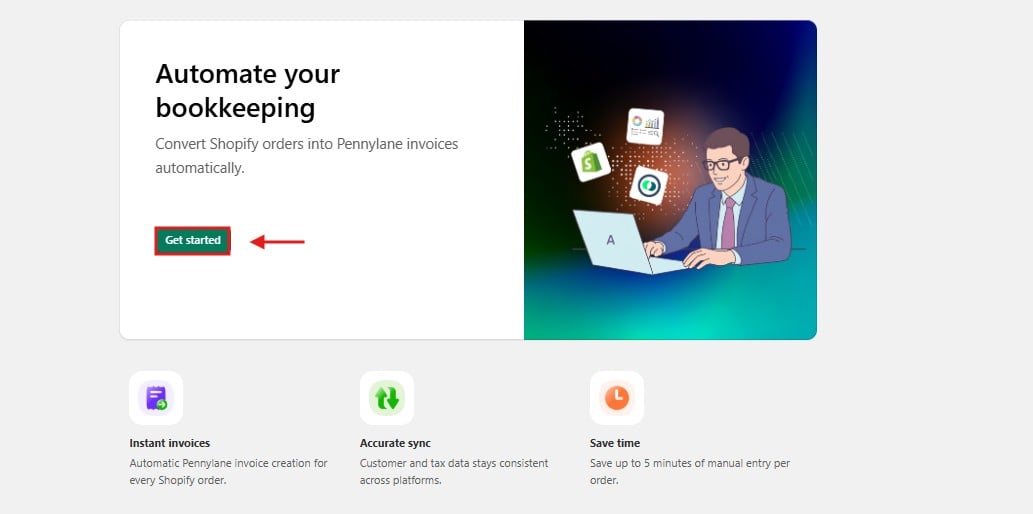
After installing, you land on the welcome screen. Select **Get started** to begin setup.
 You will see the connection screen showing **No account connected**. Select **Connect to Pennylane**.
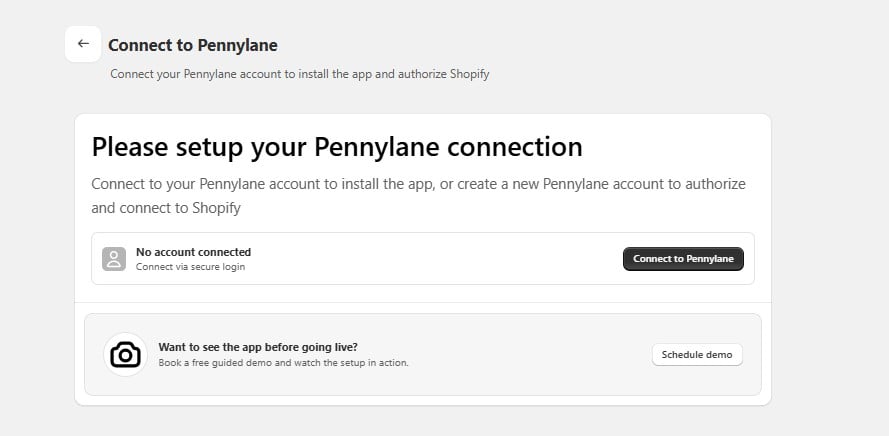 Not ready to connect yet? Select [**Schedule demo**](https://meetings.hubspot.com/cloudify/app-assistance) to book a free guided walkthrough. You can come back and finish setup at any time.
A secure Pennylane login window opens. Sign in with your normal Pennylane credentials and confirm access when prompted.
Your Pennylane password is entered on Pennylane's own site. The app never sees or stores it.
Not ready to connect yet? Select [**Schedule demo**](https://meetings.hubspot.com/cloudify/app-assistance) to book a free guided walkthrough. You can come back and finish setup at any time.
A secure Pennylane login window opens. Sign in with your normal Pennylane credentials and confirm access when prompted.
Your Pennylane password is entered on Pennylane's own site. The app never sees or stores it.
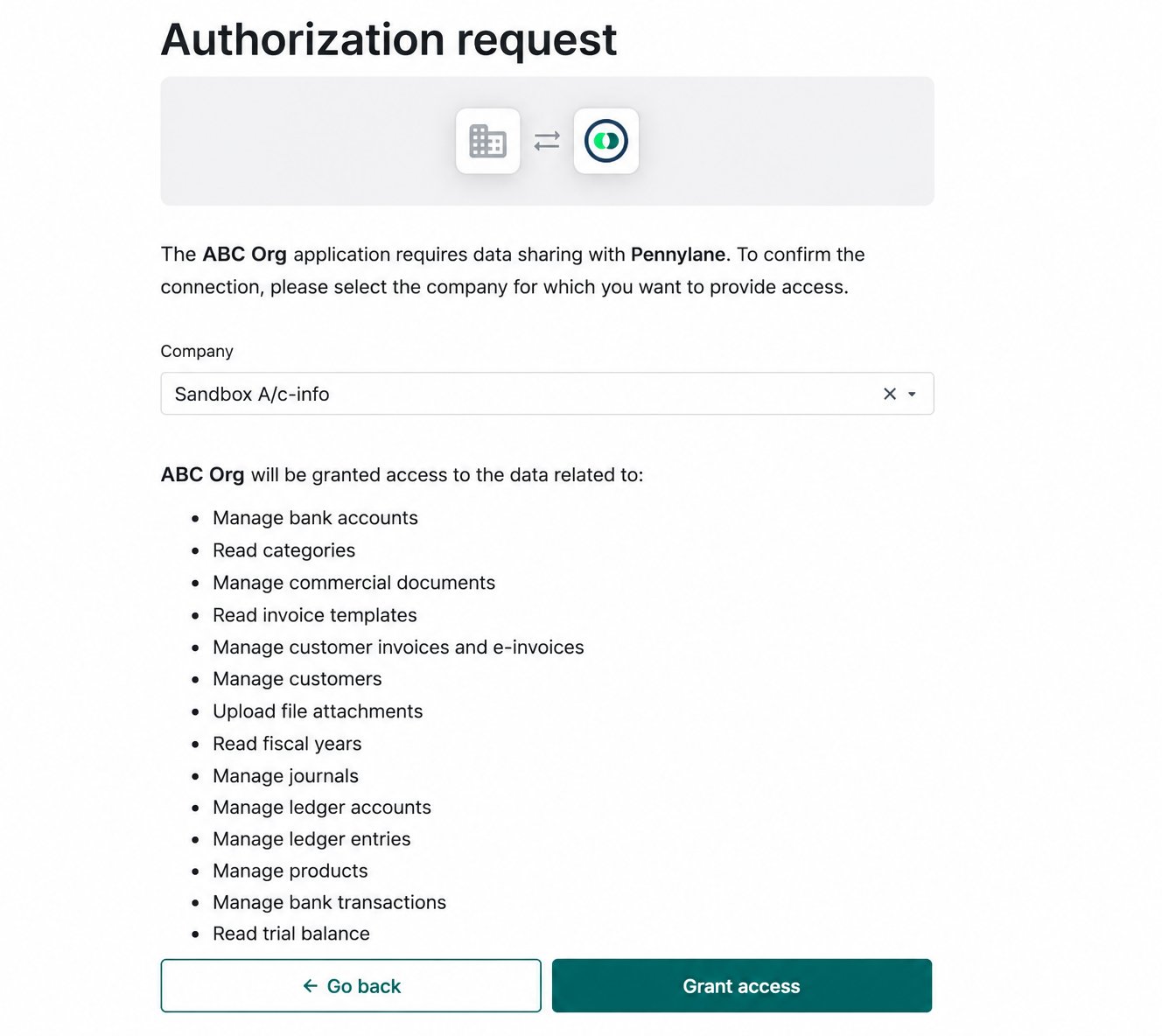 If you manage more than one company in Pennylane, make sure you are logged in to the **correct company file** before authorising. Connecting the wrong one means invoices are created in the wrong books.
You are returned to the app, and the screen now shows **Connected account** with the email address used.
The app moves on automatically after a few seconds. Select **Continue** to go straight to the next step, or **Stay on this page** if you want to review the connection first.
## What each option on this screen does
Opens Pennylane's login page and asks for permission to create invoices and read customer and product data on your behalf. This is what makes the whole integration work.
Appears once an account is linked. Removes the app's access to Pennylane and stops all syncing. Use it if you connected the wrong account, or if you are moving to a different Pennylane company.
Disconnecting does not delete anything already created in Pennylane.
Books a [free call](https://meetings.hubspot.com/cloudify/app-assistance) where our integration expert walks you through the setup and answers questions.
## Common questions
The login window is usually blocked by a pop-up blocker. Allow pop-ups for your Shopify admin domain and try again.
Select **Disconnect**, then **Connect to Pennylane** again and log in with the correct account. Do this before any orders sync, so nothing lands in the wrong books.
No. Connecting only grants access. Nothing is created in Pennylane until orders start syncing.
You log in on Pennylane's own site, so the app never receives your password. Access can be revoked at any time using **Disconnect**, or from within Pennylane.
If you manage more than one company in Pennylane, make sure you are logged in to the **correct company file** before authorising. Connecting the wrong one means invoices are created in the wrong books.
You are returned to the app, and the screen now shows **Connected account** with the email address used.
The app moves on automatically after a few seconds. Select **Continue** to go straight to the next step, or **Stay on this page** if you want to review the connection first.
## What each option on this screen does
Opens Pennylane's login page and asks for permission to create invoices and read customer and product data on your behalf. This is what makes the whole integration work.
Appears once an account is linked. Removes the app's access to Pennylane and stops all syncing. Use it if you connected the wrong account, or if you are moving to a different Pennylane company.
Disconnecting does not delete anything already created in Pennylane.
Books a [free call](https://meetings.hubspot.com/cloudify/app-assistance) where our integration expert walks you through the setup and answers questions.
## Common questions
The login window is usually blocked by a pop-up blocker. Allow pop-ups for your Shopify admin domain and try again.
Select **Disconnect**, then **Connect to Pennylane** again and log in with the correct account. Do this before any orders sync, so nothing lands in the wrong books.
No. Connecting only grants access. Nothing is created in Pennylane until orders start syncing.
You log in on Pennylane's own site, so the app never receives your password. Access can be revoked at any time using **Disconnect**, or from within Pennylane.