> ## Documentation Index
> Fetch the complete documentation index at: https://docs.cloudify.biz/llms.txt
> Use this file to discover all available pages before exploring further.
# Customer Sync Settings
> Set how Shopify customers are matched, created, and mapped to customer records in Pennylane.
These settings control how the integration finds an existing customer in Pennylane, and what it fills in when it has to create a new one.
Sensible defaults are already applied. You only need to change these settings if your business works differently — for example if you sell B2B, or if you use Shopify POS.
***
## Customer Sync Rules
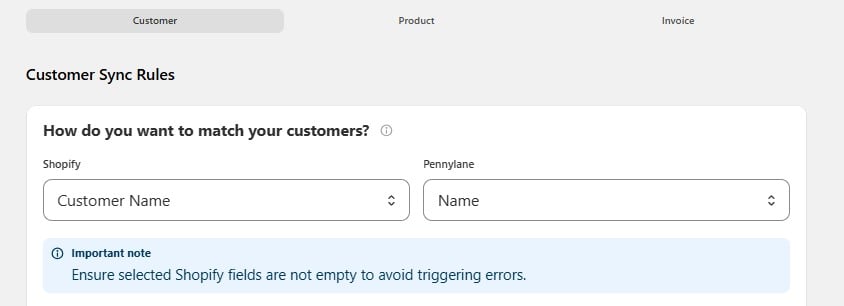
### How do you want to match your customers?
Before creating anything, the integration looks for an existing customer in Pennylane. This setting tells it which field to compare.
You choose a **Shopify** field on the left and the matching **Pennylane** field on the right.
 | Setting | Default | What it means |
| --------------- | ------------- | ------------------------------------------ |
| Shopify field | Customer Name | The value taken from the Shopify order |
| Pennylane field | Name | The Pennylane field it is compared against |
If a match is found, the existing Pennylane customer is used. If not, a new customer is created.
Make sure the Shopify field you choose is **never empty** on your orders. If the field is blank, the match fails and the sync returns an error.
Names are not unique. Two different customers called "Jean Martin" will be treated as the same person. If your Pennylane records hold email addresses, matching on email is more reliable.
### Use a Default Customer for Point of Sale (POS) Order
Shopify POS orders often have no customer attached — someone walks in, pays, and leaves. Pennylane still needs a customer on the invoice.
When this option is **on**, the integration creates a customer called **POS Customer – Cloudify** in Pennylane and assigns it to every POS order that has no customer.
| Setting | Default | What it means |
| --------------- | ------------- | ------------------------------------------ |
| Shopify field | Customer Name | The value taken from the Shopify order |
| Pennylane field | Name | The Pennylane field it is compared against |
If a match is found, the existing Pennylane customer is used. If not, a new customer is created.
Make sure the Shopify field you choose is **never empty** on your orders. If the field is blank, the match fails and the sync returns an error.
Names are not unique. Two different customers called "Jean Martin" will be treated as the same person. If your Pennylane records hold email addresses, matching on email is more reliable.
### Use a Default Customer for Point of Sale (POS) Order
Shopify POS orders often have no customer attached — someone walks in, pays, and leaves. Pennylane still needs a customer on the invoice.
When this option is **on**, the integration creates a customer called **POS Customer – Cloudify** in Pennylane and assigns it to every POS order that has no customer.
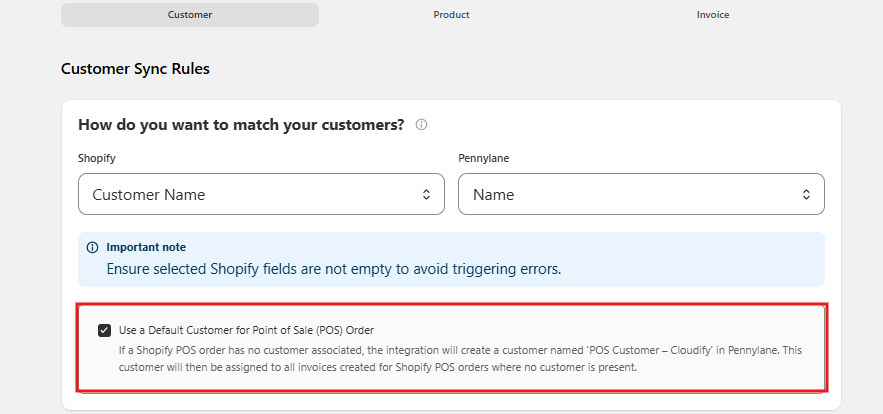 **Turn it on** if you use Shopify POS and don't collect customer details at the till. All walk-in sales are grouped under one customer, which keeps your Pennylane contact list clean.
**Turn it off** if every POS sale in your store is tied to a named customer.
### How do you want to handle customer numbers?
Every customer in Pennylane has a customer number. This setting decides who generates it.
| Option | When to use it |
| ---------------------------------------------------- | ---------------------------------------------------------------------------------------------------------------------------------------------------- |
| **Let Pennylane create customer number** *(default)* | You want Pennylane to number customers automatically. Guarantees the number is unique across your Pennylane account. |
| **Take customer number from Shopify** | You already use your own customer reference in Shopify and want the same one in Pennylane. An existing Shopify field is used as the customer number. |
If you take the number from Shopify, you are responsible for making sure it is unique. Duplicate numbers will cause errors in Pennylane.
### Which Shopify customer field do you want to use for the Pennylane customer number?
This question follows on from the choice above, and works in one of two directions.
**If you chose "Let Pennylane create customer number"**, you can write the generated number back into Shopify so both systems show the same reference.
**Turn it on** if you use Shopify POS and don't collect customer details at the till. All walk-in sales are grouped under one customer, which keeps your Pennylane contact list clean.
**Turn it off** if every POS sale in your store is tied to a named customer.
### How do you want to handle customer numbers?
Every customer in Pennylane has a customer number. This setting decides who generates it.
| Option | When to use it |
| ---------------------------------------------------- | ---------------------------------------------------------------------------------------------------------------------------------------------------- |
| **Let Pennylane create customer number** *(default)* | You want Pennylane to number customers automatically. Guarantees the number is unique across your Pennylane account. |
| **Take customer number from Shopify** | You already use your own customer reference in Shopify and want the same one in Pennylane. An existing Shopify field is used as the customer number. |
If you take the number from Shopify, you are responsible for making sure it is unique. Duplicate numbers will cause errors in Pennylane.
### Which Shopify customer field do you want to use for the Pennylane customer number?
This question follows on from the choice above, and works in one of two directions.
**If you chose "Let Pennylane create customer number"**, you can write the generated number back into Shopify so both systems show the same reference.
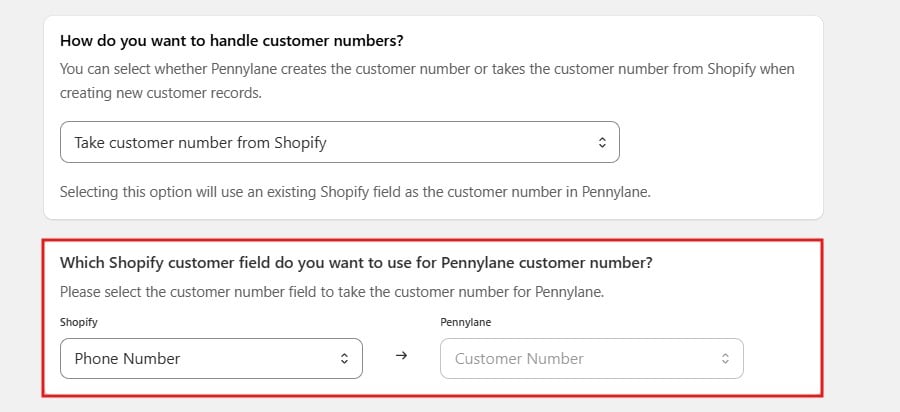 Select the Shopify field where the number should be stored, or choose **Do not add it anywhere** (the default) if you don't need it in Shopify.
Storing the number in Shopify makes it much easier to find the matching record in Pennylane when you're chasing a specific order.
**If you chose "Take customer number from Shopify"**, select the existing Shopify field that holds the reference you want to use. That value becomes the customer number in Pennylane.
Make sure the field you pick is filled in on every customer and never repeats. A blank value or a duplicate will cause the sync to fail.
***
## Customer Default Mappings
### What are your default settings for new customers?
Some Pennylane fields have no equivalent in Shopify. These defaults fill them in whenever a new customer is created.
Select the Shopify field where the number should be stored, or choose **Do not add it anywhere** (the default) if you don't need it in Shopify.
Storing the number in Shopify makes it much easier to find the matching record in Pennylane when you're chasing a specific order.
**If you chose "Take customer number from Shopify"**, select the existing Shopify field that holds the reference you want to use. That value becomes the customer number in Pennylane.
Make sure the field you pick is filled in on every customer and never repeats. A blank value or a duplicate will cause the sync to fail.
***
## Customer Default Mappings
### What are your default settings for new customers?
Some Pennylane fields have no equivalent in Shopify. These defaults fill them in whenever a new customer is created.
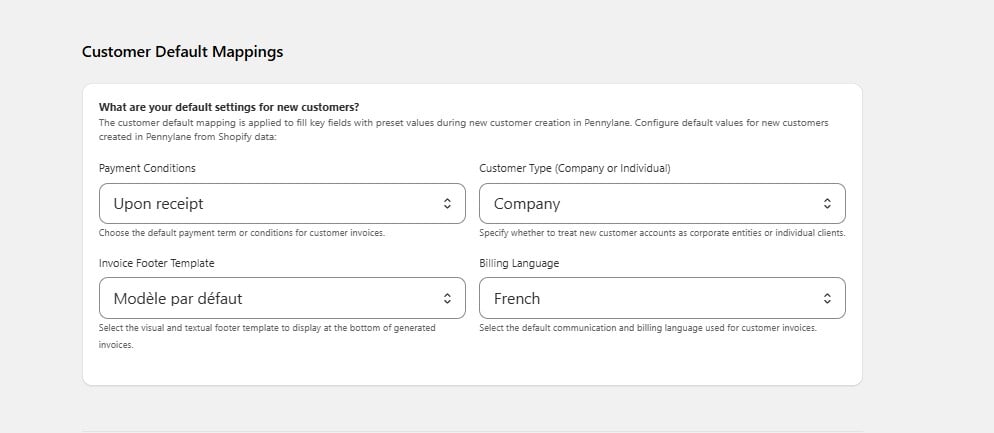 | Setting | Default | What it does |
| --------------------------- | ----------------- | -------------------------------------------------------------------------------------------------------------------------------------------------------------------------------------------------- |
| **Payment Conditions** | Upon receipt | The payment term applied to the customer's invoices. Shopify orders are usually already paid, so *upon receipt* fits most stores. Change it if you invoice B2B customers on terms such as 30 days. |
| **Customer Type** | Company | Whether new customers are created as corporate entities or individual clients. Set this to **Individual** if you sell mainly B2C. |
| **Invoice Footer Template** | Modèle par défaut | The footer shown at the bottom of generated invoices. The list comes from the templates in your Pennylane account. |
| **Billing Language** | French | The language used for invoices and customer communication. Change it if you invoice customers outside France. |
These defaults apply **only when a customer is created**. Changing them later does not update customers that already exist in Pennylane.
***
## Customer Field Mappings
### How should customer data fields be mapped?
This is where you decide which Shopify value fills each Pennylane customer field.
| Setting | Default | What it does |
| --------------------------- | ----------------- | -------------------------------------------------------------------------------------------------------------------------------------------------------------------------------------------------- |
| **Payment Conditions** | Upon receipt | The payment term applied to the customer's invoices. Shopify orders are usually already paid, so *upon receipt* fits most stores. Change it if you invoice B2B customers on terms such as 30 days. |
| **Customer Type** | Company | Whether new customers are created as corporate entities or individual clients. Set this to **Individual** if you sell mainly B2C. |
| **Invoice Footer Template** | Modèle par défaut | The footer shown at the bottom of generated invoices. The list comes from the templates in your Pennylane account. |
| **Billing Language** | French | The language used for invoices and customer communication. Change it if you invoice customers outside France. |
These defaults apply **only when a customer is created**. Changing them later does not update customers that already exist in Pennylane.
***
## Customer Field Mappings
### How should customer data fields be mapped?
This is where you decide which Shopify value fills each Pennylane customer field.
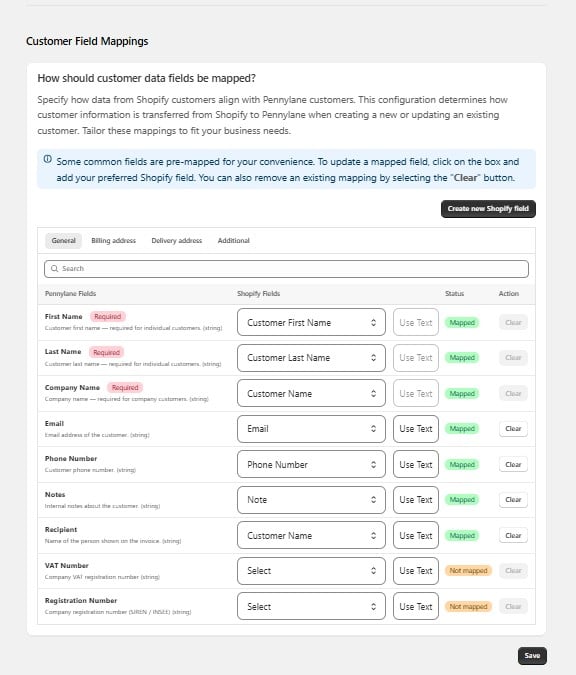 Common fields are mapped for you. The mappings are grouped into four tabs:
Name, email, phone, notes, and recipient.
The address used on the invoice.
The address goods are shipped to.
Any remaining Pennylane customer fields.
### Reading the table
| Column | What it shows |
| -------------------- | ------------------------------------------------------------------------------------------------------------------------------------------------------ |
| **Pennylane Fields** | The field being filled, with a short description. Fields marked **Required** must have a value. |
| **Shopify Fields** | Where the value comes from. Pick a Shopify field from the dropdown, or select **Use Text** to enter a fixed value that is the same for every customer. |
| **Status** | **Mapped** means a source is set. **Not mapped** means the field will be left empty in Pennylane. |
| **Action** | **Clear** removes an existing mapping. |
### Required fields
Three fields must be filled for a customer to be created:
* **First Name** — required for individual customers
* **Last Name** — required for individual customers
* **Company Name** — required for company customers
Which fields are required depends on the **Customer Type** you set in Customer Default Mappings. If you create customers as *Company*, Company Name must always have a value. If your Shopify orders don't reliably contain a company name, use **Use Text** to set a fallback, or create customers as *Individual* instead.
### Making changes
1. Find the Pennylane field you want to change, using the **Search** box if the list is long.
2. Open the **Shopify Fields** dropdown and choose a source, or select **Use Text** to enter a fixed value.
3. To remove a mapping, select **Clear**.
4. Select **Save**.
Changes apply to customers created or updated **after** you save. Existing Pennylane customers are not rewritten.
Common fields are mapped for you. The mappings are grouped into four tabs:
Name, email, phone, notes, and recipient.
The address used on the invoice.
The address goods are shipped to.
Any remaining Pennylane customer fields.
### Reading the table
| Column | What it shows |
| -------------------- | ------------------------------------------------------------------------------------------------------------------------------------------------------ |
| **Pennylane Fields** | The field being filled, with a short description. Fields marked **Required** must have a value. |
| **Shopify Fields** | Where the value comes from. Pick a Shopify field from the dropdown, or select **Use Text** to enter a fixed value that is the same for every customer. |
| **Status** | **Mapped** means a source is set. **Not mapped** means the field will be left empty in Pennylane. |
| **Action** | **Clear** removes an existing mapping. |
### Required fields
Three fields must be filled for a customer to be created:
* **First Name** — required for individual customers
* **Last Name** — required for individual customers
* **Company Name** — required for company customers
Which fields are required depends on the **Customer Type** you set in Customer Default Mappings. If you create customers as *Company*, Company Name must always have a value. If your Shopify orders don't reliably contain a company name, use **Use Text** to set a fallback, or create customers as *Individual* instead.
### Making changes
1. Find the Pennylane field you want to change, using the **Search** box if the list is long.
2. Open the **Shopify Fields** dropdown and choose a source, or select **Use Text** to enter a fixed value.
3. To remove a mapping, select **Clear**.
4. Select **Save**.
Changes apply to customers created or updated **after** you save. Existing Pennylane customers are not rewritten.