> ## Documentation Index
> Fetch the complete documentation index at: https://docs.cloudify.biz/llms.txt
> Use this file to discover all available pages before exploring further.
# Invoice Sync Settings
> Set when invoices are created in Pennylane, whether they are drafts or finalised, and how order data appears on them.
These settings control the invoice itself — when it's created, what state it's created in, and which Shopify values appear on it.
***
## Invoice Sync Rules
### Automatically create (Pennylane) Invoices
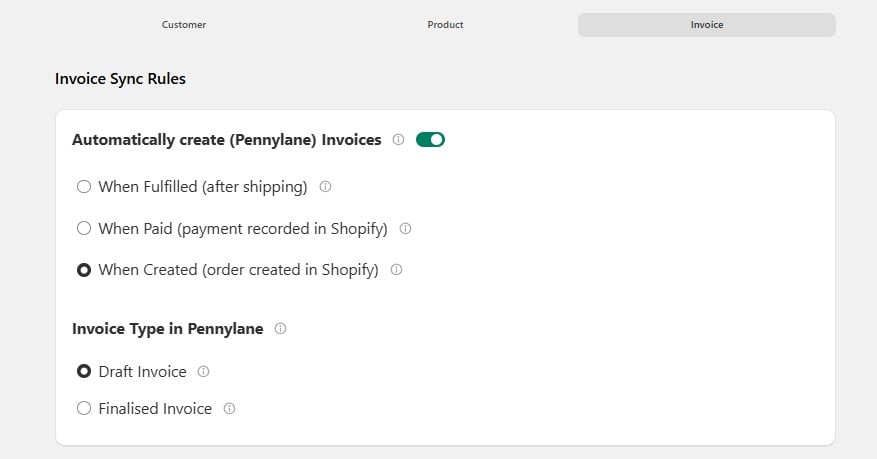 Leave the toggle **on** to have invoices created automatically. Switching it off stops invoice creation entirely, while leaving your other settings in place.
### Order Status
This setting decides **when** the integration creates the invoice, based on the status of the Shopify order.
Choose this option to create a Pennylane invoice when the Shopify order is marked as **Fulfilled**. This usually happens after the order has been shipped. Use this if you want to create invoices only after products are sent to the customer.
**Use this when** you ship before invoicing, sell made-to-order goods, or hold stock for long periods. Cancelled orders never reach Pennylane at all.
Choose this option to create a Pennylane invoice as soon as the Shopify order is marked as **Paid**. The invoice is created after the payment is received, even if the order hasn't been shipped yet. This is a good option if you want to record sales quickly.
**Use this when** you offer payment methods that don't settle at checkout — bank transfer, invoice terms, cash on delivery — and you only want confirmed sales in Pennylane.
Choose this option to create a Pennylane invoice as soon as a new order is received in Shopify. It's ideal for Cash on Delivery (COD) orders or if you want invoices to be created immediately.
**Use this when** you want your books to reflect sales immediately. This suits most online stores, where payment is taken at checkout.
Only one option applies. Choose the point in your process that you'd call "the sale has happened" — your *expert-comptable* may have a preference here.
### Invoice Type in Pennylane
This decides what state the invoice arrives in.
| Option | What it means |
| ----------------------------- | --------------------------------------------------------------------------------------------------------- |
| **Draft Invoice** *(default)* | The invoice is created as a draft. It can still be edited or deleted in Pennylane before it is validated. |
| **Finalised Invoice** | The invoice is issued immediately and given a number. It cannot be edited afterwards. |
**Choose Draft** if you want to review invoices before they are issued. This is the safer starting point while you're checking that the integration produces what you expect.
**Choose Finalised** if you're confident in the setup and want invoices issued without a manual step.
A finalised invoice cannot be corrected. Any mistake has to be resolved with a credit note (*avoir*). Test thoroughly on drafts before switching.
**Credit notes from Shopify refunds only work with finalised invoices.** If you leave the invoice type as *Draft*, the refund option below has no effect.
***
## Additional Options
Leave the toggle **on** to have invoices created automatically. Switching it off stops invoice creation entirely, while leaving your other settings in place.
### Order Status
This setting decides **when** the integration creates the invoice, based on the status of the Shopify order.
Choose this option to create a Pennylane invoice when the Shopify order is marked as **Fulfilled**. This usually happens after the order has been shipped. Use this if you want to create invoices only after products are sent to the customer.
**Use this when** you ship before invoicing, sell made-to-order goods, or hold stock for long periods. Cancelled orders never reach Pennylane at all.
Choose this option to create a Pennylane invoice as soon as the Shopify order is marked as **Paid**. The invoice is created after the payment is received, even if the order hasn't been shipped yet. This is a good option if you want to record sales quickly.
**Use this when** you offer payment methods that don't settle at checkout — bank transfer, invoice terms, cash on delivery — and you only want confirmed sales in Pennylane.
Choose this option to create a Pennylane invoice as soon as a new order is received in Shopify. It's ideal for Cash on Delivery (COD) orders or if you want invoices to be created immediately.
**Use this when** you want your books to reflect sales immediately. This suits most online stores, where payment is taken at checkout.
Only one option applies. Choose the point in your process that you'd call "the sale has happened" — your *expert-comptable* may have a preference here.
### Invoice Type in Pennylane
This decides what state the invoice arrives in.
| Option | What it means |
| ----------------------------- | --------------------------------------------------------------------------------------------------------- |
| **Draft Invoice** *(default)* | The invoice is created as a draft. It can still be edited or deleted in Pennylane before it is validated. |
| **Finalised Invoice** | The invoice is issued immediately and given a number. It cannot be edited afterwards. |
**Choose Draft** if you want to review invoices before they are issued. This is the safer starting point while you're checking that the integration produces what you expect.
**Choose Finalised** if you're confident in the setup and want invoices issued without a manual step.
A finalised invoice cannot be corrected. Any mistake has to be resolved with a credit note (*avoir*). Test thoroughly on drafts before switching.
**Credit notes from Shopify refunds only work with finalised invoices.** If you leave the invoice type as *Draft*, the refund option below has no effect.
***
## Additional Options
 ### Include shipping charges
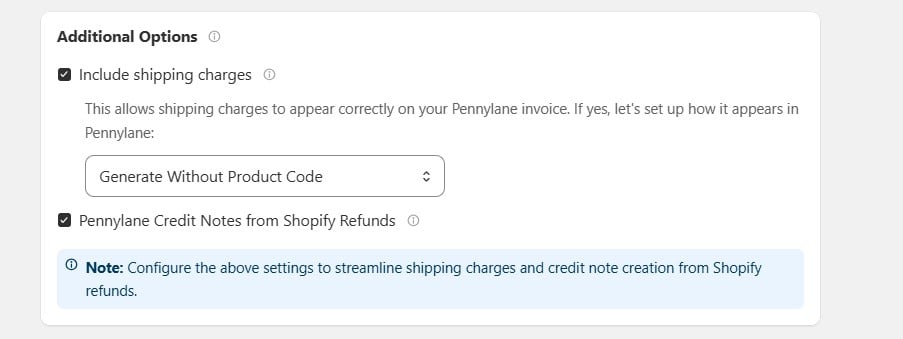
Enable this option to add shipping charges from the Shopify order to the Pennylane invoice. After enabling it, select any product from the list. The integration will use that product to add the shipping charge automatically.
### Pennylane Credit Notes from Shopify Refunds
When this is **on**, issuing a refund in Shopify creates a credit note (*avoir*) in Pennylane.
You select a Pennylane product to represent refunds. The **amount comes from the Shopify refund** — the product is only there to give the credit note a line to sit on.
This works **only with finalised invoices**. A draft invoice has not been issued, so there is nothing to credit. If you're using drafts, edit or delete the draft in Pennylane instead.
***
## Invoice Field Mappings
### How should invoice data fields be mapped?
This decides which Shopify values appear on the invoice.
### Include shipping charges
Enable this option to add shipping charges from the Shopify order to the Pennylane invoice. After enabling it, select any product from the list. The integration will use that product to add the shipping charge automatically.
### Pennylane Credit Notes from Shopify Refunds
When this is **on**, issuing a refund in Shopify creates a credit note (*avoir*) in Pennylane.
You select a Pennylane product to represent refunds. The **amount comes from the Shopify refund** — the product is only there to give the credit note a line to sit on.
This works **only with finalised invoices**. A draft invoice has not been issued, so there is nothing to credit. If you're using drafts, edit or delete the draft in Pennylane instead.
***
## Invoice Field Mappings
### How should invoice data fields be mapped?
This decides which Shopify values appear on the invoice.
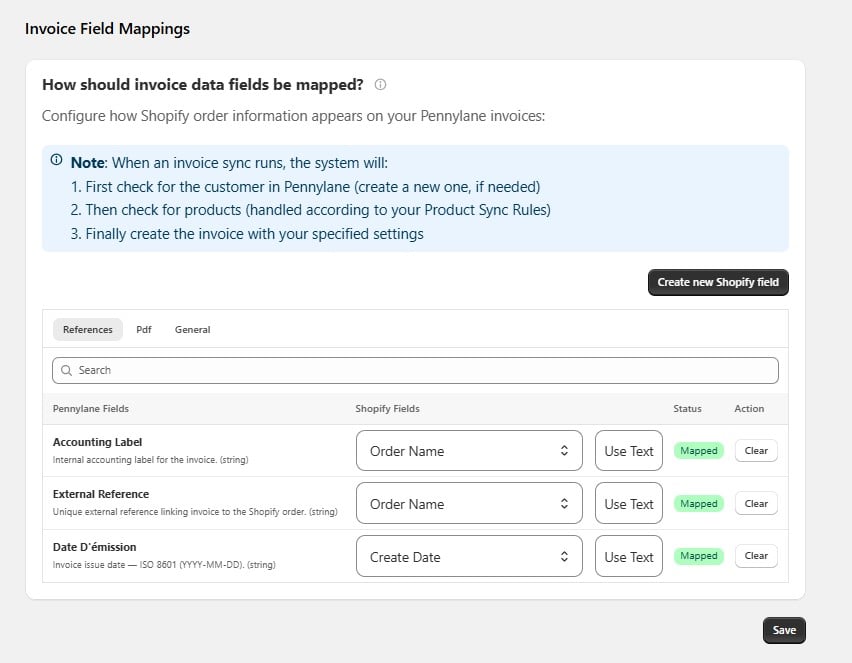 **What happens on each sync**, in order:
1. The customer is found in Pennylane, or created if needed.
2. The products are found, following your Product Sync Rules.
3. The invoice is created using the settings on this page.
If step 1 or 2 fails, the invoice isn't created.
The mappings are grouped into three tabs:
Labels, references, and the invoice date.
What appears on the invoice document itself.
Remaining invoice-level fields.
### References tab
| Pennylane field | Default source | What it's for |
| ---------------------- | -------------- | ------------------------------------------------------------------------------------------- |
| **Accounting Label** | Order Name | Internal accounting label for the invoice. This is what your accountant sees in the ledger. |
| **External Reference** | Order Name | A unique reference linking the Pennylane invoice back to the Shopify order. |
| **Date d'émission** | Create Date | The invoice issue date, in `YYYY-MM-DD` format. |
Leave **External Reference** mapped to Order Name. It's what lets you find the Shopify order behind any invoice, and it's the first thing you'll want when something looks wrong.
The invoice date follows the **Order Status** setting above. If you invoice *When Created*, the date is the order date; if you invoice *When Paid* or *When Fulfilled*, consider whether the create date is still the right one for your books.
### Reading the table
| Column | What it shows |
| ------------------ | ----------------------------------------------------------------------------------------------------- |
| **Shopify Fields** | Where the value comes from. Pick a field from the dropdown, or select **Use Text** for a fixed value. |
| **Status** | **Mapped** means a source is set. **Not mapped** means the field is left empty. |
| **Action** | **Clear** removes a mapping. |
Need a value Shopify doesn't hold? Select **Create new Shopify field** to add one, then map it here.
### Making changes
1. Open the tab you need, and use **Search** if the list is long.
2. Choose a Shopify field, or select **Use Text** for a fixed value.
3. Select **Clear** to remove a mapping.
4. Select **Save**.
Changes apply to invoices created **after** you save. Invoices already in Pennylane are not changed.
**What happens on each sync**, in order:
1. The customer is found in Pennylane, or created if needed.
2. The products are found, following your Product Sync Rules.
3. The invoice is created using the settings on this page.
If step 1 or 2 fails, the invoice isn't created.
The mappings are grouped into three tabs:
Labels, references, and the invoice date.
What appears on the invoice document itself.
Remaining invoice-level fields.
### References tab
| Pennylane field | Default source | What it's for |
| ---------------------- | -------------- | ------------------------------------------------------------------------------------------- |
| **Accounting Label** | Order Name | Internal accounting label for the invoice. This is what your accountant sees in the ledger. |
| **External Reference** | Order Name | A unique reference linking the Pennylane invoice back to the Shopify order. |
| **Date d'émission** | Create Date | The invoice issue date, in `YYYY-MM-DD` format. |
Leave **External Reference** mapped to Order Name. It's what lets you find the Shopify order behind any invoice, and it's the first thing you'll want when something looks wrong.
The invoice date follows the **Order Status** setting above. If you invoice *When Created*, the date is the order date; if you invoice *When Paid* or *When Fulfilled*, consider whether the create date is still the right one for your books.
### Reading the table
| Column | What it shows |
| ------------------ | ----------------------------------------------------------------------------------------------------- |
| **Shopify Fields** | Where the value comes from. Pick a field from the dropdown, or select **Use Text** for a fixed value. |
| **Status** | **Mapped** means a source is set. **Not mapped** means the field is left empty. |
| **Action** | **Clear** removes a mapping. |
Need a value Shopify doesn't hold? Select **Create new Shopify field** to add one, then map it here.
### Making changes
1. Open the tab you need, and use **Search** if the list is long.
2. Choose a Shopify field, or select **Use Text** for a fixed value.
3. Select **Clear** to remove a mapping.
4. Select **Save**.
Changes apply to invoices created **after** you save. Invoices already in Pennylane are not changed.