> ## Documentation Index
> Fetch the complete documentation index at: https://docs.cloudify.biz/llms.txt
> Use this file to discover all available pages before exploring further.
# Product Sync Settings
> Set how Shopify products are found in Pennylane, what happens when they aren't, and how product fields are mapped.
These settings control how the integration finds a product in Pennylane for each line on a Shopify order — and what it does when no match exists.
Getting this section right matters more than most. If a product can't be found and there's no fallback in place, the invoice isn't created at all.
***
## Product Sync Rules
### Choose a product search method
There are two ways for the integration to find the right Pennylane product.
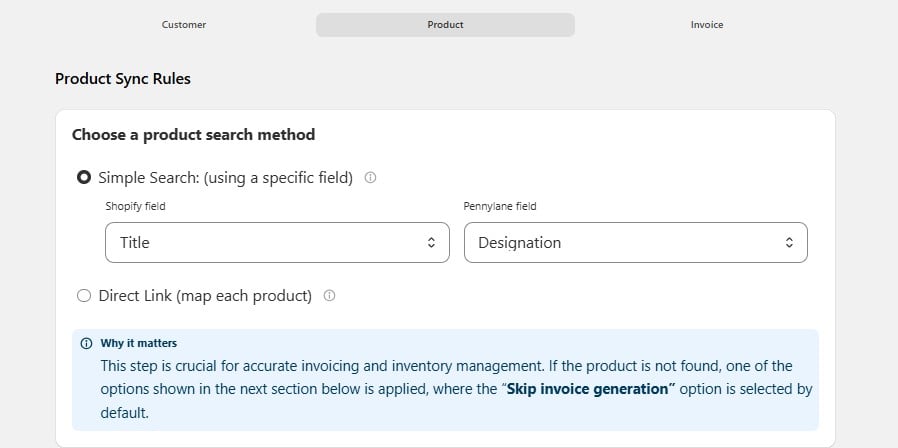 The integration compares one Shopify field against one Pennylane field.
| Setting | Default | What it means |
| --------------- | ----------- | ------------------------------------------- |
| Shopify field | Title | The value taken from the Shopify order line |
| Pennylane field | Designation | The Pennylane field it is compared against |
**Use this when** your Shopify catalogue and your Pennylane product list already share a common value — usually the product title or the SKU.
SKU is a safer match than Title. Titles get edited for marketing reasons; SKUs usually don't.
You map each Pennylane product to a Shopify product by hand.
The integration compares one Shopify field against one Pennylane field.
| Setting | Default | What it means |
| --------------- | ----------- | ------------------------------------------- |
| Shopify field | Title | The value taken from the Shopify order line |
| Pennylane field | Designation | The Pennylane field it is compared against |
**Use this when** your Shopify catalogue and your Pennylane product list already share a common value — usually the product title or the SKU.
SKU is a safer match than Title. Titles get edited for marketing reasons; SKUs usually don't.
You map each Pennylane product to a Shopify product by hand.
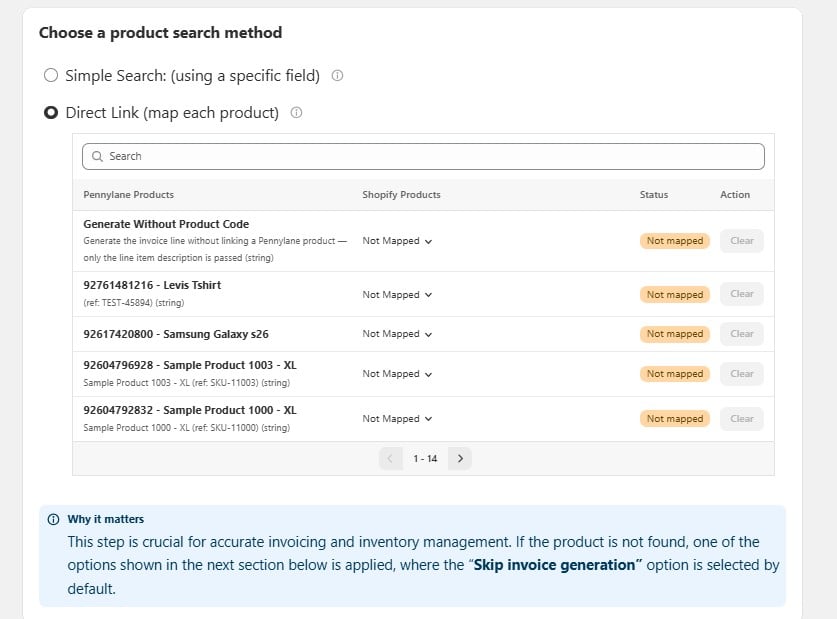 Use the **Search** box to find a product, then pick its Shopify counterpart from the dropdown. **Clear** removes a mapping. The list is paginated, so work through every page.
**Use this when** your product names and codes don't line up between the two systems, or when you have a small, stable catalogue.
Direct Link only covers the products you map. Anything unmapped falls through to the **If product not found** setting below. This method needs maintaining every time you add a product.
#### Generate Without Product Code
The first row in the list is a special option. Map a Shopify product here to put it on the invoice as a **line item description only**, with no Pennylane product attached.
Useful for one-off charges or items you don't want cluttering your Pennylane product list.
***
## If product not found in Pennylane
This is the fallback. It decides what happens when the search above comes back empty.
Use the **Search** box to find a product, then pick its Shopify counterpart from the dropdown. **Clear** removes a mapping. The list is paginated, so work through every page.
**Use this when** your product names and codes don't line up between the two systems, or when you have a small, stable catalogue.
Direct Link only covers the products you map. Anything unmapped falls through to the **If product not found** setting below. This method needs maintaining every time you add a product.
#### Generate Without Product Code
The first row in the list is a special option. Map a Shopify product here to put it on the invoice as a **line item description only**, with no Pennylane product attached.
Useful for one-off charges or items you don't want cluttering your Pennylane product list.
***
## If product not found in Pennylane
This is the fallback. It decides what happens when the search above comes back empty.
 If the Shopify product isn't found, the integration will skip creating the invoice in Pennylane. This helps avoid errors, but you'll need to check and fix the missing products manually.
One unmatched line blocks the entire invoice, not just that line.
If the Shopify product isn't found, the integration will still create the invoice in Pennylane using the product you selected. Only the product ID comes from the selected Pennylane product. The product name, price, and quantity are taken from Shopify.
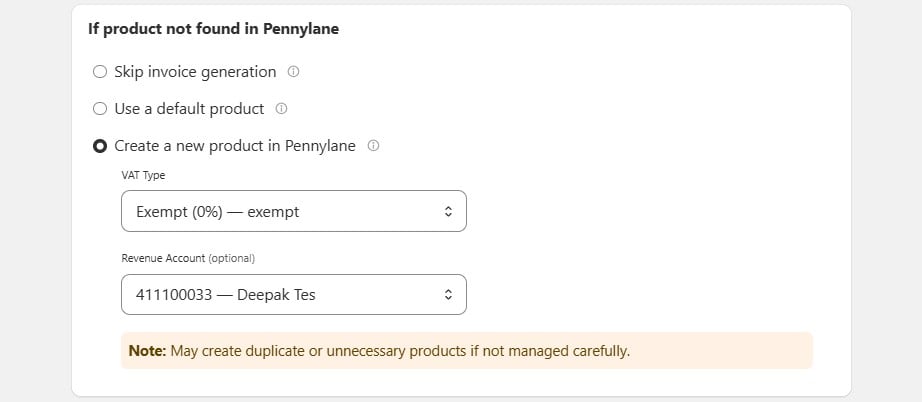
If the Shopify product isn't found, the integration will automatically create a new product in Pennylane using the Shopify product details. Choose a product group for new products. This makes sure all products are synced, but it may create duplicate products if the same product already exists.
Two settings apply to every product created this way:
| Setting | What it does |
| -------------------------------- | ------------------------------------------------------------------------------------------------------------------------- |
| **VAT Type** | The VAT rate given to the new product. Set this to the rate you actually sell at — for most French merchants that is 20%. |
| **Revenue Account** *(optional)* | The Pennylane account the sales are posted to. Leave it blank to use your Pennylane default. |
This option can create duplicate or unnecessary products if your Shopify titles vary. Two spellings of the same product become two products in Pennylane.
Check the **VAT Type** before you save. Every product created by the integration inherits it, and correcting the VAT on invoices already issued means raising credit notes (*avoirs*).
***
## Tax settings
### Exclude Shopify Tax from Pennylane invoices
Enable this option to remove Shopify taxes when creating invoices in Pennylane. If enabled, only the tax set in Pennylane will be applied to the invoice.
If the Shopify product isn't found, the integration will skip creating the invoice in Pennylane. This helps avoid errors, but you'll need to check and fix the missing products manually.
One unmatched line blocks the entire invoice, not just that line.
If the Shopify product isn't found, the integration will still create the invoice in Pennylane using the product you selected. Only the product ID comes from the selected Pennylane product. The product name, price, and quantity are taken from Shopify.
If the Shopify product isn't found, the integration will automatically create a new product in Pennylane using the Shopify product details. Choose a product group for new products. This makes sure all products are synced, but it may create duplicate products if the same product already exists.
Two settings apply to every product created this way:
| Setting | What it does |
| -------------------------------- | ------------------------------------------------------------------------------------------------------------------------- |
| **VAT Type** | The VAT rate given to the new product. Set this to the rate you actually sell at — for most French merchants that is 20%. |
| **Revenue Account** *(optional)* | The Pennylane account the sales are posted to. Leave it blank to use your Pennylane default. |
This option can create duplicate or unnecessary products if your Shopify titles vary. Two spellings of the same product become two products in Pennylane.
Check the **VAT Type** before you save. Every product created by the integration inherits it, and correcting the VAT on invoices already issued means raising credit notes (*avoirs*).
***
## Tax settings
### Exclude Shopify Tax from Pennylane invoices
Enable this option to remove Shopify taxes when creating invoices in Pennylane. If enabled, only the tax set in Pennylane will be applied to the invoice.
 ***
## Product Field Mappings
This section applies **only** if you chose **Create a new product in Pennylane** above. If you didn't, nothing here has any effect.
### How should product data fields be mapped?
This decides which Shopify value fills each field on a newly created Pennylane product.
***
## Product Field Mappings
This section applies **only** if you chose **Create a new product in Pennylane** above. If you didn't, nothing here has any effect.
### How should product data fields be mapped?
This decides which Shopify value fills each field on a newly created Pennylane product.
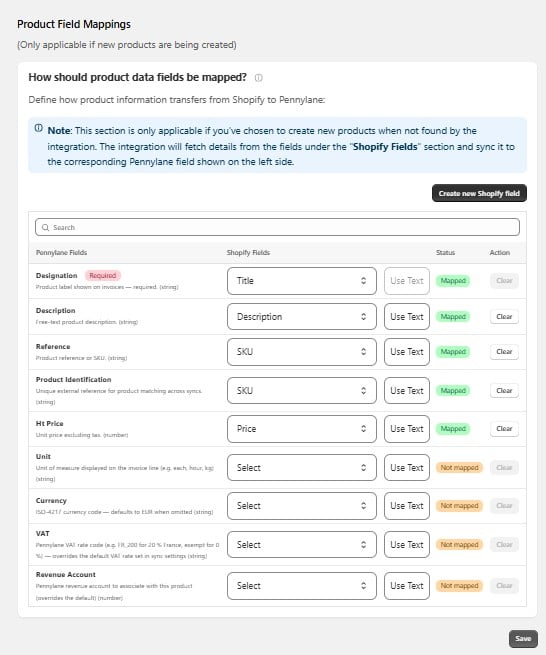 | Pennylane field | Default source | What it's for |
| ---------------------------- | -------------- | ------------------------------------------------------------------------------------------------ |
| **Designation** *(required)* | Title | The product label shown on the invoice. |
| **Description** | Description | Free-text product description. |
| **Reference** | SKU | Your product reference or SKU. |
| **Product Identification** | SKU | A unique external reference used to match the product on later syncs. |
| **HT Price** | Price | Unit price **excluding VAT**. *HT* stands for *hors taxes*. |
| **Unit** | Not mapped | Unit of measure on the invoice line — each, hour, kg. |
| **Currency** | Not mapped | Three-letter currency code. Defaults to EUR when left empty. |
| **VAT** | Not mapped | Pennylane VAT rate code, for example `FR_200` for 20%. Overrides the default VAT rate set above. |
| **Revenue Account** | Not mapped | The Pennylane revenue account for this product. Overrides the default set above. |
### Reading the table
| Column | What it shows |
| ------------------ | ----------------------------------------------------------------------------------------------------------------------------------- |
| **Shopify Fields** | Where the value comes from. Pick a field from the dropdown, or select **Use Text** to enter the same fixed value for every product. |
| **Status** | **Mapped** means a source is set. **Not mapped** means the field is left empty and Pennylane's own default applies. |
| **Action** | **Clear** removes a mapping. |
Leaving **VAT** and **Revenue Account** unmapped is fine for most stores — the defaults you set under *Create a new product in Pennylane* are used instead. Map them only if different products need different rates or accounts.
**HT Price** must be the price *before* VAT. If your Shopify prices include VAT, mapping them straight into this field will overstate your revenue. Check with your *expert-comptable* if you're unsure which way your store is configured.
### Making changes
1. Find the Pennylane field, using the **Search** box if the list is long.
2. Choose a Shopify field from the dropdown, or select **Use Text** for a fixed value.
3. Select **Clear** to remove a mapping.
4. Select **Save**.
Mappings apply to products created **after** you save. Products already in Pennylane are not changed.
| Pennylane field | Default source | What it's for |
| ---------------------------- | -------------- | ------------------------------------------------------------------------------------------------ |
| **Designation** *(required)* | Title | The product label shown on the invoice. |
| **Description** | Description | Free-text product description. |
| **Reference** | SKU | Your product reference or SKU. |
| **Product Identification** | SKU | A unique external reference used to match the product on later syncs. |
| **HT Price** | Price | Unit price **excluding VAT**. *HT* stands for *hors taxes*. |
| **Unit** | Not mapped | Unit of measure on the invoice line — each, hour, kg. |
| **Currency** | Not mapped | Three-letter currency code. Defaults to EUR when left empty. |
| **VAT** | Not mapped | Pennylane VAT rate code, for example `FR_200` for 20%. Overrides the default VAT rate set above. |
| **Revenue Account** | Not mapped | The Pennylane revenue account for this product. Overrides the default set above. |
### Reading the table
| Column | What it shows |
| ------------------ | ----------------------------------------------------------------------------------------------------------------------------------- |
| **Shopify Fields** | Where the value comes from. Pick a field from the dropdown, or select **Use Text** to enter the same fixed value for every product. |
| **Status** | **Mapped** means a source is set. **Not mapped** means the field is left empty and Pennylane's own default applies. |
| **Action** | **Clear** removes a mapping. |
Leaving **VAT** and **Revenue Account** unmapped is fine for most stores — the defaults you set under *Create a new product in Pennylane* are used instead. Map them only if different products need different rates or accounts.
**HT Price** must be the price *before* VAT. If your Shopify prices include VAT, mapping them straight into this field will overstate your revenue. Check with your *expert-comptable* if you're unsure which way your store is configured.
### Making changes
1. Find the Pennylane field, using the **Search** box if the list is long.
2. Choose a Shopify field from the dropdown, or select **Use Text** for a fixed value.
3. Select **Clear** to remove a mapping.
4. Select **Save**.
Mappings apply to products created **after** you save. Products already in Pennylane are not changed.