> ## Documentation Index
> Fetch the complete documentation index at: https://docs.cloudify.biz/llms.txt
> Use this file to discover all available pages before exploring further.
# Cloudify Dashboard
The dashboard is your home base for the integration — it shows your connection and plan status, a summary of your sync settings, and every Shopify order with its current sync state.
***
## Status Cards
The top of the dashboard summarises how the integration is set up.
* **Connection status** — Shows whether your Tripletex account is **Connected**. Click **Connection** to disconnect.
* **Plan details** — Shows your current plan and sync **Usage**. Click **Manage** to change or manage your subscription.
* **Customer** — Summarises your customer match rule (the **Shopify field** and the **Tripletex field** it maps to). Click **Configure** to edit.
* **Product** — Summarises your **Product matching** method and **Product preference** (what happens when a product isn't found). Click **Configure** to edit.
* **Invoices** — Summarises **When to create invoice** and the **Invoice type**. Click **Configure** to edit.
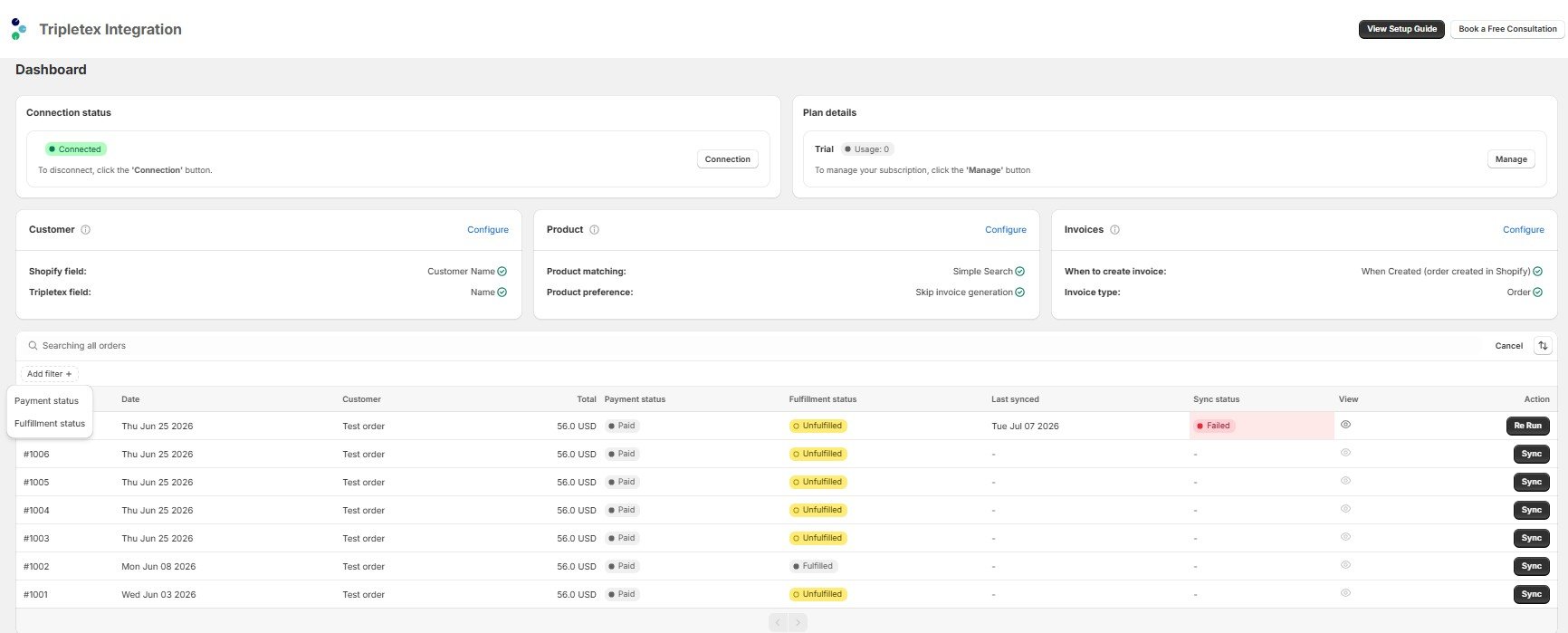 Each **Configure** link opens the matching Sync Settings section, so you can adjust rules without leaving the dashboard for long.
***
## Orders Table
Every Shopify order appears here with its sync state. Use the **All**, **Unfulfilled**, and **Unpaid** tabs to switch views.
Columns:
| Column | What it shows |
| ------------------ | ----------------------------------------------------------------- |
| Order | Shopify order number |
| Date | Order date |
| Customer | Customer name on the order |
| Total | Order total |
| Payment status | Paid / unpaid state from Shopify |
| Fulfillment status | Fulfilled / unfulfilled state from Shopify |
| Last synced | When the order last synced to Tripletex (`-` if never) |
| Sync status | Result of the last sync — e.g. **Failed** (`-` if not yet synced) |
| View | Opens the **Sync Information** for that order |
| Action | **Sync** to run a first sync, or **Re Run** to retry a failed one |
***
### Search, Filter & Sort
* **Search** — Click the search icon to search across all orders.
* **Add filter** — Filter the list by **Payment status** or **Fulfillment status**.
* **Sort** — Sort by **Date**, **Order Number**, **Customer Name**, **Payment Status**, **Fulfillment Status**, or **Total**, in either **Oldest to newest** or **Newest to oldest** order.
***
### Syncing an Order
* **Sync** — For an order that hasn't synced yet, click **Sync** to create the invoice or order in Tripletex.
* **Re Run** — For an order whose **Sync status** is **Failed**, fix the underlying issue first, then click **Re Run** to retry.
***
### Sync Information
Click the **View** (eye) icon on any order to open its **Sync Information**. This shows the result of the last sync — a success confirmation, or the specific reason a sync failed and what to change.
Each **Configure** link opens the matching Sync Settings section, so you can adjust rules without leaving the dashboard for long.
***
## Orders Table
Every Shopify order appears here with its sync state. Use the **All**, **Unfulfilled**, and **Unpaid** tabs to switch views.
Columns:
| Column | What it shows |
| ------------------ | ----------------------------------------------------------------- |
| Order | Shopify order number |
| Date | Order date |
| Customer | Customer name on the order |
| Total | Order total |
| Payment status | Paid / unpaid state from Shopify |
| Fulfillment status | Fulfilled / unfulfilled state from Shopify |
| Last synced | When the order last synced to Tripletex (`-` if never) |
| Sync status | Result of the last sync — e.g. **Failed** (`-` if not yet synced) |
| View | Opens the **Sync Information** for that order |
| Action | **Sync** to run a first sync, or **Re Run** to retry a failed one |
***
### Search, Filter & Sort
* **Search** — Click the search icon to search across all orders.
* **Add filter** — Filter the list by **Payment status** or **Fulfillment status**.
* **Sort** — Sort by **Date**, **Order Number**, **Customer Name**, **Payment Status**, **Fulfillment Status**, or **Total**, in either **Oldest to newest** or **Newest to oldest** order.
***
### Syncing an Order
* **Sync** — For an order that hasn't synced yet, click **Sync** to create the invoice or order in Tripletex.
* **Re Run** — For an order whose **Sync status** is **Failed**, fix the underlying issue first, then click **Re Run** to retry.
***
### Sync Information
Click the **View** (eye) icon on any order to open its **Sync Information**. This shows the result of the last sync — a success confirmation, or the specific reason a sync failed and what to change.
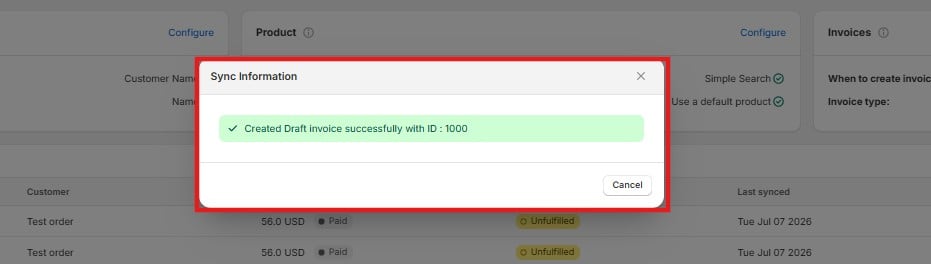 For example, if an order failed because the product wasn't found in Tripletex and your product preference is set to **Skip invoice generation**, the message tells you to either choose a default product or enable search-and-create in your Product Sync settings, then re-run.
If a sync fails, always open **Sync Information** first — it names the exact cause, so you know whether to fix a mapping, a product setting, or the connection before hitting **Re Run**.
For example, if an order failed because the product wasn't found in Tripletex and your product preference is set to **Skip invoice generation**, the message tells you to either choose a default product or enable search-and-create in your Product Sync settings, then re-run.
If a sync fails, always open **Sync Information** first — it names the exact cause, so you know whether to fix a mapping, a product setting, or the connection before hitting **Re Run**.