> ## Documentation Index
> Fetch the complete documentation index at: https://docs.cloudify.biz/llms.txt
> Use this file to discover all available pages before exploring further.
# Customer Sync
> Configure how Stripe customers are matched to e-conomic customers, how customer numbers are handled, and how customer data is mapped.
Use these settings to control how Stripe customers are identified, created, and mapped in e-conomic.
## Customer Sync Settings
### How Do You Want To Match Your Customers?
Select the fields to use for customer identification between Stripe and e-conomic.
The sync process works like this:
1. The system searches for the customer in e-conomic using your chosen fields
2. If the customer is found, that record is used for the sync
3. If the customer is not found, a new customer is created in e-conomic
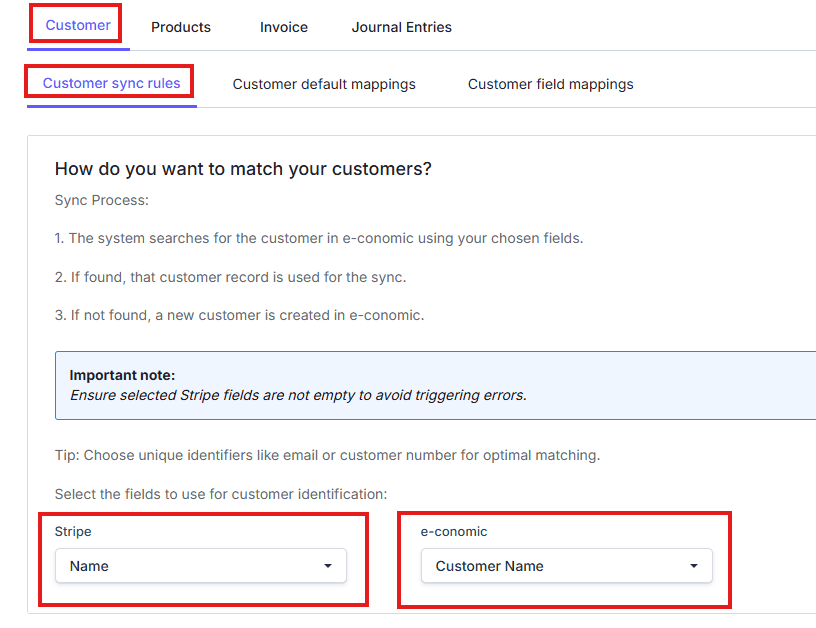
Choose unique identifiers such as email or customer number for the most reliable matching. Also make sure the selected Stripe field is not empty to avoid triggering errors.
## Customer Number Handling
Choose how customer numbers should be managed.
You can choose between:
* Let e-conomic create the customer number
* Use the customer number from Stripe
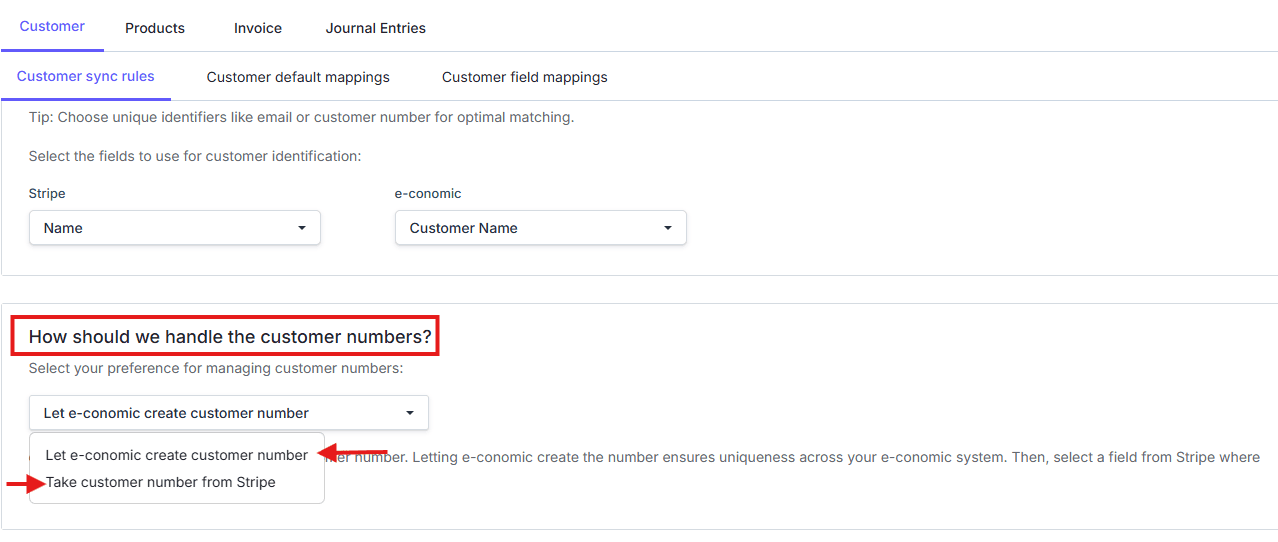
If you let e-conomic create the number, you can also decide which Stripe field should store that generated e-conomic customer number, or choose not to store it anywhere.
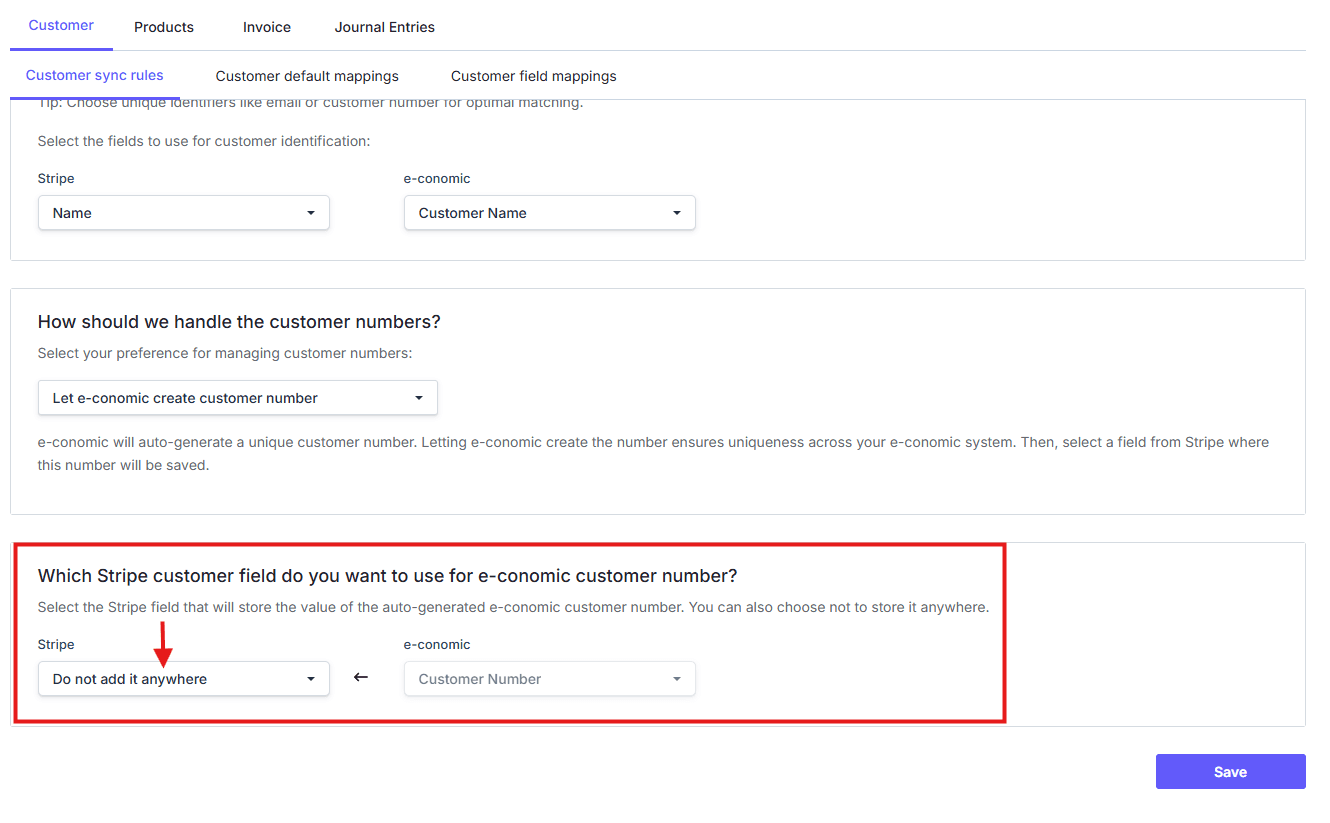
Letting e-conomic create the customer number is the recommended option because it helps keep customer numbers unique inside e-conomic.
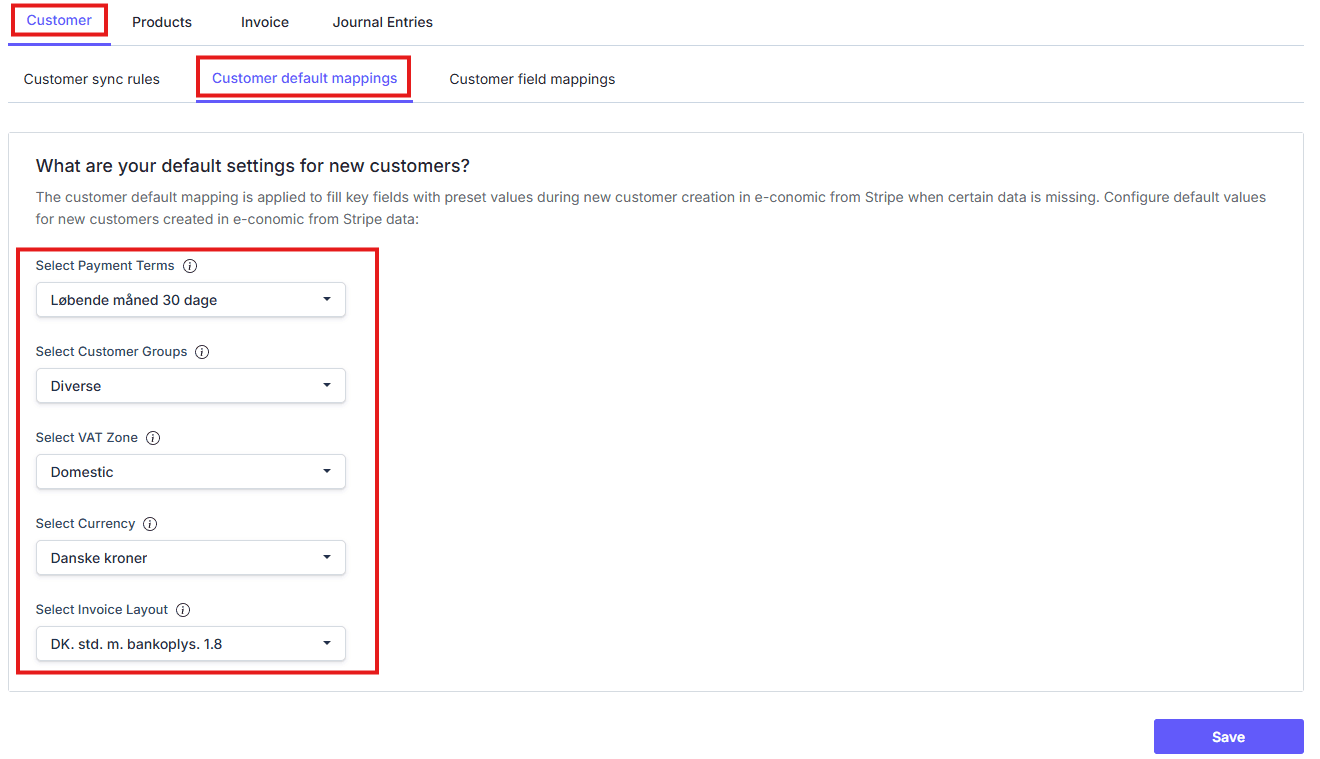
## Default Settings For New Customers
Use the **Customer default mappings** tab to define the default values used when a new customer is created in e-conomic from Stripe data.
This includes:
* Payment Terms
* Customer Group
* VAT Zone
* Currency
* Invoice Layout
## Customer Field Mappings
Use the **Customer field mappings** tab to define how Stripe customer fields should map to e-conomic customer fields.
Some common fields are already pre-mapped for convenience.
To update mappings:
1. Click **Edit** on the row you want to update
2. Choose the preferred Stripe field
3. Repeat for any other fields you want to change
4. Click **Save Mappings**
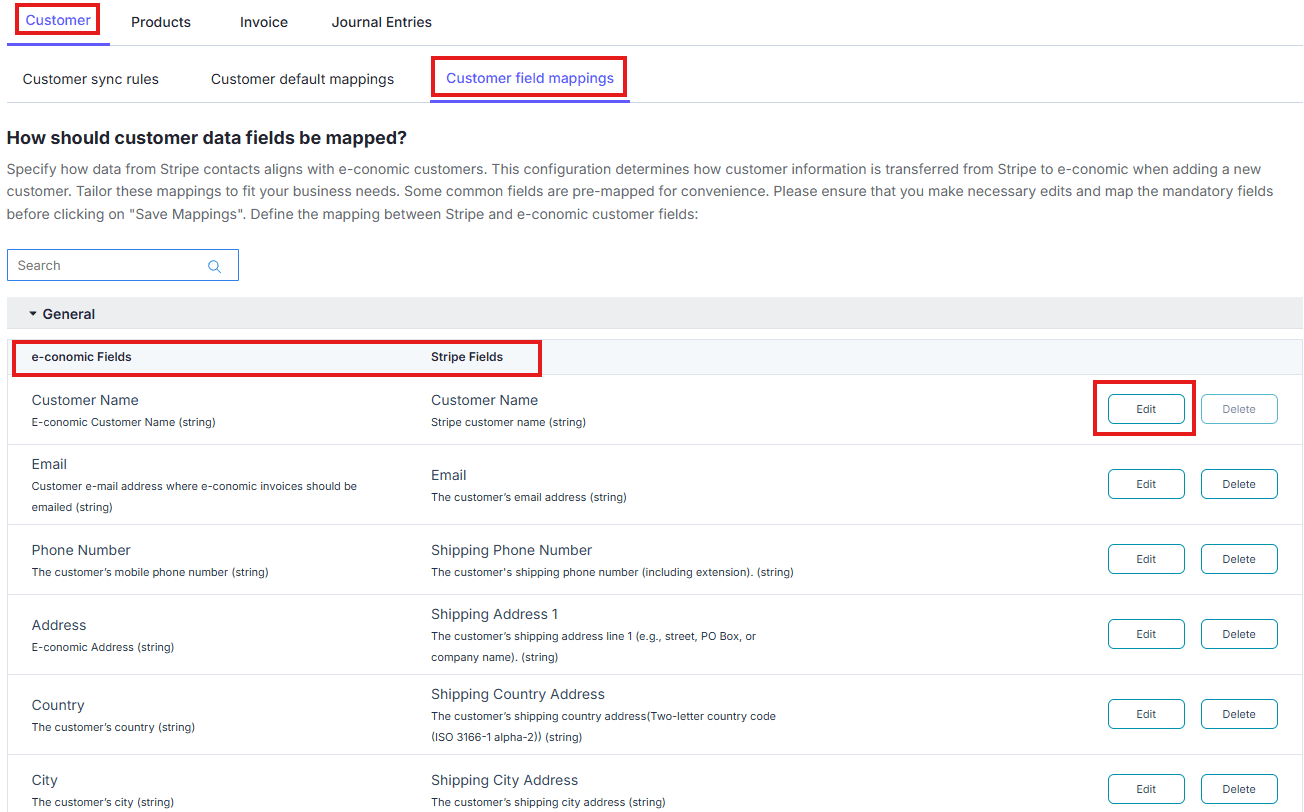
Match similar field types wherever possible, such as email to email or address to address, to improve data accuracy.
Cloudify can help with tailored integrations, specialised data mappings, and workflow automations.