> ## Documentation Index
> Fetch the complete documentation index at: https://docs.cloudify.biz/llms.txt
> Use this file to discover all available pages before exploring further.
# Connect Visma e-conomic Account
Are you ready to supercharge your webshop to accounting workflow? Our simple process seamlessly connects your Stripe and e-conomic accounts, bringing powerful synchronisation to your fingertips. This integration allows you to effortlessly manage your webshop data and make invoices/orders all from within your familiar Stripe interface.
## Initial Installation
### **Getting Started**
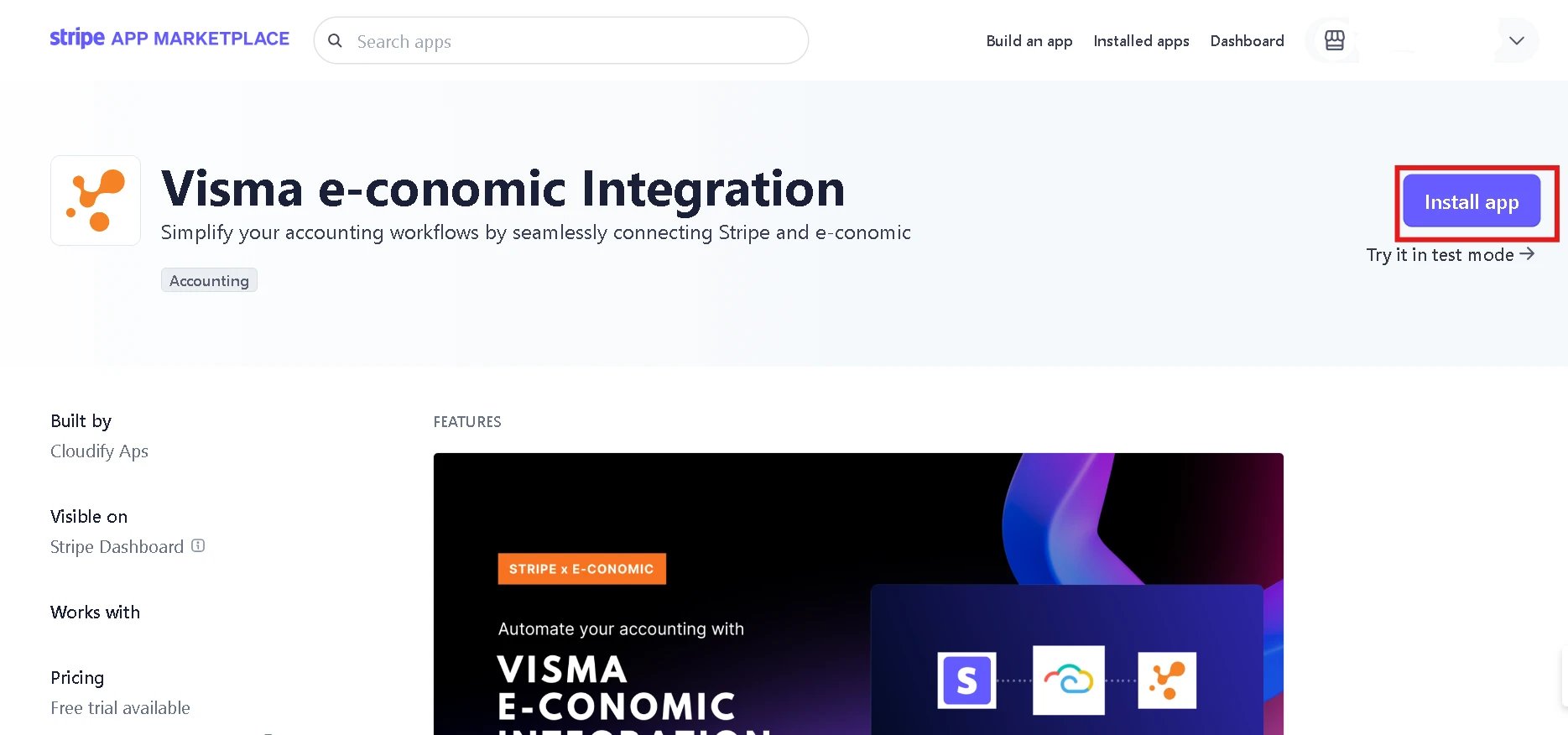
Navigate to the Stripe App Marketplace
Search for "**Cloudify e-conomic Integration**"
Click **"Install app"**
 Complete the authorization process for Stripe
Connect your e-conomic account when prompted
### **Connecting e-conomic**
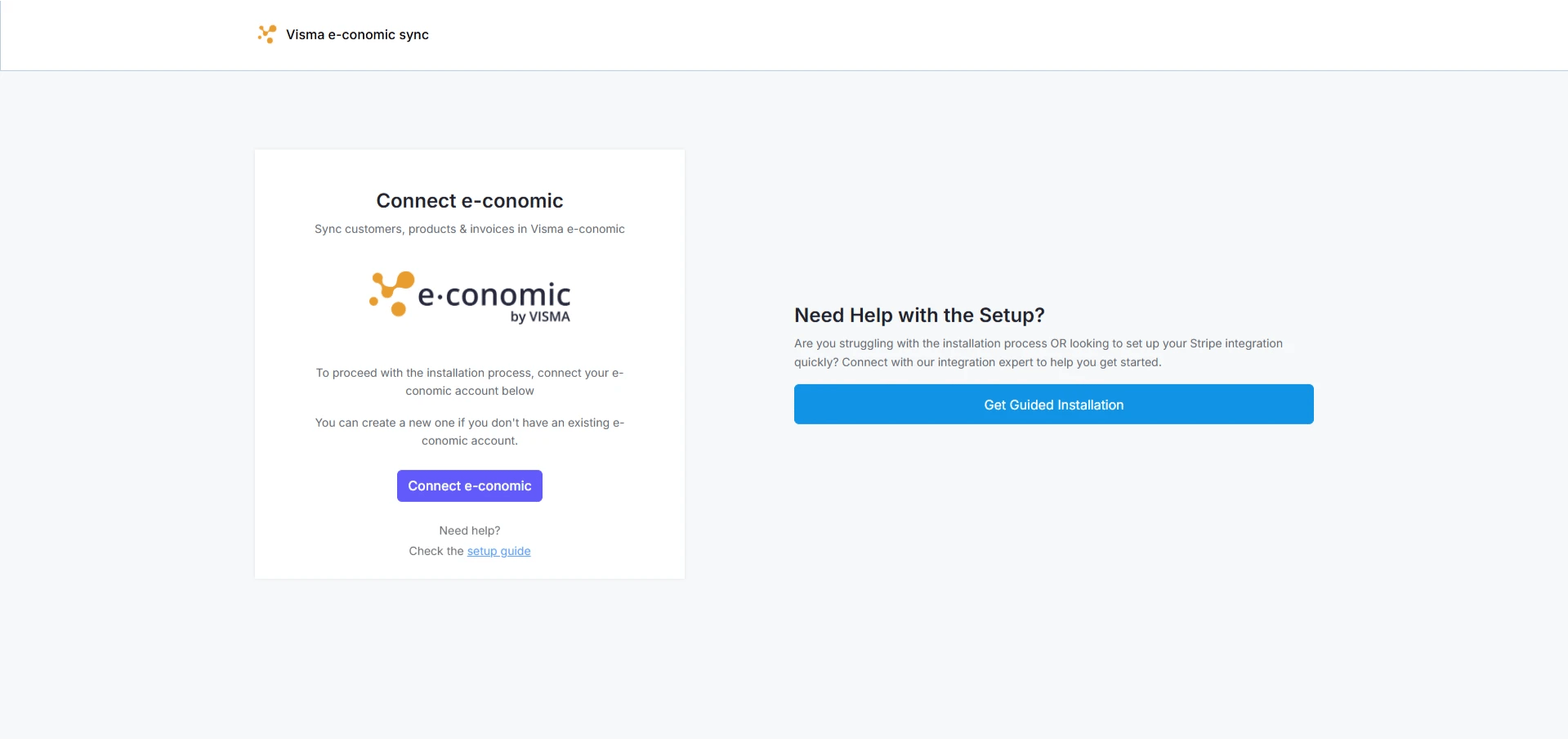
Click "**Connect e-conomic**"
Complete the authorization process for Stripe
Connect your e-conomic account when prompted
### **Connecting e-conomic**
Click "**Connect e-conomic**"
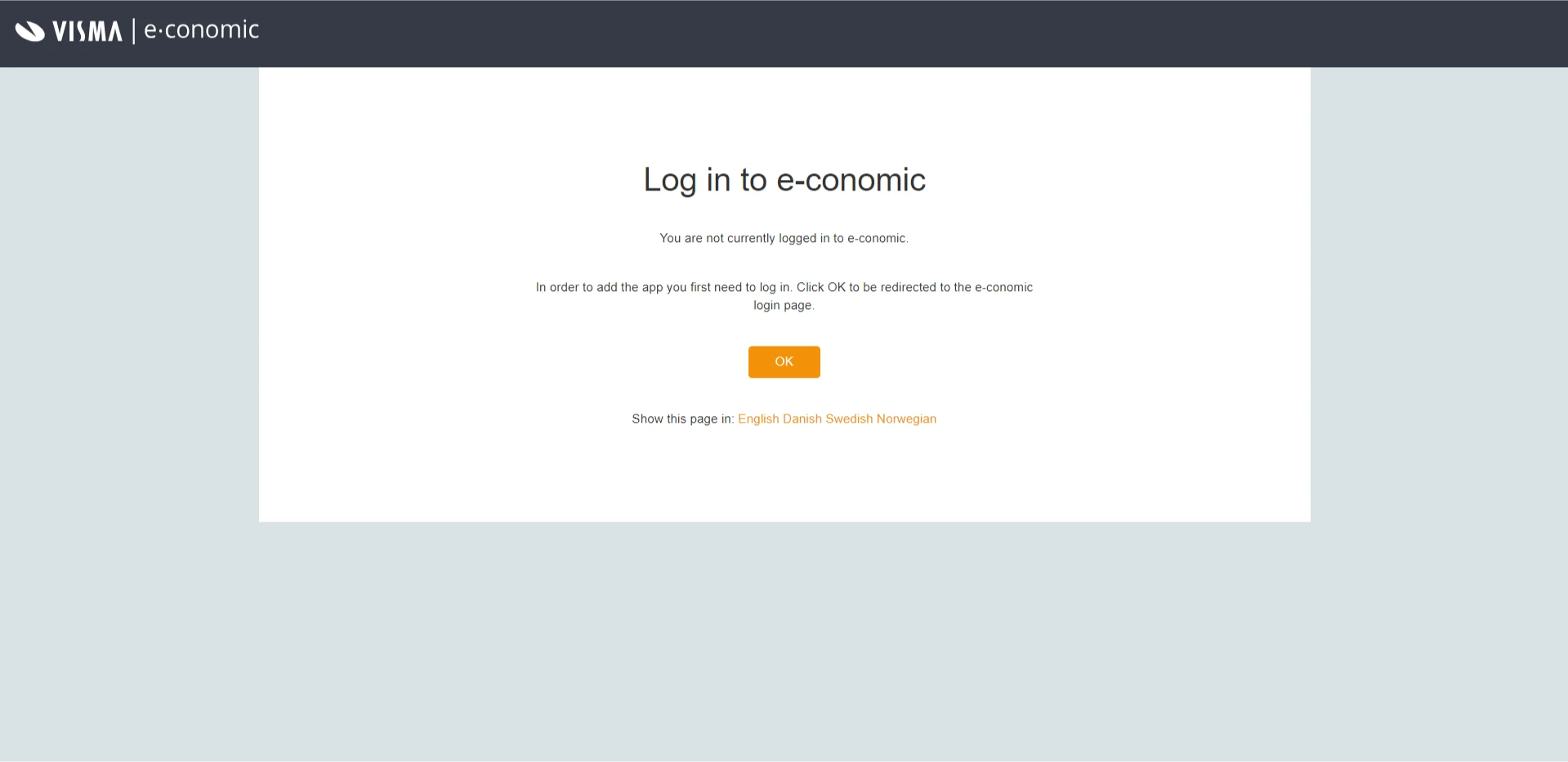
 Log in to your e-conomic account by clicking "**OK**"
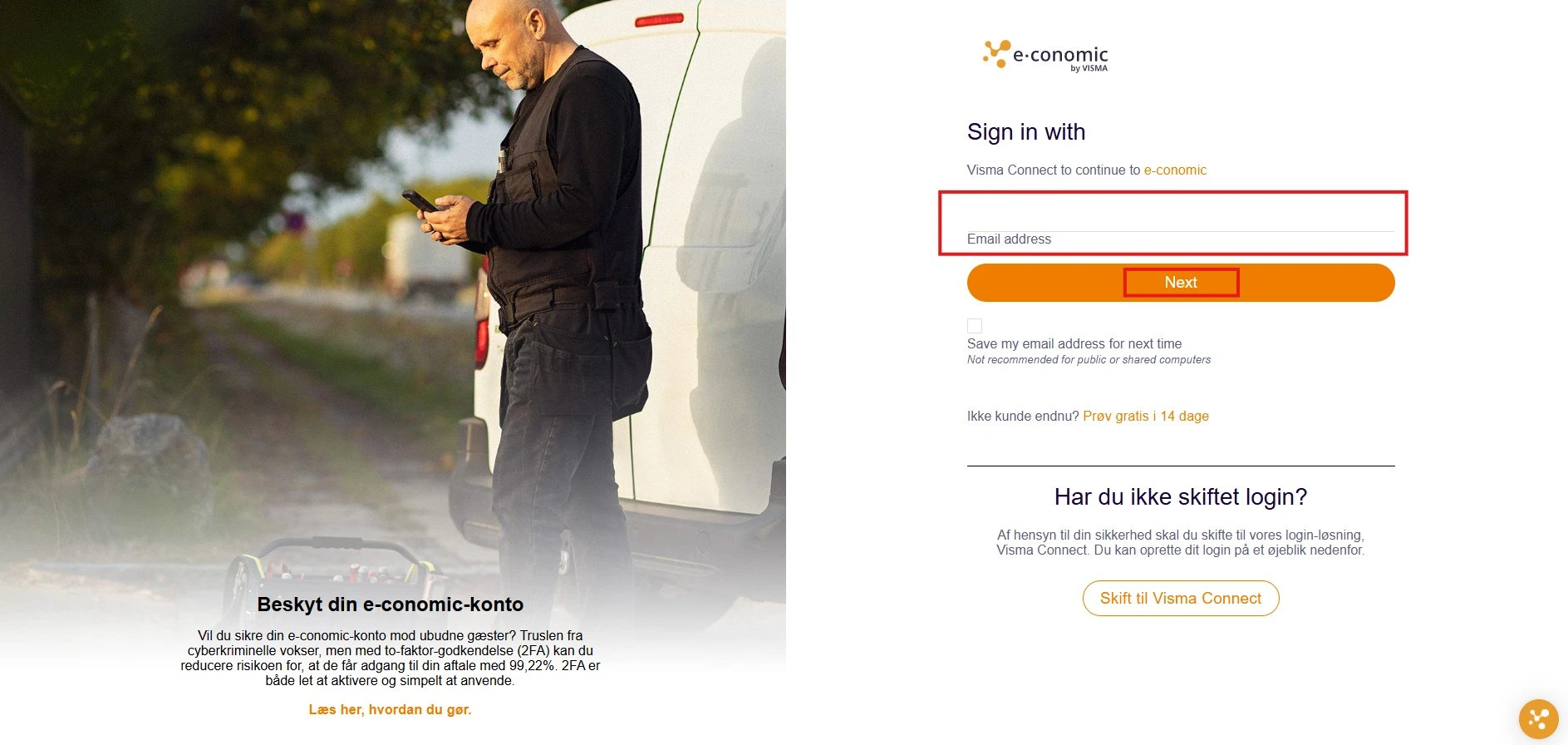
 On the Visma e-conomic login page, enter your email address and click on "**Next**"
 Enter the password and click on **"Sign In**"
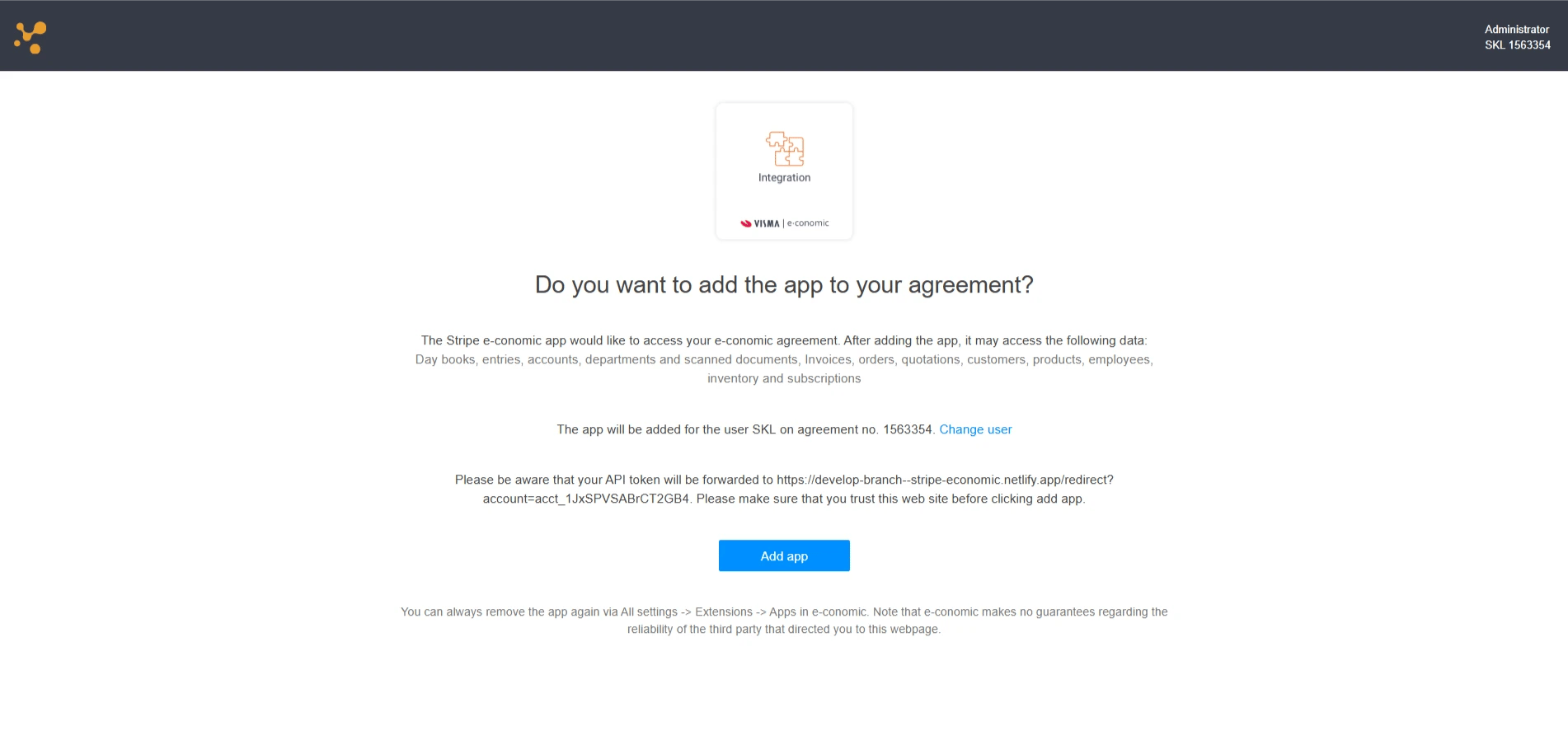
Authorize the integration by clicking on **"Add app"**
Enter the password and click on **"Sign In**"
Authorize the integration by clicking on **"Add app"**
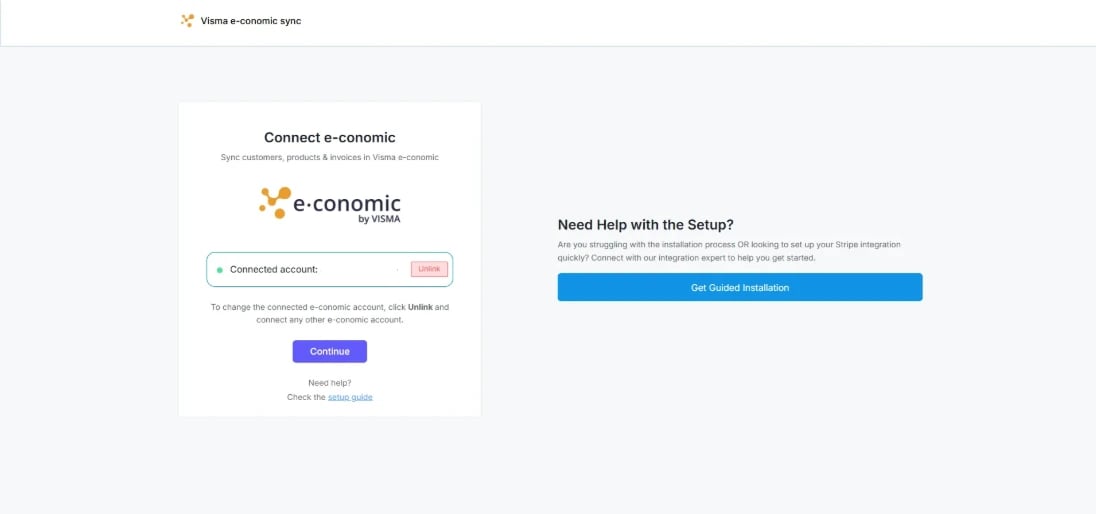
 Verify the connection status shows "Connected". Press "**Continue**" to proceed.