> ## Documentation Index
> Fetch the complete documentation index at: https://docs.cloudify.biz/llms.txt
> Use this file to discover all available pages before exploring further.

# Connect Business Central account 

> Are you ready to supercharge your webshop to accounting workflow? Our simple process seamlessly connects your Stripe and business central accounts, bringing powerful synchronisation to your fingertips. This integration allows you to effortlessly manage your webshop data and make invoices/orders all from within your familiar Stripe interface. 

<Steps>
  <Step>
    Navigate to the Stripe App
  </Step>

  <Step>
    Open the Stripe Invoice Sync app from the AppSource Marketplace.
  </Step>

  <Step>
    Search for "**Cloudify Business central**"
  </Step>

  <Step>
    Click on the '**Install App**' button. You'll be redirected to the Stripe app page.
    <Frame>
      <img src="https://mintcdn.com/cloudify-c7720744/a0-3Jy3YI8VGGm-S/images/image-543.png?fit=max&auto=format&n=a0-3Jy3YI8VGGm-S&q=85&s=8291159f126b2f900ff72113b7e81d43" alt="Image" width="1919" height="937" data-path="images/image-543.png" />
    </Frame>
  </Step>
</Steps>

<Steps>
  <Step>
    Complete the authorization process for Stripe. Click "Install app"
    <Frame>
      <img src="https://mintcdn.com/cloudify-c7720744/lGXfg-sRr29fzWtD/images/image-465.png?fit=max&auto=format&n=lGXfg-sRr29fzWtD&q=85&s=0255f89c49364f794ba224478dda7448" alt="Image" width="1919" height="937" data-path="images/image-465.png" />
    </Frame>
  </Step>

  <Step>
    Connect your Business central account when prompted. Click "Connect Business Central"
    <Frame>
      <img src="https://mintcdn.com/cloudify-c7720744/lGXfg-sRr29fzWtD/images/image-466.png?fit=max&auto=format&n=lGXfg-sRr29fzWtD&q=85&s=816dc6c98dbb19df1aeb45cbe65bbcb0" alt="Image" width="1919" height="942" data-path="images/image-466.png" />
    </Frame>
  </Step>

  <Step>
    You'll be guided to the Business Central authentication screen. Connect your Business Central account and proceed to the next step.
    <Frame>
      <img src="https://mintcdn.com/cloudify-c7720744/lGXfg-sRr29fzWtD/images/image-467.png?fit=max&auto=format&n=lGXfg-sRr29fzWtD&q=85&s=a5961be0e2008f8bf2f25b2b2fe5ef58" alt="Image" width="1919" height="937" data-path="images/image-467.png" />
    </Frame>
  </Step>

  <Step>
    Choose the appropriate environment and company for your Business Central account and continue to the next step.

    <Frame>
      <img src="https://mintcdn.com/cloudify-c7720744/lGXfg-sRr29fzWtD/images/image-467.png?fit=max&auto=format&n=lGXfg-sRr29fzWtD&q=85&s=a5961be0e2008f8bf2f25b2b2fe5ef58" alt="Image" width="1919" height="937" data-path="images/image-467.png" />
    </Frame>
  </Step>

  <Step>
    To sync with Stripe, you will first need to upload and deploy the extension in your Business Central account. Click "**here**" download the extension.
    <Frame>
      <img src="https://mintcdn.com/cloudify-c7720744/lGXfg-sRr29fzWtD/images/image-468.png?fit=max&auto=format&n=lGXfg-sRr29fzWtD&q=85&s=4c7e3daa1026aad1a8afcd0e05c3b7a0" alt="Image" width="1919" height="937" data-path="images/image-468.png" />
    </Frame>
  </Step>

  <Step>
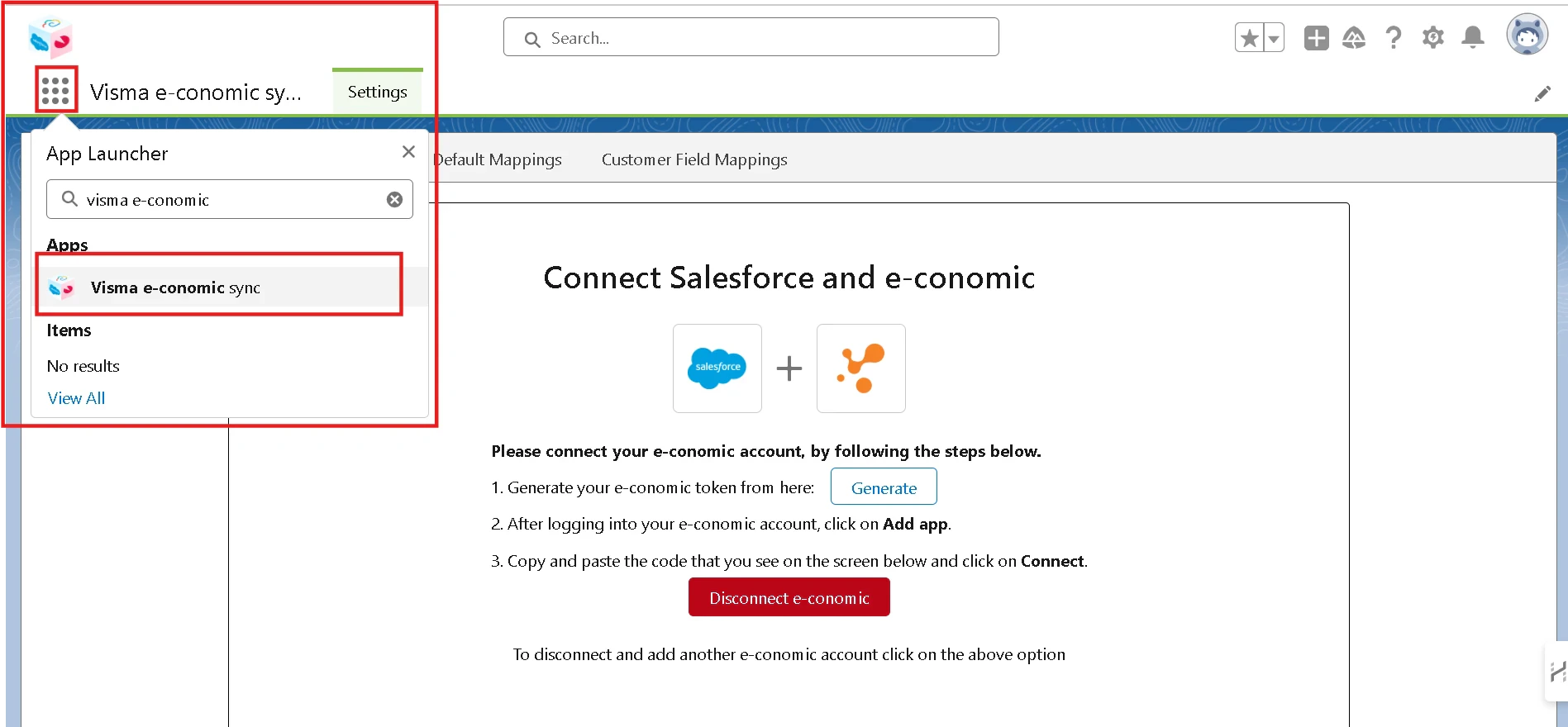
    In Dynamics 365 Business Central. (Make sure you are logged into the same Company and Environment as selected in the previous window) use search to open the Extension Management page. Click on Grid and Click "Business Central". 
    <Frame>
      <img src="https://mintcdn.com/cloudify-c7720744/lGXfg-sRr29fzWtD/images/image-469.png?fit=max&auto=format&n=lGXfg-sRr29fzWtD&q=85&s=3bf665383e5fd73d72ed131aee7a339d" alt="Image" width="1897" height="880" data-path="images/image-469.png" />
    </Frame>
  </Step>

  <Step>
    Select the environment that you want to access. Click "**Ok**" 
    <Frame>
      <img src="https://mintcdn.com/cloudify-c7720744/lGXfg-sRr29fzWtD/images/image-470.png?fit=max&auto=format&n=lGXfg-sRr29fzWtD&q=85&s=f76a4e2357eebc9776084ce1db2a3b80" alt="Image" width="1918" height="877" data-path="images/image-470.png" />
    </Frame>
  </Step>

  <Step>
    Search Extension Management in Search bar. Click "**Extension Management**"
    <Frame>
      <img src="https://mintcdn.com/cloudify-c7720744/lGXfg-sRr29fzWtD/images/image-471.png?fit=max&auto=format&n=lGXfg-sRr29fzWtD&q=85&s=728d03706965e00ecf5de7a3159e2f1e" alt="Image" width="1919" height="940" data-path="images/image-471.png" />
    </Frame>
  </Step>

  <Step>
    In Installed Extension you can search MS Business central sync. Click "MS Business central sync". Click three dots & "**Install**" 
    <Frame>
      <img src="https://mintcdn.com/cloudify-c7720744/lGXfg-sRr29fzWtD/images/image-472.png?fit=max&auto=format&n=lGXfg-sRr29fzWtD&q=85&s=2051d9527c37a7c1161fc584e4a5bf48" alt="Image" width="1919" height="938" data-path="images/image-472.png" />
    </Frame>
  </Step>

  <Step>
    Click "**Install**" 

    <Frame>
      <img src="https://mintcdn.com/cloudify-c7720744/lGXfg-sRr29fzWtD/images/image-474.png?fit=max&auto=format&n=lGXfg-sRr29fzWtD&q=85&s=3a80a9df47a602045d43869f64793233" alt="Image" width="1900" height="937" data-path="images/image-474.png" />
    </Frame>
  </Step>

  <Step>
    Click "**Manage**". Click "**Upload Extension**" 
    <Frame>
      <img src="https://mintcdn.com/cloudify-c7720744/lGXfg-sRr29fzWtD/images/image-475.png?fit=max&auto=format&n=lGXfg-sRr29fzWtD&q=85&s=1151d69d7857c732ebe2297341883cbc" alt="Image" width="1904" height="938" data-path="images/image-475.png" />
    </Frame>
  </Step>

  <Step>
    Click Three dots in **"Select app file"** section. 

    <Frame>
      <img src="https://mintcdn.com/cloudify-c7720744/lGXfg-sRr29fzWtD/images/image-475.png?fit=max&auto=format&n=lGXfg-sRr29fzWtD&q=85&s=1151d69d7857c732ebe2297341883cbc" alt="Image" width="1904" height="938" data-path="images/image-475.png" />
    </Frame>
  </Step>

  <Step>
    Click "**Drop a file here to upload**" to upload extension. 
    <Frame>
      <img src="https://mintcdn.com/cloudify-c7720744/lGXfg-sRr29fzWtD/images/image-476.png?fit=max&auto=format&n=lGXfg-sRr29fzWtD&q=85&s=c1c82f15b4d8ba3037ce3d2410e5fc52" alt="Image" width="1919" height="942" data-path="images/image-476.png" />
    </Frame>
  </Step>

  <Step>
    After uploaded the extension click "**Deploy**". 
    <Frame>
      <img src="https://mintcdn.com/cloudify-c7720744/lGXfg-sRr29fzWtD/images/image-477.png?fit=max&auto=format&n=lGXfg-sRr29fzWtD&q=85&s=570d42cdb7b5c561f749f0ad987ad14a" alt="Image" width="1900" height="940" data-path="images/image-477.png" />
    </Frame>
  </Step>

  <Step>
    Click "**Ok**" 

    <Frame>
      <img src="https://mintcdn.com/cloudify-c7720744/lGXfg-sRr29fzWtD/images/image-478.png?fit=max&auto=format&n=lGXfg-sRr29fzWtD&q=85&s=f6bac32e09c2af4bea65d81801571af1" alt="Image" width="1902" height="937" data-path="images/image-478.png" />
    </Frame>
  </Step>

  <Step>
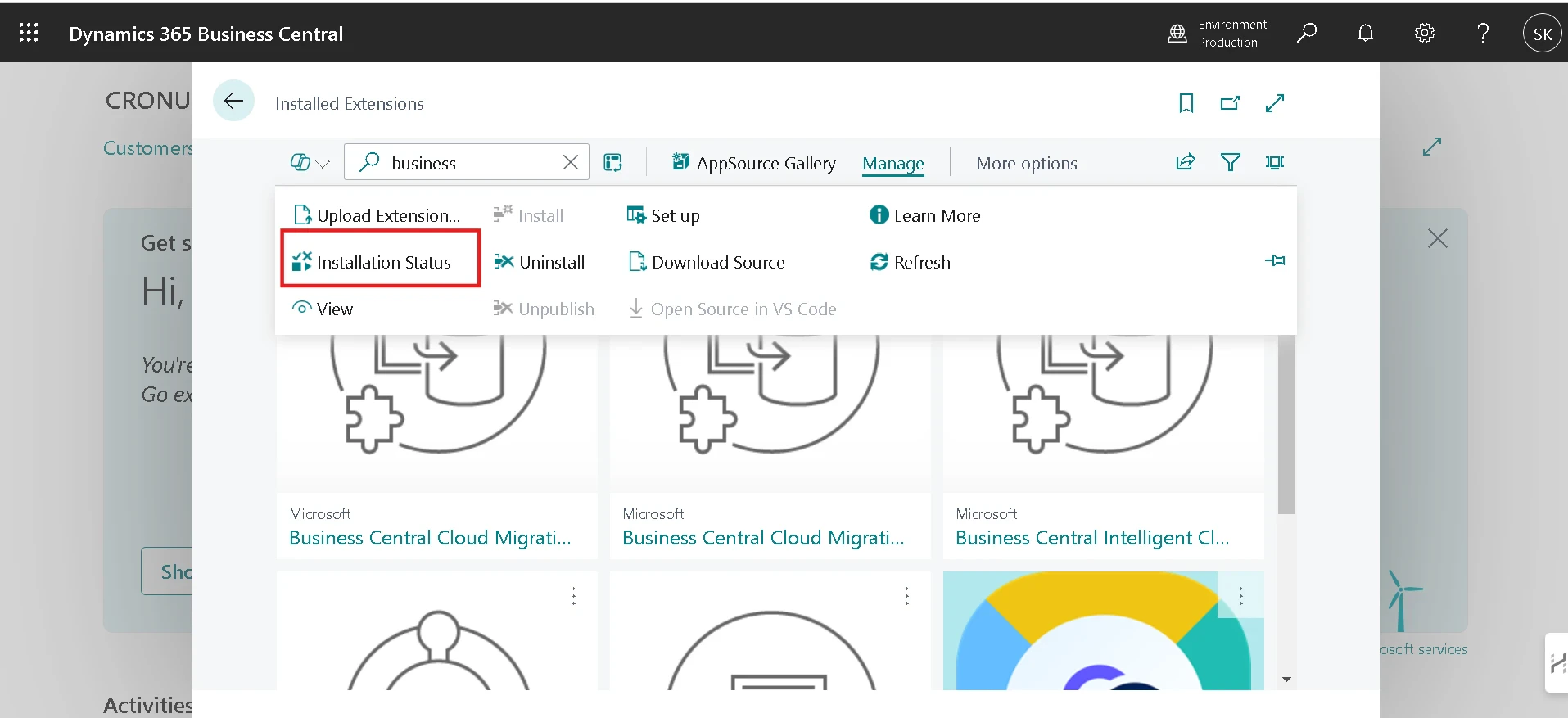
    Click **"Installation Status"** to check the status for upload process for Extension. 
    <Frame>
      <img src="https://mintcdn.com/cloudify-c7720744/lGXfg-sRr29fzWtD/images/image-479.png?fit=max&auto=format&n=lGXfg-sRr29fzWtD&q=85&s=e3fe9ab5e3592a9d14542d6dc45b8bc3" alt="Image" width="1915" height="877" data-path="images/image-479.png" />
    </Frame>
  </Step>
</Steps>