> ## Documentation Index
> Fetch the complete documentation index at: https://docs.cloudify.biz/llms.txt
> Use this file to discover all available pages before exploring further.
# Support
> Track and manage your support requests with the Cloudify team — view open tickets, check progress, and see resolved cases.
 ***
## Ticket Summary
At the top of the Support page, four counters give you an at-a-glance view of your support activity.
**All-time tickets** — the total number of support requests ever raised on your account.
**Awaiting resolution** — tickets raised that the Cloudify team is yet to pick up or action.
**Being worked on** — tickets the Cloudify team is actively investigating or resolving right now.
**Successfully resolved** — tickets that have been fully resolved and closed.
***
## Viewing and Filtering Tickets
The ticket table below the summary shows all your support requests.
| Column | Description |
| -------------- | ------------------------------------------------- |
| **Title** | The subject or description of the support request |
| **Status** | Current state — Open, In Progress, or Closed |
| **Created At** | When the ticket was submitted |
**Filter options:**
| Filter | Use Case |
| ----------------------- | ---------------------------------------------- |
| **Filter by ticket ID** | Search for a specific ticket by its ID number |
| **Pick a date** | Filter tickets by when they were created |
| **Status** | Show only Open, In Progress, or Closed tickets |
***
## The Chat Bubble — Available on Every Page
You don't need to be on the Support page to get help. The **blue circular chat button** sits in the bottom-right corner of every page in Lighthouse — on Overview, Billing, Workflow Runs, Connections, and everywhere else.
***
## Ticket Summary
At the top of the Support page, four counters give you an at-a-glance view of your support activity.
**All-time tickets** — the total number of support requests ever raised on your account.
**Awaiting resolution** — tickets raised that the Cloudify team is yet to pick up or action.
**Being worked on** — tickets the Cloudify team is actively investigating or resolving right now.
**Successfully resolved** — tickets that have been fully resolved and closed.
***
## Viewing and Filtering Tickets
The ticket table below the summary shows all your support requests.
| Column | Description |
| -------------- | ------------------------------------------------- |
| **Title** | The subject or description of the support request |
| **Status** | Current state — Open, In Progress, or Closed |
| **Created At** | When the ticket was submitted |
**Filter options:**
| Filter | Use Case |
| ----------------------- | ---------------------------------------------- |
| **Filter by ticket ID** | Search for a specific ticket by its ID number |
| **Pick a date** | Filter tickets by when they were created |
| **Status** | Show only Open, In Progress, or Closed tickets |
***
## The Chat Bubble — Available on Every Page
You don't need to be on the Support page to get help. The **blue circular chat button** sits in the bottom-right corner of every page in Lighthouse — on Overview, Billing, Workflow Runs, Connections, and everywhere else.
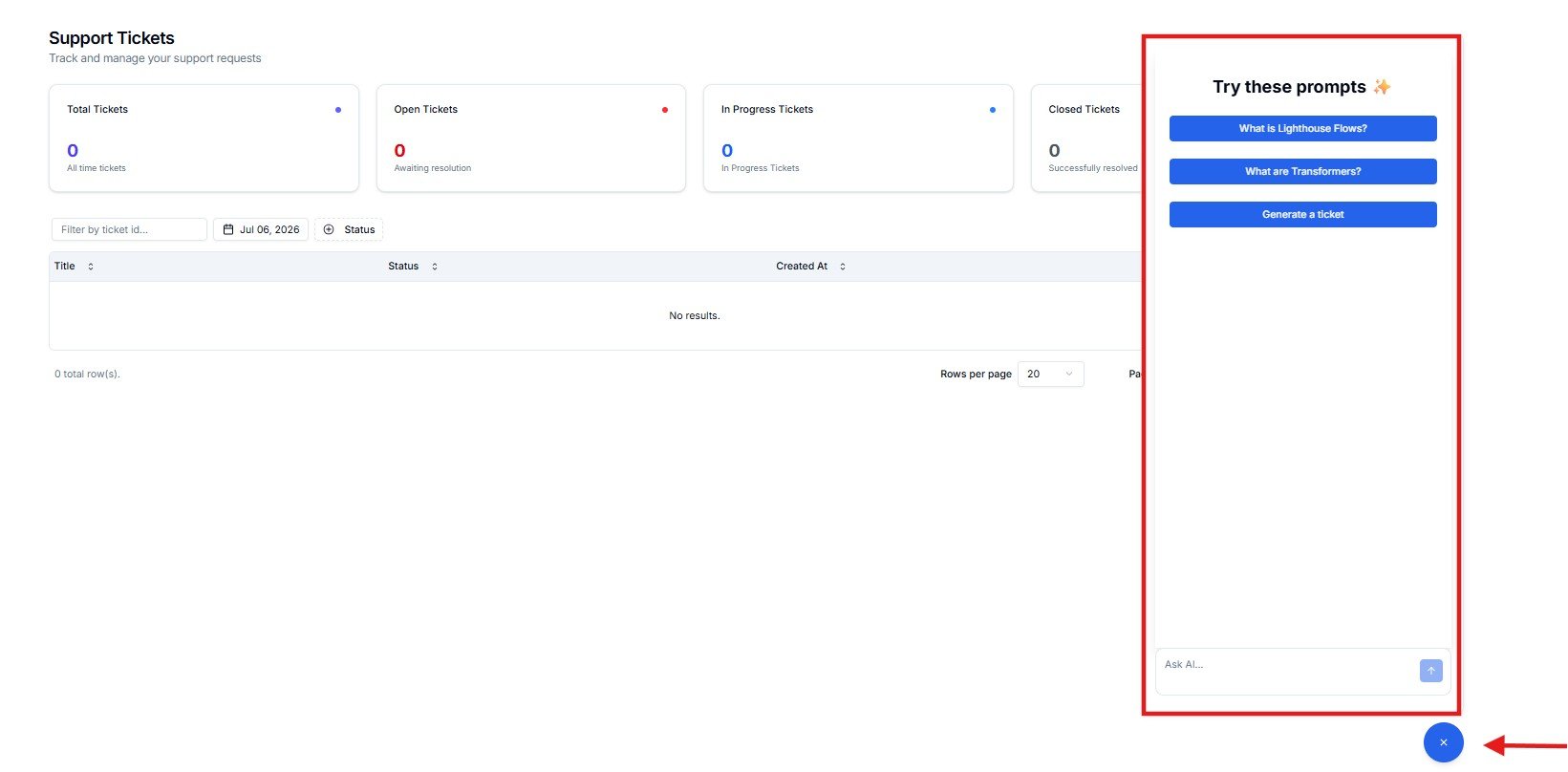 Click it at any time to open the AI assistant panel. You'll see suggested prompts to get started quickly — for example:
Quick answers about your subscription and billing options — without raising a ticket.
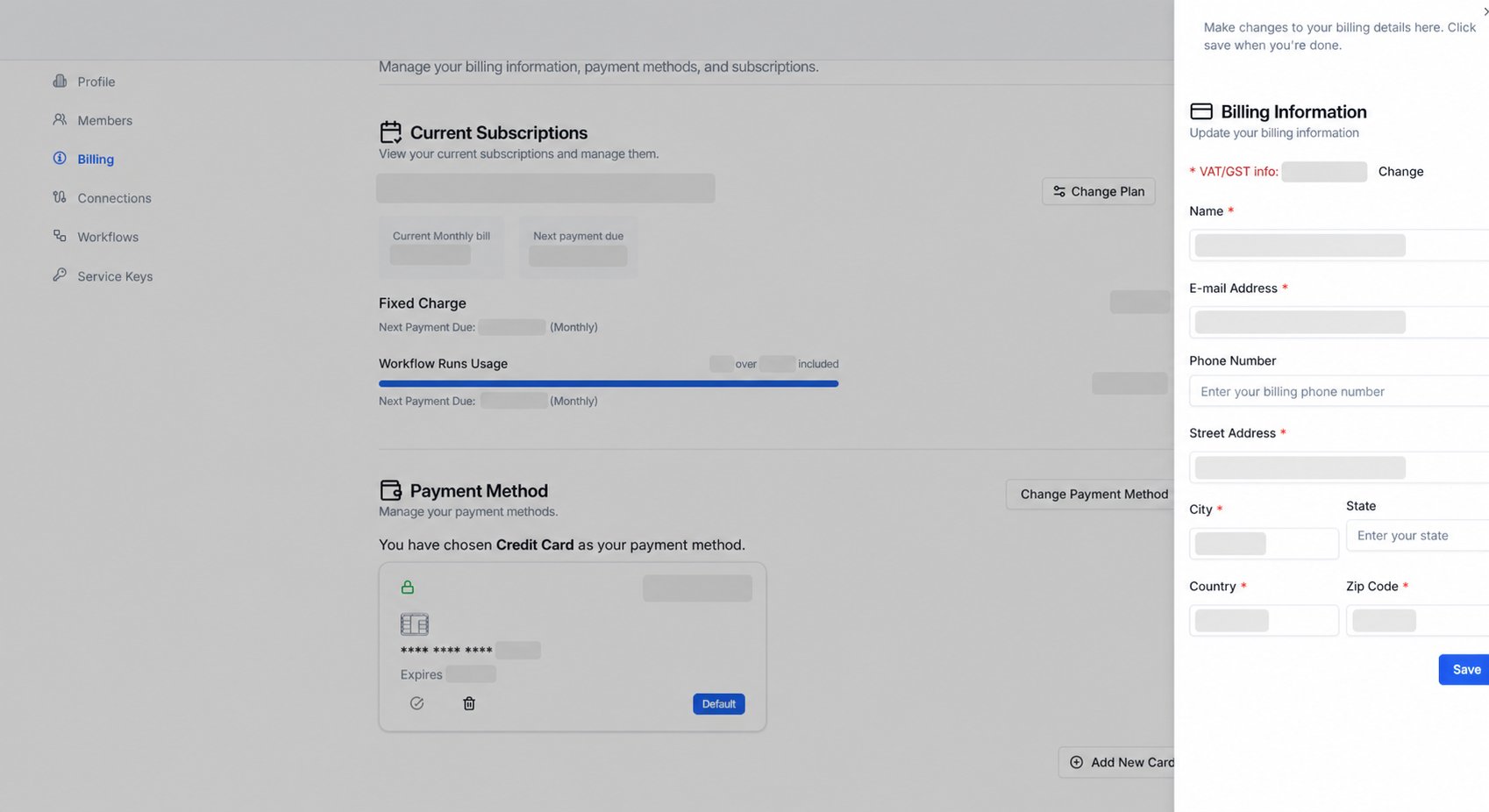
Jump directly to billing configuration guidance — useful when you're already on the Billing page and need help.
You can also type freely in the **Ask AI...** input for any question about the platform.
The chat bubble is your fastest route to help — use it for quick questions on any page before raising a formal ticket. If the AI can't resolve your issue, it will guide you to generate a support ticket for Cloudify.
***
## When to Raise a Support Ticket
* A workflow run that fails repeatedly after replaying
* A connection that appears to have broken
* A workflow that isn't triggering when expected
* A data error in the destination app that you can't resolve in the source app
* A request to modify or expand an existing workflow
* Billing or subscription questions
* A single failed run where the source data issue is clear (fix in your app → Replay)
* A missing field in a source app record (fill it in → Replay)
* A run showing as Pending (wait for it to process — this is usually temporary)
* A question about what a workflow does (refer to the Workflows page description)
Before raising a ticket for a failed workflow run, always try the **Replay** first after fixing the source data. Most single failures resolve this way without needing Cloudify's involvement.
***
## What Happens After You Raise a Ticket
Your ticket is logged in the Cloudify system and appears in your Support page immediately with **Open** status.
A Cloudify engineer reviews your ticket and begins investigation. The status updates to **In Progress**.
Cloudify resolves the issue — whether that's a code fix, a connection repair, or a configuration change — and communicates the outcome to you.
Once resolved and confirmed, the ticket moves to **Closed** status and remains in your history for reference.
***
## Frequently Asked Questions
In the Support page, look for the option to create a new ticket (button or form). Provide a clear description of the issue, the affected workflow or connection, and any relevant run IDs from the Workflow Runs page. The more context you include, the faster Cloudify can resolve it.
Response times vary by plan and issue severity. Critical issues affecting live integrations are prioritised. Contact your Cloudify account manager if you need information about your specific SLA.
Yes. Open the ticket and add a comment or update. Always include the run ID from Workflow Runs if the issue relates to a specific failed execution — this helps Cloudify investigate immediately.
For critical issues, contact your Cloudify account manager directly. The Support ticket system is for standard requests. Urgent issues affecting live data flows should be escalated through your primary contact at Cloudify.
***
Click it at any time to open the AI assistant panel. You'll see suggested prompts to get started quickly — for example:
Quick answers about your subscription and billing options — without raising a ticket.
Jump directly to billing configuration guidance — useful when you're already on the Billing page and need help.
You can also type freely in the **Ask AI...** input for any question about the platform.
The chat bubble is your fastest route to help — use it for quick questions on any page before raising a formal ticket. If the AI can't resolve your issue, it will guide you to generate a support ticket for Cloudify.
***
## When to Raise a Support Ticket
* A workflow run that fails repeatedly after replaying
* A connection that appears to have broken
* A workflow that isn't triggering when expected
* A data error in the destination app that you can't resolve in the source app
* A request to modify or expand an existing workflow
* Billing or subscription questions
* A single failed run where the source data issue is clear (fix in your app → Replay)
* A missing field in a source app record (fill it in → Replay)
* A run showing as Pending (wait for it to process — this is usually temporary)
* A question about what a workflow does (refer to the Workflows page description)
Before raising a ticket for a failed workflow run, always try the **Replay** first after fixing the source data. Most single failures resolve this way without needing Cloudify's involvement.
***
## What Happens After You Raise a Ticket
Your ticket is logged in the Cloudify system and appears in your Support page immediately with **Open** status.
A Cloudify engineer reviews your ticket and begins investigation. The status updates to **In Progress**.
Cloudify resolves the issue — whether that's a code fix, a connection repair, or a configuration change — and communicates the outcome to you.
Once resolved and confirmed, the ticket moves to **Closed** status and remains in your history for reference.
***
## Frequently Asked Questions
In the Support page, look for the option to create a new ticket (button or form). Provide a clear description of the issue, the affected workflow or connection, and any relevant run IDs from the Workflow Runs page. The more context you include, the faster Cloudify can resolve it.
Response times vary by plan and issue severity. Critical issues affecting live integrations are prioritised. Contact your Cloudify account manager if you need information about your specific SLA.
Yes. Open the ticket and add a comment or update. Always include the run ID from Workflow Runs if the issue relates to a specific failed execution — this helps Cloudify investigate immediately.
For critical issues, contact your Cloudify account manager directly. The Support ticket system is for standard requests. Urgent issues affecting live data flows should be escalated through your primary contact at Cloudify.
***