> ## Documentation Index
> Fetch the complete documentation index at: https://docs.cloudify.biz/llms.txt
> Use this file to discover all available pages before exploring further.
# Getting Started with Lighthouse
> Create your account, configure your integration, and get your first workflow running — step by step.
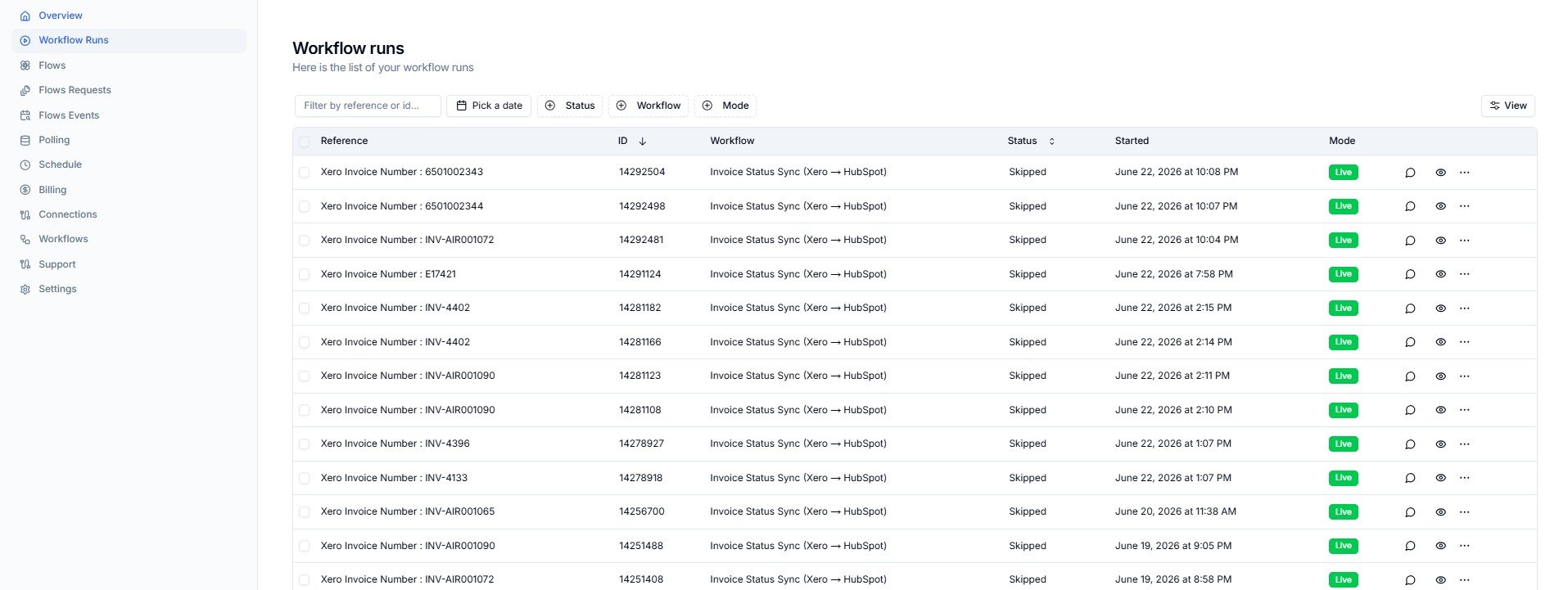 ***
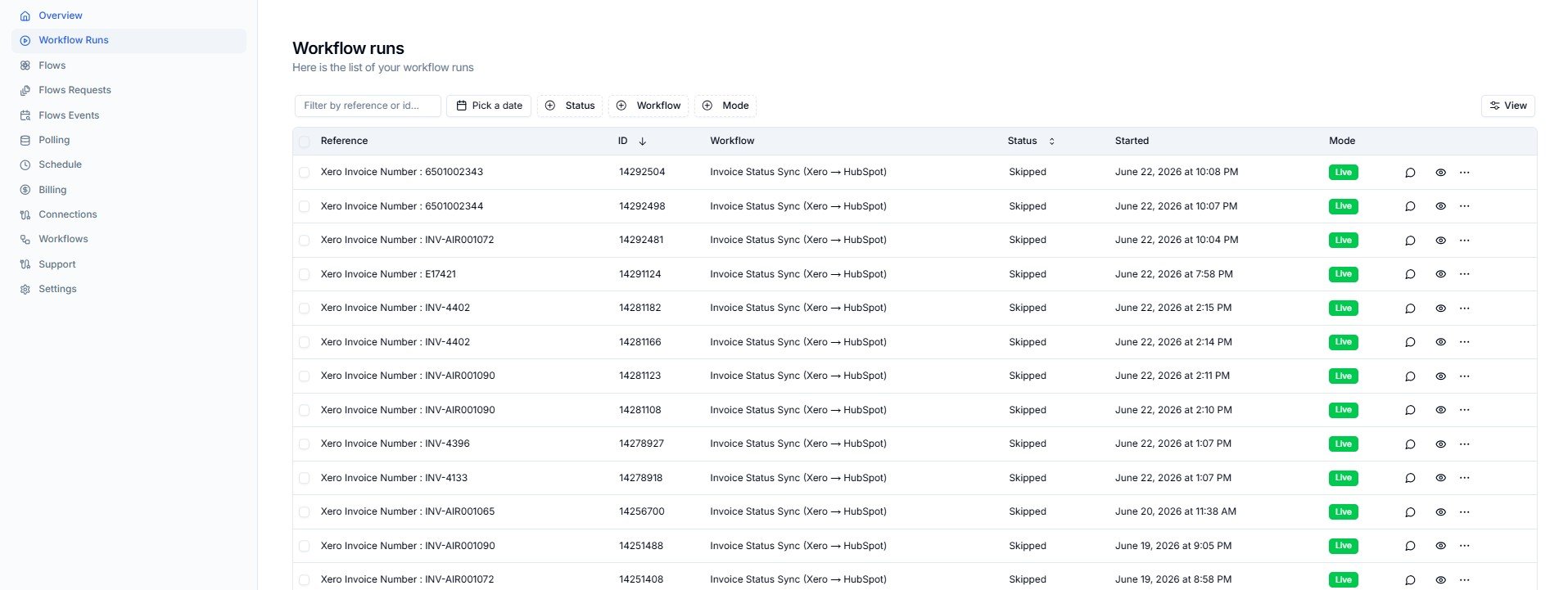
## What Is Lighthouse?What Is Lighthouse?
Lighthouse works on two levels — one for you, one for usLighthouse works on two levels — one for you, one for us.
A clear window into your integrations — no technical expertise required.
* See all connected apps at a glance
* Monitor workflow run status
* Replay failed workflows in one click
* Get email alerts when something needs attention
The powerful backend where Cloudify builds and manages everything.
* Custom integrations coded and deployed by our team
* Event-driven architecture for real-time processing
* 24/7 monitoring with automatic error detection
* Technical issues resolved immediately by Cloudify
You never need to touch the technical side. Cloudify handles all infrastructure, field mapping, and deployment — your dashboard is simply your window into what's running.
***
## Step 1 — Create Your Account
Go to [app.cloudify.biz/auth/signup](https://app.cloudify.biz/auth/signup) to create your Lighthouse account.
***
## What Is Lighthouse?What Is Lighthouse?
Lighthouse works on two levels — one for you, one for usLighthouse works on two levels — one for you, one for us.
A clear window into your integrations — no technical expertise required.
* See all connected apps at a glance
* Monitor workflow run status
* Replay failed workflows in one click
* Get email alerts when something needs attention
The powerful backend where Cloudify builds and manages everything.
* Custom integrations coded and deployed by our team
* Event-driven architecture for real-time processing
* 24/7 monitoring with automatic error detection
* Technical issues resolved immediately by Cloudify
You never need to touch the technical side. Cloudify handles all infrastructure, field mapping, and deployment — your dashboard is simply your window into what's running.
***
## Step 1 — Create Your Account
Go to [app.cloudify.biz/auth/signup](https://app.cloudify.biz/auth/signup) to create your Lighthouse account.
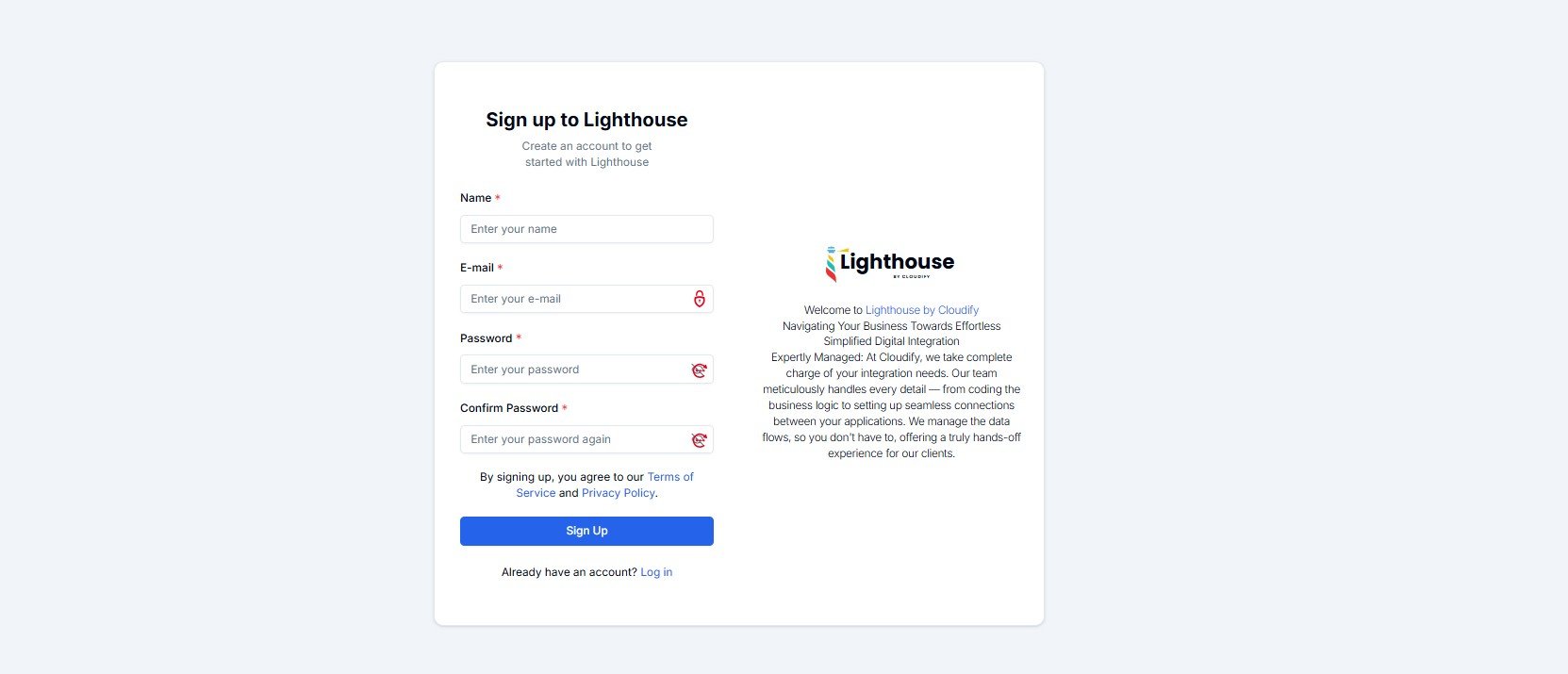 Fill in the following fields and click **Sign Up**:
| Field | Notes |
| -------------------- | --------------------------------------- |
| **Name** | Your full name |
| **E-mail** | You'll receive a verification code here |
| **Password** | Choose a secure password |
| **Confirm Password** | Re-enter your password to confirm |
After signing up, check your inbox for a **six-digit verification code**. Copy and paste it into the verification screen to activate your account.
Already have an account? Click **Log in** at the bottom of the form.
***
## Step 2 — The Welcome Screen
Once your account is verified, you'll land on the **Welcome Screen**.
Fill in the following fields and click **Sign Up**:
| Field | Notes |
| -------------------- | --------------------------------------- |
| **Name** | Your full name |
| **E-mail** | You'll receive a verification code here |
| **Password** | Choose a secure password |
| **Confirm Password** | Re-enter your password to confirm |
After signing up, check your inbox for a **six-digit verification code**. Copy and paste it into the verification screen to activate your account.
Already have an account? Click **Log in** at the bottom of the form.
***
## Step 2 — The Welcome Screen
Once your account is verified, you'll land on the **Welcome Screen**.
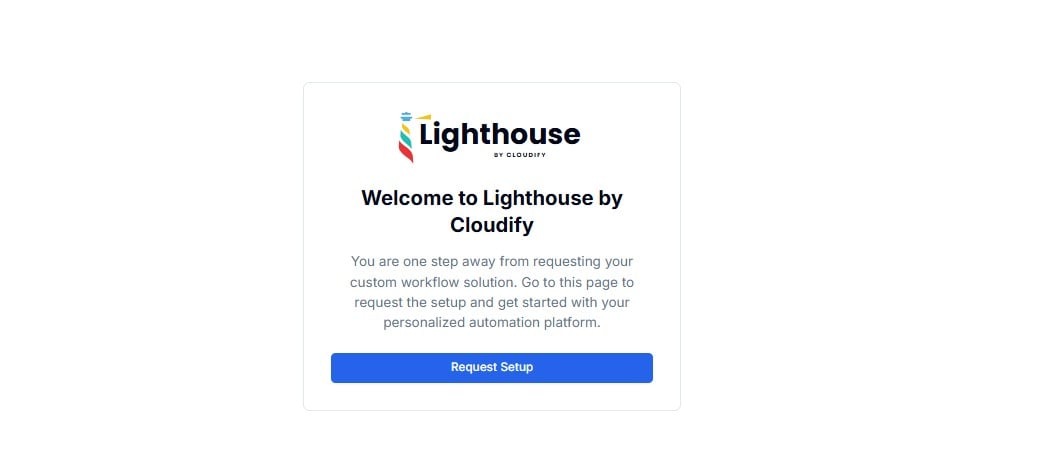 Click **Request Setup** to begin configuring your integration.
No payment is required at this stage. Requesting setup simply starts a consultation with the Cloudify team — you'll receive a tailored quote before any commitment is made.
***
## Step 3 — Configure Your Integration
After clicking **Request Setup**, you'll land on the **integration configuration page**. This has three sections — work through them top to bottom.
Click **Request Setup** to begin configuring your integration.
No payment is required at this stage. Requesting setup simply starts a consultation with the Cloudify team — you'll receive a tailored quote before any commitment is made.
***
## Step 3 — Configure Your Integration
After clicking **Request Setup**, you'll land on the **integration configuration page**. This has three sections — work through them top to bottom.
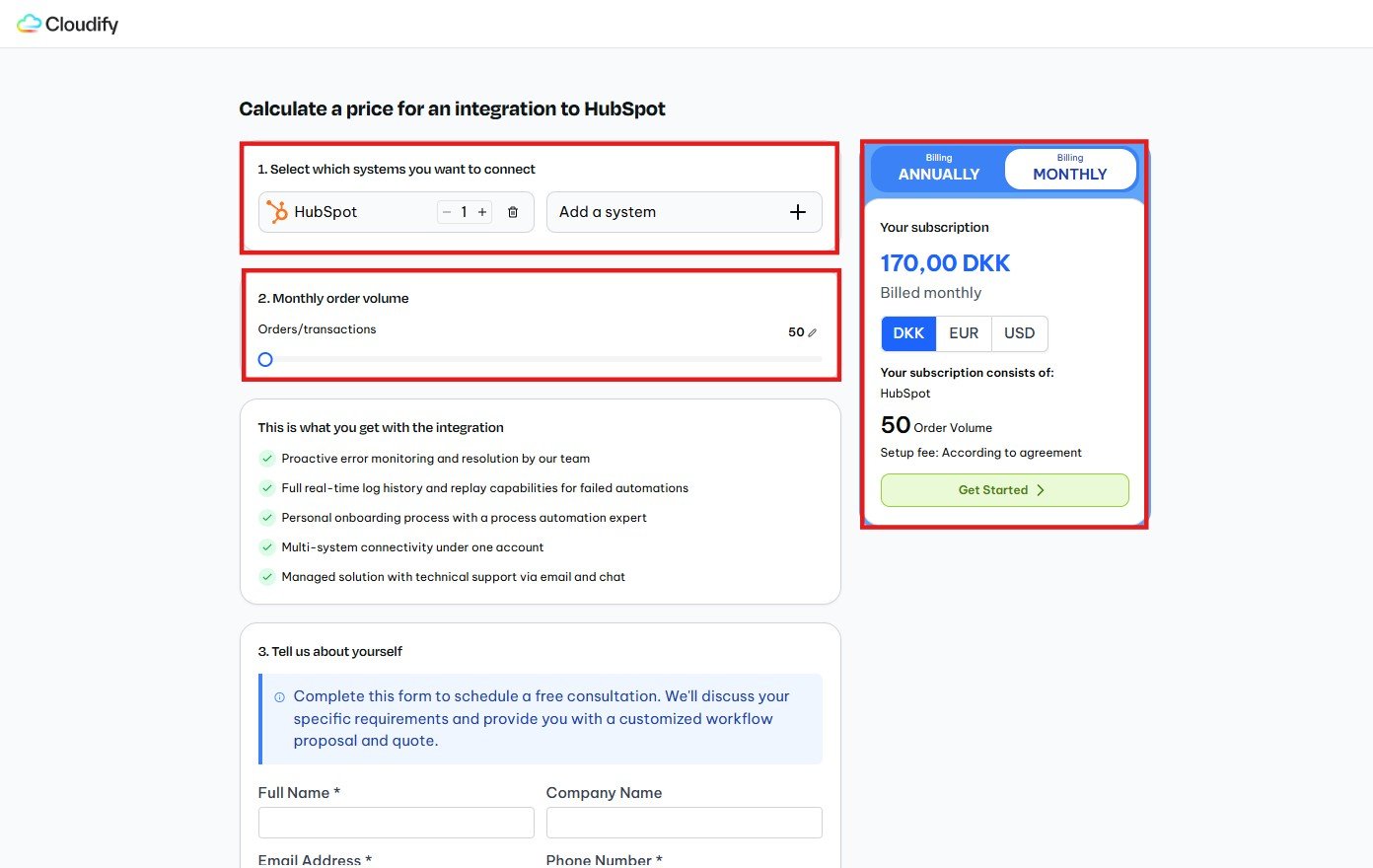 ### 1. Select Which Systems You Want to Connect
Click **+ Add a system** and choose the applications you need to integrate.
If a standard marketplace integration exists for your app combination, Lighthouse will surface it automatically. For anything beyond a standard integration, Cloudify will build a **custom workflow** tailored to your business logic.
**Common combinations:**
| Source App | Destination App | Use Case |
| ---------- | ---------------- | -------------------------------- |
| HubSpot | Xero | CRM deals → Accounting invoices |
| Pipedrive | e-conomic | Pipeline activity → Finance sync |
| Shopify | Xero | E-commerce orders → Accounting |
| HubSpot | Business Central | CRM → ERP data flow |
***
### 2. Set Your Monthly Order Volume
Use the **Orders/Transactions slider** to set your expected monthly volume. The subscription summary card on the right updates in real time.
### 1. Select Which Systems You Want to Connect
Click **+ Add a system** and choose the applications you need to integrate.
If a standard marketplace integration exists for your app combination, Lighthouse will surface it automatically. For anything beyond a standard integration, Cloudify will build a **custom workflow** tailored to your business logic.
**Common combinations:**
| Source App | Destination App | Use Case |
| ---------- | ---------------- | -------------------------------- |
| HubSpot | Xero | CRM deals → Accounting invoices |
| Pipedrive | e-conomic | Pipeline activity → Finance sync |
| Shopify | Xero | E-commerce orders → Accounting |
| HubSpot | Business Central | CRM → ERP data flow |
***
### 2. Set Your Monthly Order Volume
Use the **Orders/Transactions slider** to set your expected monthly volume. The subscription summary card on the right updates in real time.
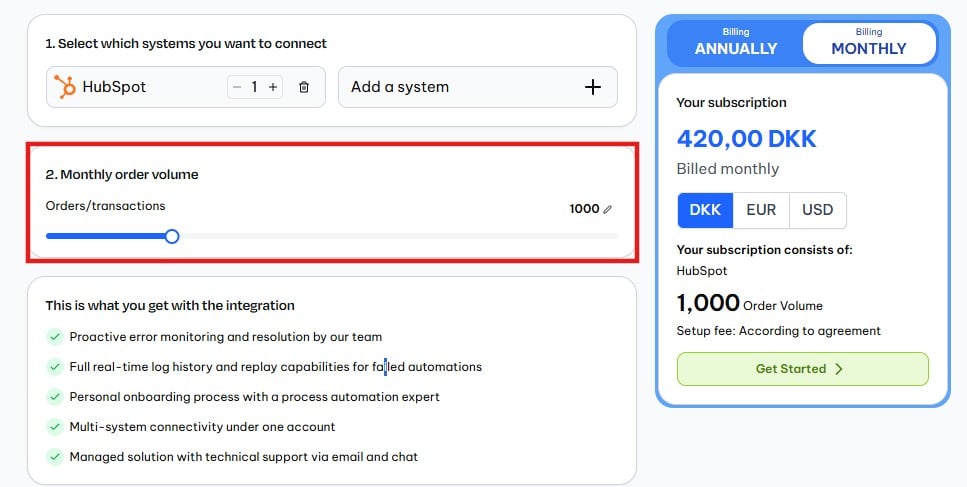 | Option | What It Does |
| --------------------------- | ---------------------------------------------------------------------- |
| **Annual / Monthly toggle** | Switch billing frequency — annual gives a discounted rate |
| **DKK / EUR / USD** | View your price in your preferred currency |
| **Order Volume** | Your monthly transaction count — directly affects your price |
| **Setup fee** | Confirmed during your consultation — shown as "According to agreement" |
Choosing **Annual billing** gives you a lower per-month rate. The card shows the monthly equivalent so you can compare both options side by side.
***
### 3. Tell Us About Yourself
Fill in the short contact form to schedule your free consultation.
| Field | Required | Notes |
| ----------------- | -------- | ------------------------------------------- |
| **Full Name** | Yes | Your name |
| **Company Name** | No | Your organization |
| **Email Address** | Yes | Where your consultation invite will be sent |
| **Phone Number** | Yes | For scheduling your discovery call |
| Option | What It Does |
| --------------------------- | ---------------------------------------------------------------------- |
| **Annual / Monthly toggle** | Switch billing frequency — annual gives a discounted rate |
| **DKK / EUR / USD** | View your price in your preferred currency |
| **Order Volume** | Your monthly transaction count — directly affects your price |
| **Setup fee** | Confirmed during your consultation — shown as "According to agreement" |
Choosing **Annual billing** gives you a lower per-month rate. The card shows the monthly equivalent so you can compare both options side by side.
***
### 3. Tell Us About Yourself
Fill in the short contact form to schedule your free consultation.
| Field | Required | Notes |
| ----------------- | -------- | ------------------------------------------- |
| **Full Name** | Yes | Your name |
| **Company Name** | No | Your organization |
| **Email Address** | Yes | Where your consultation invite will be sent |
| **Phone Number** | Yes | For scheduling your discovery call |
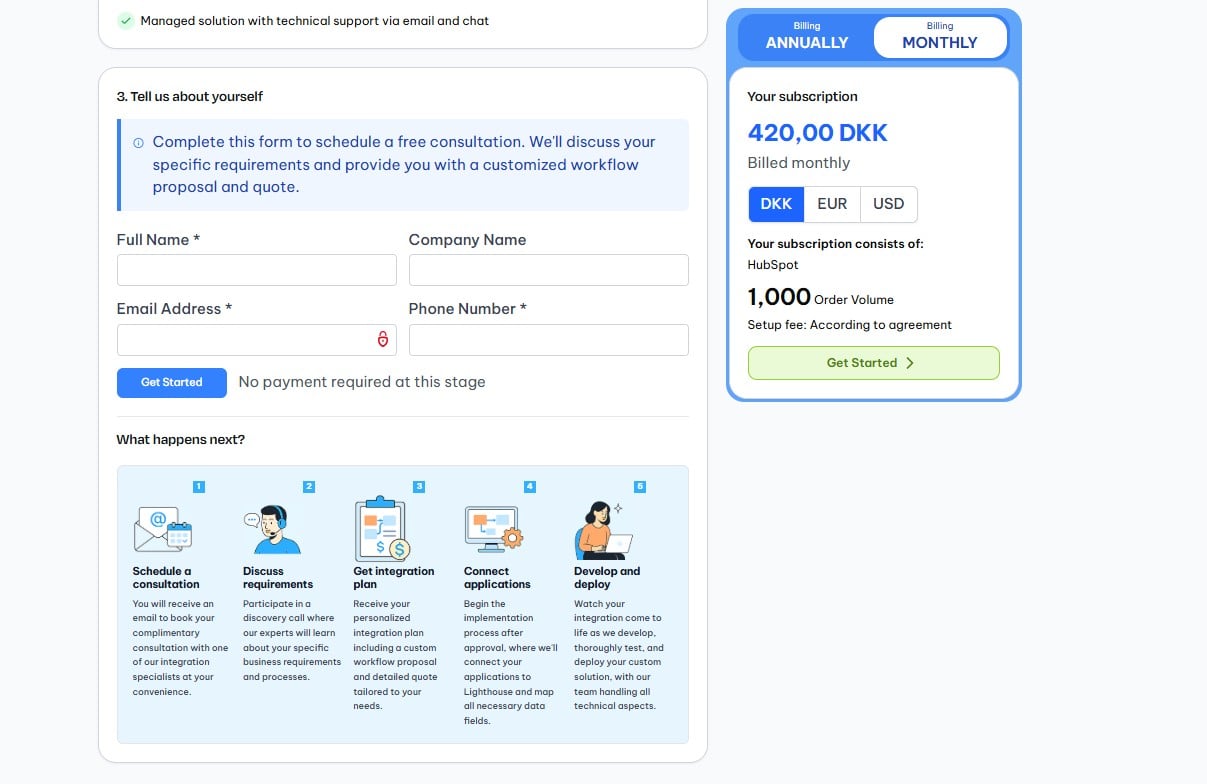 Click **Get Started** when done.
Double-check your email address before submitting — your consultation booking link and next-steps email will be sent here.
***
## Step 4 — Submission Confirmed
After clicking **Get Started**, you'll see a success confirmation.
Click **Get Started** when done.
Double-check your email address before submitting — your consultation booking link and next-steps email will be sent here.
***
## Step 4 — Submission Confirmed
After clicking **Get Started**, you'll see a success confirmation.
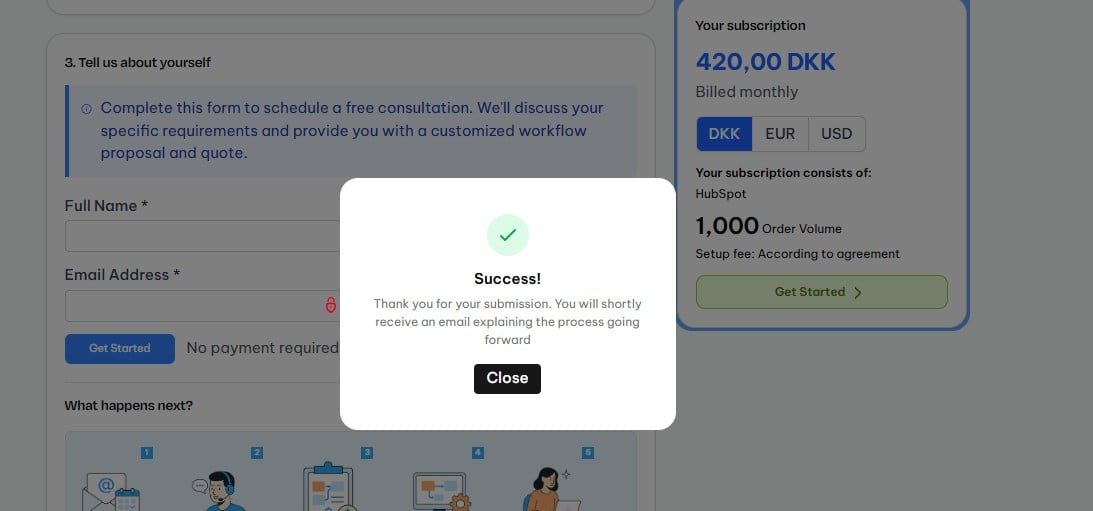 > *"Thank you for your submission. You will shortly receive an email explaining the process going forward."*
Your request is in. The Cloudify team will be in touch to arrange your consultation.
***
## What Happens Next
You'll receive an email to book a complimentary call with one of Cloudify's integration specialists at a time that suits you.
Join a discovery call where our experts learn about your specific business processes and integration goals.
Receive a personalised integration plan — including a custom workflow proposal and a detailed quote.
After you approve the plan, Cloudify begins implementation — connecting your apps to Lighthouse and mapping all data fields.
Your integration is built, tested, and deployed. All technical aspects are handled by the Cloudify team.
***
***
## Frequently Asked Questions
No. Submitting your setup request is completely free. You'll only receive a quote during your consultation and commit after reviewing and approving your integration plan.
Contact your Cloudify account manager. Lighthouse supports a wide range of custom integrations, including apps not listed in the standard selector.
Order volume is the number of transactions, records, or events your integration will process each month — for example, orders synced from Shopify to Xero, or deals in HubSpot that trigger invoice creation.
Timelines vary depending on integration complexity. Cloudify will provide an estimated delivery timeframe as part of your integration plan.
Yes. Discuss any changes during your consultation call. Volume and app configuration can be adjusted before your integration goes live.
A clear window into your integrations — no technical expertise required.
* See all connected apps at a glance
* Monitor workflow run status
* Replay failed workflows in one click
* Get email alerts when something needs attention
The powerful backend where Cloudify builds and manages everything.
* Custom integrations coded and deployed by our team
* Event-driven architecture for real-time processing
* 24/7 monitoring with automatic error detection
* Technical issues resolved immediately by Cloudify
You never need to touch the technical side. Cloudify handles all infrastructure, field mapping, and deployment — your dashboard is simply your window into what's running.
***
## Frequently Asked Questions
No. Submitting your setup request is completely free. You'll only receive a quote during your consultation and commit after reviewing and approving your integration plan.
Contact your Cloudify account manager. Lighthouse supports a wide range of custom integrations, including apps not listed in the standard selector.
Order volume is the number of transactions, records, or events your integration will process each month — for example, orders synced from Shopify to Xero, or deals in HubSpot that trigger invoice creation.
Timelines vary depending on integration complexity. Cloudify will provide an estimated delivery timeframe as part of your integration plan.
Yes. Discuss any changes during your consultation call. Volume and app configuration can be adjusted before your integration goes live.
> *"Thank you for your submission. You will shortly receive an email explaining the process going forward."*
Your request is in. The Cloudify team will be in touch to arrange your consultation.
***
## What Happens Next
You'll receive an email to book a complimentary call with one of Cloudify's integration specialists at a time that suits you.
Join a discovery call where our experts learn about your specific business processes and integration goals.
Receive a personalised integration plan — including a custom workflow proposal and a detailed quote.
After you approve the plan, Cloudify begins implementation — connecting your apps to Lighthouse and mapping all data fields.
Your integration is built, tested, and deployed. All technical aspects are handled by the Cloudify team.
***
***
## Frequently Asked Questions
No. Submitting your setup request is completely free. You'll only receive a quote during your consultation and commit after reviewing and approving your integration plan.
Contact your Cloudify account manager. Lighthouse supports a wide range of custom integrations, including apps not listed in the standard selector.
Order volume is the number of transactions, records, or events your integration will process each month — for example, orders synced from Shopify to Xero, or deals in HubSpot that trigger invoice creation.
Timelines vary depending on integration complexity. Cloudify will provide an estimated delivery timeframe as part of your integration plan.
Yes. Discuss any changes during your consultation call. Volume and app configuration can be adjusted before your integration goes live.
A clear window into your integrations — no technical expertise required.
* See all connected apps at a glance
* Monitor workflow run status
* Replay failed workflows in one click
* Get email alerts when something needs attention
The powerful backend where Cloudify builds and manages everything.
* Custom integrations coded and deployed by our team
* Event-driven architecture for real-time processing
* 24/7 monitoring with automatic error detection
* Technical issues resolved immediately by Cloudify
You never need to touch the technical side. Cloudify handles all infrastructure, field mapping, and deployment — your dashboard is simply your window into what's running.
***
## Frequently Asked Questions
No. Submitting your setup request is completely free. You'll only receive a quote during your consultation and commit after reviewing and approving your integration plan.
Contact your Cloudify account manager. Lighthouse supports a wide range of custom integrations, including apps not listed in the standard selector.
Order volume is the number of transactions, records, or events your integration will process each month — for example, orders synced from Shopify to Xero, or deals in HubSpot that trigger invoice creation.
Timelines vary depending on integration complexity. Cloudify will provide an estimated delivery timeframe as part of your integration plan.
Yes. Discuss any changes during your consultation call. Volume and app configuration can be adjusted before your integration goes live.