> ## Documentation Index
> Fetch the complete documentation index at: https://docs.cloudify.biz/llms.txt
> Use this file to discover all available pages before exploring further.
# Customer
> Configure how WooCommerce customers are matched, created, and mapped in Xero.
The Customer section has three tabs: **Customer Sync Rules**, **Customer Default Mappings**, and **Customer Field Mappings**. Work through each tab and click **Save** before moving to the next.
***
## Customer Sync Rules
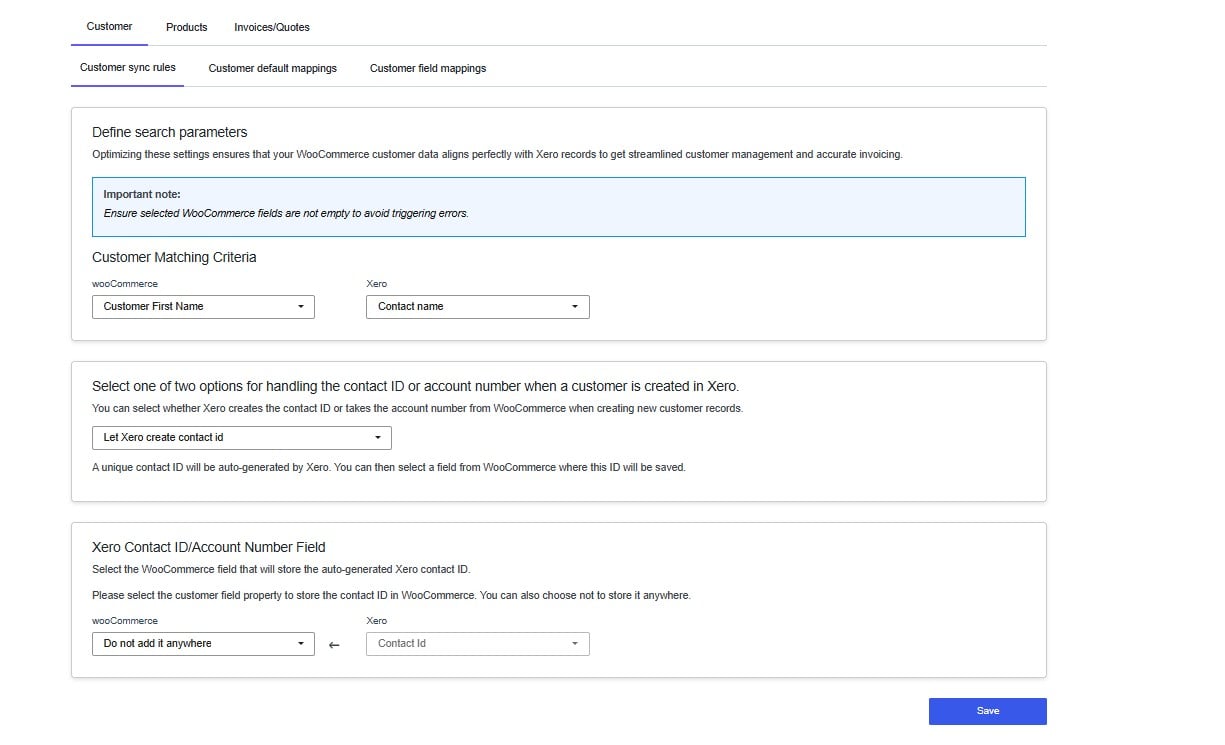 When an order is placed in WooCommerce, the integration searches for the matching customer in Xero before creating an invoice. This tab tells it how to do that search.
### Customer Matching Criteria
You select one field from WooCommerce and one field from Xero. The integration compares the two values — if they match, the existing Xero contact is used. If no match is found, a new contact is created automatically.
**Why this matters:** If the integration cannot reliably identify your customers, it will create duplicate contacts in Xero. Duplicate contacts lead to messy records, reconciliation issues, and inaccurate invoicing history.
**Which field to choose:** Email address is the most reliable option. It is unique per customer and almost always filled in on a WooCommerce order. Fields like first name are not unique — two customers named "John" will cause a mismatch.
The WooCommerce field you select must not be empty on orders. If the field is blank, the integration cannot search for a match and will trigger an error.
### Contact ID / Account Number
When the integration creates a new customer in Xero, Xero assigns that contact a unique ID. This setting controls two things: who generates the ID, and whether it is stored back in WooCommerce.
**Let Xero create the contact ID** is the recommended option. Xero auto-generates a unique identifier and you can optionally select a WooCommerce field to save it in. Storing the Xero contact ID in WooCommerce makes future matching faster and more reliable.
If you do not need to store it, select **Do not add it anywhere**.
Click **Save** before continuing.
***
## Customer Default Mappings
When an order is placed in WooCommerce, the integration searches for the matching customer in Xero before creating an invoice. This tab tells it how to do that search.
### Customer Matching Criteria
You select one field from WooCommerce and one field from Xero. The integration compares the two values — if they match, the existing Xero contact is used. If no match is found, a new contact is created automatically.
**Why this matters:** If the integration cannot reliably identify your customers, it will create duplicate contacts in Xero. Duplicate contacts lead to messy records, reconciliation issues, and inaccurate invoicing history.
**Which field to choose:** Email address is the most reliable option. It is unique per customer and almost always filled in on a WooCommerce order. Fields like first name are not unique — two customers named "John" will cause a mismatch.
The WooCommerce field you select must not be empty on orders. If the field is blank, the integration cannot search for a match and will trigger an error.
### Contact ID / Account Number
When the integration creates a new customer in Xero, Xero assigns that contact a unique ID. This setting controls two things: who generates the ID, and whether it is stored back in WooCommerce.
**Let Xero create the contact ID** is the recommended option. Xero auto-generates a unique identifier and you can optionally select a WooCommerce field to save it in. Storing the Xero contact ID in WooCommerce makes future matching faster and more reliable.
If you do not need to store it, select **Do not add it anywhere**.
Click **Save** before continuing.
***
## Customer Default Mappings
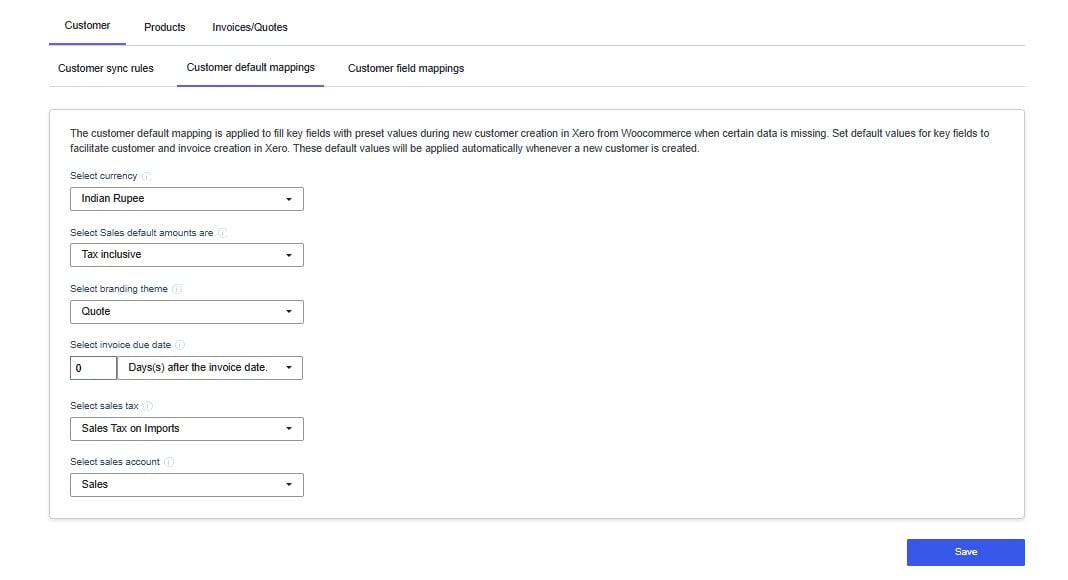 This tab sets the default values applied when the integration creates a new customer record in Xero. These defaults fill in required Xero fields that may not exist on a WooCommerce customer record.
**Why this matters:** Xero requires certain fields to be populated when creating a contact — for example, currency and tax rate. If these are left unconfigured, new customer records may be created with incorrect or missing accounting information, which causes problems when processing payments or filing tax returns.
Set each field to match your Xero account configuration:
| Setting | What to set |
| --------------------- | ---------------------------------------------------------------------------------- |
| Currency | The currency your store trades in |
| Sales default amounts | Whether your prices are tax inclusive or exclusive — match your Xero pricing setup |
| Branding theme | The invoice or quote template applied in Xero |
| Invoice due date | How many days after the invoice date payment is expected |
| Sales tax | The tax rate that applies to your sales |
| Sales account | The Xero account code where sales revenue is recorded |
Click **Save** before continuing.
***
## Customer Field Mappings
This tab sets the default values applied when the integration creates a new customer record in Xero. These defaults fill in required Xero fields that may not exist on a WooCommerce customer record.
**Why this matters:** Xero requires certain fields to be populated when creating a contact — for example, currency and tax rate. If these are left unconfigured, new customer records may be created with incorrect or missing accounting information, which causes problems when processing payments or filing tax returns.
Set each field to match your Xero account configuration:
| Setting | What to set |
| --------------------- | ---------------------------------------------------------------------------------- |
| Currency | The currency your store trades in |
| Sales default amounts | Whether your prices are tax inclusive or exclusive — match your Xero pricing setup |
| Branding theme | The invoice or quote template applied in Xero |
| Invoice due date | How many days after the invoice date payment is expected |
| Sales tax | The tax rate that applies to your sales |
| Sales account | The Xero account code where sales revenue is recorded |
Click **Save** before continuing.
***
## Customer Field Mappings
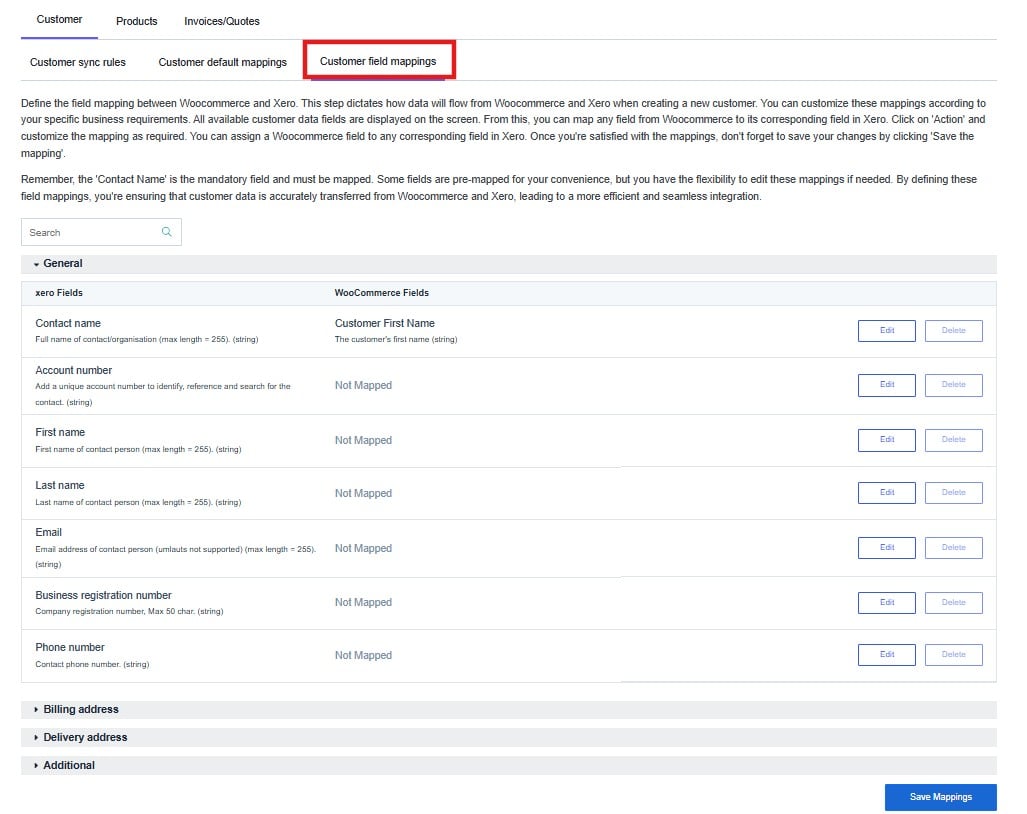 This tab controls exactly which WooCommerce customer fields are transferred to Xero when a new contact is created. Each row maps one Xero contact field to a WooCommerce field.
**Why this matters:** The more accurately your customer data is mapped, the less manual correction is needed in Xero. Incomplete mappings mean your Xero contacts may be missing names, addresses, or contact details — making it harder to send invoices.
Fields are organised into four groups: **General**, **Billing Address**, **Delivery Address**, and **Additional**.
**Contact Name** is mandatory and must be mapped. Without it, Xero cannot create a valid contact record. Some fields are pre-mapped by default — you can edit or delete any mapping to suit your requirements.
Fields showing **Not Mapped** will not be transferred to Xero. To add a mapping, click **Edit** next to the relevant Xero field and select the corresponding WooCommerce field.
Click **Save Mappings** when finished.
This tab controls exactly which WooCommerce customer fields are transferred to Xero when a new contact is created. Each row maps one Xero contact field to a WooCommerce field.
**Why this matters:** The more accurately your customer data is mapped, the less manual correction is needed in Xero. Incomplete mappings mean your Xero contacts may be missing names, addresses, or contact details — making it harder to send invoices.
Fields are organised into four groups: **General**, **Billing Address**, **Delivery Address**, and **Additional**.
**Contact Name** is mandatory and must be mapped. Without it, Xero cannot create a valid contact record. Some fields are pre-mapped by default — you can edit or delete any mapping to suit your requirements.
Fields showing **Not Mapped** will not be transferred to Xero. To add a mapping, click **Edit** next to the relevant Xero field and select the corresponding WooCommerce field.
Click **Save Mappings** when finished.