> ## Documentation Index
> Fetch the complete documentation index at: https://docs.cloudify.biz/llms.txt
> Use this file to discover all available pages before exploring further.
# Getting Started
> How to access the integration settings in your WordPress admin panel.
## Step 1: Open the Plugin
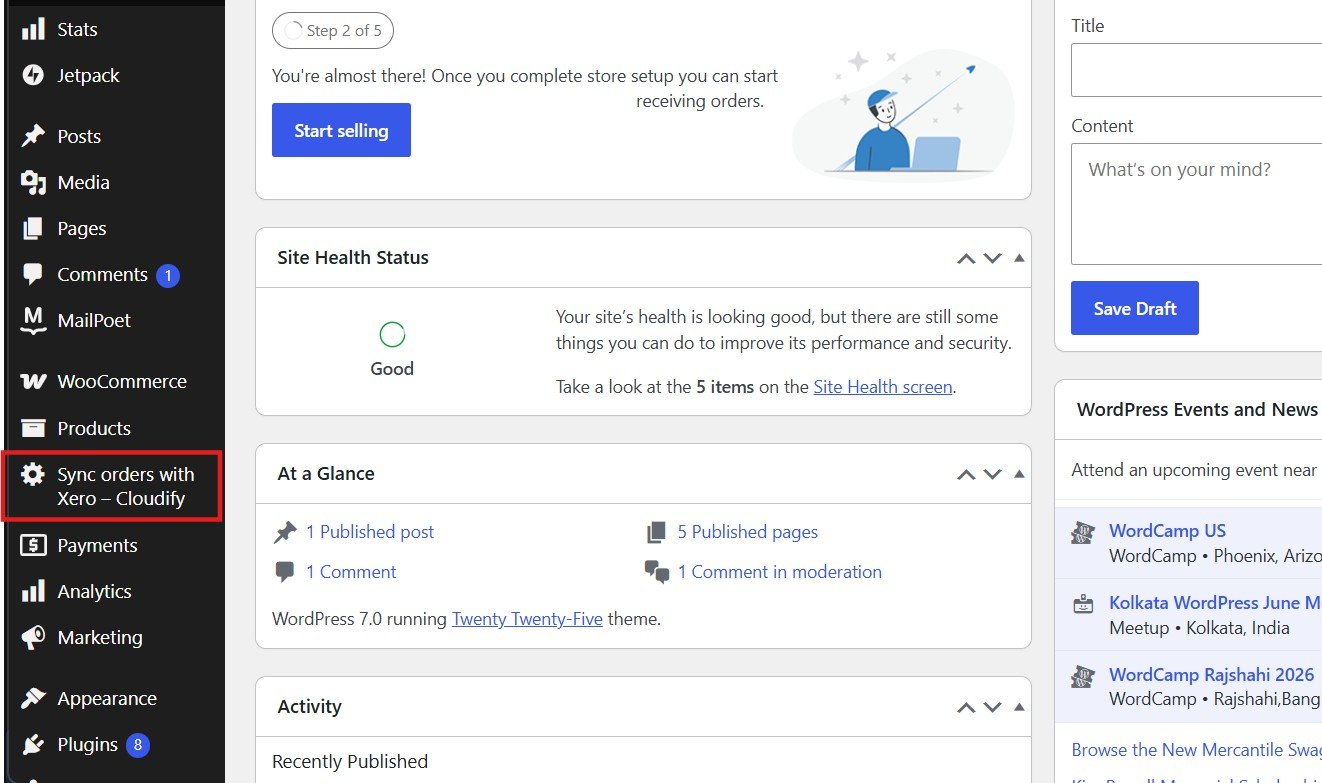
From the WordPress admin sidebar, open *Sync Orders with Xero – Cloudify*, or simply hover over the plugin and click *Settings*.
 ***
## Step 2: Open Integration Settings
The plugin dashboard shows three sections: **Xero Connection**, **Integration Settings**, and **Subscription**.
***
## Step 2: Open Integration Settings
The plugin dashboard shows three sections: **Xero Connection**, **Integration Settings**, and **Subscription**.
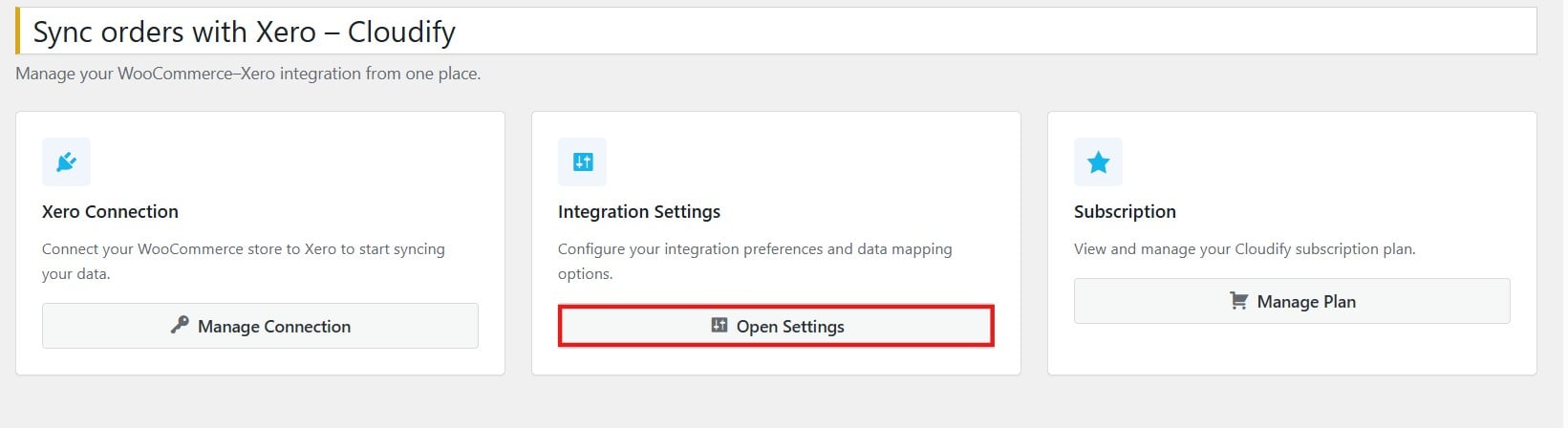 Click **Open Settings** under **Integration Settings**.
***
## Overview of Settings
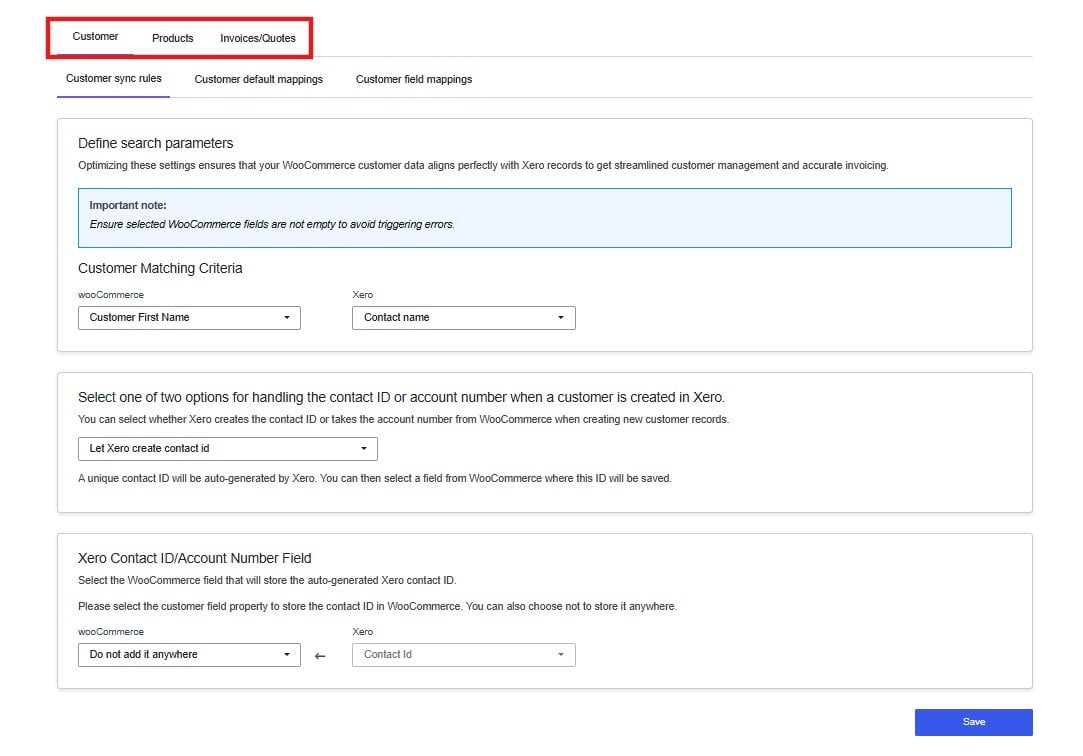
The Integration Settings page gives an overview of the three configuration areas:
* **Customer Mapping** — Match WooCommerce customers to existing Xero contacts or create new ones automatically on each order.
* **Product Mapping** — Map WooCommerce products to Xero inventory items, or have new items created automatically on first sync.
* **Invoice & Quote Settings** — Choose whether WooCommerce orders sync as Xero invoices or quotes, and configure default accounts and tax rates.
Click **Open Settings** under **Integration Settings**.
***
## Overview of Settings
The Integration Settings page gives an overview of the three configuration areas:
* **Customer Mapping** — Match WooCommerce customers to existing Xero contacts or create new ones automatically on each order.
* **Product Mapping** — Map WooCommerce products to Xero inventory items, or have new items created automatically on first sync.
* **Invoice & Quote Settings** — Choose whether WooCommerce orders sync as Xero invoices or quotes, and configure default accounts and tax rates.