> ## Documentation Index
> Fetch the complete documentation index at: https://docs.cloudify.biz/llms.txt
> Use this file to discover all available pages before exploring further.
# Invoices / Quotes
> Configure how WooCommerce orders are converted into invoices or quotes in Xero.
The Invoices/Quotes section has two tabs: **Invoice/Quote Sync Rules** and **Invoice/Quote Field Mappings**. Work through each tab and click **Save** before moving to the next.
***
## Invoice / Quote Sync Rules
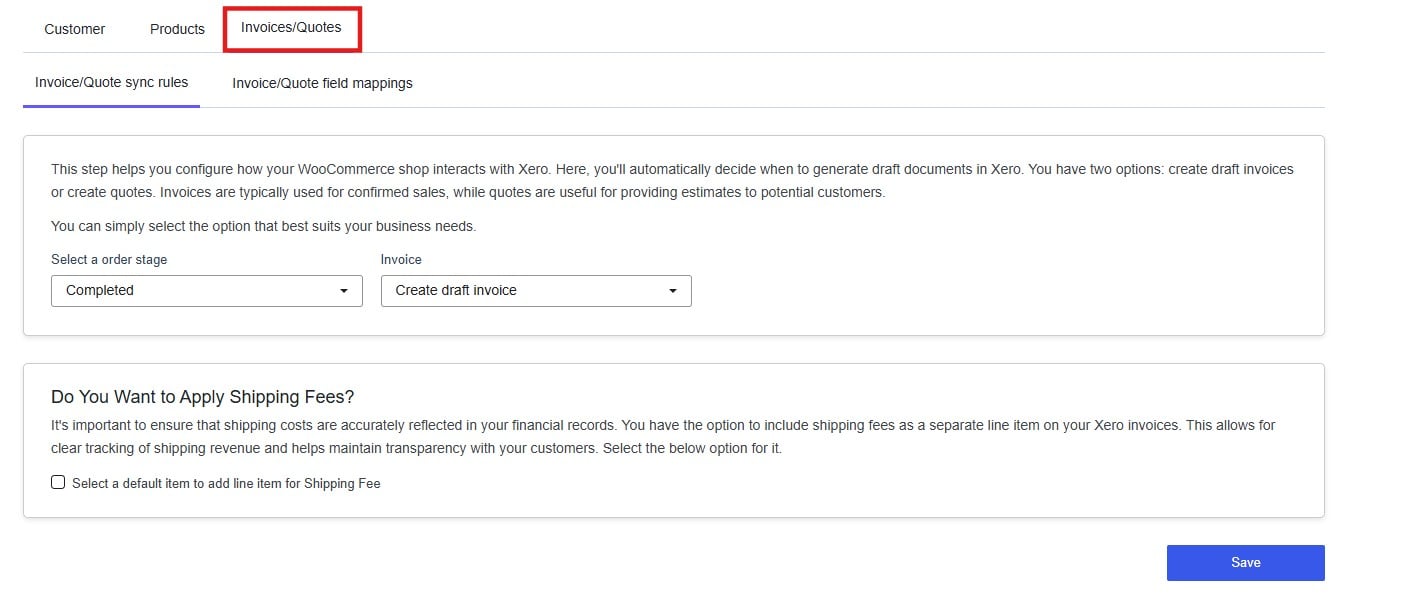 This tab defines the trigger for creating invoice/quote in Xero and what type of document is created. Getting these settings right ensures your Xero records accurately reflect what was sold, to whom, and when.
### Order Stage
This tab defines the trigger for creating invoice/quote in Xero and what type of document is created. Getting these settings right ensures your Xero records accurately reflect what was sold, to whom, and when.
### Order Stage
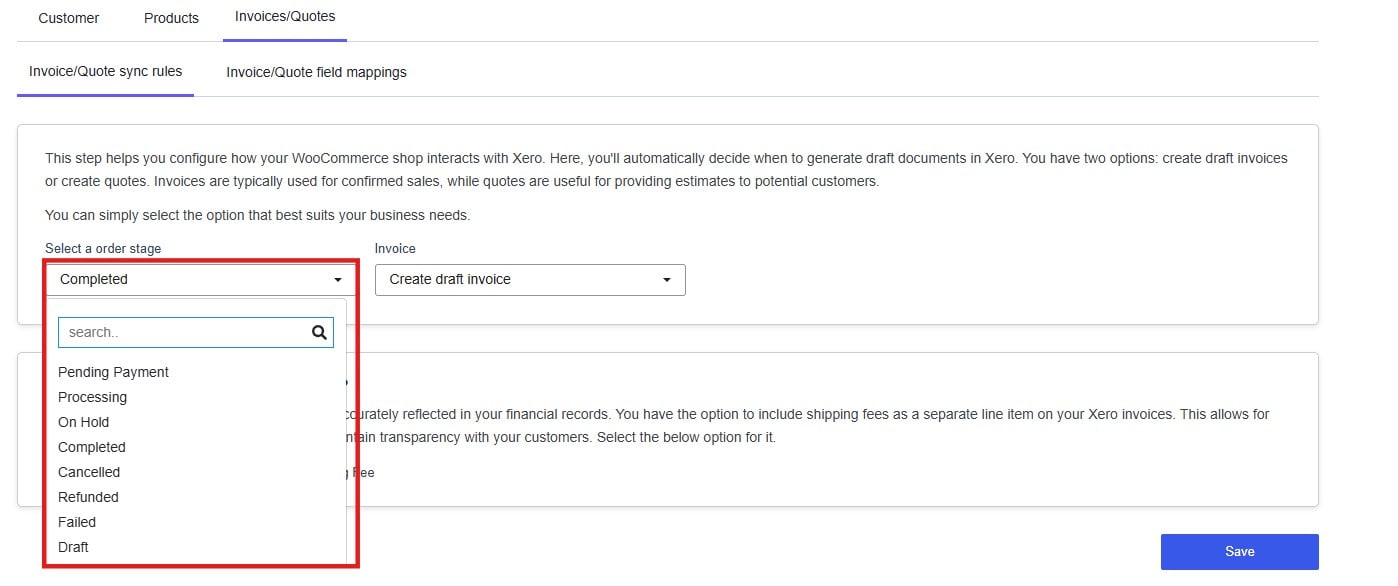 This setting answers the question: *at what point in the WooCommerce order lifecycle should Xero be notified?*
The order stage you select is the trigger. When a WooCommerce order reaches that stage, the integration creates a document in Xero.
| Stage | Meaning |
| --------------- | ---------------------------------------------- |
| Pending Payment | Order received, payment not yet confirmed |
| Processing | Payment confirmed, order being prepared |
| On Hold | Awaiting manual review or payment confirmation |
| Completed | Order fully fulfilled |
| Cancelled | Order cancelled by customer or admin |
| Refunded | Order has been refunded |
| Failed | Payment failed or was declined |
| Draft | Order saved but not yet submitted |
**Completed** is the recommended default for most stores — it ensures an invoice is only created once the order is fully fulfilled, keeping your accounts clean and avoiding invoices for orders that may still be cancelled or refunded.
If your accounting process requires earlier visibility — for example, recording revenue at the point of payment — **Processing** may be more appropriate.
### Document Type
This setting answers the question: *at what point in the WooCommerce order lifecycle should Xero be notified?*
The order stage you select is the trigger. When a WooCommerce order reaches that stage, the integration creates a document in Xero.
| Stage | Meaning |
| --------------- | ---------------------------------------------- |
| Pending Payment | Order received, payment not yet confirmed |
| Processing | Payment confirmed, order being prepared |
| On Hold | Awaiting manual review or payment confirmation |
| Completed | Order fully fulfilled |
| Cancelled | Order cancelled by customer or admin |
| Refunded | Order has been refunded |
| Failed | Payment failed or was declined |
| Draft | Order saved but not yet submitted |
**Completed** is the recommended default for most stores — it ensures an invoice is only created once the order is fully fulfilled, keeping your accounts clean and avoiding invoices for orders that may still be cancelled or refunded.
If your accounting process requires earlier visibility — for example, recording revenue at the point of payment — **Processing** may be more appropriate.
### Document Type
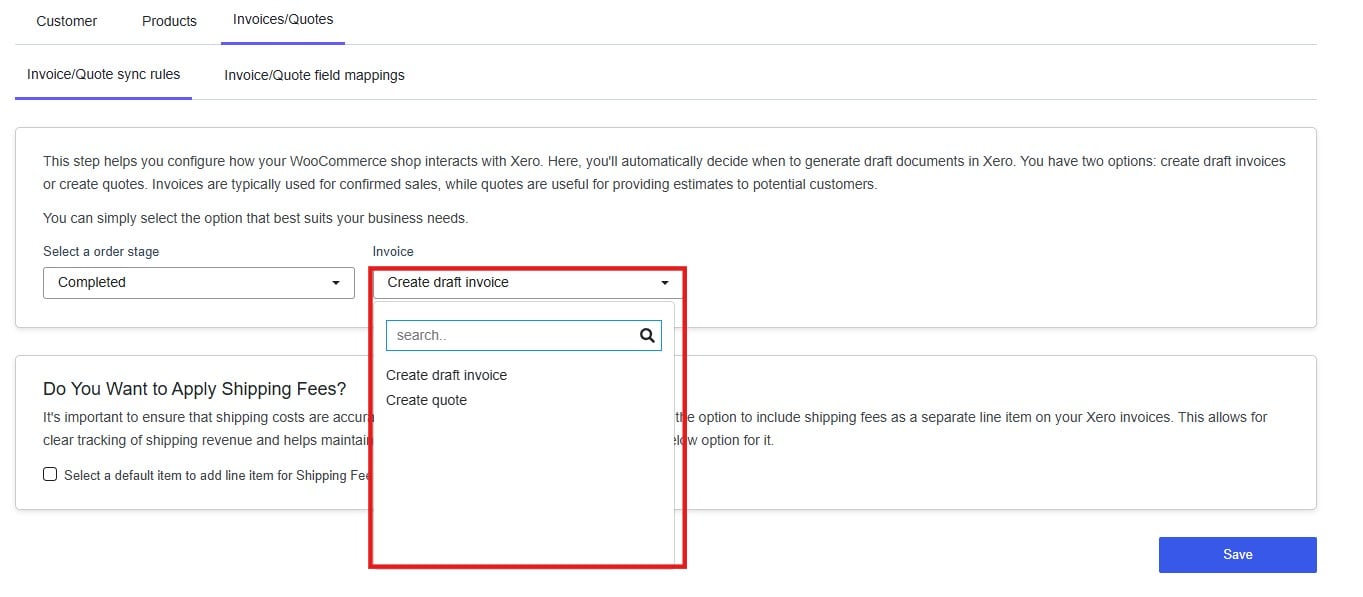 Choose whether the integration creates a **draft invoice** or a **quote** in Xero.
* **Draft invoice** — Use for confirmed sales. A draft invoice records the transaction as a receivable in Xero and can be approved and sent to the customer directly from Xero.
* **Quote** — Use when an order is not yet confirmed or when you need to send an estimate before committing to the sale.
Most WooCommerce stores should use **Create draft invoice**. Quotes are more relevant if you use WooCommerce to collect enquiries or provisional orders.
### Shipping Fees
Choose whether the integration creates a **draft invoice** or a **quote** in Xero.
* **Draft invoice** — Use for confirmed sales. A draft invoice records the transaction as a receivable in Xero and can be approved and sent to the customer directly from Xero.
* **Quote** — Use when an order is not yet confirmed or when you need to send an estimate before committing to the sale.
Most WooCommerce stores should use **Create draft invoice**. Quotes are more relevant if you use WooCommerce to collect enquiries or provisional orders.
### Shipping Fees
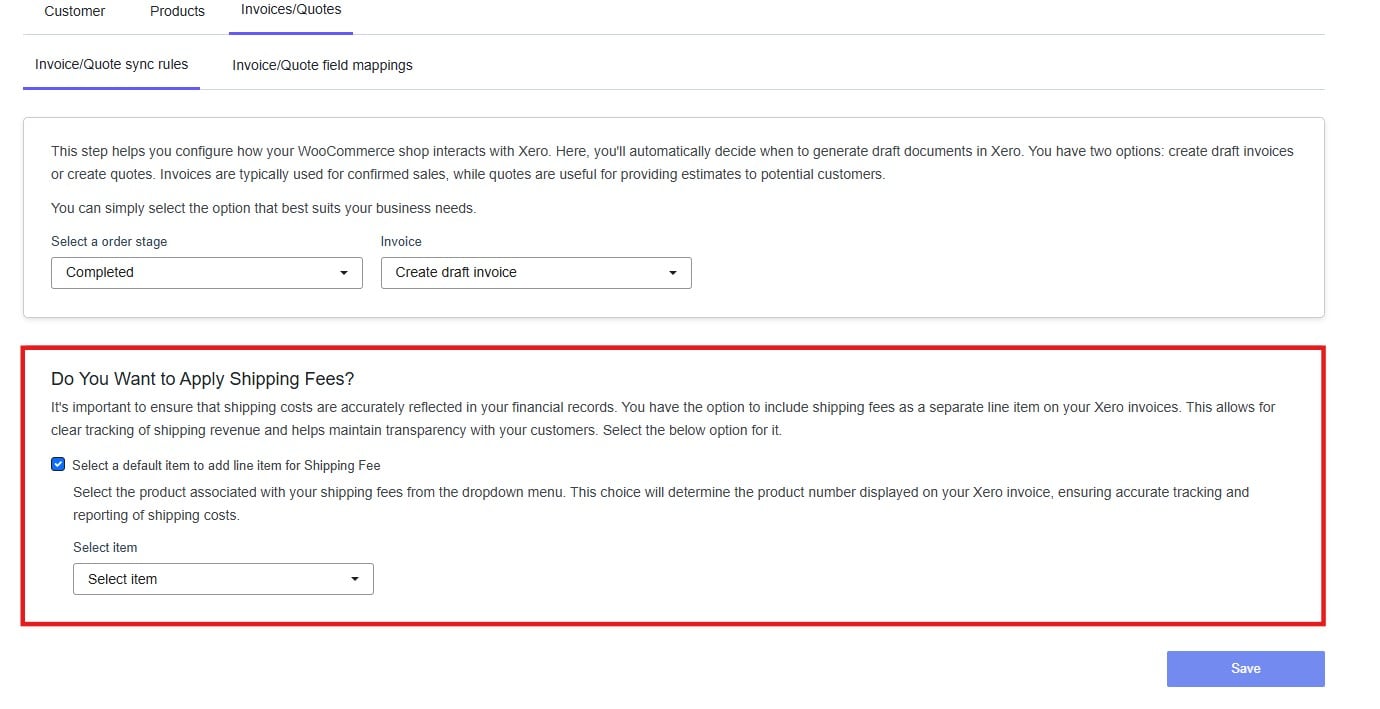 By default, shipping costs are not included as a separate line item on Xero invoices. Enabling this option adds shipping as a distinct line item, linked to a specific Xero product.
To enable it:
1. Check **Select a default item to add line item for Shipping Fee**.
2. A product dropdown will appear. Select the Xero item that represents your shipping charge.
Click **Save** before continuing.
***
## Invoice / Quote Field Mappings
By default, shipping costs are not included as a separate line item on Xero invoices. Enabling this option adds shipping as a distinct line item, linked to a specific Xero product.
To enable it:
1. Check **Select a default item to add line item for Shipping Fee**.
2. A product dropdown will appear. Select the Xero item that represents your shipping charge.
Click **Save** before continuing.
***
## Invoice / Quote Field Mappings
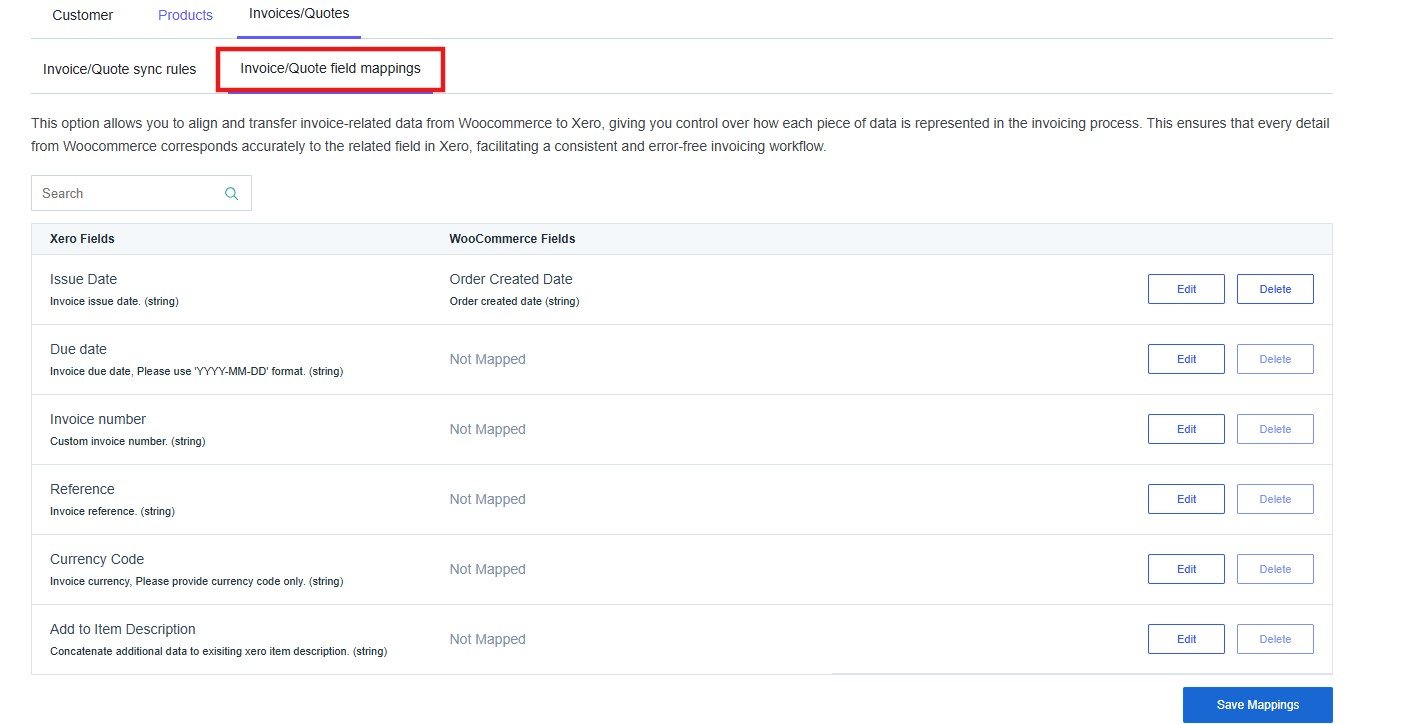 This tab controls which WooCommerce order fields are transferred to Xero invoice fields. These mappings populate the header-level details of the invoice — the dates, reference numbers, and currency — rather than the line items.
**Why this matters:** Accurate invoice metadata makes reconciliation easier. Mapping the invoice number or order reference means you can cross-reference Xero invoices back to WooCommerce orders without manual searching.
| Xero Field | WooCommerce Field | Notes |
| ----------------------- | ------------------ | ---------------------------------------------------------------------------- |
| Issue Date | Order Created Date | Pre-mapped — uses the date the order was placed |
| Due Date | Not Mapped | Must use YYYY-MM-DD format if mapped |
| Invoice Number | Not Mapped | Map this to keep Xero invoice numbers in sync with WooCommerce order numbers |
| Reference | Not Mapped | Useful for adding an internal order reference to the Xero invoice |
| Currency Code | Not Mapped | Provide the currency code only (e.g. USD, GBP, AUD) |
| Add to Item Description | Not Mapped | Appends additional WooCommerce data to the Xero line item description |
To update a mapping, click **Edit** next to the relevant Xero field and select the corresponding WooCommerce field. Fields showing **Not Mapped** will not be populated in Xero unless a mapping is added.
Click **Save Mappings** when finished.
This tab controls which WooCommerce order fields are transferred to Xero invoice fields. These mappings populate the header-level details of the invoice — the dates, reference numbers, and currency — rather than the line items.
**Why this matters:** Accurate invoice metadata makes reconciliation easier. Mapping the invoice number or order reference means you can cross-reference Xero invoices back to WooCommerce orders without manual searching.
| Xero Field | WooCommerce Field | Notes |
| ----------------------- | ------------------ | ---------------------------------------------------------------------------- |
| Issue Date | Order Created Date | Pre-mapped — uses the date the order was placed |
| Due Date | Not Mapped | Must use YYYY-MM-DD format if mapped |
| Invoice Number | Not Mapped | Map this to keep Xero invoice numbers in sync with WooCommerce order numbers |
| Reference | Not Mapped | Useful for adding an internal order reference to the Xero invoice |
| Currency Code | Not Mapped | Provide the currency code only (e.g. USD, GBP, AUD) |
| Add to Item Description | Not Mapped | Appends additional WooCommerce data to the Xero line item description |
To update a mapping, click **Edit** next to the relevant Xero field and select the corresponding WooCommerce field. Fields showing **Not Mapped** will not be populated in Xero unless a mapping is added.
Click **Save Mappings** when finished.