> ## Documentation Index
> Fetch the complete documentation index at: https://docs.cloudify.biz/llms.txt
> Use this file to discover all available pages before exploring further.
# Products
> Configure how WooCommerce products are matched and mapped to items in Xero.
The Products section has two tabs: **Product Sync Rules** and **Product Field Mappings**. Work through each tab and click **Save** before moving to the next.
***
## Product Sync Rules
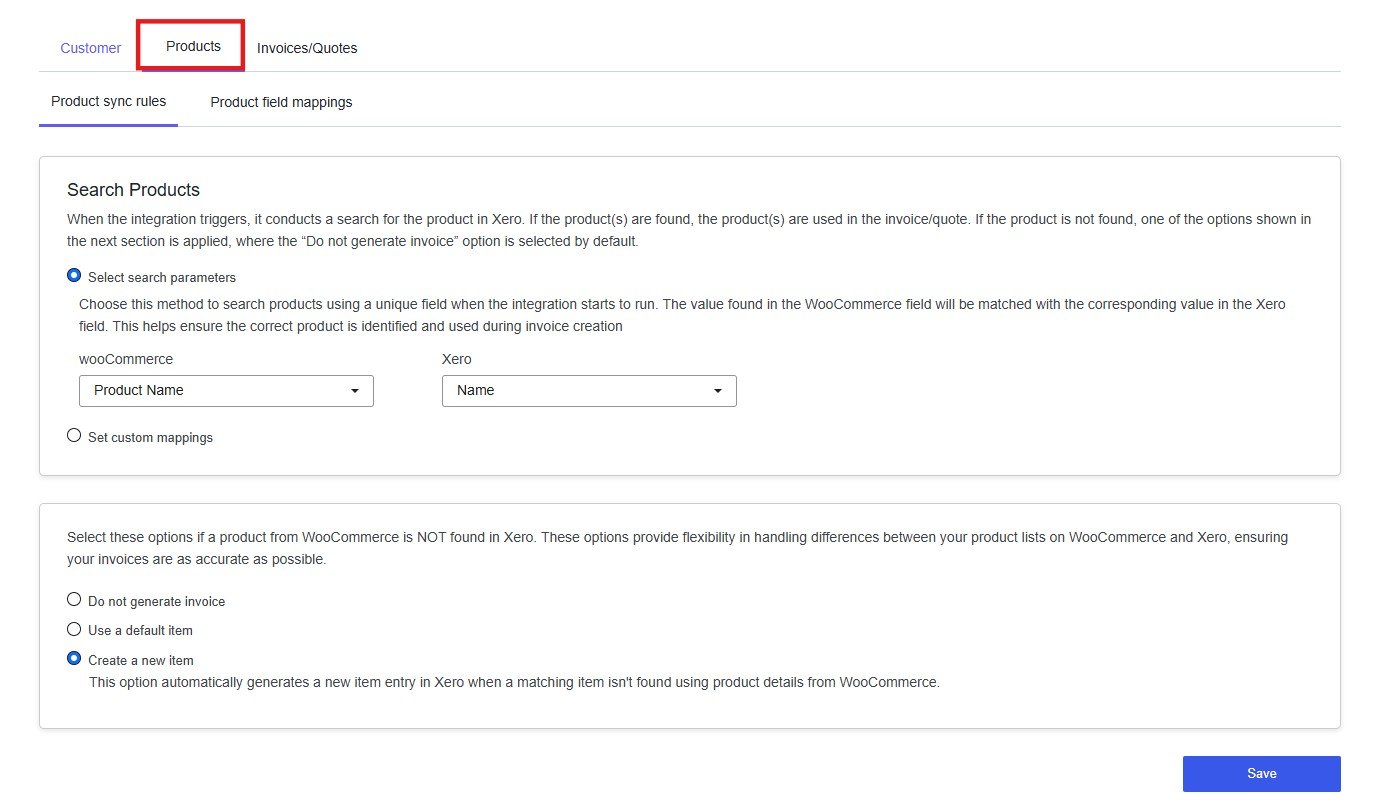 When an order syncs from WooCommerce, the integration searches Xero for a matching product to build the invoice line items correctly. This tab controls how that search works and what happens when a product cannot be found.
### Select Search Parameters
This method automatically searches Xero for a product by comparing a WooCommerce field against a Xero field each time an order syncs. No manual work is required after the initial setup.
This is the right choice for most stores. Matching by SKU to Product Code is the most reliable approach — SKUs are unique identifiers and rarely change. Matching by Product Name is less reliable because names can vary in formatting between platforms.
### Set Custom Mappings
When an order syncs from WooCommerce, the integration searches Xero for a matching product to build the invoice line items correctly. This tab controls how that search works and what happens when a product cannot be found.
### Select Search Parameters
This method automatically searches Xero for a product by comparing a WooCommerce field against a Xero field each time an order syncs. No manual work is required after the initial setup.
This is the right choice for most stores. Matching by SKU to Product Code is the most reliable approach — SKUs are unique identifiers and rarely change. Matching by Product Name is less reliable because names can vary in formatting between platforms.
### Set Custom Mappings
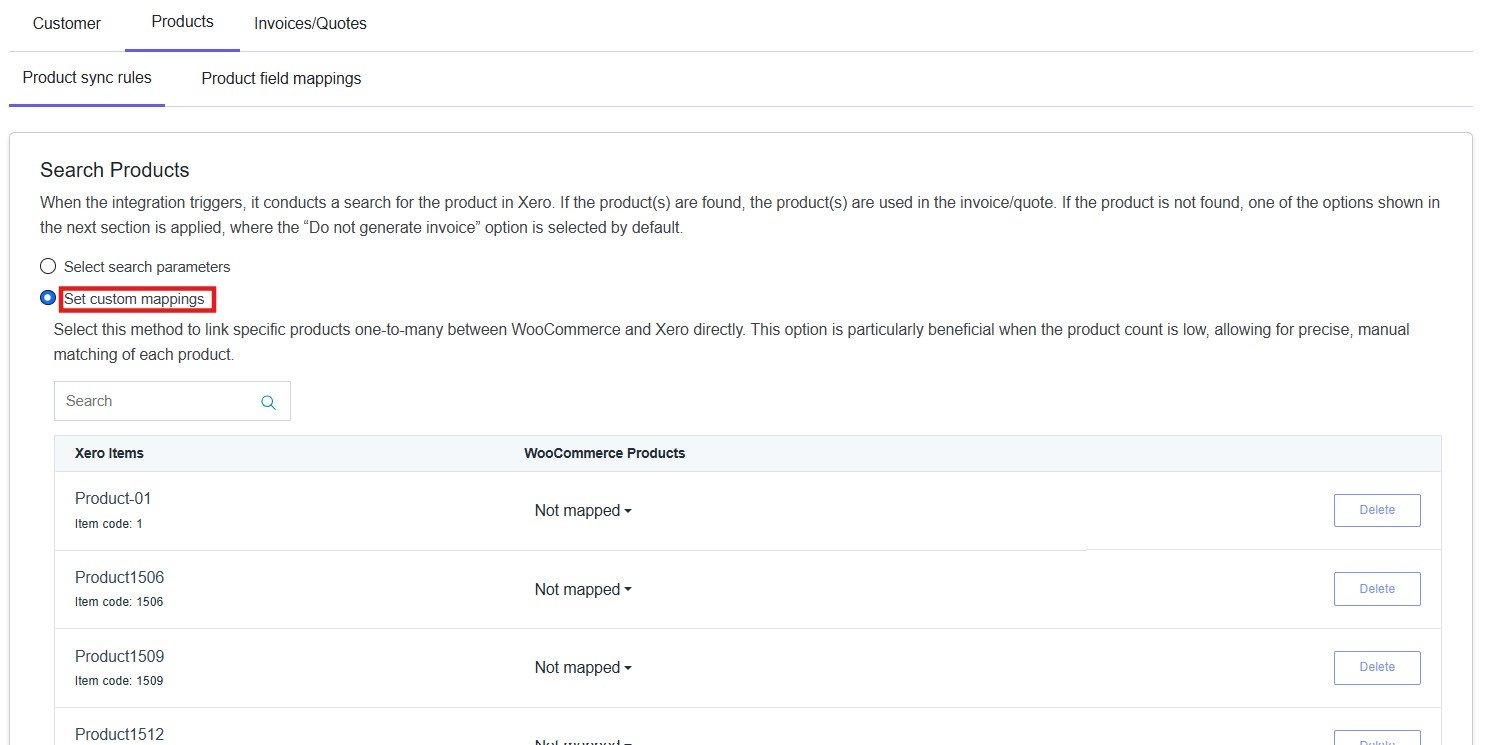 This method lets you manually link each WooCommerce product to a specific Xero item, one by one. It is best suited to stores with a small, stable product catalogue where you want complete control over which Xero item is used for each WooCommerce product.
You can only use one search method at a time. Switching methods will replace your previous configuration.
### If a Product Is Not Found in Xero
This setting determines what happens when no matching product can be found in Xero. Configure this deliberately — the wrong default can result in missing invoices or unwanted products being created in your Xero account.
This method lets you manually link each WooCommerce product to a specific Xero item, one by one. It is best suited to stores with a small, stable product catalogue where you want complete control over which Xero item is used for each WooCommerce product.
You can only use one search method at a time. Switching methods will replace your previous configuration.
### If a Product Is Not Found in Xero
This setting determines what happens when no matching product can be found in Xero. Configure this deliberately — the wrong default can result in missing invoices or unwanted products being created in your Xero account.
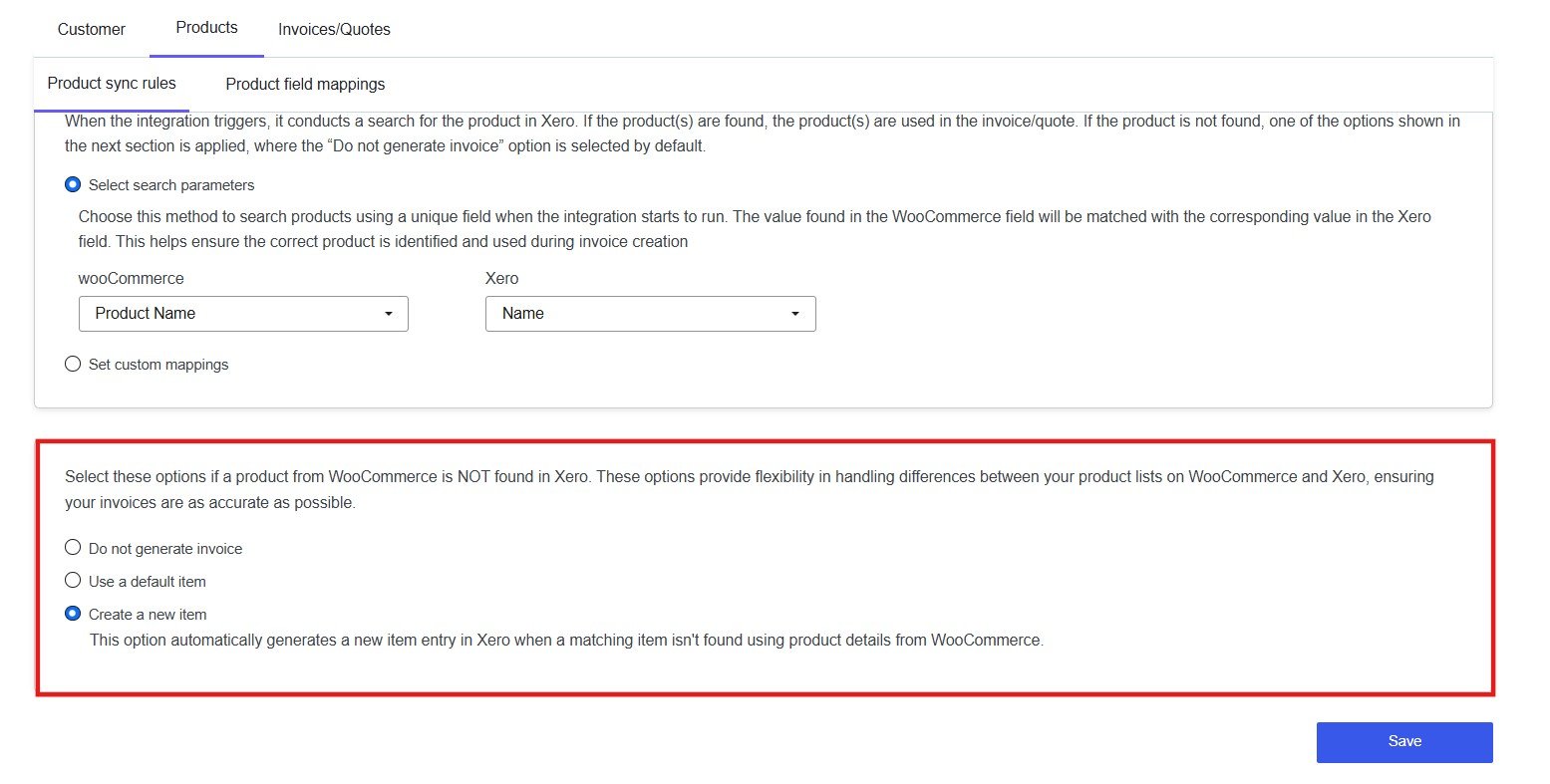 | Option | What happens | When to use it |
| ----------------------- | ---------------------------------------------------------------------- | ------------------------------------------------------------------------------------- |
| Do not generate invoice | The invoice is skipped entirely | When every product must exist in Xero before invoicing |
| Use a default item | A fallback Xero item is used in place of the missing product | When you want invoices to always generate but can review line items later |
| Create a new item | A new Xero item is created automatically from WooCommerce product data | When your WooCommerce catalogue is the source of truth and you want Xero to mirror it |
**Create a new item** is the most hands-off option, but it can produce duplicate or unnecessary items in Xero if product names vary slightly between orders. Review your Xero item list periodically if you use this option.
Click **Save** before continuing.
***
## Product Field Mappings
| Option | What happens | When to use it |
| ----------------------- | ---------------------------------------------------------------------- | ------------------------------------------------------------------------------------- |
| Do not generate invoice | The invoice is skipped entirely | When every product must exist in Xero before invoicing |
| Use a default item | A fallback Xero item is used in place of the missing product | When you want invoices to always generate but can review line items later |
| Create a new item | A new Xero item is created automatically from WooCommerce product data | When your WooCommerce catalogue is the source of truth and you want Xero to mirror it |
**Create a new item** is the most hands-off option, but it can produce duplicate or unnecessary items in Xero if product names vary slightly between orders. Review your Xero item list periodically if you use this option.
Click **Save** before continuing.
***
## Product Field Mappings
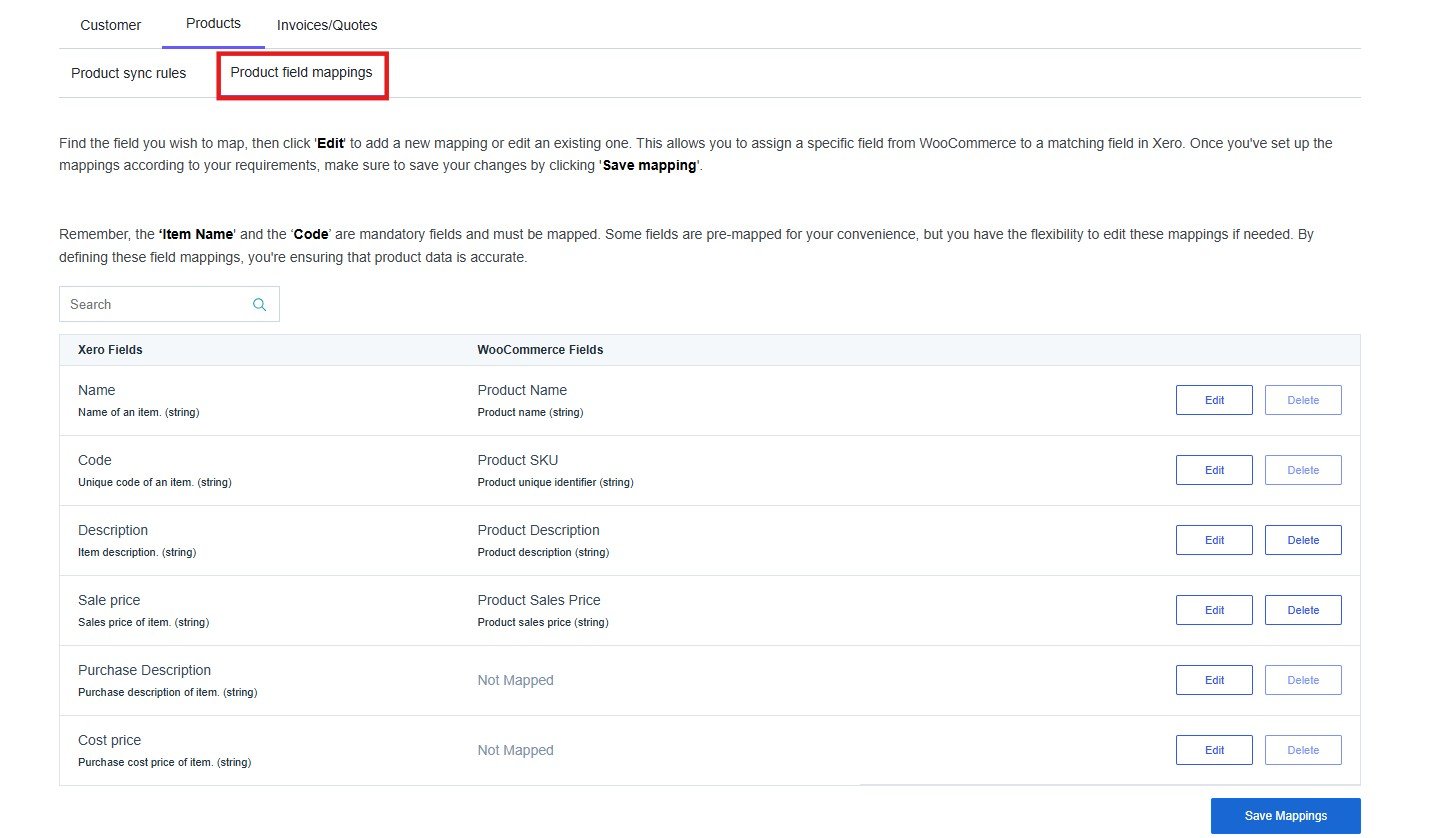 This tab controls which WooCommerce product fields are transferred to Xero when a new item is created. Each row maps one Xero item field to a WooCommerce product field.
**Why this matters:** When the integration creates a new product in Xero, it uses these mappings to populate the item record. Incomplete or incorrect mappings result in Xero items with missing names, codes, or prices — which creates reconciliation issues and makes your Xero item list harder to manage.
The default mappings are:
| Xero Field | WooCommerce Field | Notes |
| -------------------- | ------------------- | ------------------------- |
| Name | Product Name | Pre-mapped — required |
| Code | Product SKU | Pre-mapped — required |
| Description | Product Description | Pre-mapped |
| Sale price | Product Sales Price | Pre-mapped |
| Purchase Description | Not Mapped | Internal purchase notes |
| Cost price | Not Mapped | Purchase cost of the item |
**Item Name** and **Code** are mandatory fields and must be mapped. Without them, Xero cannot create a valid item record.
To update a mapping, click **Edit** next to the relevant Xero field and select the corresponding WooCommerce field. Fields showing **Not Mapped** will not be populated in Xero unless a mapping is added.
Click **Save Mappings** when finished.
This tab controls which WooCommerce product fields are transferred to Xero when a new item is created. Each row maps one Xero item field to a WooCommerce product field.
**Why this matters:** When the integration creates a new product in Xero, it uses these mappings to populate the item record. Incomplete or incorrect mappings result in Xero items with missing names, codes, or prices — which creates reconciliation issues and makes your Xero item list harder to manage.
The default mappings are:
| Xero Field | WooCommerce Field | Notes |
| -------------------- | ------------------- | ------------------------- |
| Name | Product Name | Pre-mapped — required |
| Code | Product SKU | Pre-mapped — required |
| Description | Product Description | Pre-mapped |
| Sale price | Product Sales Price | Pre-mapped |
| Purchase Description | Not Mapped | Internal purchase notes |
| Cost price | Not Mapped | Purchase cost of the item |
**Item Name** and **Code** are mandatory fields and must be mapped. Without them, Xero cannot create a valid item record.
To update a mapping, click **Edit** next to the relevant Xero field and select the corresponding WooCommerce field. Fields showing **Not Mapped** will not be populated in Xero unless a mapping is added.
Click **Save Mappings** when finished.