> ## Documentation Index
> Fetch the complete documentation index at: https://docs.cloudify.biz/llms.txt
> Use this file to discover all available pages before exploring further.
# Invoice / Quote Creation Rules
> Configure when and how WooCommerce orders are converted into Xero invoices or quotes.
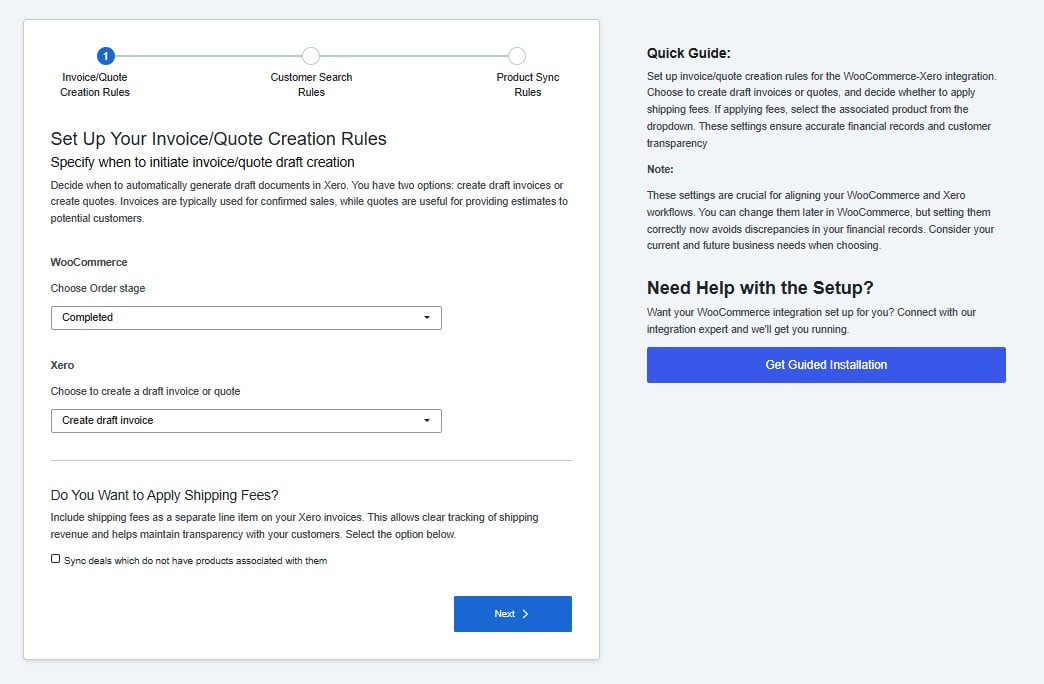
This step controls when the integration creates a document in Xero and what type of document it creates. These are the most important settings in the setup — they determine how your WooCommerce sales appear in your Xero account.
 ## Order Stage
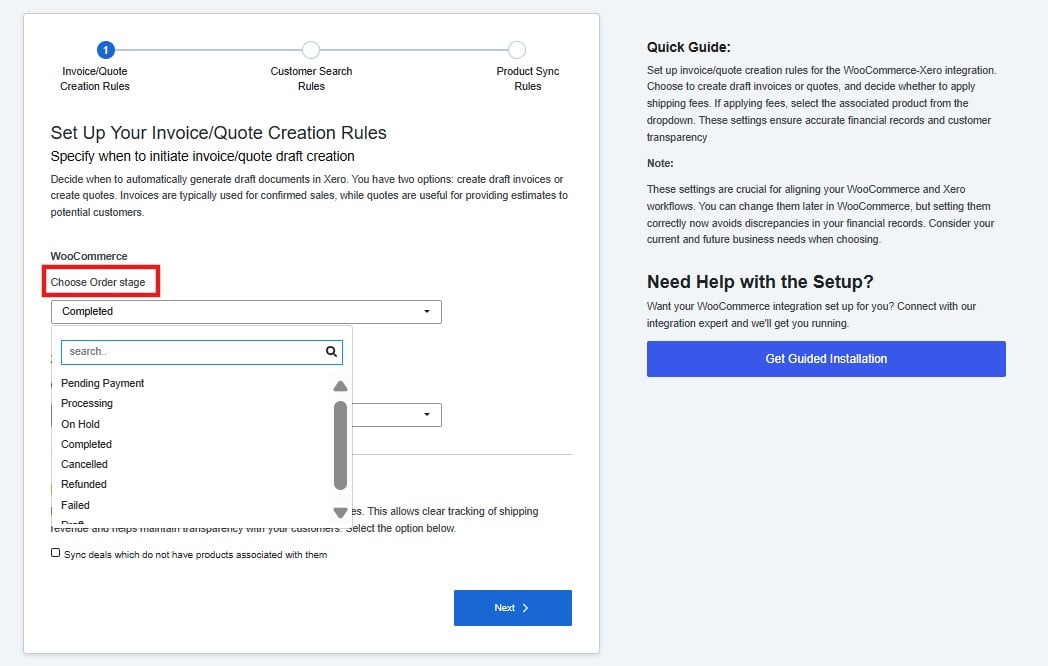 The order stage is the trigger. When a WooCommerce order reaches the status you select here, the integration automatically creates a document in Xero.
**Completed** is the recommended default for most stores. It ensures a document is only created once the order has been fully fulfilled — keeping your Xero records clean and avoiding invoices for orders that might still be cancelled or refunded.
If your business needs to record revenue earlier — for example, at the point of payment — you can select **Processing** instead.
## Document Type
Choose whether the integration creates a **draft invoice** or a **quote** in Xero.
The order stage is the trigger. When a WooCommerce order reaches the status you select here, the integration automatically creates a document in Xero.
**Completed** is the recommended default for most stores. It ensures a document is only created once the order has been fully fulfilled — keeping your Xero records clean and avoiding invoices for orders that might still be cancelled or refunded.
If your business needs to record revenue earlier — for example, at the point of payment — you can select **Processing** instead.
## Document Type
Choose whether the integration creates a **draft invoice** or a **quote** in Xero.
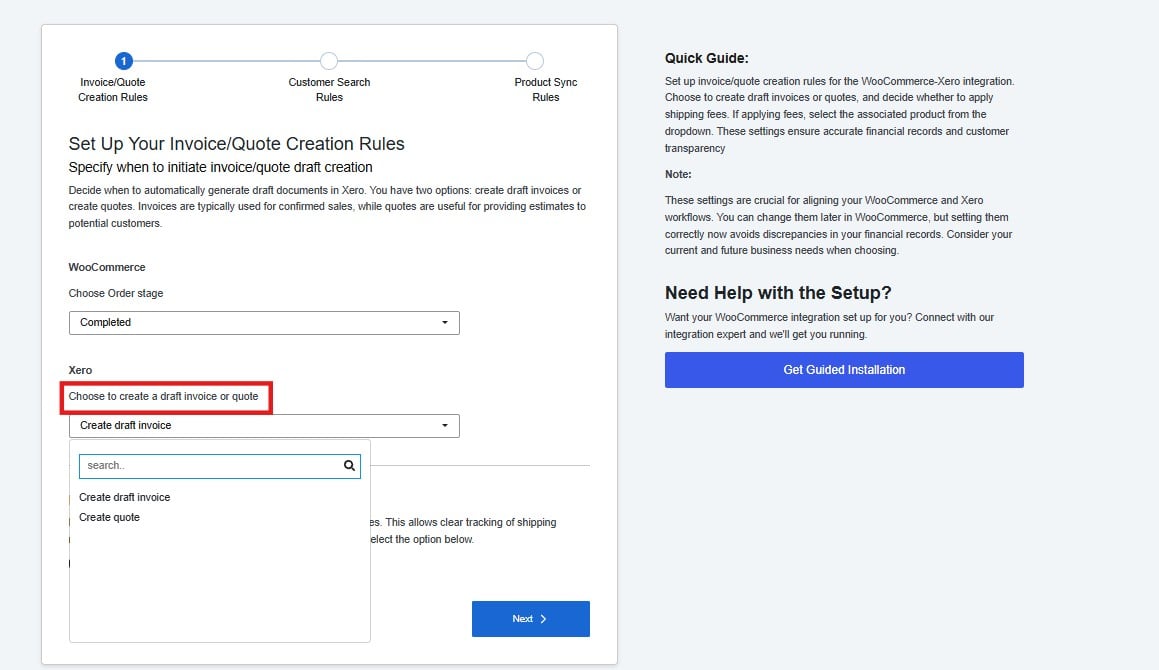 * **Draft invoice** — The right choice for most stores. It records the sale as a receivable in Xero, which you can approve and send to your customer directly from Xero.
* **Quote** — Use this if your WooCommerce orders represent estimates or pending sales that haven't been confirmed yet.
## Shipping Fees
If you charge shipping on your orders, you can include it as a separate line item on your Xero invoices.
* **Draft invoice** — The right choice for most stores. It records the sale as a receivable in Xero, which you can approve and send to your customer directly from Xero.
* **Quote** — Use this if your WooCommerce orders represent estimates or pending sales that haven't been confirmed yet.
## Shipping Fees
If you charge shipping on your orders, you can include it as a separate line item on your Xero invoices.
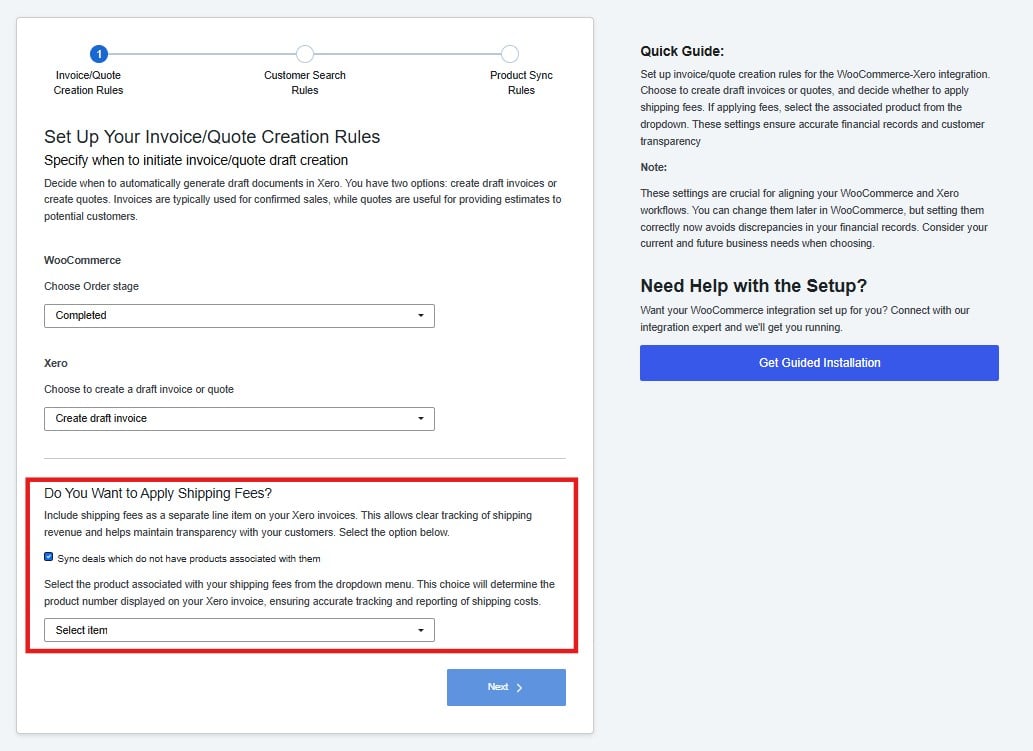 If you leave this disabled, shipping costs will not appear as a line item in Xero.
Click **Next** to continue.
If you leave this disabled, shipping costs will not appear as a line item in Xero.
Click **Next** to continue.