> ## Documentation Index
> Fetch the complete documentation index at: https://docs.cloudify.biz/llms.txt
> Use this file to discover all available pages before exploring further.
# Workflows
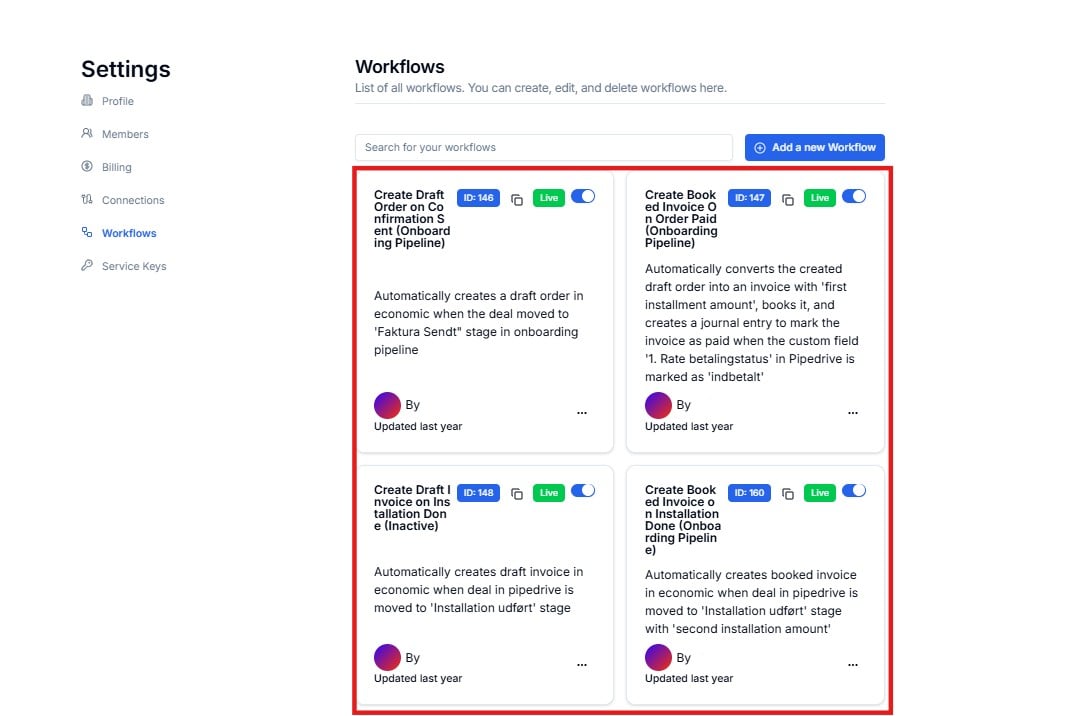
> View all integration workflows built for your account — check deployment status, review descriptions, and manage workflows directly from the dashboard.
 ***
## Reading a Workflow Card
***
## Reading a Workflow Card
 | Element | What It Shows |
| --------------- | ---------------------------------------------------------------------- |
| **Name** | The workflow name — e.g. `HubSpot Closed Won → Xero Invoice` |
| **ID** | The unique internal ID — e.g. `ID: 1496`. Use this in support requests |
| **Dev / Live** | Deployment status — see below |
| **AI badge** | Shown when the workflow uses AI-assisted logic |
| **Toggle** | Shows whether the workflow is enabled (blue) or paused (grey) |
| **Description** | A plain-English summary of what the workflow does and when it triggers |
| **By** | The Cloudify team member who built or last edited this workflow |
| **Updated** | When the workflow was last modified |
***
## Deployment Status — Dev vs Live
Every workflow has a coloured status badge in the top-right of its card.
The workflow is active and processing real data. Events from your connected apps will trigger this workflow automatically.
The workflow is in development or testing mode. It is not processing live data yet. Cloudify will move it to **Live** once it has been tested and approved.
You do not need to change workflow status yourself. The Cloudify team manages the promotion from Dev to Live as part of your integration delivery.
***
## The Three-Dot Menu
Click the **⋯** menu on any workflow card to access management options.
| Element | What It Shows |
| --------------- | ---------------------------------------------------------------------- |
| **Name** | The workflow name — e.g. `HubSpot Closed Won → Xero Invoice` |
| **ID** | The unique internal ID — e.g. `ID: 1496`. Use this in support requests |
| **Dev / Live** | Deployment status — see below |
| **AI badge** | Shown when the workflow uses AI-assisted logic |
| **Toggle** | Shows whether the workflow is enabled (blue) or paused (grey) |
| **Description** | A plain-English summary of what the workflow does and when it triggers |
| **By** | The Cloudify team member who built or last edited this workflow |
| **Updated** | When the workflow was last modified |
***
## Deployment Status — Dev vs Live
Every workflow has a coloured status badge in the top-right of its card.
The workflow is active and processing real data. Events from your connected apps will trigger this workflow automatically.
The workflow is in development or testing mode. It is not processing live data yet. Cloudify will move it to **Live** once it has been tested and approved.
You do not need to change workflow status yourself. The Cloudify team manages the promotion from Dev to Live as part of your integration delivery.
***
## The Three-Dot Menu
Click the **⋯** menu on any workflow card to access management options.
 Activates a paused workflow so it begins processing events again.
Opens a read-only view of the full workflow configuration.
Opens the workflow editor. Contact Cloudify before making any edits — changes to live workflows affect real data.
Shows the webhook URL used to trigger this workflow. See below for details.
Permanently removes the workflow. This cannot be undone.
**Do not delete or edit a Live workflow without consulting Cloudify first.** Changes to live workflows immediately affect your running integrations and may cause data errors.
***
## Viewing Trigger URLs
Selecting **Triggers** from the ⋯ menu opens a modal showing the webhook endpoint for that workflow.
Activates a paused workflow so it begins processing events again.
Opens a read-only view of the full workflow configuration.
Opens the workflow editor. Contact Cloudify before making any edits — changes to live workflows affect real data.
Shows the webhook URL used to trigger this workflow. See below for details.
Permanently removes the workflow. This cannot be undone.
**Do not delete or edit a Live workflow without consulting Cloudify first.** Changes to live workflows immediately affect your running integrations and may cause data errors.
***
## Viewing Trigger URLs
Selecting **Triggers** from the ⋯ menu opens a modal showing the webhook endpoint for that workflow.
 | Element | What It Shows |
| --------------- | ------------------------------------------------------------------------ |
| **Environment** | `Dev` or `Live` — matches the workflow's current deployment status |
| **Webhook URL** | The endpoint Lighthouse listens on for incoming events for this workflow |
| **Copy icon** | Click to copy the URL to your clipboard |
| **Toggle** | Enables or disables this specific trigger endpoint |
Trigger URLs are managed by Cloudify and pre-configured as part of your integration setup. You typically only need to view this if you are troubleshooting a webhook connection with your source system.
***
## Requesting a New Workflow
Click **Request new Workflow** in the top-right corner to submit a request to the Cloudify team.
When requesting a new workflow, include as much detail as possible about the trigger condition, the source app, the destination app, and the expected outcome. The more context you provide, the faster Cloudify can scope and build it.
***
## Searching Workflows
Use the **Search for your workflows** field to find a workflow by name — useful when you have a large number of integrations deployed.
***
## Frequently Asked Questions
**Dev** workflows are in development or testing — they do not process real data. **Live** workflows are active and handling real events from your connected apps. Cloudify promotes workflows from Dev to Live after testing and sign-off.
A grey toggle means the workflow is paused. It will not process any events until re-enabled. If you did not intentionally pause it, contact Cloudify to investigate.
The AI badge indicates the workflow uses AI-assisted logic — for example, intelligent data mapping or conditional routing. These workflows are built and managed by Cloudify.
You can access the editor via ⋯ → Edit, but we strongly recommend contacting Cloudify before making any changes to a Live workflow. Incorrect edits can break running integrations and cause data issues in your connected apps.
A trigger URL is a webhook endpoint that your source system uses to notify Lighthouse when an event occurs. These are pre-configured by Cloudify — you only need to view them if you are troubleshooting why a workflow isn't firing.
***
| Element | What It Shows |
| --------------- | ------------------------------------------------------------------------ |
| **Environment** | `Dev` or `Live` — matches the workflow's current deployment status |
| **Webhook URL** | The endpoint Lighthouse listens on for incoming events for this workflow |
| **Copy icon** | Click to copy the URL to your clipboard |
| **Toggle** | Enables or disables this specific trigger endpoint |
Trigger URLs are managed by Cloudify and pre-configured as part of your integration setup. You typically only need to view this if you are troubleshooting a webhook connection with your source system.
***
## Requesting a New Workflow
Click **Request new Workflow** in the top-right corner to submit a request to the Cloudify team.
When requesting a new workflow, include as much detail as possible about the trigger condition, the source app, the destination app, and the expected outcome. The more context you provide, the faster Cloudify can scope and build it.
***
## Searching Workflows
Use the **Search for your workflows** field to find a workflow by name — useful when you have a large number of integrations deployed.
***
## Frequently Asked Questions
**Dev** workflows are in development or testing — they do not process real data. **Live** workflows are active and handling real events from your connected apps. Cloudify promotes workflows from Dev to Live after testing and sign-off.
A grey toggle means the workflow is paused. It will not process any events until re-enabled. If you did not intentionally pause it, contact Cloudify to investigate.
The AI badge indicates the workflow uses AI-assisted logic — for example, intelligent data mapping or conditional routing. These workflows are built and managed by Cloudify.
You can access the editor via ⋯ → Edit, but we strongly recommend contacting Cloudify before making any changes to a Live workflow. Incorrect edits can break running integrations and cause data issues in your connected apps.
A trigger URL is a webhook endpoint that your source system uses to notify Lighthouse when an event occurs. These are pre-configured by Cloudify — you only need to view them if you are troubleshooting why a workflow isn't firing.
***